
Monitors
Find the best monitors for work, gaming, and everyday use, from budget friendly displays to ultrawide and high refresh rate screens. Our curated selection highlights top rated options for color accuracy, sharpness, and comfortable viewing.
We review panel quality, resolution, connectivity, and ergonomics to help you make the right choice. Compare options and upgrade your setup with a monitor that fits your needs.

Best Calibrated Monitors Made Simple: A Clear Buying Guide for 2026
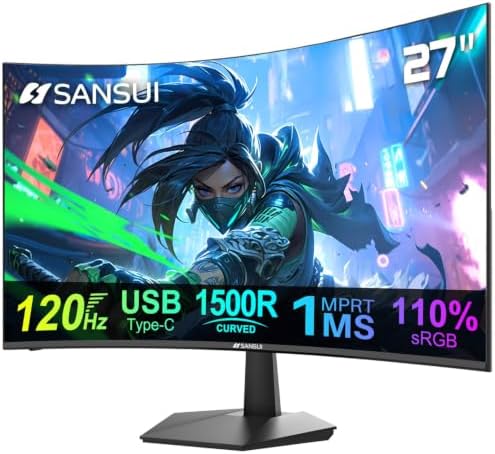
Best Business Monitors for Every Need: How to Pick the Right One in 2026

Best Business Monitors Under 200 in 2026: Matching the Right Screen to Your Routine

Best Business Computer Monitors for 2026: What Your Money Really Gets You

Best 4K Monitor for Security Cameras: Budget, Midrange, and Premium Picks for 2026
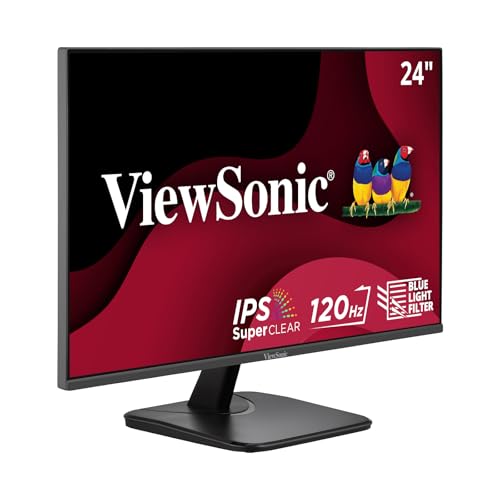
Best 24 Inch Monitors for Home Office: Types Compared and How to Choose for 2026
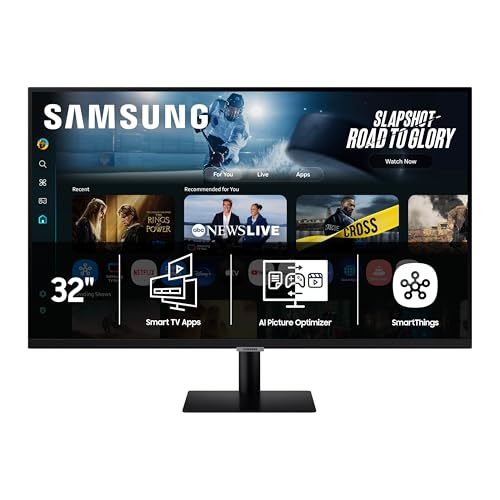
Best Bluetooth Monitors: Types Compared and How to Choose for 2026

Best Black Friday Gaming Monitors: A Clear Buying Guide for 2026

Best Big Computer Monitors: Types Compared and How to Choose for 2026

Best Bezel Less Monitors in 2026: What Actually Matters Before You Buy

Best AOC Monitors: Types Compared and How to Choose for 2026

Best 4K Monitors with G Sync at Every Price: What Your Money Really Gets You for 2026
Pick the Right Size and Resolution
Size and resolution work together. A screen that is too large for its resolution looks soft, while a sharp screen that is too small makes text tiny. These pairings are a reliable starting point:
- 24 inches at 1080p: a budget friendly, desk friendly size for office work and esports. Our 24 inch monitor guide covers the strongest options.
- 27 inches at 1440p: a popular balance of sharpness, workspace, and gaming performance.
- 27 to 32 inches at 4K: excellent for photo editing, spreadsheets, and media. See the 4K monitor guide for detail.
- 34 inch ultrawide: great for multitasking and immersive games, but it needs a deep desk.
Panel Types and Refresh Rates
IPS, VA, and OLED
IPS panels offer accurate color and wide viewing angles, which makes them a safe all round pick. VA panels deliver deeper blacks and higher contrast, suiting movies and dark games, though some show smearing in fast motion. OLED monitors provide near perfect contrast and very fast response, but they cost more and work best with varied content to reduce burn in risk.
Refresh Rate
Standard office monitors run at 60Hz to 75Hz. Gamers benefit from 144Hz or higher, and competitive players often move to the faster screens covered in our 240Hz monitor guide. Make sure your graphics card can actually push those frame rates, and look for adaptive sync (FreeSync or G-Sync compatible) to reduce tearing.
Connectivity and Ergonomics
Check that the monitor has the inputs your devices use. DisplayPort is common on PCs, HDMI on consoles, and a single USB-C cable with power delivery can charge and connect a laptop at the same time. A stand with height, tilt, and swivel adjustment is worth a lot over a long workday, and VESA mounting holes let you add an arm later.
Mistakes to Avoid
Do not judge HDR by the label alone: entry level HDR badges often add little real benefit. Avoid buying a 4K screen for a computer that cannot drive it smoothly in games, and measure your desk depth before ordering a large or curved model.
Monitors FAQ
Is 1440p worth it over 1080p?
For screens around 27 inches, yes. 1440p looks noticeably sharper and gives you more workspace, while still being easier for a graphics card to drive than 4K.
Do I need a high refresh rate monitor for office work?
Not strictly, but 100Hz to 144Hz makes scrolling and cursor movement feel smoother. Many affordable monitors now include higher refresh rates, so it is a nice bonus rather than a requirement.
What does a good monitor cost?
Solid 24 inch 1080p monitors often sell for around $100 to $200. Good 27 inch 1440p gaming models typically range from $200 to $400, while 4K, ultrawide, and OLED monitors usually cost more.
Is OLED burn in a real concern on monitors?
It can happen when static elements like taskbars stay on screen for many hours. Modern OLED monitors include protective features, and varying your content, using dark mode, and hiding static elements reduces the risk.
Can I connect a laptop to a monitor with one cable?
Yes, if both support USB-C with DisplayPort Alt Mode or Thunderbolt. A monitor with USB-C power delivery can also charge the laptop through that same cable.