Best Big Computer Monitors: Types Compared and How to Choose for 2026
Disclosure: We may earn a commission when you buy through links on this page, at no extra cost to you. As an Amazon Associate I earn from qualifying purchases. Learn more

Compare the best big computer monitors by type, panel, size, and ports, with clear pros, cons, and price guidance to help you choose the right fit.
Big screens promise more room to work and play, yet the choices quickly blur together. Ultrawide panels, tall large format screens, fast gaming displays, and lower cost models all claim the same desk space. This guide sorts the best big computer monitors by type first, so you can match a screen shape and panel to the way you actually sit and work.
Instead of chasing spec lists, you will learn what each type does well, where it falls short, and what it usually costs. Start with the product table above, then read the type breakdowns and sizing advice.




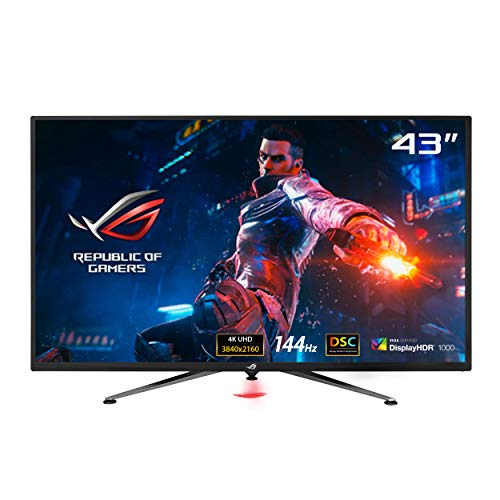

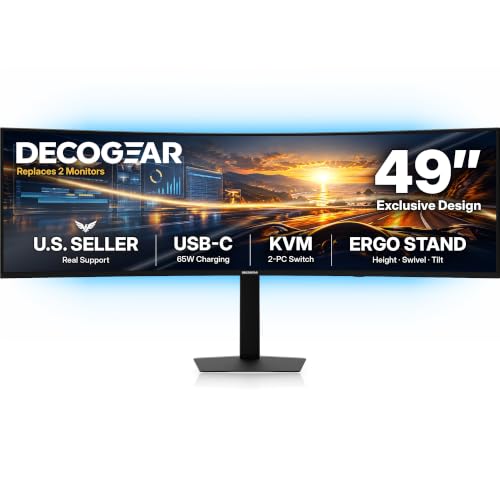
Types of Big Computer Monitors Compared
Big monitors fall into four types, and the type matters more than any single spec. A wide curved panel and a tall 32 inch screen can share a price yet suit completely different desks. Think about your daily mix of documents, media, and games first.
Productivity and Ultrawide Displays
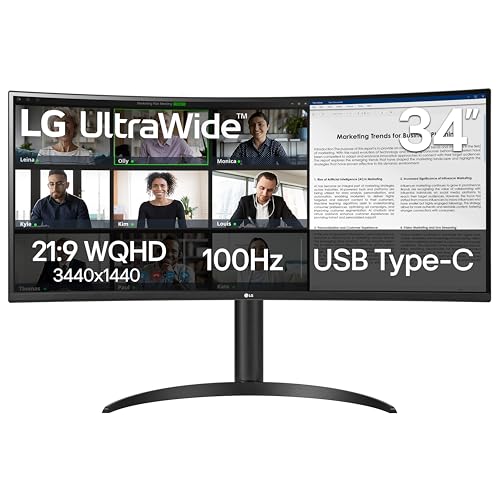
Ultrawide monitors stretch the picture sideways, most often in a 21:9 shape at 34 inches or a 32:9 shape at 49 inches. That extra width lets you place two or three windows side by side without a bezel gap in the middle. Spreadsheets gain visible columns, video timelines stretch out, and code editors show more lines across.
The trade offs are real, though. A wide curved screen eats desk depth, some older apps leave empty space at the edges, and screen sharing in a meeting can shrink your shared window for everyone else. Prices commonly run about $400 to $900 for 34 inch models. Choose this type if your day is built around several open windows at once.
Large Screen Options
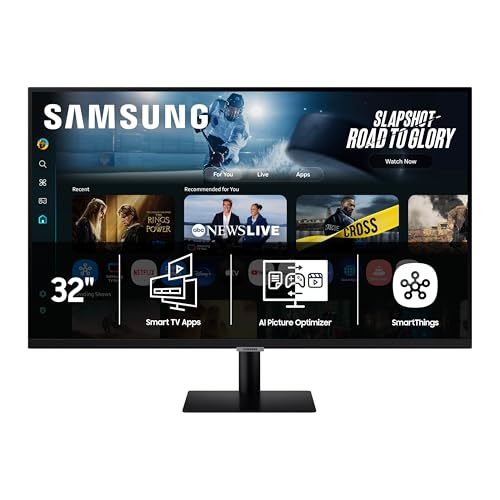
Large screen options keep the familiar 16:9 shape and simply scale it up, usually to 32, 40, or 43 inches. Text, photos, and video all look the way you expect, only bigger, and console or streaming content fills the screen without black bars at the sides. This shape also works well when one screen doubles for desk work by day and viewing from a few feet away in the evening.
The main caution is distance. Sit too close to a 43 inch screen and you will turn your head constantly and hunt for the corners. These models also tend to be heavy, so check the stand footprint and desk depth. If you want the broader view of this category, see our guide to the best big monitors for more large format context. Expect to pay about $300 to $800.
Gaming Displays
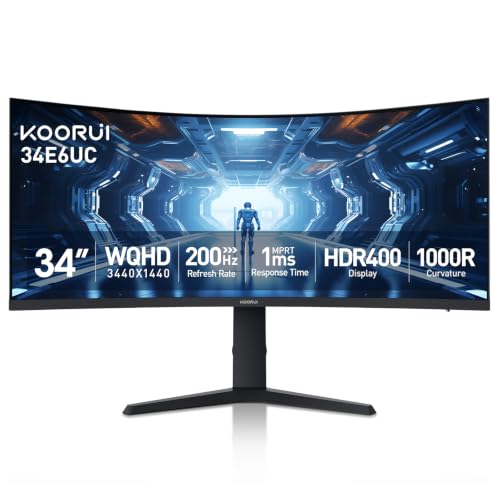
Gaming displays go big while chasing speed. Typical sizes run 32 to 49 inches, paired with refresh rates of 144 Hz or higher, fast response time figures, and adaptive sync that smooths out uneven frame delivery from your graphics card or console. Curved shapes are common here because they pull the edges of a scene into your peripheral view.
You pay for that speed, and some fast panels give up a little color accuracy or text sharpness to get it. If games are only an occasional break from office work, a slower screen may serve you better. Players who want deeper game focused advice should see our guide to the best computer monitors for gaming before deciding. Big gaming models usually cost about $450 to $1,200.
Budget Displays
Budget big monitors deliver the size without the extras. Most use VA or entry level IPS panels at 32 inches, refresh at 60 or 75 Hz, and keep port counts modest. For email, documents, web research, and casual video, that combination is honestly enough, and the money saved can go toward a monitor arm or a second smaller screen.
Where budget models ask for compromise is uniformity and adjustment. Colors can shift toward the edges, stands may only tilt, and brightness is often lower than on pricier panels. Read the return terms before ordering, since panel variation matters more at this price. Most budget big screens sell for under $300.
Ultrawide Displays vs Large Screen Options: Which Should You Choose?
These two types cause the most second guessing, so compare them on the points that change daily use. For window layout, ultrawide wins when you juggle several apps at once, while a 16:9 screen wins for one main window with a reference document beside it. For comfort, the large screen asks for more distance, while the ultrawide asks for more desk width and depth for the curve.
Text clarity depends on resolution at a given size, so compare pixel density rather than shape alone. Cost per usable workspace tends to favor ultrawide for office work, because one wide panel replaces two smaller ones and their cables. Media viewing favors the large 16:9 screen, since films and console games fill it naturally. Pick based on your dominant task, not the task you do once a month.
How to Choose the Right Big Computer Monitor
The best big computer monitors for your desk are rarely the widest or sharpest models on the page. Work through the four checks below in order, and use the product table above to see how the types line up on price and features. Each check removes a few poor fits, leaving a short list you can buy from with confidence.
Panel Technology: IPS, VA, OLED, and Mini LED
IPS panels offer the most consistent color and the widest viewing angles, which suits shared desks and color aware work. VA panels deliver deeper contrast and richer blacks for films and dim rooms, though their viewing angles are narrower and fast motion can smear slightly. OLED gives perfect blacks and near instant pixel response, but it carries a risk of burn in with static toolbars and costs the most.
Match the panel to your room and habits. Bright rooms favor IPS or Mini LED with a matte finish, while dark rooms flatter VA and OLED. If the look of the hardware itself matters on an open desk, see our guide to the best looking computer monitors for design focused context. A height adjustable stand also matters more on big panels, because small angle errors grow across a wide screen.
Connectivity and Ports
Ports decide how tidy your setup feels. DisplayPort is the dependable choice for a desktop PC, while HDMI 2.1 matters if a current console or a high refresh graphics card shares the screen. A USB C input with power delivery can charge your laptop and carry video on one cable, the cleanest route for a laptop that leaves the desk each day.
Also count the extras. A built in USB hub keeps a keyboard, mouse, and webcam plugged into the monitor instead of your laptop, and a KVM switch lets two computers share those devices with one button press. Fewer cables behind a large screen is not just neatness; it makes the setup easier to move, clean, and troubleshoot later.
Refresh Rate and Response Time
Refresh rate counts how often the picture updates each second. Office work feels fine at 60 Hz, fast paced games benefit clearly from 144 Hz or 240 Hz, and consoles that output 120 Hz need a screen and an HDMI port that accept it. Response time describes how fast pixels change color; lower figures mean less ghosting behind moving objects, though brands measure it differently, so treat small gaps with skepticism.
Adaptive sync, sold under names like FreeSync and G Sync, ties the screen timing to your graphics card and reduces tearing without heavy input lag. If competitive play is your priority, see our guide to the best gaming monitors for speed focused buying advice. For mixed use, 144 Hz with adaptive sync is the balanced target, and it also makes everyday scrolling and window movement feel smoother.
Measuring for Size and Portability
Measure before you fall for a screen. Note your desk width and depth, then mark the footprint with tape so you can see how much room remains for speakers and a laptop. Most people sit about 28 to 40 inches from a big monitor; closer than that, a 40 inch plus screen forces constant head movement. Check the VESA mount pattern, usually 100 by 100 mm, if you plan to use an arm.
Weight matters more than buyers expect. Big monitors often weigh 15 to 25 pounds without the stand, and that affects arm ratings and wall mounts. If you move often or split time between rooms, a huge panel may be the wrong call entirely; see our guide to the best portable computer monitors for the lighter end of the trade off.
Tips to Get the Most From Your Big Computer Monitor
A few setup habits protect both picture quality and your comfort. Start by leaving the vivid picture mode behind and choosing the standard or sRGB mode, then set brightness so white documents look like paper rather than a lamp. On OLED models, run the built in pixel refresh when the screen prompts you, and let auto sleep hide static images during breaks.
Clean the screen with a dry microfiber cloth only, using light pressure and no household sprays, which can damage coatings. Set the top of the screen near eye level and tilt it slightly back, then increase text scaling in your operating system instead of leaning closer. Finally, route cables with a little slack so raising or swiveling the monitor never strains a port.
Frequently Asked Questions
Does refresh rate matter on a big computer monitor for office work?
Yes, refresh rate matters a little for office work, but it is not the first thing to fund. Moving from 60 Hz to 100 or 120 Hz makes scrolling long documents and dragging windows feel calmer over a long day. One point buyers miss is the output limit of an older laptop, which may cap an external screen at 60 Hz no matter what the monitor supports, so check your port specs first.
Is 4K resolution worth it on a big computer monitor?
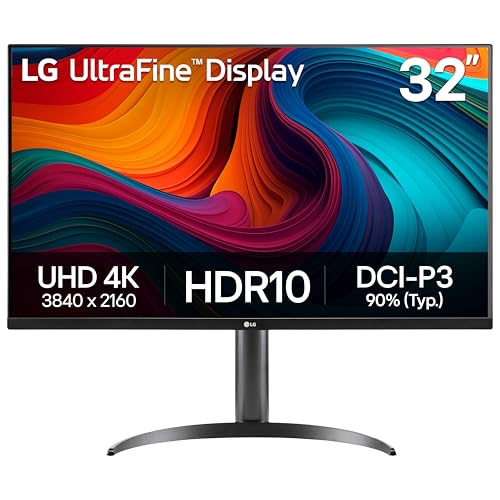
Yes, 4K resolution is worth it on a big computer monitor of 32 inches or larger, where 1440p text can start to look soft at normal desk distances. The sharper image helps with small fonts, detailed drawings, and photo work. Most people run 4K screens with operating system scaling turned up, which gives you the clarity of 4K with the readable size of a smaller display, so test scaling settings before judging the screen.
How long does a big computer monitor usually last?
A big computer monitor usually lasts about five to eight years of daily use before brightness or uniformity noticeably fades. The backlight dims gradually rather than failing at once, so an aging screen often looks fine until you place a newer one beside it. Warranty length is a useful buying clue here, and dead pixel policies vary widely between brands, so read both before you order.
IPS or OLED: which panel is better for a big computer monitor?
Neither IPS nor OLED is better for every big computer monitor buyer, because the right answer depends on your room and content. OLED wins for films and games in a dim room, with perfect blacks that make scenes look deep. IPS wins for bright rooms and long static workdays, and its matte finishes usually handle window glare better than glossy OLED glass.
What size big computer monitor should you choose for your desk and room?
Choose the size of your big computer monitor by testing your actual viewing distance before you buy. A simple trick is to cut a cardboard panel to the dimensions you are considering and prop it on your desk for a day of normal work. If you keep leaning back or losing the corners, step down a size. A deeper desk can make a larger screen comfortable, while a shallow desk cannot.
Final Thoughts
Start with the type, then confirm the panel, ports, and fit, and the size decision gets much easier. Ultrawide suits window heavy work, large 16:9 screens suit mixed work and viewing, gaming displays earn their price only for players, and budget models cover everyday needs well. Compare your short list against the product table above, and choose from the best big computer monitors for the work you do most.