
Best Business Monitors for Every Need: How to Pick the Right One in 2026
Disclosure: We may earn a commission when you buy through links on this page, at no extra cost to you. As an Amazon Associate I earn from qualifying purchases. Learn more
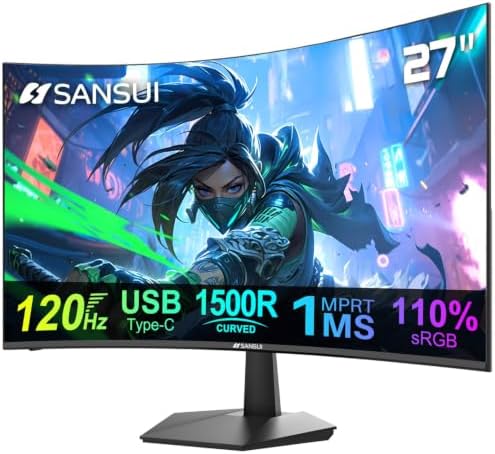
Compare the best business monitors by size, pixel density, ports and stand fit, with clear advice for small desks, shared offices and long reading days.
There is no single screen that suits every desk, and the gap between a good office display and a frustrating one shows up within the first week of real work. Choosing the best business monitors starts with how you actually spend your day: reading documents, joining video calls, editing spreadsheets, or reviewing detailed plans. Screen size, text sharpness, and stand fit matter more for office work than the flashy numbers used to sell screens for play.
This guide sorts business monitors by use first, then by the features that decide daily comfort. The comparison table below lines up the main types side by side, so you can match a screen to your desk, your laptop, and your budget before reading the detail that follows.
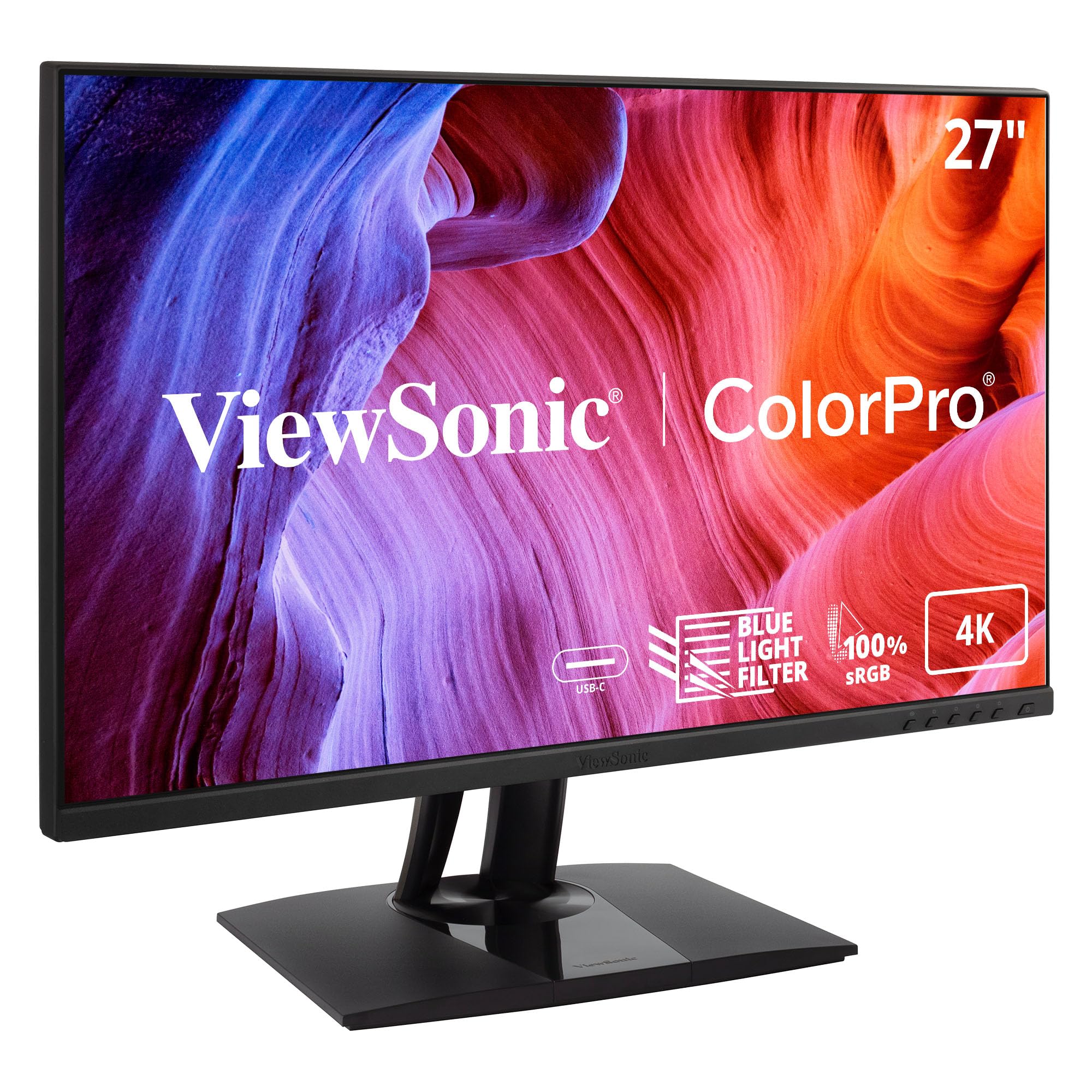
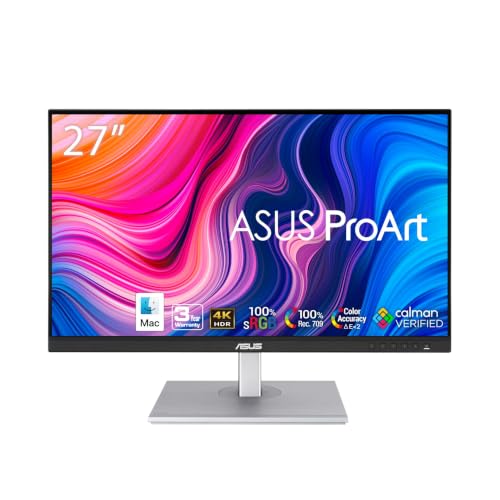
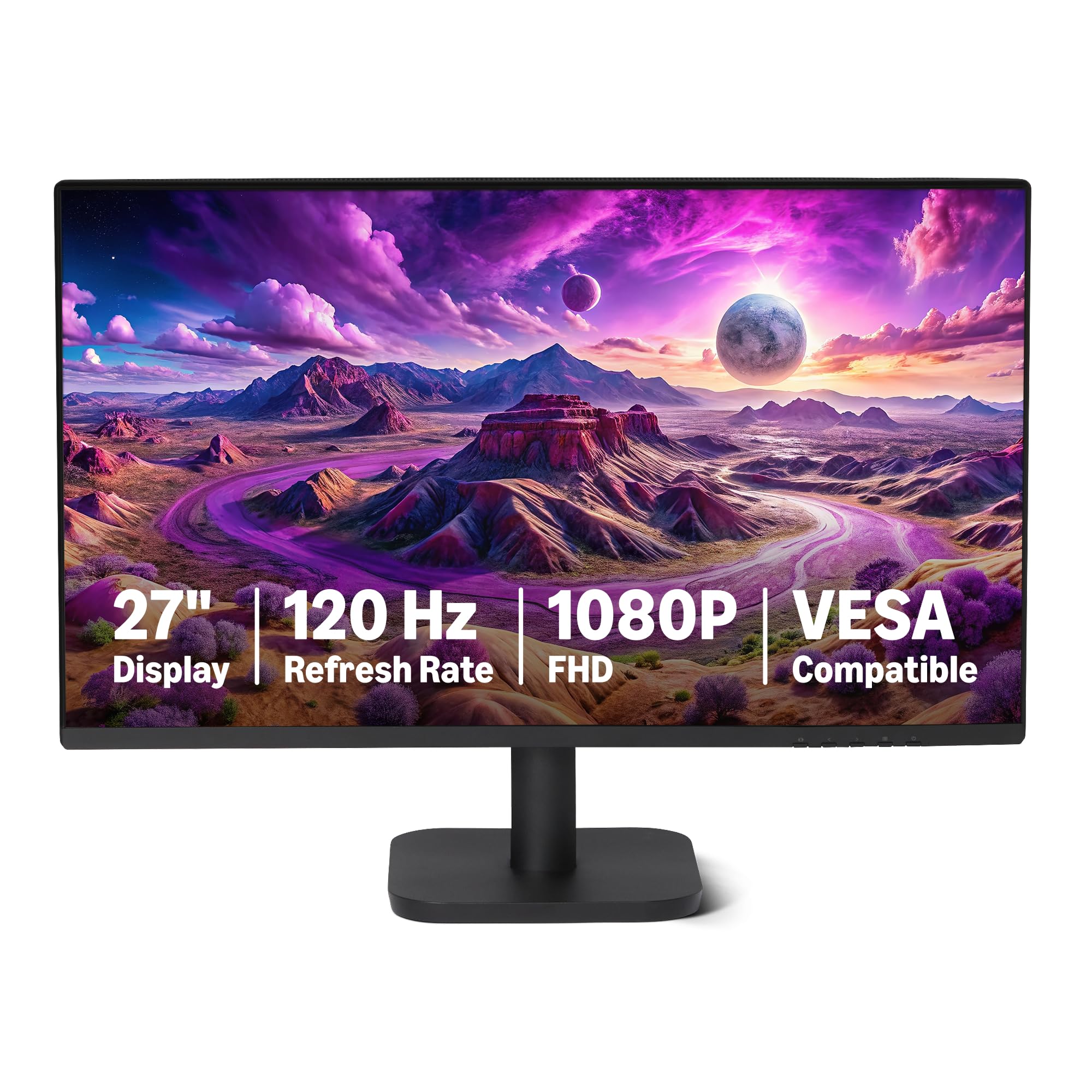
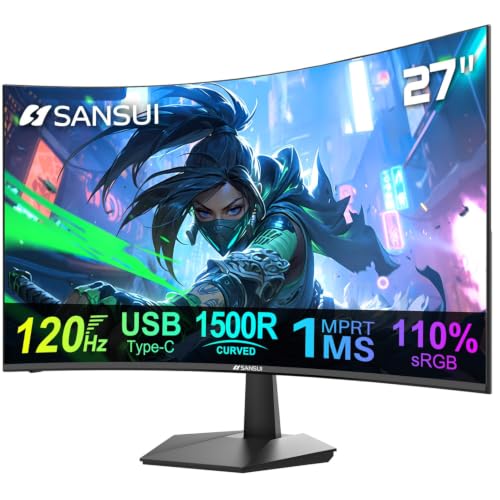
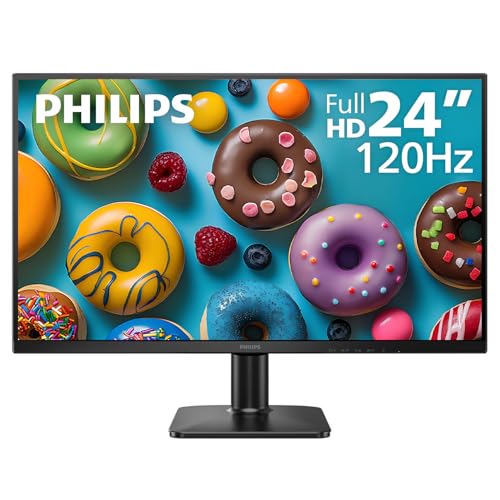


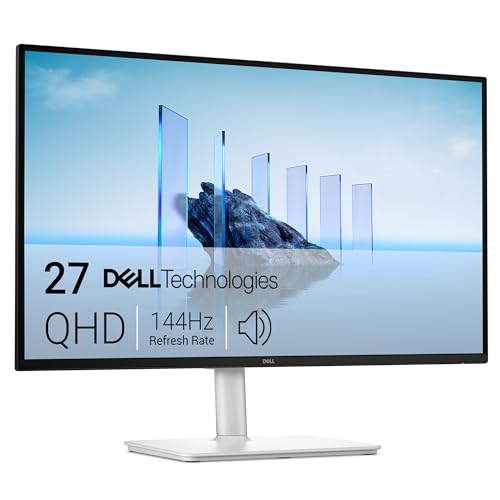


Who Should Buy Which Business Monitors?
Most office screens share the same handful of panel sizes, so the real differences sit in sharpness, ports, and stand adjustment. Shoppers who start with guides to best business computer monitors will see the same short list of options again and again, and that is fine: the job is to match one of them to your routine, not to hunt for a rare specification. The three groups below cover the desks we hear about most often.
For Home Offices and Solo Desks
A home office usually runs from one laptop, so a single 24 or 27 inch screen with a USB C input keeps the desk clean and the setup simple. Text sharpness matters more than size at this scale, because you sit close and read for hours. A height adjustable stand is worth paying for here, since a kitchen table or spare room desk rarely sits at the right height on its own. Budget about $120 to $250 for a solid screen in this class.
For Small Teams and Shared Desks
Shared desks and hot desking setups ask for durability, simple controls, and stands that adjust fast between users of different heights. A 24 inch 1080p screen is the standard fleet choice because it is cheap to replace, easy to mount, and sharp enough for documents at normal desk distances. Look for a VESA mount pattern so arms and stands can be swapped as the office changes. Buying the same screen for every desk also keeps spare parts and settings consistent.
For Long Days of Reading and Detail Work
If your day is contracts, code, accounts, or drawings, your eyes live on small text, and pixel density becomes the feature that decides comfort. A 27 inch screen at 1440p gives you room for two documents side by side without shrinking the type. Staff who review plans or images all day may step up to 32 inches, where the same resolution spreads thinner and suits larger desks. This group should spend on sharpness and stand range before anything else.
Picking the Right Business Monitors for Different Uses
Best Small Business Monitors
The best small business monitors earn the name on crowded desks, in back offices, and at reception counters where space is tight. A 21.5 or 24 inch screen keeps the footprint small, and at 24 inches a 1080p panel gives about 92 pixels per inch, which reads cleanly at a normal sitting distance. Prioritize a compact stand base, a matte finish for bright rooms, and a price around $100 to $180, since small screens are often bought several at a time.
Best Large Business Monitors
The best large business monitors suit analysts, designers, and anyone who keeps two or three windows open at once. At 27 inches, step up to 1440p so text stays crisp across the wider panel, and at 32 inches consider 4K if you sit close. A single large screen keeps cables and stands simple, which is why many offices pick it over a pair of smaller ones.
The alternative is two screens, and our guide to best dual monitors for business covers that setup in full. Curved panels form the other large format branch, explained in our guide to best curved monitors for business, where a gentle arc wraps an ultrawide screen around your field of view. Both routes beat a small screen stretched too wide, so choose by desk depth and the work you open most.
Key Features to Compare
Features decide how a screen feels after a month of daily use, so compare them in the order below: sharpness first, then panel behavior, then connections and comfort. Screens sold as best gaming monitors sit in a separate class, judged on motion and response time rather than steady text, so they are read apart from the office displays in this guide.
Screen Size and Pixel Density
Text clarity is read by pixel density, not by screen size alone. A 24 inch monitor at 1080p gives about 92 pixels per inch, a 27 inch monitor at 1440p gives about 109, and a 27 inch monitor at 1080p gives only about 82, which is why that last pairing often looks soft for reading. Match the pairing to your work: 1080p suits general documents at 24 inches, 1440p suits dense spreadsheets and code at 27 inches, and 4K suits fine detail at 32 inches. When two screens cost the same, the sharper pairing is usually the better office buy.
Panel Type and Viewing Angles
IPS panels hold color and brightness when you view the screen from the side, which suits shared desks and anyone who shows work to a colleague standing nearby. VA panels give deeper contrast for video and dim rooms, though their viewing angles are narrower and their response is slower. OLED panels deliver the strongest contrast of all, but they cost far more and carry a small risk of image retention with fixed office toolbars. For most business desks, IPS is the safe default, with VA reserved for media heavy roles.
Connectivity and Ports
One cable docking is the feature busy desks feel most. A USB C input that carries picture, data, and about 65 to 90 watts of power can charge a laptop while it drives the screen, and that power class governs whether a separate dock is needed at all. Check for at least one HDMI and one DisplayPort input so older machines and desktop towers still connect without adapters. A USB hub built into the frame, with two or more ports, keeps keyboards, headsets, and webcams plugged into the screen instead of the laptop.
Stand Adjustment and Mounting
The stand governs how the screen meets your desk and your posture through the day. Height adjustment matters most, followed by tilt and swivel, because the top of the screen should sit near eye level without books or boxes underneath. A VESA mount pattern, usually 100 by 100 millimetres, lets you move the panel to an arm later, which frees desk space and suits shared or standing desks. Screens with a fixed stand look cheaper on paper and often cost more in add ons within a year.
Eye Comfort for Long Workdays
No monitor treats eye strain, and any screen that promises to fix tired eyes is overstating what a display can do. What does help is a flicker free backlight, a low blue light mode for evening work, and a matte finish that cuts reflections from windows and ceiling lights. Breaks, room lighting, and viewing distance do as much for comfort as any panel feature, so set the screen about an arm length away and rest your eyes on a regular schedule. Treat comfort claims as a checklist of small helps, not as a cure.
Common Mistakes to Avoid When Buying Business Monitors
- Buying on size alone, so a 27 inch 1080p screen looks like an upgrade while its text turns softer than the smaller screen it replaced.
- Ignoring the stand, then spending extra on risers and arms that a height adjustable model would have made unnecessary.
- Paying for a gaming class panel for desk work: screens marketed as best computer monitors for gaming belong to a different class, tuned for fast play instead of calm text, and their speed features add cost that office tasks cannot use.
- Forgetting to count ports, so the new screen arrives without the USB C input the team laptops need.
- Skipping the warranty terms, even though a three year cover with advance replacement keeps a shared office running when a screen fails.
Setup and Care Tips
Set the picture mode to a standard or reading preset and turn off any vivid mode, which pushes color and brightness past what documents need. Raise the screen so the top edge sits near eye level, and set brightness to match the room rather than leaving it at full power. Clean the panel with a dry or slightly damp microfiber cloth only, never with glass cleaner or paper towels, which can mark the coating. Check cable seating once a season, because a loose lead is the most common cause of a flickering desk screen.
Business Monitor Questions Answered
What size business monitor fits a small desk?
A 24 inch screen fits most small desks without crowding the keyboard. Measure the stand footprint rather than the panel, because a wide base can eat more room than the screen itself suggests. Leave about 20 to 28 inches between your eyes and the panel, and if the desk is shallow, pick a model with a compact base or plan on a VESA arm from the start.
Is 4K worth it for office work?
4K earns its price at 32 inches, or at any size when your work is fine detail such as plans, drawings, or photo review. At 27 inches, 1440p is the value point for documents and spreadsheets, since the text is already crisp at desk distance. One caution: older laptops may need display scaling with 4K, which can shrink menus on some software, so check your machine before ordering a fleet of them.
How long does a business monitor last?
A business monitor commonly runs for about 30,000 to 50,000 hours of backlight life, which is many years of office days. The usual end is gradual dimming rather than sudden failure, and a dimming screen can often move to light duties such as a reception display. Treat the warranty length as the practical guide to service life, because it shows how long the maker expects the panel to stay within specification.
Does refresh rate matter for office work?
A standard 60 Hz refresh rate handles documents, email, and video calls without any visible problem. Higher rates make scrolling through long spreadsheets and timelines feel smoother, which some heavy readers genuinely prefer. For most desks the money is better spent on resolution or a stronger stand, since refresh rate adds cost that typing and reading cannot repay. Choose 60 Hz with confidence unless your role involves fast moving imagery all day.
Should a business monitor have speakers built in?
Speakers built into a business monitor are fine for call audio, alerts, and the odd short clip, and they save desk space in small offices. They are weak for training videos or anything with music, where voices can sound thin at the back of a room. If your team watches longer material together, budget for a small separate speaker or use headsets instead. Check the speaker wattage before assuming a larger screen will sound any better.
Final Thoughts
Start with the pairing of size and resolution, confirm the stand adjusts to your desk, and let ports settle the final choice between close matches. The product table above gathers the main types in one place, so you can check your shortlist against it. Whichever class you pick, the right best business monitors are the ones your team can read comfortably all day, connect without adapters, and adjust in seconds.


