Best Capture Card for Every Need: How to Pick the Right One
Disclosure: We may earn a commission when you buy through links on this page, at no extra cost to you. As an Amazon Associate I earn from qualifying purchases. Learn more

How to pick the best capture card for consoles, cameras and streaming, from budget USB to 4K144 HDMI 2.1.
A capture card takes the video from a console, camera or second PC and feeds it into your computer so you can stream, record or use the source as a webcam. There is no single model that suits everyone: a first time streamer recording Switch gameplay needs something very different from a creator capturing 4K HDR at high frame rates. This guide to the best capture card matches each type of user with the features that matter, so you avoid paying for specs you will not use.
We cover who should buy which capture card, the key features to compare, common mistakes, care tips and answers to common questions. Every card in the table above is sold new on Amazon US. Only capture content you have the right to record and share, and note that some sources, like PlayStation consoles, need HDCP turned off in their settings before gameplay can be captured; protected movies and streaming apps cannot be captured.



Who Should Buy Which Capture Cards?
First time buyers should start with a simple USB card that captures 1080p60, value seekers should pick a trusted brand with 4K passthrough and people who want the best performance should look at 4K60 or 4K144 cards with HDMI 2.1 and HDR.
Start by listing your sources and goals: which console or camera you will capture, what display you play on and whether you stream live, record videos or both. That short list points straight to the right tier.
For First Time Buyers
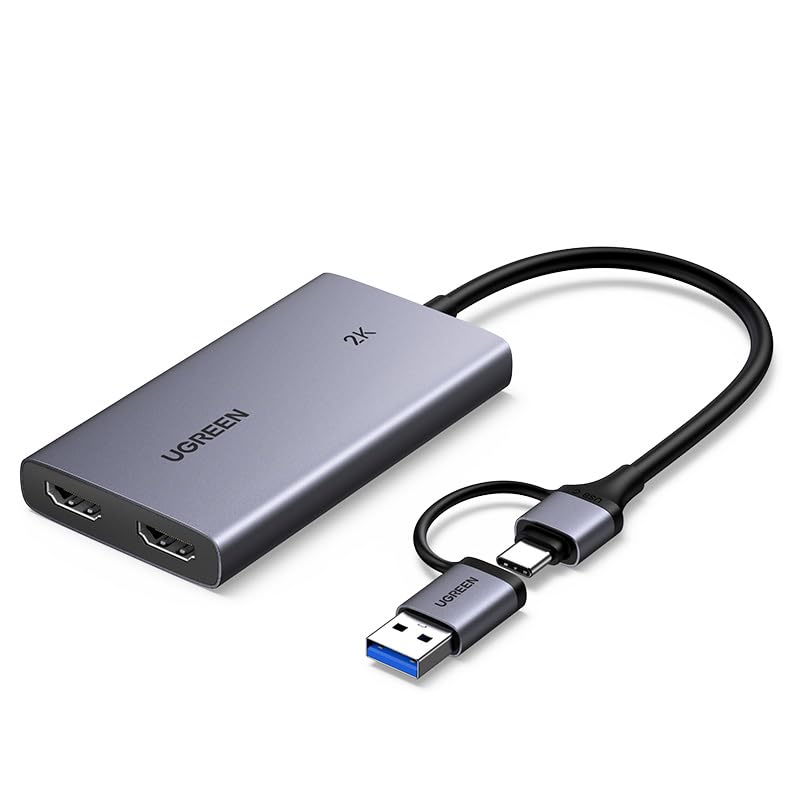
Beginners need plug and play simplicity. Budget USB cards, like the Guermok at around $19 and the UGREEN at around $30, capture up to 1080p60 or 2K30 from a 4K30 input with no drivers or external power. UGREEN adds 4K30 loop out for lag free play on your TV and works with Windows, macOS, Linux and Android.
These suit Switch, older consoles, cameras and video calls. They do not pass through 4K60 or high refresh rates.
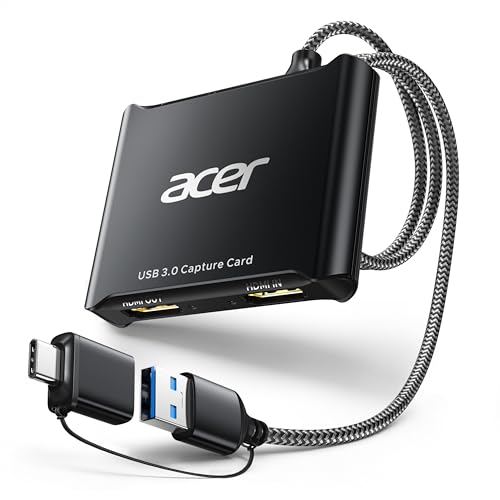
The Acer USB 3.0 HDMI capture card, at around $24, is another budget option with 4K loop out and 1080p60 capture. These small cards also turn a DSLR or mirrorless camera with clean HDMI output into a high quality webcam for calls and streams.
For Value Seekers
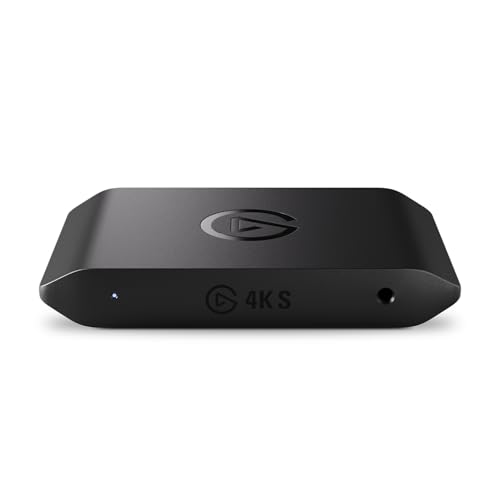
Value seekers get the most from midrange cards from established brands. The Elgato 4K S, at around $147, lists 4K60 capture, 1440p120 and 1080p240 high frame rate support, HDR10 capture with tone mapping on Windows, a 3.5mm audio input for chat and compatibility with PS5, Xbox Series X/S and Switch 2.
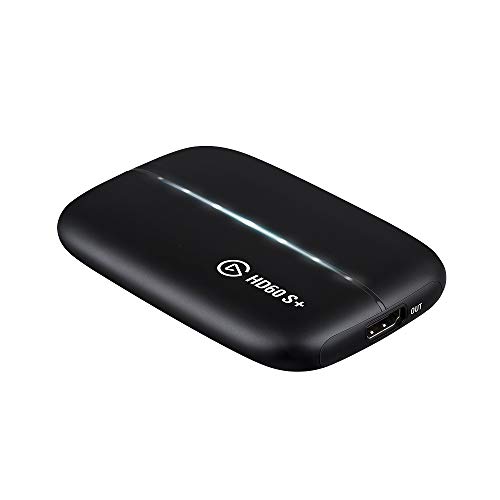
The Elgato HD60 S+, at around $275, captures 1080p60 HDR10 with 4K60 HDR10 passthrough and offers Flashback Recording to save moments after they happen.
Value seekers should think about their next console or monitor too. A card with 4K60 and high frame rate passthrough will keep working when you upgrade your display, while a 1080p only card may need replacing.
For People Who Want the Best Performance
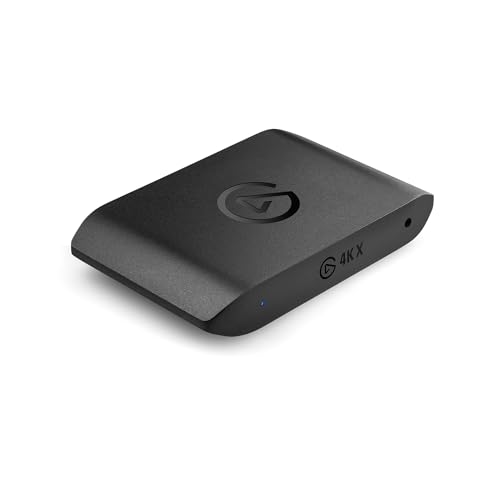
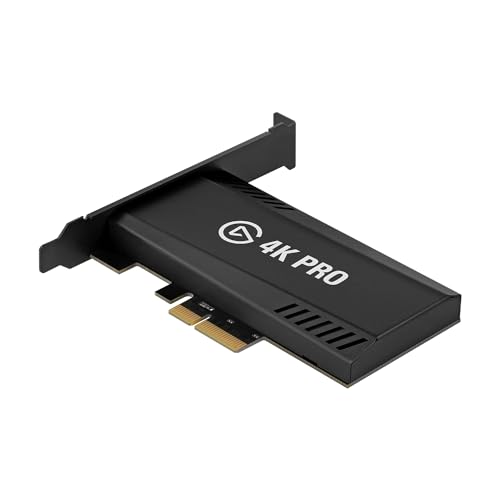
Serious creators should look at HDMI 2.1 cards. The Elgato 4K X, at around $250, lists 4K144 capture, 1080p240 recording, VRR passthrough and USB 3.2 Gen 2 for ultra low latency. The AVerMedia Live Gamer Ultra 2.1, at around $210, lists 4K144 capture on Windows, passthrough up to 4K144, 1440p240 or 1080p360 and dual 3.5mm audio ports. PC builders can choose internal PCIe cards, like the Elgato 4K Pro at around $240 with 8K60 passthrough.
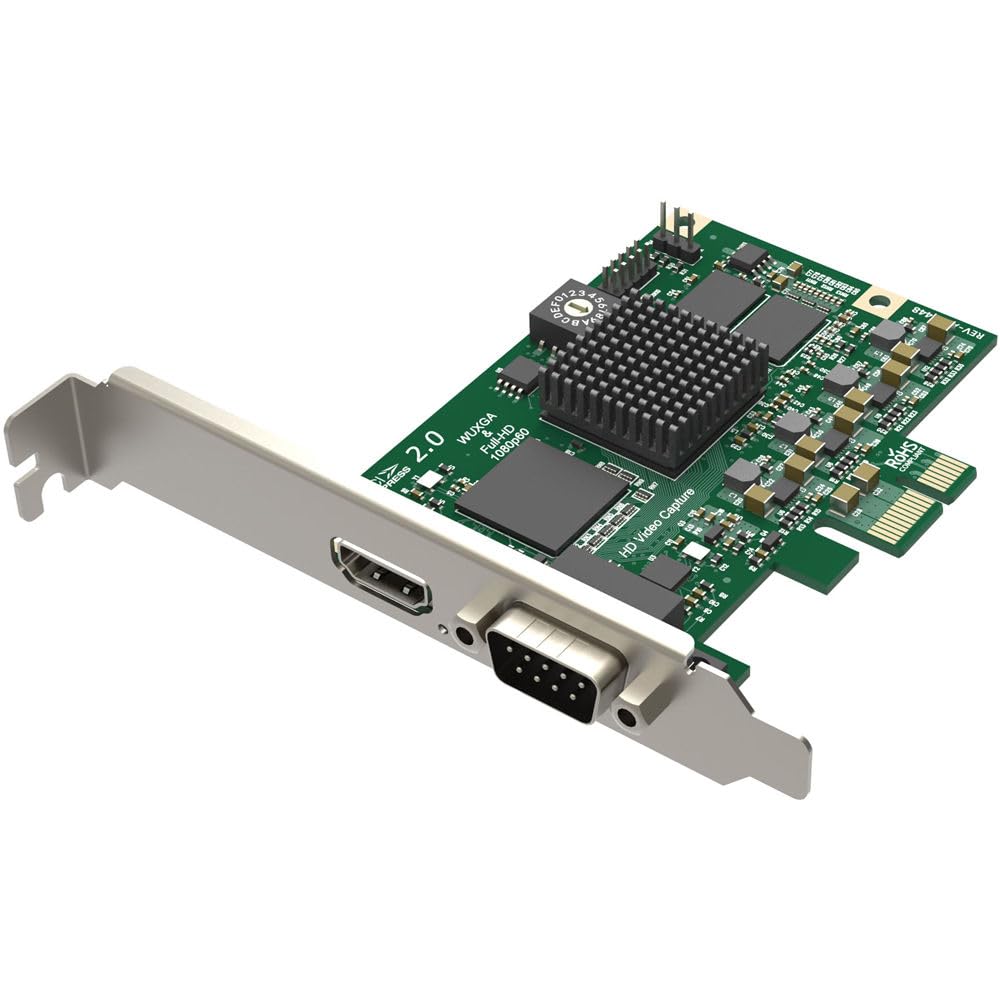
Professional video teams often use PCIe cards like the Blackmagic DeckLink Mini Recorder 4K at around $235 or the Magewell Pro Capture HDMI at around $315, which work with broadcast and editing software. Dual input cards, like the AVerMedia Live Gamer Duo at around $230, let you capture a console and a camera at the same time.
Key Features to Compare in the Best Capture Card
Capture resolution and frame rate, passthrough, connection type, compatibility, audio and setup matter most. Here is how each plays out in real use.
Capture Resolution and Frame Rate
Capture resolution is what gets recorded or streamed. Budget cards capture 1080p60, midrange cards capture 4K60 and high end cards capture 4K144 or 1080p240. Most viewers watch streams at 1080p, so 4K capture matters mainly for recorded YouTube videos.
Frame rate matters for fast games. 60 frames per second looks smooth for most streams, while 120 or 240 frames per second recordings let you make slow motion clips. Higher settings also need more upload bandwidth and a faster computer.
Passthrough, HDR, and VRR
Passthrough sends the signal to your TV or monitor so you can play without delay. Look for passthrough that matches your console and display, such as 4K60 HDR for PS5 and Xbox or 4K144 with VRR for high refresh monitors. Elgato lists VRR passthrough on the 4K X, and AVerMedia notes monitors using DSC may limit 4K passthrough to 4K120.
HDR capture is a nice extra, but most viewers watch in standard dynamic range. Cards with tone mapping, like Elgato's 4K S on Windows, convert HDR footage so it looks right on regular screens.
Connection: USB or PCIe
External USB cards work with laptops and move easily between setups. Faster USB, like USB 3.2 Gen 2 on the Elgato 4K X and AVerMedia Ultra 2.1, handles high resolution with low latency. Internal PCIe cards, like the Elgato 4K Pro, AVerMedia Live Gamer Duo and Blackmagic DeckLink Mini Recorder 4K, suit desktop PCs and pro workflows.
PCIe cards need a free slot on the motherboard and a desktop case, so check your PC before buying one. USB cards need nothing more than a fast port.
Compatibility and Software
Check that the card works with your computer and apps. Elgato lists support for OBS, Streamlabs, Twitch Studio, Zoom and Teams, and AVerMedia offers an OBS plugin and its Streaming Center. Some features, like HDR capture, are Windows only.
Mac users should check the maker's notes closely; AVerMedia, for example, lists 4K144 capture on Windows but up to 4K60 on macOS.
Audio Inputs and Ease of Setup
Audio inputs let you capture party chat or commentary. Elgato's 4K S has a 3.5mm input, and AVerMedia's Ultra 2.1 has dual 3.5mm four pole ports. Budget cards like UGREEN and Guermok are plug and play with no drivers.
Check your capture software's audio settings after setup. Guermok notes you may need to restart OBS after configuring audio, or the recording may have no sound.
Common Mistakes to Avoid When Buying Capture Cards
- Confusing input with capture resolution. Many budget cards accept 4K input but capture only 1080p60.
- Ignoring passthrough. Without matching passthrough, you lose 4K or high refresh gaming on your TV.
- Using a slow USB port. Plug USB 3.0 cards into USB 3.0 or faster ports for full bandwidth.
- Forgetting HDCP. Consoles with HDCP enabled will show a blank screen in capture software.
- Overbuying. 4K144 capture is wasted if you only stream at 1080p.
Most of these mistakes come from reading only the biggest number on the box, so compare capture and passthrough specs side by side before you order.
Care and Maintenance Tips
Read the manual before first use and update the card's firmware and software. Keep the card ventilated, since capture cards can get warm during long sessions; aluminum shells, like UGREEN's, help shed heat. Use quality HDMI cables rated for your resolution and refresh rate. Store the card in a dry place and avoid bending cables at the connectors.
Label your HDMI cables so it is easy to tell the input from the passthrough output when you rearrange your setup.
Capture Cards: Your Questions Answered
How much should I spend on a capture card?
Expect around $15 to $30 for basic 1080p USB cards, around $145 to $275 for 4K60 cards from Elgato and similar brands and around $210 to $250 for 4K144 HDMI 2.1 cards. Professional PCIe cards cost more.
Match spending to your source.
What features matter most when buying capture cards?
Capture resolution and frame rate, passthrough that matches your display, a fast connection, software compatibility and audio inputs matter most. Choose based on how you will share your content.
How do I maintain a capture card?
Keep firmware and software updated, keep the card cool and dust free and use good HDMI and USB cables. Disconnect it safely and avoid yanking cables from the ports.
Are expensive capture cards worth it?
Yes, if you record 4K, play at high refresh rates or need HDR and VRR passthrough. For 1080p streaming of Switch or older consoles, a budget card is enough.
Your computer also matters: encoding 4K video needs a capable CPU or GPU.
How long does a capture card last?
Many capture cards last several years. You may want to upgrade when you switch to a new console or display with higher resolution or refresh rate than your card supports.
Software updates can add features over time, so keep the app current.
Do I need a capture card to stream from a PC?
No. Single PC streaming uses software like OBS to capture the screen directly. A capture card is needed for consoles, cameras or a dual PC setup.
Some consoles also offer built in streaming apps, but quality and overlays are limited.
The Bottom Line
The best capture card matches your source, your display and how you share content. Beginners do well with plug and play 1080p USB cards like UGREEN, value seekers with the Elgato 4K S and performance users with HDMI 2.1 cards like the Elgato 4K X or AVerMedia Live Gamer Ultra 2.1.
For more gaming guides, see the best 4K TV for gaming, the best gaming headphones, the best power supply for gaming PC and the best wifi range extender for gaming. Then compare current prices in the product table above.