Best Computer Fans Made Simple: A Clear Buying Guide
Disclosure: We may earn a commission when you buy through links on this page, at no extra cost to you. As an Amazon Associate I earn from qualifying purchases. Learn more

The best computer fans explained: size, airflow vs static pressure, noise, PWM and ARGB for first time buyers.
Computer fans keep your PC's processor, graphics card and drives cool by moving fresh air through the case and pushing hot air out. Swapping noisy stock fans or adding a few more can lower temperatures, quiet a loud desktop and add lighting to a glass panel build. But fan specs like size, CFM, static pressure, RPM, PWM and ARGB can be confusing for first time buyers. This guide to the best computer fans explains the basics, key specs and smart tips so your first purchase is the right one.
We cover the basics, the key specs, rookie mistakes, setup and first use and answers to common questions. Every fan in the table above is sold new on Amazon US. Shut down your PC, switch off the power supply and unplug it before installing fans, ground yourself to avoid static and keep fingers and cables away from spinning blades.





Computer Fans 101: The Basics
Case fans mount to the front, top, rear or bottom of a PC case. Intake fans pull cool air in, usually at the front and bottom, while exhaust fans push warm air out, usually at the rear and top. Fans also mount on CPU coolers and liquid cooling radiators.
The most common sizes are 120mm and 140mm. Larger fans move more air at lower speeds, which usually means less noise. Fans connect to motherboard headers with 3 pin or 4 pin connectors, and RGB fans add separate lighting connectors.
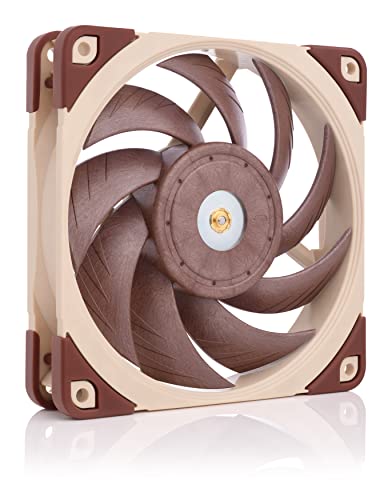
Prices range from around $13 for a 3 pack of budget ARGB fans to around $35 for a single premium fan like the Noctua NF-A12x25.
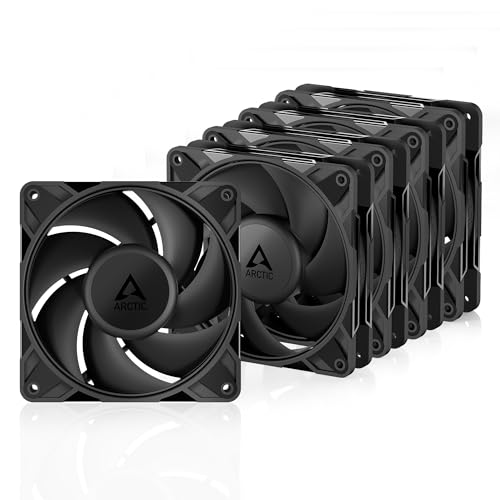
The best computer fans for your build depend on where they go. Radiator and filtered front intake positions need high static pressure, while open rear and top exhaust positions benefit more from high airflow. Many all round fans, like the ARCTIC P12, balance both.
Key Specs Explained in Plain English
The key specs are size, airflow and static pressure, noise, connectors and speed control, bearings and lifespan and lighting. Here is what each means.
Compare size first, then the balance of airflow, pressure and noise for each position in your case.
Fan Size and Case Fit
Check your case manual for supported fan sizes and positions. 120mm fans, like the ARCTIC P12 and Noctua NF-A12x25, fit almost every case and radiator. 140mm fans, like the be quiet! Silent Wings Pro 4 and NZXT F140Q, move more air quietly if your case supports them. Fan thickness, usually 25mm, matters in tight spaces; slim fans like ARCTIC's P12 Slim suit small cases.
Some cases support 200mm fans in the front, which move a lot of air very quietly, but they are less common and harder to replace.
Packs are often cheaper per fan. ARCTIC's P12 PWM PST 5 pack costs around $40, the P12 Pro 5 pack around $18 and Thermalright's TL-C12C-S 3 pack around $13, while single premium fans like the Noctua NF-A12x25 cost around $35 each.
Measure radiator clearance too.
Airflow (CFM) vs Static Pressure
Airflow, measured in CFM, describes how much air a fan moves in open space, which suits unrestricted case positions. Static pressure, measured in mmH₂O, describes how well a fan pushes air through resistance like radiators, dust filters and mesh. ARCTIC lists 56.3 CFM and 2.2 mmH₂O for the P12 PWM PST, Thermalright lists 66.17 CFM and 1.53 mmH₂O for the TL-C12C-S and 68.9 CFM and 2.21 mmH₂O for the TL-M12Q-S.
Specs come from each maker's own measurements, so treat comparisons between brands as approximate and focus on the balance that suits each mounting position.
For a typical gaming PC, a pair of front intake fans and one rear exhaust fan is a solid starting setup, with a top exhaust fan added if your graphics card runs hot. The best computer fans for this layout are all round models with balanced airflow and pressure.
Noise Level (dB) and Speed
Noise rises with speed. Thermalright lists 25.6 dBA or less for the TL-C12C-S at up to 1,550 RPM, and ARCTIC lists 0.3 sone for the P12 PWM PST. Fans that stop at very low PWM, like the ARCTIC P12 and P12 Pro with 0 RPM below 5% PWM, can be silent at idle. Premium fans, like Noctua's, are known for quiet operation.
Running more fans at lower speeds is often quieter than running a few fans at high speed while moving the same air.
NZXT's F120Q and F140Q are marketed as quiet airflow fans, which suits builders who prioritize low noise over lighting.
Rubber mounts reduce vibration noise.
Connectors and Speed Control (PWM, 3 Pin, ARGB)
4 pin PWM fans let the motherboard adjust speed automatically based on temperature. ARCTIC's P12 PWM PST runs from 200 to 1,800 RPM and the P12 Pro from 600 to 3,000 RPM. PWM sharing technology, or daisy chaining, lets several fans share one header; Thermalright's TL-M12Q-S daisy chains PWM and ARGB cables. ARGB fans use a 3 pin 5V header for lighting.
3 pin fans can only be controlled by voltage, which gives a narrower speed range. ARCTIC's P12 Pro includes a Y cable splitter for connecting two fans to one header.
If your motherboard has few fan headers, a powered fan hub can run several fans from one header.
Bearings and Lifespan
Fluid dynamic bearings, like those in ARCTIC's P12 Pro and Thermalright's S-FDB fans, run quietly and last a long time. ARCTIC says a lower motor temperature roughly doubles fan life, and its P12 PWM PST motor has a four times longer service life than its predecessor.
Sleeve bearings are cheaper but can wear faster and get noisier, especially when fans are mounted horizontally.
Quality fans often run for many years of daily use.
Lighting and Dust Filters
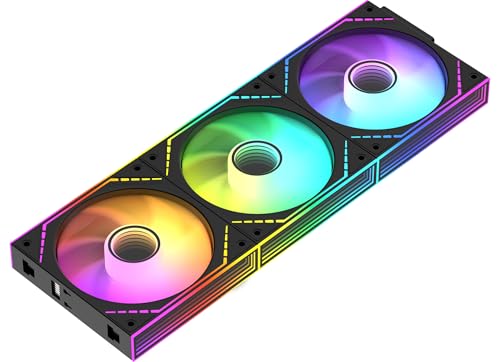
ARGB fans, like the Thermalright TL-C12C-S, TL-M12Q-S and Cooler Master MF120 Lite, add customizable lighting for glass panel cases. Dust filters on intake fans keep components cleaner; many cases include them, and they need regular cleaning.
Thermalright's TL-M12Q-S adds dual side infinity mirror lighting for a stronger visual effect in visible fan positions.
Cooler Master's MF120 Lite 3 pack includes an aRGB splitter, which simplifies wiring several lit fans.
Rookie Mistakes to Avoid
The most common mistake is buying fans that do not fit your case or radiator. Another is installing fans backward; most fans blow air toward the side with the frame struts.
Many builders create too much exhaust and not enough intake, which pulls dust through gaps. Plugging too many fans into one header can overload it. Finally, choosing high RPM fans for a quiet office PC leads to unwanted noise.
Some builders also mix ARGB connectors with 12V RGB headers, which can damage lighting; check that 5V ARGB fans connect only to 5V ARGB headers.
Check fan header limits in your motherboard manual.
Getting Started: Setup and First Use
Plan airflow: front and bottom intake, rear and top exhaust. Shut down and unplug the PC.
Mount fans with the included screws, checking the airflow arrow on the frame. Connect 4 pin cables to motherboard fan headers or a fan hub, and ARGB cables to ARGB headers. In the BIOS or motherboard software, set fan curves so fans speed up only when temperatures rise.
After installing, monitor temperatures with free software during a game or heavy task, then adjust fan curves for the best balance of noise and cooling.
Route fan cables behind the motherboard tray and secure them with zip ties so they stay clear of blades.
Frequently Asked Questions
Do more case fans really help?
Yes, up to a point. Adding a few well placed fans improves airflow and lowers temperatures, especially in gaming PCs. Beyond about three to five fans in most cases, gains get smaller while noise grows.
Balanced airflow matters more than fan count.
What size computer fan do I need?
Use the size your case and radiator support, usually 120mm or 140mm. Choose 140mm when possible for quieter airflow, and 120mm for wider compatibility.
Match radiator fans to the radiator size, such as 240mm radiators with two 120mm fans.
Check your case specs page.
Do computer fans use a lot of electricity?
No, case fans draw very little power, often a fraction of a watt to a few watts each. Thermalright lists a 0.20A current for its TL-C12C-S at 12V.
Even a full set of fans adds very little to your power bill.
Where is the best place to put case fans?
Place intake fans at the front and bottom and exhaust fans at the rear and top, since heat rises. Use high static pressure fans on radiators and filtered intakes.
Keep slightly more intake than exhaust to reduce dust.
How often should I clean dust filters?
Clean dust filters every one to three months, or more often in dusty homes or with pets. Use compressed air on fan blades while holding them still.
Clean fan blades during the same session to keep airflow strong.
Our Verdict
The best computer fans fit your case and balance airflow, pressure and noise. ARCTIC P12 packs offer outstanding value, Noctua NF-A12x25 and be quiet! Silent Wings Pro 4 deliver premium quiet performance and Thermalright and Cooler Master ARGB fans add lighting on a budget. Plan airflow and set fan curves for a cool, quiet PC.
Upgrading fans is one of the easiest ways to make a PC cooler and quieter.
For more PC guides, see the best budget graphics card, the best gaming ssd, the best gaming laptop brands and the best budget keyboard. Then compare current prices in the product table above.