
Best 1440p 144hz Monitors by Budget: How to Choose Well for 2026
Disclosure: We may earn a commission when you buy through links on this page, at no extra cost to you. As an Amazon Associate I earn from qualifying purchases. Learn more

Compare the best 1440p 144hz monitors by budget, panel type, adaptive sync, and ports, so you spend on the features that actually matter to you.
Prices for 1440p 144Hz gaming displays stretch from under $200 to about $700, and the spec sheet alone rarely tells you where that extra money goes. Finding the best 1440p 144hz monitors for your desk starts with knowing which upgrades you can actually see and feel. Resolution and refresh rate are the same across this category, so the real differences hide in the panel, the stand, the ports, and the sync technology.
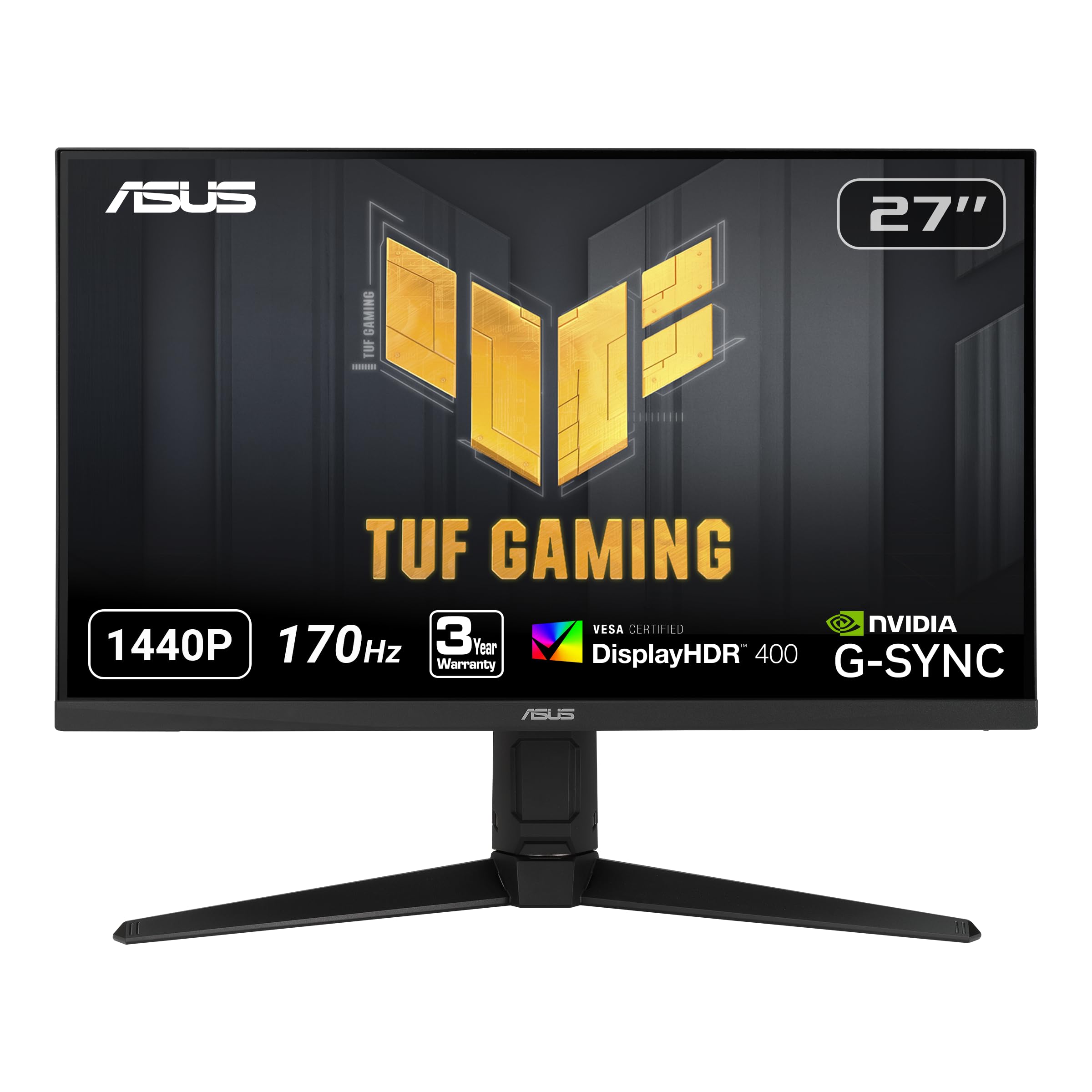
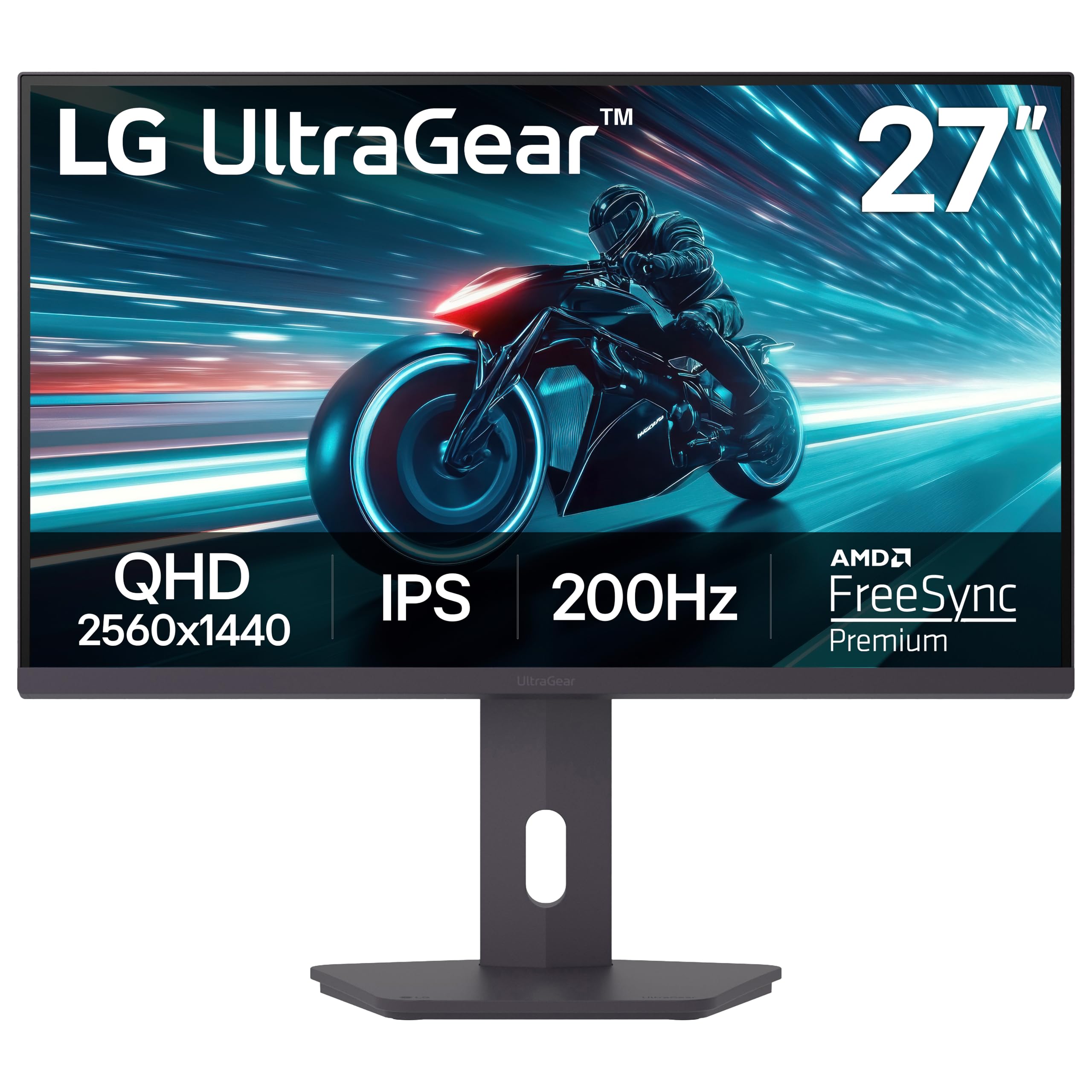
This guide walks through each price tier and shows you how to match a monitor to the way you play and work. Use the comparison table below to line up the models in your price range, then read on to learn which features deserve your money and which ones you can safely skip.
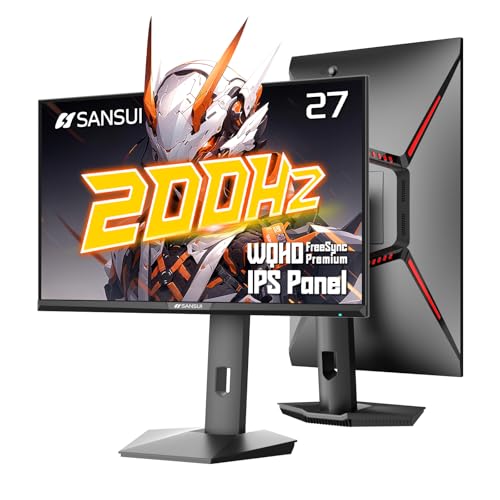
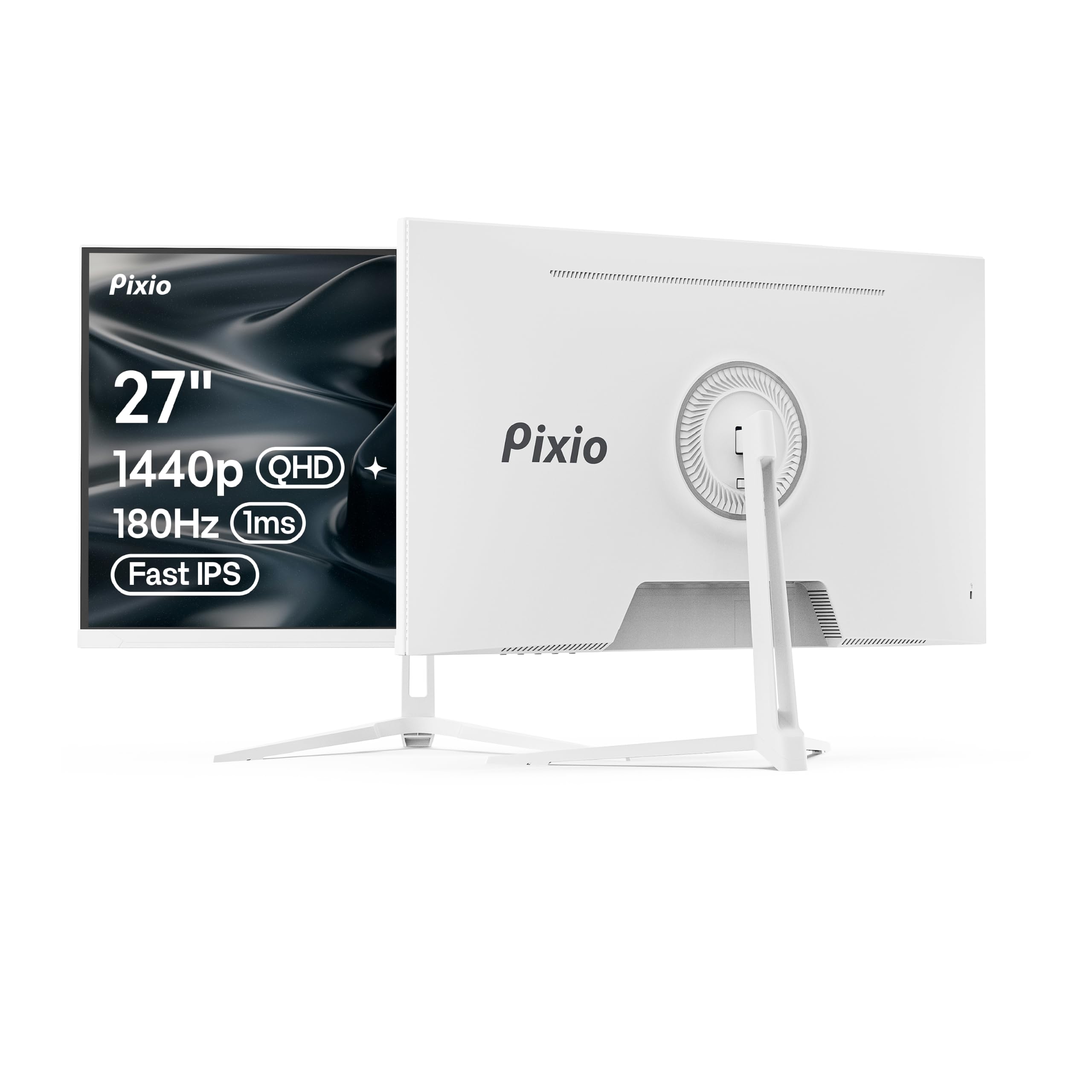
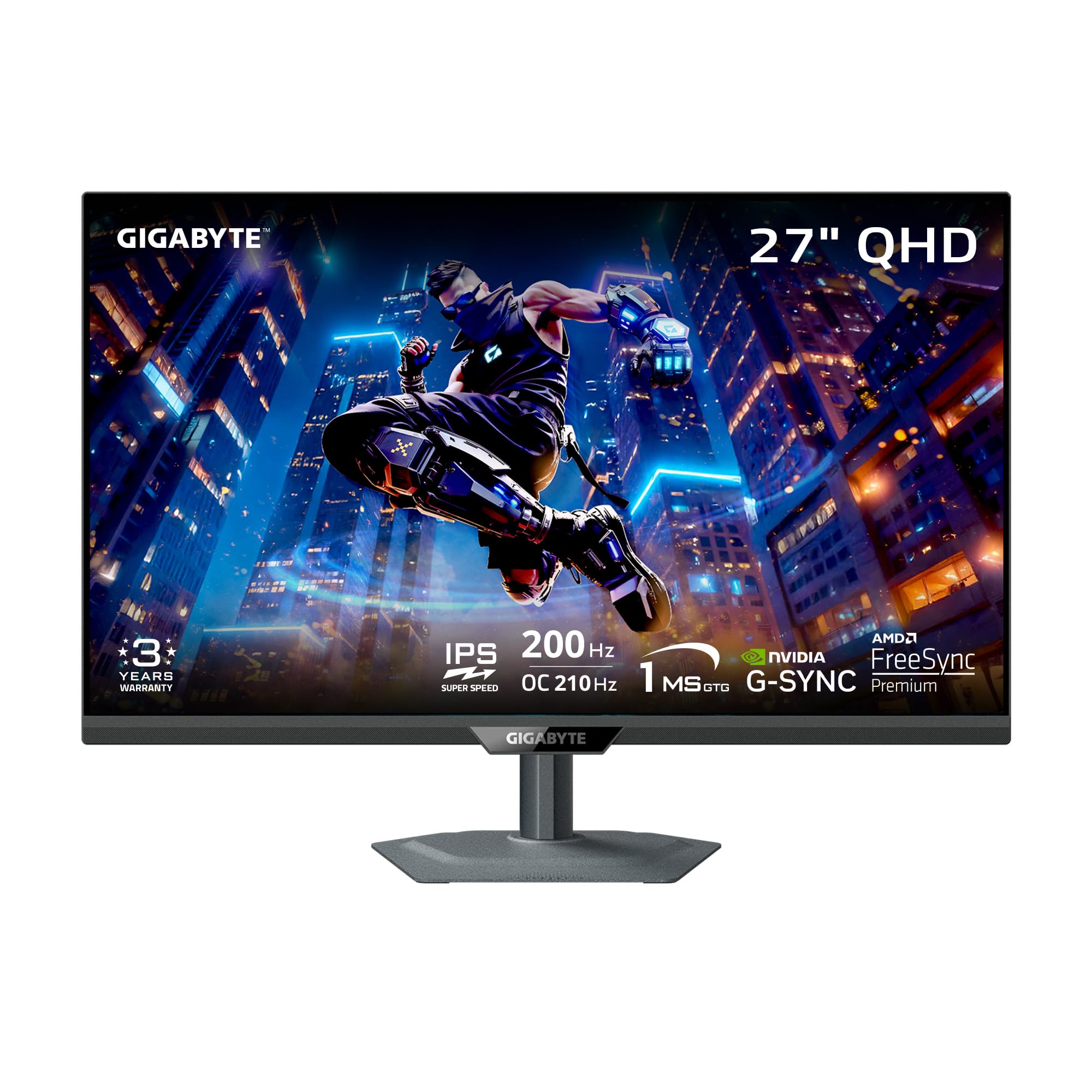
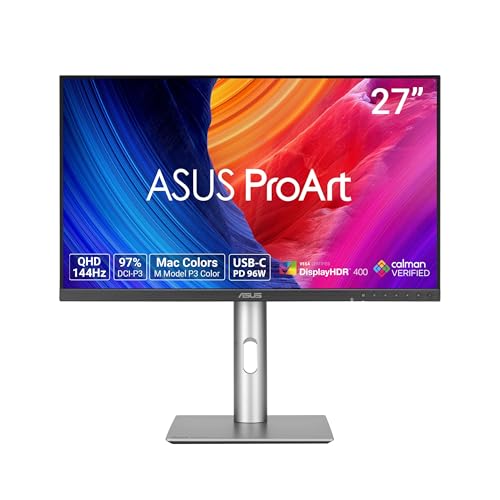
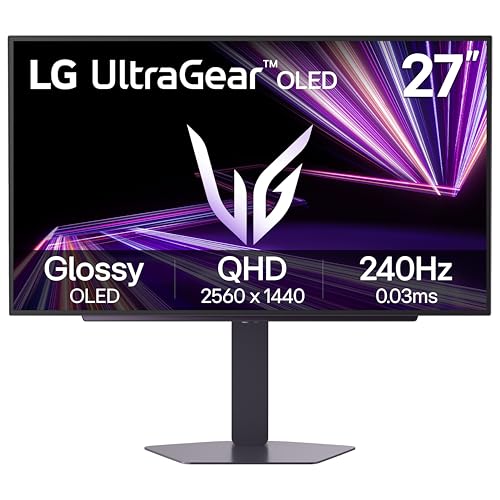
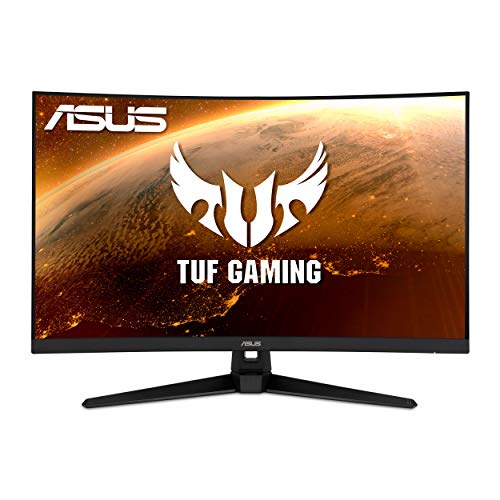
How to Set Your Budget Before You Shop
Tight Budgets: Spend on the Panel First
When money is tight, put nearly all of it into the panel itself and accept plain extras. A stand that only tilts, one DisplayPort cable in the box, and no USB ports are reasonable sacrifices at this level. What you should not sacrifice is panel type and the adaptive sync range, because those shape every minute at the screen, while a simple stand can be replaced later with a VESA arm for around $30.
Middle Budgets: Balance Panel, Stand, and Ports
In the middle of the market you no longer have to choose between a good picture and a comfortable desk setup. Height adjustment, a wider color gamut, and a USB hub start appearing together here, which suits most people who work and play on the same screen. Prioritize a stand you can set to eye level, because posture comfort lasts longer than a small gain in brightness.
Generous Budgets: Pay for Polish, Not Paper Specs
At the top of the market the panel numbers stop improving quickly, and the money goes into polish instead. You pay for uniform backlighting, accurate color from the factory, sturdy build quality, and extras like a USB C port that charges a laptop over one cable. Those refinements reward photo editors and HDR video fans, but fast gamers in bright rooms gain less here than from the jump from budget to midrange.
What Your Money Gets You at Each Price Tier
Budget Tier: What to Expect
Budget models at around $200 to $250 deliver the core promise of this category: a sharp 1440p picture and a smooth 144Hz refresh rate that feels far more fluid than an older 60Hz screen. Most use IPS or VA panels with modest brightness, tilt only stands, and FreeSync over DisplayPort and HDMI. HDR here is mostly a checkbox feature, because peak brightness is too low to show real highlights, and you should expect no USB hub.
Midrange Tier: The Sweet Spot for Most Buyers
Midrange models at about $250 to $400 add the things you notice every day. Panels get brighter with a wider color gamut, stands gain height, swivel, and pivot adjustment, and many models add a USB hub and an HDMI 2.1 input. Response time tuning is usually better, with less ghosting in fast scenes, so for one monitor that handles work, streaming, and gaming, this tier gives you the most usable quality per dollar.
Premium Tier: When Spending More Pays Off
Premium models at about $400 to $700 are where the panel technology itself changes. This is where OLED panels appear, with per pixel lighting, near instant response time, and true black levels that make dark game scenes look dramatically deeper, alongside high end IPS panels with excellent factory color accuracy. You also get USB C with power delivery, KVM switches for two computers, and longer panel warranties, which pays off for dim rooms and color sensitive work.
Features Worth Paying For, and Ones to Skip
Only a handful of advertised features change what you see on screen. The sections below sort the ones that earn their cost from the ones you can ignore, and for a wider view of the category, see our guide to the best 1440p monitors before narrowing down to 144Hz models.
Panel Technology: IPS, VA, and OLED
Panel technology decides contrast, viewing angles, and motion clarity more than any other spec. IPS panels offer the most accurate color and stay consistent when you lean back or share the screen, which suits mixed work and play. VA panels deliver deeper blacks for movies and dark games but can smear dark moving objects, while OLED beats both on contrast and response time at the highest cost and needs screen sleep habits to limit burn in risk.
Connectivity and Ports
Ports decide whether the monitor fits your setup today and survives your next upgrade. DisplayPort is the safest connection for a PC, because it reliably carries 1440p at 144Hz with adaptive sync enabled. HDMI 2.1 matters if you also connect a current console, since older HDMI versions may cap the refresh rate at this resolution, and USB C with video support is worth paying for if you dock a laptop.
Adaptive Sync and Gaming Features
Adaptive sync matches the monitor refresh rate to the frame rate your graphics card produces, which removes screen tearing and smooths stutter without the input lag of older fixed sync methods. FreeSync works across a wide range of cards, while G Sync certification promises stricter testing on Nvidia hardware. A quoted response time of 1 ms is measured under ideal settings, so treat it as a rough guide rather than a promise, and see our guide to the best 144hz monitors for refresh rate alone.
Resolution and Screen Size
At 1440p, screen size decides how sharp the picture looks, because the same pixel count stretches over a larger area. A 27 inch screen is the natural fit, giving crisp text without software scaling at a desk depth of about two to three feet. Large screen options at 32 inches feel more immersive with room for two windows side by side, but text looks slightly softer, and going larger makes individual pixels easy to spot.
Stands, Mounts, and Everyday Comfort
A stand with height adjustment lets you place the top of the screen near eye level, which reduces neck strain during long sessions more than any picture setting can. Check the VESA mount size, most often 100 by 100 mm, if you plan to use a monitor arm for more desk space or a portrait setup. Built in speakers on monitors are almost always weak, so skip paying extra for them and put the money toward the panel.
Choosing the Best 1440p 144hz Monitors for Your Situation
The same monitor rarely suits a competitive player, a two screen office, and a strict Nvidia setup equally well. Match the strengths below to your own desk, and if gaming is your main use, see our guide to the best gaming monitors for the broader picture.
Best Gaming 1440p 144hz Monitors: Where Your Money Goes
If you shop for the best gaming 1440p 144hz monitors, your money should follow motion clarity first. Look for response time tuning that stays clean at the overdrive setting you will actually use, plus a wide adaptive sync range that reaches low frame rates. A 27 inch fast IPS or OLED panel serves this use best, and you can compare gaming first models in our guide to the best gaming monitors 144hz 1440p.
Best Dual 1440p 144hz Monitors: Where Your Money Goes
Choosing the best dual 1440p 144hz monitors means buying two of everything, so consistency matters more than peak specs. Pick a model with slim bezels, confirm the VESA mount pattern matches a dual arm, and budget for that arm, since two stock stands eat desk space. Buying both screens from the same model line keeps color and brightness matched, and our guide to the best gaming monitors 1440p can help you compare alternatives first.
Best G Sync 1440p 144hz Monitors: Where Your Money Goes
With the best g sync 1440p 144hz monitors, your money buys verified compatibility with Nvidia graphics cards. A dedicated G Sync module historically added cost, while G Sync Compatible screens passed Nvidia validation without the module and usually cost less. Either route holds a variable refresh rate at low frame rates, which matters in demanding games, so check that certification covers the DisplayPort connection you plan to use.
Long Term Costs to Factor In
The sticker price is only part of what a monitor costs over its life. A monitor arm, a longer DisplayPort cable, or a USB C dock can add about $50 to $150 to a premium purchase, and a dual setup doubles those accessory costs. Power use is modest at roughly 30 to 50 watts for most 27 inch models, but weigh the warranty length and dead pixel policy before you buy, because panel defects are the most common reason owners replace a monitor early.
Common Mistakes to Avoid
- Buying a 32 inch screen for a shallow desk, because sitting too close makes the edges hard to take in and text looks coarse.
- Connecting with an old HDMI cable and blaming the monitor, because a limited connection can quietly cap your refresh rate below 144Hz.
- Paying extra for HDR on a dim budget panel, because low peak brightness makes HDR content look no better than standard content.
- Ignoring your graphics card output ports, because a monitor that suits your next PC may not fit the one you own now.
- Skipping the dead pixel policy in the listing, because return windows vary and a bright stuck pixel is hard to unsee.
- Choosing by the quoted 1 ms response time alone, because that figure comes from ideal settings and says little about real ghosting.
How to Make Your 1440p 144hz Monitor Last Longer
Clean the screen with a dry or slightly damp microfiber cloth and no household sprays, because alcohol and ammonia cleaners can damage the surface coating. Keep brightness at the level your room needs rather than maximum, since a backlight run at full power fades faster. Let the display sleep when you step away, which rests the backlight and protects OLED panels from static image wear.
Every few months, check that cables sit firmly in their ports and that stand screws and VESA bolts are still snug, because a loosening mount can tilt the screen or stress a port. Keep the rear vents clear of dust so heat escapes, and use a surge protector against power spikes.
Frequently Asked Questions
How long do 1440p 144hz monitors last?
Most 1440p 144hz monitors last about five to eight years of daily use before brightness fade or a failing part ends their service. The backlight usually dims first, and it fades gradually, so an aging screen still works for casual use. One point buyers overlook is the power supply: a model with an easily replaced external power brick can be cheaper to keep running after the warranty ends.
Does a 144Hz refresh rate matter if you do not play games on a 1440p monitor?
Yes, a 144Hz refresh rate still feels smoother for scrolling documents, moving windows, and general desktop work, even outside games. Text stays more readable while you scroll long pages, and the pointer tracks with less blur. The benefit is comfort rather than necessity, though, so if your work is mostly static reading, a cheaper 100Hz screen may serve you just as well.
What size 1440p 144hz monitor should you get for your desk?
A 27 inch 1440p 144hz monitor is the right size for most desks, pairing sharp text with a comfortable viewing distance of about two to three feet. Choose 32 inches only if your desk is deep enough to keep that distance. Before ordering, cut cardboard to the screen dimensions in the listing and tape it in place for a day, because the stand footprint matters as much as the diagonal.
IPS or OLED: which panel is better for a 1440p 144hz monitor?
Neither panel wins outright, because IPS suits bright rooms and static work screens while OLED suits dark rooms and fast moving content. OLED gives perfect blacks and near instant pixel response, but its brightness limits can dim large white windows, which annoys spreadsheet users. IPS holds steady brightness all day with no burn in concern, and its reflection handling usually matters more if your desk faces a window.
Is 4K worth it over a 1440p 144hz monitor?
For most desk setups, 4K is not worth giving up the 144Hz refresh rate that 1440p makes affordable. Driving games at 4K takes a far stronger graphics card to hold high frame rates, and at 27 inches the sharpness gain over 1440p is subtle from a normal seat. The exception is large screen editing work at 32 inches or above, where 4K density keeps fine detail clean.
Final Thoughts
Set your tier first, then judge panels by type, brightness, and color rather than by the longest feature list. Confirm the ports match your PC or console, and treat HDR and built in speakers as bonuses rather than reasons to buy. The product table above pulls these trade offs into one view for the best 1440p 144hz monitors in each price range, so compare your shortlist there before you buy.


