
Best 144hz Monitors: Every Type Explained Side by Side for 2026
Disclosure: We may earn a commission when you buy through links on this page, at no extra cost to you. As an Amazon Associate I earn from qualifying purchases. Learn more

Best 144hz monitors compared by type, resolution, panel, HDR, and price, so gamers and office users can pick the right screen without overspending.
Shopping for a fast screen can feel confusing because the same refresh rate appears on very different displays. This guide to best 144hz monitors sorts the main types by what they do well, what they give up, and who each type suits. Use the comparison table below to narrow the field before you compare prices.
A 144hz screen redraws the image up to 144 times per second, which makes motion look smoother than a standard 60hz screen. That smoothness matters most in fast games, but it also makes scrolling and moving windows feel more fluid. The right choice still depends on resolution, panel type, and how you use the screen each day.
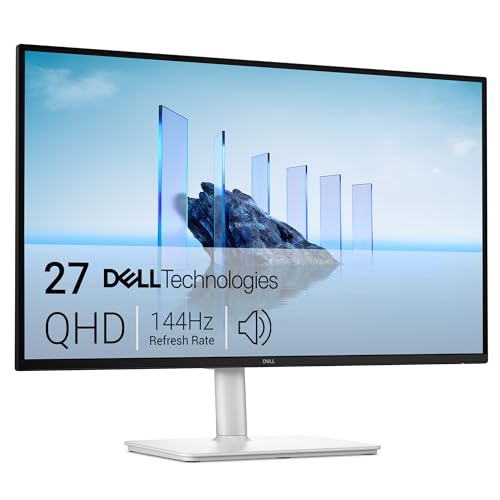

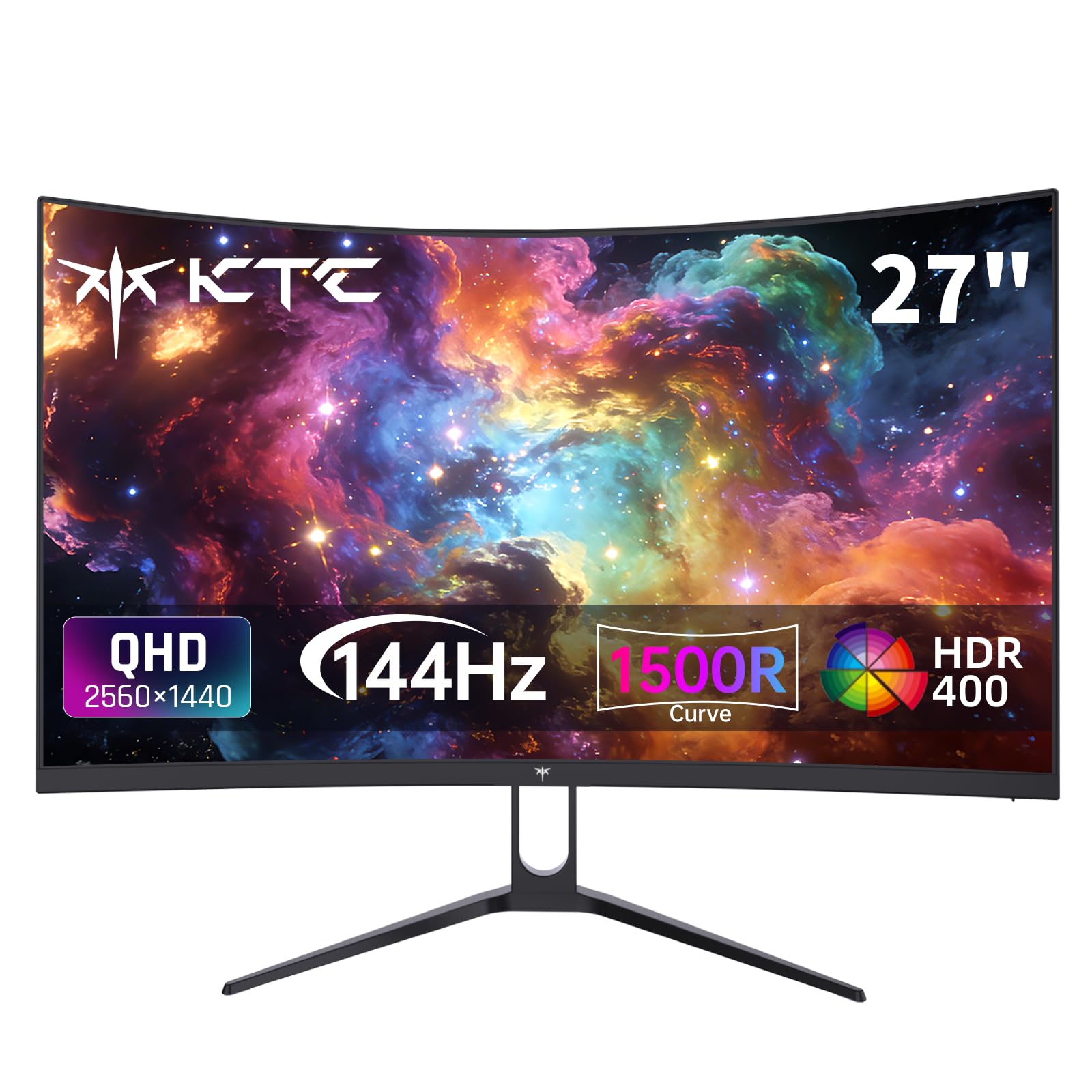
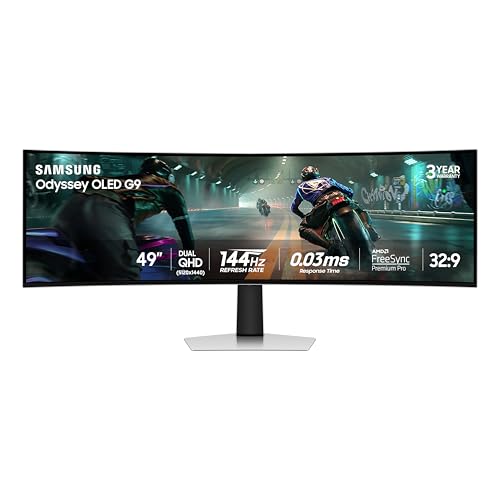
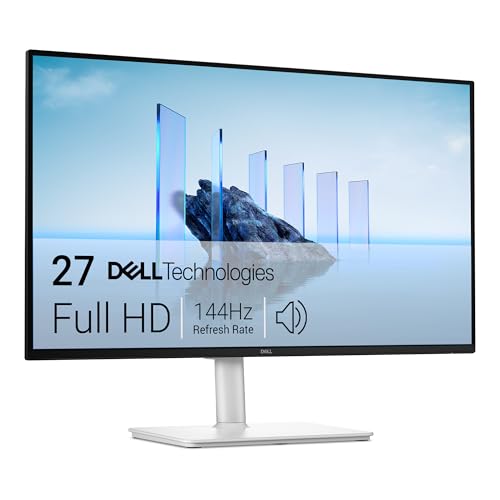
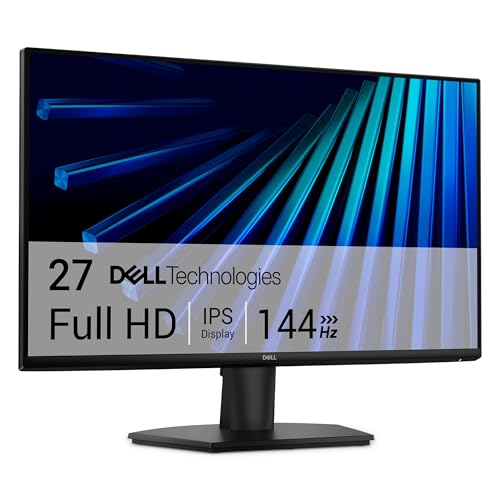

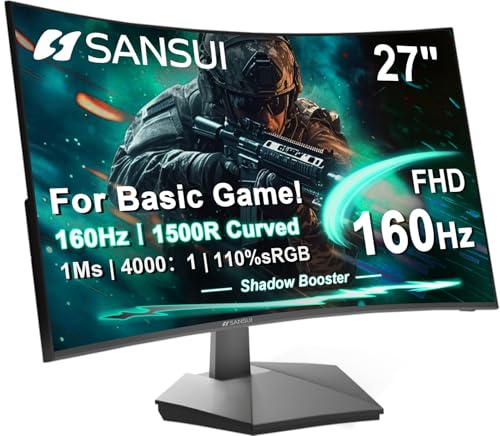
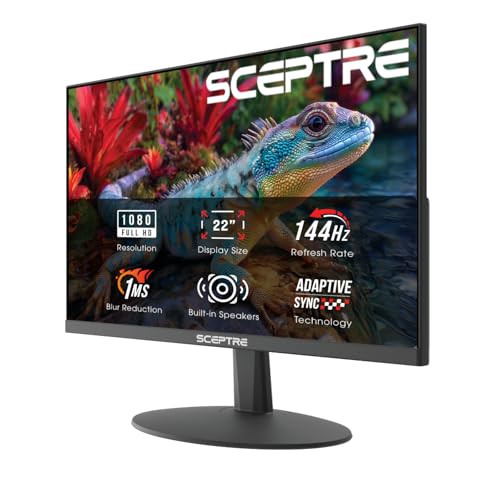
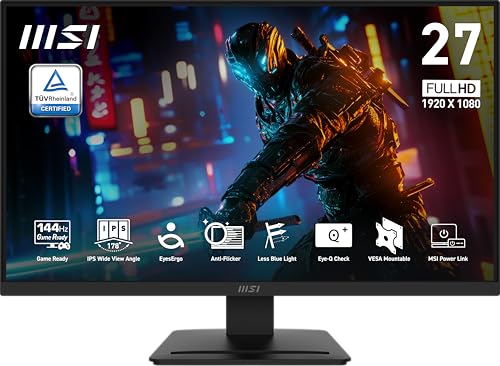
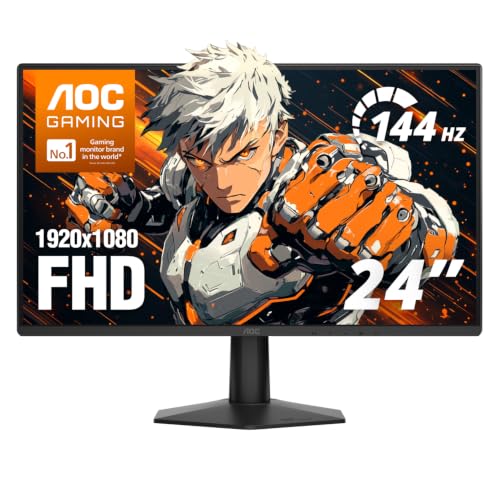
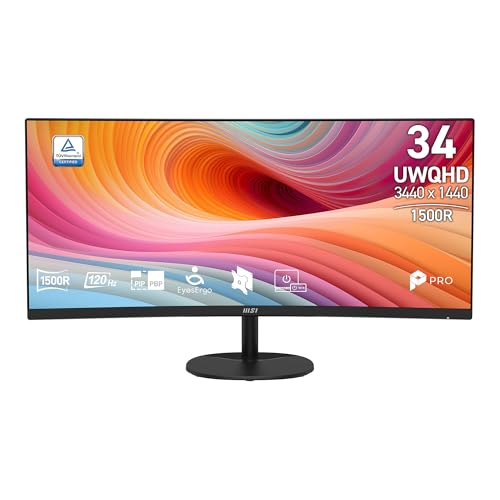
Types of 144hz Monitors Compared
The table below gives a quick side by side view. Read the detail under each type before you decide, because the same refresh rate can hide big differences in color, contrast, and price.
| Type | Best For | Pros | Cons | Typical Price |
|---|---|---|---|---|
| Budget displays | Everyday use and casual gaming | Low price, simple setup | Narrower color range, basic stands | About $70 to $150 |
| Gaming displays | Fast paced games | Quick response, adaptive sync | Color can vary by panel | About $150 to $450 |
| OLED displays | Rich contrast and deep blacks | Excellent contrast, fast pixels | Higher price, burn in care needed | About $800 to $1,200 |
Budget Displays
Budget displays focus on the core benefit, smooth motion, without charging for premium color or brightness. They suit students, home office users, and casual players who want a clear upgrade from a basic screen. Color accuracy is usually adequate for browsing, documents, and video, but it may fall short for careful photo work. Stands on cheaper models often tilt only, so check height adjustment if you sit at a desk for long hours.
These screens also make sense as a second display, where the main job is extra space rather than perfect color. Look for a digital input that matches your computer, and confirm the stand fits your desk depth. A lower price leaves room in the budget for a better mount or a longer cable if you need one.
Gaming Displays
Gaming displays pair the fast refresh rate with quick pixel response and adaptive sync, which helps the screen match the frame rate coming from the graphics card. That pairing reduces tearing, the visible split that appears when frames and refresh cycles fall out of step. Competitive players gain most from this combination, especially in shooters and racing games where targets move quickly.
Not every gaming display looks the same, because panel choice still shapes color and viewing angles. Some prioritize speed over rich color, while others balance both at a higher price. Check the response time claim with care, since makers measure it in different ways, and read the panel type before you buy.
OLED Displays
OLED displays light each pixel on its own, so dark scenes can look truly dark next to bright highlights. That contrast gives movies and story driven games a depth that other panels struggle to match. Pixel response is also very fast, which keeps fast motion crisp.
The trade offs are price and care. OLED screens cost more, and static images left on screen for very long periods can leave a faint ghost, a risk makers call burn in. Modern models include pixel refresh routines and screen shift features that lower that risk. If you watch varied content and use the built in care features, an OLED screen can be a strong long term choice.
Budget Displays vs Gaming Displays: Which Should You Choose?
Compare the two types on speed, color, features, and price. Budget displays win on price and simplicity, while gaming displays win on response time, adaptive sync range, and often on stand adjustment. For office work, study, and casual play, a budget display usually delivers the smoothness you notice most. For ranked or fast paced play, the extra response speed and sync support of a gaming display is easier to justify.
Color needs can tip the choice the other way. If you edit photos or video, a budget display with weak color may frustrate you even if motion looks smooth. In that case, look at the panel type and color coverage rather than the refresh rate alone. Your final choice should match your main use, not the highest spec on the box.
How to Choose the Best 144hz Monitors
Work through the factors below in order when you compare the best 144hz monitors, and let your desk space and computer hardware set the limits. A screen that your graphics card cannot drive well at its native resolution will not feel as smooth as its spec sheet promises.
Resolution and Screen Size
Resolution sets how sharp text and images look, and it works with screen size to set viewing distance. A 24 inch screen at 1080p looks sharp at a normal desk distance, while a 27 inch screen benefits from 1440p to keep text crisp. A 32 inch screen usually needs 1440p or 4K to avoid a coarse look. Larger screens also need more desk depth, so measure your space before you order.
For sharper text options, see our guides to the best 4k 144hz monitors, the best 1440p 144hz monitors, and the best 1080p 144hz monitors.
Higher resolution also demands more graphics power to hold high frame rates. If your computer struggles at 1440p, a 1080p screen may actually feel smoother in games. For work and reading, higher resolution helps more than it does for casual play, so weigh text clarity against gaming performance.
Refresh Rate and Response Time
Refresh rate counts how often the screen updates each second, while response time measures how quickly a pixel changes color. A 144hz screen updates often, but slow pixels can still smear fast motion. Look for a quoted response time in the low single digit milliseconds, and treat maker claims as rough guidance rather than exact fact.
Console players should note that many consoles cap output at 120hz, so a 144hz screen still works but will not show 144 frames per second from that source. PC players with a strong graphics card can reach the full rate more often. Adaptive sync, sold under names such as FreeSync and G Sync compatible, helps smooth out frame rate dips in both cases.
HDR and Brightness
HDR, or high dynamic range, aims for brighter highlights and deeper shadows in supported video and games. True HDR needs high peak brightness, often measured in nits, plus good local dimming or an OLED panel. Many affordable screens carry an HDR label but lack the brightness to show a clear difference, so check the peak brightness figure before paying extra for the feature.
For a bright room, overall brightness matters as much as HDR support. A screen rated around 300 nits suits most indoor spaces, while a very bright room near a window may need more. If you mainly work with documents, steady brightness and low glare matter more than HDR peaks.
Panel Technology (IPS, VA, OLED, Mini LED)
IPS panels offer wide viewing angles and steady color, which suits shared desks and color aware work. VA panels offer stronger contrast than IPS, but viewing angles can be narrower and dark motion may smear slightly. OLED panels offer the best contrast and fastest pixels, with burn in care as the main caution. Mini LED backlights improve contrast on LCD screens by dimming many small zones behind the panel.
There is no single best panel for every buyer. Office users and creators often favor IPS, movie watchers often favor VA or OLED, and competitive players often favor whichever panel gives the fastest clean motion in their price range. Compare panels in person when possible, since spec sheets hide differences in coating and factory tuning. For color focused shoppers, see our guide to the best ips 144hz monitors.
Care and Maintenance Tips
Picture settings repay a few minutes of attention. Turn off vivid mode, which often oversaturates color and crushes shadow detail, and choose a standard or custom mode instead. Set brightness to suit your room rather than leaving it at maximum, which also eases eye strain during long sessions.
OLED owners should run the pixel refresh routine when the screen prompts, and avoid leaving the same static image on screen for hours. Clean any screen with a dry microfiber cloth, and use only a cleaner the maker approves for coated panels. Keep vents clear and avoid placing the screen in direct sunlight, which can heat the panel and fade the coating over time. See an eye care professional if you notice persistent eye pain or vision changes, since a new screen does not treat eye problems.
Frequently Asked Questions
IPS vs OLED: Which Is Better for a 144hz Screen?
Neither panel wins for every buyer, because they trade strengths. IPS gives wide viewing angles, steady color, and no burn in worry at a lower price, which suits office work and shared desks. OLED gives deeper blacks, stronger contrast, and faster pixels, which suits movies and story driven games. Choose IPS if you want low maintenance value, and OLED if contrast matters most and you will use the built in pixel care features.
Is 4K Worth It on a 144hz Screen?
4K is worth it on larger screens and for sharp text, but it demands a powerful graphics card to hold high frame rates in games. At 27 inches and below, 1440p often looks nearly as sharp while running much faster on midrange hardware. Consider 4K if you edit high resolution photos or video, sit close to a large screen, or already own a strong graphics card. Otherwise, spend the difference on a better panel or a larger size.
Does Refresh Rate Matter for Non Gamers?
Yes, but the benefit is subtler than in games. Scrolling through long documents, moving windows, and browsing the web all feel smoother on a fast screen. Video playback, which usually runs at 24 to 60 frames per second, gains little beyond smoother cursor motion. Non gamers should still weigh resolution, size, and comfort first, and treat the faster refresh rate as a welcome bonus rather than the main reason to buy.
What Size 144hz Screen Should I Get for My Room or Desk?
Match size to viewing distance and desk depth. A 24 inch screen suits desks about 60 cm deep, a 27 inch screen suits a slightly deeper desk, and a 32 inch screen needs more room so you are not turning your head constantly. Measure the width of your desk too, since a wide stand can crowd a keyboard or speakers. If space is tight, a monitor arm can free desk room and let you set the exact height and distance.
How Long Do 144hz Screens Last?
Most modern screens last many years with normal use, often well past five years, though backlight brightness can fade slowly over time. OLED panels add the burn in caution, but varied content and pixel care features keep the risk low for most users. Lifespan depends more on daily hours, brightness setting, and heat than on the refresh rate itself. Keep the screen ventilated, avoid maximum brightness around the clock, and update firmware when the maker offers it.
Final Thoughts
Start with your main use, then pick resolution and size, then panel type, and let price narrow the last options. Budget displays cover everyday needs well, gaming displays add speed and sync for fast play, and OLED displays offer the richest contrast for those willing to pay more and follow the care steps. Use the product table to compare the picks side by side before you settle on one.
For most buyers, a well chosen midrange screen beats a top spec screen that strains the budget or the graphics card. Revisit the key factors, resolution, panel, brightness, and stand adjustment, and choose the screen that fits your desk, your computer, and your daily routine. That balanced approach is the surest way to enjoy best 144hz monitors without regret.


