
Best 1440p Monitors under 300: A Practical Buying Guide for 2026
Disclosure: We may earn a commission when you buy through links on this page, at no extra cost to you. As an Amazon Associate I earn from qualifying purchases. Learn more

Best 1440p monitors under 300, compared by panel type, refresh rate, size and ports so you can pick a screen that fits your desk and budget.
A 1440p screen sits in a sweet spot for most desks. Text looks sharper than on a 1080p screen, games gain visible detail, and you get more room for windows without the cost or graphics demands of 4K. Choosing the best 1440p monitors under 300 is mostly about tradeoffs, since this budget forces every brand to cut somewhere. One model spends on speed, another on color, and another on a better stand.
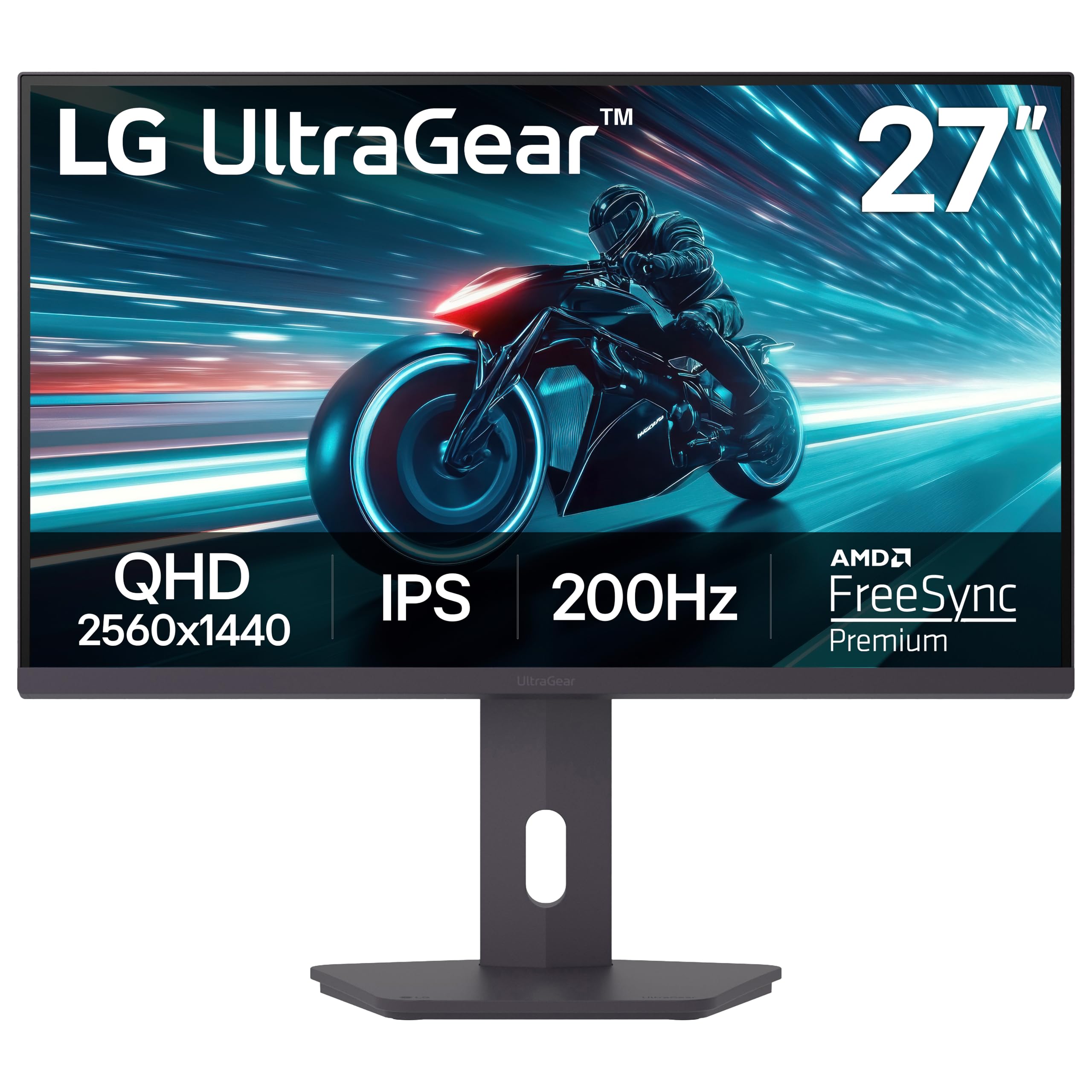
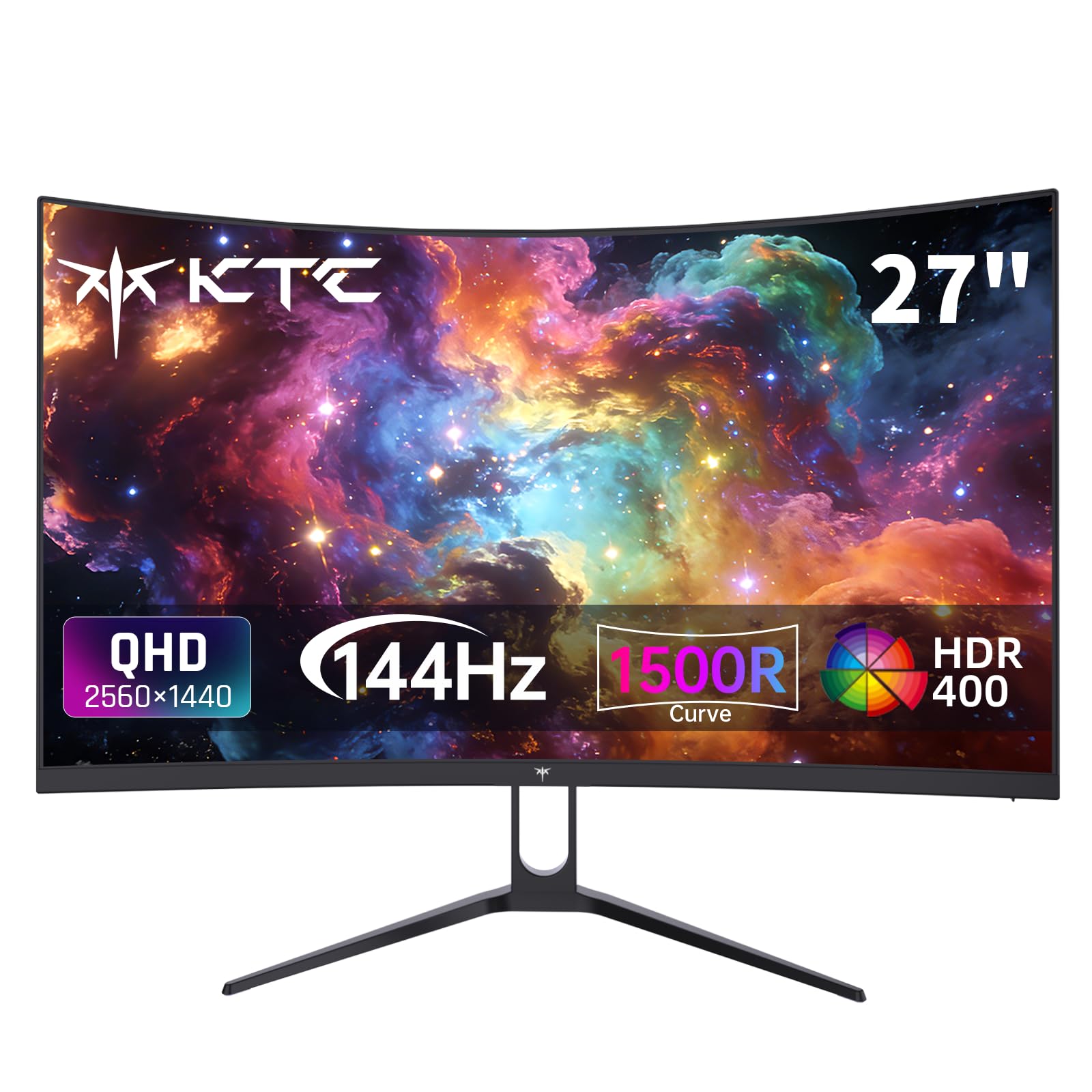
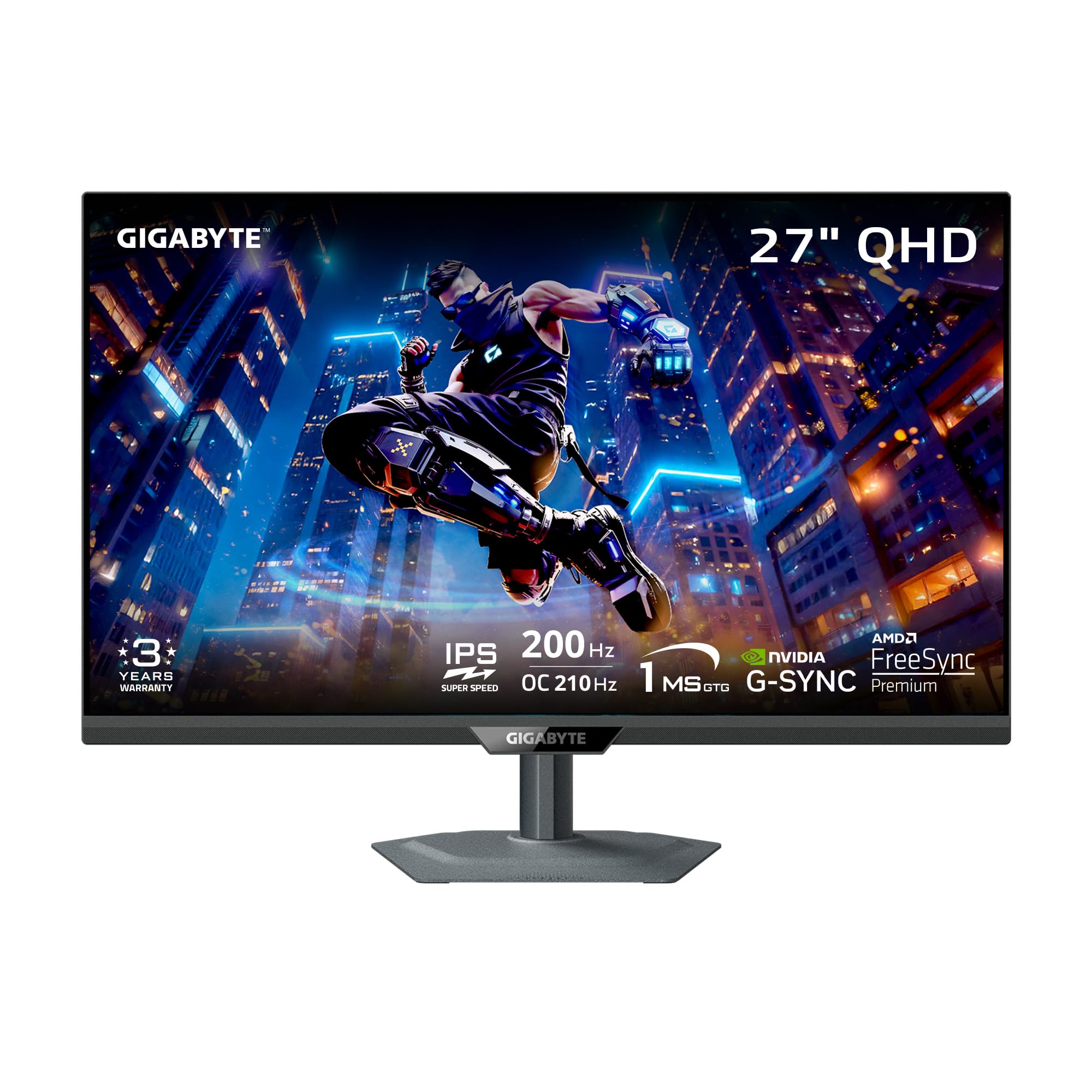
This guide walks through what this budget realistically buys, which panel and size suit your work, and which specs matter less than the marketing suggests. Start with the comparison table below to see how models differ on price, size, and refresh rate, then judge the details that decide daily comfort.
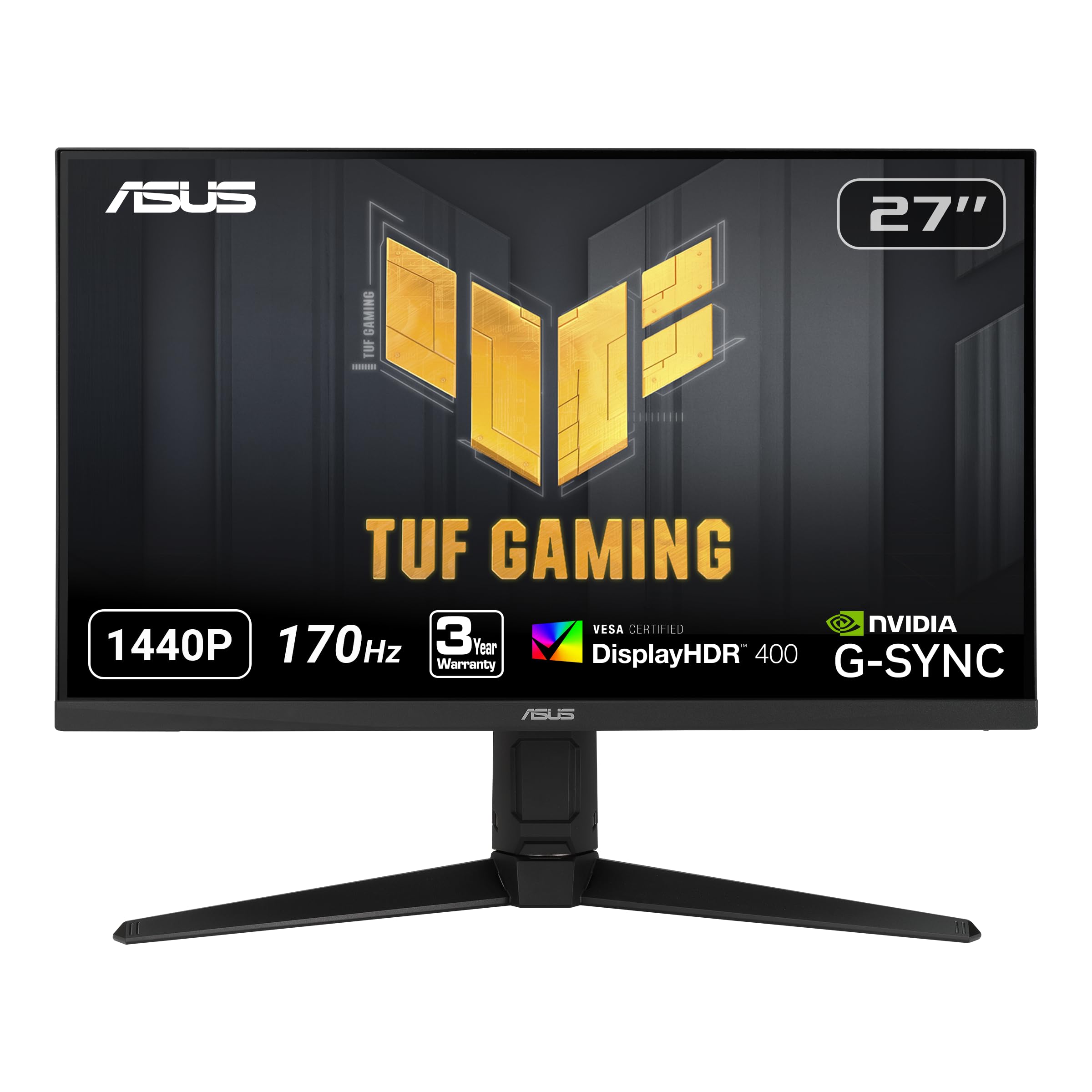
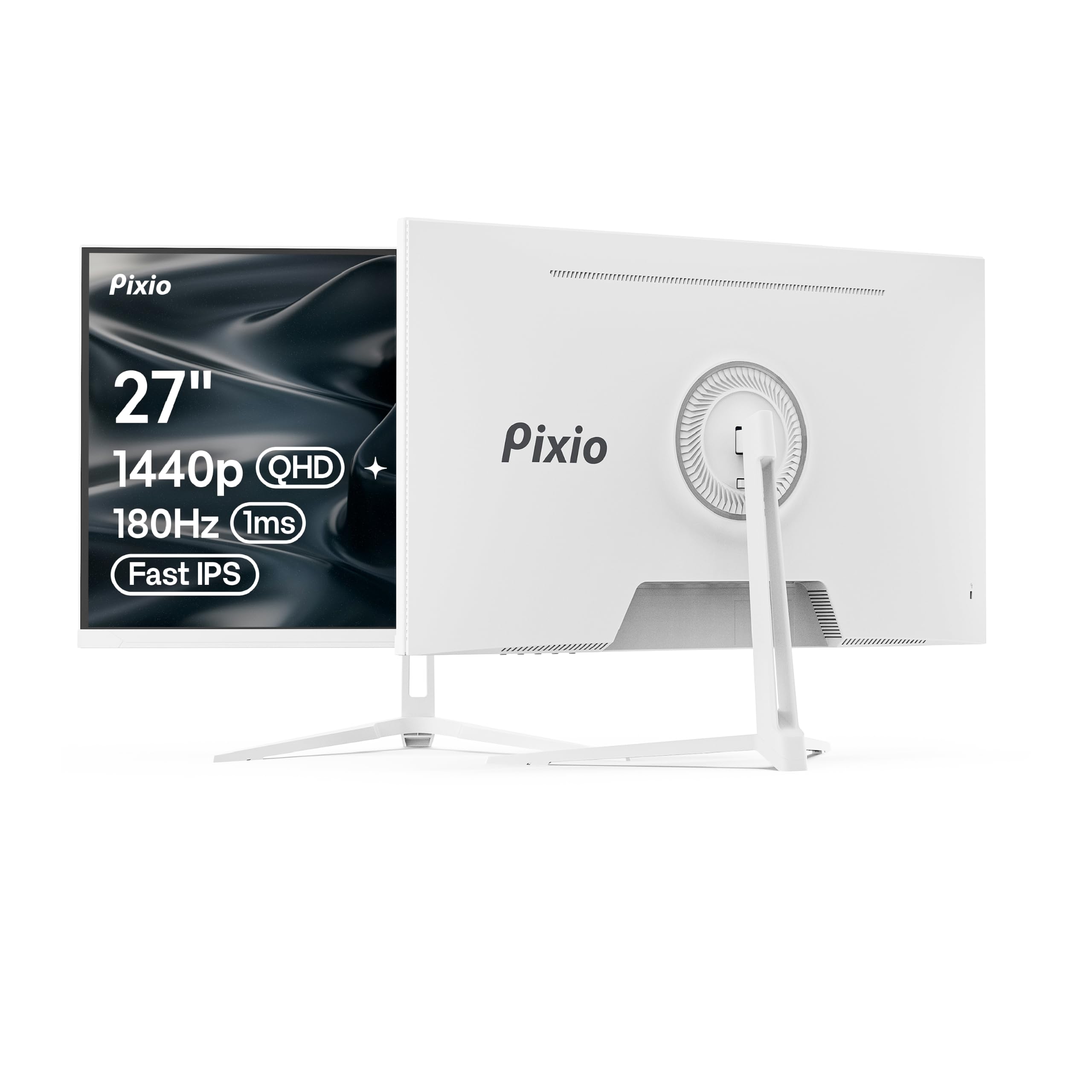
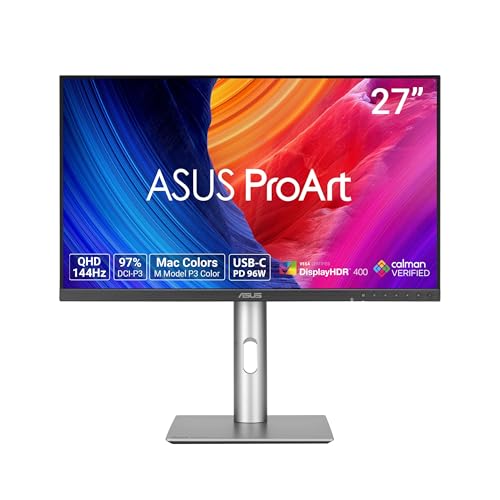
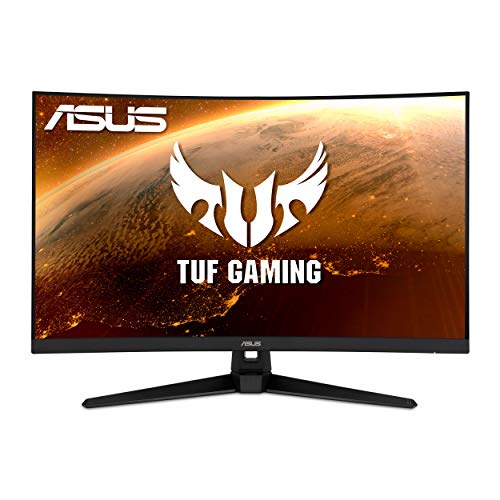


Who Should Buy a 1440p Monitor in This Price Range
The product table above shows a wide spread of designs at similar prices, because buyers want different things. Match the monitor to your main use first, and let secondary uses break ties.
Home Office and Everyday Work Users
For documents, spreadsheets, email, and browsing, 1440p resolution pays off every day. You can place two windows side by side at readable sizes, see more spreadsheet rows at once, and read text that stays crisp at normal viewing distances.
Prioritize an IPS panel, a stand with height adjustment, and a backlight that stays steady without visible flicker during long sessions. If your laptop charges over USB C, a monitor with that port can carry picture, data, and power on one cable. Readers focused entirely on computer work can also see our guide to the best pc monitors under 300 for more office focused options.
Gamers Who Want Speed Without a 4K Price
For gaming, this budget now buys 144 Hz and often 165 Hz or 180 Hz refresh rates, plus adaptive sync that smooths motion when frame rates rise and fall. That combination feels far more responsive than a basic 60 Hz screen, and a capable graphics card can still hold high frame rates at 1440p in most games.
Check that your graphics card can drive your favorite games at this resolution before you pay for the fastest panel. Older cards may need lower settings to stay near 144 frames per second. If gaming is your top priority across all resolutions, see our guide to the best gaming monitors under 300 for models built around speed first.
Students and Creators on a Budget
Students get a screen that handles research, writing, and streaming on one desk, with space to keep a source document open beside an essay. A 27 inch panel fits most dorm desks while still feeling like a real upgrade over a laptop screen.
For photo editing, design classes, and video projects, look for an IPS panel with sRGB coverage close to 100 percent. Factory calibration varies at this price, so treat color claims as a starting point and plan to adjust settings yourself after setup.
How to Choose a 1440p Monitor: The Buying Guide
The sections below cover the specs that change what you see and feel, in the order most buyers should weigh them. Panel quality and size come first, because you cannot change them later.
What You Can Realistically Expect at This Budget
When you shop the best 1440p monitors under 300 category as a whole, most strong options cluster at about $200 to $300, and at those prices you give up something. Expect modest built in speakers, stands that may tilt only, HDR labels that promise more than the brightness can deliver, and few USB ports. What you should not give up is a sound panel with even backlighting and, for gaming, at least 144 Hz. If resolution itself is flexible for you, see our guide to the best monitors under 300 to compare 1080p and 1440p at this price.
Panel Technology: IPS, VA, and OLED
IPS panels give the most accurate colors and the widest viewing angles, so they suit shared screens, office work, and editing. VA panels deliver much deeper contrast, with blacks that look truly dark in a dim room, but they can smear dark details in fast motion and often sit in curved designs. OLED panels beat both on contrast and response speed, yet genuine OLED models almost always sit above this budget. IPS is the safe default here, and VA suits movie lovers in dark rooms.
Resolution and Screen Size
1440p means 2560 by 1440 pixels, about 78 percent more pixels than 1080p on the same size screen. At 27 inches that works out to roughly 109 pixels per inch, which keeps text smooth without any display scaling. At 32 inches the same pixels spread thinner, near 92 pixels per inch, so text looks about as sharp as a 24 inch 1080p screen while images feel more immersive. For most desks, 27 inches is the balanced choice.
Refresh Rate and Response Time
Refresh rate counts how many times the screen redraws each second, and moving from 60 Hz to 144 Hz or more makes scrolling, camera movement, and cursor motion look clearly smoother. Response time describes how fast pixels change color, and slow changes cause blurring behind moving objects. Listed figures such as 1 ms come from ideal test modes, and pushing overdrive too far can create pale outlines called overshoot. A well tuned 144 Hz panel feels better in real use than a poorly tuned panel with a faster claim on the box.
Adaptive Sync and Gaming Features
Adaptive sync lets the monitor match its refresh rate to the frame rate your graphics card produces, which removes screen tearing and reduces stutter when the action gets busy. FreeSync works with most modern cards, and many FreeSync monitors also carry G Sync compatibility for Nvidia cards, so check the listing for your exact card. Current game consoles can output 1440p at up to 120 Hz on supported models. Extras like crosshair overlays are minor, so weigh panel quality first.
Connectivity and Ports
DisplayPort is the connection to use on a PC, since it carries 1440p at the highest refresh rates these monitors offer. HDMI ports handle consoles and laptops, and most here carry 1440p at 144 Hz without trouble. HDMI 2.1 appears rarely at this price and matters far more for 4K at 120 Hz than for 1440p, so do not pay extra for it here. A USB C port with video support and power delivery of about 65 watts is worth more, because it gives a laptop a single cable connection.
Sound, HDR, Mounting, and Extra Features
Built in speakers on budget monitors are usually small 2 watt drivers that handle calls and casual video fine but sound thin for music and movies. If audio quality matters, plan on headphones or external speakers, and see our guide to the best monitor speakers under 300 for desk friendly options. HDR support at this price mostly means the screen accepts an HDR signal, since peak brightness near 300 to 400 nits cannot produce punchy HDR highlights. A VESA mount pattern of 100 by 100 mm matters more, because it lets you add a monitor arm when the stand lacks height adjustment.
Types of 1440p Monitors Worth Knowing
Beyond the spec sheet, most models fall into a few broad types. Knowing the type helps you read the product table above with the right expectations.
OLED Displays
OLED displays light each pixel on its own, so blacks are perfect, contrast is unmatched, and motion looks exceptionally clear. The tradeoff is price and care, since OLED panels cost well above this budget and can retain static images if bright elements stay on screen for many hours daily. Treat any listing at under $300 that claims OLED with caution. This type is mainly a stretch goal for a future upgrade.
Large Screen Options
Large screen options include 32 inch flat and curved models plus 34 inch ultrawide screens that stretch the picture wider instead of taller. They shine for racing games, movies, and timelines in video editing, where the extra width pulls you into the scene. The cost is pixel density, because 1440p spread across a bigger area looks less sharp up close, and ultrawide models need more desk depth and a stronger graphics card at high frame rates.
Gaming Displays
Gaming displays in this range pair 144 Hz to 180 Hz refresh rates with adaptive sync and thin bezels, and many use VA panels with a gentle curve. They are the right default if fast games dominate your screen time. The compromises show up elsewhere, in tilt only stands, average color accuracy out of the box, and speakers that feel like an afterthought. Office users should check that text clarity and stand adjustment suit long workdays.
Common Mistakes to Avoid
- Buying a 32 inch model for close desk work without realizing the larger size lowers pixel density and softens text.
- Paying for a 240 Hz panel when your graphics card rarely pushes past 100 frames per second at 1440p.
- Trusting the HDR label on a dim screen and then feeling let down when HDR video looks flat.
- Ignoring stand adjustment and then stacking the monitor on books because the fixed height strains your neck.
- Forgetting to change the refresh rate in system settings, which leaves a fast monitor running at 60 Hz.
- Choosing a glossy screen for a bright room with windows behind you, so reflections fight the picture.
How to Make Your 1440p Monitor Last Longer
A monitor has no moving parts to wear out, so its lifespan mostly depends on heat, brightness habits, and gentle handling.
- Turn brightness down to a comfortable level instead of running at full power, since high brightness ages the backlight faster and tires your eyes.
- Set a screen timeout of a few minutes so a static desktop does not sit lit for hours while you are away.
- Clean the screen only with a dry or slightly damp microfiber cloth, and never spray cleaner directly onto the panel.
- Keep vents along the back and top clear of dust and clutter so heat can escape.
- Use the cables from the box or quality replacements rated for your resolution and refresh rate, and never force a connector that resists.
- On the rare OLED model, run the built in pixel refresh routine when the monitor prompts you.
1440p Monitors: Your Questions Answered
Can You Get a Good 1440p Monitor for Under $300?
Yes, you can get a genuinely good 1440p monitor for under $300, especially for work and mainstream gaming. Panels at this price are mature technology, so colors and viewing angles are strong. What separates a smart buy from a weak one is the stand, the port mix, and backlight evenness. Buyers also miss warranty length, which varies from one to three years between brands, so check it before ordering.
IPS or OLED: Which Panel Is Better for a 1440p Monitor?
OLED is better for pure picture quality, with deeper blacks and faster pixel response, while IPS is better for value, brightness in lit rooms, and worry free use with static content. At this budget the question settles itself, because OLED models cost far more than the screens covered here. An IPS panel also avoids concern about bright taskbars and menus staying in one place for hours.
What Size 1440p Monitor Should You Get for Your Desk?
Choose 27 inches for most desks, because it balances sharp text, immersion, and price better than any other size at this resolution. Go to 32 inches only if you sit farther back, around 30 inches or more from the screen, or mainly watch video and play games with a controller. Measure your desk depth before ordering, since larger stands can push the screen closer than you expect.
Is 4K Worth Choosing Over a 1440p Monitor?
4K is worth it mainly for large screens and detailed photo work, but it costs more and demands far more from your graphics card in games. At 27 inches, most people cannot see a dramatic sharpness gain over 1440p at normal seating distances, while the frame rate cost is obvious in every game. If fine image detail fills your workday, 4K earns its price. Otherwise 1440p leaves budget for a better stand or speakers.
Does Refresh Rate Matter for a 1440p Monitor If You Do Not Play Games?
Yes, a higher refresh rate still helps outside games, because scrolling documents, moving windows, and even the mouse pointer all look smoother and feel more direct. The benefit is comfort rather than performance, and many office users find 144 Hz easier on the eyes during long reading sessions. One caution is that some laptops limit external refresh rates over HDMI, so check your laptop port specification before pairing it with a fast screen.
The Bottom Line
Start with size and panel, since those two choices shape every day in front of the screen. A 27 inch IPS model with a height adjustable stand covers the widest range of work, study, and play, while gamers should add 144 Hz or higher and adaptive sync to that shortlist. Use the product table above to confirm ports, VESA support, and pricing before you order.
Chasing the longest spec list is the easiest way to overspend at this level. Focus on backlight quality, stand comfort, and the connections your devices actually use, and the best 1440p monitors under 300 become a short and manageable list.


