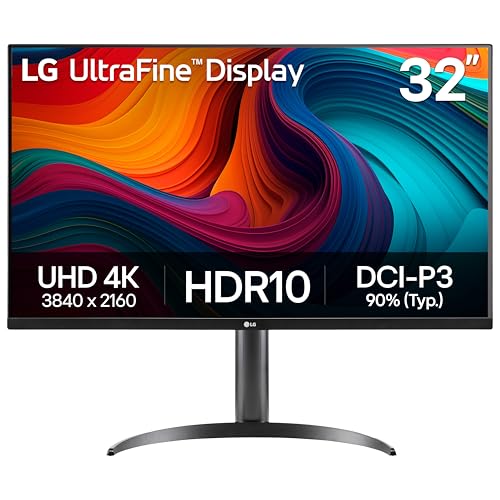
Best 27 Inch 1440p Monitors for 2026: What Actually Matters Before You Buy
Disclosure: We may earn a commission when you buy through links on this page, at no extra cost to you. As an Amazon Associate I earn from qualifying purchases. Learn more

Best 27 inch 1440p monitors balance sharp text and smooth games; check panel, refresh rate, ports, and stand comfort first.
A 27 inch screen pairs naturally with 1440p resolution, and best 27 inch 1440p monitors earn their popularity by keeping text readable, windows roomy, and games smooth without demanding a top tier graphics card. The size is large enough for side by side documents yet small enough to fit a standard desk, which is why so many buyers land here after weighing smaller and larger options.
Before you order, it helps to separate the specs that change your daily experience from the labels that only sound impressive. This guide starts with size and viewing distance, then covers panel quality, motion, ports, and desk comfort, so you can judge each option against your own setup. Compare candidates in the product table, then use the quick checks near the end to confirm your choice.
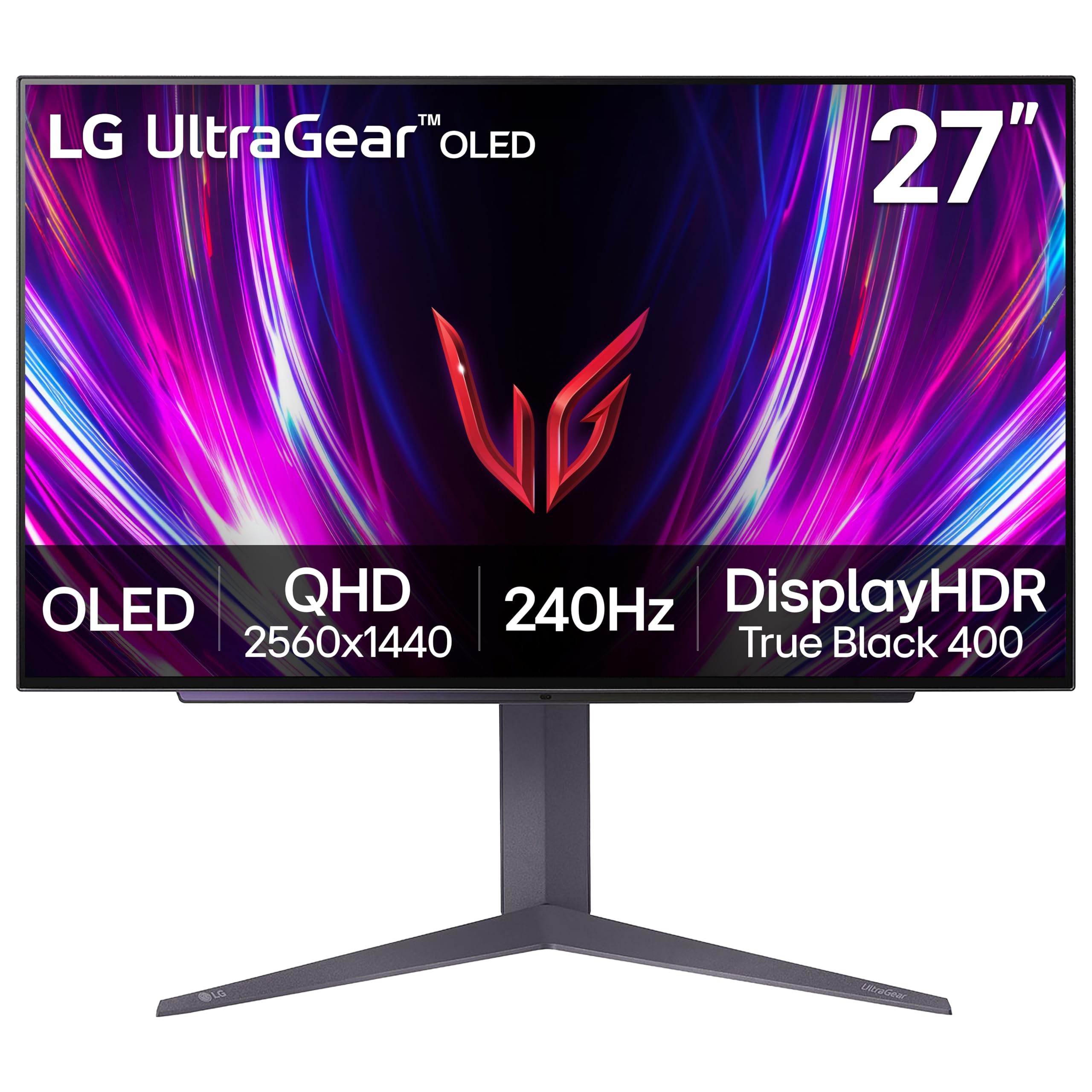
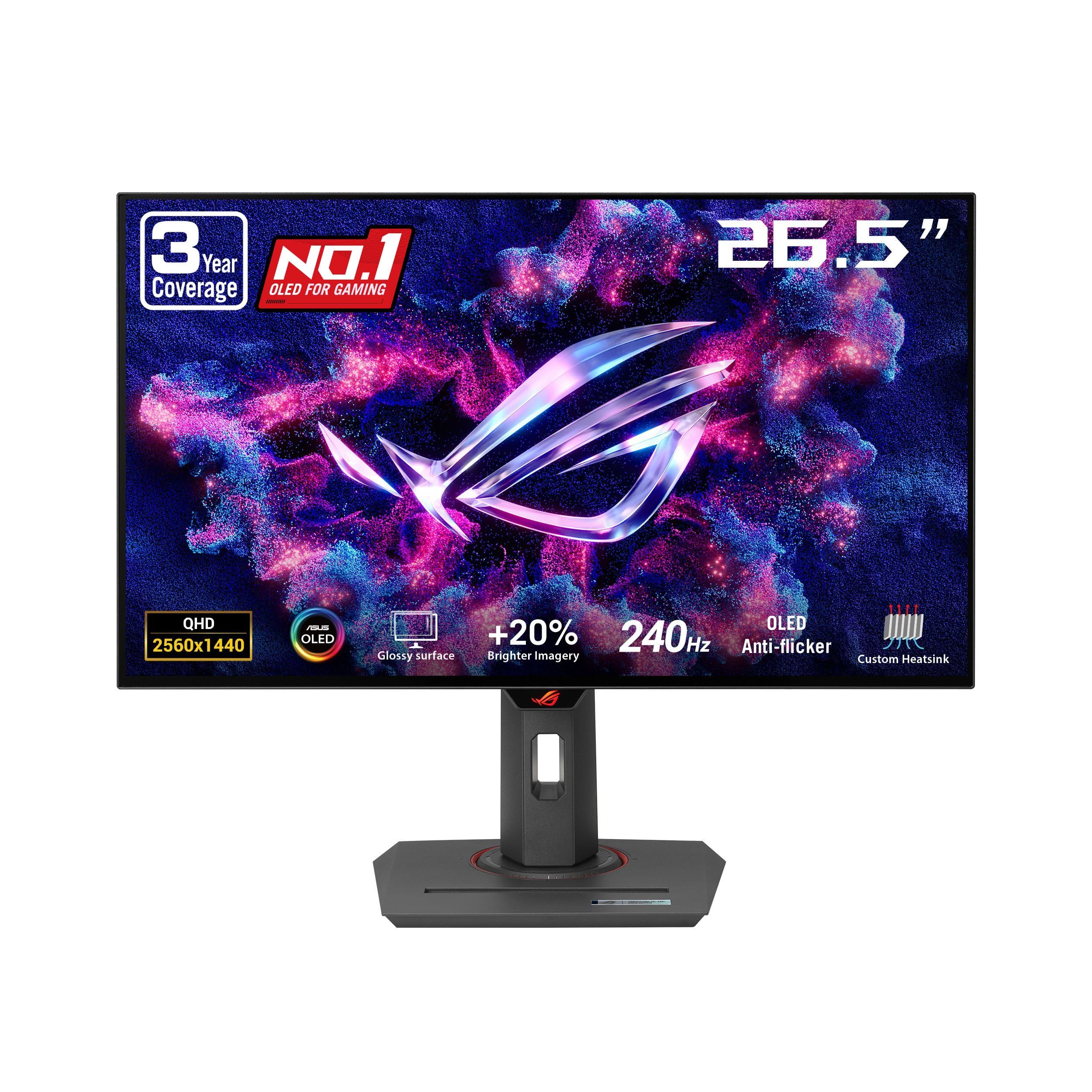
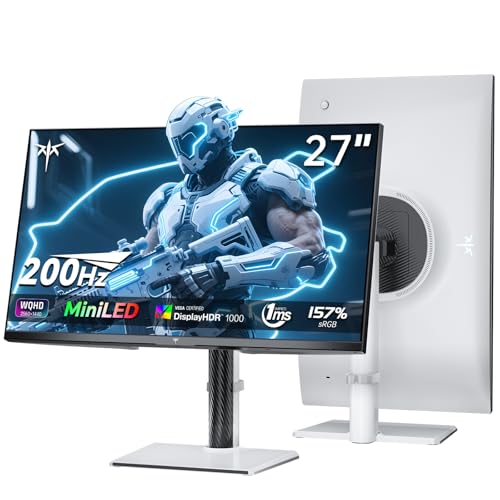


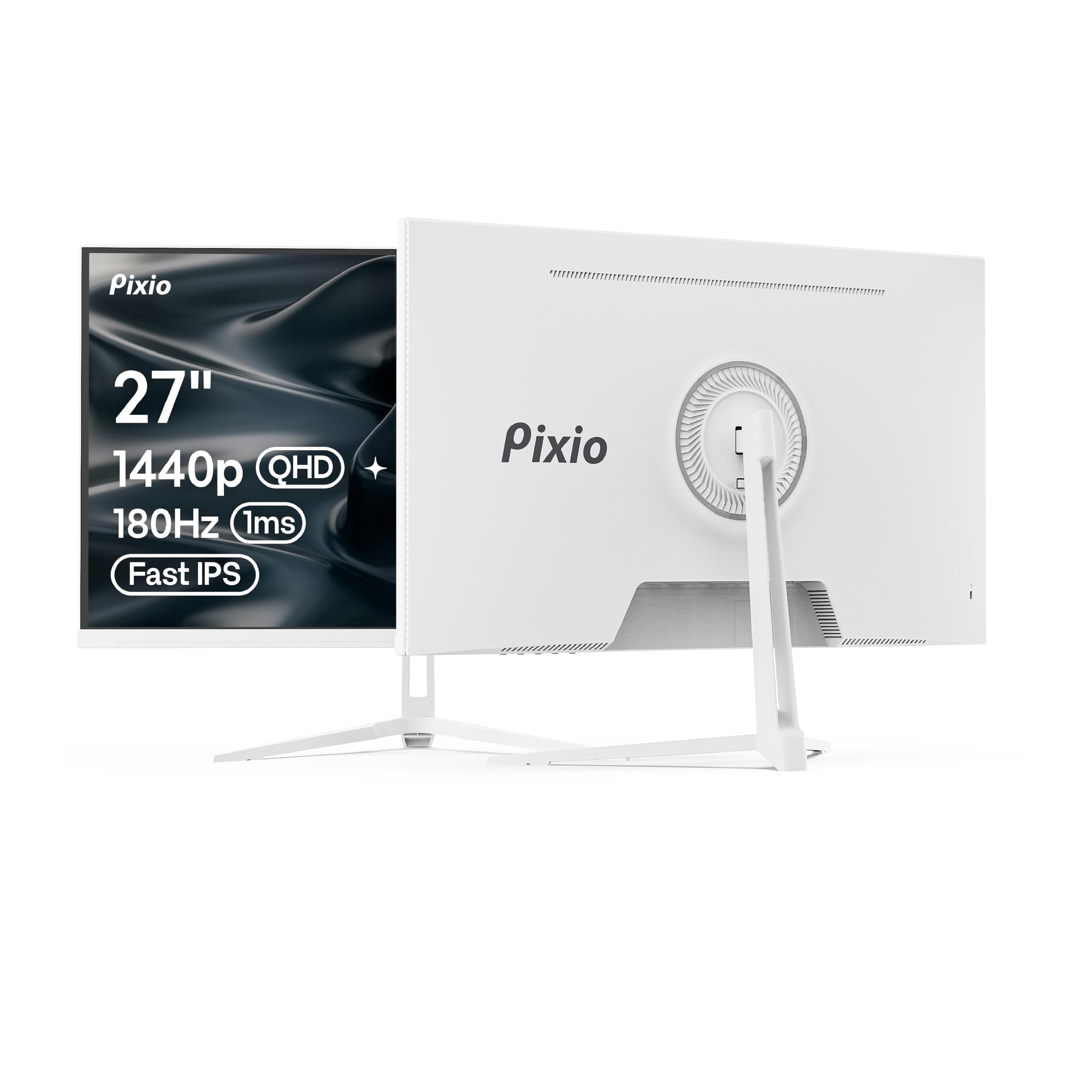
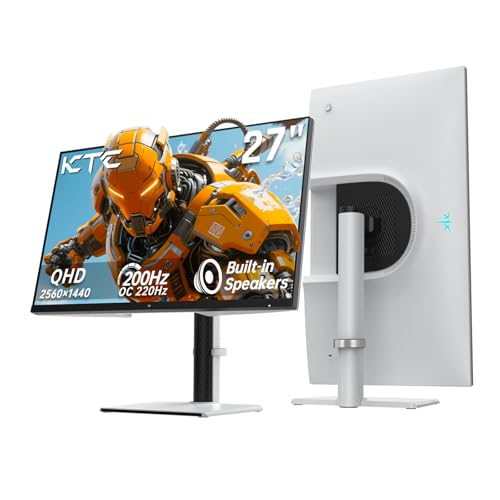


Best 27 Inch 1440p Monitors: Start With Size and Viewing Distance
At 27 inches, 1440p resolution lands near 109 pixels per inch, a density that keeps text crisp at a normal arm's length viewing distance without forcing you to scale everything larger. Sit about an arm's length away, roughly 60 to 80 cm, and the screen should fill a comfortable part of your view without forcing constant head turns. If your desk is shallow, consider a monitor arm that pushes the screen back a few extra centimeters, since a fixed stand can leave a large screen feeling too close.
Also measure the width of your desk, because a 27 inch screen plus a wide stand base can crowd out speakers, notebooks, or a second screen. If you are still weighing sizes, see our guide to best 27 inch monitors.
Panel and Picture Quality Criteria
Panel type shapes color, contrast, and viewing angles more than any other single choice. IPS panels hold color steady across wide angles, which matters if you share the screen or shift position during the day, while VA panels can show deeper blacks but may lose consistency off angle. OLED panels deliver striking contrast in dark rooms, yet they cost more and ask for care with static images.
Brightness near 300 to 400 nits suits most indoor rooms, and a stated peak brightness matters more than a bare HDR badge when you compare HDR claims. For photo or design work, look for stated color coverage and a calibration option rather than trusting a vivid showroom mode. For a curved alternative at this size, see our guide to best 27 inch curved monitors.
Motion, Sync, and Ports
Refresh rate decides how smooth motion looks, and 144 hertz or 165 hertz screens feel noticeably smoother than 60 hertz screens when you scroll or play games. Response time, measured in milliseconds, affects smearing behind fast moving objects, so lower figures help in action games while mattering little for documents. Adaptive sync, through G Sync or FreeSync, matches the screen to your graphics card output and reduces tearing, but you should confirm your card brand works with the screen you choose.
Players focused on games can see our guide to best gaming monitors 27 inch. For connections, DisplayPort usually carries the highest refresh rates, HDMI suits consoles and laptops, and USB C with power delivery can connect a laptop with one cable. For a desk setup built around a computer, see our guide to best 27 inch pc monitors.
Comfort and Desk Fit
Comfort starts with height: the top of the screen should sit near eye level so your neck stays neutral through a long workday. A stand with height, tilt, and swivel adjustment makes that easy, and a VESA mount option, commonly 100 by 100 mm, gives you a fallback if the included stand disappoints. Matte coatings cut reflections in bright rooms better than glossy finishes, and a low blue light mode or flicker free backlight can make evening sessions feel easier.
Take regular breaks from the screen, and see an eye care professional if you notice persistent eye pain or changes in your vision, since no monitor setting replaces professional advice.
Getting Value at Each Price Point
Price differences among the best 27 inch 1440p monitors mostly reflect speed, color accuracy, build, and extras rather than resolution, which stays the same across tiers. The guide below describes what each spending level usually includes, so you can stop at the point where extra money stops buying comfort you will notice.
Everyday Value Tier
The most affordable 27 inch 1440p screens typically offer a 60 hertz or 75 hertz IPS panel, about 300 nits of brightness, and a tilt only stand. That is plenty for documents, email, video calls, and streaming video, and it leaves budget for a monitor arm if the stand feels limiting. Check the port list carefully at this level, since a missing DisplayPort input or a single HDMI port can complicate a two device desk.
This tier makes sense when your computer is modest and your main tasks are reading and writing rather than fast paced play.
Capable All Rounder Tier
The middle tier is where most buyers find the best return, with 144 hertz or 165 hertz refresh rates, wider color coverage, and a fully adjustable stand. You may also gain USB C input, a small USB hub for accessories, and better factory calibration that keeps colors believable straight out of the box. This level handles a mixed day well, from spreadsheets and video calls to evening games and films, without an obvious weak spot.
If you own a midrange graphics card, this tier matches its abilities better than a faster screen your computer cannot fully use.
High End Comfort Tier
At the top of the range you typically find 240 hertz panels, stronger HDR with local dimming, premium metal stands, and extras such as a KVM switch for sharing the screen between two computers. These features reward competitive players, color sensitive editors, and anyone sharing one desk between a work laptop and a personal machine. Before paying more, confirm your graphics card can reach high frame rates at 1440p in the games you actually play, since unused speed is money spent on a number you never see.
If it cannot, the all rounder tier is usually the smarter buy.
Quick Checks Before You Order
Use this short list as a final pass over any screen that has caught your eye, and keep looking if several answers come back negative.
- Does the screen fit your desk depth and width, including its stand footprint?
- Is the resolution genuinely 1440p at 27 inches, not a lower resolution stretched across a large panel?
- Does the refresh rate work on the input you plan to use, and does adaptive sync match your graphics card?
- Can you set the screen height to eye level, either with its stand or a VESA mount?
- Are DisplayPort, HDMI, and USB C present in the combination your devices need?
- Is the warranty clear, including how the seller handles dead pixels?
- Does the brightness suit your room, with a matte finish if you face a window?
Warning Signs in Listings
Some listings lean on vague language to hide thin specs. Be cautious when a listing trumpets HDR without a peak brightness figure, quotes a refresh rate without saying which inputs support it, or describes color coverage without naming the standard used. Very short warranty terms, missing VESA details, and clusters of brief, nearly identical reviews are further reasons to pause.
A solid listing states panel type, brightness, refresh rate by input, port list, and mount pattern plainly, and it does so without making you hunt through questions and answers for the basics.
Keeping Your Monitor in Good Shape
A few simple habits keep a 27 inch screen looking good for years. Set brightness to a comfortable indoor level rather than maximum, since running flat out around the clock ages the backlight faster. Clean only with a soft microfiber cloth, dampened slightly if needed, and keep liquid away from the edges and vents.
Turn the screen off or let it sleep during long breaks, and vary the content if you use an OLED panel for many hours with fixed toolbars on display. Finally, revisit the stand height whenever you change chairs or desks, because a setup that once felt right can quietly drift out of alignment.
27 Inch 1440p Monitors: Your Questions Answered
Can a 27 inch 1440p monitor work for both work and games?
Yes, this size and resolution combination is one of the most flexible choices for a mixed setup. The screen is roomy enough for two documents side by side, sharp enough for comfortable reading, and fast enough at 144 hertz or above for smooth gaming. Pair it with a graphics card that can reach good frame rates at 1440p, and add a height adjustable stand or arm for long work sessions. The only compromise is HDR strength, which stays modest unless you move to a higher priced panel with local dimming.
Is 4K a better choice than 1440p at 27 inches?
Not usually, because 4K packs pixels so tightly at 27 inches that text often needs scaling to stay readable, which gives back some of the extra sharpness. A 4K screen also demands a stronger graphics card for smooth gaming and typically costs more for the same refresh rate. The extra detail pays off for close inspection of large photos or video timelines, where every pixel counts. For general work, browsing, and gaming, 1440p at this size offers the better balance of clarity, speed, and price.
How far should I sit from a 27 inch 1440p screen?
About an arm's length, roughly 60 to 80 cm, works well for most people at this size. Closer than that, you may find yourself turning your head to follow content at the edges, while much farther away wastes the extra screen space you paid for. If your desk is shallow, a monitor arm can recover a few centimeters and make a real difference to comfort. Try the distance with your usual chair height and posture before judging, since shop conditions differ from your own desk.
What should I check about ports before buying?
List every device you plan to connect, then match each one to a port on the screen. A desktop gaming computer usually wants DisplayPort for the highest refresh rate, a console uses HDMI, and a laptop benefits from USB C with power delivery so one cable handles video and charging. Count the ports, not just the types, because a single HDMI input forces cable swapping when you add a second device. A small USB hub is a bonus, but it should never decide the purchase on its own.
How long will a 27 inch 1440p monitor last?
Most screens in this class last many years of daily use when kept clean, cool, and away from direct sun. Backlight brightness fades gradually rather than failing suddenly, and running at a comfortable indoor level slows that decline. Stands and ports usually outlast the panel, though a loose tilt mechanism can grow annoying over time. If the picture develops persistent flicker, large dark patches, or color drift that calibration cannot correct, replacement generally makes more sense than repair, especially once the warranty has ended.
Final Thoughts
Focus first on fit: a 27 inch screen at a comfortable viewing distance, a panel with colors you trust, and a stand that holds eye level without fuss. Then confirm motion handling and ports for the devices you actually own, and let the product table above guide the final comparison. With those checks done, best 27 inch 1440p monitors become a straightforward choice for work, study, and play.
Take breaks during long sessions, and talk to an eye care professional if eye discomfort or vision changes persist.