Best Competitive Gaming Monitors Made Simple: A Clear Buying Guide for 2026
Disclosure: We may earn a commission when you buy through links on this page, at no extra cost to you. As an Amazon Associate I earn from qualifying purchases. Learn more
Shopping for the best competitive gaming monitors for the first time? Learn the terms, compare options, and avoid rookie mistakes with this easy guide.
Buying your first esports display is confusing because every box shouts about speed, color, and resolution at once. The best competitive gaming monitors are built for one job above all others, showing your game with the least delay and the clearest motion, so your aim and timing stay true. This guide starts with the basics and explains each spec in plain English.
You do not need the priciest screen to play well. Note the specs that matter most for your games, and then use the product table at the top of the page to match those needs to a size and price you can accept.




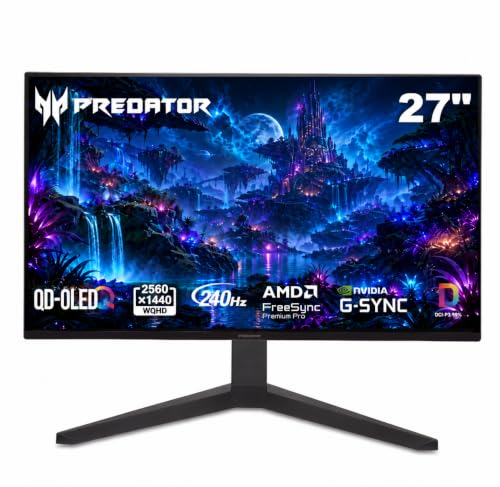
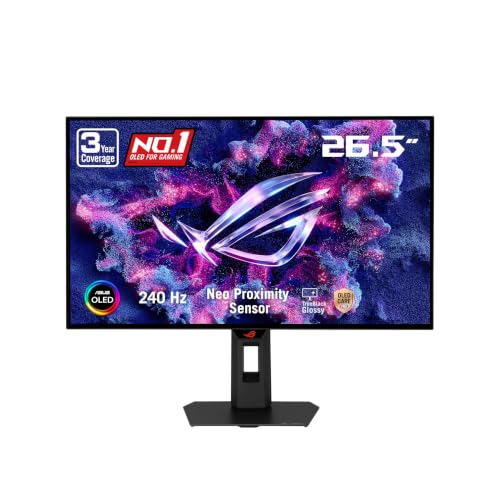
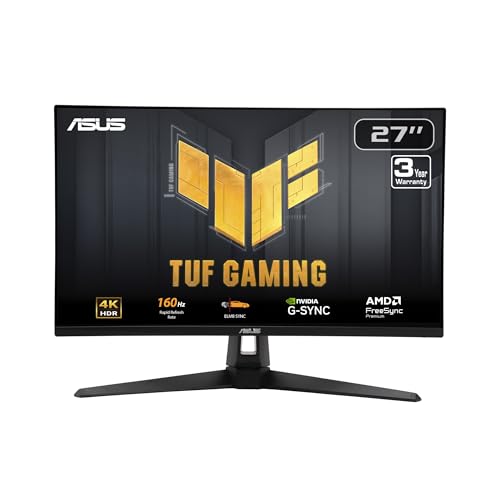
Competitive Gaming Monitors 101: The Basics for First Time Buyers
A competitive gaming monitor is a display tuned for ranked and tournament style play, where a fraction of a second can decide a round. It refreshes the picture far more often than a normal office screen, answers your mouse and controller input with very little delay, and keeps moving targets sharp instead of blurred.
That focus is what separates the best competitive gaming monitors from general displays built for work or films, and it can mean tradeoffs you should accept on purpose. A modest resolution and plain design are often signs of a display built for speed rather than flaws. If you want a broader view first, see our guide to the best gaming monitors.
Who Should Buy a Competitive Gaming Monitor?
Ranked Shooter Players Who Need Speed Above All
You play ranked shooters and notice blur when you turn quickly or track a moving opponent. Spend on refresh rate and response before size or cinematic color. Choose a 24 to 25 inch display at 1080p or a 27 inch display at 1440p.
Players Upgrading From a 60 Hz or 144 Hz Screen
Your frame rates now sit well above what your current display can show, so part of your hardware output goes unseen. Moving to 240 Hz or higher closes that gap and makes fast turns feel smoother. On a tight budget, see our guide to the best affordable gaming monitors.
Console and PC Players Sharing One Desk
You split time between a PC and a console and want one screen for both, without adapters or constant cable swaps. Look for HDMI 2.1 ports alongside DisplayPort and a headphone output for late sessions. A 27 inch 1440p model suits this mixed use well.
What 1080p, 1440p and Refresh Rate Really Mean for Play
Size and resolution set the frame for every other choice. Most competitive players pick 24 to 25 inches at 1080p for tight focus or 27 inches at 1440p for extra detail, while 4K suits only powerful PCs, as our guide to the best 4k monitors gaming explains.
Panel Technology: IPS, VA, OLED, and Mini LED
The panel decides how motion, contrast, and color behave. Fast IPS is the safe default for competitive play, with quick response, wide viewing angles, and color that stays true when you lean in. TN panels can be very fast but look washed out off center. VA panels give deeper blacks yet often smear dark motion. OLED gives near instant response and superb contrast, but it costs more and needs care to limit burn in. Mini LED backlights boost brightness and HDR impact on LCD panels at a higher price.
Refresh Rate, Response Time, and Input Lag
Refresh rate, measured in hertz, is how many times per second the screen draws a new frame. Aim for 240 Hz for serious ranked play, with 144 Hz as a sound minimum. Response time shows how fast pixels change color, and lower values mean less ghosting behind moving targets, so look for about 1 ms or less with a well tuned overdrive setting. Input lag is the delay between your action and the result on screen. A fast refresh rate cannot rescue a display with heavy lag.
Adaptive Sync and Gaming Features
Adaptive sync matches the refresh rate of the monitor to the frame rate of your game, which removes screen tearing without adding delay. FreeSync and G Sync do the same job for different graphics hardware, so confirm a display supports your card before you buy. Variable refresh rate over HDMI helps consoles hold smooth motion when frame rates dip. Useful extras include a crosshair overlay, a frame rate counter, and a shadow lift setting for dark corners.
Brightness, HDR, and Color for In Game Visibility
Brightness decides how well the screen fights window light, and about 300 to 400 nits suits most desks while higher peaks help in sunlit spaces. Contrast shapes how clearly dark scenes separate enemies from backgrounds. HDR adds punch in supported games, but modest HDR labels rarely transform the picture, so treat HDR as a bonus rather than a reason to buy. Accurate color matters more if you also stream, because your audience sees the tones you approved.
Stand, Mounting, and Ergonomics
A good stand lets you set the screen at eye level, tilt it to cut glare, and swivel it toward a teammate. Height adjustment matters most, since a screen set too low pulls your neck forward during long sessions. Check the VESA mount pattern, usually 100 by 100 mm, if you plan to use a monitor arm. A compact base also helps, because wide feet can crowd your mouse area.
Connectivity and Ports
DisplayPort is the main cable for high refresh rates on PC, so use the cable supplied with the monitor and confirm your graphics card port matches it. HDMI 2.1 carries high frame rates from current consoles and supports variable refresh. If your desk is built around a console, see our guide to the best gaming monitors for ps5. USB C input suits laptop players who want one cable for picture and charging.
Setting Up Your Esports Monitor for the First Match
Unbox the monitor on a soft surface, attach the stand until it clicks, and connect DisplayPort for PC or HDMI 2.1 for console before you power it on. In your system display settings, set the refresh rate to the highest value listed, because many monitors start at 60 Hz by default. Turn on adaptive sync in both the monitor menu and your graphics settings.
Next, pick the standard or sRGB picture mode instead of a vivid mode, which pushes color past what the game intends. Set overdrive to its middle option and check a fast scene for pale halos around moving objects. On an OLED model, run the pixel refresh routine the menu offers.
Rookie Mistakes to Avoid
- Buying 4K for ranked shooters on a mid tier PC, so frame rates fall and the speed you paid for never appears.
- Leaving the monitor at its 60 Hz default setting, so you play for months without the refresh rate you bought.
- Picking a 32 inch screen for close desk play, so you must turn your head to see the corners of the picture.
- Judging response time by the box claim alone, so an aggressive overdrive setting leaves bright trails behind moving targets.
- Using an old HDMI cable for a high refresh signal, so the display caps your frame rate without any warning.
Care and Maintenance for Competitive Gaming Monitors
Dust the screen with a dry microfiber cloth and, for marks, a cloth barely damp with water, pressing lightly so you do not damage the surface coating. Keep drinks behind the monitor rather than beside the keyboard. Check cables twice a year for tight bends at the connector, and update firmware only from the maker support page for your exact model.
For OLED models, vary your content, set taskbars to hide when idle, and let pixel refresh cycles run when prompted. Avoid leaving a paused game menu on screen for hours. Keep the original box if you can, because its foam is the safest way to move the monitor.
Frequently Asked Questions
How long do competitive gaming monitors last?
Competitive gaming monitors last about five to seven years of regular use before brightness fades or newer speeds make them feel dated. The stand hinge and ports usually wear before the panel if you swap cables often. Lowering brightness for desktop work extends that life, since full brightness all day ages the backlight faster.
Does a high refresh rate help casual play on competitive gaming monitors?
Yes, a high refresh rate helps casual play too, because camera pans and desktop scrolling look smoother and feel calmer on your eyes. The gain is smaller in slow paced story games than in shooters, since little on screen moves fast enough to blur. If you rarely play ranked modes, a 144 Hz model gives most of this comfort for less money.
Is IPS or OLED better for competitive gaming monitors?
OLED is better for pure motion clarity and contrast, while IPS is better if you want lower cost and no burn in worry. OLED pixels change state almost instantly, so fast turns stay clean at high frame rates. IPS pulls ahead for bright rooms and long desktop hours, since its backlight holds steady brightness without the protective dimming OLED uses on bright full screen scenes.
What size competitive gaming monitor suits a small desk?
A 24 to 25 inch competitive gaming monitor suits a small desk best, because it leaves room for a keyboard and wide mouse movement while keeping the full picture in easy view. Measure your desk depth before you buy and aim to sit about an arm length from the screen. A monitor arm can reclaim the space the stand base would take.
Is 4K resolution worth it for competitive gaming monitors?
4K resolution is rarely worth it for competitive play, because the extra pixels demand far more graphics power and push frame rates down where speed matters most. Most ranked players gain more from 1440p at 240 Hz than from 4K at 144 Hz. Choose 4K only if you also play cinematic titles on the same screen and your PC holds high frame rates in both.
Our Verdict
Start with refresh rate and response, confirm adaptive sync matches your hardware, and then pick the smallest size that still feels comfortable at your desk. Those choices decide how a competitive display feels in every match. When you compare the best competitive gaming monitors with those priorities set, the right model usually stands out fast, so revisit the product table at the top of the page and order with confidence.