Best Affordable Gaming Monitors for 2026: A Buyer Checklist
Disclosure: We may earn a commission when you buy through links on this page, at no extra cost to you. As an Amazon Associate I earn from qualifying purchases. Learn more

Compare the best affordable gaming monitors by panel type, refresh rate, adaptive sync, and HDR with this practical buyer checklist.
A low price tag tells you almost nothing about how a gaming monitor will actually feel in play. Two screens at the same price can differ in panel quality, motion clarity, and stand design, so this guide works through a fixed checklist for judging the best affordable gaming monitors before you spend anything. The checklist runs in the order that matters: what a budget can honestly buy, the panel, the sync features, then the numbers on the box.
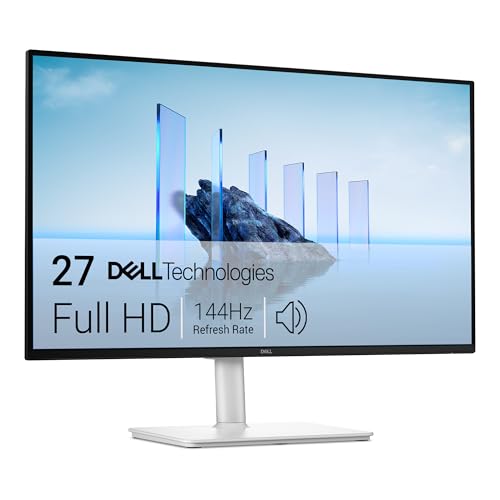
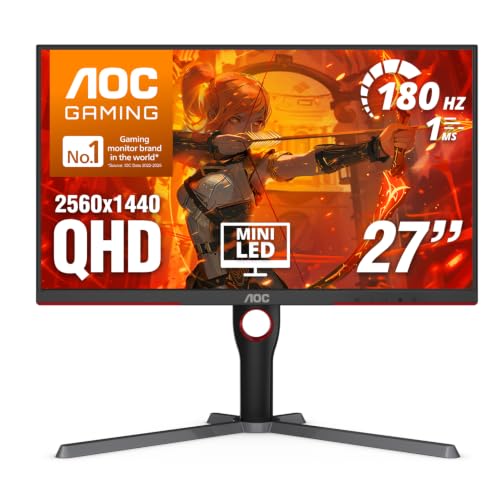
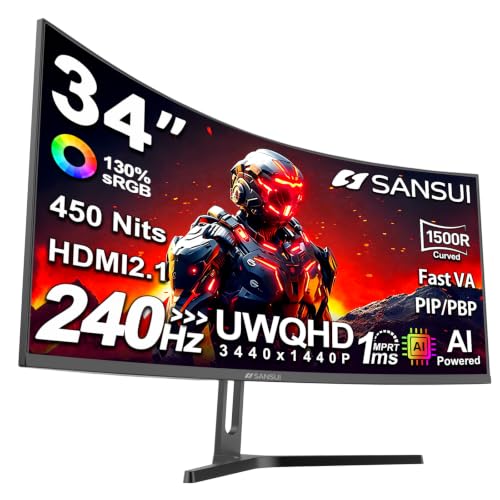
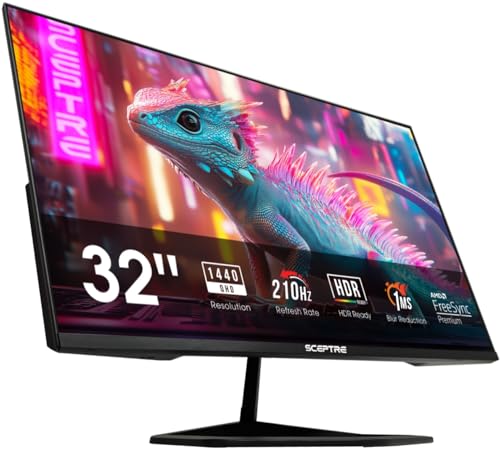
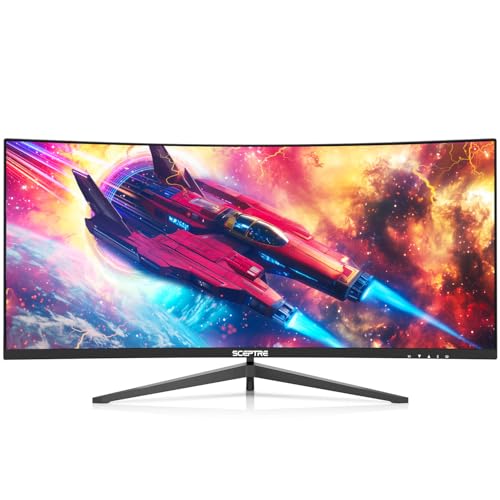
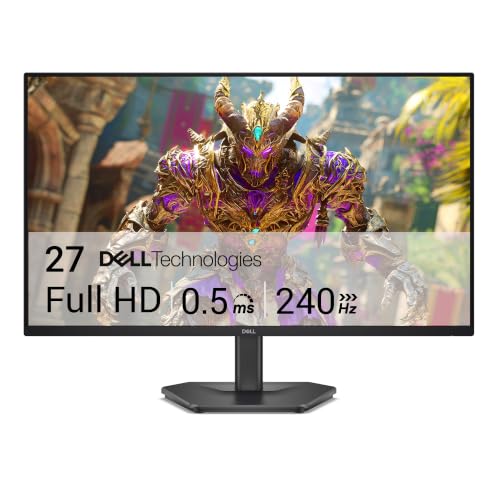
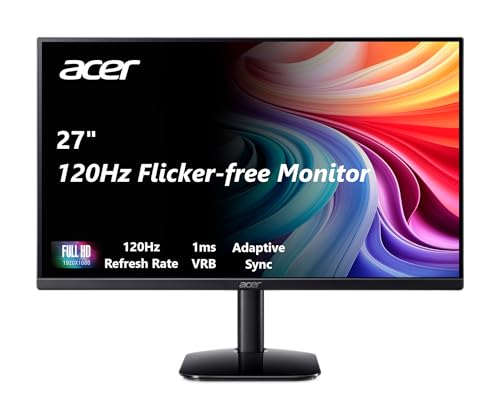
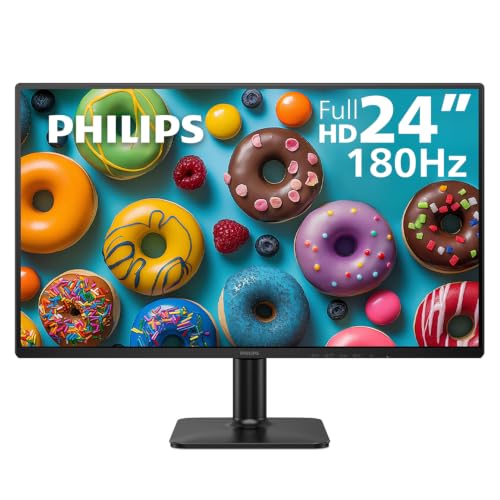
The product table gathers current candidates in one place so you can match them against each checklist point as you read. Work through the sections in order, note which specs your games and your computer can actually use, and the right screen size and price band usually become obvious.



How to Choose the Best Affordable Gaming Monitors
Every monitor in this price range is a compromise, and the checklist exists to make sure the compromise lands on things you will not notice. Start with realistic expectations, then judge the panel and the motion specs, then check the physical details like the stand and the ports. A screen that passes on the first three points and fails on the last one will annoy you every single day.
What You Can Realistically Get on a Budget
Between about $100 and $250, a gaming monitor can honestly deliver a sharp 1080p or 1440p picture, a refresh rate of 144Hz or higher, and adaptive sync that works. What the low band trades away first is panel uniformity, stand adjustment, and port count, long before it trades the headline refresh rate. Expect a fixed tilt only stand, one or two HDMI ports, and backlight variation at the screen edges. Do not cut corners on the panel itself or on a warranty with a clear dead pixel policy, because those are the parts you cannot upgrade later.
If your gaming is light and your desk time is mostly documents and browsing, the wider field of best affordable monitors covers general use screens that cost less because they skip high refresh panels. A dedicated gaming screen earns its price only when you will actually feed it high frame rates.
Panel Technology: IPS, VA, TN, OLED, and Mini LED
Panel type decides color, contrast, and viewing angles more than any other spec. Fast IPS style panels give accurate color and wide angles with good motion clarity, which is why they anchor most budget shortlists. VA panels trade a little motion smearing in dark scenes for much deeper contrast, so blacks look truly dark in a dim room.
TN is the older budget class: very fast, but colors shift when you lean back or view from the side. OLED and Mini LED deliver the best contrast and HDR, yet they sit above this price band and OLED adds a burn in risk with static game interfaces.
Adaptive Sync and Gaming Features
Adaptive sync matches the screen refresh rate to the frame rate your graphics card produces, which removes tearing and most stutter. Two ecosystems cover nearly every card: the FreeSync class and the G Sync class, and many budget monitors support one or both over HDMI and DisplayPort. Check that the sync range starts low, around 48Hz, so slower scenes stay smooth.
Laptop and console players need the same checks on the port side. Console players should look for HDMI 2.1 bandwidth and variable refresh rate support if they want 120Hz play, while features such as ALLM simply switch the screen into its low lag mode automatically. A laptop that caps its HDMI output at 60Hz wastes a 165Hz screen. If you are also choosing the computer itself, our guide to the best gaming laptops affordable explains which laptop classes can drive a fast external monitor at full speed.
Stand, Mounting, and Ergonomics
Budget stands are where makers save money quietly, so read this part of the listing with care. A tilt only stand is common under about $150, while height adjustment usually appears in the middle of the budget band. Height adjustment matters more than swivel, because a screen set too low pulls your neck forward through long sessions.
Confirm the VESA mount pattern, usually 75 mm or 100 mm, if you plan to use a monitor arm later. Also check the bezel width if you might run two screens side by side in the future.
Refresh Rate and Response Time
Refresh rate only pays when your computer can feed it, so match the screen to the frame rates your games actually reach. A 144Hz or 165Hz panel suits most budget and midrange graphics cards at 1080p, while 240Hz only shows its value in fast competitive titles on a strong card. Response time figures need skepticism: every maker measures them differently, often with aggressive overdrive that adds inverse ghosting, so the numbers are not comparable across brands. Treat a quoted 1 ms figure as marketing and weigh panel type and sync support more heavily.
HDR and Brightness
HDR badges on budget monitors promise more than the hardware can show. True HDR needs high peak brightness and local dimming, and most screens in this band top out around 300 to 400 nits with no dimming zones at all, so HDR mode often looks washed out. A realistic target is a bright, even SDR picture: about 300 nits or more for a room with daylight, plus a matte coating that cuts window reflections. If a listing leads with HDR and stays vague about brightness in nits, read that as a sign the panel is ordinary.
Resolution and Screen Size
Resolution and size work as a pair, because pixel density decides how sharp text and distant detail look. At 24 inches, 1080p gives about 92 pixels per inch, which is crisp enough for gaming and easy for a modest graphics card to drive. At 27 inches, 1440p raises density to about 109 pixels per inch and is the size most buyers settle on, while 4K at this budget usually means giving up refresh rate you would feel more.
Measure your desk depth before choosing: about 24 to 30 inches of viewing distance suits 24 to 27 inch screens. Ultrawide 34 inch panels exist near the top of the band and add immersion, but they demand more graphics power per frame.
Desk setup matters here as well, since the same screen often handles work by day and games at night. Our guide to the best computer monitors for gaming looks at dual use desk setups in more depth for readers planning a shared work and play space.
What Each Price Band Buys You
Price bands in this category are unusually predictable, because each step up buys a named upgrade rather than a vague quality jump. Use the bands to decide your ceiling first, then run the checklist inside that band. One more pricing quirk is worth knowing: when a maker launches a new model line, the outgoing line often drops a full band in price while keeping the better stand and panel, so last season design at a discount frequently beats a new entry band screen at the same money. Once the monitor is chosen, the rest of a budget desk setup follows the same logic, and our guide to the best affordable gaming headsets applies it to the audio half of the setup.
The Entry Band: About $100 to $160
This band buys a 24 inch 1080p panel at 144Hz or 165Hz with basic adaptive sync and a tilt only stand. Panel uniformity varies from unit to unit, speakers are weak or absent, and ports are minimal. It is the right spend for a first gaming screen, a secondary display, or a console setup at 1080p. Spend your effort here on the dead pixel policy and the return window, because sample variation is the main risk at this price.
The Middle Band: About $160 to $250
The middle band is where the checklist gets easier to pass. Expect 27 inch 1440p panels, height adjustable stands, better factory color tuning, and a USB hub or a second DisplayPort on some models. This is the band most buyers should target, because the upgrades are ones you feel daily: posture, sharpness, and ports. If a middle band screen and an entry band screen share the same panel specs, the stand and warranty usually explain the gap.
The Upper Budget Band: About $250 to $350
At the top of the affordable range, the money buys refinement rather than a new category. Look for 240Hz at 1080p or faster 1440p panels, wider color coverage for creative work, and sturdier stands with full pivot. Some buyers stretch slightly past this band for OLED, and readers weighing that jump can compare the full field in our guide to the best gaming monitors. Below that jump, this band is the ceiling of sensible budget spending.
Quick Buyer Checklist
Run these questions against any candidate from the product table before you order. A screen that answers yes to the first five and most of the rest is a sound buy.
- Can my graphics card or console actually output the frame rates this refresh rate needs?
- Is the panel type right for my room light and my games, IPS style for color and angles or VA for contrast?
- Does adaptive sync cover my graphics card ecosystem, with a range starting near 48Hz?
- Does the stand adjust for height, or is there a VESA mount for an arm?
- Are there enough ports for my PC, console, and any second device?
- Is brightness at least about 300 nits for my room?
- Does the warranty spell out a dead pixel policy I can live with?
- Is the size and resolution pairing right for my desk depth?
Red Flags to Watch For
Weak products in this category rarely hide; their listings give them away. Watch for these signs and walk away when two or more appear together.
- Response time with no measurement method named. A bare 1 ms claim with no standard behind it tells you nothing about real motion clarity.
- HDR in the headline, silence on brightness. If nits are missing from the listing, the panel cannot do HDR justice.
- Refresh rate with no sync range. A 144Hz screen whose adaptive sync stops at 90Hz will stutter in demanding scenes.
- A warranty shorter than a year, or vague pixel terms. Short coverage on the part most likely to vary is a cost shifted to you.
- Ports listed without versions. HDMI with no version number often means an older standard that caps refresh rate at high resolutions.
Tips to Get the Most From Your Gaming Monitor
A few minutes of setup protects your purchase. Switch the picture mode away from the vivid or store preset, which oversaturates color, and use the standard or sRGB mode for accurate tones. Set the refresh rate in your operating system display settings, because many systems default to 60Hz out of the box. On an OLED, run the built in pixel refresh cycle when the screen prompts you, and clean any panel with a dry microfiber cloth only, since household sprays can damage coatings.
Inspect the screen during the first days, while the return window is wide open. Display a solid black screen in a dark room to judge backlight bleed, then solid white, red, green, and blue screens to spot dead or stuck pixels. Budget panels vary from unit to unit, and an exchange in week one is painless compared with a warranty claim in month six. Photograph any defect you find, because support teams often ask for evidence before approving a swap.
Gaming Monitors: Your Questions Answered
How long does a gaming monitor last?
A gaming monitor typically lasts about five to eight years of regular use. The backlight dims slowly over time, so an older screen looks less bright even when nothing has failed. Buttons and ports usually outlast the panel itself. Keeping brightness at a moderate level rather than maximum slows the dimming, and a surge protector guards the power supply board, which is the part most often killed by electrical spikes in budget models.
Is 4K worth it on a budget gaming monitor?
For most budget buyers, 4K is not worth it on a gaming monitor. The sharper image costs refresh rate, and the graphics card needed to feed 4K at high frame rates costs more than the monitor itself. A 1440p screen at 27 inches looks nearly as sharp from a normal desk distance and leaves budget for a better panel and stand. Choose 4K only if you mostly play slow paced titles or edit photos at a desk all day.
What size gaming monitor should I get for my desk?
Match the gaming monitor size to your desk depth. A desk about 24 inches deep suits a 24 inch screen, while deeper desks around 30 inches handle 27 inches comfortably. Sitting too close to a large screen forces constant eye movement to the corners, which tires you in strategy and shooter games alike. If your desk is shallow, a smaller screen on an arm pulled closer to the wall often beats a bigger screen crowding your keyboard.
Does refresh rate matter for non gamers?
Yes, a higher refresh rate is visible even outside games. Scrolling text stays readable instead of blurring, window dragging feels smoother, and cursor movement looks more precise at 120Hz or 144Hz than at 60Hz. The benefit is smaller than in fast games, and it does nothing for video, which is filmed at low frame rates. Still, anyone who reads and scrolls all day for work often ranks the upgrade as worth having once they have tried it.
IPS or OLED: which is better for gaming?
IPS is the safer budget choice, while OLED is the better picture at a higher price. OLED wins on contrast and pixel response, so dark scenes and fast motion look superb. The trade offs are cost and burn in risk when a static game interface sits on screen for hours daily. IPS style panels hold up under mixed work and play with no such risk, and the best of them now handle motion well enough that most players never miss OLED.
The Bottom Line
Three checks decide this purchase: the panel type fits your room and games, the refresh rate matches what your computer can feed, and the stand and warranty protect you after the sale. Everything else, from HDR badges to response time slogans, is secondary. Compare your shortlist against the product table, and the best affordable gaming monitors for your desk will be the ones that pass those three checks inside your band.