Best Cameras for OBS in 2026: Which Type Is Right for You?
Disclosure: We may earn a commission when you buy through links on this page, at no extra cost to you. As an Amazon Associate I earn from qualifying purchases. Learn more
Compare camera types for OBS streaming by connection, sensor size, autofocus and power, and pick the setup that fits your room, desk and budget.
OBS Studio turns a camera into the face of your stream, lesson or meeting, yet cameras connect to it in very different ways. A USB webcam, a mirrorless body on a capture card and a camera that pans on its own all feed the same software, but they differ in cost, setup and stamina. Choosing the best cameras for obs starts with matching the type to your room and lighting.
This guide compares each type by connection, image quality and daily handling, so you can see where extra money improves the picture and where it only adds cables. Use the comparison table below to line up the main types, then read on for the details that decide how each performs once OBS is live.





Types of Cameras for OBS Compared
Four camera types cover almost every OBS setup, from a laptop on a kitchen table to a small studio. Start with how the signal reaches your computer and how much control you want.
Webcams for the Simplest Desk Setup
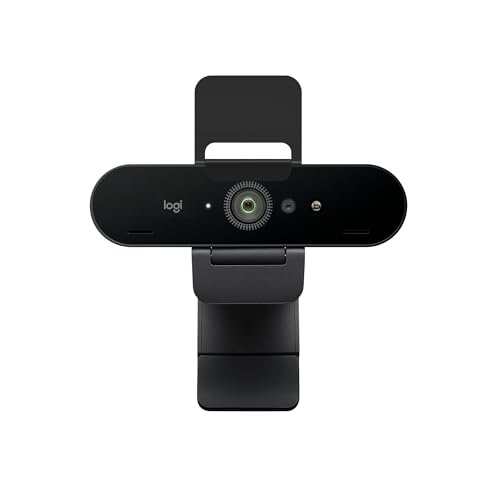
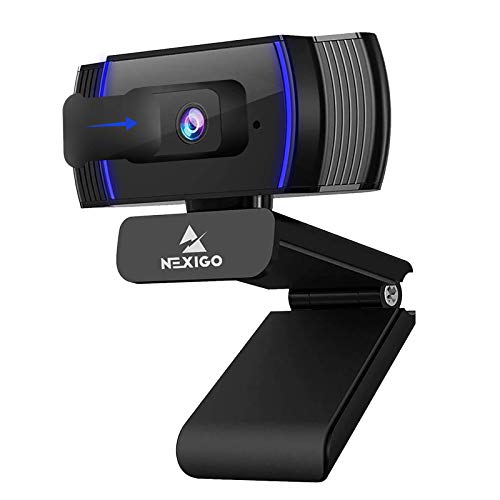
A webcam connects by USB and appears in OBS as a ready source, with no capture card and no separate power supply. Most models give you 1080p video, a fixed wide lens and autofocus that suits one person at a desk. The trade off is a small sensor, so the picture softens in dim rooms. Choose one if you stream from one spot and would rather spend first on a light and a microphone.
Mirrorless Cameras for the Sharpest Picture
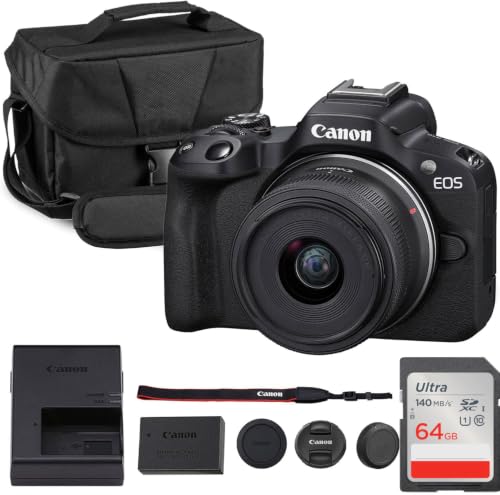
A mirrorless camera sends its image through HDMI into a capture card, and that extra step buys a much larger sensor, interchangeable lenses and natural background blur. You control aperture, focus and color in the menus, and the result holds up in low light. Expect more cables, a dummy battery for long sessions and a steeper learning curve. Many readers also use this body for stills, as our guide to the best cameras for photography explains.
Camcorders for Long Sessions Without Fuss
A camcorder is built to record for hours, so it handles heat and power well and rarely stops mid session. You get a built in zoom lens, steady autofocus and clean HDMI output. The sensor is usually smaller than a mirrorless sensor, so low light quality sits between a webcam and a mirrorless camera. Pick one for lessons, services or events where the stream runs long.
Action Cameras as a Second Angle
An action camera can feed OBS through HDMI or a maker supplied app, and its wide lens suits a top down view of hands at work. It distorts faces at close range, needs plenty of light and often runs hot, so treat it as a supporting angle only.
Webcams vs Mirrorless Cameras: Which Should You Choose for OBS?
These two types sit at opposite ends of most budgets. A webcam wins on setup time, price and reliability, because OBS sees it the moment you plug it in and it never needs a battery swap. A mirrorless camera wins on image quality, low light and lens choice, thanks to its larger sensor. A capable webcam often costs under $100, while a mirrorless setup with lens and capture card can reach about $500 to $1,500. Good room light favors the webcam; dim rooms and large viewer screens favor the mirrorless route.
How to Choose the Right Camera for OBS
When you compare the best cameras for obs side by side, work through the factors below in order. Connection and power decide whether the camera runs in your setup; sensor, lens and output settings decide how good the picture looks.
Connection Method: USB, HDMI or Network
Connection decides your cable count and your delay. A USB webcam uses the UVC standard, so OBS lists it as a video capture device with no driver and almost no lag. An HDMI camera needs a capture card between camera and computer, which adds cost but accepts nearly any suitable camera. A network camera sends its feed over your local network, suiting a camera across the room, but delay can put lips out of sync with audio. Count spare ports and cable runs before buying.
Sensor Size and Low Light Quality
Sensor size is the biggest reason one OBS picture looks rich and another looks grainy. Webcam sensors are tiny, 1 inch sensors gather far more light, and APS C and full frame sensors gather more again. More light per pixel means cleaner shadows, smoother skin tones and less noise under one lamp. Megapixels matter far less, because a 1080p or 4K stream needs only a fraction of a stills sensor. If you stream at night, spend on sensor size before resolution; our guide to the best quality cameras shows what larger sensors deliver.
Lens, Field of View and Autofocus
The lens sets how much of your room the viewer sees. A wide field of view, around 78 to 90 degrees on many webcams, shows the room but can make your face small and bend straight lines. A standard mirrorless lens frames head and shoulders and blurs the background. Autofocus style matters too: face and eye tracking holds focus as you lean or gesture, while fixed focus webcams keep everything equally soft. Judge the framing from your real streaming distance before any other spec.
Resolution, Frame Rate and Clean HDMI Output
Most streams look sharp at 1080p, and 4K video mainly helps when you crop the picture inside OBS or record for editing. For frame rate, 30 frames per second suits talking and teaching, while 60 looks smoother for fast hand movement. If you choose the HDMI route, confirm the camera offers clean HDMI output, meaning the feed carries no focus boxes, battery icons or menu text. Also check for an output time limit, since some cameras stop sending a signal unless you change a menu setting.
Power, Heat and Reliability on Long Streams
A camera that runs from USB power never needs attention mid stream, which keeps webcams popular. Cameras on internal batteries are different: many last only about one to two hours, so a dummy battery or mains adapter is close to essential for long sessions. Heat is the other limit, because a body sending high resolution video in a warm room may shut down to protect itself. Airflow, lower output resolution and breaks between sessions all help.
Picking the Right Camera for Special OBS Setups
Some rooms need a camera that moves or covers several people at once.
Best Ptz Cameras for Obs: Covering a Room Without an Operator
PTZ stands for pan, tilt and zoom, and these cameras turn and zoom under remote control or follow a presenter automatically. Optical zoom matters here, because it tightens the shot from the back of a room without the softness of digital zoom. Saved presets in OBS move the view from wide to close with one tap. Teachers and houses of worship gain the most, since one camera covers a stage that would otherwise need an operator. For a single desk, a fixed camera plus good light looks better for less. New streamers may want our guide to the best starter cameras first.
Common Mistakes to Avoid
- Buying a camera with no clean HDMI output, so focus boxes and icons appear live.
- Judging cameras by megapixels alone, so you pay for stills detail a 1080p stream never shows.
- Running a battery powered camera with no mains adapter, so it dies mid stream.
- Placing a wide angle camera too close, so your face stretches and the room dominates.
- Spending on a 4K camera for a dim room, so noise hides the detail you paid for.
- Leaving image stabilization on for a tripod mounted camera, so the picture drifts.
How to Make Your Camera for OBS Last Longer
Clean the lens with a soft lens cloth rather than a shirt, because grit in clothing can scratch the coating. Keep a spare or dummy battery ready, so a flat cell never ends a session early. Store the camera in a dry, padded bag with the lens cap on. Support cables at the port, since a tight HDMI cable slowly loosens the socket. Dust the body weekly and let a warm camera cool before packing it away.
Frequently Asked Questions
What features matter most in a camera for OBS?
A reliable connection, a sensor that suits your room light and power that lasts the whole session matter most. Check the manual section on output limits, because standby timers and signal cut offs hide there rather than on the box. Clean HDMI output joins the list for capture card setups.
How much should you spend on your first camera for OBS?
Most first time streamers do well spending about $60 to $150 on a solid webcam, then adding light before a bigger camera. A mirrorless setup at about $500 and up only pays off once lighting and audio are already decent. Our guide to the best digital cameras shows how each budget step stretches further.
Can you use a camera for OBS without a capture card?
Yes, many cameras work without a capture card through USB streaming or a maker supplied virtual camera app. The trade off is that USB modes often cap resolution at 1080p and may add a small delay, while a capture card unlocks full HDMI quality. Try the USB route first and add the card only if the picture or lag disappoints you.
Which camera type handles low light best for OBS streaming?
A mirrorless camera with a large sensor and a bright lens handles low light best. Its advantage grows when you open the aperture, which also blurs your background, so check that your face stays in the focused zone when you lean forward. A camcorder with a 1 inch sensor ranks next.
Do cameras for OBS need image stabilization?
No, a camera on a desk stand or tripod for OBS does not need image stabilization. A fixed mount holds the frame steady, and electronic stabilization can crop and soften the picture. Stabilization earns its place only for a handheld second angle, such as a workspace tour, where small shakes would otherwise reach the viewer.
Wrapping Up
Start with how the camera connects, then judge sensor size for your room light, then confirm the camera can stay powered as long as you stream. Webcams suit most desks, mirrorless bodies reward dim rooms, camcorders cover long sessions and PTZ models cover wide rooms. Match the type to your space and the best cameras for obs choice becomes straightforward. Check the product table above, and spend whatever budget remains on lighting.