Best 4K Monitors for Editing in 2026: Matching the Right Model to Your Routine
Disclosure: We may earn a commission when you buy through links on this page, at no extra cost to you. As an Amazon Associate I earn from qualifying purchases. Learn more

Compare 4K monitors for editing by color accuracy, panel type, size, HDR and ports, with clear guidance for photo, video and everyday creative work.
No single monitor suits every editor, because a photo retoucher, a video cutter and a student judge a screen in different ways. The best 4k monitors for editing match your main task, your desk and your files. Use the product table below to compare color, size and ports against your weekly routine.
Start by naming your primary work. Still images reward wide gamut coverage and even color. Timelines reward screen space, smooth motion and ports for drives and a second display. The sections below sort those needs first, then explain the specs that support them.


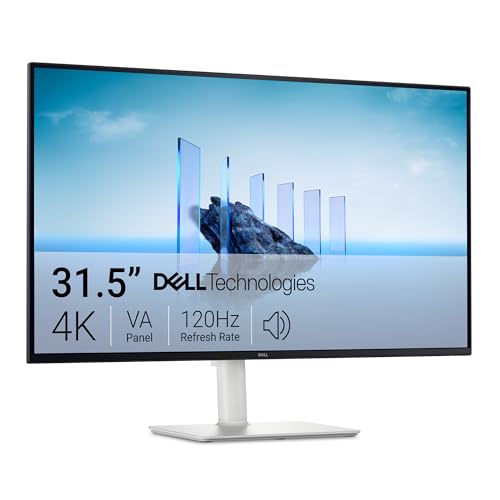

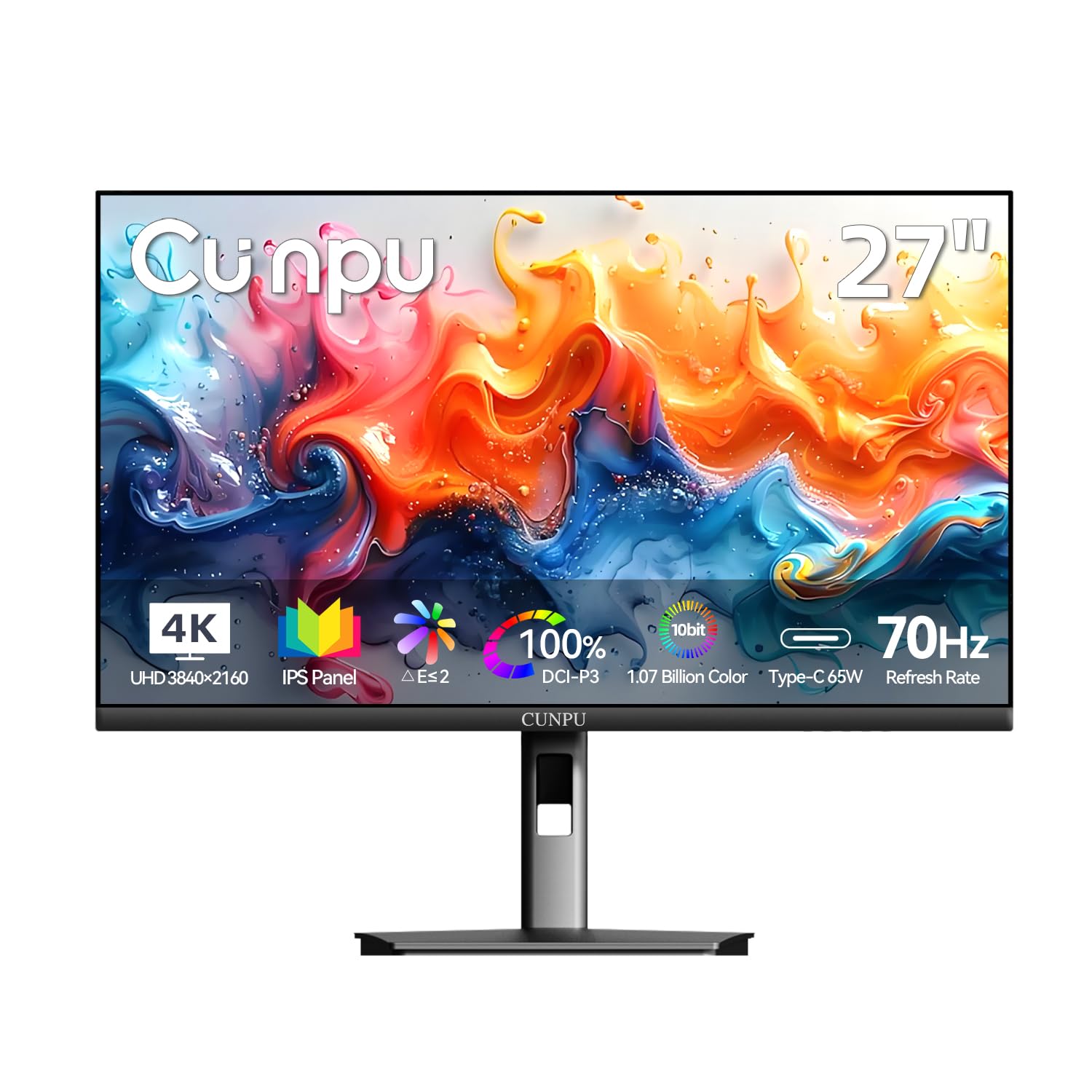
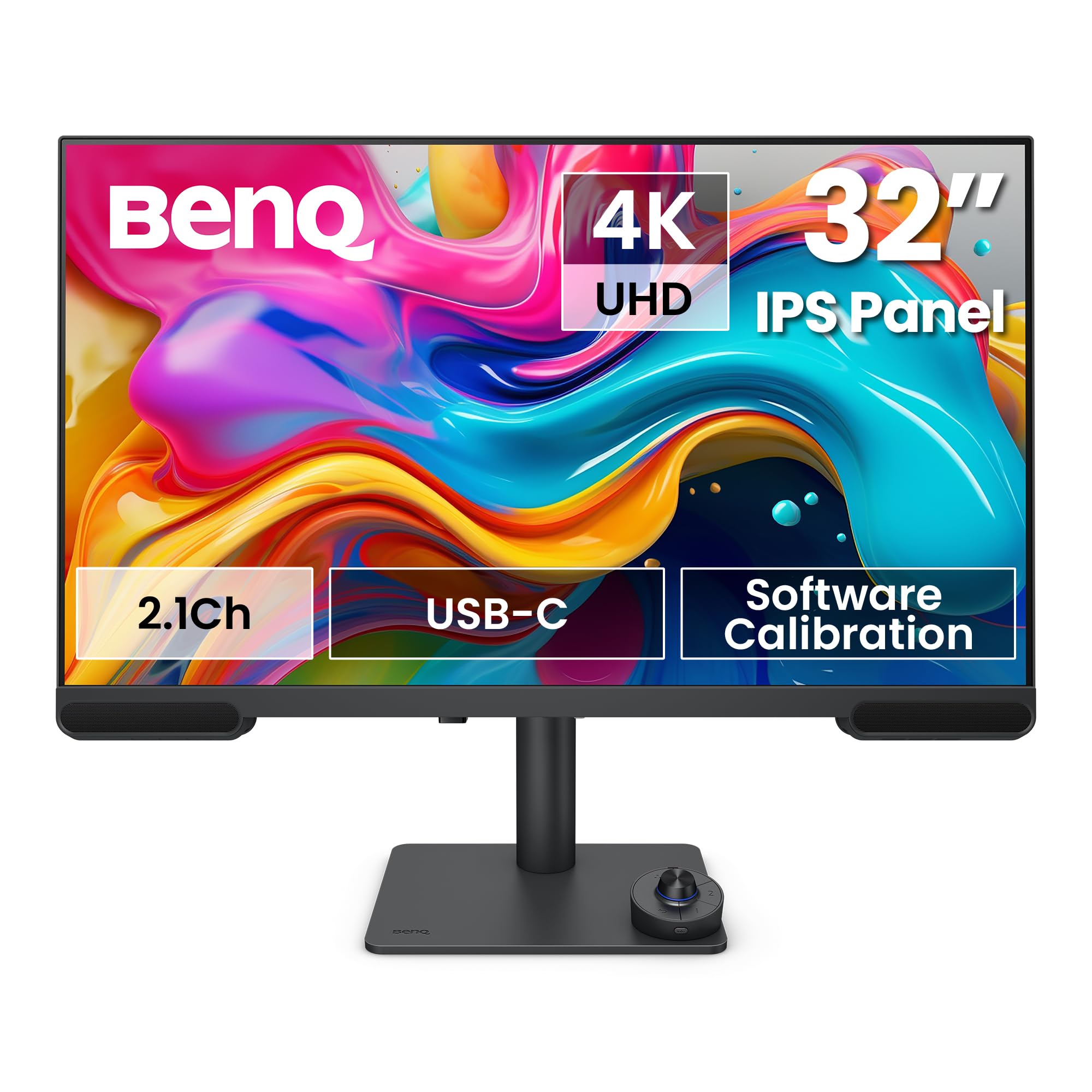
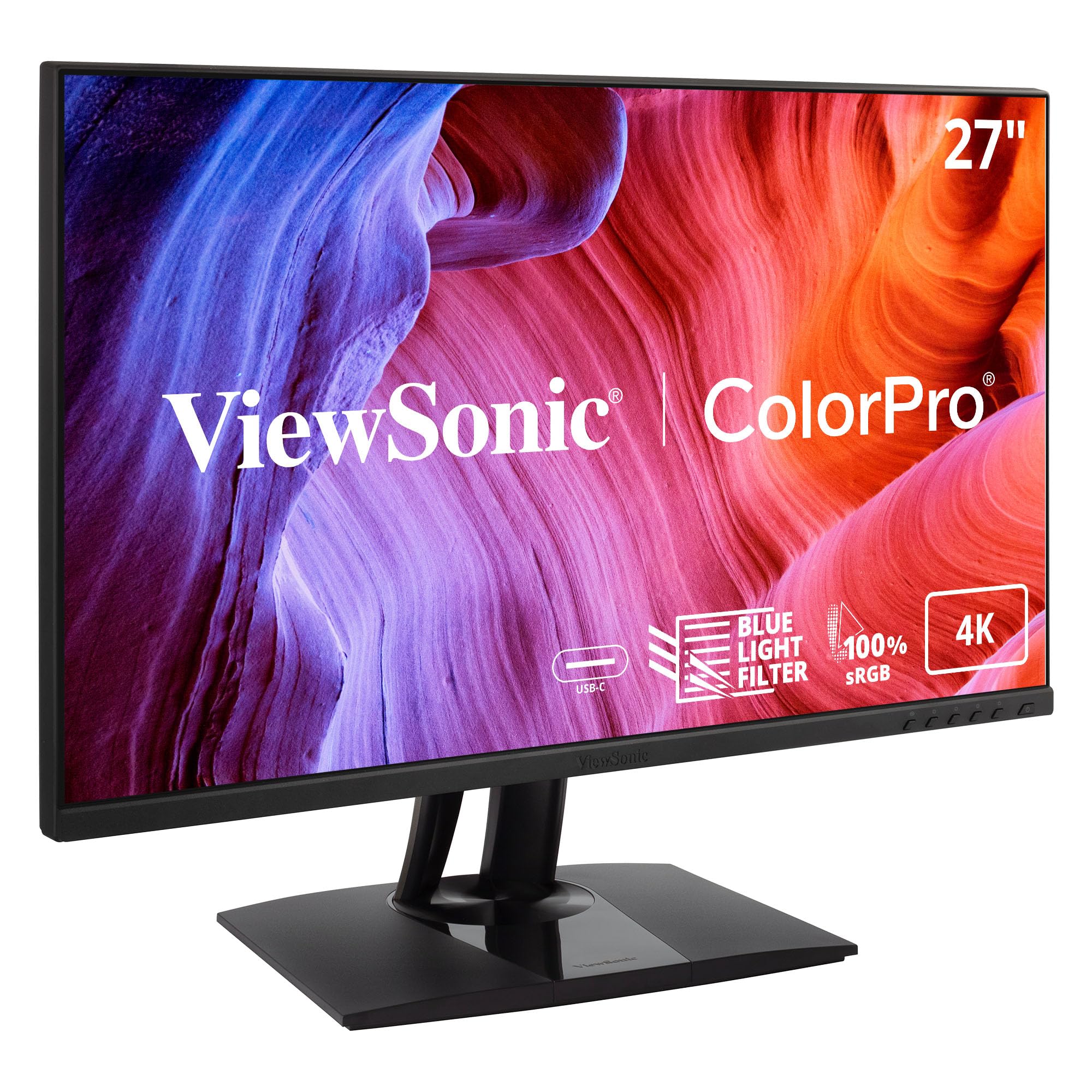
Who Should Buy Which 4K Monitors for Editing?
Pick by the edit you do most often, not by the longest spec list.
Photo Editors Who Retouch and Print
You judge skin tones, shadow detail and subtle gradients, and a print exposes any color error on screen. Prioritize wide coverage of Adobe RGB and DCI P3, low color error and a matte finish. A 27 inch or 32 inch panel gives room for tools beside the image. If your work leans this way, see our guide to the best 4k monitors for photo editing.
Video Editors Who Cut Timelines All Week
You scrub footage, stack tracks and check titles while clips play, so space and motion handling shape your day. A 32 inch screen keeps more of the timeline visible, and strong DCI P3 coverage matches the color space used for much online video. Fast response helps previews look clean during pans. For timeline focused choices, see our guide to the best 4k monitors for video editing.
Students and Everyday Creators on a Budget
You may edit coursework, social clips and family photos on the same screen you use for documents and classes. A 27 inch monitor with solid sRGB accuracy, USB C input and a stand you can raise is usually the sensible balance. Skip costly wide gamut modes you will not calibrate or use. Money saved here can fund storage later.
Creators Who Edit by Day and Play Games at Night
You need accurate color for work and smooth motion after hours, and one screen has to do both jobs. Look for a 120 Hz or 144 Hz panel with adaptive sync, low input lag and a color mode you can lock for editing. Check that the accurate mode still works at the refresh rate you plan to use. For gaming focused options, see our guide to the best 4k monitors gaming.
Picking the Right 4K Monitor for Different Editing Uses
Paid client work places stricter demands on a screen than general editing does.
Best Professional 4K Monitors for Editing
The best professional 4k monitors for editing stand apart on control, not only on sharpness. They offer hardware calibration, where correction data is stored inside the monitor, plus uniform color from center to edge and 10 bit color through the full signal chain. Those traits matter when clients and printers must match your file. To compare broader options first, see our guide to the best monitors for editing.
Key Features to Compare
Compare the factors below in order, because the best 4k monitors for editing differ most on color and panel behavior, while ports and size decide desk fit.
Color Accuracy, Gamut and Color Depth for Editing
Gamut tells you which colors a monitor can show, while accuracy tells you how closely it shows them. Coverage near 100 percent of sRGB suits web work, DCI P3 around 95 percent or higher suits video, and wide Adobe RGB coverage suits print focused photo work. A low Delta E value, often under 2, means colors sit close to their targets. A 10 bit panel shows finer steps between similar tones, which reduces visible bands in skies and shadows if your computer and app also support 10 bit output.
Panel Technology in IPS, VA, OLED and Mini LED Monitors
IPS panels hold color well at an angle and suit most editing, though their blacks can look gray in a dark room. VA panels show deeper contrast but shift color more off center. OLED panels give true blacks and fast response, with a risk of burn in if static toolbars stay bright for many hours. Mini LED backlights use many dimming zones to raise contrast, and they help HDR work, though bright edges can show a halo on dark scenes.
Connectivity and Ports for Editing Workflows
Ports decide how cleanly a monitor joins your setup. DisplayPort and HDMI 2.1 both carry a full 4K signal, while USB C can carry picture, data and laptop charging through one cable if the monitor supplies enough watts, often about 65 to 90 watts. A built in USB hub keeps drives and a card reader within reach. Check port versions on your computer, because an older HDMI port may limit refresh rate at full resolution.
Resolution and Screen Size for a 4K Editing Desk
At 3840 by 2160 pixels, screen size changes how large everything looks. A 27 inch model packs pixels tightly, so detail stays crisp, but app menus can look small without scaling. A 32 inch model spreads the same pixels across more space, so timelines and side by side windows feel easier to read. A 24 inch 4K screen is sharp yet cramped for editing tools, while very large screens can force head movement. Match size to a viewing distance of about 24 to 36 inches.
HDR and Brightness on 4K Monitors for Editing
Brightness is measured in nits, and about 300 to 400 nits suits most bright rooms for standard work. HDR editing needs more, often 600 nits or higher, plus local dimming so highlights and dark shadows can appear in the same frame. Labels such as HDR10 and Dolby Vision describe formats, not quality, and a monitor can accept an HDR signal yet look washed out without the control to render it.
Common Mistakes to Avoid When Buying 4K Monitors
Spec sheets reward the wrong details:
- Choosing by price alone often leaves you with weak color accuracy that no setting can fully correct.
- Buying a wide gamut monitor without a calibration plan can make web images look oversaturated in apps that lack color management.
- Picking a screen that is too large for your desk depth pushes toolbars to the edges and strains your neck.
- Ignoring the stand and VESA mount pattern can leave you stuck with a height that hurts your posture.
- Skipping the warranty and dead pixel policy can make a small panel defect costly to resolve later.
Setup and Care Tips for a 4K Editing Monitor
Set the picture mode to standard or custom and turn off vivid settings, because vivid modes push saturation and contrast away from your file. Warm the screen for about 30 minutes before you calibrate, since panel output shifts as it warms. Keep room light steady and modest, and place the screen so windows sit to the side.
Clean the screen with a dry or slightly damp microfiber cloth only, and never spray liquid straight onto the panel. On OLED models, run the pixel refresh cycle the maker provides and let it finish. Recheck cable seating if the picture drops to a lower resolution, because a loose or old cable is a frequent cause.
Frequently Asked Questions
What features matter most in 4K monitors for editing?
Color accuracy, gamut coverage and screen uniformity matter most in 4K monitors for editing. Uniformity is the point many buyers miss, since a panel can measure well at the center yet shift tint near the corners where you place reference images. View a plain gray image full screen when the monitor arrives so you can spot patches early.
Does refresh rate matter on a 4K editing monitor if you do not play games?
Refresh rate matters less for editing than for games, and 60 Hz is enough for most photo and video work. A higher rate can make cursor movement and timeline scrolling feel smoother during long sessions. One caution is new here, some high refresh panels flicker at low brightness, so if your eyes tire, raise brightness and balance it with room light.
How long does a 4K monitor for editing usually last?
A 4K monitor for editing usually stays useful for about five to eight years of regular use. Backlight output fades slowly, so a screen may need a higher brightness setting over time to match earlier calibration results. Recalibrate every few months for paid work, and treat a rising brightness setting as a sign that the panel is aging.
Is 4K resolution worth it for photo and video editing?
Yes, 4K resolution is worth it for photo and video editing when your files and computer can support it. You can view more image detail at full size and judge focus with less zooming. Keep in mind that 4K footage and large photo libraries also demand more storage and a capable graphics processor, so budget for the full workflow, not the screen alone.
Is IPS or OLED better for 4K editing monitors?
IPS is the safer default for most 4K editing monitors, while OLED suits editors who prize contrast and work mainly with motion. One factor the main sections did not cover is text rendering, since some OLED pixel layouts can make fine text look less crisp than IPS. If you read dense timelines all day, view that exact use before you commit to OLED.
What size 4K editing monitor should you get for your desk?
Most editors should get a 27 inch or 32 inch 4K editing monitor, chosen by desk depth rather than by room size. Use this check, sit in your normal chair and hold your arm straight ahead, your fingertips should fall short of where the screen will sit. If that distance is under about 24 inches, the 27 inch size will feel more comfortable.
The Bottom Line
Put color accuracy first, then panel type, then the size and ports that fit your desk. Photo work rewards gamut and uniformity, video work rewards space and DCI P3 coverage, and hybrid use adds refresh rate. Use the product table above to check those points before you order.
When you judge best 4k monitors for editing by your own routine instead of by a spec sheet, the right choice becomes clearer. Buy the simplest monitor that covers your main task well.