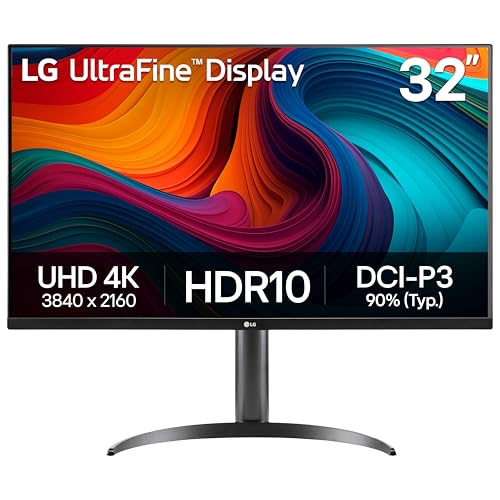
Best Affordable Desktop Monitors in 2026: Every Type Explained Side by Side
Disclosure: We may earn a commission when you buy through links on this page, at no extra cost to you. As an Amazon Associate I earn from qualifying purchases. Learn more
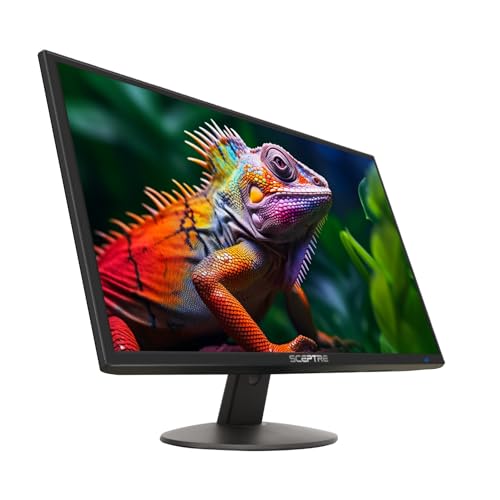
Compare the best affordable desktop monitors by panel, size, refresh rate, ports and desk fit.
Choosing a monitor on a tight budget feels confusing because makers lead with big numbers that do not all matter for your desk. The best affordable desktop monitors are not the ones with the longest spec list. They match your screen size, panel type and daily tasks without wasting money on extras you will never use, and the comparison table below helps you sort those choices first.
Start with how you spend most hours at the screen. Long document work, fast games and film nights each reward a different type of panel, and a low price can hide a stand that does not adjust or ports that limit your laptop.
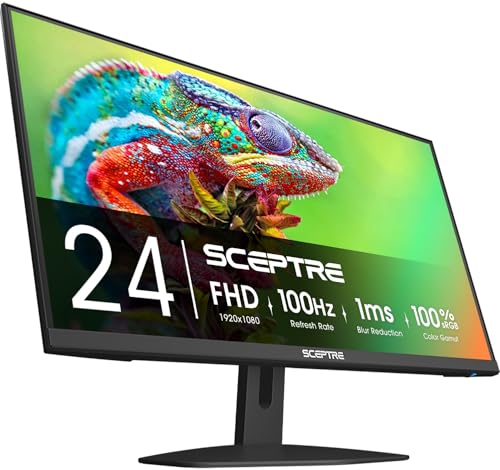
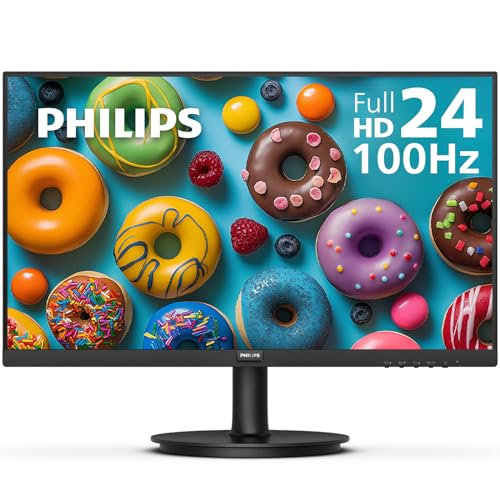
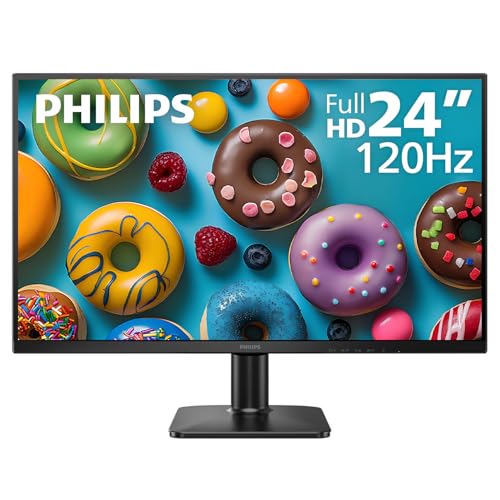
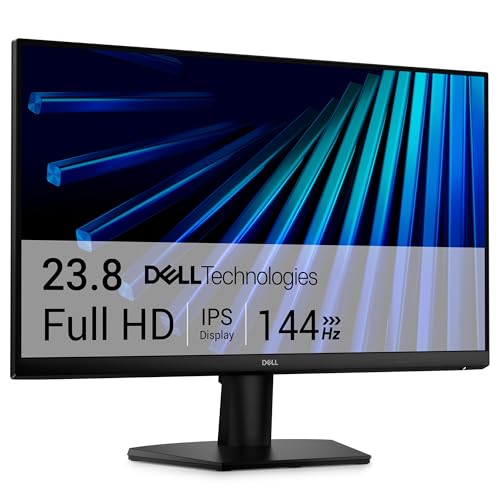
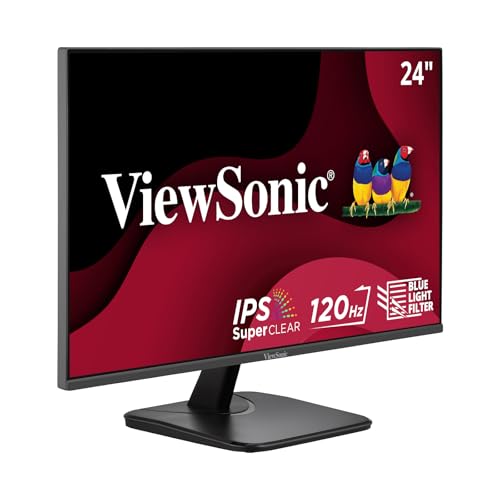
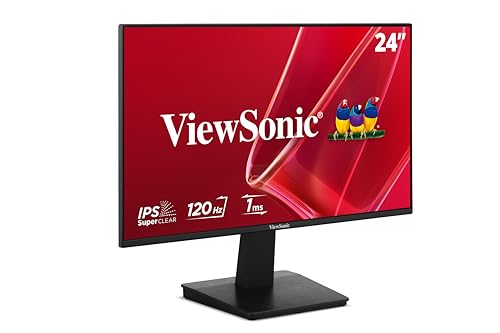
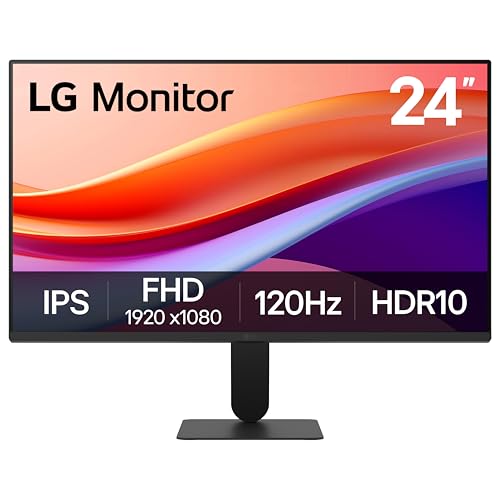
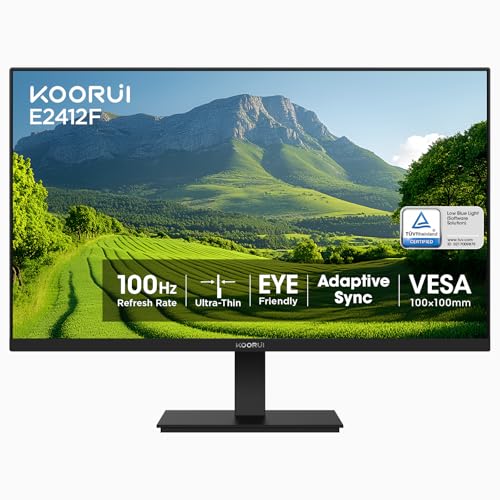
Types of Desktop Monitors Compared
Three broad types cover most low priced desktop setups, and they differ in motion clarity, contrast and screen space. If you want a wider view of the category first, see our guide to the best desktop monitors before you narrow by price.
Gaming Displays Built for Speed
Gaming displays put motion first, with refresh rates of 144 Hz or higher and response times quoted around 1 to 5 milliseconds. Fast panels make panning scenes and quick turns look smoother, with less blur as objects cross the screen. The tradeoff at this price is usually color depth and viewing angles, which can look flatter for photo work. Choose this type if play fills most of your screen time, and see our guide to the best affordable gaming monitors for speed focused choices.
OLED Displays Built for Contrast
OLED displays light each pixel on its own, so black areas stay truly black and dark scenes hold detail that other panels wash out. Contrast and response feel excellent for films and story driven games, and colors stay rich at wide angles. True OLED models rarely sit in a low price band, though, and older stock can tempt you with a price that cuts warranty cover or brightness. Choose OLED only if contrast is your top priority and the cost still leaves room for a sound stand.
Large Screen Options Built for Space
Large screen options run from 27 inches up to 32 inches and beyond, and some stretch wider instead of taller. Extra space helps when you keep two documents open, edit a long timeline or want a more absorbing view for films. The risk is pixel density, because a large screen at 1080p spreads the same pixels thinner and text can look soft at a normal desk distance. Choose a larger size only when the resolution rises with it.
Gaming Displays vs OLED Displays: Which Should You Choose?
These two types solve different problems, so a direct winner depends on your room and your habits. For motion, a gaming display at 144 Hz or higher feels smoother in fast play, while OLED answers faster still but at a much higher cost. For contrast, OLED leads clearly, since its black levels make night scenes look deeper. For price, gaming displays win by a wide margin, often costing about $150 to $300 where comparable OLED options cost far more.
Pick the gaming type if you play often, sit in a bright room or need to keep spend low. Pick OLED if you watch films in a dim room and can stretch the budget without cutting essentials. For the broader speed picture beyond this price band, see our guide to the best gaming monitors.
How to Choose Affordable Desktop Monitors
Work through the five decisions below in order. Panel and ports shape daily use the most, while a sensible budget view stops you paying for labels that add little at this price. That order keeps the best affordable desktop monitors judged on daily use, where a low price proves its value or shows its cuts.
Connectivity and Ports
Most affordable models offer HDMI and DisplayPort, and a growing number add USB C with video support. DisplayPort usually gives you the highest refresh rate a panel supports, while HDMI suits consoles and most laptops. HDMI 2.1 matters mainly for newer consoles that target high frame rates at 4K, so do not pay extra for it on a 1080p office screen. USB C with power delivery can charge a laptop through one cable, but confirm the watt figure matches your laptop first.
Panel Technology
IPS panels give you accurate color and wide viewing angles, so they suit shared desks and work where color must stay true as you shift in your chair. VA panels give you deeper contrast for films, though their response can smear dark motion and their angles are narrower. OLED gives you the strongest contrast of all, with a small risk of lasting image retention if static elements stay on screen for long hours.
What Entry Priced Desktop Screens Include and Leave Out
For about $100 to $250 you can expect a solid 24 to 27 inch screen at 1080p or 1440p, a refresh rate of 100 Hz or more and basic height adjustment on better models. What usually gets cut is HDR quality, USB C charging, built in speakers worth using and wide color cover for print work. Do not accept a tilt only stand if you work long hours, because posture costs more later than a better stand costs now. Our guide to the best affordable monitors shows how this price band looks across types.
HDR and Brightness
HDR labels on low priced monitors need care, because a panel can accept an HDR signal without showing much more range. Look for a rated brightness of about 300 to 400 nits for a bright room, and treat HDR10 support as a small bonus rather than a reason to buy. Dolby Vision is rare at this price, so its absence should not rule a model out.
Stand, Mounting, and Ergonomics
A good stand lets you set the top of the screen near eye level, tilt the panel to cut glare and swivel it toward a colleague without lifting the base. Many budget models offer tilt only, so check the stand before you buy rather than after your neck complains. VESA mounting points, most often 100 by 100 mm, let you move the screen to an arm later, which frees desk depth and adds height and pivot control.
Common Mistakes to Avoid
Most regrets at this price come from repeat errors, not from picking the wrong brand.
- Buying a large 1080p screen for close desk work leaves text looking soft and blocky all day.
- Paying for an HDR label on a dim panel wastes money that a brighter screen would have used better.
- Choosing a tilt only stand for long work hours leads to neck and shoulder strain by evening.
- Ignoring USB C watt limits leaves a laptop slowly losing charge while it drives your screen.
- Skipping VESA holes locks you into the stock stand and blocks a later move to a monitor arm.
- Judging color from a vivid store style picture mode gives you oversaturated images at home.
Keeping a Desktop Monitor Screen Clean and Dust Free
Clean the screen with a dry microfiber cloth and light pressure, and use a cloth barely damp with plain water only if a mark will not lift. Never spray liquid straight onto the panel, because drips can reach the lower edge and damage the electronics behind it. Turn off vivid picture modes and set brightness to match your room, since a screen driven at full brightness ages faster.
On an OLED screen, run the built in pixel refresh cycle when the monitor prompts you and let it finish without cutting power. Keep cables loose enough that the panel does not twist when you adjust the stand, and dust the rear vents now and then so heat can leave freely.
Frequently Asked Questions
What size affordable desktop monitor should you get for your desk?
A 24 inch screen suits a shallow desk where you sit about an arm length away, while 27 inches suits a deeper desk and split screen work. Before you order, mark the screen size with tape at your real sitting distance. That check reveals whether text feels comfortable and whether a laptop still fits beside the panel.
Does refresh rate matter for affordable desktop monitors used for office work?
Yes, refresh rate matters a little for office work, because scrolling text and moving windows look steadier at 100 Hz than at 60 Hz. You will not gain the large advantage a player feels in fast games, but smoother pointer movement is easy to notice across a long day. If the price gap is small, take the higher rate.
How long do affordable desktop monitors usually last?
An affordable desktop monitor usually lasts about five to seven years of daily use before brightness fades or a backlight fault appears. Heat is the main slow threat, so a screen in a closed cabinet tends to age sooner. Keep the original box if you can, because safe packing makes a later move or warranty return far less risky.
Is 4K worth it on an affordable desktop monitor?
4K is worth it on an affordable desktop monitor only at 27 inches or larger, where the extra pixels sharpen text and give photo work more fine detail. At smaller sizes the gain shrinks while the cost rises, and your computer must work harder to drive every pixel. See our guide to the best 4k desktop monitors if sharp text is your main goal.
IPS vs OLED: Which panel is better for an affordable desktop monitor?
IPS is usually the better buy in this price band, because it costs far less and handles static toolbars and spreadsheets without retention worries. OLED pulls ahead for film nights and dark games, yet its price can consume the whole desk budget. One point many buyers miss is replacement cost, since a damaged OLED panel is far pricier to replace than a common IPS panel.
The Bottom Line
Match the type to your main use first, then check panel, ports and stand before headline numbers. A right sized IPS or gaming display at 1440p covers most desks well and leaves budget room for an arm or better lighting. Use the product table above to confirm size, resolution and price for the best affordable desktop monitors that fit your space.