Best 4K Monitors for Video Editing: A Buying Guide for 2026
Disclosure: We may earn a commission when you buy through links on this page, at no extra cost to you. As an Amazon Associate I earn from qualifying purchases. Learn more

Compare the best 4k monitors for video editing by color accuracy, panel type, HDR and ports, and learn what each price band really buys an editor.
Choosing a monitor for editing differs from choosing one for office work or gaming, because the screen is where every color and exposure decision gets judged. The best 4k monitors for video editing share a few traits that matter more than headline resolution, and this guide walks through them in a practical order.
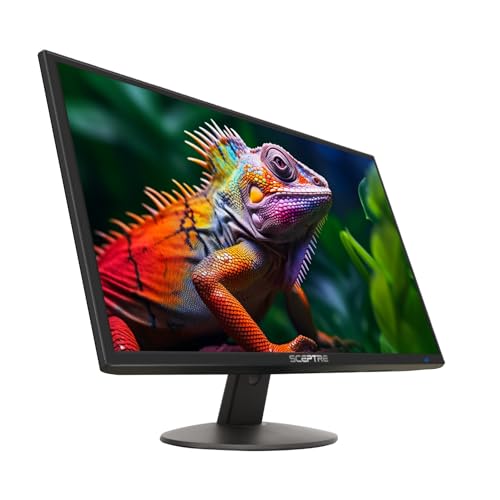
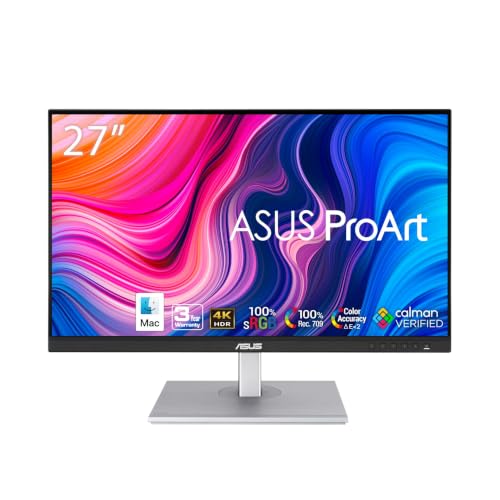
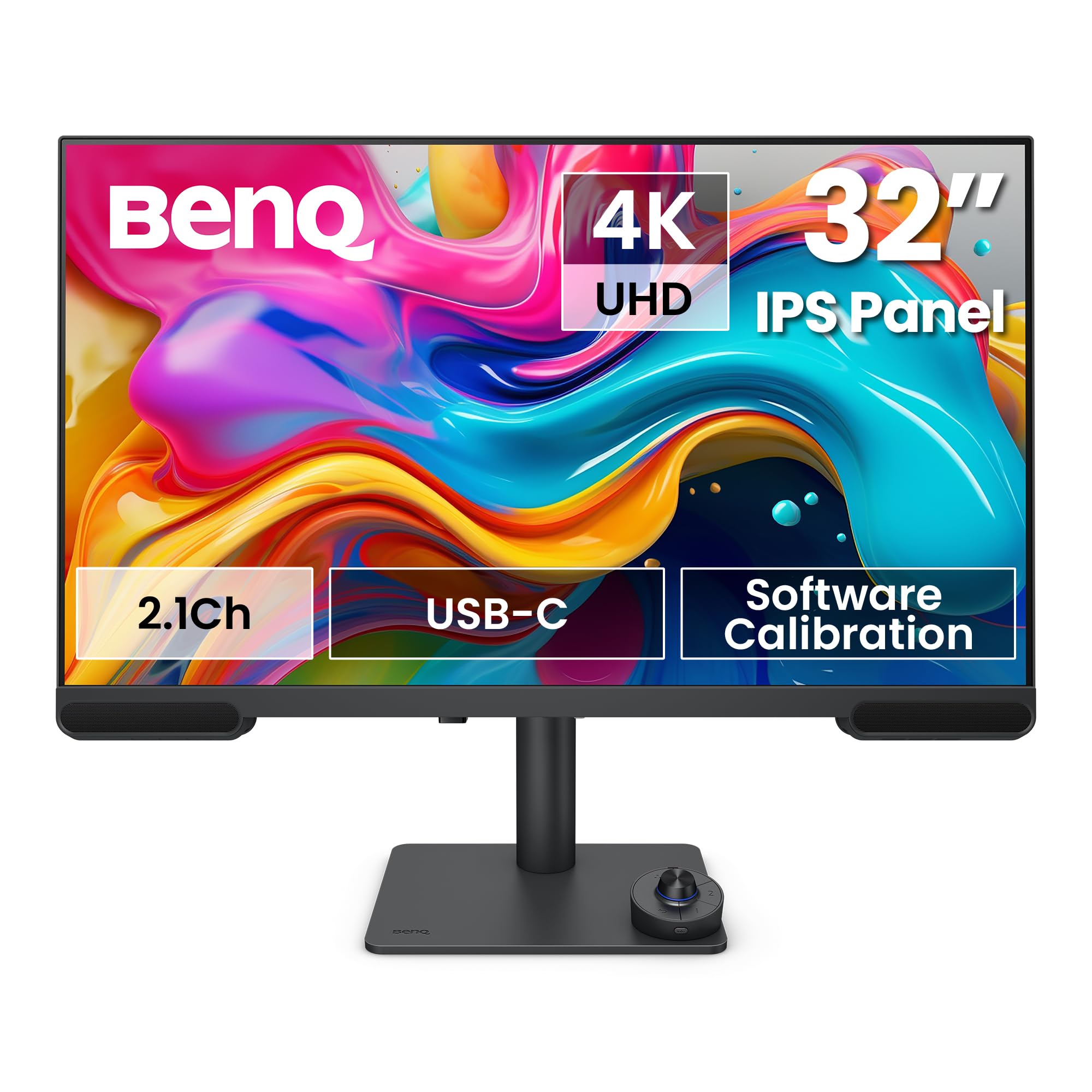
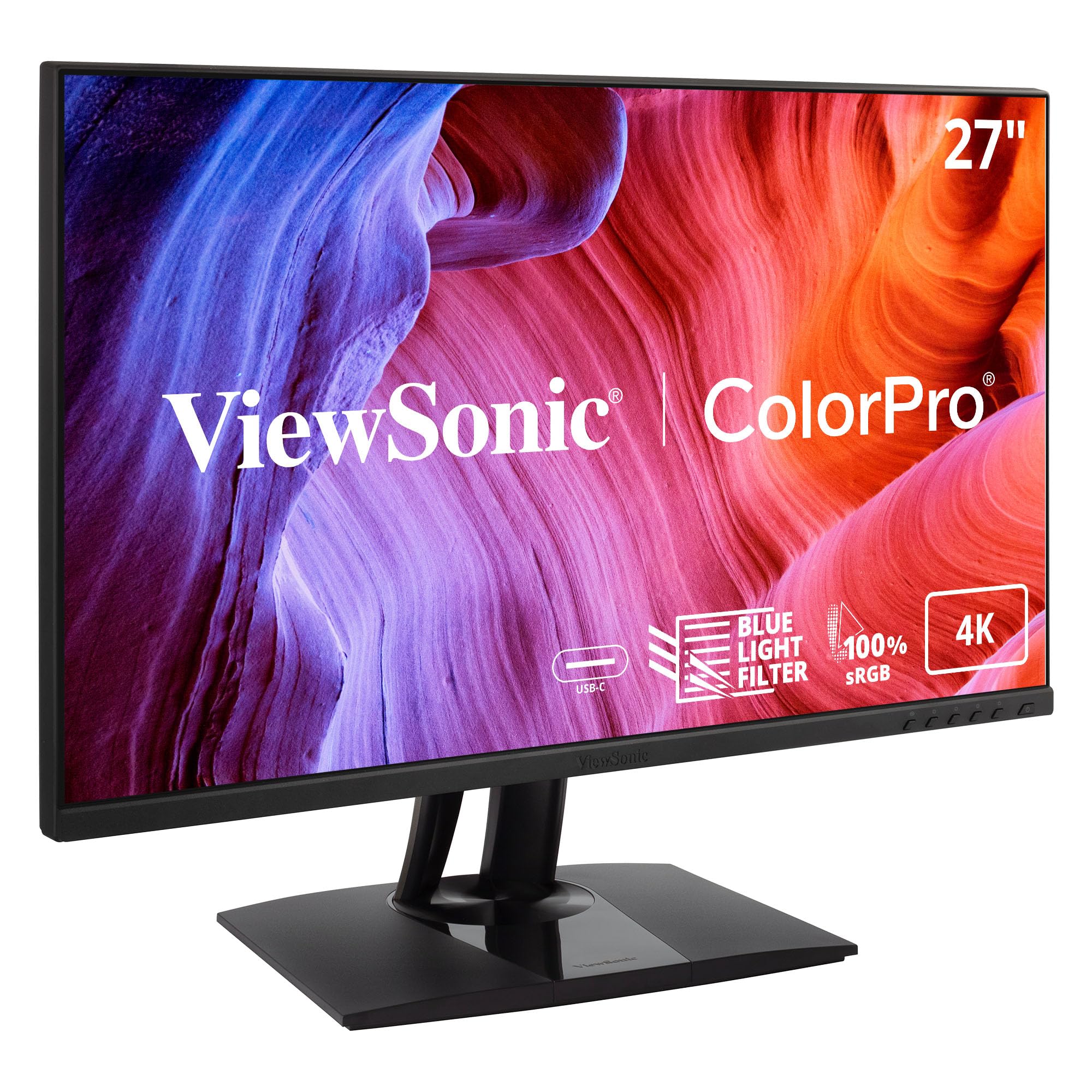
We compare panel types, color coverage, HDR, ports and price bands so you can match a screen to the way you edit. The product table below gathers the key specs, and the sections after it explain what they mean.




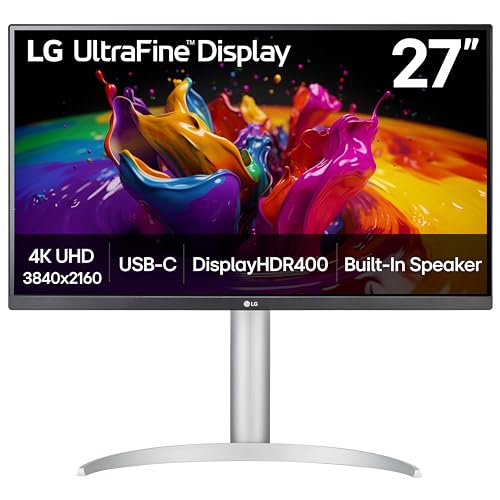
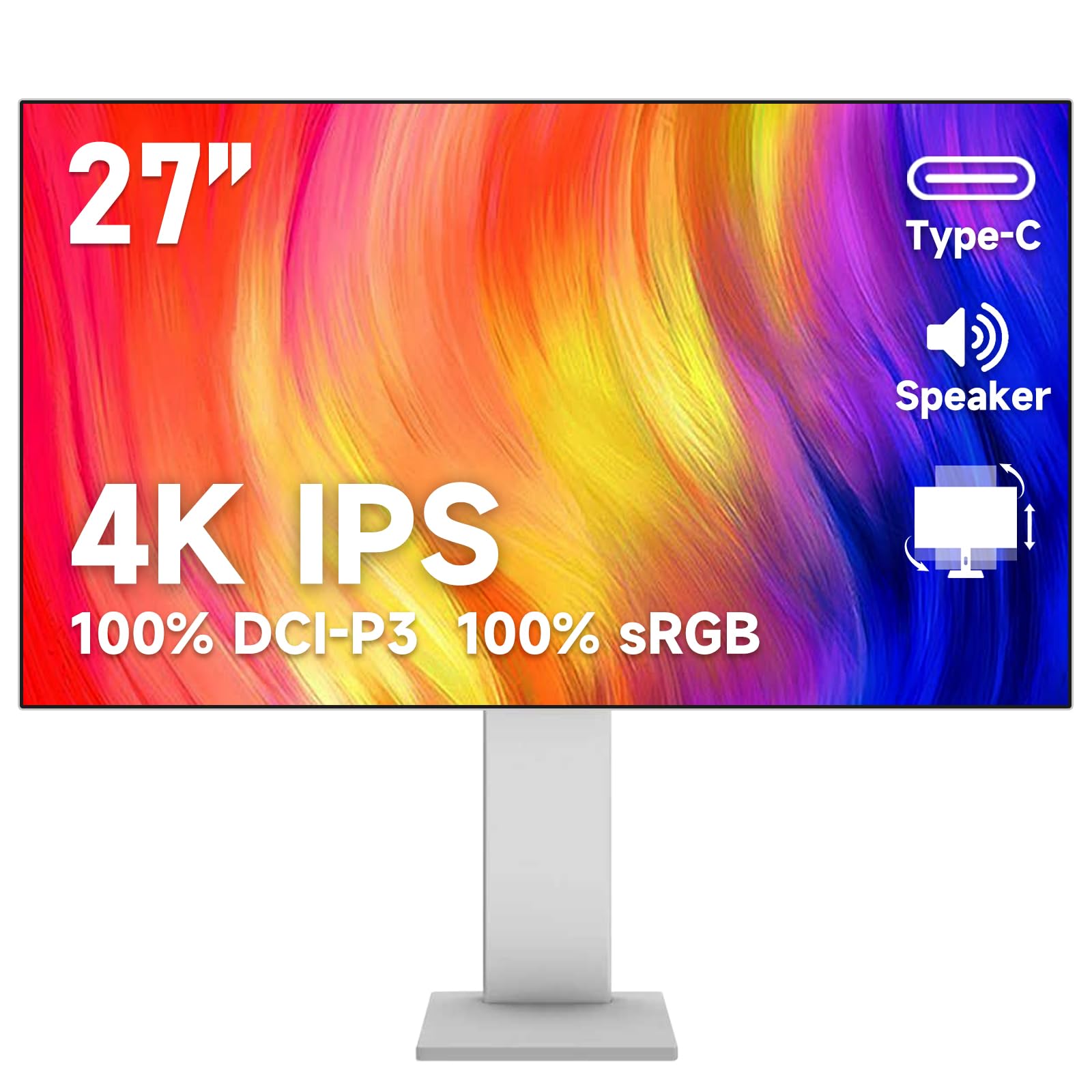
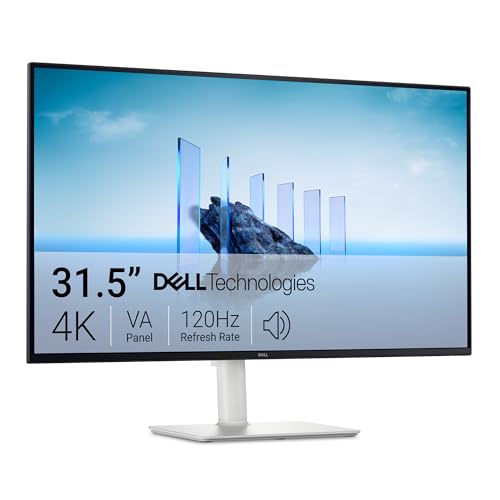
Who Should Buy Which 4K Monitor for Video Editing?
Editors do not all need the same screen. Your footage, clients and delivery formats decide what color performance is worth paying for. One budget item sits outside the screen itself, because the computer driving the monitor has to decode and export your footage, which is a separate purchase covered in our guide to best laptops for 4k video editing.
Hobbyist and Social Video Editors
If you cut family footage, vlogs or social clips, full sRGB coverage is enough, because that is the space your viewers will see. Spend on a comfortable 27 inch size and a stand that adjusts properly rather than on wide gamut color you will never use. Screens here run about $250 to $400, and a basic IPS panel with a matte finish will serve you well for years.
Client Facing Editors and Color Focused Work
Paid work changes the maths, because a rejected grade costs more than a better monitor would have. Look for wide gamut coverage of the DCI P3 space, brightness uniformity and a factory calibration report in the box. Editors who also grade photographs work in almost the same color space, and that neighboring class is covered in our guide to best 4k monitors for photo editing. Expect about $500 to $1,000 for this level of trust.
Editors Who Also Game or Stream
Plenty of editors unwind at the desk they work at, and a screen that only suits the timeline can feel sluggish after hours. A refresh rate of 120 Hz or 144 Hz, plus adaptive sync, keeps games smooth without hurting editing performance. You give up a little color accuracy at a given price for that speed. This middle ground costs about $400 to $700.
How to Choose: A Buying Guide for 4K Editing Monitors
If you are still weighing a dedicated editing screen against a general display, our broader guide to best monitors for video editing covers the general case. This section goes deeper on the 4K class. The short version: the best 4k monitors for video editing are chosen on color first, and everything else ranks after that.
Features That Matter for Video Editing
State it plainly: a color gamut class and an accuracy class govern an editing purchase. A wide gamut panel that covers the DCI P3 space and holds a low color error figure shows you what your grade actually looks like. A panel class by itself, whether IPS, VA or OLED, does not promise that accuracy, because two panels of the same type can be tuned very differently. Check gamut coverage and color error figures before anything else.
Panel Technology: IPS, VA, OLED and Mini LED
IPS panels hold color stable across wide viewing angles, which matters when a client sits beside you. VA panels deliver deeper blacks but shift color more off center. OLED gives perfect per pixel contrast, though a static timeline interface left on screen all day raises a long term burn in risk. Mini LED pairs a panel with many local dimming zones, lifting HDR contrast while keeping viewing angles reasonable.
Adaptive Sync and Gaming Features
Adaptive sync matters less for timelines than for games, but a variable refresh panel keeps preview playback smooth when a heavy render makes frame rates wander, and it removes tearing during full screen review. Readers comparing editing screens across every resolution can also work through best 4k monitors for editing for the wider picture. Treat sync as a welcome extra, not a reason to buy.
HDR and Brightness
Most editing still happens in SDR, so an honest brightness figure of about 350 to 400 nits and accurate SDR color matter more than an HDR badge. Screens quoting about 600 nits with local dimming show HDR highlights with some conviction, while true HDR grading starts nearer 1,000 nits. If your delivery is HDR, budget for dimming zones too. If not, spend the money on accuracy.
Refresh Rate and Response Time
A 60 Hz panel is fine for most editing, because timelines are not fast motion tests. Higher rates make scrubbing and playhead movement feel smoother, which some editors find less tiring over long sessions. Printed response figures are maker figures from ideal conditions, so treat them as rough class indicators, not promises. What matters more is that 24 frame footage divides evenly into the refresh rate, avoiding a faint judder.
Connectivity and Ports
A USB C port with power delivery of about 65 to 90 watts lets one cable carry picture, data and laptop charging, which keeps a desk calm. DisplayPort is the safe choice for a desktop tower, and an HDMI 2.1 port matters if a console shares the screen. A built in USB hub keeps card readers and drives off the floor. Single cable setups are a theme our guide to best computer monitors for video editing also recommends.
Stand, Mounting and Ergonomics
You will stare at this screen for thousands of hours, so height and tilt adjustment are working features, not luxuries. A stand that lifts the panel until your eyes meet its upper third reduces neck strain across a long edit. VESA 100 mounting lets you move the screen to an arm later, freeing desk space for speakers. Budget screens save money here first, and a fixed stand is felt every day.
Types of 4K Monitors
Budget Displays
Budget 4K displays, about $250 to $400, cover sRGB fully and give you the resolution, but they cut costs on stands, uniformity and quality control. One corner may glow slightly brighter than another, and nobody checks before shipping. For learning the craft and unpaid work they are a sensible start, as long as you know the savings are visible.
OLED Displays
OLED displays deliver the finest contrast and fastest response in the class, and dark scene detail in a grade looks superb on them. The trade offs are price, which starts around $700, and the need to baby the panel with varied content and pixel refresh routines. For editors whose work is mostly moving footage, the risk is modest.
Large Screen Options
Size changes how a 4K panel behaves on your desk. A 27 inch 4K screen sits at about 163 ppi, so interface text stays sharp at a normal sitting distance, while a 32 inch 4K screen sits at about 140 ppi and trades a little sharpness for a bigger, more relaxed timeline view. At 32 inches most people run less scaling and see more tracks. Choose by desk depth and eyesight.
Tips to Get the Most From Your 4K Monitor
A hardware calibrator governs how far you can trust the colors on screen, because panels drift as they age and only a profile built for your exact unit corrects that drift. Recalibrate every month or two to keep a grade consistent across a long project.
- Turn off the vivid picture mode and start from the standard or sRGB preset, which is far closer to accurate.
- Run the pixel refresh routine on an OLED panel when prompted, rather than postponing it for weeks.
- Clean the screen with a dry microfiber cloth only, since paper towels and household sprays can mark the coating.
- Use cables rated for 4K at your refresh rate, since an old cable can quietly cap the signal lower.
- Match room light to screen brightness, because a panel fighting bright windows will mislead your exposure calls.
Frequently Asked Questions
What features matter most in 4k monitors for video editing?
Color accuracy matters most, ahead of resolution bragging rights and refresh rate. After gamut coverage, check brightness uniformity, because a panel brighter in one corner misleads your exposure judgements on every shot. Also confirm the color path end to end: many screens only show their full bit depth when the right port and driver setting are chosen, a menu choice that is easy to miss during setup.
IPS vs OLED: which panel is better for video editing?
IPS is the safer all round choice for editing, while OLED wins on contrast and dark scene detail. The deciding factor is your interface habit: a timeline full of static toolbars sits on screen for hours, and OLED panels slowly wear unevenly under static elements. Pixel shifting and refresh cycles reduce that risk, but an IPS panel never asks you to think about it.
What size 4k monitor should I get for my desk?
A 27 inch screen suits most desks, and 32 inches suits deep desks where you sit further back. Keep the screen roughly an arm length away, about 24 to 32 inches from your eyes. At that distance a 27 inch 4K panel usually wants scaling around 150 percent for comfortable text, while a 32 inch panel can run a step lower and show more of your timeline at once.
How long does a 4k editing monitor usually last?
A good editing monitor lasts about five to eight years of daily use before age shows. The backlight fades slowly over that span, so an older screen needs its brightness set higher to hit the same level, and color drift speeds up near the end. Warranty length hints at the class: professional panels commonly carry about three years of cover, the cheapest only one.
Is 4K worth it for video editing if I deliver in 1080p?
Yes, because editing 4K footage on a 4K screen lets you judge focus and noise honestly at full detail. It also gives you room to punch in, reframe or stabilize a shot and still deliver a sharp 1080p file, since the extra pixels absorb the crop. Working at capture resolution means the preview you approve is the footage itself, not a softened proxy.
Final Thoughts
Rank color accuracy first, panel behavior second and everything else after that, and the right screen usually picks itself. Match size to desk depth, keep the stand adjustable, and let the product table above confirm your shortlist. Chosen that way, the best 4k monitors for video editing for your desk is the one whose color you can trust on every project.