Best 4K 27 Inch Computer Monitors in 2026: A Clear Buying Guide
Disclosure: We may earn a commission when you buy through links on this page, at no extra cost to you. As an Amazon Associate I earn from qualifying purchases. Learn more
New to 4K monitors? Compare the best 4k 27 inch computer monitors by panel type, ports, brightness and refresh rate, with setup steps and mistakes to avoid.
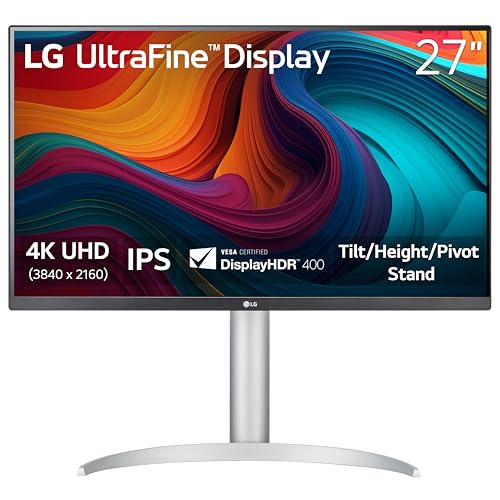
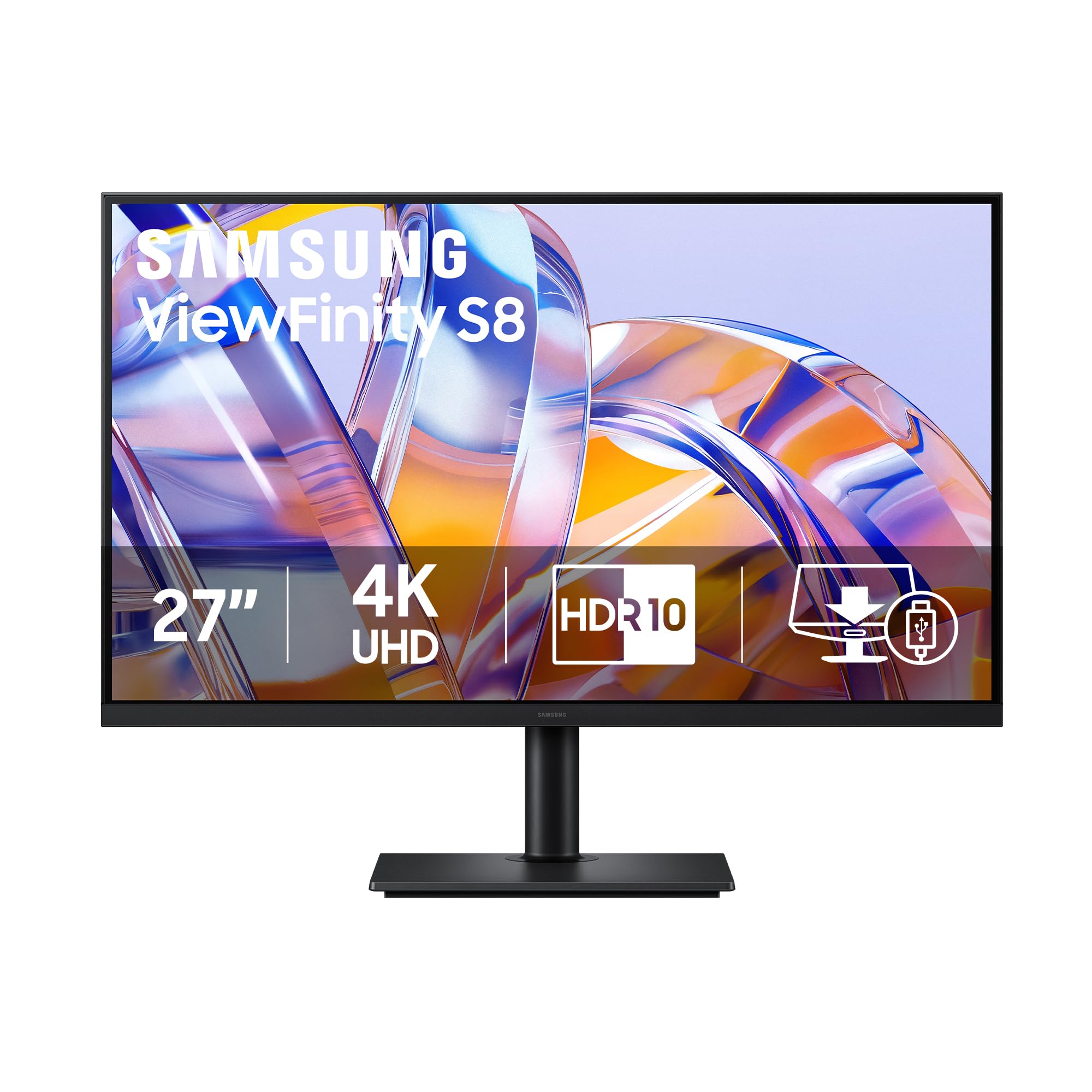
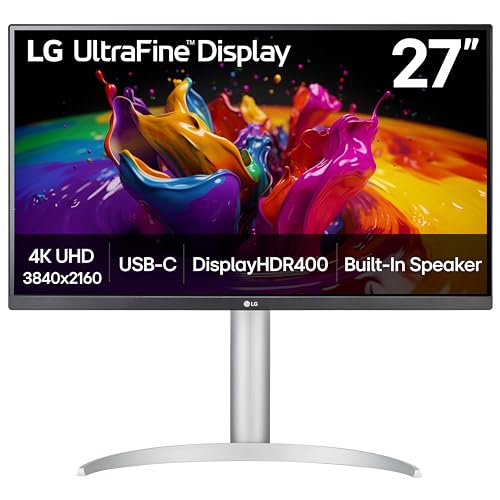
Buying your first 4K monitor can feel confusing because every listing leads with numbers and short codes. This guide explains each spec in plain English and shows you how the best 4k 27 inch computer monitors differ at a desk. Use the comparison table below to check each model against the points that follow.
You only need to match a few choices to your work, your creative tasks or your games. Screen type, brightness, refresh rate, ports and stand design decide most of your daily experience.

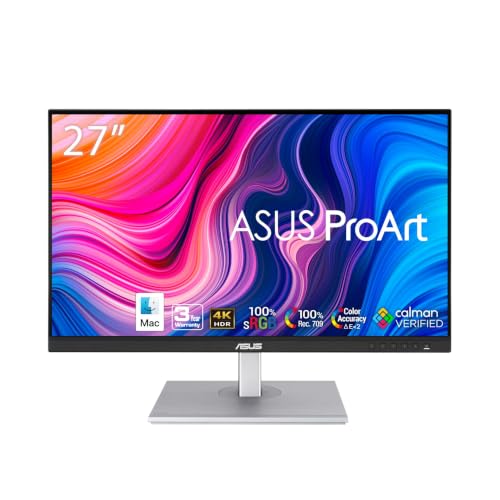
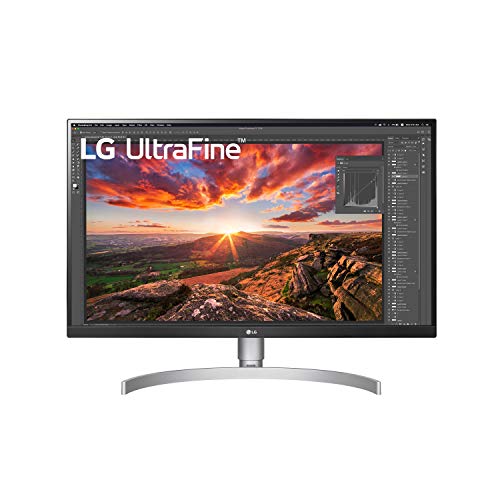
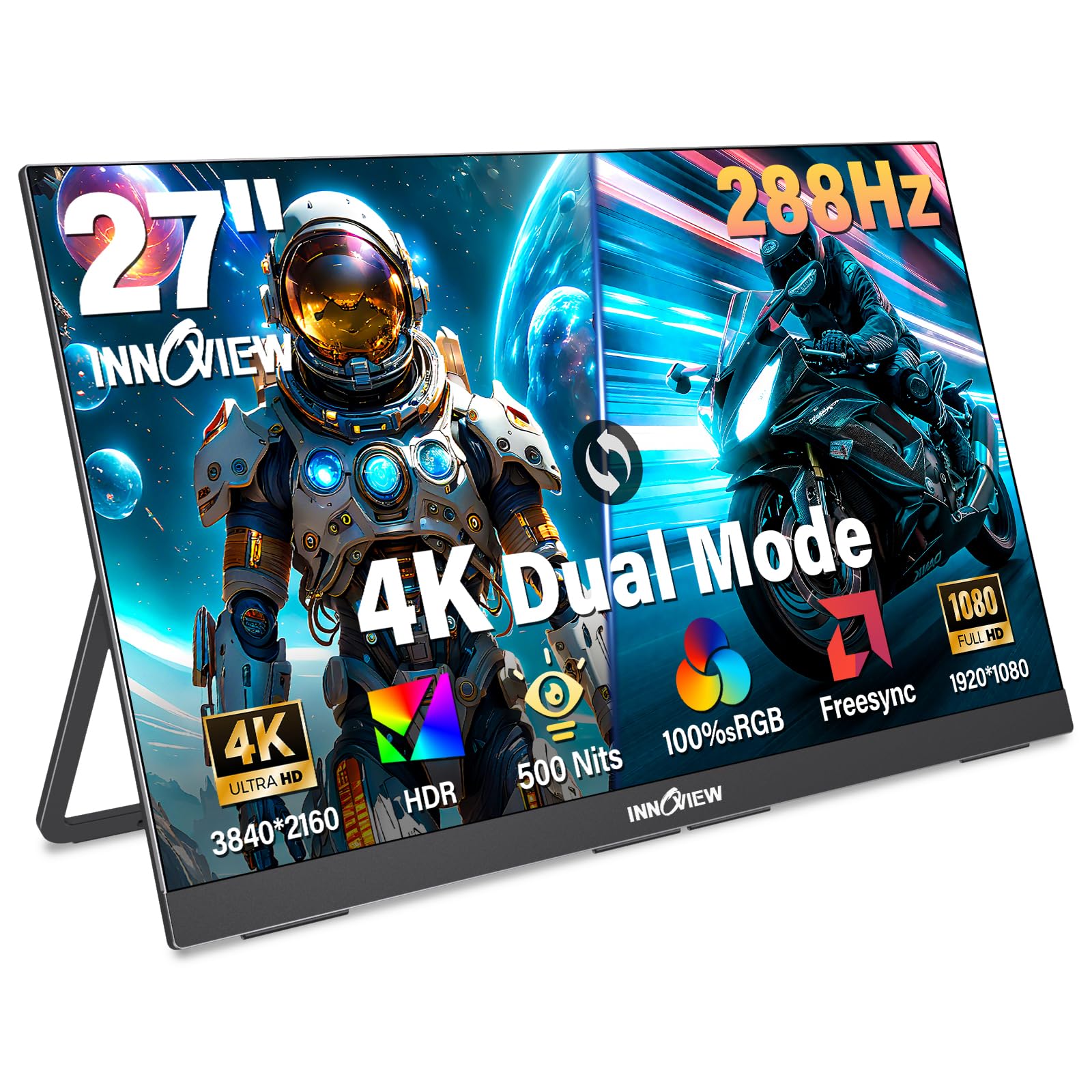
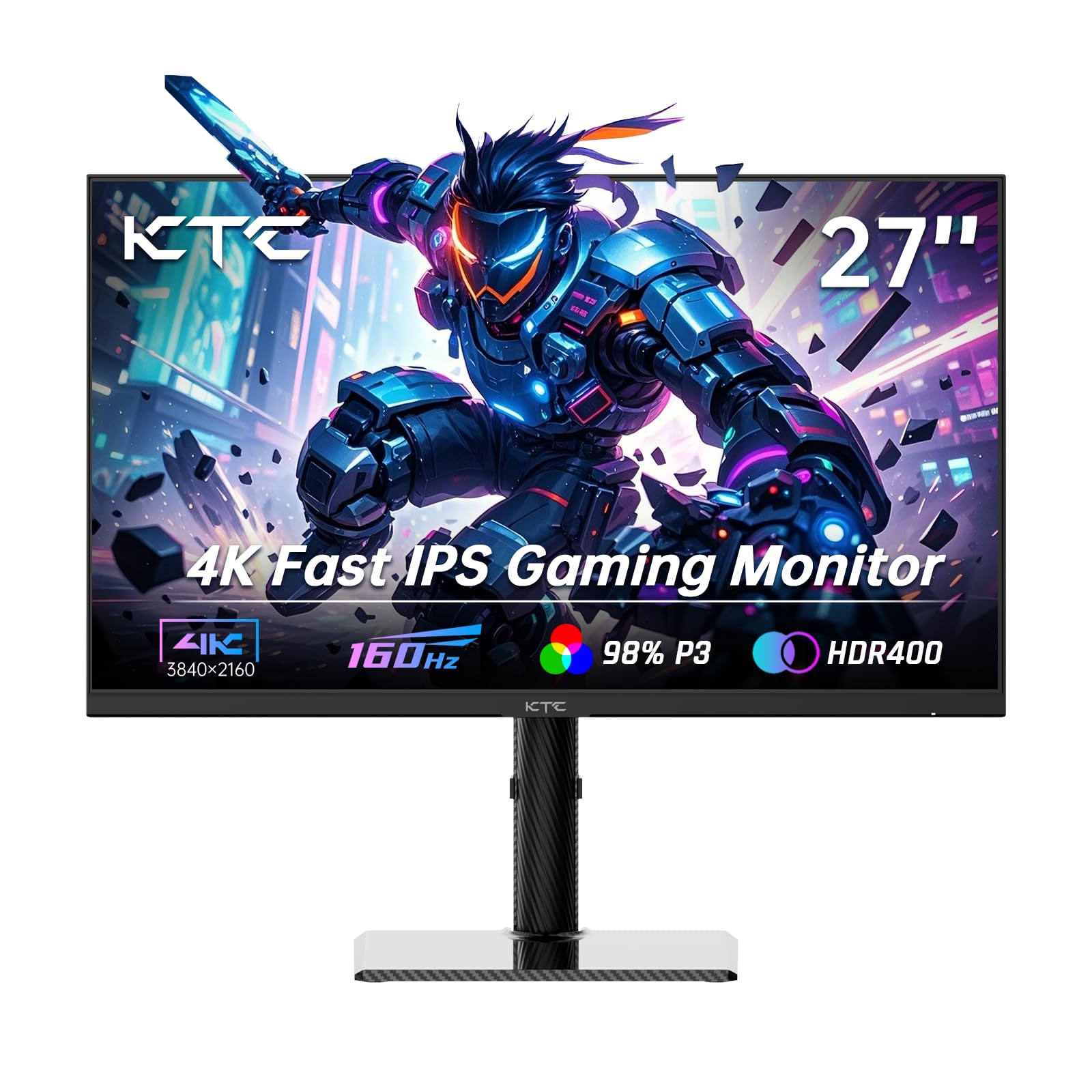

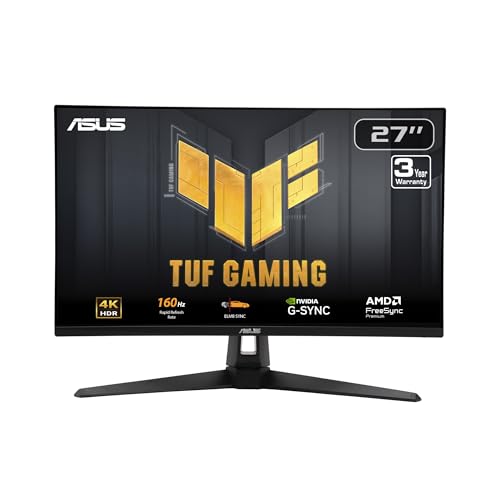
4K 27 Inch Computer Monitors 101: The Basics
A 4K monitor shows 3,840 by 2,160 pixels, four times the pixel count of a 1,920 by 1,080 screen. On a 27 inch panel those pixels sit close together, so text edges look smooth and small details stay clear at a normal desk distance. For the wider context, see our guide to the best 4k computer monitors across all sizes.
That density is why people choose this size and resolution together. At 27 inches you can usually keep two documents open side by side and still read both.
Who Should Buy a 27 Inch 4K Monitor?
Start with the work you do most hours of the week, because that use should drive your panel and port choices.
Home Office Workers Who Read Text All Day
You will value sharp text, a stand that sets the screen at eye level, and one USB C cable that carries picture and charges a laptop. Choose an IPS panel with a matte surface for clear viewing under room light. A basic 60 Hz refresh rate is enough for documents and video calls, so spend on stand adjustment and ports instead.
Photo, Video and Design Creators
You need color you can trust more than raw speed. Look for wide color coverage, stated as a percentage of the DCI P3 color space, and a factory calibration report in the box. A 27 inch 4K screen leaves room for timelines and tool panels while your image stays large.
Gamers Who Want a Sharp Desk Screen
You can have crisp detail and fast motion on the same desk, but speed costs more at 4K. Look for a refresh rate of 120 Hz or higher and adaptive sync that matches your graphics card. For deeper advice, see our guide to the best computer monitors for gaming. Check that your computer can drive new games at 4K before you pay for the highest rates.
The Specs That Shape a 27 Inch 4K Desk Display
The best 4k 27 inch computer monitors balance these points rather than winning on one number alone.
Choosing Between IPS, VA, OLED and Mini LED Panels
The panel is the layer that makes the picture, and it sets color, contrast and viewing angles. IPS panels keep colors accurate when you sit slightly off center, which suits office work and photo editing. VA panels show deeper blacks for movies but can shift color at wide angles. OLED panels turn each pixel off for true black and respond almost instantly, yet static toolbars carry a risk of burn in. Mini LED backlights use many small light zones for stronger contrast.
Nits, Highlights and How Bright Your Screen Should Be
Brightness is measured in nits, and most desk monitors offer about 300 to 400 nits, which suits normal indoor light. HDR, or high dynamic range, lets bright highlights and dark shadows hold detail at the same time. A label such as DisplayHDR 400 is an entry point, while ratings of 600 or 1,000 suggest a stronger backlight with local dimming zones. If your desk faces a window, choose the higher end of the range and a matte surface.
How Often the Screen Redraws and How Fast Pixels Answer
Refresh rate counts how many times the screen redraws each second, written in hertz. A 60 Hz screen is fine for office work, while 120 Hz or 144 Hz makes scrolling and games feel smoother, and consoles can use the 120 Hz mode over HDMI 2.1 on supported models. Response time, in milliseconds, describes how fast pixels change color, and lower values reduce blur behind moving objects. Adaptive sync keeps the screen and graphics card in step, which prevents tearing.
Ports That Decide How Many Cables Your Desk Needs
Ports decide how many cables your desk needs. DisplayPort and HDMI both carry a 4K picture, but check the version, because older HDMI ports may limit a 4K screen to 30 Hz. USB C is the most useful extra, since one cable can carry picture, data and laptop charging power at once if the monitor lists a watt rating. Look for at least two video inputs plus USB ports if you want the monitor to act as a hub.
Stand Adjustment and VESA Mounting
A good stand lets you raise the screen so the top sits near eye level, tilt it to cut reflections, and turn it toward a colleague. Some low cost models only tilt, which can leave you stacking books under the screen. VESA is the standard pattern of four screw holes on the back, usually 100 by 100 mm at this size, and it lets you fit a desk arm instead.
Resolution, Pixel Density and Text Scaling
At 27 inches, 4K gives about 163 pixels per inch, far above a 1080p screen of the same size, so text looks printed rather than blocky. Because everything
would appear tiny at full size, your system offers scaling settings, often 125 to 150 percent, which keep words readable while the extra pixels keep edges smooth. If you are still comparing sizes, see our guide to the best 27 inch monitors.Unboxing, Stand Assembly and First Settings
Unbox the monitor on a soft, flat surface and attach the stand before you lift the screen, because a bare panel is awkward to hold and easy to mark. Connect the cable that matches your computer, turn the monitor on, and confirm the input source matches that cable. Set the resolution to 3,840 by 2,160 in your display settings and pick a scaling level that makes text comfortable.
Next, open the picture menu and leave the vivid picture mode, which pushes color past natural levels. A standard or sRGB mode gives the most accurate starting point for work. OLED owners should also run the pixel refresh cycle the menu offers after long sessions, since that cycle evens out pixel wear.
Rookie Mistakes to Avoid
- Buying a 4K monitor for a computer with only an old HDMI port can limit the picture to 30 Hz and make motion look choppy.
- Ignoring USB C charging watts can leave your laptop draining its battery while it is plugged into the monitor.
- Choosing a glossy screen for a desk facing a window can leave reflections stronger than the picture on bright days.
- Paying for a 240 Hz panel when your graphics card reaches only 60 frames per second in games wastes a large part of the price.
- Skipping the VESA pattern check can leave you with a desk arm that cannot attach to your new monitor.
Care and Maintenance for a 4K Desk Monitor
Clean the screen only when it is off and cool, using a dry or slightly damp microfiber cloth and light pressure. Never spray liquid straight onto the panel, because drips can run into the lower edge and damage the electronics inside. Keep glass cleaners away from the screen, since their chemicals can harm the surface coating. Dust the vents each month so heat can escape freely.
Check cables once in a while for loose plugs or sharp bends, because a damaged cable can cause flicker that looks like a panel fault.
Frequently Asked Questions
How long does a 27 inch 4K computer monitor usually last?
A 27 inch 4K computer monitor usually lasts about five to eight years of daily use. The backlight slowly dims over time, so an older screen may look less bright even though it still works. Keeping brightness below the maximum for office work can slow that wear.
Is a 27 inch 4K monitor the right size for a small desk?
Yes, a 27 inch 4K monitor fits most small desks if you can sit about 24 to 32 inches from the screen. The stand footprint matters as much as the panel, and a wide base can crowd a shallow desk. Measure your desk depth before you buy. If space is tight, a VESA arm can reclaim the area under the screen, while large screen options can wait.
Does refresh rate matter for non gamers using a 4K monitor?
Yes, refresh rate matters a little for non gamers, mainly in how smooth scrolling and window movement feel. A 120 Hz screen makes long documents glide as you scroll, which many people find easier to follow. It does not make text sharper, because sharpness comes from resolution and scaling. If your budget is fixed, ports and stand quality give office users more daily value.
Is 4K worth it on a 27 inch computer monitor?
Yes, 4K is worth it on a 27 inch monitor if you read text, edit photos or work with detailed spreadsheets. The gain is smaller for video alone, since many shows are mastered below 4K and streaming quality varies by plan. Sit closer than about three feet to notice the full benefit.
IPS vs OLED: Which panel suits a first 4K 27 inch monitor?
IPS suits most first time buyers because it costs less and handles static screens, such as documents and dashboards, without burn in concerns. OLED gives deeper blacks and faster response, which game fans notice most in a dark room. One point listings rarely stress is warranty cover for burn in, which varies by brand and region. Read that cover closely before you choose OLED for an all day work screen.
Wrapping Up
For a first purchase, keep your shortlist simple. Pick the panel that fits your main task, confirm your computer and cables can feed a full 4K picture, and choose a stand that sets a comfortable height. Then use the product table above to compare price, ports and brightness.
When you judge the best 4k 27 inch computer monitors by those points, the right screen for your desk usually stands out quickly. Buy for the work you do every day, and set the picture mode and scaling with care on the first morning.