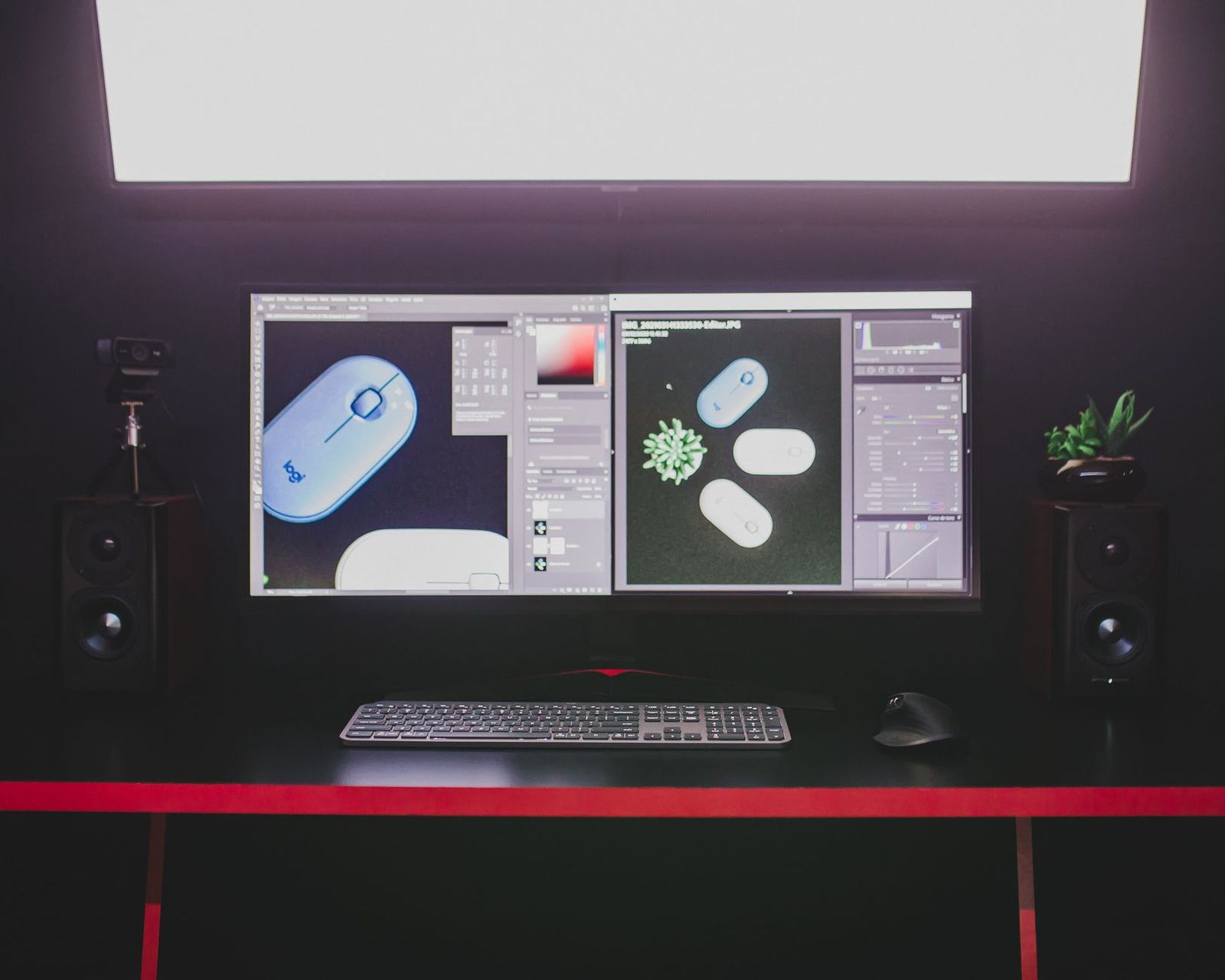
Best 4K Computer Monitors for 2026: Everything to Know Before Your First Purchase
Disclosure: We may earn a commission when you buy through links on this page, at no extra cost to you. As an Amazon Associate I earn from qualifying purchases. Learn more
Plain-language help for choosing the best 4k computer monitors: size, scaling, panels, ports and budget for your first 4K screen.
Buying your first 4K screen feels bigger than it is, mostly because the spec sheets throw around terms you have never needed before. This guide slows the whole decision down and starts with the plain questions: how big a screen your desk can hold, how sharp text will actually look once your computer scales it, and which cable makes the picture appear at all. By the end you will know how to judge best 4k computer monitors for your own desk without memorising a glossary first.
You do not need to spend the most to get a screen you will enjoy for years. You need the right size for your seating distance, a panel that suits your room light, and ports that match the computer you already own. Scan the product table for the current field, then work through the sections in order, because each choice makes the next one easier.




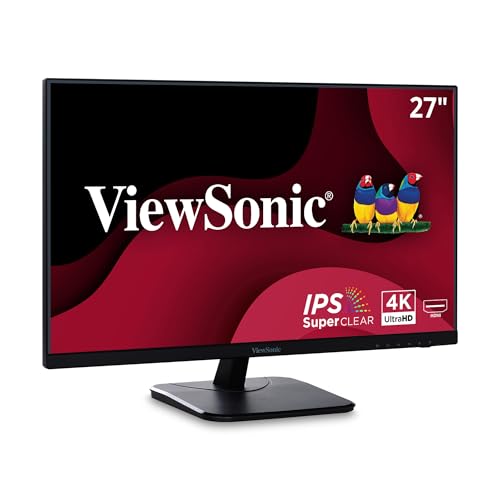
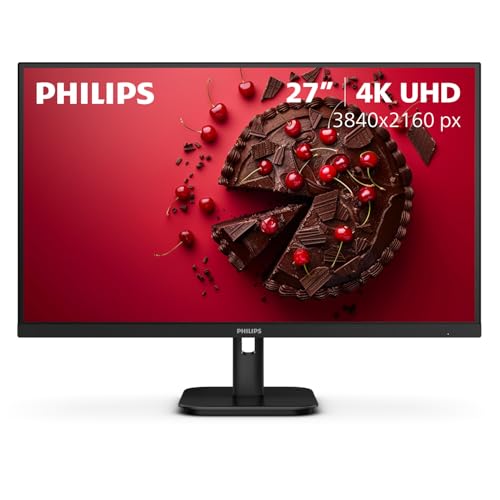


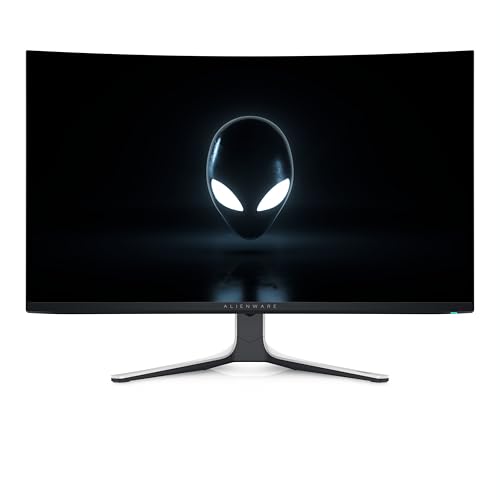
What 4K Actually Means When You Sit Down at a Desk
A 4K monitor packs about 3840 by 2160 pixels into the panel, which is four times the pixel count of a 1080p screen of the same size. More pixels in the same space means each letter, photo edge and spreadsheet line is drawn from more dots, so curves look smooth instead of stepped. At a normal desk distance of about two feet, that density is the whole point of the upgrade, because your eyes sit close enough to see the difference every minute of the day.
The catch is that those tiny pixels would make text and buttons painfully small if the computer showed everything at full native scale. So your operating system enlarges the interface, a setting called scaling, and renders text and icons at a readable size while keeping the extra sharpness underneath. Think of it as reading a finely printed page through a clean lens: the words stay a comfortable size, but the print itself is far crisper than a coarser page could ever be.
Two honest limits belong in this first lesson. A sharper panel does not make an older computer faster, because the machine still does all the thinking and the screen only shows the result. And a 4K badge says nothing about colour quality, brightness or motion handling, which is why the spec sections below matter more than the resolution number on the box.
The Specs That Matter, Translated Into Plain Words
Store pages list dozens of numbers, but a first purchase turns on six of them. Read each short section below, note the level that fits your daily work, and ignore the rest of the sheet until you shop again in a few years.
Panel Classes and What Each One Feels Like to Look At
IPS panels are the safe starting point for a first screen because colours stay accurate when you lean to one side and text looks even across the whole width. VA panels push contrast higher, so black areas look deeper in a dim room, though colours can shift a little at wide angles. OLED panels light each pixel on its own and deliver the richest contrast of all, but they cost more and need some care with static images, covered later in this guide. Mini LED is a backlight upgrade rather than a new panel class, adding many small dimming zones behind an IPS or VA panel for stronger highlights. For mixed work and everyday use, IPS remains the class most new buyers should start from.
How Fast the Picture Updates and Why the Numbers Confuse People
Refresh rate, measured in hertz, is how many times per second the screen redraws the picture, and 60 hertz is the standard level for office and study work. Higher rates such as 120 or 144 hertz make scrolling and mouse movement feel smoother, and they matter most once games enter the picture. Response time, measured in milliseconds, describes how quickly pixels change colour, and lower figures reduce the faint smearing behind fast motion. Treat maker response figures with care, because brands measure them under different conditions and the numbers do not compare cleanly across brands. A non gamer loses nothing by choosing 60 hertz and spending the savings on size or a better stand.
Size First, Because Size Decides How the Pixels Feel
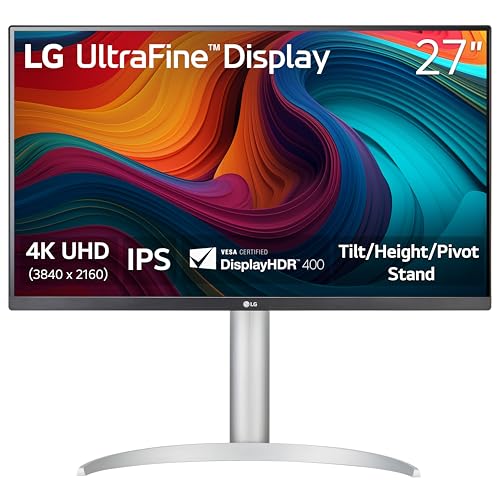
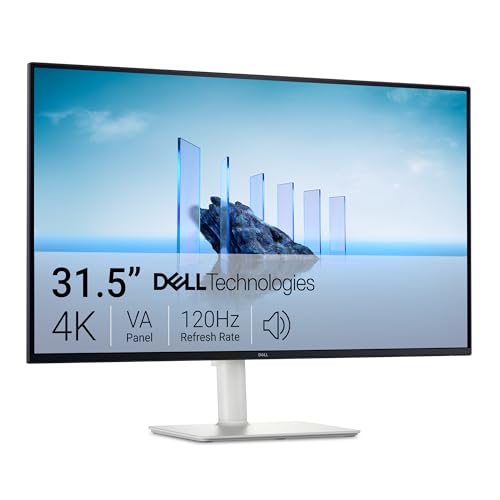
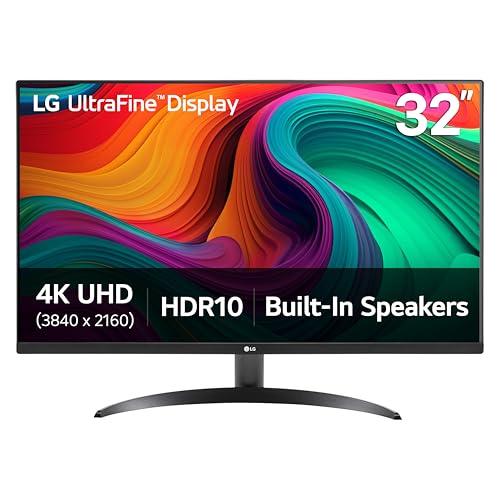
Resolution only becomes sharpness once size enters the picture, since the same 4K pixel count spread over a larger panel gives larger, more relaxed pixels. At 27 inches the pixels sit so close together that your computer will scale the interface heavily, and the honest gain is extremely crisp text rather than more room. At 32 inches the pixels breathe a little, scaling can stay light or even switch off, and you gain genuine working space for side by side documents. Smaller 24 inch 4K screens exist but rarely make sense at a desk, because heavy scaling wastes the space you paid for. Measure your desk depth before choosing, since a 32 inch screen wants roughly two and a half feet between your eyes and the panel.
Ports and the One Cable Question Every New Buyer Misses
Your screen can only show what your computer can send, so check the ports on both ends before you fall for a panel. DisplayPort and HDMI both carry 4K, but the version of the port and the class of cable decide whether you get 4K at 60 hertz or a disappointing 30 hertz limit that makes the mouse feel laggy. Many older laptops drive an external 4K screen at only 30 hertz through their oldest HDMI port, and the fix is often a different port or a better cable rather than a new screen. USB C adds a second talent on supported models: a single cable can carry the picture, data for a keyboard, and charging power to a laptop at once. Count your devices, match the cable class to the refresh you expect, and never assume the cable in the box is the fastest class.
Sync Features That Smooth Out Games and Video
Adaptive sync lets the screen adjust its refresh rhythm to match the frames your graphics hardware produces, which removes the tearing lines that appear when the two fall out of step. The two big families are FreeSync and G Sync, and most current screens support at least one of them, with many supporting both well enough for casual play. Consoles that output 120 hertz need an HDMI 2.1 port on the screen to pass that signal at 4K, so console players should check that port version by name. If your days are documents and browsing, sync is a pleasant extra rather than a reason to pay more. If games share your evenings, treat it as a core feature and confirm your graphics card class supports the same family.
Brightness, HDR Labels and What They Really Promise
Brightness is listed in nits, and about 300 to 400 nits suits most indoor desks, while a sunlit room rewards the higher end of that range. HDR badges need a cooler head: many screens accept an HDR signal yet lack the brightness and dimming control to show it with real impact, so the badge often means compatibility rather than a dramatic picture upgrade. True HDR impact arrives with high peak brightness plus local dimming, usually through Mini LED zones or OLED pixels, and it sits in the upper price bands. Judge a first screen by its ordinary picture in your room light, not by the HDR logo. A matte finish also matters here, because it tames window reflections that glossy panels throw back at you all afternoon.
Matching the Best 4K Computer Monitors to the Work You Actually Do
With the spec language settled, the choice narrows fast once you name your main use. Writers and spreadsheet users gain the most from 4K, because they stare at text for hours and the crispness reduces the faint strain of soft edges. Photo hobbyists should weigh colour coverage and IPS or OLED classes above refresh rate. Students and home workers benefit from USB C single cable docking, which turns a laptop desk into a tidy station in seconds. Readers who mostly watch video should compare a television honestly against a monitor, and our guide to best 4k tvs for computer monitors walks through that classification: a TV brings a larger picture and built in apps, while a monitor answers faster, sits closer, and handles fine text and mouse work better at desk distance.
Best 32 Inch 4K Computer Monitors
The 32 inch size earns its own section because it changes the daily experience more than any other single step up. At this size you can often run little or no scaling, so two full documents sit side by side at readable sizes and a timeline or spreadsheet shows more columns without shrinking anything. Three checks matter most here: confirm your desk depth allows about two and a half feet of viewing distance, confirm the stand lifts the large panel to eye level without wobbling, and confirm your computer can output 4K at 60 hertz so the bigger canvas still feels responsive. Expect prices around $400 to $700 for strong IPS models in this size, with OLED and Mini LED versions climbing well above that band.
Games deserve one clear paragraph for new buyers, because 4K gaming asks a lot of a computer. Rendering games at full 4K needs a strong graphics card class, and many desk players sensibly let the game render at a lower resolution while the screen handles the display side. That compromise still looks clean on a dense panel, so a modest computer is no barrier to buying a 4K screen for mixed use. If fast competitive play is your main hobby rather than a side one, the guide to best computer monitors for gaming covers the high refresh classes in more depth than a first purchase guide can.
Mac owners have one extra wrinkle to understand before ordering. A Mac drives an external 4K screen gladly, but it handles interface scaling in its own way and favours certain pixel densities, so text can look slightly different from the same screen on a Windows machine. None of this blocks a purchase; it simply rewards reading up before choosing a size. The dedicated guide to best 4k computer monitors for mac explains the scaling behaviour and port choices for Apple computers in full.
Rookie Errors That Turn a Good Screen Into a Regret
- Buying the size before measuring the desk. A 32 inch panel on a shallow desk sits too close, and you end up turning your head all day instead of glancing, so measure depth and viewing distance first.
- Blaming the screen for a 30 hertz picture. An old port or a slow cable class often caps the signal, and the fix costs a few dollars once you check the port version on your computer.
- Paying for gaming speed you will never use. Very high refresh rates help fast games, but they add cost that a documents and browsing desk would enjoy more as extra size or a height adjustable stand.
- Trusting brightness and response numbers across brands. Each maker measures under its own conditions, so a bigger number on one box does not prove a better picture than a smaller number on another.
- Forgetting the stand until the box is open. A fixed stand that sits too low leads to stacked books and neck ache, so check height adjustment or plan for a VESA mount arm from the start.
Your First Evening With the New Screen, Step by Step
Unbox the panel on a soft surface, attach the stand before lifting it by the frame, and keep the protective film on until the screen stands securely on your desk. Connect the fastest port your computer offers, using the cable class the manual names for full 4K at 60 hertz, then power on and let the computer detect the display. Open your display settings and set the resolution to the native 4K value before touching anything else, because every other judgement depends on that foundation.
Next, choose your scaling level and live with it for a full day before judging, since your eyes need a little time to settle into the new sharpness. Switch the picture mode away from the vivid or retail style preset, which oversaturates colour to shout across a store floor, and pick a standard or sRGB style mode instead. Lower the brightness until white pages feel like paper rather than a lamp, roughly matching your room light. OLED owners should also run the built in pixel refresh routine the manual describes and turn on the screen saver, two small habits that protect the panel over years of static toolbars.
Questions Answered for New Buyers
Is an IPS or an OLED Panel Better for a First 4K Monitor?
For most first purchases, IPS is the better starting class because it costs less and asks nothing of you in daily care. OLED wins on contrast and movie nights, with blacks that stay truly black in a dark room. The new point to weigh is your content mix: a screen filled all day with one static spreadsheet or toolbar favours IPS, while varied video and photo work lets OLED shine without worry. Choose by your content, not by which panel sounds more advanced.
How Long Does a 4K Computer Monitor Usually Last?
A monitor usually lasts about six to ten years of daily use, and the panel itself rarely fails first. The parts that age are the backlight, which slowly dims, and the ports, which can fall behind newer computers long before the picture fades. One practical habit extends useful life: keep brightness at the level your room needs rather than at maximum, because a permanently maxed backlight dims sooner. Buy the port set for the computer you may own next, not only the one on your desk today.
Does Refresh Rate Matter if You Rarely Play Games?
Refresh rate matters less than you might fear if games are rare in your week. At 60 hertz, documents, browsing and video all behave exactly as you expect, and video content itself is filmed at rates far below 60 anyway. The one everyday difference you can feel is smoother scrolling and window dragging at 120 hertz, which some readers love and others never notice. Spend on size and stand comfort first, and let refresh rate be the last upgrade your budget considers.
What Screen Size Suits a Small Desk Best?
A 27 inch screen suits a small desk best because it keeps the whole picture inside an easy glance at about two feet of distance. You keep the full text sharpness of 4K, since scaling handles the dense pixels, and you avoid the head turning a 32 inch panel demands in tight quarters. Measure the footprint too, because stand bases vary and a wide base can eat the keyboard space on a narrow desk. A VESA arm solves that squeeze by floating the panel above the surface.
Is 4K Worth the Extra Cost Over a 1440p Screen?
Yes, 4K is worth the extra cost when your day is mostly text, code, spreadsheets or photo detail at close range. The premium over a comparable 1440p screen often lands around $80 to $200, and for that you get visibly cleaner letter edges you will appreciate every hour. The honest exception is a desk built mainly for fast games on a modest graphics card, where 1440p at a high refresh rate can serve better. For a first screen meant to last years of mixed work, 4K is the safer long term buy.
Wrapping Up Your First Purchase With Confidence
Your decision now rests on three checks you can make today: measure your desk and pick 27 inches for tight spaces or 32 inches for room to spread out, confirm your computer and cable class can deliver 4K at 60 hertz, and choose IPS for easy all round use or OLED for contrast led viewing. Everything else on the spec sheet is refinement rather than foundation. Compare your shortlist against the product table above, and you will see that the best 4k computer monitors for a first purchase are simply the ones whose size, ports and panel match the desk and computer you already own.