Best 27 Inch Computer Monitors: Buying Guide for 2026
Disclosure: We may earn a commission when you buy through links on this page, at no extra cost to you. As an Amazon Associate I earn from qualifying purchases. Learn more

Match the best 27 inch computer monitors to your desk by resolution, panel type, ports and budget, with a plain look at built in speakers.
A 27 inch screen is where a desk starts to feel generous, and it is also where small spec differences turn into daily annoyances. Text can look fuzzy, colors can shift when you lean back, and a weak stand can leave the panel at the wrong height all day long. This guide walks through the choices behind best 27 inch computer monitors in a plain order, starting with resolution and ending with ports, so you can match a panel to the work you actually do. The product table gathers the current options in one place for when you know which class fits your desk.
Price alone is a poor guide at this size, because the same money can buy a fast gaming panel, a color minded work screen, or a basic office display with a stand that only tilts. The sections that follow separate those classes first and then explain the numbers printed on the box.
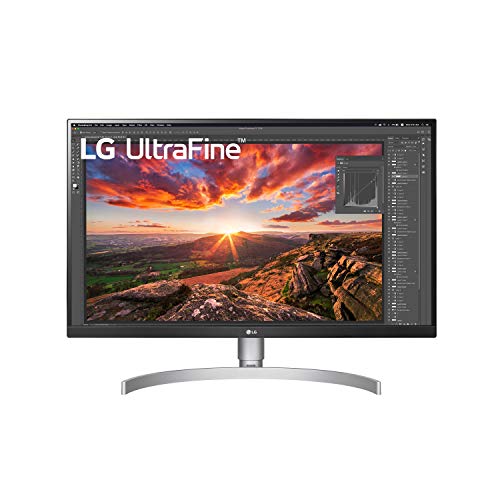
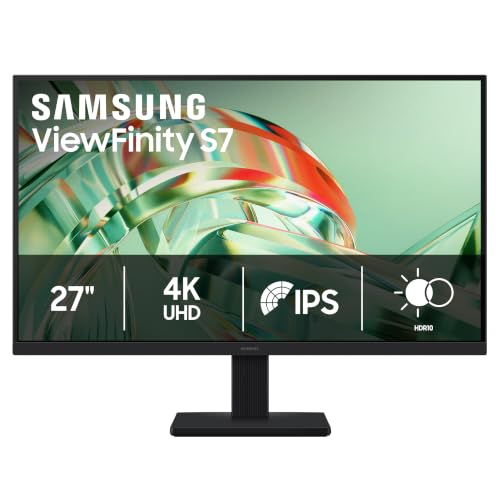


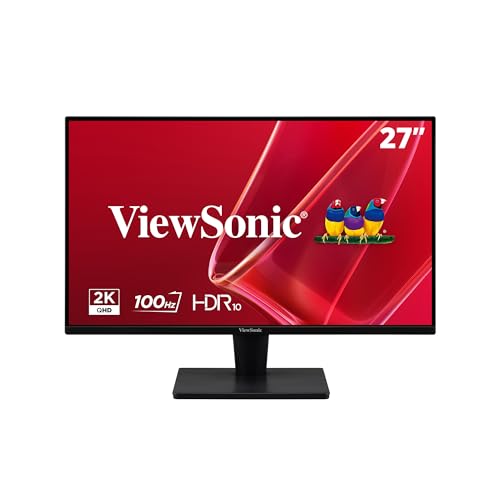
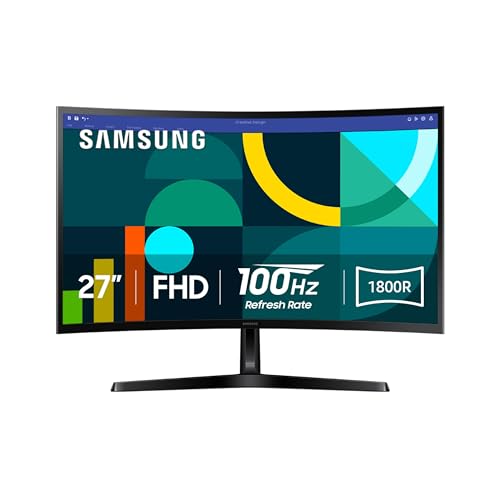

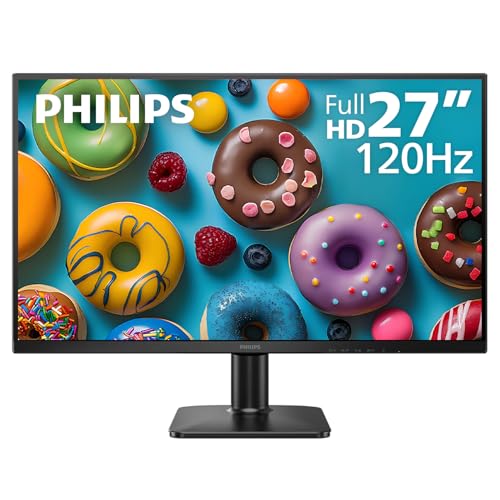

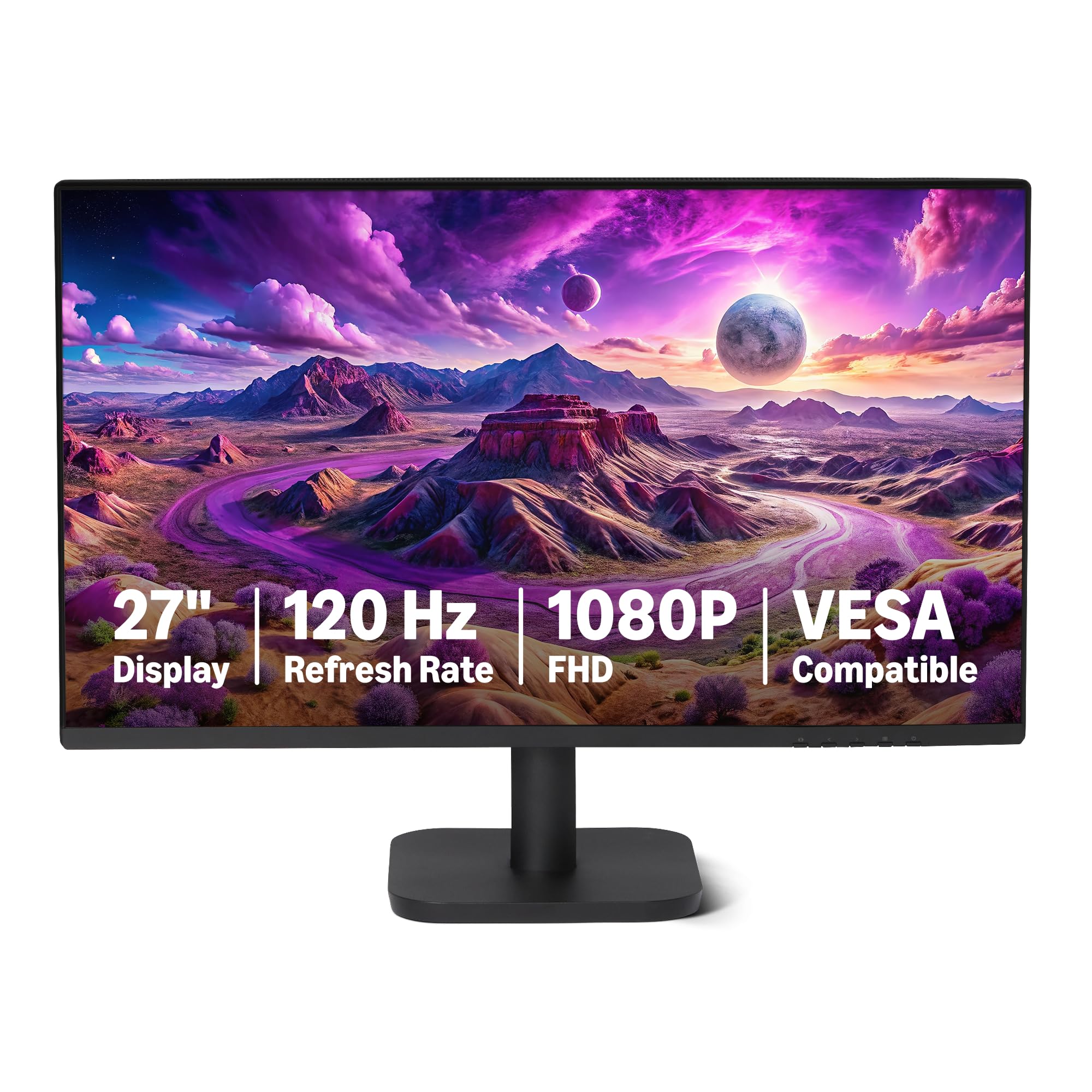
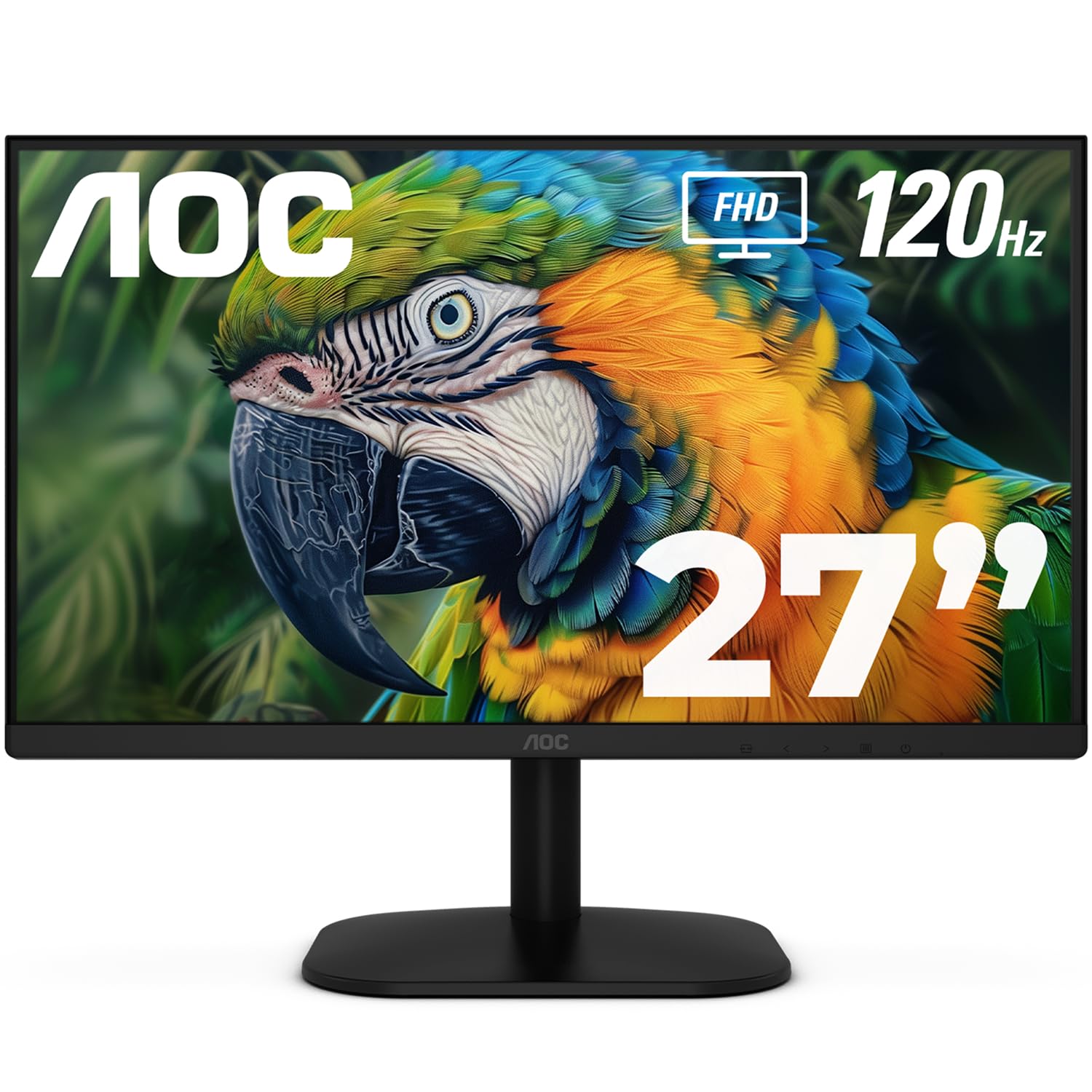

What Your Money Buys at This Size
Shelf prices for this size fall into three broad bands, and each band buys a different mix of sharpness, speed and stand quality. Treat the bands as classes rather than promises, because maker figures for brightness and color are measured by the makers on their own settings, and they are not comparable across brands.
The Entry Shelf for Ordinary Desk Days
The entry shelf runs about $120 to $200, and it mostly buys 1080p panels with simple tilt stands and one or two HDMI inputs. These screens are honest tools for video calls, documents, streaming and a second display beside a laptop. Their limit is text: at 27 inches, 1080p spreads its pixels widely, so letters look coarse during long reading. If your day is mostly writing and spreadsheets, this shelf is a compromise you will notice every hour.
The Middle Shelf Where Most Desks Land
The middle shelf runs about $200 to $400, and it is where 1440p becomes normal, stands gain height adjustment, and panels get brighter and more even. Gaming versions in this band add high refresh rates, while work versions add USB C inputs and neater cable management. For a single screen that has to handle office hours, study and evening play, this is the band that usually makes sense. The extra money goes to sharpness and posture, two things you feel on day one and on day one hundred.
The Top Shelf for Color Work and Play
The top shelf starts about $400 and can pass $900, and it buys 4K resolution, wide color coverage, OLED panels, strong stands and built in hubs. Photo and design work justifies this band, because fine detail and color behavior are the job itself. Serious players also shop here for fast OLED panels with deep contrast. Everyone else should be careful: a top shelf panel fed by an old laptop port or a dim room gives back only part of what it costs.
How to Choose the Best 27 Inch Computer Monitors Step by Step
Start With Resolution: 1080p, 1440p or 4K
Resolution is the fork that decides everything else, because it sets how much detail the panel can show at your sitting distance. At 27 inches, 1080p looks coarse for text, with visible pixel steps on letters and icons. The 1440p class is the desk standard: text stays sharp at a normal chair distance, two windows sit side by side comfortably, and most computers drive it without strain. The 4K class is the density class, bought for photo work, design and fine detail, and most systems will scale its interface up so text stays a readable size. Every shortlist of best 27 inch computer monitors should begin here, because no later feature can repair a resolution that fights your eyes. Readers who settle on the density class can compare dedicated options in our guide to best 4k 27 inch computer monitors.
Panel Classes: IPS, VA and OLED in Plain Terms
Panel class decides how color and contrast behave once the resolution is chosen. IPS panels hold their color when you view them at an angle and are the safe default for shared desks and color work. VA panels show deeper blacks and suit dim rooms and video, though dark scenes can smear slightly in fast motion. OLED panels light each pixel on its own, so blacks are true black and contrast is striking, but static toolbars shown for years can leave image retention, and makers add pixel refresh routines to manage that risk. Quoted color percentages come from maker measurements and are not comparable across brands, so treat panel class as the guide and the percentages as decoration.
Brightness Figures and HDR Badges
Brightness is quoted in nits, and the figure on the box is a peak the panel reaches under maker conditions, not a promise for your room. A bright room with windows behind you asks more of a screen than a shaded study, and a matte coating often helps more than raw brightness. HDR badges need care at this price: many mid priced panels accept an HDR signal yet lack the local dimming to show it properly, so the badge describes compatibility more than picture quality. Judge a monitor by how it will look under your lights at your hours, not by the largest number on the carton.
Refresh Rate, Response Time and Adaptive Sync
Refresh rate counts how often the picture redraws each second. A 60Hz panel is fine for documents and video, while 144Hz and above make games and fast scrolling feel smoother and are worth paying for if you play. Response time figures are maker best case numbers measured on favorable settings, so read them as a class label rather than a measurement of your unit. Adaptive sync is the feature that quietly matters most for players, because it matches the panel to the frame rate and reduces tearing. Console players should also check that the HDMI inputs support the 120Hz mode their console offers.
Ports, Cables and the One Cable Desk
Count your devices before you count pixels. Two computers, a console and a streaming stick can fill a monitor fast, so look at the mix of HDMI and DisplayPort inputs rather than the total on the specification sheet. USB C with video and charging is the one cable question: plug a laptop in once and the monitor shows the picture while its power delivery refills the battery, though the wattage class matters and a thirsty laptop can still drain on a low wattage port. Desk depth belongs in this decision too, because a 27 inch panel wants roughly an arm and a half of distance, and a deep stand can steal the space your keyboard needs. Readers with very deep desks sometimes step up a size instead, and our guide to best 32 inch computer monitors covers that larger class.
Three Common Shapes of 27 Inch Monitor
Most screens at this size fall into three shapes of product, and naming yours early keeps the budget pointed at the right features. The companion guide to best 27 inch monitors sorts these same screens by type, while this page sorts them by the job they do on a computer desk.
Fast Panels Built for Games
Gaming panels spend their money on refresh rate, adaptive sync and quick response, and they often accept plainer stands and ordinary color coverage in return. They suit players who want one screen for work and matches, provided the work is not color judging. Players who want a screen chosen purely for play can read our guide to best computer monitors for gaming for the gaming first view of this ground.
Low Price Panels for Simple Jobs
Budget panels pair a basic resolution with a tilt only stand and a short port list, and for email, documents and video calls that is often enough. Their real costs are comfort and text sharpness over long days, not reliability. They also make sensible second screens, where the main display carries the detailed work and the budget panel holds chat, mail and reference pages.
Curved Panels for Single Screen Desks
A gentle curve wraps the edges of a wide picture slightly toward you, which some single screen users find easier on the eyes during long sessions. The same curve can bend straight lines near the edges, so drawing and layout work usually stay on flat panels. Treat the curve as a comfort preference to try in a shop if you can, not as an upgrade with a measurable win.
When the Extras Matter
Extras such as speakers, webcams and hub ports look generous on a feature list, yet each one replaces something you may already own in a better form. The one extra readers ask about most is sound, so it gets its own section here.
Best 27 Inch Computer Monitor with Speakers
Built in speakers are a convenience class, not a sound purchase. A pair of small drivers inside a thin panel is fine for call voices, alerts and casual clips, and it keeps a small desk clear of extra boxes and cables. It will sound thin for music and films, and the wattage figure on the box tells you almost nothing about how the speakers behave in a room. Choose a monitor with speakers when desk space is tight, when the screen serves a spare room, or when calls dominate your day. If sound quality matters to you, keep the speakers as a bonus and budget for separate speakers or headphones as the real audio plan.
Habits That Keep the Picture Honest
- Turn off vivid and dynamic picture presets. The standard or custom mode is usually closer to honest color, and your eyes adjust within a day.
- Match the cable to the job. A bargain cable can quietly cap resolution or refresh rate, so use a cable rated for the 1440p or 4K signal you are sending.
- Set brightness for the room rather than the maximum. A panel run flat out in a dim study tires eyes faster than a panel set to the light around it.
- Angle the screen away from window glare before you blame the panel. A small turn of the stand often fixes reflections that no setting can.
- Dust the vents along the back with a soft brush now and then. Blocked vents make a hard working panel run warm and can shorten its life.
Frequently Asked Questions
Is 1440p or 4K the better choice for a 27 inch computer monitor used for office work?
For most office work, 1440p is the better choice, because text is sharp at a normal sitting distance and every window stays a usable size without scaling tricks. 4K earns its price when you edit photos, draw, or read very fine detail for hours. One point buyers miss: at 4K most systems enlarge the interface, so you gain smoothness more than extra room. If your day is documents and spreadsheets, put the savings toward a height adjustable stand instead.
Can one USB C cable run a 27 inch computer monitor and charge a laptop at the same time?
Yes, when the monitor offers USB C with video input and power delivery, one cable carries the picture and charges the laptop together. Check the wattage class in the specifications, because a large laptop under heavy load can draw more than a low wattage port returns and still lose charge slowly. Also note that cable length matters: long bargain cables may pass power yet fail to hold a steady 4K signal, so keep the run short and rated.
How much desk depth does a 27 inch computer monitor need?
Most people sit comfortably with the screen about 60 to 80 cm from their eyes, so a desk around 70 cm deep suits this size well. Shallow desks can still work if the stand is compact or the panel moves to a wall mount or monitor arm, which returns the footprint to your keyboard. Measure the stand depth before ordering, since two monitors with the same screen size can differ by several centimeters in how far the base reaches toward you.
Do the speakers built into a 27 inch computer monitor replace desktop speakers?
No, not for music or films, because the small drivers inside a slim panel cannot move enough air for full sound. They replace desktop speakers for voice calls, spoken videos and system alerts, which is all many desks need. A detail worth checking is the headphone socket: many models route sound to it automatically, so private listening stays simple even when the built in speakers are weak. Judge the speakers as a tidy bonus and you will rarely be disappointed.
Why does text look soft on a new 27 inch computer monitor?
The usual cause is the computer sending a lower resolution than the panel owns, so first set the output to the native figure in your display settings. Scaling set away from the recommended value can also blur some programs, and an old cable can force the system to fall back to a softer mode. If text still looks soft after that, sit a little farther back: at very close range even a healthy 1440p panel shows its pixel structure to sharp eyes.
The Bottom Line
Choose resolution first, panel class second, and stand and ports third, and most of this size range sorts itself out. The product table is the quick way to compare the classes once your priorities are set. For most desks, the best 27 inch computer monitors are the 1440p models with an adjustable stand and the ports your devices actually use, while 4K and OLED earn their place when your work or your games can show the difference.