Best Capture Cards for Cameras in 2026: What Actually Matters Before You Buy
Disclosure: We may earn a commission when you buy through links on this page, at no extra cost to you. As an Amazon Associate I earn from qualifying purchases. Learn more

Compare capture cards for cameras by capture limits, passthrough, latency and software fit, using a clear checklist for streaming and recording.
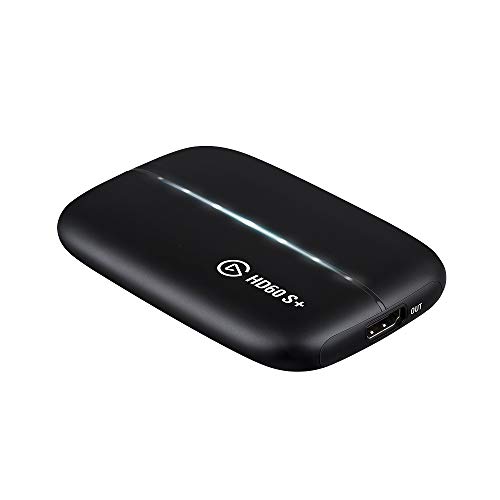
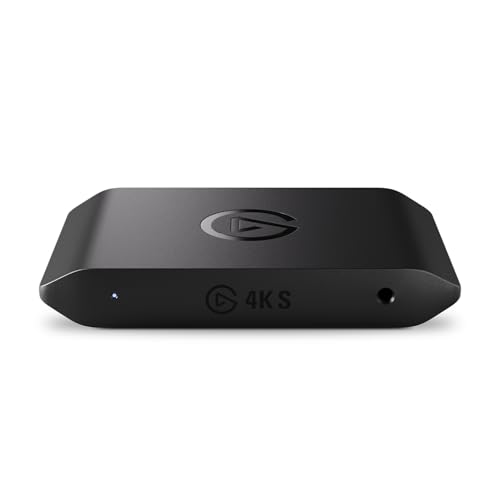
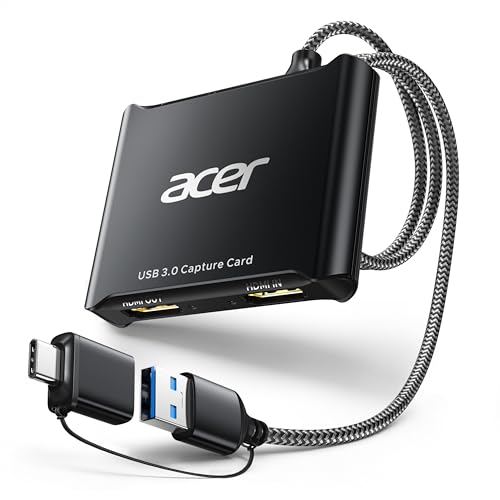
A capture card sits between your camera and your computer. It takes the live video signal from the camera HDMI output and turns it into a feed your software can use. The best capture cards for cameras match your camera output, your monitor and your software without confusing delay or dropped frames. Use the product table above to check those limits.
Start with the job you repeat most often. A live stream, a recorded lesson and a video call place different demands on resolution, frame rate and audio. The sections below cover who benefits most, the specs that change daily use and the setup checks that prevent most early problems.




Who Should Buy a Capture Card for a Camera Setup?
Buy a capture card when you own a camera with a clean HDMI output and want that image inside computer software. If the camera lacks a clean output or shuts off during long sessions, fix that limit first.
Streamers Using a Mirrorless Camera for Live Shows
You want the depth and lens choice of a real camera instead of a basic webcam image. Choose a card that captures at least 1080p at 60 frames per second and passes a sharp signal to your preview monitor. Low added delay matters to you, because your voice, reactions and the action need to stay in step.
Creators Recording Camera Video on a Computer
You record tutorials, demos or interviews straight into recording software. Choose stable capture at your delivery frame rate and a reliable audio path, through HDMI or a separate microphone input. If you shoot with one of the best digital cameras that outputs 4K video, confirm the card capture limit first, because many cards pass 4K through while recording lower.
Presenters and Teachers Running Lessons and Video Calls
You need a clear face and readable slides or objects on camera for classes, coaching or work calls. Choose a card that works as a standard USB video device, because call apps then find it without extra drivers. A simple external card suits you best and keeps joining each session fast.
Key Features to Compare
Compare these factors in order, because the best capture cards for cameras differ mainly in signal limits, connection type and software fit. A card that fails an early factor will not suit you.
Capture Resolution and Frame Rate Limits
Capture resolution is the size of the video the card sends into your software. Many external cards capture 1080p at 60 frames per second, while higher priced models capture 4K at 30 or 60 frames per second. Match the card to the frame rate you actually publish, because paying for 4K capture adds cost and file size you may never use.
Passthrough Resolution for Your Monitor
Passthrough is the signal the card sends onward to a monitor or TV while it captures for your computer, so you can watch the camera view on a large screen. Check both numbers on the box, because capture and passthrough limits often differ. A card may capture 1080p while passing 4K at 60 frames per second. Choose passthrough that matches your monitor native resolution, because a lower limit forces the display below its best setting.
Connection Type and Signal Latency
External cards connect by USB and suit laptops and easy moves between rooms. Internal cards sit in a PCIe slot inside a desktop and often give lower delay and steadier high frame rate capture. USB 2.0 models compress the image and can look soft, so choose USB 3.0 or faster for 1080p at 60 frames per second. Latency, the delay between real action and the preview, matters little for recorded lessons but a lot when you react to live action.
Camera Compatibility and Clean HDMI Output
Your camera must send a clean HDMI signal, meaning the live view leaves the camera without focus boxes, menus or battery icons burned into the image. Check the manual for clean output, for any time limit on live view and for the exact output resolution offered. Some cameras output 1080p only, even when they record 4K to a card inside the camera. Also note HDCP limits, because protected sources will not pass through a capture card.
Software Support, Drivers and Audio Inputs
Most buyers use OBS Studio, Streamlabs, Zoom or similar apps, so confirm the card appears as a standard video source on your operating system. Cards that follow the USB Video Class standard need no driver on Windows or macOS, which makes setup simpler. For audio, HDMI carries camera sound, while a 3.5 mm input on some cards accepts a microphone or mixer feed. Choose direct audio input if you commentate, because one shared device makes sync checks much easier.
External USB Cards Compared With Internal PCIe Cards
External USB cards are the practical default for most camera users. They work with laptops, move easily between rooms and need no tools to install. Their limit is shared USB bandwidth, so very high capture settings can compete with other fast USB devices. Capable external models run about $80 to $200, and simple 1080p models cost under $100.
Internal PCIe cards suit a fixed desktop studio. They often handle higher capture rates with lower delay and keep desk cables shorter. Installation means opening the case and using a free slot of the right size, so check your motherboard before ordering. If you also compare camera bodies for a studio, see our guide to the best cameras for photography for stills focused options that often add strong video output.
Before you order either type, confirm your camera clean HDMI output, your target capture setting, your passthrough need and your free ports. Confirm software support, your audio source and your free drive space. Resolve any unclear answer first, because returns often trace back to a compatibility question a ten minute check would have answered.
Common Mistakes to Avoid
- Confusing a capture card with a memory card leaves you with storage you cannot stream from, so see our guide to the best memory cards for cameras if in camera recording is what you need.
- Buying by the passthrough number alone gives you a sharp monitor image but a lower resolution recording than you expected.
- Using a charge only USB cable or a slow USB port makes the card vanish from software or drop to a soft image.
- Leaving camera menus and focus boxes visible in the HDMI output records those overlays into every video you capture.
- Ignoring camera heat and auto shutoff during long sessions ends your stream when the camera stops, not when you choose.
- Stacking the card under warm gear or against a wall traps heat and can cause dropped frames in long recordings.
Care and Maintenance for Capture Cards
Keep the card in open air with its vents clear, and route cables with gentle bends and a little slack at each plug. Support long cables so their weight does not pull on the ports, because a strained port causes signal drops that look like software faults. Unplug by the connector body, never by the cable.
Wipe dust from the case and ports with a dry soft cloth while the card is unplugged. Store a portable card in a padded pouch away from damp and direct sun. Update firmware and capture software one change at a time and test a short recording after each update. For a second angle on the basic choice, see our guide to the best capture card for single card setups.
FAQ
What features matter most in capture cards for cameras used for streaming?
Stable capture at your streaming frame rate matters most, followed by low added delay. For most streamers that means 1080p at 60 frames per second without dropped frames over a two hour session. Also check that your app lists the card as a normal video source, because special steps at each launch raise the chance of a silent or black opening screen.
How much should I spend on a first capture card for a camera?
Most first time buyers should plan about $60 to $150 for a capture card for a camera. Models under $100 handle 1080p streaming and recording well, while higher prices mainly add 4K capture, higher passthrough or an extra audio input. Spend the savings on an HDMI cable rated for your signal, because a weak cable causes more visible problems than a mid priced card does.
Is a smartphone enough instead of a camera and capture card for live video?
A smartphone is enough for casual live video, short calls and testing a new show format. Its built in camera and apps start fast and need no extra hardware. A separate camera with a capture card earns its place when you need interchangeable lenses or a fixed studio setup. Phones also heat up and drain quickly on long streams, while a powered camera setup can run for a full event.
Do capture cards for cameras add delay to live video?
Yes, capture cards for cameras add a small delay, and the amount depends on the connection type and capture setting. Internal PCIe cards and watching through passthrough give the lowest delay, while the software preview adds more. For talking head streams you can offset audio in your software. For fast reaction content, test with a hand clap on camera, adjust the offset once and save that setting.
Can a capture card record camera video without a computer?
No, a standard capture card cannot record on its own, because it only converts the camera signal for a computer. The computer and its software do the recording and storage. Stand alone recorders save to a drive without a computer, but they cost more and serve field recording rather than streaming. If you mainly record in the field, recording inside the camera is often simpler.
Wrapping Up
Match the card to your camera clean output, your capture setting and your software first, then choose the connection type that fits your space. External cards suit most people, while internal cards suit fixed desktops needing the lowest delay. Use the product table above to confirm capture limits, passthrough and price.
When you compare best capture cards for cameras with those checks in mind, the right choice is usually the simplest card that holds your frame rate. Set it up once, test a short recording and save your settings.