Best Cameras for Office for 2026: Buyer Checklist
Disclosure: We may earn a commission when you buy through links on this page, at no extra cost to you. As an Amazon Associate I earn from qualifying purchases. Learn more

Compare the best cameras for office work by video call quality, low light handling, desk fit, and privacy controls, with a checklist to guide your choice.
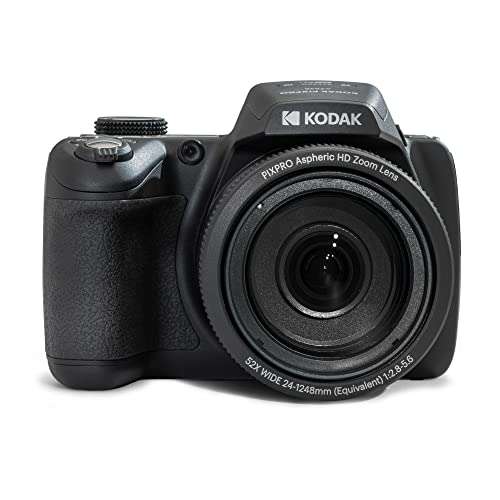
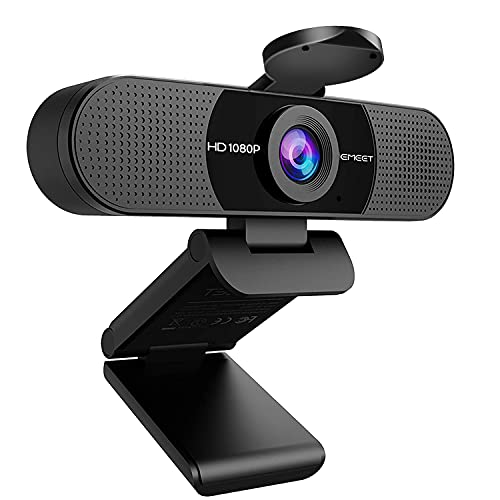
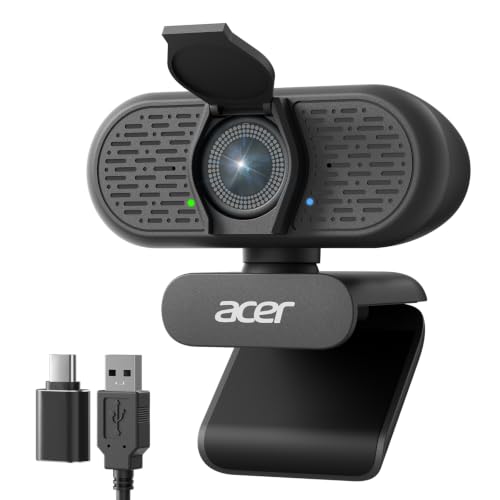
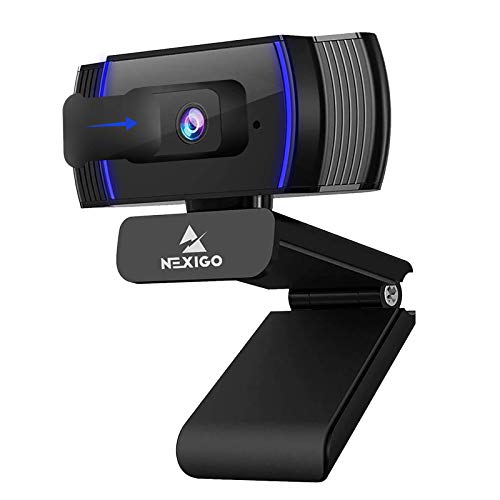
Choosing best cameras for office work starts with a simple question: what will the camera actually do during your workday? Some people need a camera mainly for video calls, while others also photograph documents, products, or a whiteboard. The comparison table below lines up the main types side by side so you can match features to those jobs before you spend anything.
Office use creates its own set of demands. Overhead lights can wash out faces, desks leave little room for a tripod, and a camera may sit in a shared room where other people walk past. This guide walks through the features that matter in that setting, the warning signs of a poor choice, and a short checklist you can run through before ordering.






Key Features to Compare
Use this section as a neutral checklist rather than a scorecard. No single camera wins on every point, so weigh each feature against the job you need it to do most often.
Features That Matter for Office
Office cameras earn their keep in three everyday jobs: video calls, still photos of documents or objects, and short clips for training or messages. For calls, look for clean autofocus on a face, natural skin tones under office lighting, and a microphone that picks up speech without amplifying keyboard noise. For stills, a sharp lens and reliable white balance matter more than extreme zoom.
Privacy also belongs on this list. If the camera can record in a shared space, follow local recording and consent rules, tell colleagues when recording starts, and prefer a model with a physical shutter or a clear recording light. A related guide to best security cameras for office covers fixed room monitoring, which is a different job from a desk camera you control yourself.
Sensor Size and Image Quality
A larger sensor usually gathers more light and produces cleaner images in a dim meeting room, but sensor size alone does not decide quality. Lens quality, image processing, and focus speed shape the result just as much. A compact camera with a modest sensor and a good lens can beat a larger sensor paired with a weak lens.
Resolution also needs context. Plenty of pixels help when you crop a photo of a document, yet a video call rarely needs more than a clean full high definition feed. Judge image quality by how faces and text look under your own office lights, not by the largest number on the box. For a broader look at still photo options, see our guide to best digital cameras and compare sensor claims against the lens and focus features described there.
Connection, Cable Length and Power
Most office cameras plug into a USB port and draw power from the computer, so check the cable length against the distance from your port to the monitor. A short cable forces an awkward desk layout, while a long one needs a clip to stay tidy. If you share one camera between a laptop and a desktop, look for a plain USB connection that needs no driver, and confirm it works with your meeting software before you buy. A model that needs a separate power adapter adds one more cord to the desk and is rarely worth it for calls.
Ease of Use for Your Skill Level
An office camera should get out of your way. Automatic modes that handle exposure and focus let a new user start quickly, while manual controls help an experienced user match the look of a room with mixed window light and ceiling light. App transfer matters too: moving photos to a laptop or phone without hunting for cables saves time when a document photo must go out the same day.
Look for menus that read plainly, buttons you can find by touch, and a companion app that does not demand an account just to move your own files. A camera that needs a long setup ritual before every call will quietly stop being used.
Low Light Performance
Most offices are darker than they look on a bright screen. Overhead lights, window glare, and a screen glowing behind you can all confuse a camera. Good low light handling means cleaner faces with less grain when the room light drops, and a lens that stays bright enough to keep shutter speeds reasonable. High ISO numbers alone do not prove this, since heavy noise reduction can smear fine detail such as small text.
Judge low light results by sample images taken indoors, not by borrowed optics terms.
Size, Weight, and Ergonomics
Desk space is the quiet constraint in office buying. A bulky camera with a tall grip may crowd a keyboard, block a monitor, or topple when a cable gets tugged. A compact body fits a small desk and slips into a bag for travel between offices, but very small bodies can feel cramped during a long handheld session.
Hold the shape in mind: a comfortable grip, a tripod socket in a sensible place, and controls that fall under your fingers matter more than a few grams saved. If the camera will live on a monitor mount or a small tripod, check that the mount clears the screen bezel and does not wobble when you type.
Spending Levels That Fit Office Work
Price tiers help only when they describe what changes at each level. The names below reflect office budgets rather than a ranking of winners.
A Modest Desk Setup
A modest budget buys a capable camera for calls and simple document photos, with automatic exposure and focus doing most of the work. Expect decent video in good light, basic low light handling, and a fixed or short zoom lens. This level suits a worker who mainly joins calls and occasionally photographs a page. Spending here works best when the room has steady light and the desk has room for a small tripod or monitor mount.
A Solid Everyday Setup
The middle level adds cleaner low light video, faster and quieter focus, better microphones, and more reliable wireless transfer. It suits people who record training clips, photograph products for internal listings, or join calls for hours each day. You also gain sturdier build and longer battery life, which matter when the camera moves between rooms. This is the level where a camera starts to feel like a daily tool rather than an occasional gadget.
A Generous Studio Corner
A generous budget buys a larger sensor, a brighter lens, and controls that hold up under mixed lighting, plus room to grow into external microphones and lights. It fits a team that produces polished training videos or photographs products regularly. The extra money does not automatically improve a simple video call, so buy at this level only when the extra image quality serves a real output, such as published training material or catalog photos. For still photo technique in general, our guide to best cameras for photography explains lens and sensor trade offs in more depth.
Quick Buyer Checklist
- Will the camera serve calls, stills, or short clips most often?
- Does it focus quickly and quietly on a face under office lighting?
- Can it hold a clean image when the room light drops?
- Does it fit the desk, the monitor mount, or the bag you will use?
- Is the cable long enough and the connection plain USB?
- Does it offer a physical shutter or a clear recording light for shared rooms?
- Can you move files to your laptop or phone without a struggle?
- Does the warranty and return policy give you time to test it at your own desk?
Red Flags to Watch For
Watch for vague specifications, such as a resolution claim with no mention of sensor size, lens brightness, or focus type. Be wary of listings that promise professional results at any price, or that show sample images clearly taken in a studio rather than an office. Very short warranties, missing return terms, and a flood of nearly identical short comments can all signal a listing worth skipping. Also beware of a camera that demands extra paid software just to transfer your own photos, or one whose microphone cannot be muted quickly during a call.
How to Make Your Camera Last Longer
Use a lens cloth, not your shirt, since shirt fabric can drag grit across the lens coating. Keep the cable out of the path of your chair and mouse hand so a tug never pulls the camera off the monitor. Keep it away from coffee cups and window heat, and close the privacy shutter when the camera sits unused on a shared desk. Check the mount or tripod screw now and then, since a loose mount is the usual cause of a desk fall.
Frequently Asked Questions
What features matter most in cameras for office?
Face autofocus, clean color under office lights, and a microphone that favors speech over room noise matter most for calls. For stills, add a sharp lens and dependable white balance so documents and products read clearly. Low light handling and a compact desk footprint come next, since most offices mix window light with ceiling light and leave little spare space. Privacy controls round out the list: a physical shutter or a clear recording light helps everyone in a shared room know when recording is on.
How much should I spend on my first one?
Start from the job, not from a price tier. A camera for calls alone can sit at a modest budget, around $40 to $120, with automatic modes doing the heavy lifting. Add budget when you record training clips, photograph products, or work in dim rooms, since low light quality and faster focus cost more to build. Before jumping to a generous budget, test whether better room lighting or a small tripod solves the problem, because those fixes often improve results for less money.
What specs matter most for beginners?
Beginners benefit most from dependable automatic exposure, face autofocus, and simple file transfer to a phone or laptop. A clear menu, a comfortable grip, and a battery that lasts through a workday matter more than manual controls you may never touch. Image stabilization helps handheld clips look steady, and a standard tripod socket keeps future accessories simple. Learn those basics first, then add manual settings gradually as real jobs demand them.
Which is better for low light?
A larger sensor with a bright lens usually handles dim rooms better, because it gathers more light before the camera must amplify the signal. That advantage fades if the lens is slow or the focus hunts in the dark, so look at indoor sample images rather than a single specification. Steady room lighting helps any camera, so a small desk lamp aimed at the wall behind the camera often improves a call more than a pricier body. Test in your own room when a return window allows it.
Is a smartphone enough instead?
A smartphone often covers simple calls and quick document photos, and it is already in your pocket. A dedicated camera earns its place when you need a longer zoom, cleaner low light video, a microphone input, or a tripod friendly body for repeated training clips. It also keeps work recording separate from personal messages, which some teams prefer. If your calls look clear and your document photos read well, a phone may be all the office camera you need.
Final Thoughts
Match the camera to the office job it will do most, then check it against low light handling, desk fit, battery life, and privacy controls. A modest setup serves calls well, a solid everyday setup adds steadier video and better sound, and a generous setup pays off only when polished output is part of the job. Run through the checklist above, test the camera at your own desk when you can, and let the product table above guide a final comparison. With those steps done, best cameras for office becomes a practical choice rather than a guess.