Best Bargain Gaming Monitors 2026: Beginner Guide
Disclosure: We may earn a commission when you buy through links on this page, at no extra cost to you. As an Amazon Associate I earn from qualifying purchases. Learn more
Learn the terms that matter when choosing the best bargain gaming monitors, from refresh rate and panel type to inputs and stand.
Buying your first gaming monitor can feel confusing, because every listing leads with numbers and terms you may never have used. The best bargain gaming monitors are not the cheapest screens on the page. They put your money into smooth motion, clear detail and the right ports, and skip extras you will not notice. This guide starts with the basics.
You only need to know which specs change how games look and feel, what a fair budget buys, and which corners are safe to cut. Read the sections below in order, then use the comparison table below to match each monitor against your device and desk.


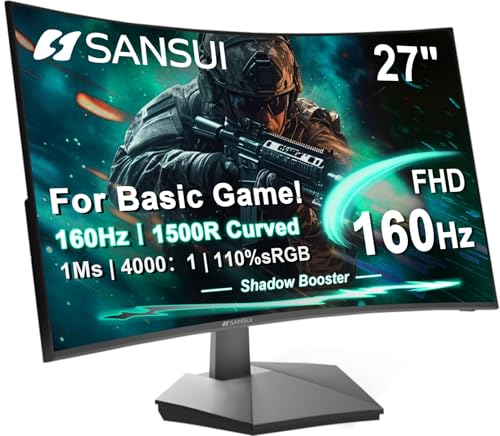
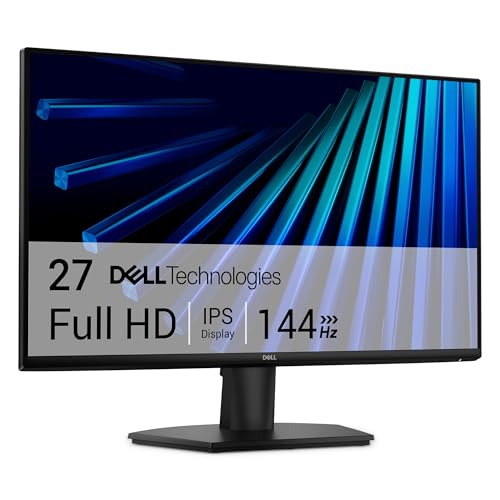
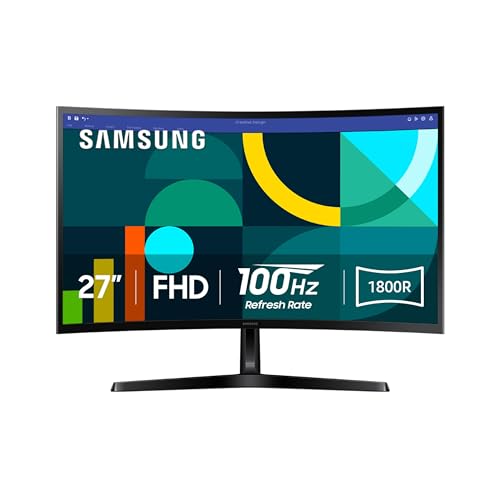

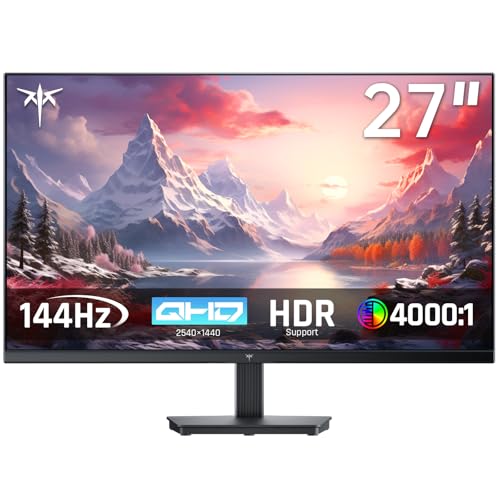
Gaming Monitors 101: The Basics for First Time Buyers
A gaming monitor is a display built for moving images rather than still pages. A normal office screen usually refreshes 60 times per second, while a gaming screen refreshes far more often, so motion looks smoother and your inputs feel quicker. It also answers fast when a picture changes, which keeps edges cleaner during quick turns.
Three ideas sit behind almost every listing. Resolution is the number of pixels, and more pixels mean finer detail but harder work for your device. Refresh rate, written in hertz, is how often the picture updates each second. Response time, written in milliseconds, is how fast a pixel can change, and lower numbers usually mean less blur behind moving objects.
Everything else supports those three ideas. The panel shapes color and contrast, adaptive sync keeps the picture free of tearing, and the ports decide what you can plug in. For the full price range, see our guide to the best gaming monitors for how the top tier differs.
Budget Gaming Monitor Specs in Plain English
When you compare best bargain gaming monitors spec by spec, ask one question: will I see or feel this while I play? If the answer is no, that spec is a poor place to spend a tight budget.
What You Can Realistically Get on a Bargain Budget
Most bargain gaming monitors cost about $100 to $250, and that range buys more than it once did. Expect a 24 inch or 27 inch screen at 1080p or 1440p resolution, a refresh rate of 144Hz to 180Hz, and basic adaptive sync. What gets cut is usually the stand, which may only tilt, plus extras like USB ports and strong HDR. Do not cut corners on refresh rate or panel quality to pay for speakers or lights, because the picture is what you look at for years.
Panel Technology: IPS, VA, OLED and Mini LED
The panel is the layer that makes the picture, and each type trades color, contrast and price differently. IPS panels give accurate color and wide viewing angles, so they suit shared desks and mixed use with work or video. VA panels give deeper contrast for less money, but they can blur dark moving scenes. OLED panels give perfect blacks and very fast response, yet they rarely appear at bargain prices and need care to avoid burn in from static images. Mini LED improves backlight control, but true Mini LED sets cost well above this budget, so treat the label with care at low prices.
Refresh Rate and Response Time for Smooth Play
Refresh rate decides how smooth motion can look. A jump from 60Hz to 144Hz is large and easy to feel in shooters, racing games and even scrolling, while a jump to 240Hz helps mainly skilled players in fast titles. Consoles that support 120Hz play need a monitor that accepts that signal, so check the rate over the port you will use, not only the headline number. For response time, look for about 1 to 5 milliseconds quoted, and remember that the fastest mode can add visual artifacts, so a middle setting often looks best.
HDR and Brightness on a Tight Budget
Brightness is measured in nits, and most bargain models reach about 250 to 400 nits, which is plenty for a normal room. HDR widens the gap between dark and bright areas, and most models use the HDR10 format. At this price, HDR is often accepted as a signal without the backlight control to show it well, so scenes may look washed out rather than richer. Treat HDR as a small bonus, not a reason to buy.
Adaptive Sync, Ports and Gaming Features That Matter
Adaptive sync lets the monitor match its refresh rate to the frame rate your device sends, which removes tearing and reduces stutter. FreeSync works with many computers and consoles, G Sync is the matching system from the other major graphics camp, and many screens now support both styles. For ports, HDMI 2.1 matters most for console players who want 120Hz play at high resolution, along with variable refresh and a low latency mode. If you play on a PlayStation 5, see our guide to the best gaming monitors for ps5 for the exact port needs of that console.
Rookie Mistakes to Avoid When Buying Your First Gaming Monitor
Most first purchase regrets come from one unchecked line in a spec list.
- Buying 4K on a small budget leaves too little money for refresh rate, so games look sharp but feel slow.
- Trusting the fastest response time setting can add pale halos around moving objects and spoil the picture.
- Forgetting to check the stand means a screen that sits too low and gives you neck strain within a week.
- Paying extra for HDR badges at this price takes money from the panel, where it would have shown every day.
- Skipping the port list can leave a console stuck at 60Hz even though the panel itself supports far more.
Getting Started: Setup and First Use of a New Gaming Monitor
Setup takes about fifteen minutes. Unpack the screen face down on a soft surface, attach the stand before you lift it, and place it so the top sits near eye level at about an arm of distance. A stand that only tilts is common at this price, so check for a VESA mount pattern, usually 75 by 75 mm or 100 by 100 mm, if you plan to add an arm later.
Next, open the display settings on your device and set the refresh rate by hand, because many systems start at 60Hz even on a fast screen. Turn on adaptive sync in both the monitor menu and the device menu, since it must agree in two places to work. Choose a standard picture mode rather than the vivid mode, then lower brightness until white areas look calm. On an OLED screen, run the pixel refresh routine after long static sessions.
Finish with one game you know well. If text at the edges looks soft, check that the device output matches the native resolution of the screen. For a shared desk, see our guide to the best computer monitors for gaming, which covers dual use with office work.
Care and Maintenance for a Gaming Monitor Screen
A monitor needs little care, but the screen coating is easy to damage. Dust it with a dry microfiber cloth and light pressure, and dampen the cloth with plain water only when marks remain. Never spray liquid straight onto the screen, because drips can run into the lower edge and harm the electronics.
Leave space behind the panel so warm air can escape, and keep the rear vents clear of curtains and papers. Every few months, check cables for a loose fit, because a worn cable can cause flicker that looks like a failing panel. Power the screen down when you leave for the day, a habit that also lowers the burn in risk on OLED models.
Gaming Monitors: Your Questions Answered
Is 4K worth it on a bargain gaming monitor?
For most first time buyers, 4K is not worth it at this budget. A 1440p screen at 27 inches already looks sharp at desk distance, and it lets your device hold higher frame rates. Save 4K for a larger screen and a stronger budget, and read our guide to the best 4k monitors gaming when you are ready for that step up.
What gaming monitor size should I get for my room or desk?
Choose 24 inches for a shallow desk and 27 inches for a standard desk. Bigger screens need more viewing distance, so a 32 inch model on a narrow desk can force constant head turns during play. Measure your desk depth before you order, and leave room behind the screen for cables and air flow.
IPS vs OLED: which panel is better for a bargain gaming monitor?
IPS is the better buy at bargain prices, because OLED rarely reaches this range without deep discounts. IPS gives you strong color for games, films and everyday tasks on one screen. OLED pulls ahead in dark rooms where pure black carries the scene, so it is a luxury step rather than a first purchase need.
How long does a gaming monitor usually last?
A gaming monitor usually lasts about five to seven years of regular use. Backlight brightness fades slowly over that span, so an older screen may need a higher brightness setting for the same look. Ports can date faster than panels, so a monitor bought for one console may lack the newest connection when you change systems later.
Does refresh rate matter for non gamers using a gaming monitor?
Yes, a higher refresh rate still helps non gamers, though the gain is smaller. Text scrolls with less blur, window dragging looks steadier, and video shot at high frame rates plays back smoothly. If the screen is only for email and documents, spend the savings on a larger size or a better stand instead.
Wrapping Up Your First Gaming Monitor Purchase
Keep your list short: a panel type that suits your room, a refresh rate of at least 144Hz for computer play or 120Hz support for console play, and ports that match your device. Size and resolution come next, and HDR badges come last. For general home use, our guide to the best bargain monitors covers the wider bargain shelf.
When you judge best bargain gaming monitors by those few points, the right choice usually stands out fast. Compare your finalists in the product table above, pick the one that fits your device and desk, and enjoy that first smoother game night.