Best Bang for Your Buck Monitors 2026 Buying Guide
Disclosure: We may earn a commission when you buy through links on this page, at no extra cost to you. As an Amazon Associate I earn from qualifying purchases. Learn more

Value monitors balance panel type, resolution, refresh rate, and ergonomics. Learn which specs matter for work, study, and casual gaming at a fair price.
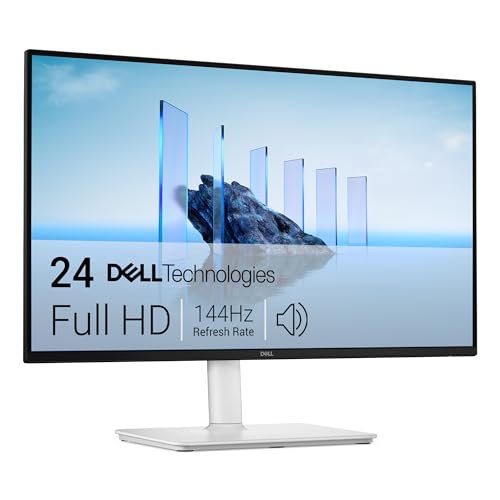
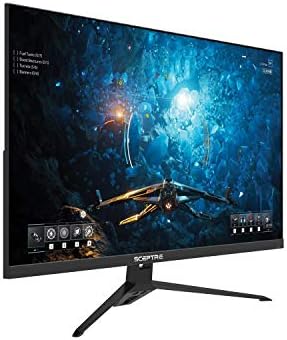
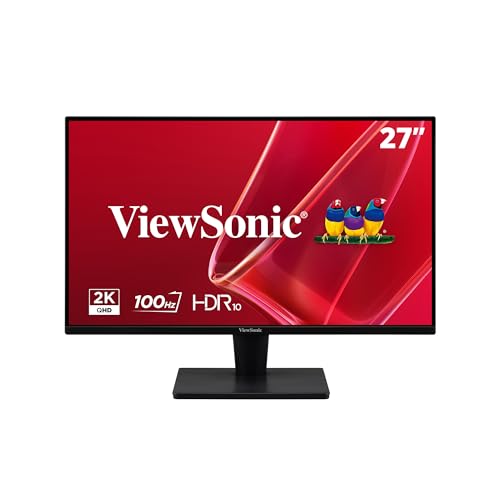
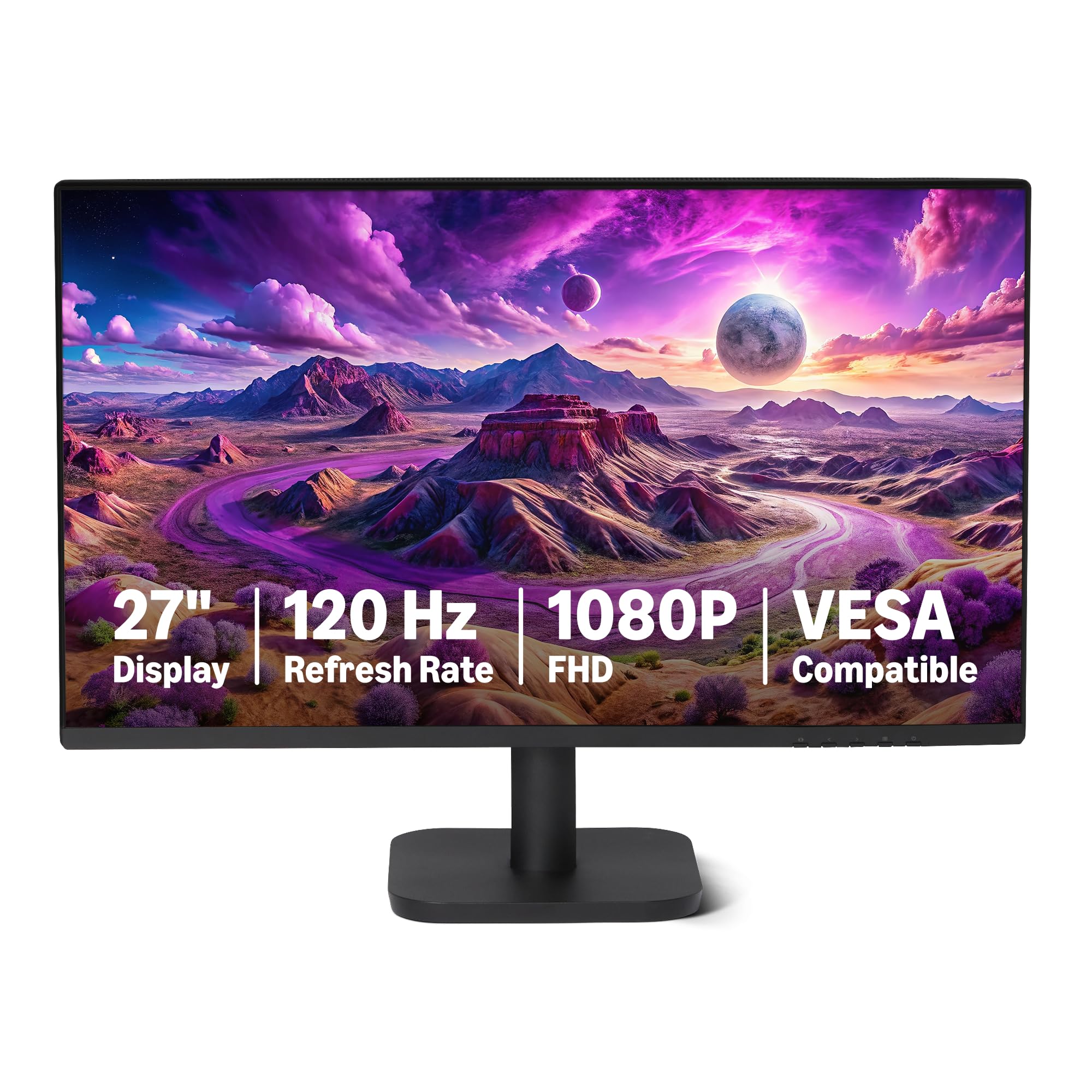
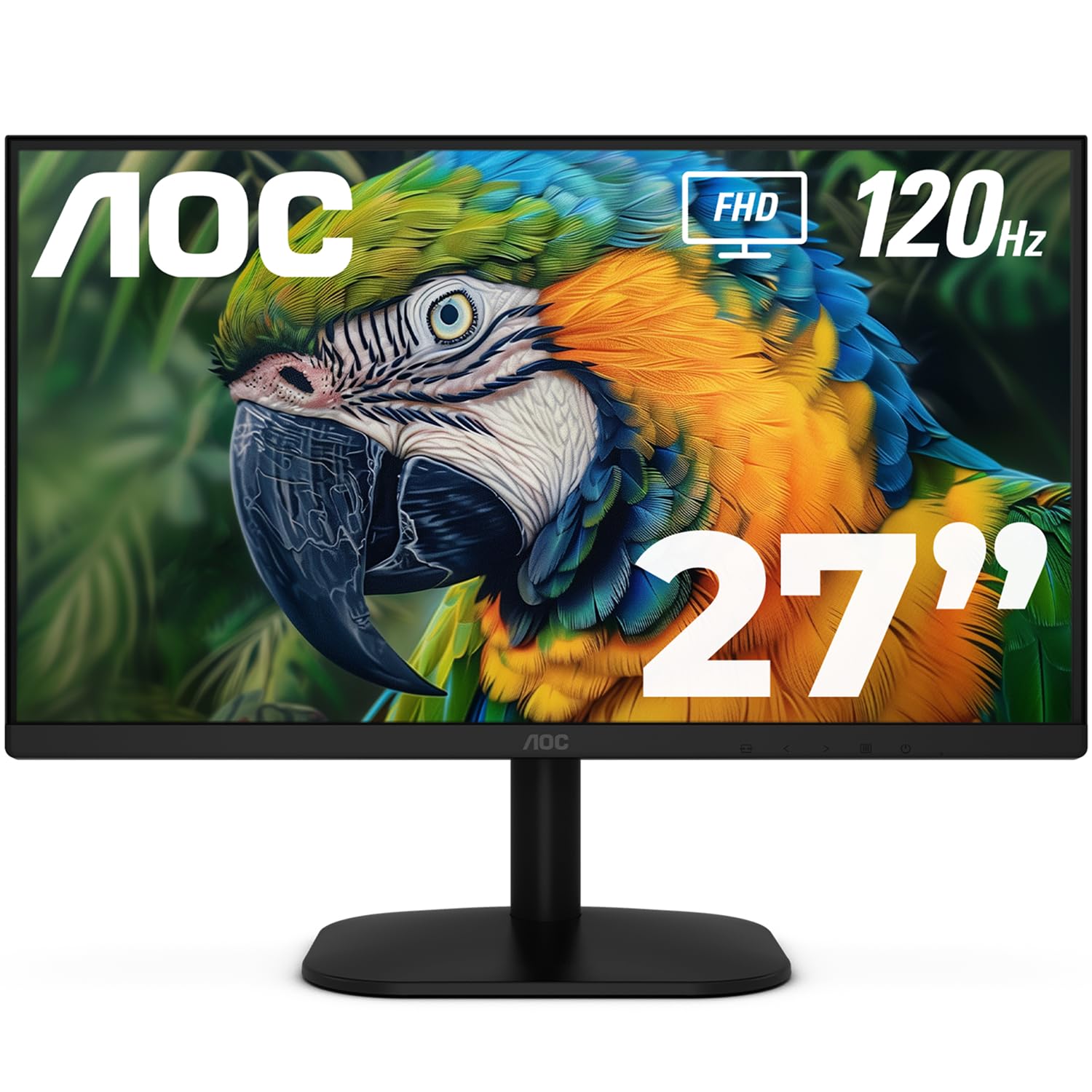
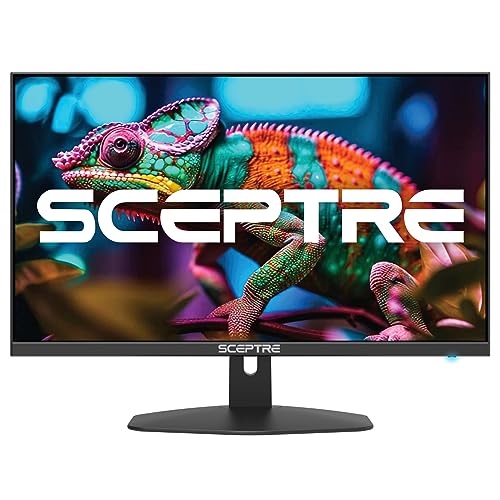
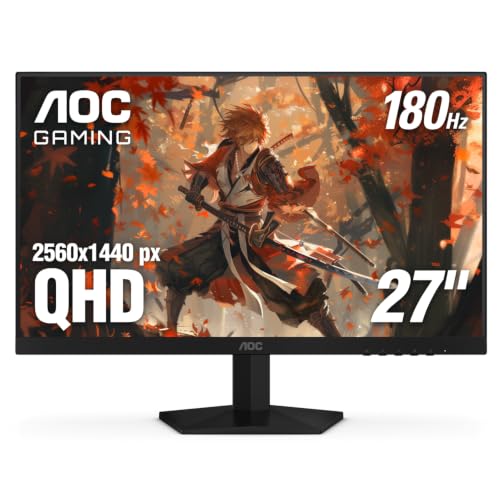
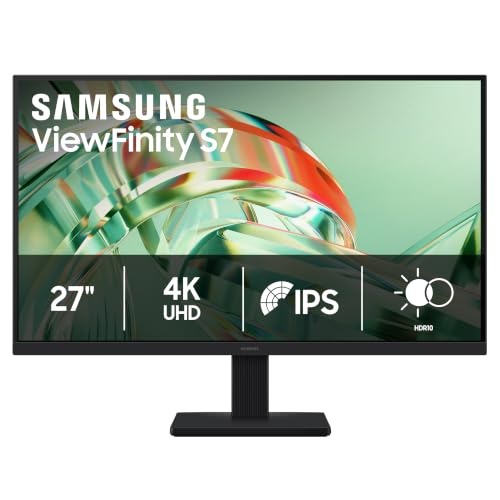
The best bang for your buck monitors deliver a sharp, comfortable picture for work, study, and casual play without paying for professional features you may never use. Panel type, resolution, and refresh rate shape the daily experience far more than marketing extras, and a good stand can matter as much as the screen itself. The product table shows the main value monitor types so you can compare them side by side.
This guide helps you match a monitor to your desk and your eyes. Office work rewards text clarity and low eye strain, while casual gaming rewards smooth motion and low input lag. The sections below explain each spec in plain terms and show where spending a little more pays off and where it does not.


Panel Types and What You Actually See
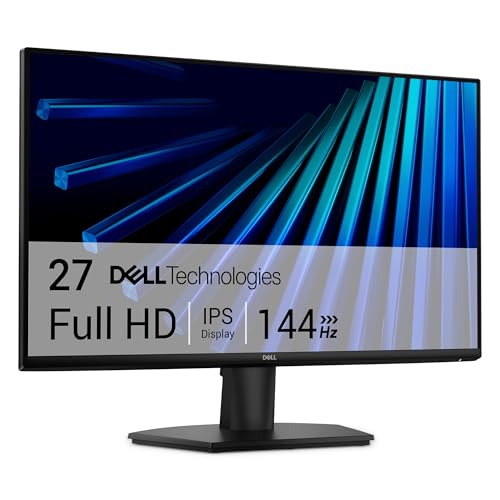
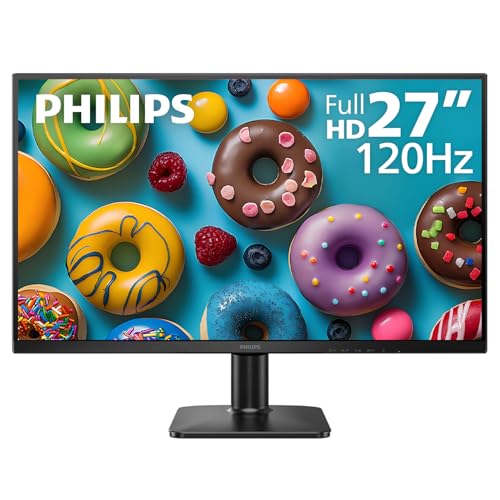
IPS panels show accurate colours and wide viewing angles, which suits shared desks and colour sensitive work such as photo editing. VA panels offer deeper blacks and stronger contrast, which flatters movies and dark games, but viewing angles narrow and fast motion can smear slightly. TN panels respond fastest but show weaker colours and narrow angles, so they suit only budget competitive gaming.
For most buyers, IPS is the safest value choice because it handles work, video, and games well in one panel. VA suits a monitor used mainly for movies in a dim room, where contrast matters more than viewing angle. Check panel type before resolution, since a sharp but washed out panel disappoints more than a slightly lower resolution on a good panel.
Resolution and Size: The Sharpness Balance
Resolution should match screen size, since a 27 inch screen at 1080p looks softer than the same resolution on a 24 inch screen. A 24 inch monitor suits 1080p well, while 27 inch screens benefit from 1440p for crisp text. A 32 inch screen at 1080p looks coarse for close desk work, so larger screens need higher resolution to stay sharp.
Text clarity matters most for office and study use, where you read for hours. A higher pixel density keeps small fonts readable without scaling tricks that shrink usable space. For gaming, higher resolution demands a stronger graphics card, so match resolution to your computer as well as to your eyes.
Refresh Rate and Response for Smooth Motion
A 60 hertz monitor refreshes the picture 60 times per second, which is fine for office work and video. A 75 hertz panel feels slightly smoother for scrolling, while 120 hertz and above make mouse movement and games feel fluid. Casual gamers notice the step from 60 to 120 hertz more than the step from 120 to 240 hertz, so value buyers gain most at the first jump.
Response time measures how quickly pixels change colour, and slow responses leave trails behind moving objects. A response around five milliseconds suits most users, while competitive players prefer one millisecond figures, though makers measure these differently. Adaptive sync support, such as FreeSync or G Sync compatibility, removes screen tearing and is worth having even on a value monitor.
Colour, Brightness, and Eye Comfort
Colour accuracy matters for photo work and design, but most users need only a reasonably accurate panel rather than a factory calibrated one. A monitor that covers close to full sRGB colour space shows web content and photos correctly, while wider colour coverage helps only when your work targets print or video standards. Brightness around 250 to 300 nits suits indoor desks, with higher brightness helping only in sunlit rooms.
Eye comfort features reduce fatigue during long sessions. Flicker free backlights and low blue light modes help some users, though regular breaks and sensible brightness matter more. A matte screen coating cuts reflections from windows and lamps, which is worth prioritising when your desk faces a light source.
Ports, Stands, and Desk Fit
Ports decide how easily a monitor connects to your computer and accessories. HDMI suits most laptops and consoles, DisplayPort suits desktop graphics cards and higher refresh rates, and USB C with power delivery charges a laptop through one cable. Check that the monitor has the port your device uses at the resolution and refresh rate you want, since older ports limit both.
The stand affects daily comfort more than many buyers expect. Height, tilt, and swivel adjustments let you set the screen at eye level, which protects neck and shoulders during long work. A VESA mount option lets you add an arm later for more desk space, so even a basic stand is acceptable when VESA holes are present.
Where to Spend and Where to Save
Spend on panel quality, resolution matched to size, and an adjustable stand, since those affect every hour of use. Save on built in speakers, which sound thin on most monitors, and on extreme refresh rates unless you play competitive games seriously. A good external speaker or headphones beats monitor speakers at any price.
Save also on HDR claims at value prices, since most budget HDR monitors lack the brightness and local dimming that make HDR convincing. A strong standard dynamic range picture beats a weak HDR badge. Put the savings toward a monitor arm, a better cable, or a larger size that fits your desk better.
Audio creators should also compare best bang for your buck studio monitors, which covers speakers for music work rather than screens. For general value buying principles, best bang for your buck explains how to weigh specs against price across categories.
A Final Check Before You Order
Before ordering, measure desk depth and viewing distance, since a 27 inch screen needs room to feel comfortable and a 32 inch screen needs more. Check that the monitor has the port your computer uses at the resolution and refresh rate you want, and confirm VESA mount holes when you plan an arm later. A quick look at the stand adjustment range shows whether the screen reaches eye level without a stack of books.
Consider lighting in your room, since a matte coating matters more beside a window than in a dim corner. Compare panel type against your main use: IPS for mixed work and colour, VA for movies in a dark room. Skip budget HDR claims and put the saving toward a better panel or a monitor arm, which improves every hour of use far more than a badge.
Frequently Asked Questions
What size monitor is best for home office work?
A 24 inch monitor suits smaller desks and 1080p resolution, while a 27 inch monitor suits most home offices when paired with 1440p for sharp text. Larger screens help when you keep several windows open, but they need more desk depth to avoid eye strain. Measure your desk depth first, since a 27 inch screen needs about 60 centimetres of viewing distance to feel comfortable. An adjustable stand or arm helps fit any size to your seating position.
Is 1440p worth it over 1080p on a value monitor?
Yes, on a 27 inch screen, where 1440p keeps text crisp and gives more usable workspace. On a 24 inch screen, 1080p already looks sharp, so the gain is smaller and the extra cost may be better spent on panel quality. For gaming, 1440p needs a stronger graphics card, so match resolution to your computer. For office work on a larger screen, 1440p is one of the most noticeable upgrades available.
Do I need a high refresh rate monitor for office work?
No, though a 75 hertz or 120 hertz panel makes scrolling and mouse movement feel smoother. Office work runs fine at 60 hertz, and the money saved can go toward a better panel or a larger screen. Gamers benefit far more from high refresh rates, especially in fast games. If you both work and play casually, a 120 hertz IPS panel is a good compromise that improves both uses.
What is the difference between IPS and VA panels?
IPS panels offer accurate colours and wide viewing angles, which suit work, shared viewing, and colour sensitive tasks. VA panels offer deeper blacks and higher contrast, which suit movies and dark games in dim rooms, but their viewing angles are narrower and fast motion can smear. Most value buyers suit IPS better as an all rounder, while VA suits a monitor used mainly for media in a dark room.
Should I buy a curved monitor for value?
A curved screen suits very wide monitors, where the curve keeps the edges at a similar distance from your eyes. On a standard 27 inch screen, the curve adds little and can distort straight lines for design work. Curved VA panels are common at value prices, but a flat IPS panel usually serves mixed work and gaming better. Choose curve only for ultrawide screens or for immersive gaming setups.
Final Thoughts
A value monitor should be judged by panel quality, resolution matched to size, and comfortable ergonomics rather than by headline specs. IPS panels, sensible refresh rates, and an adjustable stand cover most needs well, while weak HDR and built in speakers deserve no extra money. Use the product table above to compare the main types, then choose the screen that fits your desk, your computer, and your eyes. The best bang for your buck monitors are the ones you forget about because the picture simply looks right all day.