Best Bargain Monitors: Types Compared and How to Choose in 2026
Disclosure: We may earn a commission when you buy through links on this page, at no extra cost to you. As an Amazon Associate I earn from qualifying purchases. Learn more
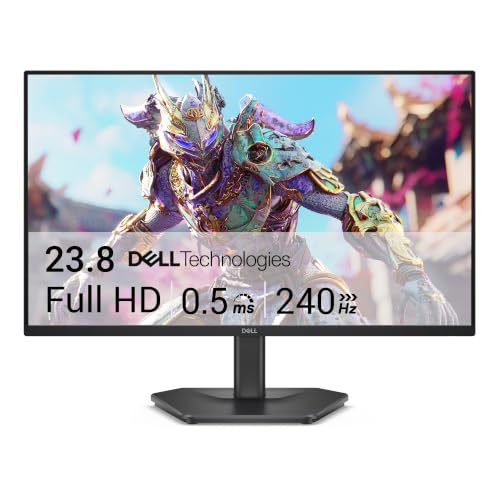
Compare the best bargain monitors by type, panel, size, ports, and stand, with honest notes on what the lowest prices cut and what they keep intact.
Shopping for a cheap monitor gets confusing fast, because the same low price can buy very different screens. One model spends its budget on the panel, another on a tall stand, and a third on gaming speed. The best bargain monitors are the ones that put the money into the parts your daily work actually uses. This guide compares the main types side by side so the trade offs are clear before you spend anything.
Start with the job, not the discount. A screen for office documents, a screen for study, and a second screen beside a laptop all reward different features, and a gaming desk rewards yet another set. Work through the types in the comparison table below, then use the choosing sections to check ports, stands, panels, and size against your space and budget.
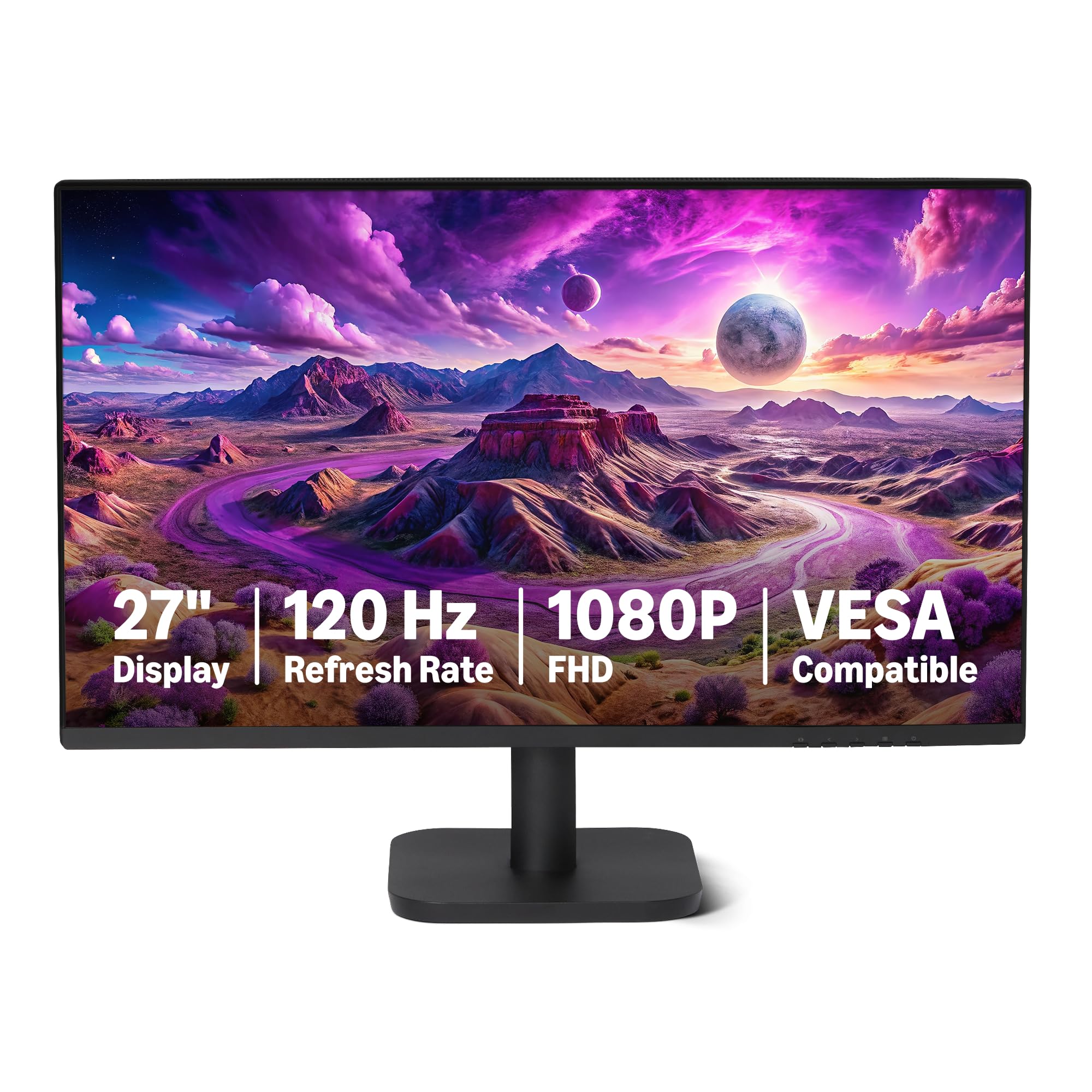

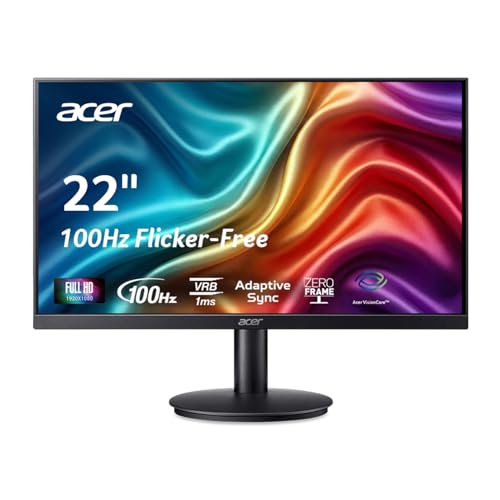

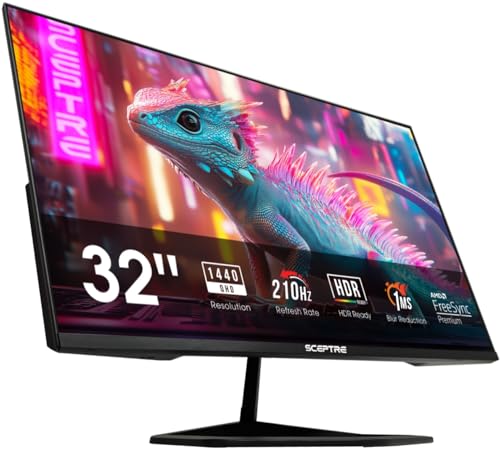
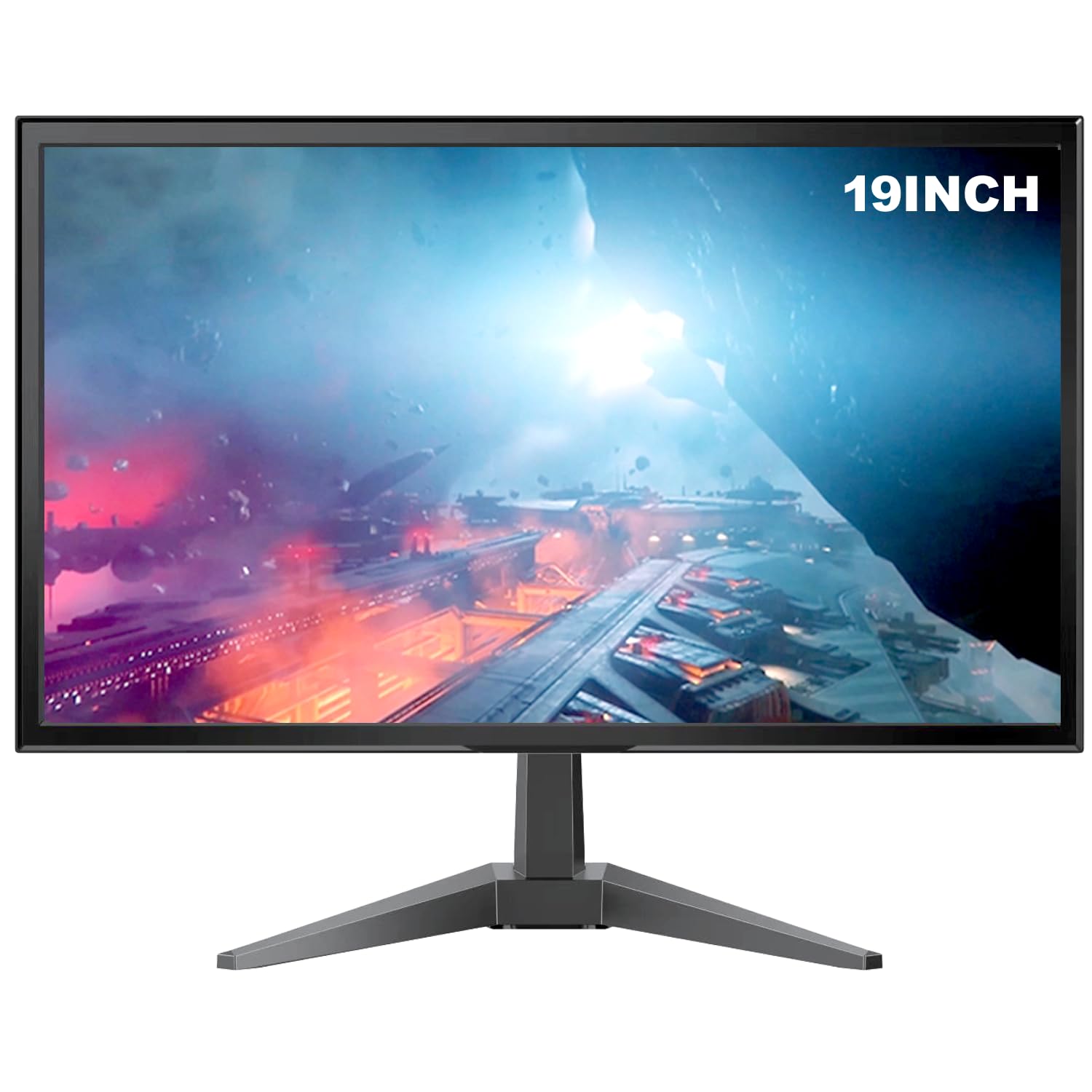
Best Bargain Monitors: Types Compared
The four types below cover nearly every low priced screen you will meet. If your main job is documents, mail, and browser work, the guidance on best bargain computer monitors follows this same use first logic, because a work screen lives or dies by text clarity and a steady stand. Read each type for what it does well and what it quietly gives up.
| Type | Best For | Pros | Cons | Typical Price |
|---|---|---|---|---|
| OLED displays | Films, photo work, dark rooms | Perfect blacks, fast response, wide viewing angles | Costs far more, care steps for static images | about $400 to $700 |
| Budget displays | Office work, study, second screens | Lowest cost, simple setup, low power draw | Basic stand, modest brightness, fewer ports | about $70 to $140 |
| Gaming displays | Fast games on a desk | High refresh rate, adaptive sync, quick response | Panel colour and stand often trimmed | about $110 to $220 |
| Large screen options | Spreadsheets, split screen work | More room for windows side by side | Needs desk depth, 1080p looks coarse at this size | about $150 to $300 |
OLED Displays
An OLED screen lights each pixel on its own, so black parts of the image are truly dark and contrast is the best you can buy. Films, games with dark scenes, and photo work all look striking, and the viewing angle stays clean from the side. Response is very fast, which is why OLED now appears in gaming line ups as well as in creative desks.
The catch is price and care. Even the cheapest OLED costs several times a budget panel, so it is rarely a true bargain buy. Static elements left on screen for many hours a day, such as taskbars and toolbars, can age the panel unevenly, and makers build in pixel refresh routines to manage that risk. Choose OLED when picture quality is the whole point of the purchase.
Budget Displays
A budget display is a simple LCD panel, usually IPS or VA, built to a price. It gives you a sharp enough picture for documents, classes, video calls, and streaming, and it sips power while it does it. Setup takes minutes, and most models weigh little, so moving one between rooms or mounting it later is easy.
The savings show in predictable places. The stand usually tilts only, with no height adjustment, and the port count is small, often one HDMI and one older socket. Brightness is modest, so a sunlit room can wash the picture out. For a second screen or a study desk, none of that matters much, and the low price leaves money for a mount or a better chair.
Gaming Displays
A gaming display spends its budget on speed. The refresh rate climbs to 144 Hz or beyond, response times shrink, and adaptive sync keeps motion smooth when the frame rate dips. If you want the clearest view of what that speed buys at each price step, the breakdown of best bargain gaming monitors is a useful companion to this type comparison.
Something else usually pays for that speed. Colour accuracy may be average, the stand may be basic, and the maker panel figures on the box are measured under ideal settings, so treat them as a class guide rather than a promise. The wider guide to best gaming monitors shows how these speed first models sit inside the full gaming range when you are ready to compare beyond the bargain shelf.
Large Screen Options
Large screens in this class run from 27 inches up to about 34 inches, including wide models that fit two windows side by side. For spreadsheets, timelines, and research with many tabs, the extra room is the feature, and it can replace a two monitor setup with a single panel and a single cable.
Size has two costs. The first is desk depth, because a big panel pushed too close fills your view and makes the corners hard to read. The second is sharpness, since 1080p stretched across 27 inches or more looks coarse for text. At this size, 1440p is the comfortable floor, and that resolution step is what pushes the price up.
OLED Displays vs Budget Displays: Which Should You Choose?
These two types sit at opposite ends of the bargain shelf, so the choice between them is really a choice about what your screen time looks like. On picture quality, OLED wins outright, with true blacks and contrast no budget LCD can match. On price, the budget display wins just as clearly, often costing a quarter as much for the same screen size.
Look at your hours next. Long office days filled with static windows suit an LCD, which has no pixel ageing worries and shrugs off bright rooms. Evenings of films and games in a dim room suit OLED, where its contrast is obvious in every scene. Durability thinking differs too, since a cheap LCD you replace in five years may cost less over a decade than one OLED bought today.
Choose the budget display if the screen is a tool for work and study. Choose OLED if the screen is where you watch and play, and the higher price fits the budget without strain. Either way, compare your finalists against the product table above before deciding.
How to Choose the Right Monitor
Connectivity and Ports
Count your devices before you count ports. A laptop plus a console plus a work computer needs at least two digital inputs, and many bargain models ship with only one HDMI socket. DisplayPort is the safer choice for high refresh gaming on a computer, and the port advice in the guide to best computer monitors for gaming explains why the cable and socket version matter as much as the screen itself.
USB C with video support is the one cable answer for a laptop desk, because it carries the picture and often charges the laptop at the same time. That feature is rare at the lowest prices, so decide early whether it is worth paying for. Also check what cables come in the box, since a missing cable is a small but real extra cost.
Stand, Mounting, and Ergonomics
The stand is where bargain screens save the most money, and it is the cut you feel every day. Many low priced models tilt a few degrees and do nothing else, which leaves the screen too low for long work. A screen that sits too low bends your neck down for hours, and no panel quality makes up for that.
The escape route is a VESA mount pattern on the back, usually 75 mm or 100 mm spacing. With VESA holes, a desk arm or a simple riser fixes height and angle for about $20 to $40. Without them, you are stuck with the factory stand or a stack of books. If you plan to keep the stock stand, look for height adjustment in the feature list and treat it as worth real money.
What You Can Realistically Get on a Budget
Be clear eyed about the word bargain itself. A bargain is a price claim, not a quality label, so judge every low price against what the same money buys across the class. Pages that round up best quality monitors can help you see which features the upper shelf treats as standard, which makes the cuts at the bargain shelf easier to spot.
At about $70 to $140, expect a sound 1080p panel, one or two ports, and a tilt only stand. At about $150 to $250, expect 1440p or a fast 1080p gaming panel, a second input, and sometimes height adjustment. What you should not accept at any price is a dead pixel policy that hides behind fine print, a one year warranty with no local support path, or brightness so low the screen fails in a normal room.
Panel Technology (IPS, VA, OLED, Mini LED)
Panel type decides colour, contrast, and viewing angle more than any other spec. IPS panels hold colour well from the side and suit shared screens and office work. VA panels give deeper blacks for films and dark rooms, with some smearing in fast motion on the cheapest models. TN panels survive at the bottom of the gaming market, fast but with weak angles and washed colour.
OLED and Mini LED sit above this class on price, but their traits explain the gap. OLED gives perfect blacks with a pixel ageing care routine, while Mini LED uses many small backlight zones to lift contrast on an LCD. Maker contrast and brightness figures are measured in dark rooms under ideal conditions, so compare panel types by their known behaviour rather than by the biggest number on the box.
Resolution and Screen Size
Match resolution to size and sitting distance. At 24 inches and a normal desk distance of about 60 to 80 cm, 1080p looks fine for work and play. At 27 inches, 1440p keeps text crisp, and at 32 inches and above, 1440p is the floor and 4K earns its price for detail work. A sharper screen also lets you scale text larger without losing room, which many readers find kinder on the eyes.
Eye comfort deserves a plain word here. No monitor treats eye strain, whatever the box copy suggests. What helps is a sensible setup, with the screen at arm length, the top near eye level, regular breaks, and room light that matches the screen brightness. Flicker free backlights and low blue light modes can make long sessions feel easier, but breaks and distance remain the larger half of comfort.
Tips to Get the Most From Your Monitor
Small setup habits lift a cheap screen more than most upgrades. Open the picture menu and leave the vivid mode behind, because it pushes colour and brightness past anything accurate. A standard or sRGB mode with brightness matched to your room looks calmer and truer. On an OLED, let the pixel refresh run when the screen asks, and vary your static content where you can.
Clean the panel with a dry microfiber cloth only, using light strokes and no sprays on the surface itself. Dust the vents now and then so the backlight runs cool. Every hour or so, look at something far away for a minute. These habits cost nothing, and they protect both the screen and your eyes over years of daily use.
Monitors: Your Questions Answered
Does refresh rate matter for non gamers using a bargain monitor?
Refresh rate matters less for non gamers, but it is not invisible. A 100 Hz or 120 Hz screen scrolls documents and web pages more smoothly than a 60 Hz screen, and the mouse pointer tracks with less blur. The gain is comfort, not output, so office buyers should rank it below panel quality, stand height, and ports. If two screens cost the same, take the faster one, but never pay a gaming premium for desk work alone.
How long do bargain monitors usually last?
Most bargain monitors last about five to eight years of daily use. The backlight slowly dims over time, and the power supply is the part that fails most often near the end. Heat and dust shorten that span, so a ventilated spot and the odd dusting help. A longer warranty is worth noting at this price, because a three year term on a cheap screen is a real sign the maker expects it to survive.
Is 4K worth it on a bargain monitor?
4K is worth it on a bargain monitor only at 27 inches or larger, and only for detail work such as photos, design, or dense spreadsheets. At 24 inches the pixels are already small at 1440p, so 4K adds cost and strains weaker graphics chips without a visible gain. Gamers should be careful, because driving games at 4K takes far more graphics power than 1080p or 1440p, and a cheaper high refresh screen often feels better in play.
IPS vs OLED: which is better for a bargain monitor buyer?
For a bargain monitor buyer, IPS is the better default and OLED is the special treat. IPS costs far less, ignores static image ageing, and stays readable in bright rooms, which covers most desks. OLED wins on contrast, black depth, and motion clarity, and suits film and game time in a dim room. The honest answer follows your hours, since a screen used for work all day and films all evening may justify OLED, while a work only screen never will.
What size bargain monitor should I get for my room or desk?
For most desks, a 24 inch bargain monitor suits a depth of about 60 cm, and a 27 inch model suits 80 cm or more. Measure from your eyes to the screen spot, not the desk edge, and remember a stand foot eats about 20 cm of depth. Small rooms also favour a single 27 inch screen over two 24 inch screens, because one stand and one cable keep the setup calmer and cheaper to mount later.
Wrapping Up
Three checks decide this purchase. Name the main job first, office, study, second screen, or gaming, because the job picks the type. Then confirm the panel and resolution suit your size and sitting distance, and make sure the stand or a VESA mount can put the screen at a healthy height. Keep the honesty rules in mind too, since the word bargain is a price claim to check against the class, not a promise of quality.
Run your finalists through the product table above, weigh ports and warranty alongside price, and the best bargain monitors for your desk will be easy to spot. A modest screen chosen with clear eyes beats a flashy discount chosen on hope, every time.