Best 60 Hz Monitors by Budget: Smart Choices for 2026
Disclosure: We may earn a commission when you buy through links on this page, at no extra cost to you. As an Amazon Associate I earn from qualifying purchases. Learn more

Compare 60 Hz monitors by budget, and learn how panel type, resolution, screen size, ports and brightness affect daily work so you spend where it counts.
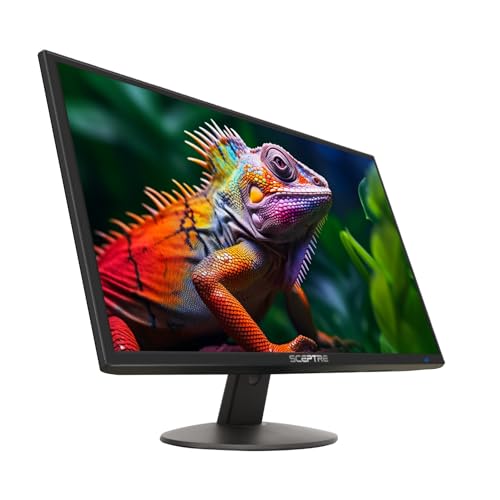
A 60 Hz screen can cost around $100 or well over $600, and the gap rarely comes from the refresh rate itself. The best 60 hz monitors earn their price through sharper panels, better color and stands that adjust to your posture. Use the comparison table below as a quick map, then check where extra money helps and where it adds little.
This guide follows your budget. It groups buyers by daily work, compares the features that separate a basic screen from a premium one, and shows what each price level includes, so you can spot tradeoffs you can accept and ones you would feel daily.


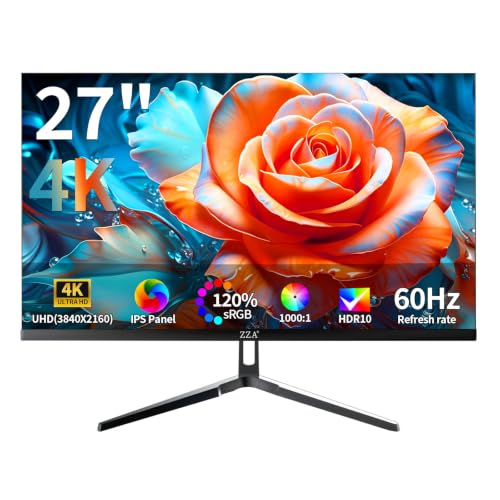
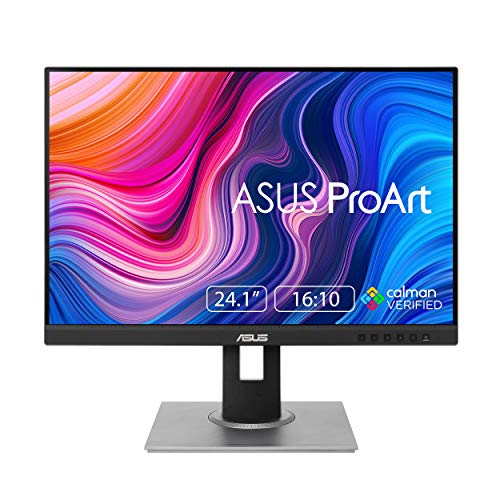
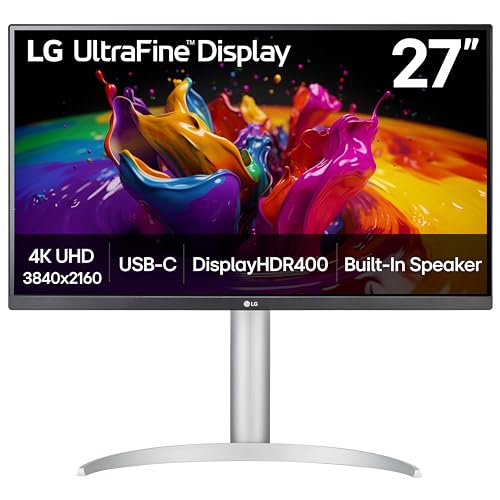
Who Should Buy a 60 Hz Monitor?
Sixty frames per second suits far more desks than marketing suggests, once you match the screen to your most repeated work.
Office Workers Who Live in Documents and Email
You spend your day in documents, spreadsheets, email and browser tabs, where text clarity and comfort matter more than motion. Choose an IPS panel at 24 to 27 inches, with height adjustment so the screen top sits near eye level. A matte finish helps in bright rooms, and a flicker free backlight reduces strain.
Photo, Video and Design Workers Who Put Color First
Your work depends on accurate color, so panel quality matters more than speed. Look for full sRGB coverage and strong coverage of the DCI P3 space used for video. A 27 inch screen at 1440p or 4K leaves room for toolbars beside your image. A calibration report helps you judge tones with confidence.
Casual Players and Console Users Who Play After Work
You play story games, sports titles and older favorites, and watch streams on the same screen. A 60 Hz panel matches the frame rates most console games target, so motion stays smooth without paying for unused speed. Look for adaptive sync to reduce tearing and low input lag. If fast play becomes your main hobby later, see our guide to the best gaming monitors first.
Key Features to Compare
Every model in this class refreshes at the same rate, so the decision rests on the panel and its details. Compare these six factors with your main use in mind.
Panel Type, Viewing Angles and Contrast
IPS panels hold color and brightness from the side, which suits shared desks and dual screen setups. VA panels give deeper contrast and blacks for films in dim rooms, but colors shift at wide angles and dark scenes can smear. OLED displays deliver the strongest contrast and fastest response at the highest prices. For most desks, IPS is the safest balance.
Screen Size, Resolution and Text Sharpness
Size and resolution work as a pair. At 24 inches, 1080p looks clean for documents and general use. At 27 inches, 1440p keeps text crisp at a normal distance, while 1080p can look soft. A 32 inch screen usually needs 1440p or 4K to avoid visible pixels. Higher resolution adds workspace, but tiny text may need display scaling.
Brightness, Contrast and HDR Claims
Brightness is listed in nits, and about 250 to 350 nits suits most indoor desks. More brightness helps if your desk faces a window. HDR labels need care, since many 60 Hz models accept an HDR signal but lack the contrast to show it well. Treat basic HDR as a bonus, and judge quality by panel type first.
Color Coverage and Accuracy for Creative Work
Gamut coverage tells you how much of a color space a panel can show. Full sRGB coverage suits web work, photos and office graphics. Wider DCI P3 coverage matters for video. Accuracy figures such as Delta E show how close colors sit to their targets, and lower numbers mean smaller errors. If you edit for clients, plan on a calibrator later, since panels drift with age.
Ports, USB C Power and Hub Features
Check ports against the devices you own. HDMI suits consoles and most laptops, while DisplayPort suits desktop computers best. A USB C port with power delivery can charge a laptop and carry the picture through one cable, keeping a desk tidy. Built in USB ports add a hub for keyboard, mouse or webcam. Count your cables first, because adapters add cost and clutter.
Stand Adjustment, VESA Mounts and Eye Comfort
A stand that adjusts for height, tilt and swivel lets you set the screen so your neck stays neutral. Fixed stands often force a stack of books as a fix.
A VESA mount pattern, usually 100 by 100 mm, lets you add an arm and free desk space. Low blue light modes and flicker free backlights help, but position and room light matter more.What Your Money Gets You at Each Price Level
Best 60 Hz monitors share the same refresh rate at every price, so your budget buys panel quality, size and convenience rather than speed. The three levels below show the usual US pattern and rough prices.
Entry Level: Clean Basics for Study and Office Tasks
Models around $100 to $180 offer 24 inch 1080p IPS or VA panels, tilt only stands and one or two HDMI ports. Picture quality suits documents, classes and video, and power use stays low. You give up USB C charging, wide color and height adjustment. Choose this tier for a second screen or a student desk.
Middle Level: Sharper Panels and Kinder Stands
Models about $180 to $350 move to 27 inches and 1440p, add height adjustment and USB C on many designs. Color improves, and adaptive sync is common, which helps casual play. This level suits home offices and mixed use, since the comfort gains show up daily.
For a small step up in motion instead, see our guide to the best 75 hz monitors.Top Level: 4K Detail, Wide Color and OLED Contrast
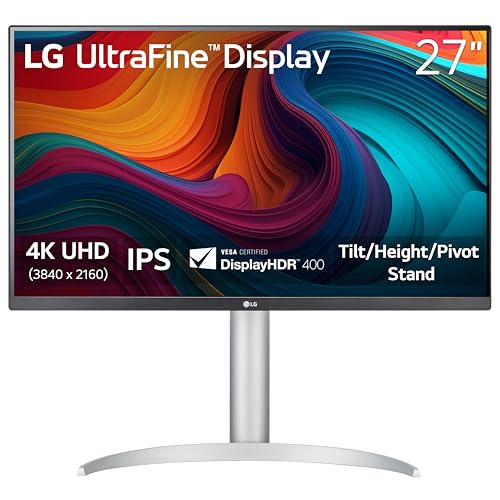
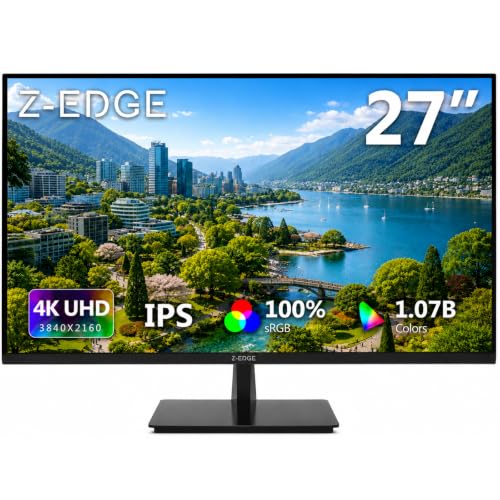
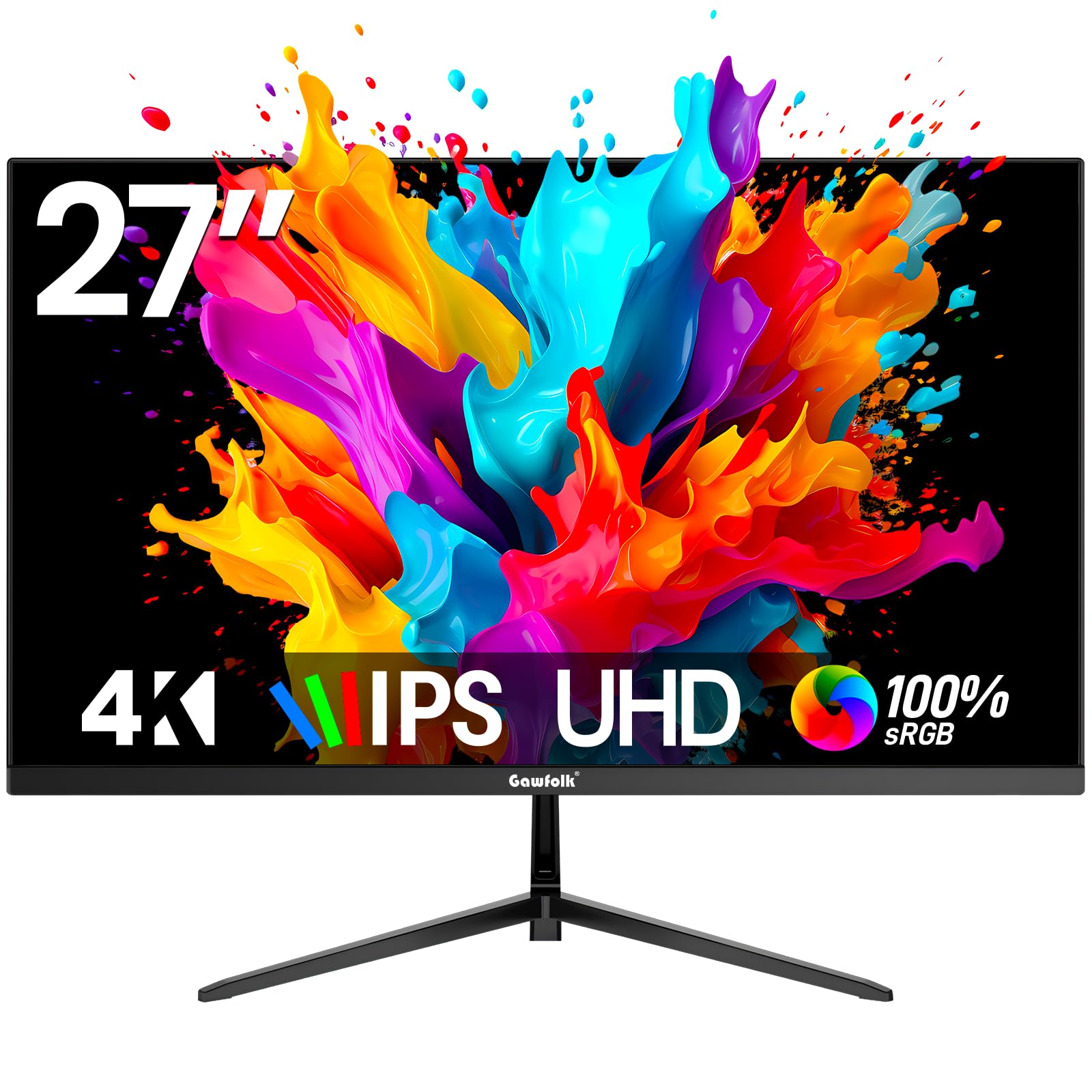
Models about $350 to $800 bring 4K, wide gamut panels and, at the top, OLED displays with striking contrast. You also get stronger build, full USB hubs and HDR that looks closer to its promise. This tier pays off for photo and video work and for films in dim rooms.
For most office users, the gains feel smaller than the price jump.How to Set Up a 60 Hz Monitor and Confirm the Rate
Set the screen about an arm length away, top edge near eye level, with windows to the side to cut reflections. After connecting the cable, open display settings and confirm the rate shows 60 Hz, because some computers default lower with a new screen. Turn on adaptive sync in the monitor and graphics menus to reduce tearing in games. Players who later chase faster motion can compare our guide to the best 165 hz monitors and our guide to the best 240 hz monitors.
Common Mistakes to Avoid
These errors cost money or comfort long after the box is gone.
- A 27 inch 1080p screen for close desk work leaves text soft and blocky all day.
- Paying for HDR on a low contrast panel adds cost with no visible gain in films.
- Skipping height adjustment leads to neck strain and books stacked under the stand.
- An old cable that caps a laptop at 30 Hz makes 4K motion choppy until you replace it.
- A glossy screen in a bright room brings reflections that wash out dark scenes.
- Low USB C power limits leave a laptop slowly draining while plugged into the monitor.
Care and Maintenance for Your 60 Hz Monitor
Clean the screen with a dry microfiber cloth, dampened with plain water only if marks remain.
Never spray the panel or press hard, since pressure can damage the surface. Dust the vents monthly, because blocked vents trap heat and shorten backlight life.Ownership costs stay modest. A model uses about 20 to 40 watts, a spare cable or desk mount costs around $15 to $60, and most warranties run one to three years. Keep the receipt for the first weeks, when dead pixels are easiest to claim.
Frequently Asked Questions
What size 60 Hz monitor fits a small desk?
A 24 inch 60 Hz monitor fits most small desks well. Depth matters more than width, since a deep stand can push the screen too close. Measure wall to desk edge, and leave room behind the screen for cables to bend freely. A VESA arm returns the depth a fixed stand wastes.
Is IPS or OLED better for a 60 Hz monitor?
IPS is better for most buyers, while OLED suits film viewers in dark rooms. One point the panel section did not cover is static content. Spreadsheets, code editors and toolbars sit in one place for hours, and that fixed layout raises the risk of image retention on OLED over years. Varied media carries less risk.
Does a 60 Hz refresh rate matter for office work and video calls?
No, a 60 Hz refresh rate does not limit office work or video calls. Meetings and streamed video use frame rates this screen class already matches, so calls look smooth. You may notice the limit only in fast scrolling through long documents, where moving text blurs briefly. That blur bothers some readers and goes unnoticed by most.
How long does a 60 Hz monitor usually last?
A 60 Hz monitor usually lasts about five to eight years of daily use. LED backlights dim with age, so an older screen looks less bright long before it fails. Watch for uneven brightness, flicker at low brightness or a growing cluster of dead pixels. Any of those signs means replacement time is near.
Is 4K resolution worth it on a 60 Hz monitor?
Yes, 4K is worth it on a 60 Hz monitor if you work at 27 inches or larger and value sharp text. At 24 inches the gain shrinks, since 1080p packs pixels tightly there. One cost to weigh is graphics load. Photo editing feels light, but modern games at 4K take a far stronger graphics card than 1080p play.
The Bottom Line
Start with the panel and size your task needs, then spend on stand comfort and the ports you use daily. Compare finalists in the product table above, and confirm cables and desk space before you order.
The right choice among the best 60 hz monitors is the one whose panel, size and stand fit your desk and your work, not the one with the longest feature list.