Best 165 Hz Monitors in 2026: Everything to Know Before Your First Purchase
Disclosure: We may earn a commission when you buy through links on this page, at no extra cost to you. As an Amazon Associate I earn from qualifying purchases. Learn more
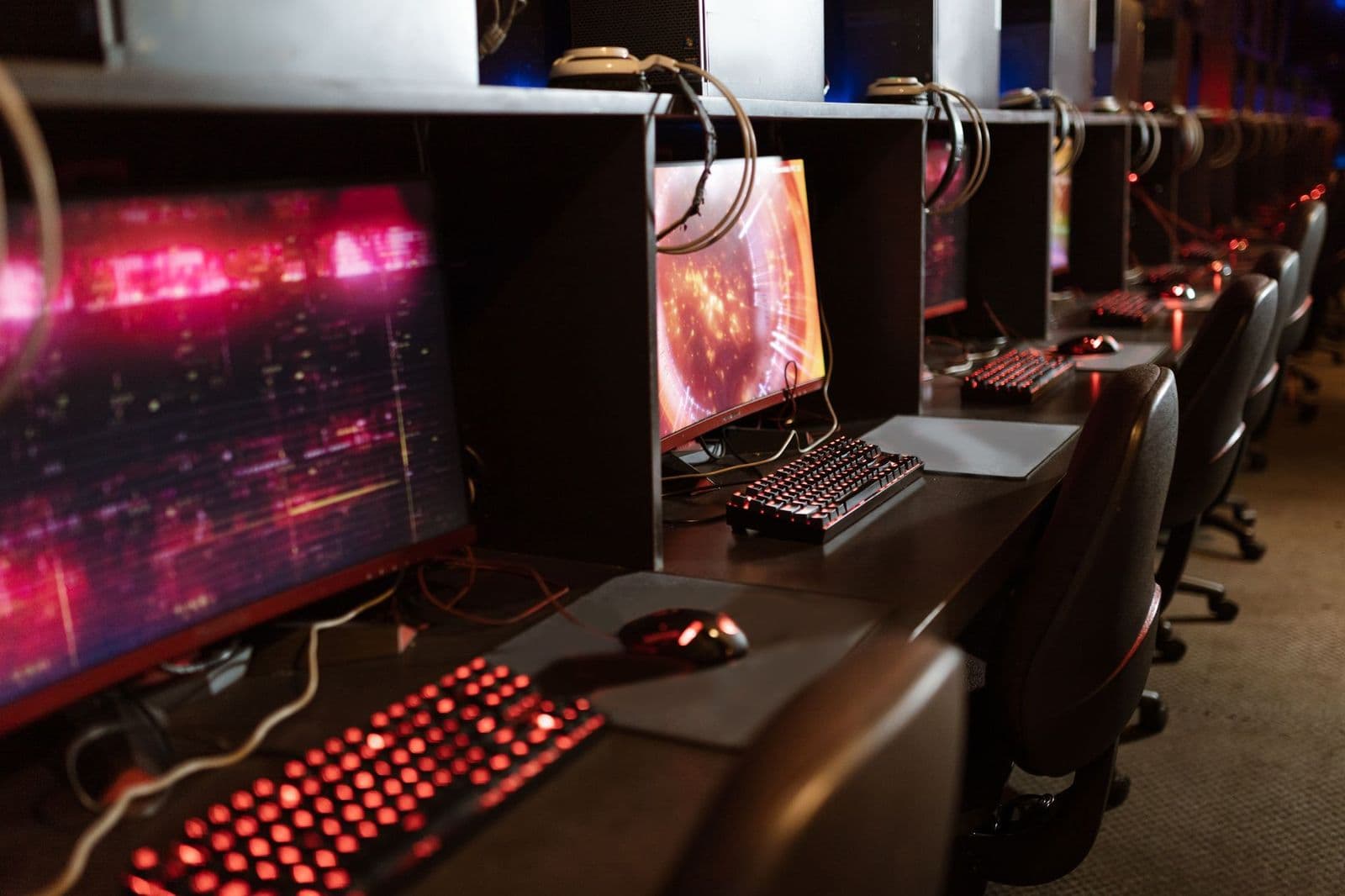
A plain language guide to the best 165 hz monitors for first time buyers, covering panels, ports, resolution and setup.
Buying your first fast monitor is easier once you know a few plain terms. The best 165 hz monitors refresh the picture 165 times each second, so motion looks smoother and aiming feels more direct than on a standard office screen. This guide starts with the basics, then walks through panels, ports and setup. Use each term to judge the screens you are considering.
You do not need a large budget or deep technical knowledge to choose well. You need a clear sense of your games, your desk space and the system that will drive the screen.
165 Hz Monitors 101: The Basics for New Buyers
Refresh rate tells you how many fresh images a screen can show each second, measured in hertz. A 60 Hz screen draws 60 images, while a 165 Hz screen draws 165, so moving objects cross the screen in smaller, smoother steps. You notice this most in camera pans, racing games and fast scrolling.
That speed only helps if your system can send enough frames. A modest graphics card may reach 165 frames per second in lighter esports titles but fall short in demanding games. This is why the best 165 hz monitors pair high refresh with adaptive sync, which matches the screen to the frame rate and reduces tearing. Think of refresh rate as the ceiling and frame rate as what your system delivers.
Who Should Buy a 165 Hz Monitor?
Most first time buyers fall into one of three groups. Find yours first, because it decides which specs deserve your money.
Competitive Players Stepping Up From 60 Hz
You play shooters or racing games and want motion you can track without blur. Put refresh rate, response time and adaptive sync at the top of your list. A 24 to 27 inch screen at 1080p or 1440p keeps frame rates high.
Console Players Adding a Desk Setup
You play on a PlayStation or Xbox and want a smaller screen for a desk. Check the HDMI version, because some screens reach 165 Hz only over DisplayPort. A 27 inch 1440p model suits mixed gaming and video well.
Everyday Users Who Want Smoother Motion
You browse, study and play casually, and you are tired of choppy scrolling. An IPS panel gives you clear text and stable colors, and height adjustment matters more than extreme response times. If you only need basic office refresh, see our guide to the best 60 hz monitors before you pay for speed you will not use.
Reading a 165 Hz Spec Sheet Without the Jargon
Read each spec as an answer to a simple question about your room, your system or your eyes.
Panel Technology in IPS, VA and OLED Screens
The panel makes the image and shapes color, contrast and viewing angles. IPS panels hold color well when you sit slightly off center and suit shared desks. VA panels give deeper blacks but can smear dark motion. OLED panels give near perfect contrast and very fast pixel changes, though static images left on screen for many hours raise a burn in risk. For a first purchase, IPS is the safest all round choice.
Response Time and Adaptive Sync for Clear Motion
Response time measures how fast a pixel changes color, and lower numbers mean less ghosting behind moving objects. Look for about 1 to 5 milliseconds with overdrive you can adjust. Adaptive sync, sold as AMD FreeSync or NVIDIA G Sync, stops tearing when frame rates rise and fall. Make sure the sync range covers the frame rates your system produces.
Connectivity and Ports Your System Can Use
DisplayPort is the usual path to full 165 Hz on a PC, while HDMI ports vary by version. HDMI 2.1 matters most for high refresh at 4K, and older ports may cap the rate. USB C suits laptops that send video over one cable. Count your devices before you buy, and check the cable in the box. Players comparing wider ranges should also see our guide to the best gaming monitors.
HDR and Brightness for Your Room Lighting
Brightness is measured in nits, and about 300 to 400 nits suits most indoor rooms. HDR labels promise brighter highlights, but entry level HDR400 adds little without local dimming to control dark areas. A matte finish helps in bright rooms. If you play in a dim room, strong contrast matters more than peak brightness, so weigh panel type alongside the HDR badge.
Stand, Mounting and Ergonomics at Your Desk
A good stand adjusts height and tilt so the top of the screen sits near eye level. Swivel and pivot help when you share the screen or read long pages. VESA mounting holes, most often 100 by 100 mm, let you attach the screen to a desk arm. Check desk depth too, because large feet can push your keyboard closer than you expect.
Resolution and Screen Size for Your Seating Distance
At 24 inches, 1080p looks sharp enough for most players and is easy to drive. At 27 inches, 1440p gives crisper text and more workspace, and it suits most desks. 4K fits 32 inch screens and strong hardware, but it can cut frame rates sharply. Sit about an arm length away and match size to that distance. If 165 Hz feels like a middle step, see our guide to the best 240 hz monitors or our guide to the best 75 hz monitors.
First Day Setup Steps for Your New Fast Screen
Unbox the screen on a soft surface, attach the stand before you lift it, and connect DisplayPort first on a PC. Then set the refresh rate to 165 Hz in your system display settings, because many systems start at 60 Hz by default. Enable adaptive sync in both the screen menu and your graphics settings.
Next, leave vivid mode behind, because it pushes color past natural levels and hides detail in dark scenes. Choose a standard picture mode and set brightness for your room. On an OLED screen, run the pixel refresh cycle the menu offers after long sessions, and let it finish without cutting power.
Rookie Mistakes to Avoid
First time buyers tend to repeat the same few errors. Each one below costs money, picture quality or both.
- Leaving the screen set to 60 Hz after setup means you paid for speed you never actually see.
- Using an old HDMI cable that caps the refresh rate leaves motion looking no better than your last screen.
- Chasing 4K on a weak graphics card drops frame rates so far that games feel slower, not sharper.
- Ignoring VESA spacing means your new desk arm may not fit the screen you just bought.
- Cranking overdrive to its highest setting adds bright fringes around moving objects and spoils clean motion.
- Placing a glossy screen opposite a bright window fills dark scenes with reflections you cannot remove.
Care and Maintenance for a 165 Hz Monitor
Clean the panel only when it is off and cool. Use a soft microfiber cloth, slightly damp with plain water if needed, and wipe gently without pressing. Skip glass cleaners and paper towels, because coatings on gaming displays can mark easily. Dust the vents and ports with a dry cloth so heat escapes.
Update firmware only from the maker support page for your exact model, and never unplug the screen during an update. Keep cables loose rather than bent hard behind the desk, and lower brightness when you step away for hours.
Frequently Asked Questions
IPS vs OLED: Which panel is better for a first 165 Hz monitor?
For most first time buyers, IPS is the safer and cheaper choice. It handles bright rooms and long study sessions without worry. OLED wins on contrast and pixel speed, but it costs more and asks for habits like hiding taskbars. Choose OLED only if your room is dim and your budget covers the premium.
What size 165 Hz monitor should I get for my desk?
A 27 inch screen suits most desks that are about 24 to 30 inches deep, leaving room for speakers beside it. On a shallow desk under 24 inches deep, a 24 inch screen feels more comfortable. Measure desk width and the stand footprint before ordering, not just the screen diagonal.
Does a 165 Hz refresh rate matter for non gamers?
Yes, a 165 Hz screen feels smoother for everyday tasks, though the gain is smaller than in games. Scrolling, moving windows and sports clips all look steadier, and text stays more stable while you read. If your work is mostly email and static pages, the difference may not justify a higher price.
Is 4K worth it on a 165 Hz monitor?
4K is worth it only if your graphics card can hold high frame rates at that resolution. Many strong cards drop below 100 frames per second in demanding games at 4K, which wastes the fast panel. If you cannot pass 120 frames at 1440p in your current games, 4K will feel worse, not better.
How long does a 165 Hz monitor usually last?
A 165 Hz monitor usually lasts about five to eight years of daily use. Backlights fade slowly, so an older screen may look dimmer even while it still works. Plan a replacement when brightness no longer suits your room or when ports fall behind your newest devices.
Wrapping Up
Start with your group and your system, then choose panel, resolution and ports in that order. Check the stand fit for your desk and set the refresh rate correctly on day one, and your first fast screen will feel like a clear upgrade.
When you compare best 165 hz monitors with those points settled, the right choice is usually obvious. Check size, resolution and price on each product page, and buy the simplest screen that meets your needs.