Best 4K UHD Monitors Made Simple in 2026: A Clear Buying Guide
Disclosure: We may earn a commission when you buy through links on this page, at no extra cost to you. As an Amazon Associate I earn from qualifying purchases. Learn more
Shopping for the best 4k uhd monitors for the first time? Learn the key terms, compare panel types, and avoid rookie mistakes with this plain guide.
Buying your first 4K monitor can feel confusing, because every listing leads with numbers and short codes. This guide starts with the plain meaning of each term, then shows how it affects your desk and your budget. By the end, you will know how to judge the best 4k uhd monitors for your own setup, and you can check your shortlist against the comparison table below.
You do not need any background in displays to follow along. We will cover panel types, screen size, refresh rate, ports, and setup steps in the order you will meet them while shopping.


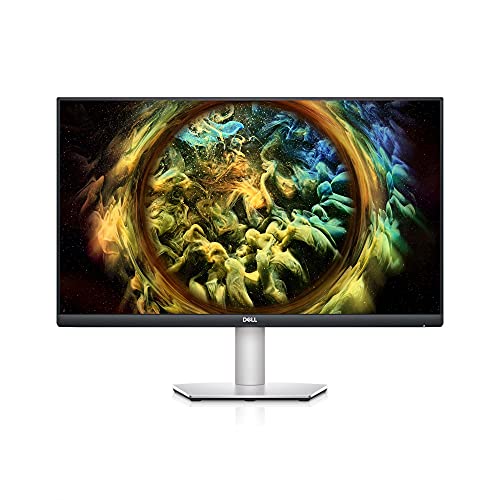
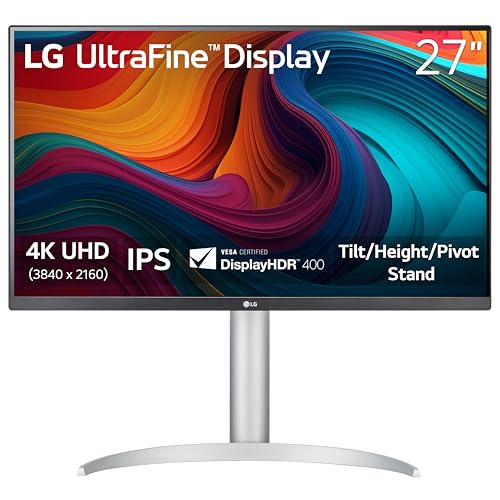
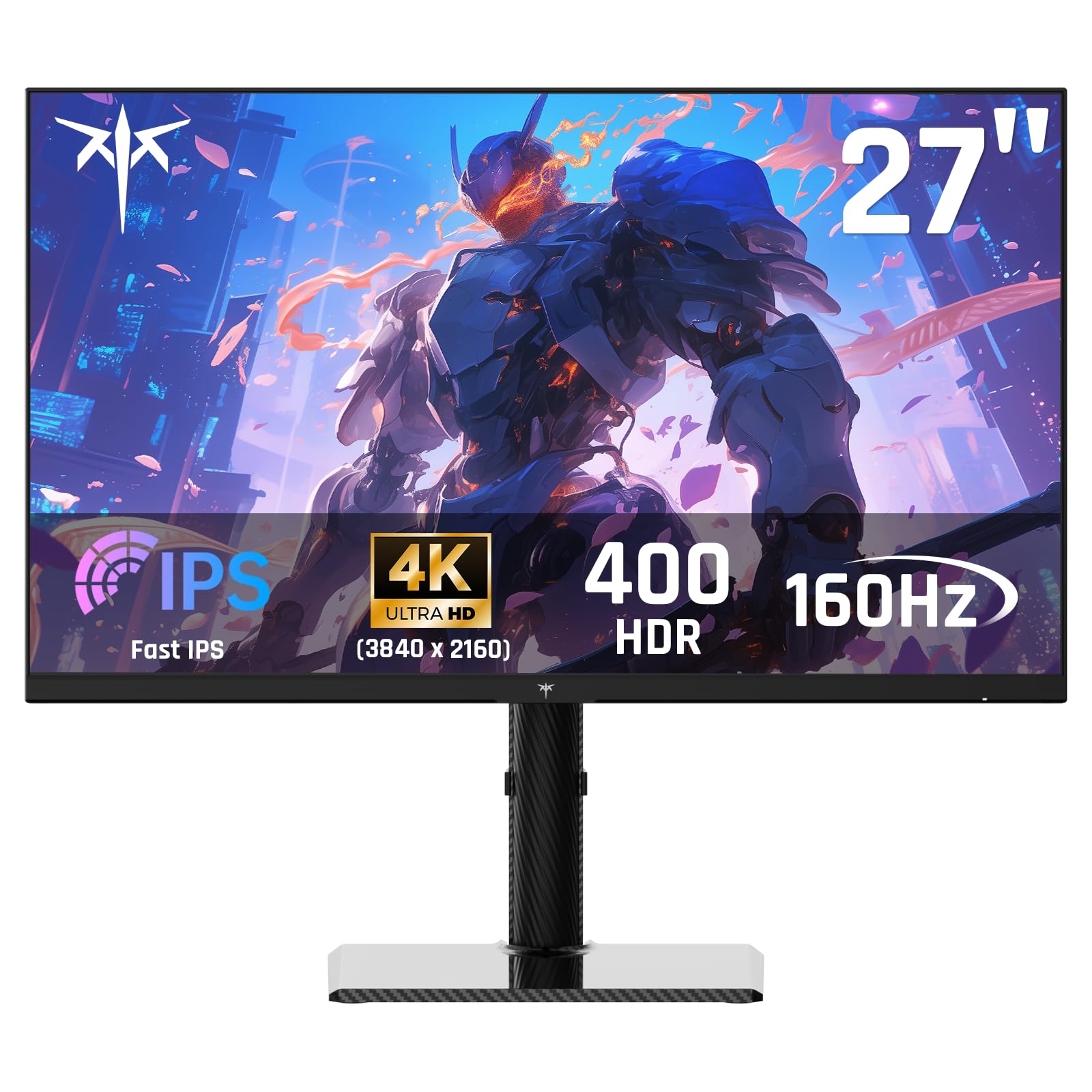
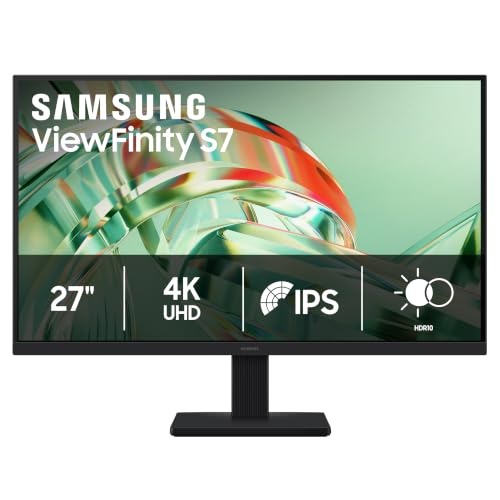
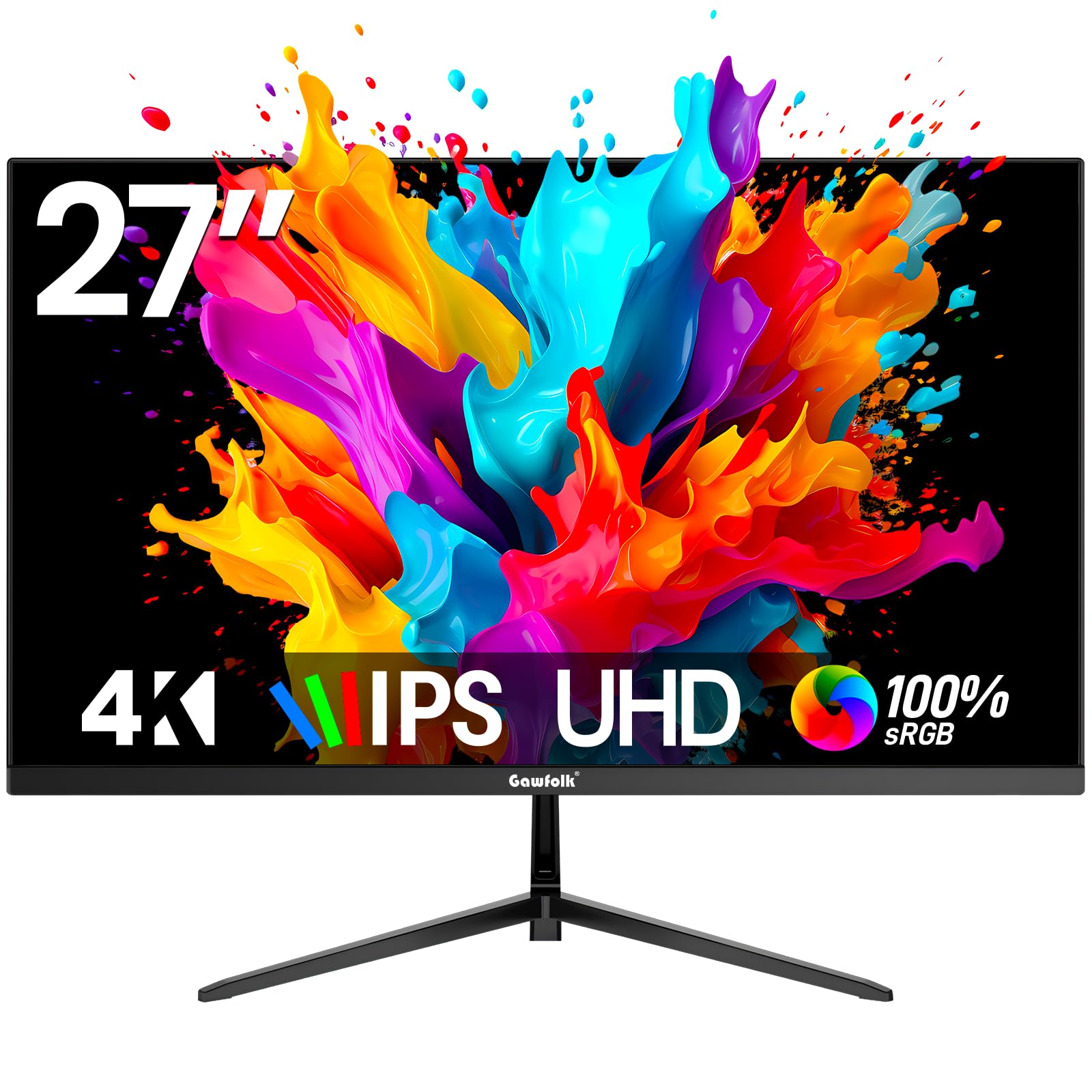
4K UHD Monitors 101: The Basics for First Time Buyers
A 4K UHD monitor shows a picture made of 3840 by 2160 pixels. That is four times as many pixels as a 1080p screen of the same size, so text edges look smoother and fine detail stays visible. Retailers use 4K and UHD almost interchangeably for monitors, and our guide to the best uhd monitors explains that naming overlap.
Those extra pixels give you two practical benefits. You can fit more windows on one screen, and you can sit at a normal desk distance without seeing a visible grid of dots. The tradeoff is that your computer has to push four times as much picture data, so an older laptop may run a 4K screen at a lower refresh rate.
UHD Specs Decoded for Everyday Buyers
Spec sheets look technical, but most buying decisions rest on the five areas below. Read each one for what the term means and which level fits your work.
Panel Technology: IPS, VA, OLED, and Mini LED
The panel is the layer that creates the image, and it sets color, contrast, and viewing angles. IPS panels keep colors steady when you lean to one side, which suits shared desks and color work. VA panels give deeper blacks for movies in a dim room, though colors can shift at wide angles. OLED gives the strongest contrast and fastest motion, but static toolbars left on screen for many hours raise the risk of burn in over time. Mini LED uses many small backlight zones to approach OLED contrast.
Resolution and Screen Size for Your Desk
Resolution only tells part of the story, because the same pixels look sharper on a smaller screen. At 27 inches, text is very crisp and most people use display scaling to make words a comfortable size. At 32 inches, you gain real workspace and can often run less scaling, which suits spreadsheets and timelines. Very large monitors can force constant head turning at a shallow desk, so measure your desk depth first.
How Refresh Rate and Response Time Affect Motion
Refresh rate, measured in hertz, is how often the screen draws a new image each second. A 60 Hz monitor is fine for documents, browsing, and video, while 120 Hz or 144 Hz makes scrolling and fast games look smoother. Response time describes how quickly pixels change color, and lower values reduce ghosting behind moving objects. For office use, do not pay extra for speed you will never see. For play, refresh rate matters only if your device can deliver those extra frames.
HDR and Brightness in Real Rooms
Brightness is measured in nits, and about 300 to 400 nits suits most indoor desks. HDR, short for high dynamic range, lets bright highlights and dark shadow detail appear in the same scene, but it only looks convincing when the panel can dim small areas on their own. A basic HDR label with no local dimming often changes little. If your desk faces a bright window, steady brightness and a matte surface help more than a bold HDR badge.
Connectivity and Ports You Will Actually Use
Check the ports against your computer before anything else. HDMI 2.1 carries 4K at high refresh rates and suits modern consoles, while DisplayPort is the common choice for desktop PCs. A USB C port that accepts video and delivers power can charge a laptop through the same cable that sends the picture. Mac users should confirm charging wattage, and our guide to the best 4k monitors for mac covers those laptop specific points.
Choosing a 4K UHD Monitor for Specific Needs
The right screen depends on what fills your day. The three groups below show which specs deserve your money.
4K UHD Monitors for Work, Study, and Everyday Tasks
If your screen time is documents, email, classes, and web research, put your budget into size, stand comfort, and USB C charging rather than speed. A 27 or 32 inch IPS model at 60 Hz covers this work well, and readers comparing desktop setups may also like our guide to the best 4k pc monitors.
4K UHD Monitors for Photo, Video, and Design Work
Creators should look first at color coverage and accuracy. A panel that covers most of the DCI P3 color space and arrives factory calibrated will show photos and video closer to how audiences see them. Uniform brightness matters too, because a bright center and dim corners make editing judgments unreliable. Speed specs can stay modest here.
Best 4K UHD Monitors for Gaming
Gaming adds three demands that office use never makes. You want a refresh rate of 120 Hz or higher, a variable refresh rate feature that syncs the screen with your console or graphics card to stop tearing, and an HDMI 2.1 port with full bandwidth. Input lag should be low, and our roundup of the best 4k monitors gaming options goes deeper on those play focused tradeoffs.
Rookie Mistakes to Avoid
- Buying a 4K monitor for an old laptop that can only output 4K at 30 Hz, so motion looks choppy and the screen feels laggy.
- Choosing the largest screen your budget allows without measuring desk depth, so you end up sitting too close and turning your head all day.
- Paying extra for an HDR label on a panel with no local dimming, so movies look almost the same as standard content.
- Forgetting to count ports and cables, so your laptop, console, and work computer cannot all stay connected without constant swapping.
- Leaving an OLED monitor on a static screen at full brightness for hours daily, so faint toolbar shadows can appear over time.
Setting Up Your UHD Screen for the First Time
Start by fitting the stand or, if the monitor has a VESA mount pattern, attaching an arm rated for its weight. Connect the cable that matches your goal: DisplayPort or HDMI 2.1 for high refresh rates, or USB C when you also want laptop charging. Then set the output to 3840 by 2160 in your system settings and pick a scaling level that makes text easy to read.
Next, open the on screen menu and choose a standard or sRGB picture mode instead of a vivid mode, which pushes colors beyond what content contains. Set brightness so white areas match the light in your room. Adjust height so the top of the screen sits near eye level. On an OLED model, run the pixel refresh routine the menu offers and let it finish before you unplug the screen.
Care and Maintenance for a 4K UHD Monitor
Dust the screen with a dry, soft microfiber cloth using light strokes, and never spray cleaner straight onto the panel. If a mark needs moisture, dampen the cloth slightly with water and wipe gently, because pressing hard can damage the surface coating. Keep vents clear so the back can release heat. Check for firmware updates once or twice a year, since updates can fix port faults. Finally, support cables so their weight does not pull on the ports.
Frequently Asked Questions
Does refresh rate matter for non gamers who buy a 4K UHD monitor?
Refresh rate matters less for non gamers, but it is not invisible. A 120 Hz screen makes scrolling through long documents and moving windows feel smoother during long reading sessions. The hidden catch is the connection: many older laptops limit an external 4K screen to 30 or 60 Hz over HDMI, so check your port version before paying for a faster panel you cannot feed.
What size 4K UHD monitor should I get for my desk?
Most desks suit a 27 or 32 inch 4K UHD monitor. Choose 27 inches if your desk is shallow and you sit about two feet from the screen, and choose 32 inches if you keep two windows open side by side all day. Before ordering, mark the width on your desk with tape and confirm speakers and a lamp still fit.
Is a 4K UHD monitor worth it over a 1440p monitor?
Yes, a 4K UHD monitor is worth it if you read text all day or edit photos, because letters and fine detail stay sharp at normal desk distances. It is a weaker upgrade for casual video and web use, where 1440p already looks clean. One cost people miss is software scaling: a few older programs scale poorly on 4K screens and can show tiny menus.
Should I choose IPS or OLED for a 4K UHD monitor?
Choose IPS for a mixed work desk and OLED for movies and games in a controlled room. IPS holds color well from side angles and carries no burn in worry during long days of static documents. OLED wins on contrast and motion clarity, but it costs more and asks for habits like hiding the taskbar. If your room is bright, also weigh screen finish, since glossy OLED panels can show strong reflections.
How long do 4K UHD monitors usually last?
Most 4K UHD monitors last about five to eight years of daily use before brightness fades enough to notice. The backlight is usually the part that ages first. You can extend that span by running moderate brightness instead of the maximum setting and by letting the screen sleep when you step away. Keep your receipt and warranty details, since panel faults tend to appear early.
Wrapping Up
For a first purchase, keep your decision simple. Match the panel to your room and content, pick a size your desk can hold, and confirm that the ports fit your computer or console. Speed features only deserve extra money when your hardware can use them. Chosen that way, the best 4k uhd monitors become a screen you forget about while you work. Compare your finalists in the product table above before you order.