Best 4K PC Monitors 2026: Which One Fits the Way You Use It?
Disclosure: We may earn a commission when you buy through links on this page, at no extra cost to you. As an Amazon Associate I earn from qualifying purchases. Learn more

Compare best 4k pc monitors by desk fit, text scaling, ports and panel type, and learn what matters for work, gaming and creative use at home.
There is no single screen that suits every desk, because the way you work and play decides what 4K gives you and what it costs you. The best 4k pc monitors for your setup are the ones whose size, scaling and connections match your computer and your daily tasks. A screen that feels generous for video editing can feel cramped for reading, and a screen built for fast games can disappoint for long documents. Start from your routine, not from the longest feature list.
This guide works through fit first. You will match screen size to viewing distance, match the panel to your graphics output, and learn which extras earn their price and which ones you can skip. The product table gathers the key figures in one place, so use it alongside the profiles here to narrow the field before you spend anything.
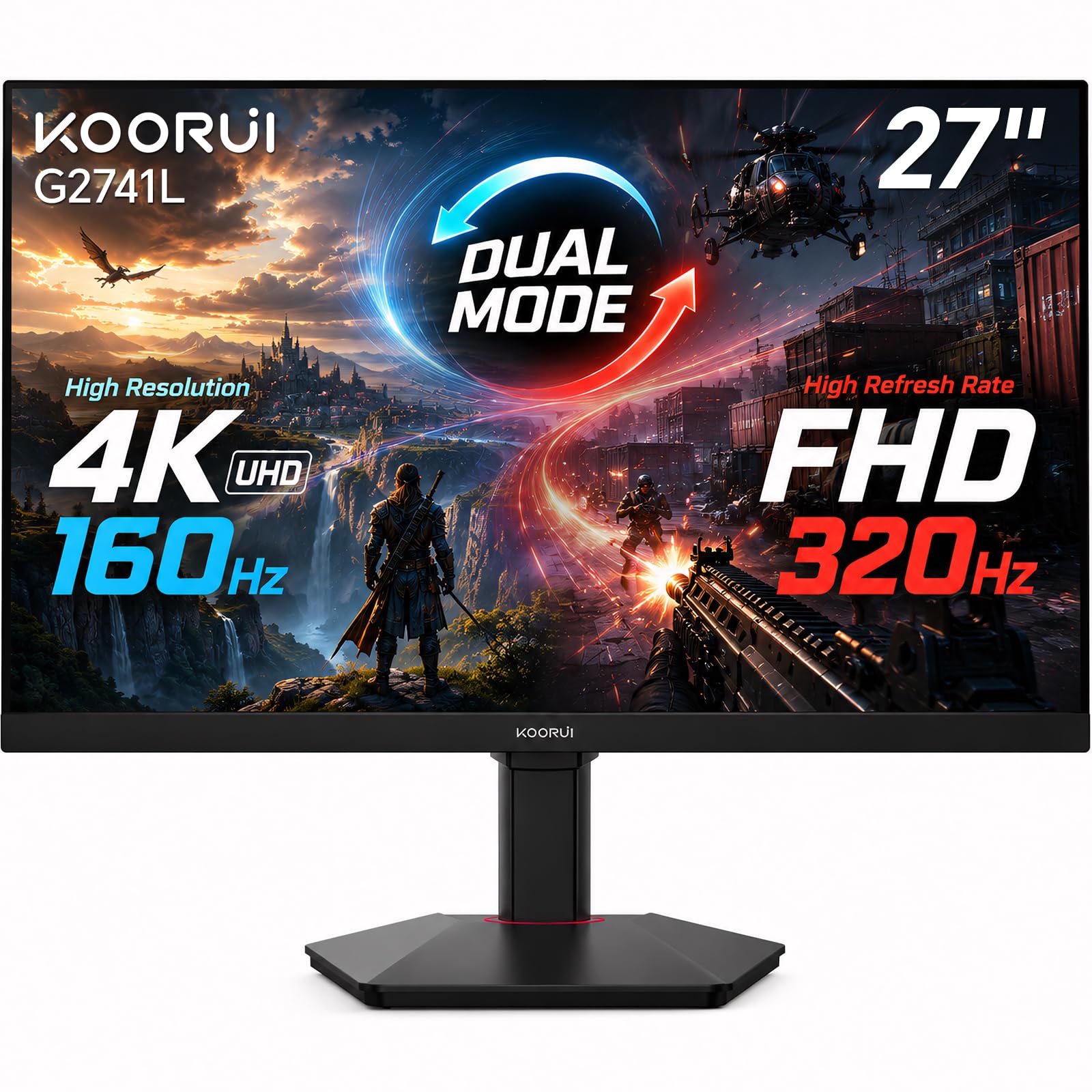
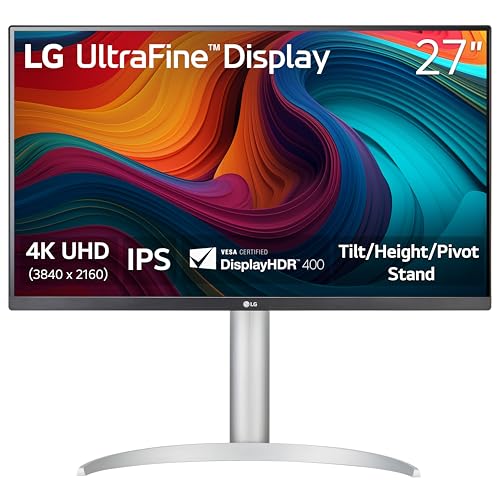

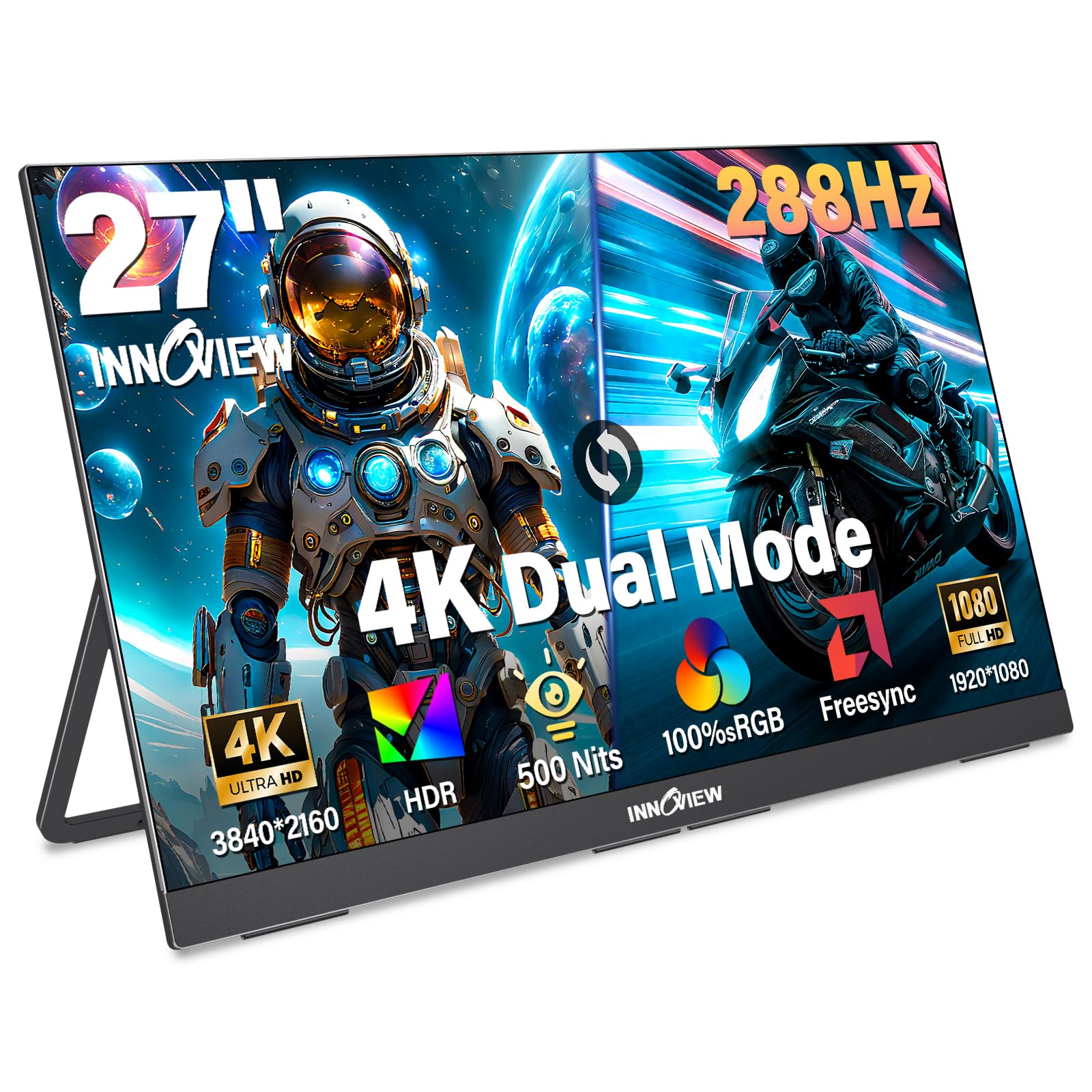

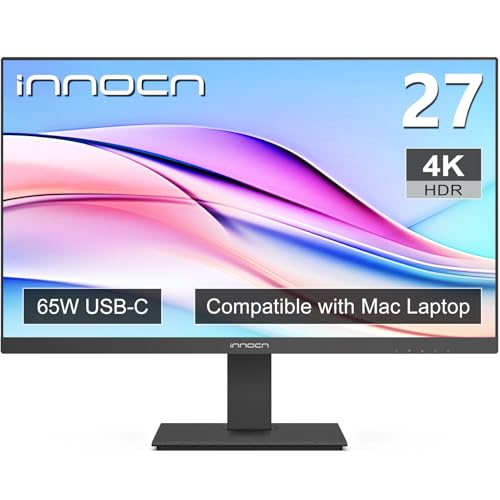
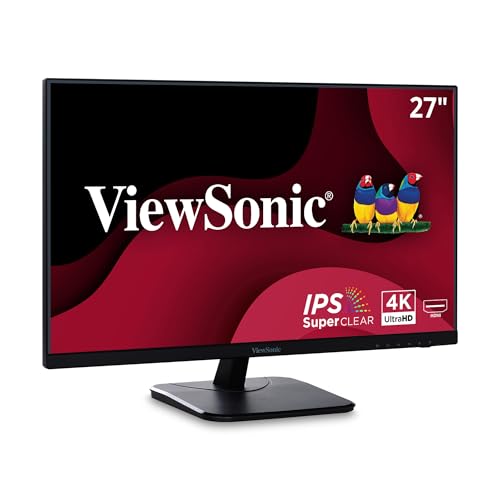
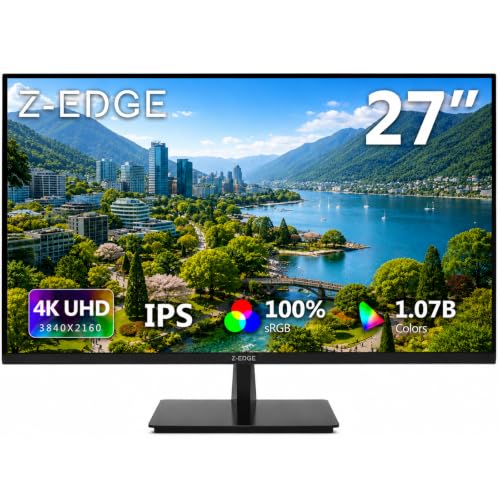
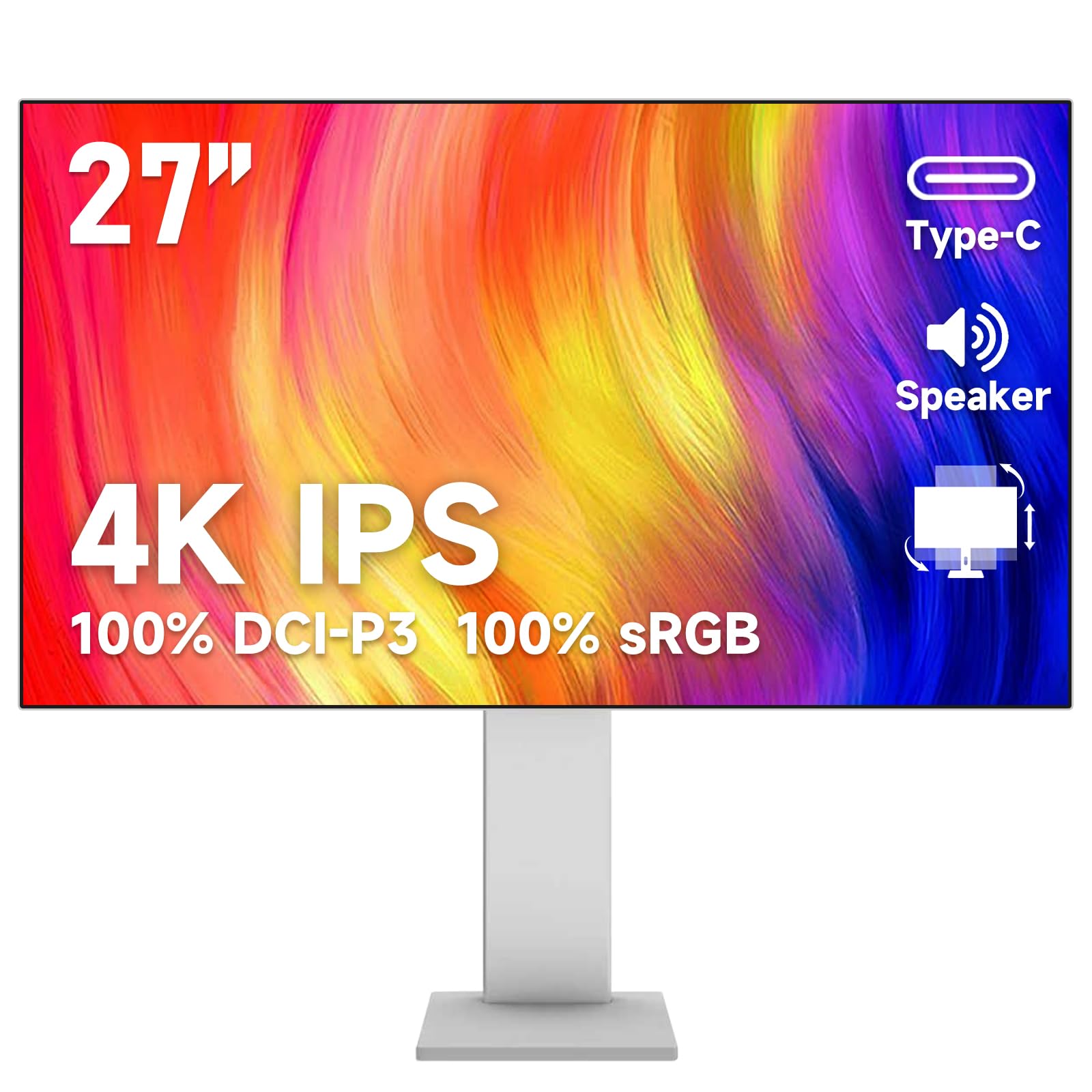
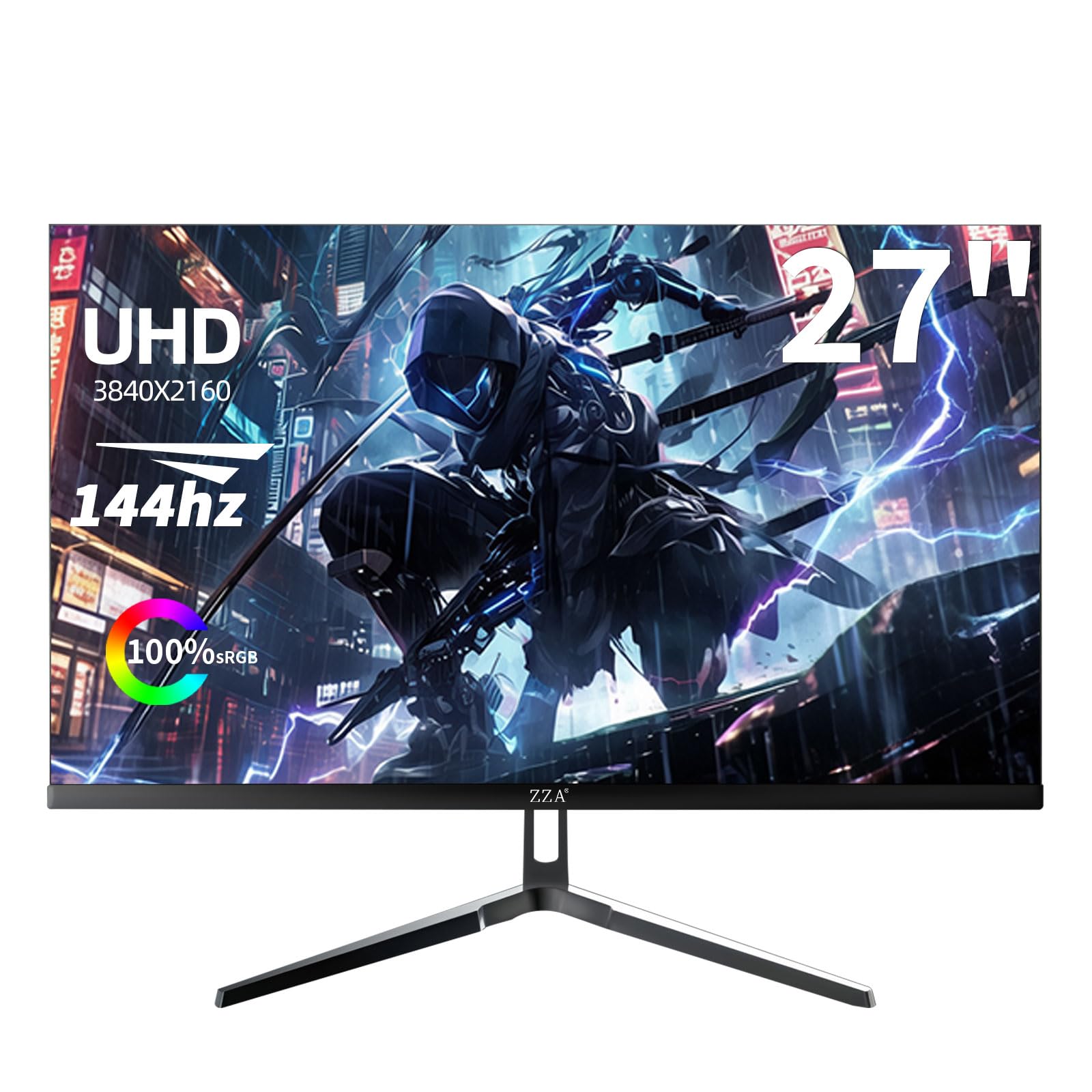
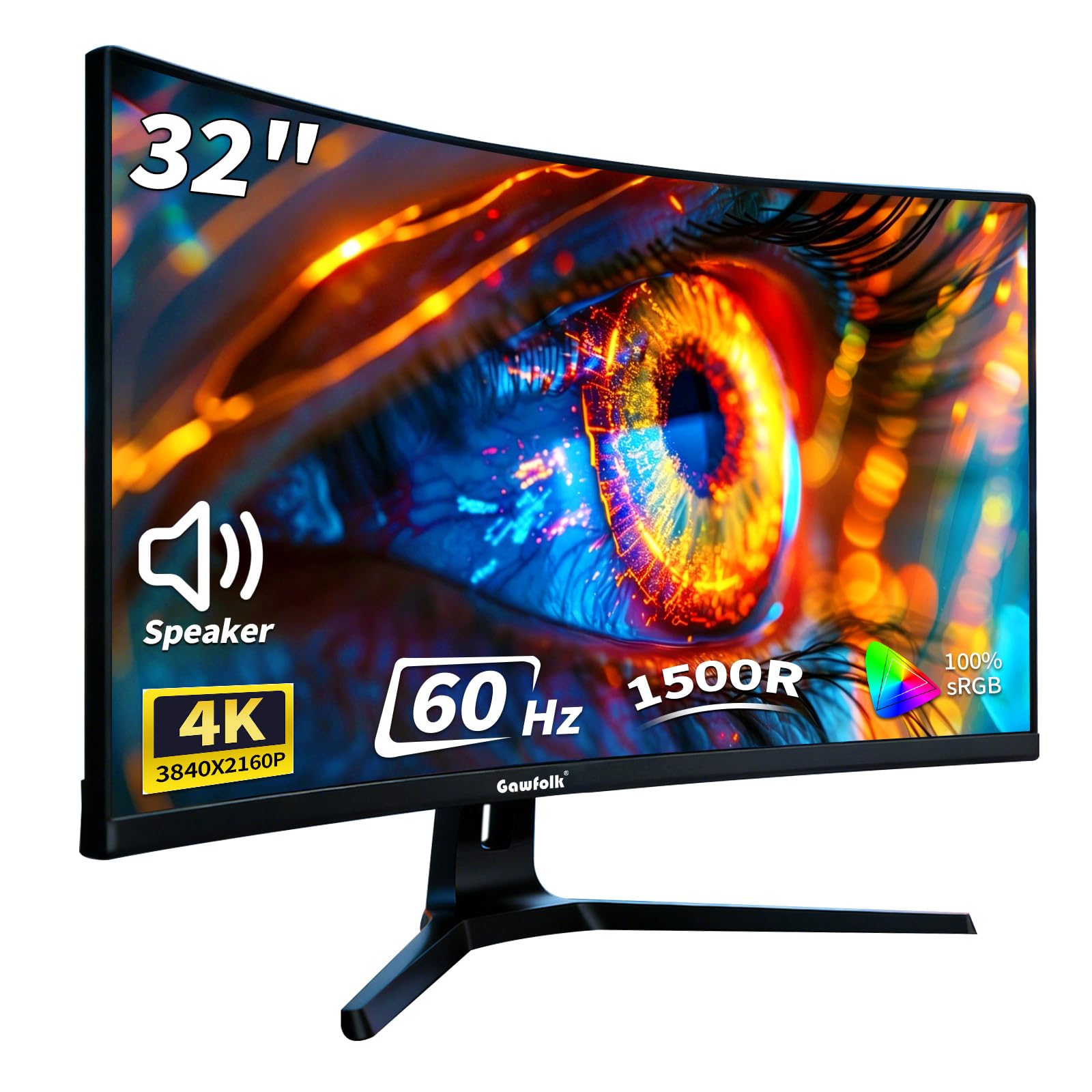
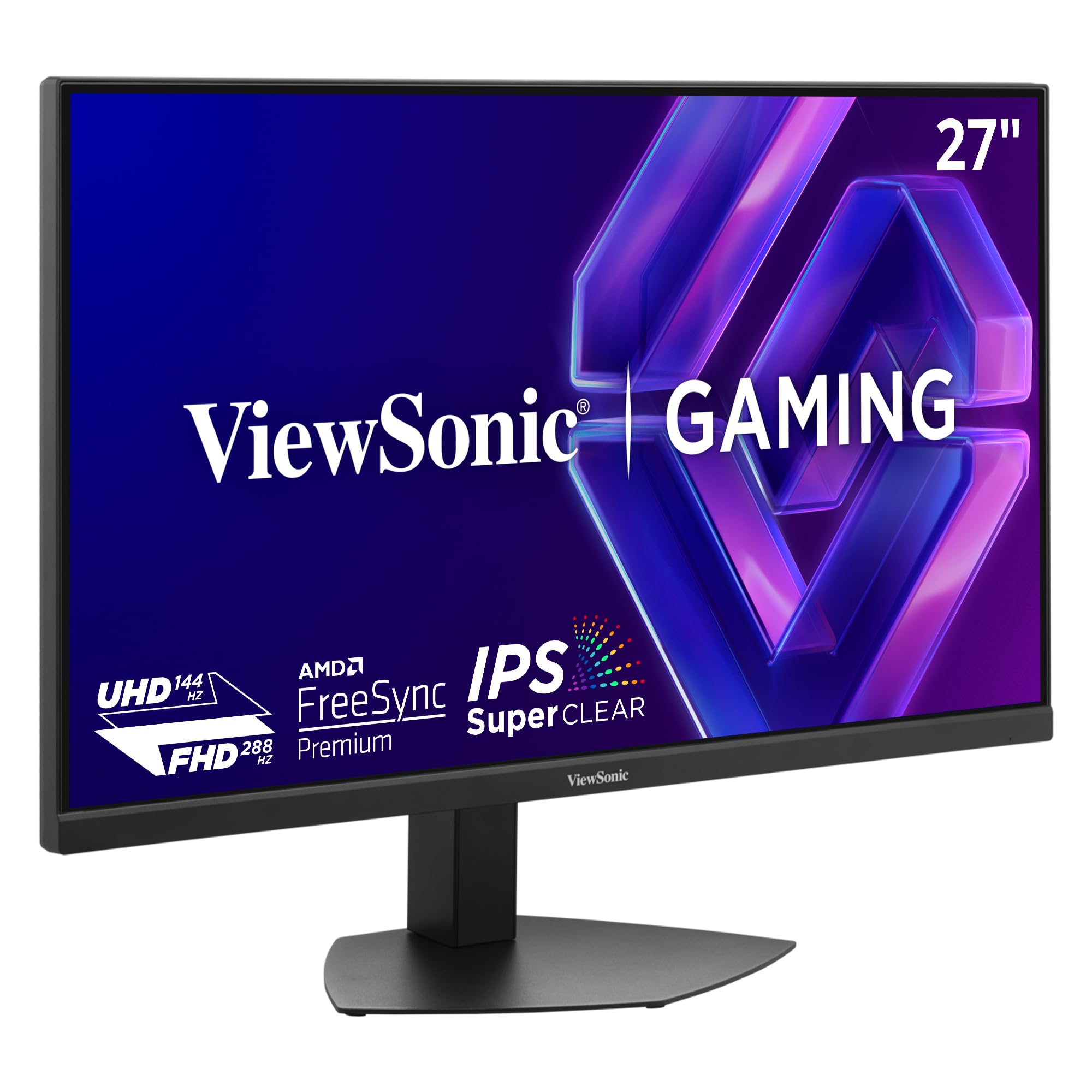
Match the Monitor to Your Desk and Your Day
Four common routines cover most buyers. Each routine rewards a different mix of size, panel and connections, and each one punishes a different mistake. Find the profile closest to your own day, then carry its priorities into the feature sections that follow.
The Text Worker Who Reads and Writes All Day
Your screen shows documents, mail, spreadsheets and browser tabs for hours at a stretch, so text clarity decides whether the day feels easy or tiring. At 27 inch, 4K packs pixels tightly and text stays sharp, but the system enlarges interface elements to keep them readable, which gives you crisp type with moderate workspace. At 32 inch, the same resolution lets you lower that enlargement and spread more windows across the desk. Match the choice to your graphics output, because older integrated graphics can drive 4K for office work but may limit the refresh rate to 30 or 60 hertz depending on the port. Prioritize a stand with height adjustment and tilt, a matte surface that calms reflections, and brightness you can lower for evening work.
The Gamer Whose Graphics Card Sets the Ceiling
Your card class decides the resolution you can honestly render, and the monitor cannot change that math. A mid range card can hold smooth frame rates at 4K in lighter titles and in older games, while demanding new releases often need lowered settings or upscaling to stay fluid. A stronger card makes a high refresh 4K panel worthwhile, because the panel can only show frames the card actually produces. Prioritize adaptive sync that matches your card family, a refresh rate of 120 hertz or more only if your card can feed it, and response behavior that stays clean at the frame rates you reach. If your card targets a lower resolution today, a 4K screen still works, but buy it for the card you plan to own next, not for frames you cannot yet render.
The Light Creative Who Edits Photos and Video
You edit family photos, short videos and design files, and you want colors that look close to what your camera captured. An uncalibrated panel is not a color critical tool, whatever the box claims, because panels leave the factory with varying accuracy and most buyers never measure them. Treat maker color figures as a starting description, not a promise. Prioritize a panel with wide color coverage for your editing format, uniform brightness across the screen, and a matte finish if your room has windows. Accept that serious print work needs calibration hardware and a controlled room. For sharing online and printing at home, a consistent panel you learn over time beats a costly badge you never verify.
The Shared Desk With a Laptop and a PC
Your desk serves two machines, perhaps a work laptop by day and a home PC at night, and the monitor is the meeting point. You need enough ports for both computers without swapping cables daily, plus a simple way to switch inputs from the front controls or a remote. A single cable connection that carries video and charges the laptop reduces clutter, but only if your laptop port supports that mode. Prioritize two or more video inputs, built in speakers good enough for calls if you lack desk speakers, and a stand that lets both seating positions stay comfortable. Check the product table above for port counts before you fall for a panel, because ports decide whether this profile works at all.
If two profiles sound like you, rank them by hours rather than by hope. A worker who games on weekends still reads text far longer than they play, so the text priorities should lead and the gaming features should follow within the budget. The reverse holds for a player who writes only short mail each day. This ordering keeps the purchase honest when a single screen cannot lead at everything, and it tells you where the extra money belongs when two wants compete.
Choosing the Best 4K PC Monitors Without Overspending
Best Affordable 4K PC Monitors: What to Prioritize
The affordable end of this market, roughly about $250 to $400, asks you to give up extras rather than core quality. Keep the resolution, a sound panel and height adjustment, and let go of wide color coverage, high refresh rates and elaborate lighting. Stands at this level sometimes tilt only, so budget for a separate arm if your desk posture needs height control. Port counts shrink as well, often to one of each main type, which suits a single computer far better than a shared desk. Spend the savings on the panel itself rather than on speakers or decorative shells, because the panel is what you look at for years.
The Details That Decide Daily Comfort
Specifications only matter where they touch your routine. The areas below decide most of the difference between a screen you enjoy and a screen you tolerate, and each one connects back to the profiles above.
A television can stand in for a monitor on some desks, and the comparison is worth one honest paragraph. TVs favor large sizes and video processing for films, while monitors favor sharp text at close range, low input delay and stands built for desks. If you sit close and read all day, a monitor panel serves you better. If your PC mostly plays video and games from a couch distance, our guide to best 4k tvs for pc monitors covers that different purchase in full.
Your stand decides posture as much as the panel decides picture. Height adjustment keeps the top of the screen near eye level, tilt calms reflections from ceiling lights, and a stable base matters on a desk that moves when you type. Many panels also accept a VESA mount, which lets an arm float the screen, free the desk surface and set the viewing distance exactly. Check the mount pattern and the panel weight before you buy an arm, and confirm the desk edge can carry the clamp load without flexing.
Ports and Cables Decide What Actually Connects
A 4K signal needs a connection that can carry it at the refresh rate you expect, and port labels alone do not tell the whole story. DisplayPort connections on desktop PCs usually give the most headroom for high refresh 4K, while HDMI versions vary in what they support, and the cable in the box may be shorter or older than you assume. USB C with video support simplifies a laptop desk, but your laptop must offer that mode on the port you plan to use. Before ordering, list every device you will connect, check the port version on both ends, and plan cable length from the PC position to the screen. A monitor with the right panel and the wrong ports creates daily friction that no picture setting can fix.
Brightness and HDR Without the Badge Trap
Brightness figures describe a peak the panel can reach, often in a small area for a short moment, so two screens with the same number can look quite different in a real room. For office work in a lit room, steady full screen brightness and a good matte surface matter more than a peak figure. HDR badges deserve plain skepticism. Many affordable panels accept an HDR signal and then display it within the same limited brightness and contrast they offer for everything else, which means the badge confirms compatibility more than visible improvement. Panels that show HDR with real impact pair high brightness with local dimming that controls light zone by zone. If your budget cannot reach that class, judge the screen on its normal picture and treat HDR as a bonus.
Panel Types and What Each One Trades Away
IPS panels hold color and brightness well when you view from an angle, which suits shared desks and wide seating, though their contrast in dark scenes stays modest. VA panels deliver deeper blacks for films and evening games, but their response in fast dark motion can smear, and viewing angles narrow. OLED panels control each pixel, giving true blacks and fast response, at higher prices and with care duties described later in this guide. Mini LED backlights lift brightness and HDR control on LCD panels at a cost between plain LCD and OLED. Readers weighing finish, uniformity and build should also see our guide to best quality pc monitors, which treats panel quality as its own subject. Choose the trade that matches your room and your content, because no panel type wins every category.
Sync, Refresh Rate and Response for Play
Adaptive sync lets the panel match its refresh to the frames your card produces, which removes tearing and smooths uneven frame delivery. The two main sync families align with the two main card families, and many panels now support both, so confirm the pairing for your card before you buy. Refresh rate only helps when your card reaches it, which returns to the honest ceiling in the gamer profile above. Response time figures from makers use favorable conditions and do not compare cleanly across brands, so treat them as rough classes rather than rankings. Players comparing screens built mainly for games can continue with our guide to best 4k monitors gaming and the wider roundup of best gaming monitors, both written for that narrower brief.
Buying Errors That Waste the Budget
Most returns and regrets in this category come from fit errors rather than faulty screens. Check your plan against these five before you order.
- Choosing size by price alone, then discovering that text at your viewing distance needs scaling that wastes the workspace you paid for.
- Ignoring the graphics output on your PC, so the new screen runs at a lower refresh rate than its panel supports.
- Paying for a high refresh panel your card cannot feed, while skipping the stand adjustment your posture actually needs.
- Trusting an HDR badge on a low brightness panel and expecting the visible leap the badge suggests.
- Forgetting cable length, port position and desk depth, so the screen arrives and the setup fights you from day one.
Setup and Care for a Screen You Keep for Years
Set the picture mode to a standard or custom profile rather than the vivid store setting, which pushes color and sharpness past accuracy for shelf appeal. Lower brightness to a level that matches your room instead of running the panel at full output all day. On OLED panels, run the built in pixel refresh when the screen prompts you, keep static elements moving where you can, and let the panel rest rather than displaying one fixed image for long stretches. Clean the surface with a dry or barely damp microfiber cloth only, with the screen off and cool, and never spray liquid directly onto the panel. Dust the vents, keep the rear clear for airflow, and check cable strain at the ports every few months so a tight bend does not loosen a connection over time.
After setup, spend one full work session at your chosen scaling before you judge the size. Text that looked small in a short demo often feels right once your own apps and documents fill the screen, and the reverse also happens. Set your preferred scaling, arrange your usual windows, and read at your normal distance for an hour. If your neck or eyes complain, adjust the stand height and the screen distance before you blame the resolution, because position fixes more discomfort than settings do.
4K PC Monitor Questions Answered
Is 4K worth it on a PC if I mostly browse and write?
Yes, for readers and writers the gain is text clarity rather than workspace alone. Letters render with smooth edges, long documents tire the eyes less, and photos in articles and mail look closer to the source. The honest cost is scaling, because your system enlarges menus and icons to keep them usable. On a 27 inch screen that trade still favors most text workers, and it improves further at 32 inch.
What desk depth do I need for a 32 inch 4K monitor?
A desk about 28 to 32 inch deep suits most 32 inch screens, because you want roughly an arm length between your eyes and the panel. Shallow desks push a large screen too close, which forces head movement across wide spreadsheets. A monitor arm helps on a shallow desk, since it removes the stand footprint and lets the screen sit nearer the rear edge. Measure your desk before ordering rather than after the box arrives.
Can one 4K monitor replace two smaller screens for office work?
It can for many desk workers, because a 32 inch 4K panel shows two full documents side by side at readable sizes. Window management tools in your system snap apps to halves and quarters, which replaces much of the two screen habit. The loss is separation, since two physical screens divide tasks and calls more cleanly. If you keep a call on one screen all day, a second smaller screen beside the main panel may still serve you better.
Does an OLED PC monitor need special habits for office use?
Yes, a few simple habits protect it. Hide the taskbar when you can, vary the content on screen during the day, and avoid leaving one bright static window open for many hours. Use the panel maintenance tools the maker provides and keep brightness moderate for text work. These steps suit mixed use well. A screen that shows one fixed spreadsheet grid from morning to night, every day, remains a harder case for the technology.
How long should a 4K PC monitor last in daily use?
Most owners keep a monitor about five to eight years, and the panel usually outlasts the connections around it. Ports and standards age faster than screens, so a monitor can feel old when a new laptop lacks the input you relied on. Backlights dim slowly with heavy use, which matters most in bright rooms. Buying sound ports and a flexible stand extends useful life more than chasing the highest panel figure on the day you buy.
Final Thoughts
Fit decides this purchase. Match the size to your desk depth and scaling comfort, match the panel to your graphics output and your content, and let the extras wait until those two decisions are right. The product table above lets you compare the shortlist against those priorities in one pass. Chosen that way, the best 4k pc monitors for your home are simply the ones that disappear into your routine, clear for reading, honest for games, and easy to live with every day.