Best 4K Monitors for Designers: Everything to Know Before Your First Purchase in 2026
Disclosure: We may earn a commission when you buy through links on this page, at no extra cost to you. As an Amazon Associate I earn from qualifying purchases. Learn more
Learn how to choose 4K monitors for designers with confidence. Compare color accuracy, panel types and sizes, and avoid the mistakes first time buyers make.
Buying your first design monitor can feel confusing because every spec seems to matter. The best 4k monitors for designers pair sharp 4K detail with color you can trust, so logos, photos and layouts look consistent on screen, in print and online. This guide starts with the basics and uses the product table below to turn each term into a clear choice.
You need to know which colors your work uses, how much desk space you have and which ports your computer offers. The sections below cover user types, core specs, setup steps and care, so you can order once and get straight to work.




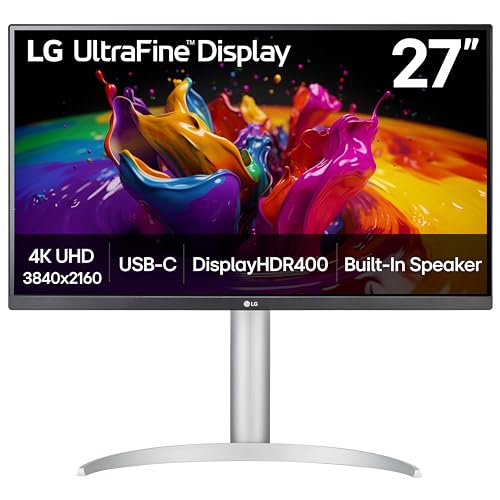
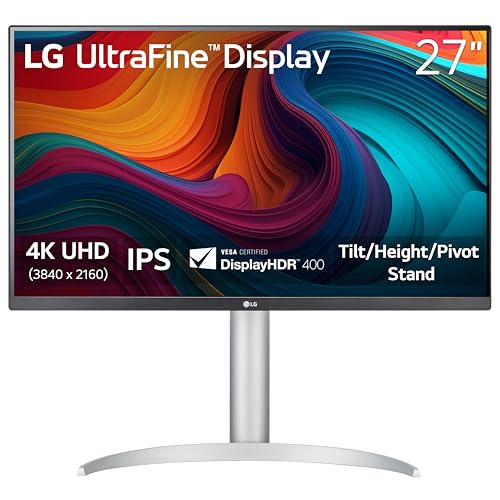
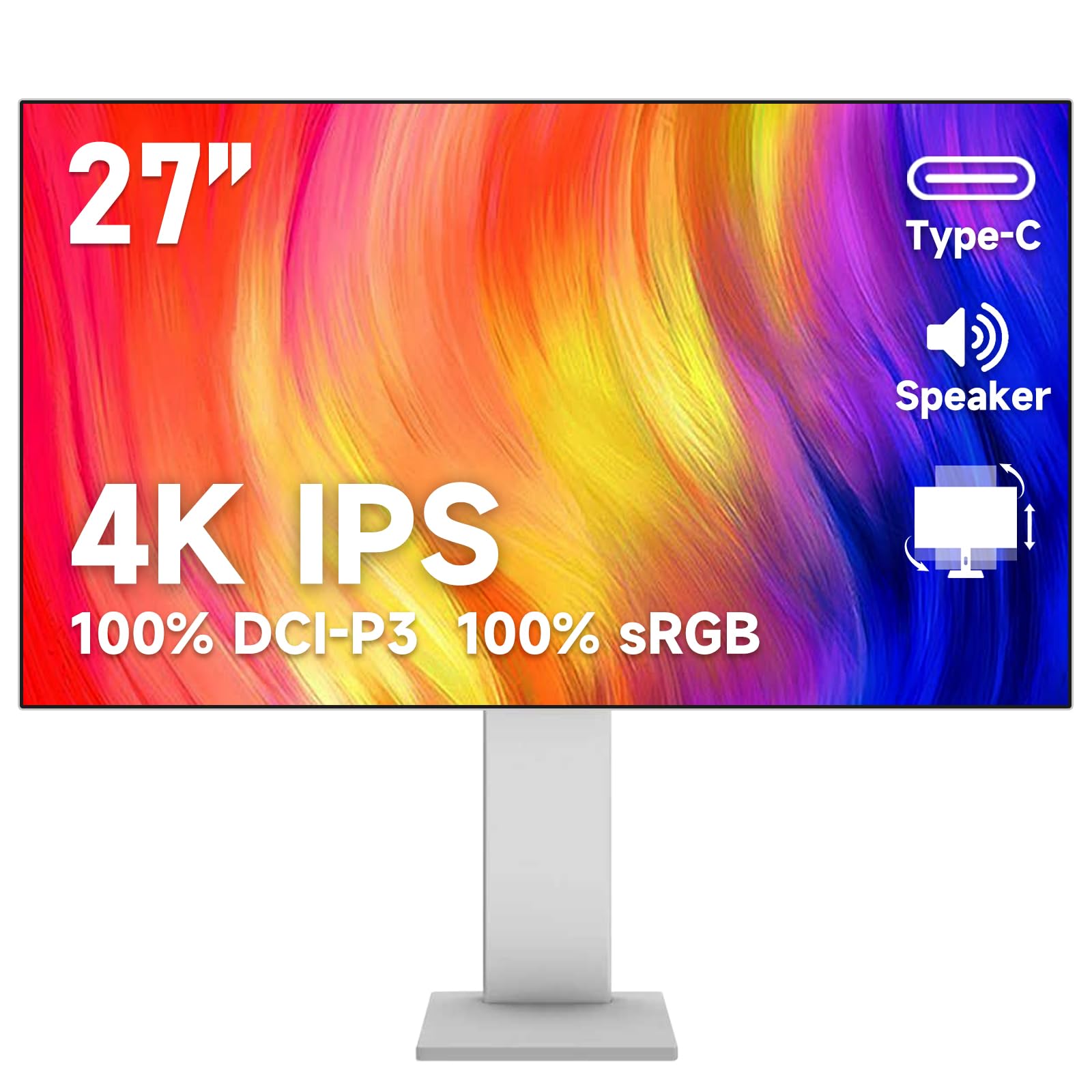

4K Monitors 101: The Basics for Design Work
A 4K monitor shows 3840 by 2160 pixels, which is four times the pixel count of a 1080p screen. Those extra pixels keep fine type crisp and leave room for tool panels beside your canvas. Display scaling in your computer enlarges text and menus, so words stay easy to read.
For design work, resolution is only half the story, because a sharp screen with weak color still misleads you. Designers also need accurate color and even brightness across the panel. For a wider look beyond 4K, see our guide to the best monitors for designers for options at other resolutions.
Who Should Buy Which 4K Monitor for Design Work?
Start from the work you deliver most often, because print, photo and video projects each stress a different part of a monitor.
Graphic and Brand Designers Who Work in Print and on Screen
You split time between web graphics in sRGB and print files proofed in CMYK. Choose strong sRGB coverage for screen work and wide Adobe RGB coverage if you prepare print jobs often. A factory calibration report gives you a reliable starting point. You can also see our guide to the best monitors for graphic designers if your work centers on branding and layout alone.
Photo Editors and Digital Illustrators
You judge skin tones, soft gradients and shadow detail for long stretches, so even brightness matters as much as gamut size. Choose a matte finish to keep window light from hiding dark tones, and plan on a colorimeter to keep color true over time. A pivot to portrait helps with tall images and long documents.
Video Editors and Motion Designers
You work in the DCI P3 color space and preview footage for many client screens. Choose near full DCI P3 coverage and a larger canvas for your timeline. If you grade HDR clips, brightness and contrast deserve a bigger share of your budget than raw screen size.
Design Monitor Specs Translated Into Plain Terms
When you shop for the best 4k monitors for designers, judge color first, size second and speed last, because a design screen earns its keep through accurate work. The six specs below explain each term and the level most designers should choose.
Color Accuracy and Gamut Coverage
Web and app work needs full sRGB coverage, print work benefits from about 95 percent Adobe RGB or more, and video work calls for about 95 percent DCI P3 or more. Accuracy is reported as Delta E, and a value under 2 means errors are hard to see. A 10 bit panel shows far more color steps than an 8 bit panel, so gradients stay smooth instead of breaking into bands.
Choosing a Panel Type for Color Critical Design
IPS panels hold color steady when you lean or share the screen. VA panels give deeper blacks but shift color more at wide angles. OLED displays give perfect blacks and instant response, yet static toolbars shown for hours raise the risk of burn in. Mini LED pairs an LCD panel with many small backlight zones, so bright areas sit beside dark areas with less glow.
Resolution and Screen Size for Your Desk
At 27 inches, 4K gives about 160 pixels per inch, so text looks printed and most designers use scaling of 125 to 150 percent. At 32 inches, large screen options suit editors who keep timelines and several windows open at once. Sit about 24 to 32 inches from the screen. If the same screen must serve everyday PC tasks too, see our guide to the best 4k pc monitors for a general use view.
HDR and Brightness for Photo and Video Work
Brightness is measured in nits. About 300 to 400 nits is plenty for normal design work, and many designers set the screen lower for comfort during long edits. HDR preview work asks for more, around 600 nits or higher, plus local dimming so bright highlights keep detail. An HDR10 badge means little without the brightness and dimming to back it up.
Refresh Rate and Response Time in Design Tasks
Refresh rate counts how often the image redraws each second, and 60 Hz is enough for layout, photo and illustration work. A rate of 120 Hz or higher makes scrolling, canvas pans and timeline scrubbing feel smoother, and pen strokes can feel more direct. Response time matters most for video previews. If you also play fast games at the same desk, see our guide to the best 4k monitors gaming to compare speed first models.
Connections and Desk Setup for a Design Studio
Look for HDMI 2.1 and DisplayPort inputs so your computer can send a full 4K signal, plus USB C with power delivery of about 65 to 90 watts if you use a laptop. A built in USB hub keeps a drive, a tablet and a colorimeter plugged in. Choose a stand with height, tilt and swivel adjustment, and check for a VESA mount pattern of 100 by 100 mm if you use a monitor arm.
Getting Started: Setup and First Use for Design Work
Attach the stand or arm first, then connect the cable packed in the box, because that cable is rated for the full resolution. Set the output to 3840 by 2160, choose the scaling level that keeps text comfortable and select the color mode that matches your work. Turn off the vivid mode that many screens use by default, because it pushes saturation past what your files contain.
Let the screen warm up for about 30 minutes before you judge color. Set brightness to suit your room, then run the calibration software if your screen supports it and save the profile it creates. Keep the factory calibration report until you finish a first real project, so you can compare results if colors look off.
Common Mistakes to Avoid
These errors are common and easy to prevent.
- Buying a glossy screen for a bright room lets reflections wash out dark tones while you edit.
- Choosing a small 24 inch 4K screen makes interface text tiny and forces constant zooming.
- Judging a monitor by resolution alone can leave you with narrow gamut coverage and print colors that shift.
- Leaving the vivid picture mode on makes previews look richer than the files you send to clients.
- Skipping height adjustment on the stand leads to neck strain during long editing sessions.
Care and Maintenance for a 4K Design Monitor
Clean the screen only when it is off and cool. Use a soft microfiber cloth dampened lightly with plain water and wipe with light pressure, because dry grit dragged across the coating can leave fine scratches. Never spray liquid straight onto the panel, and skip paper towels, which can dull the matte finish.
Accuracy drifts slowly as a backlight ages, so repeat calibration every few months and sooner if prints start to drift from your screen. Keep rear vents clear of dust and stacked papers so heat can escape. If you choose OLED, let the built in pixel refresh run when the screen prompts you, and avoid leaving one static bright image up for many hours.
Frequently Asked Questions
What features matter most in 4K monitors for designers?
Color accuracy matters most in 4K monitors for designers, followed by gamut coverage and even brightness. Ask whether the box includes a factory calibration report, because that report shows the screen was measured before shipping. Also check brightness uniformity across the corners, since a bright center with dim edges can hide shadow detail.
How long does a 4K monitor for designers usually last?
A 4K monitor for designers usually lasts about five to eight years of daily use. The backlight usually dims in small steps, which you may first notice when calibration can no longer reach your target brightness. Running full brightness in a hot room tends to shorten that span.
IPS vs OLED: Which panel is better for design work?
IPS is better for design work that keeps static layouts and toolbars up all day, while OLED suits video focused work where deep blacks matter most. One point many buyers miss is room light, because OLED screens often use a glossy finish that mirrors windows. In a bright studio, a matte IPS screen can be easier to judge.
Is 4K resolution worth it for design work?
Yes, 4K resolution is worth it for design work when your files, photos or footage carry fine detail you must judge at full size. Your laptop or desktop graphics must also drive the extra pixels without slowing your apps. If most client files arrive small and low in detail, the gain shrinks and a lower resolution screen may serve you just as well.
What 4K monitor size should a designer choose for a desk?
Most designers should choose a 27 inch 4K monitor for a standard desk, because it balances sharpness, canvas room and price. Measure your desk depth before you order, since a 32 inch screen needs more viewing distance to stay comfortable. If space is tight, one 27 inch screen beside your laptop display often beats a single larger screen placed too close.
Wrapping Up
Put color accuracy first, match screen size to your desk depth and confirm that your computer has the ports to drive 4K at full quality. Those three checks remove most of the risk, and panel and brightness choices then follow from your work in print, photo or video.
When the best 4k monitors for designers on your short list match your color space, desk and computer, your first purchase can serve you well for years. Compare your finalists in the product table above and choose the simplest screen that meets your needs.