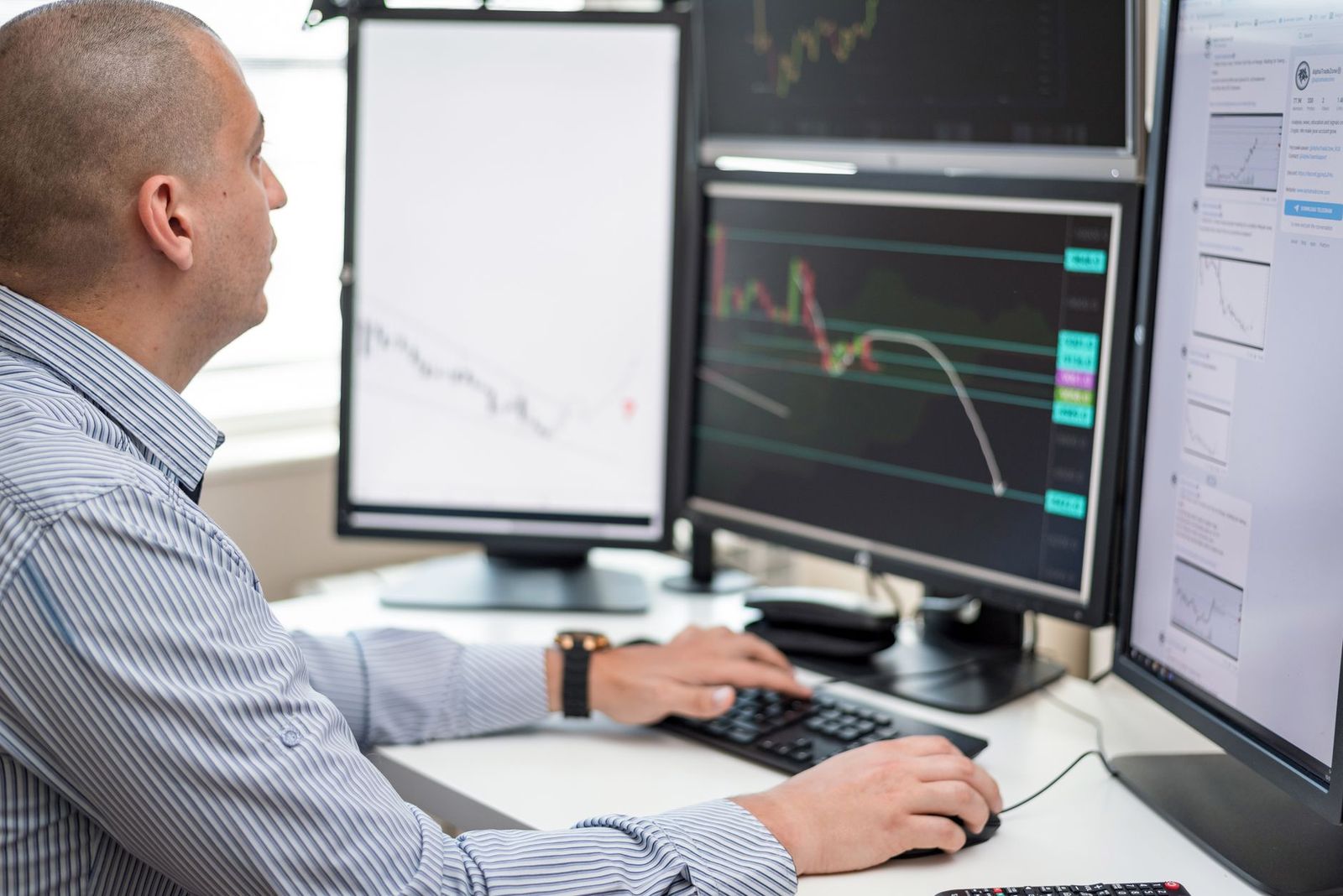
Best 32 Inch 1440p Monitors: Everything to Know Before Your First Purchase 2026
Disclosure: We may earn a commission when you buy through links on this page, at no extra cost to you. As an Amazon Associate I earn from qualifying purchases. Learn more

New to best 32 inch 1440p monitors? Learn panel types, refresh rates, ports and prices in plain English so your first purchase fits your desk and budget.
A first monitor upgrade raises a fair question: is 32 inches at 1440p too big, too soft, or just right? The short answer is that this pairing suits a desk where you sit a little farther back and want more room for open windows. This guide walks through the best 32 inch 1440p monitors in plain English, starting with the basics and ending with a simple buying routine.
You will learn what pixel density really means at this size, which panel type fits your mix of work and play, and how much refresh rate you actually need. The comparison table below lines up the main options side by side so the differences are easy to scan before you spend anything.

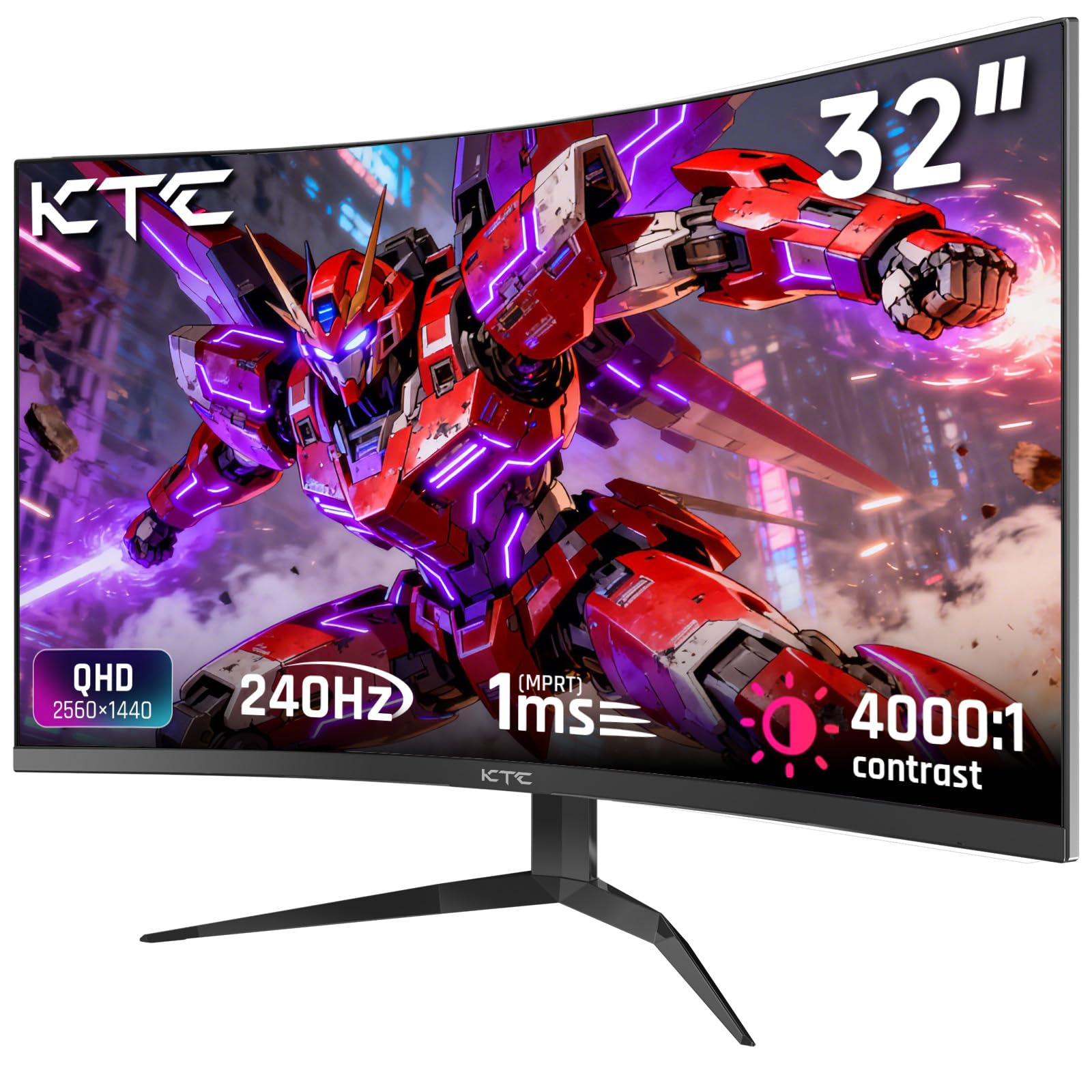
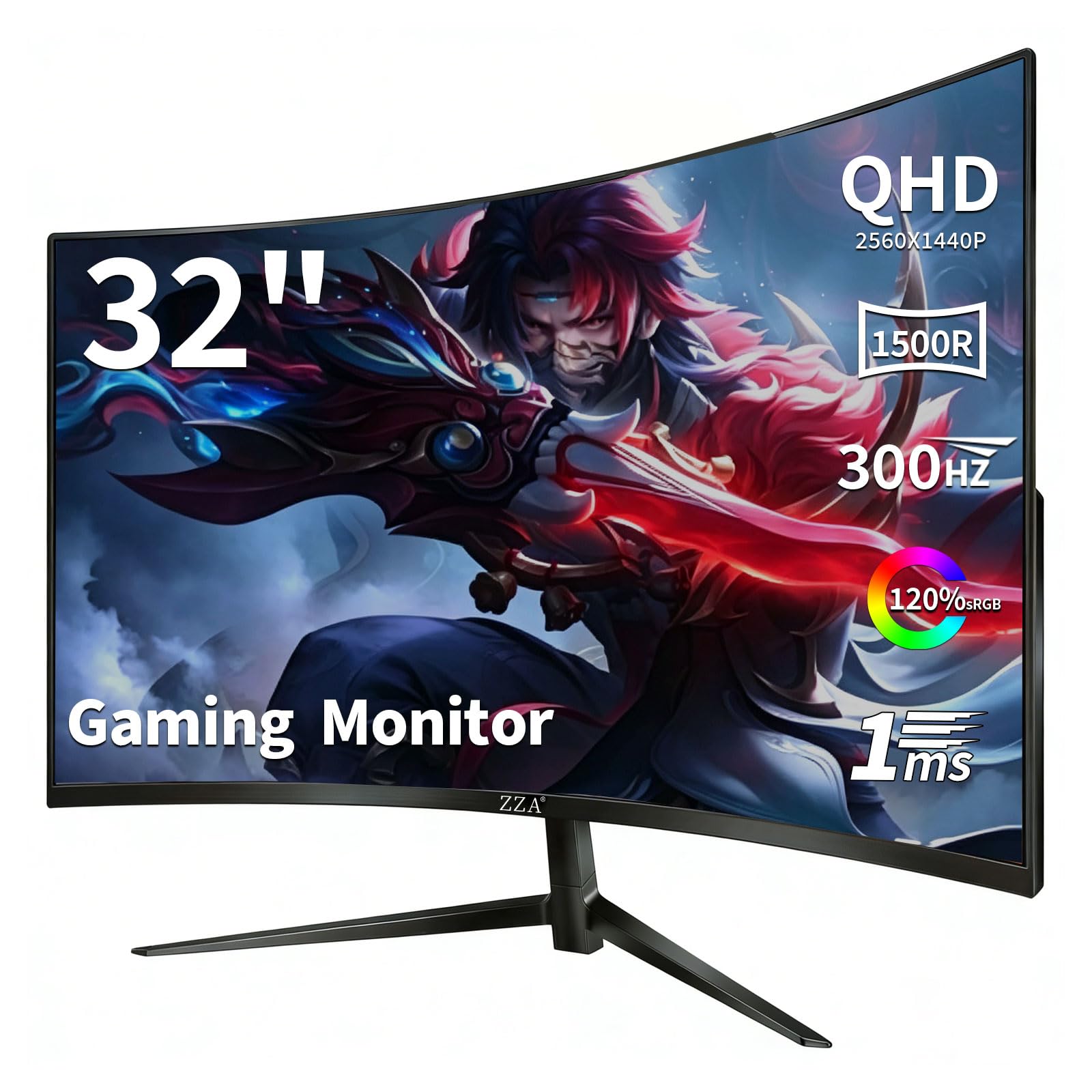
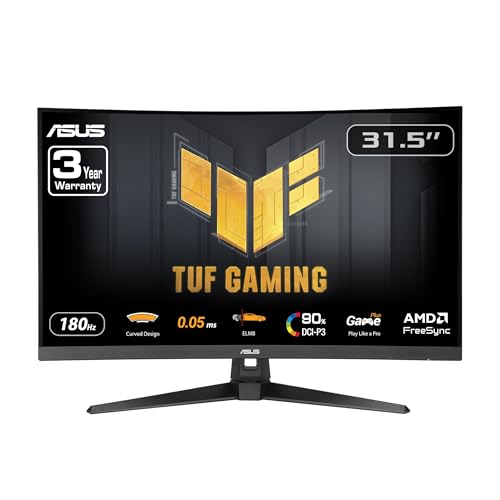

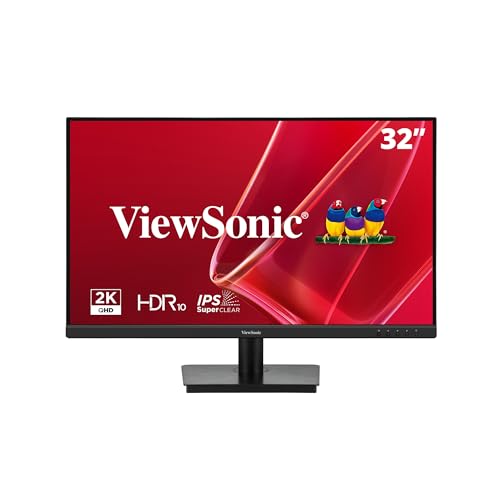
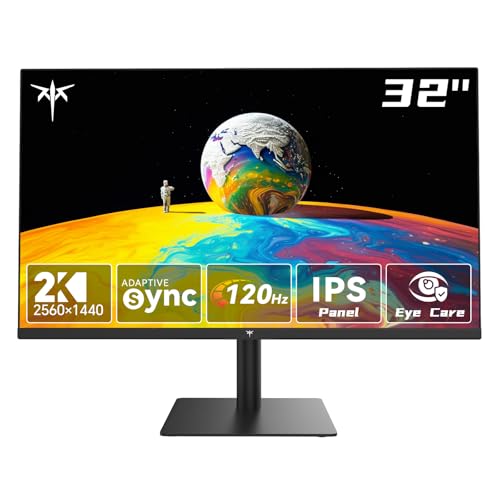


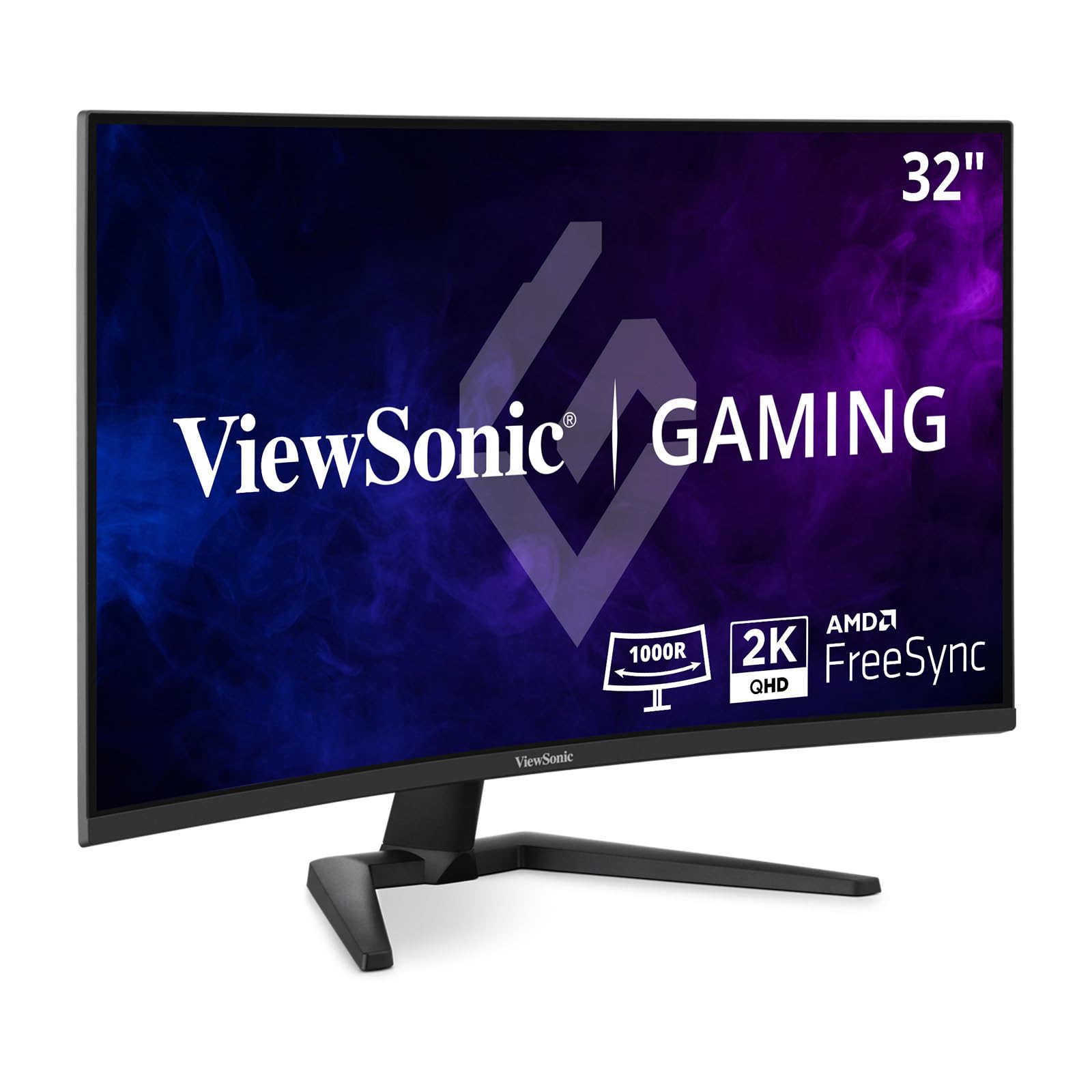
32 Inch 1440p Monitors 101: The Basics
A 32 inch monitor shows a picture that measures 32 inches from corner to corner, and at 1440p that picture holds 2560 by 1440 pixels, about 3.7 million in total. That is roughly 78 percent more pixels than a 1080p screen, spread over a larger area. If you want the wider view first and the resolution second, the broader guide to best 32 inch monitors covers this size at every resolution.
This class fits readers who keep two windows open at once, edit photos at a relaxed zoom, or play games from a chair set a bit back from the desk. For paperwork, spreadsheets, and long reading sessions, the guide to best 32 inch monitors for work focuses on the desk job side of the same size. One warning belongs up front: no monitor treats eye strain. Comfort comes from sensible brightness, a comfortable viewing distance, regular breaks, and room light that does not fight the picture.
Key Specs Explained in Plain English
Six specs decide most of the difference between the best 32 inch 1440p monitors and a frustrating first purchase. Read them in this order and the price tags start to make sense.
Resolution and Screen Size
A 32 inch 1440p panel sits at about 92 pixels per inch, while a 27 inch 1440p panel reaches about 109 pixels per inch. That gap is the core trade of this category: the larger screen gives every window more room, but text and icons look a touch softer when you lean in close. Size trades density for space, so match the screen to your seating distance, roughly 28 to 36 inches for this class. If your desk is shallow and you sit near the panel, the tighter density of best 27 inch 1440p monitors may honestly suit you better.
Panel Technology (IPS, VA, OLED, and Mini LED)
IPS panels hold their colors when you shift in your chair, which makes them the safe default for shared desks and photo work. VA panels trade a little viewing angle for much deeper blacks, so films and dark game scenes look richer at night. OLED gives the strongest contrast and the fastest response, but it costs more and asks for care with static images to limit burn in risk. Mini LED is a backlight rather than a panel type, and it raises brightness in small zones behind some IPS and VA screens for punchier highlights.
HDR and Brightness
An HDR label on a spec sheet can mean very little, so read the brightness figure first. Around 300 to 350 nits is fine for a normal room, while 400 nits or more helps near bright windows. Real HDR punch needs local dimming, where the backlight brightens and darkens in zones, and most entry models skip it entirely. Treat an HDR badge with no brightness figure and no dimming zones as a minor bonus, never as a reason to pay extra.
Refresh Rate and Response Time
Refresh rate counts how many times the picture redraws each second. A 60Hz screen is fine for office work and video, while 144Hz or 165Hz makes scrolling, camera pans, and pointer movement feel far smoother. Response time numbers come from maker chosen test settings, so treat the printed millisecond figure as a rough tier rather than a promise. For most first buyers, a 144Hz IPS model is the balanced pick that covers work and play without overspending.
Adaptive Sync and Gaming Features
Adaptive sync lets the monitor match its refresh rate to the frame rate your graphics card produces, which removes tearing and calms stutter. It matters most when frame rates wander, as they do in nearly every game. Check that your computer or console can use the sync range over the cable you plan to run, because some ports limit the range. A second HDMI input also helps when a console or a work laptop shares the same screen.
Ports, Cables, and Sound
Most models in this class offer two HDMI ports and one DisplayPort, and the cable in the box may cap you at a lower refresh rate, so check it before blaming the screen. A USB C port with power delivery lets one cable carry the picture and charge a laptop, which is a real desk saver. Built in speakers on monitors are usually thin and quiet, fine for calls and alerts but weak for music or films. If sound matters to you, plan on a small speaker or a headset from the start.
Rookie Mistakes to Avoid
- Judging sharpness on a smaller showroom screen, because the same resolution looks softer once it stretches across 32 inches at home.
- Paying for a 240Hz panel while your computer rarely passes 80 frames per second, which spends money on headroom you never see.
- Trusting the HDR label on its own, so the picture washes out the first time sunlight hits your desk.
- Skipping the desk depth measurement, so the screen ends up closer than your eyes can comfortably focus.
- Blaming the monitor for a low refresh rate that the bundled cable caused, when a rated cable fixes it at once.
Getting Started: Setup and First Use
Assemble the stand on a soft surface so the panel never rests on anything hard, then connect DisplayPort for a PC or HDMI for a console. Open your system display settings and confirm the resolution reads 2560 by 1440 and the refresh rate matches what you paid for. Turn off the vivid picture mode, set brightness near the middle, and only then judge the colors. If you chose an OLED model, run its pixel refresh routine when the screen prompts you, and let it finish undisturbed.
Spend the first evening with your normal work open rather than test images, and nudge the height so the top of the screen sits near eye level. Readers building a full workstation around the panel can also compare best 32 inch computer monitors for desk setups with docks and arms. Note which settings you changed, because a reset during a driver update can quietly restore the defaults. A week of small adjustments beats an hour of guessing on day one.
Frequently Asked Questions
Is 4K worth it on a 32 inch monitor?
For most first buyers, 1440p is the smarter spend, and 4K earns its premium only when you sit close and work with fine detail all day. At 32 inches, 4K raises density to about 138 pixels per inch, so text looks crisper, but apps often need scaling that gives back some of the extra workspace. Your graphics card also works much harder at 4K in games. If that trade sounds right, the guide to best 32 inch 4k monitors covers the step up in full.
How long does a 32 inch monitor usually last?
A decent monitor usually serves about five to eight years of daily use before the backlight dims enough to notice. The panel rarely dies outright; brightness fades and colors drift a little each year. Most makers cover this class for about three years, so read the dead pixel policy before you buy, because a single bright dot near the center is far more annoying than one at a corner. Keeping brightness moderate instead of maximum slows the fade.
What desk depth suits a 32 inch monitor?
A desk about 28 to 32 inches deep suits this size with the stock stand, leaving room for a keyboard and your forearms. The hidden catch is the stand itself, which can eat 8 to 10 inches of that depth behind the panel. A VESA arm returns most of that space and lets the screen float at exactly your distance. Measure from the wall to your chair position, not just the desktop, before you rule a shallow desk out.
Does refresh rate matter if I never play games?
Yes, though the benefit is comfort rather than scores. At 120Hz or 144Hz, scrolling through long documents stays readable instead of smearing, and dragging windows feels direct instead of laggy. Video shot at 24 or 30 frames per second looks the same on any screen, so films gain nothing. If your workday is mostly text and spreadsheets, a high refresh panel still earns its small premium, but it should never outrank panel quality or brightness in your budget.
IPS or OLED: which panel suits a first 32 inch monitor better?
IPS suits a first purchase better when the screen shows static toolbars, spreadsheets, and code for hours at a time. OLED wins for evening use centered on films and games, where its contrast is plainly better. The practical difference is habit: OLED owners should hide the taskbar, vary what stays on screen, and let the pixel refresh run. If you know you will not bother with those habits, buy the IPS and enjoy the lower price without the worry.
Wrapping Up
Start with density and seating distance, pick the panel that fits your mix of work and play, and let refresh rate follow the hardware you already own. The product table above collects the strongest current options in one place for a final check. Chosen with those three tests in mind, the best 32 inch 1440p monitors give a first buyer a big, calm workspace without the cost and demands of 4K.