Best 30 Inch Computer Monitors: Every Type Explained Side by Side 2026
Disclosure: We may earn a commission when you buy through links on this page, at no extra cost to you. As an Amazon Associate I earn from qualifying purchases. Learn more

Compare the best 30 inch computer monitors by type, panel, refresh rate, and price, with clear pros and cons for office work, gaming, and everyday desk use.
A 30 inch screen sits in a middle ground that confuses many buyers. It is too large to be a casual second screen, yet it comes in several very different forms, from plain office panels to wide curved displays built for timelines and games. This guide compares the best 30 inch computer monitors type by type, and the comparison table below gives the short version first.
Two checks matter before any spec sheet. Measure the depth of your desk, because a screen this size needs real viewing distance, and note what your computer can output, because a sharper panel only helps if your graphics hardware can feed it.
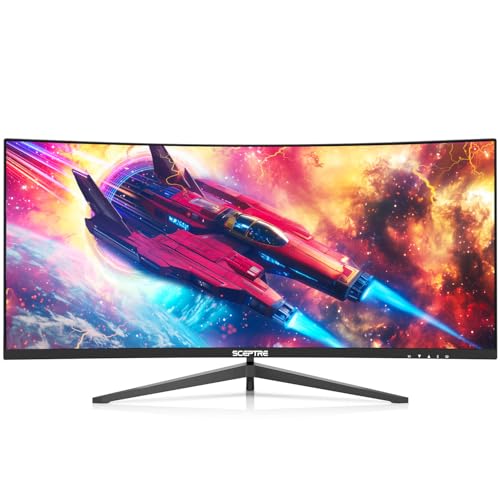


Types of 30 Inch Computer Monitors Compared
Start with pixel density, because it decides how crisp text looks at a normal desk distance. A 30 inch class at 2560 by 1600 sits about 101 ppi, which keeps letters clean without any scaling tricks. Cheaper 30 inch panels at 1920 by 1080 spread the same pixels over more glass, so text looks softer. Our guide to the best 30 inch monitors covers the full size class beyond desk screens.
| Type | Best For | Pros | Cons | Typical Price |
|---|---|---|---|---|
| Budget Displays | Everyday office work | Low cost, simple setup | Plain colour, basic stands | About $150 to $250 |
| Large Screen Options | Photo and video work | Sharp 4K detail, big canvas | Needs a strong graphics card | About $250 to $450 |
| Productivity and Ultrawide Displays | Spreadsheets and timelines | One wide canvas, no bezel gap | Curve takes getting used to | About $300 to $600 |
| Gaming Displays | Fast paced games | High refresh, quick response | Overkill for plain documents | About $280 to $550 |
Budget Displays
Budget 30 inch displays usually pair a 1920 by 1080 or 2560 by 1080 panel with a fixed stand and a short port list. Colour coverage is modest and brightness suits indoor rooms, which is fine for documents, email, and web work. The honest trade is sharpness, since 1080p text looks grainy this close. Choose this type for a second display or a shared family computer, and pair it with one of the best 24 inch computer monitors if you want a sharper main screen beside it.
Large Screen Options
Large screen options in this class usually means a flat 4K panel, 3840 by 2160, on a 30 to 32 inch sheet of glass. The extra pixels make photos, drawings, and dense documents look clean. Desk depth governs how well a big screen like this works, because you want roughly 28 to 36 inches between your eyes and the panel. Check that your computer can drive 4K at 60 Hz over a single cable before you pay for the resolution.
Productivity and Ultrawide Displays
Ultrawide 30 inch displays stretch the picture to a 21 by 9 shape, most often 2560 by 1080, sometimes with a gentle curve. One wide canvas suits spreadsheets with many columns, editing timelines, and two documents open side by side without a bezel gap. If the width tempts you but the desk is narrow, the best 27 inch computer monitors give up a little width for a smaller footprint. Readers who want maximum room instead can step up to the best 32 inch computer monitors.
Gaming Displays
Gaming displays in this size push refresh rates of 144 Hz or more and pair them with adaptive sync, so motion stays smooth when frame rates rise and fall. Resolution is usually 2560 by 1440 or 2560 by 1080, a load most midrange graphics cards handle well. You pay for speed with colour that is good rather than great. For a deeper look at speed focused screens, see our guide to the best computer monitors for gaming.
Budget Displays vs Large Screen Options: Which Should You Choose?
Put the two ends of this market side by side and five criteria decide it. On cost, budget models run about $150 to $250 while large 4K options run about $250 to $450, and on sharpness the 4K panel wins easily for text and images. On desk demand, the budget screen is lighter and easier to place, while the 4K screen asks for depth and a sturdy stand.
Graphics load splits them further, since 1080p runs on almost anything while 4K gaming needs a strong card. Choose the budget type when the work is documents and browsing and the money matters more than crispness. Choose the large screen option when you edit images or read dense documents all day.
How to Choose the Right 30 Inch Computer Monitor
One point belongs ahead of every spec: no monitor feature removes eye strain on its own. Screen breaks, sensible room light, and a panel set at eye level do more for tired eyes than any feature badge. After that, the five factors below decide between models inside a type.
Adaptive Sync and Gaming Features
Adaptive sync lets the screen match its refresh rate to the frame rate your graphics card produces, which removes tearing and most stutter. Both major sync standards work over DisplayPort, and recent versions also work over HDMI. If you play games at all, treat adaptive sync as required, and check that the range starts low, around 48 Hz. Console players should confirm the screen accepts a 120 Hz signal over HDMI.
Panel Technology
IPS panels hold their colour when you view them at an angle, which suits shared desks and wide screens. VA panels give deeper blacks and stronger contrast, better for films, but their colour shifts more off centre. OLED panels light each pixel on its own for perfect blacks and very fast response, at a higher price and with a small risk of image retention on static screens. Mini LED backlights sit behind IPS or VA panels and add strong local dimming for HDR scenes.
Refresh Rate and Response Time
Refresh rate counts how often the picture redraws each second. Office work is fine at 60 Hz, while games feel clearly smoother at 120 Hz and above. Response time describes how fast pixels change colour, but maker figures are measured under ideal settings, so treat them as a rough guide. A practical pairing is 144 Hz with adaptive sync for games, and 60 to 75 Hz for a pure work screen.
HDR and Brightness
Brightness is listed in nits, and about 300 nits suits a normal room while 400 nits or more helps in bright light. HDR labels need care, because a screen that accepts an HDR signal is not the same as one that can show real HDR contrast. Genuine HDR needs a high peak brightness and local dimming, which at this size usually means Mini LED or OLED. If HDR matters to you, budget for those types instead of a cheap HDR badge.
Ports, Mounting, and Desk Fit
Count your cables before you buy. One USB C port with power delivery can run a laptop with a single cable, and a built in USB hub keeps a keyboard and mouse off the computer. Most 30 inch screens use a 100 by 100 VESA mount, so a monitor arm can free the desk space the stock stand wastes. Check the stand for height adjustment too, because a fixed stand often leaves the screen too low.
How to Make Your 30 Inch Computer Monitor Last Longer
Clean the screen with a dry microfiber cloth only, and never spray cleaner straight onto the panel. Turn off the vivid picture mode and set brightness to match your room, since running at full brightness ages the backlight faster. On OLED models, run the built in pixel refresh when the screen prompts you and let a screen saver handle long idle periods. Keep the rear vents clear of dust and paper.
Questions Answered
Is a 30 inch computer monitor too big for a small desk?
It depends on desk depth more than desk width. A 30 inch screen wants about 28 to 36 inches of viewing distance, so a desk shallower than about 24 inches puts you too close and forces constant head turning. A monitor arm helps by pushing the panel back to the rear edge and freeing the surface below. If your desk is both shallow and narrow, a 27 inch screen is the safer fit.
What resolution suits a 30 inch computer monitor best?
For most buyers, 2560 by 1600 or 2560 by 1440 is the sweet spot, giving about 100 ppi and crisp text without scaling. A 4K panel is sharper still and worth it for photo work, but your system will scale text up, which gives back some of the space you paid for. Plain 1080p at this size looks coarse for reading, so reserve it for second screens and video duty.
Can one 30 inch ultrawide replace two smaller monitors?
Yes, for most document and spreadsheet work it can, and window snapping tools make the single canvas easy to split. You lose two things in the trade: the ability to angle each screen separately, and a spare display if one fails. Gamers should also note that some older titles dislike the 21 by 9 shape and show bars at the sides. For mixed work and play, many buyers keep one small side screen for chat and notes.
How long does a 30 inch computer monitor usually last?
A typical LCD monitor lasts about seven to ten years of daily use before brightness fades or a fault appears. The backlight dims slowly over that span, so an older screen may look yellow beside a new one even while it still works. OLED panels can show image retention sooner if the same static layout stays on screen all day. A maker warranty of three years is a fair sign of confidence in this class.
Is 4K worth it on a 30 inch computer monitor?
It is worth it when your work shows fine detail, such as photo editing, design, or dense documents read at close range. For general office tasks the gain over 2560 by 1600 is small, because both look clean at normal distance and 4K costs more in price and graphics load. A 4K screen also stays current longer as software grows more demanding about screen space.
Final Thoughts
Match the type to the task first, then compare panels and ports inside that type. Pixel density near 100 ppi, a desk deep enough for the glass, and a stand that adjusts are the three checks that decide daily comfort with the best 30 inch computer monitors. Use the product table above to compare current models.