Best 2k Monitors under 300 in 2026: Every Type Explained Side by Side
Disclosure: We may earn a commission when you buy through links on this page, at no extra cost to you. As an Amazon Associate I earn from qualifying purchases. Learn more

Compare the best 2k monitors under 300 by panel, size, refresh rate and ports, with a clear checklist for desk work, gaming and everyday color tasks.
A 2k monitor gives you more room and sharper text than a 1080p screen, but listings mix office panels, gaming panels and wide curved models that suit very different desks. The best 2k monitors under 300 for you depend on the type you pick first, so use the product table below to match each type with your main task.
This guide compares the main types side by side, then walks through panel, size, speed, ports and stand choices in plain terms. It also sets honest expectations for this budget, because a lower price always means giving up something.




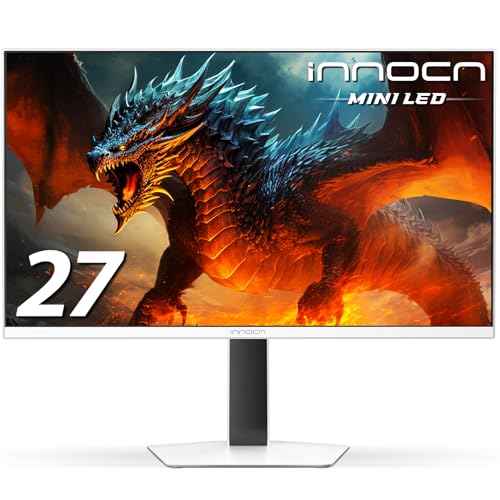
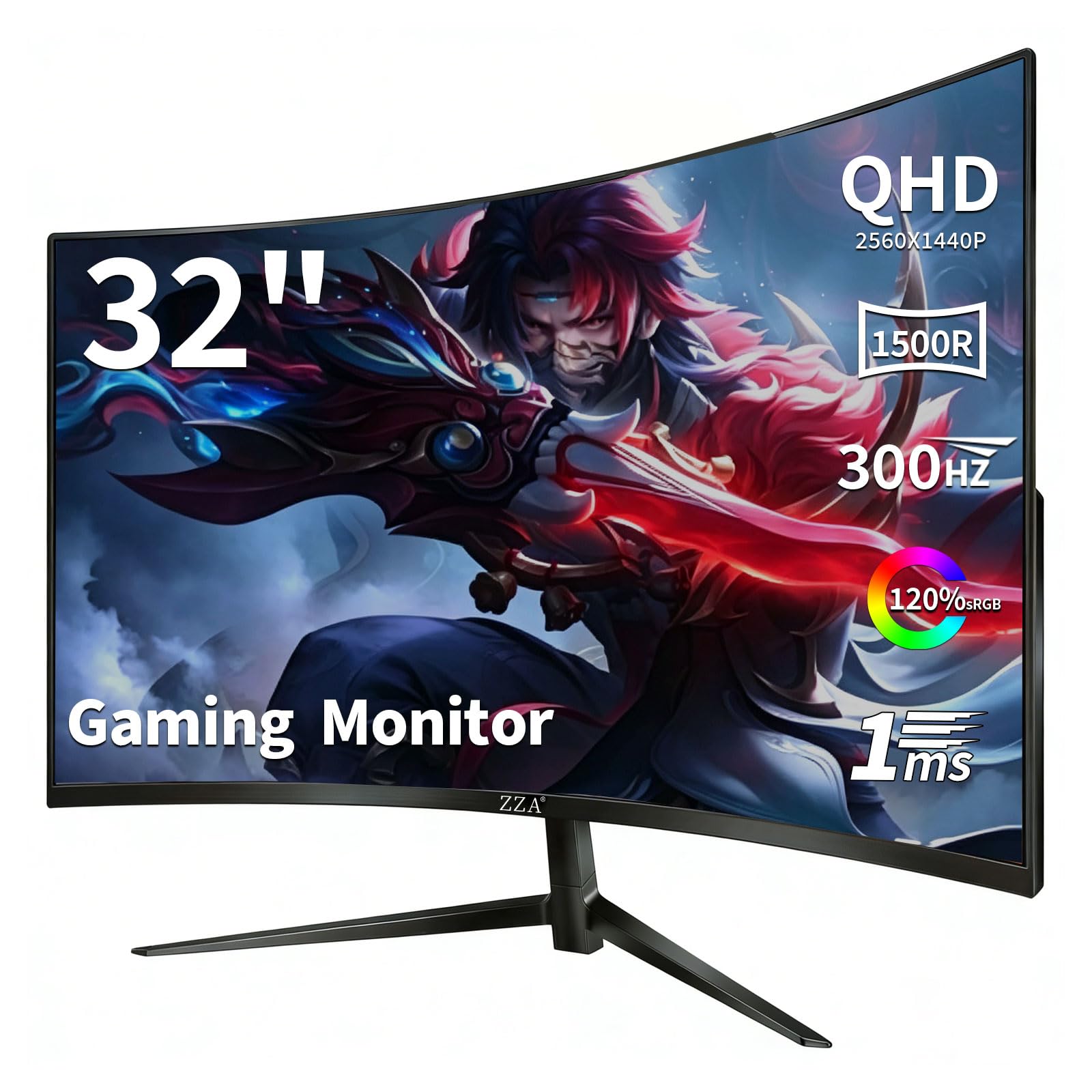
Types of 2k Monitors Compared
Every model here uses a resolution of 2560 by 1440 pixels, yet screen shape and panel type change how that resolution feels. Start with the type that fits your day.
Productivity and Ultrawide Displays
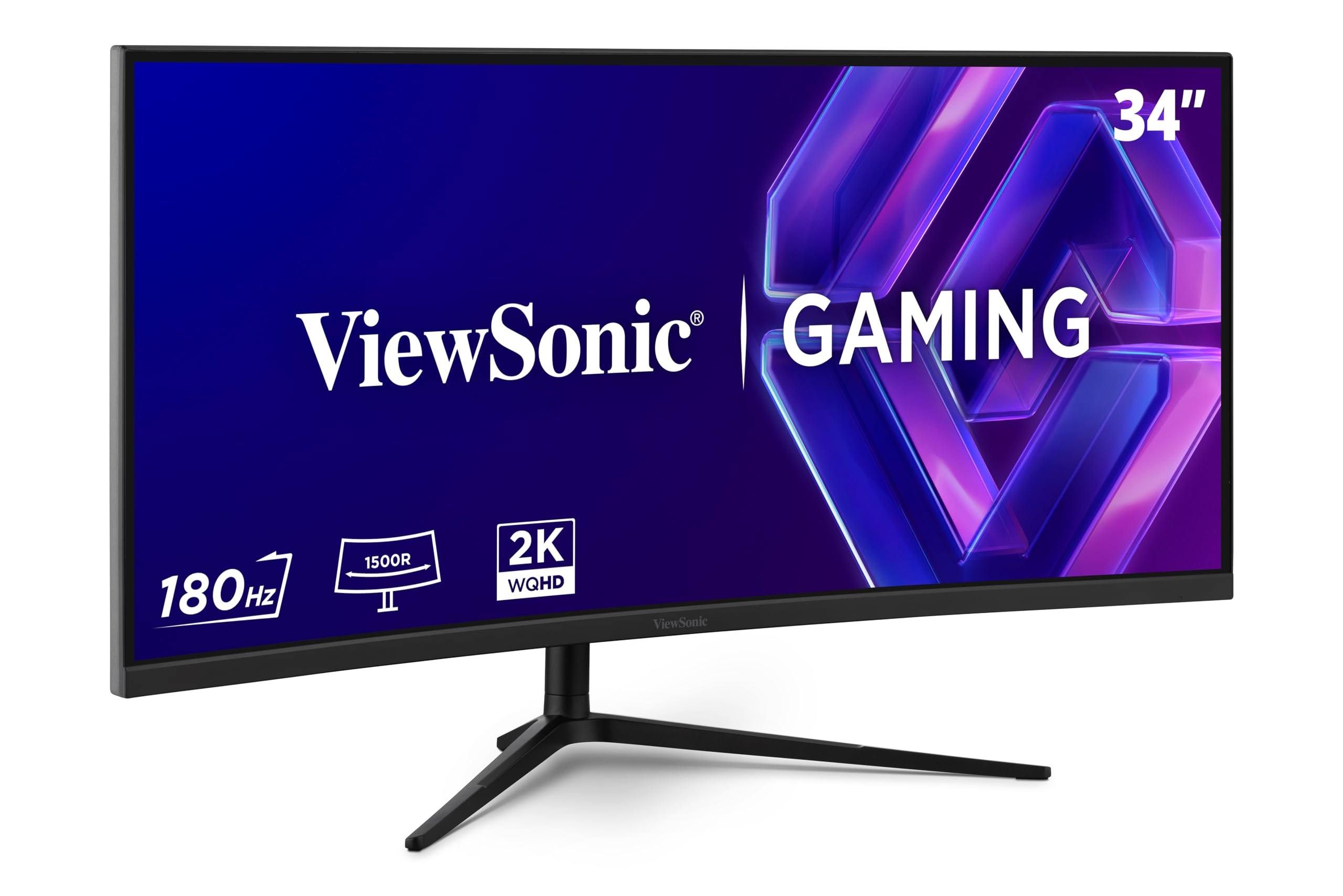
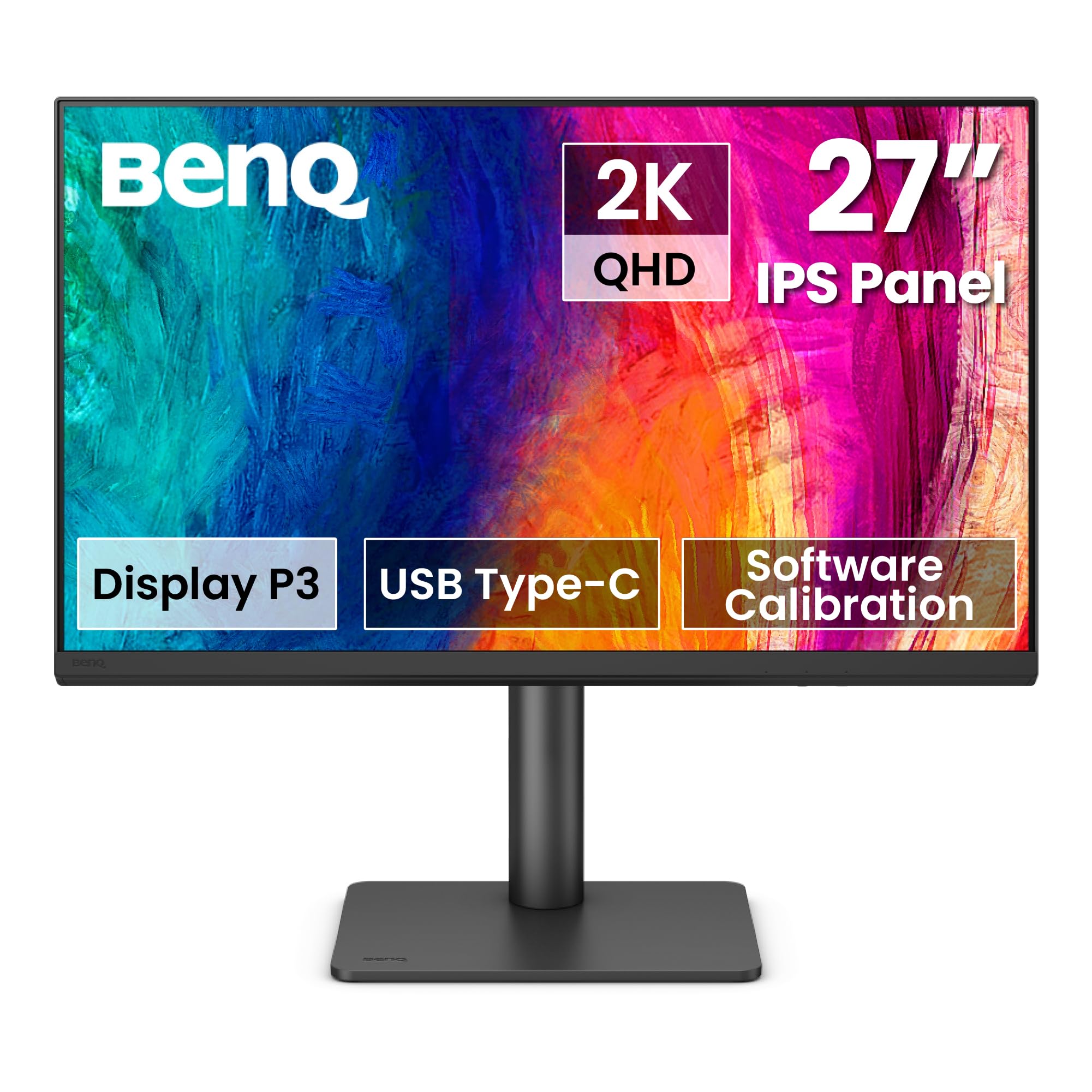
A standard 27 inch screen suits documents, spreadsheets, browsing and video calls, with text large enough to read at 100 percent scaling for most people. An ultrawide model stretches to 34 inches with 3440 by 1440 pixels, so two windows can sit side by side without a second screen. That width needs a deeper desk, and some apps still leave black bars at the edges. For desk focused options, see our guide to the best pc monitors under 300.
Gaming Displays
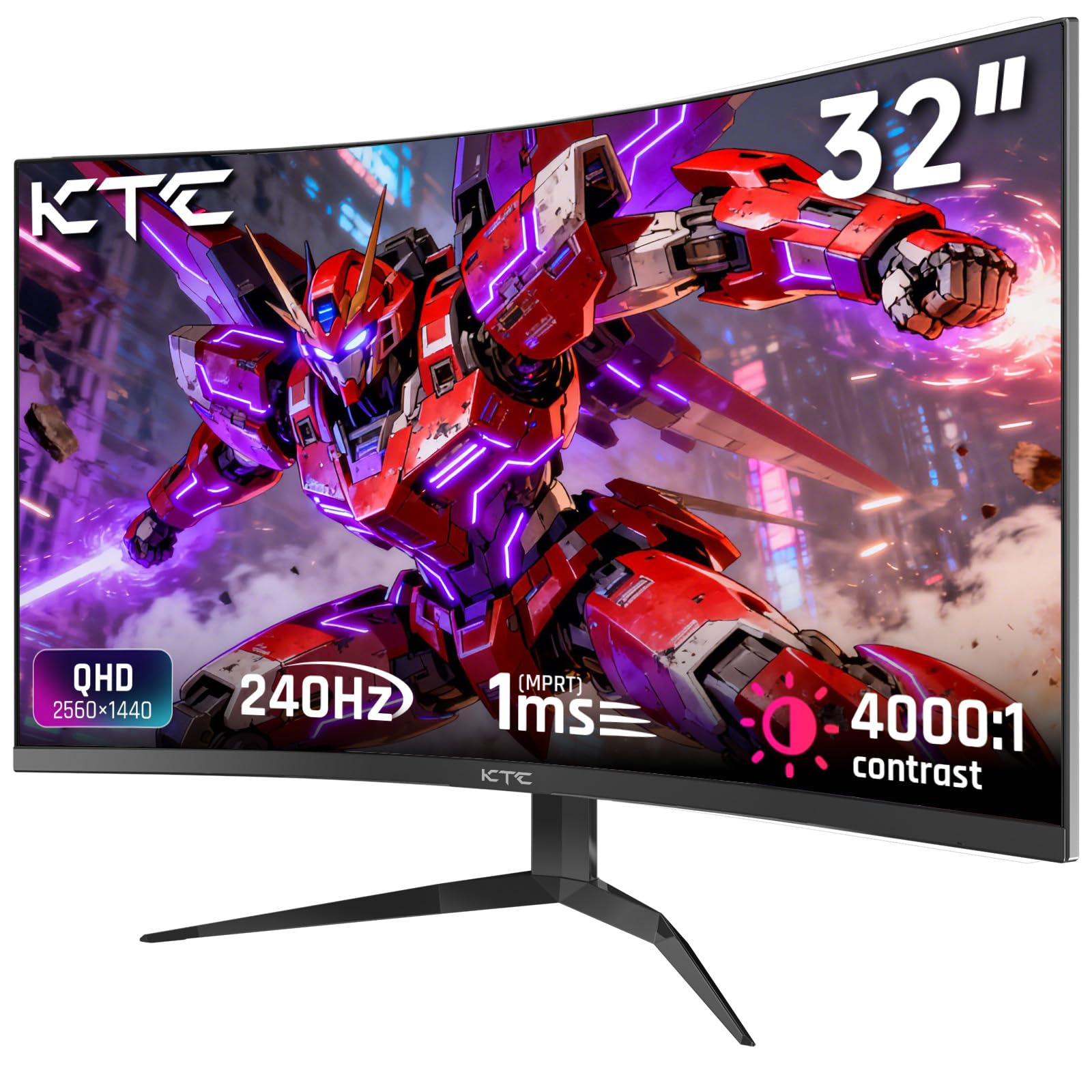
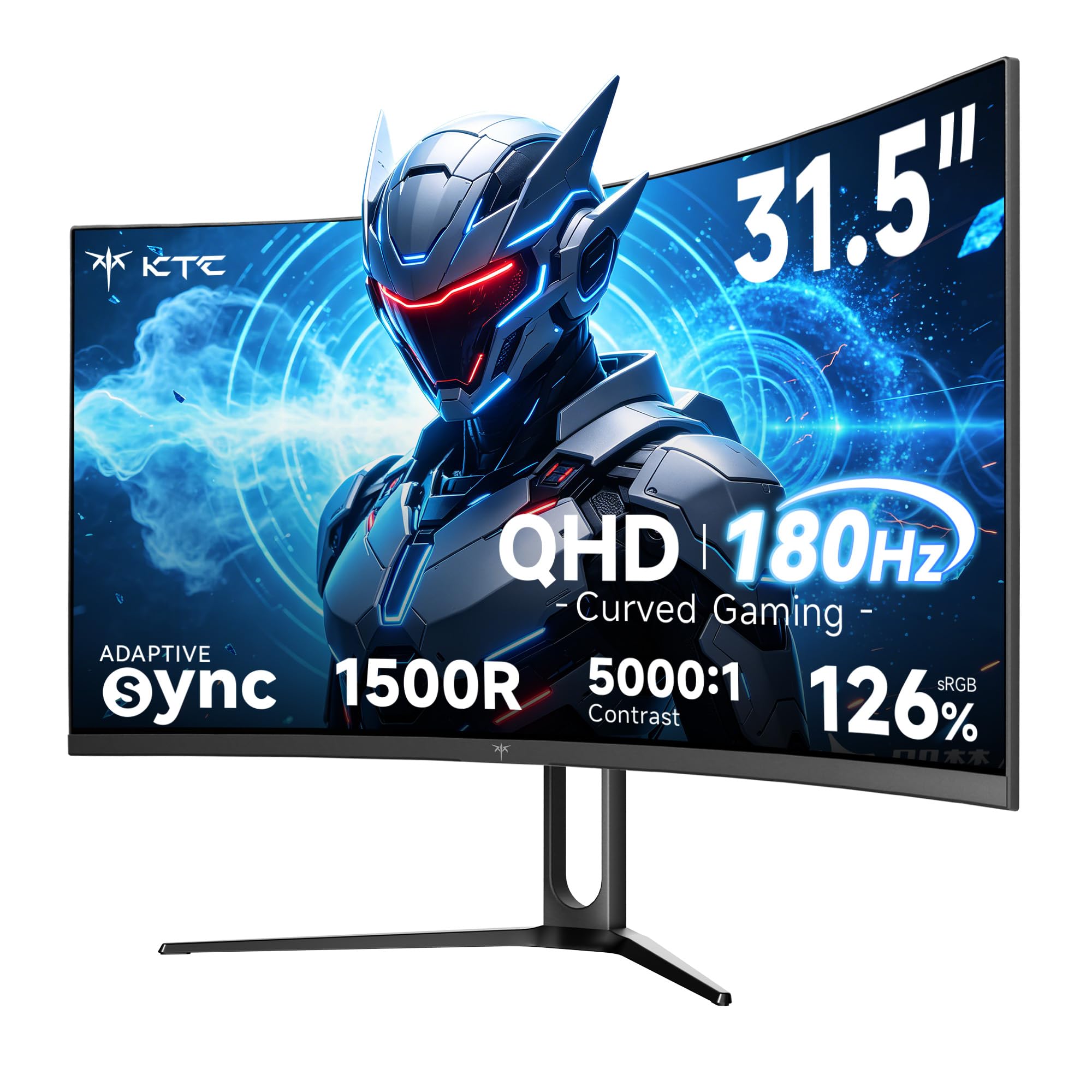
A gaming display pairs the same 1440p resolution with a high refresh rate, fast response and adaptive sync, so motion looks smoother and tearing drops when frame rates rise and fall. Most models at this budget are 27 inches, flat or gently curved, with VA or IPS panels. You give up some color accuracy and often get a plainer stand than an office model offers. Regular players gain the most from this type, and our guide to the best gaming monitors under 300 covers speed focused choices.
OLED Options and Their Trade Offs Under $300
An OLED display lights each pixel on its own, so black areas stay truly black and contrast looks far deeper than on IPS or VA panels. Colors look rich and response feels almost instant, which suits films and dark game scenes. At under $300 this type is rare, and most OLED screens cost well above this budget, so a very low price should prompt careful checks of size, warranty and return terms.
Productivity Displays Versus Gaming Displays: Which Should You Choose?
A productivity screen favors accurate color, wide viewing angles, an adjustable stand and often USB C input for a laptop. A gaming screen favors refresh rate, response and adaptive sync, and it may use a curved VA panel with deeper contrast but weaker color at an angle.
Choose the productivity type if your screen time is mostly text, spreadsheets and calls, because comfort and clarity matter more than speed there. Choose the gaming type if you play fast games several times a week, because a slow panel will hold back a capable graphics card. Mixed users often pick a fast IPS model.
How to Choose the Right 2k Monitor
Work through the factors below in order, and check each one against the product table above. For a wider view of this budget first, see our guide to the best monitors under 300 across screen types.
Panel Technology and Color
IPS panels give the widest viewing angles and the most consistent color, so they suit shared screens, photo work and office use. VA panels give deeper contrast, often about three times that of IPS, so films and dark scenes look richer, but color can shift from the side and dark motion can smear. Look for coverage of at least 99 percent of the sRGB space for everyday color work. Wider DCI P3 coverage helps video editing, but it is less common at this price.
Speed Numbers to Check on a Budget 2K Screen
Refresh rate counts how often the screen redraws each second, shown in hertz. Office work feels fine at 60 to 75 Hz, while gaming models here commonly offer about 144 to 180 Hz, which makes scrolling and fast camera moves look smoother. Response time describes how fast pixels change color, and makers quote about 1 to 5 ms for gaming models. Treat those figures as best case claims, and value adaptive sync more, because it keeps motion clean when your frame rate varies.
Screen Size, Sharpness and Desk Space
At 27 inches, 2560 by 1440 pixels give about 109 pixels per inch, so text looks crisp at a normal desk distance of about 24 to 30 inches. A 32 inch screen with the same resolution spreads those pixels wider, so text looks larger but less sharp, which suits viewers who sit farther back. Measure your desk depth before you buy, and leave room for the stand feet plus your keyboard.
Ports and Adaptive Sync Compatibility
Most models offer HDMI and DisplayPort inputs, and DisplayPort is usually the safer choice for the highest refresh rate at 1440p on a PC. HDMI suits consoles and laptops, but check the port version, because older HDMI ports can limit refresh rate at this resolution. USB C input with power delivery lets one cable carry picture and charge a laptop, yet it is a bonus at this price rather than a given. Confirm adaptive sync works with your graphics card.
Stand Adjustment and Desk Comfort on a $300 2K Monitor
A good stand adjusts for height and tilt, so the top of the screen sits at or just below eye level and you can keep a neutral neck posture. Many budget models only tilt, and some fix the height entirely, which can force you to stack books under the screen. Check for a VESA mount pattern, most often 100 by 100 mm, so you can fit a monitor arm later and free desk space.
What You Can Realistically Get Under $300
This budget buys a solid 27 inch IPS or VA screen with 1440p resolution, a refresh rate of at least 100 Hz on many models, basic HDR support and a simple stand. It rarely buys OLED panels, wide color coverage, USB C charging and a fully adjustable stand in one model. The best 2k monitors under 300 spend the money on the panel itself, so skip weak built in speakers and extra picture modes.
Common Mistakes to Avoid
- Buying a 32 inch screen for a shallow desk puts the picture too close and forces constant head turning.
- Chasing the highest refresh rate on a weak graphics card leaves frames undelivered and money wasted.
- Ignoring the port version can cap your refresh rate well below the figure on the box.
- Trusting a basic HDR label alone leads to washed out highlights, because budget panels lack the brightness HDR needs.
- Skipping the VESA pattern check can block a monitor arm you planned to add later.
- Paying for an ultrawide screen without desk depth leaves no comfortable room for keyboard and mouse.
Care and Tips to Get the Most From Your 2k Monitor
Set the picture preset to a standard or sRGB mode rather than the vivid mode many screens ship with, because vivid settings push color and brightness past accurate levels. Lower brightness to match your room, roughly the brightness of paper under your lights, to reduce eye fatigue. Turn the screen off when you step away, which also protects OLED panels.
Clean the screen only with a soft microfiber cloth, lightly dampened with water if marks remain, and never spray liquid straight onto the panel. On an OLED model, run the built in pixel refresh cycle when prompted. Check cables once in a while, because a loose DisplayPort plug is a common cause of flicker.
Frequently Asked Questions
Can You Get a Good 2k Monitor for Under $300?
Yes, you can get a good 2k monitor for under $300 for work, study and casual gaming. Expect a 27 inch IPS or VA panel and a simple stand rather than premium extras. Panel glow and backlight bleed vary between units of the same model, so buy where returns are easy if bright corners show in a dark room.
What Size 2k Monitor Should You Get for Your Desk?
Most desks suit a 27 inch 2k monitor best. It fills your view without forcing you to turn your head, and it leaves space for speakers or a laptop beside it. If your desk is under about 24 inches deep, a monitor arm can add viewing distance.
Does Refresh Rate Matter for Non Gamers Using a 2k Monitor?
Refresh rate matters less for non gamers, but a step from 60 Hz to 100 Hz still makes scrolling documents and moving windows feel smoother. It does not change text clarity or color quality. Office users on a tight budget gain more from a better stand than from refresh rate above 100 Hz.
Is IPS or OLED Better for a 2k Monitor Under $300?
IPS is the better buy for most people at this price, because full OLED models rarely fall under $300 and IPS handles bright rooms and static text well. OLED wins on contrast when the price is real and the warranty is sound. For a shared screen that shows taskbars all day, IPS also avoids burn in worries entirely.
How Long Does a 2k Monitor Usually Last?
A 2k monitor usually lasts about five to eight years of daily use. The backlight slowly dims, so a screen that once felt bright may need a higher setting in later years. Keeping brightness moderate and vents clear of dust slows that decline.
Is 4K Worth Choosing Over a 2k Monitor Under $300?
For most buyers, 4K is not worth choosing over 2k at this budget. A 4K screen under $300 usually means a slower refresh rate or a weaker stand, and games need far more graphics power at 4K to stay smooth. Pick 4K only if you edit 4K video.
Our Verdict
Start with the type, then judge the panel, the stand and the ports, in that order. A 27 inch IPS screen with an adjustable stand suits most desks, a fast VA or IPS model suits regular players, and OLED belongs on a short list only when price and warranty check out. Use the product table above to confirm size, refresh rate and inputs.
When you compare best 2k monitors under 300 with those checks in mind, the right model fits your main task and your desk, not the longest feature list.