Best 24 Inch Monitors for MacBook Pro: A First Time Buyer Guide for 2026
Disclosure: We may earn a commission when you buy through links on this page, at no extra cost to you. As an Amazon Associate I earn from qualifying purchases. Learn more
Plain help for choosing the best 24 inch monitors for MacBook Pro: scaling, USB C power, color, brightness and desk fit.
Buying your first external screen can feel confusing, because the box lists numbers that rarely explain what you will see at your desk. This guide walks you through the best 24 inch monitors for macbook pro in plain language, starting with how macOS handles size and sharpness.
A 24 inch monitor suits a MacBook Pro when desk space is tight but the laptop screen alone feels cramped for documents and calls. Use the product table to line up resolution, connection type and charging power. Those three points decide most of the ownership experience.

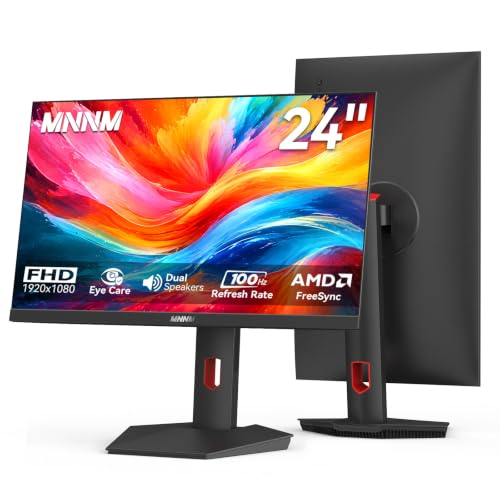
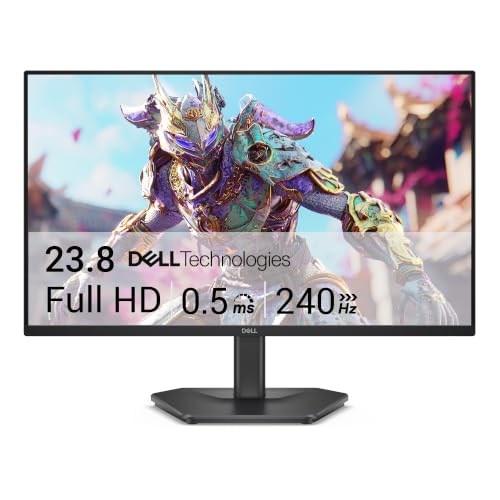
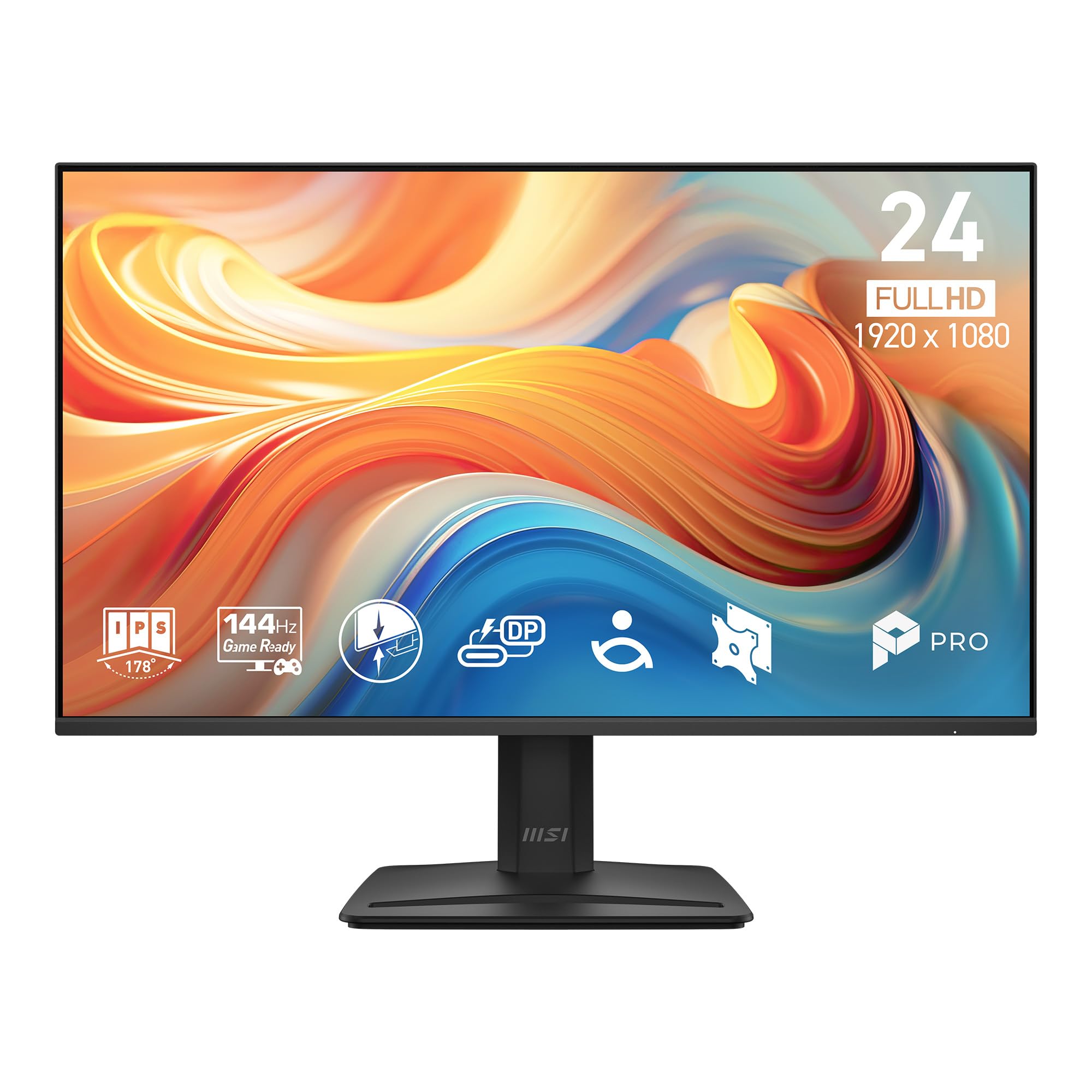
Who Should Buy a 24 Inch Monitor for a MacBook Pro?
MacBook Pro Owners Working at a Small Desk
You work at a narrow desk, and a larger screen would crowd your laptop and notebook. A 24 inch panel adds a second window for notes beside your main document while leaving room to move. Choose a small footprint stand, or a VESA mount for a shallow desk.
Students and Creators Who Care About Color
You edit photos, design graphics or cut short videos, and colors on a cheap screen shift between the monitor and your phone. Wide color coverage and a matte finish help you judge tone with more confidence. You sit close at this size, so the whole image stays in view.
Home Office Workers Who Want One Cable on the Desk
You move your MacBook Pro between rooms, and plugging in three cables every morning wastes time. A USB C monitor can carry the picture, charge the laptop and connect a keyboard through its hub with one lead. Treat connection and charging as your top priority.
24 Inch Monitors 101: The Basics for MacBook Pro Users
Monitor size is measured across the diagonal, so a 24 inch class screen often shows 23.8 inches of viewable area. The panel only displays the picture your MacBook Pro sends it. It has no processor, storage or keyboard of its own, which is why laptop specs in some guides do not help you choose one. Scaling, charging and color set the best 24 inch monitors for macbook pro apart from a generic office screen.
When you connect the screen, macOS can extend your desktop across both displays or mirror the same image on each one. Most people extend, placing a reference document on one screen and main work on the other.
Key Features to Compare
Resolution and macOS Scaling on a 24 Inch Screen
Resolution is the number of pixels in the picture, and at 24 inches it decides how crisp text looks at a normal sitting distance. A 1920 by 1080 screen is the budget baseline, yet text can look soft because macOS renders most cleanly at higher pixel density. A 2560 by 1440 screen is sharper, while a 3840 by 2160 screen gives the smoothest letters and lets macOS scale the interface comfortably. Fund resolution first if you read all day.
USB C Connection and Charging Power for a MacBook Pro
Most current MacBook Pro models send picture and sound through a USB C port, so a monitor with a USB C input connects with one cable and no adapter. Check the charging power the monitor sends back, listed in watts, because a low figure may only slow the drain during heavy work. Look for about 65 watts or more for steady charging under a typical office load.
Color Coverage, Brightness and Panel Type
Color coverage tells you how much of a standard color space the panel can show, and full sRGB coverage is the baseline for office work. Coverage of the DCI P3 space, which Apple devices use, helps photos look closer to what you see on the laptop screen. Brightness around 300 to 400 nits suits most indoor rooms, and a matte surface cuts window reflections. IPS panels hold color steady from slight angles.
Refresh Rate and Motion Clarity for Everyday Use
Refresh rate is how many times per second the picture updates, measured in hertz, and 60 hertz is standard for office and study work. A higher rate, such as 100 hertz or above, makes scrolling and pointer movement look smoother. Put resolution and connection ahead of refresh rate, and add a higher rate only when the basics are covered.
Stand Adjustment, VESA Mounts and Desk Fit
A stand that tilts only is common at lower prices, while height adjustment lets you place the top of the screen near eye level so your neck stays neutral. Check the stand footprint against your desk depth, because a deep base crowds your keyboard. A 100 by 100 mm VESA pattern lets you fit a separate arm later and free desk space.
Built In Hub Ports, Speakers and Extra Inputs
Some USB C monitors add USB A ports, turning the screen into a small hub for a keyboard receiver, a webcam or a backup drive that stays plugged in when the laptop leaves. HDMI and DisplayPort inputs help if a second computer shares the desk. Built in speakers suit calls and short clips, though not music. Pay for hub ports only when you truly leave several devices connected.
Matching a 24 Inch Monitor to Your MacBook Pro: Setup and First Checks
Setup takes a few minutes, and a calm order prevents most first day problems.
- Place the monitor on its stand, connect power, and plug the USB C cable into the monitor and your MacBook Pro.
- Open display settings, choose to extend the desktop, and drag the screen icons to match your desk.
- Pick a scaled resolution that makes text easy to read, then use it for a full day before judging it.
- Set brightness so a white page looks close to a sheet of paper under your room light.
- Plug a keyboard receiver or webcam into the monitor hub, if it has one, and confirm each works after sleep.
If the picture does not appear, reseat both cable ends and try the other USB C port before changing settings at random. Readers comparing sizes may want to see our guide to the best 27 inch monitors for macbook pro, because larger screens change scaling advice. See also our guide to the best monitors for macbook pro.
Common Mistakes to Avoid
- Buying a 1080p panel for all day text work, so letters look soft and you lean in to read.
- Assuming every USB C cable carries video, so the monitor stays black while the laptop charges.
- Ignoring charging wattage, so the battery drains during long calls.
- Choosing by size alone, so a deep stand crowds a shallow desk and hurts your posture.
- Skipping the VESA pattern check, so the monitor cannot fit the arm you planned to buy.
- Judging color under harsh room lighting, so you blame the screen for your room.
Care and Maintenance of a 24 Inch Monitor
Dust the screen with a dry microfiber cloth, using light strokes and no pressure on the panel. For marks, dampen the cloth with a little water, wipe gently and dry at once, keeping liquid away from edges and ports. Never spray cleaner straight onto the screen, because fluid can run behind the frame. Keep rear vents clear, since blocked airflow lets heat build up.
Once a month, check that cable ends sit firmly and stand screws feel snug. Lower brightness in a dim room, which is kinder to your eyes and the backlight. For a fixed desk later, see our guide to the best desktop monitors for macbook pro. If your screen also pairs with a Windows machine, compare notes in our guide to the best 24 inch pc monitors.
Frequently Asked Questions
What resolution should a 24 inch monitor for a MacBook Pro have?
A 3840 by 2160 resolution gives the crispest text at this size, because macOS can scale the interface while keeping letters smooth. A 2560 by 1440 screen is a sound middle choice if your budget is firm. One new point is viewing distance: past about 30 inches, the gap between the two narrows in daily use.
Can a 24 inch USB C monitor charge a MacBook Pro while it shows the picture?
Yes, a USB C monitor with power delivery can charge a MacBook Pro and carry the picture on the same cable. Check the wattage in the specs rather than trusting the port shape, because ports that look alike can deliver very different power. Match the wattage of the adapter that came with your laptop.
Why does text look small or blurry on a 24 inch monitor connected to a MacBook Pro?
Text looks small when the screen runs at full native resolution with no scaling, and blurry when a low density panel cannot render fine edges. Open display settings and pick a scaled option with larger text, then give your eyes a day to settle. Viewing straight on also helps, since sharpness falls off at an angle on some panels.
Is a 24 inch monitor big enough as the only external screen for a MacBook Pro?
Yes, a 24 inch monitor is big enough for most single screen desks, especially when space is limited and you sit within arm length. It holds a document and a reference window side by side at readable sizes. The honest limit is heavy multitasking: with four or more windows visible, you will shuffle them often. Use the laptop screen as a second display rather than closing the lid.
How long should a 24 inch monitor for a MacBook Pro last?
A 24 inch monitor should last about five to seven years of regular use, because panels and backlights age slowly when brightness stays moderate. The connection standard is the part most likely to feel dated first. Keep the cable and adapters in one labeled bag, since a lost lead is a common reason a working screen sits unused.
Our Verdict
For a first purchase, keep it simple: pick the sharpest resolution your budget allows, confirm USB C charging of about 65 watts or more, and check that the stand fits your desk. Color coverage comes next for photo work, while hub ports and refresh rates are extras. Chosen that way, the best 24 inch monitors for macbook pro give your laptop a larger workspace on a small desk. Compare finalists in the product table.