Best 24 Inch Monitors for Dual Setup Made Simple: A Clear 2026 Buying Guide
Disclosure: We may earn a commission when you buy through links on this page, at no extra cost to you. As an Amazon Associate I earn from qualifying purchases. Learn more

Shopping for the best 24 inch monitors for dual setup for the first time? Learn the terms, compare options, and avoid rookie mistakes with this easy guide.
Buying two screens at once can feel like a big step, but the best 24 inch monitors for dual setup shoppers choose are rarely the flashiest models. They are simply two matching displays that fit your desk, connect to your computer easily, and look consistent side by side. This guide explains the basics in plain language.
Start with how you work, then check panel type, resolution, stands and ports. You will find good starting points in the product table, and the sections that follow turn the key points into a practical checklist.
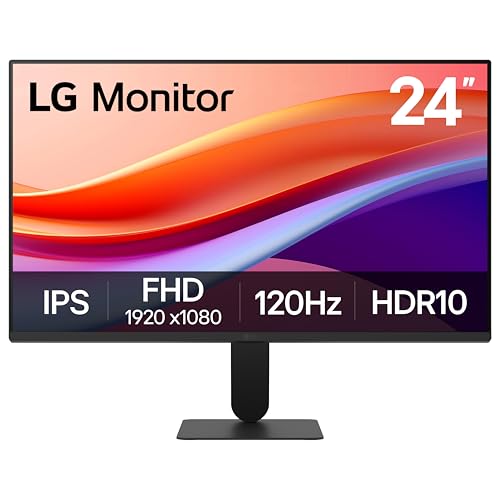
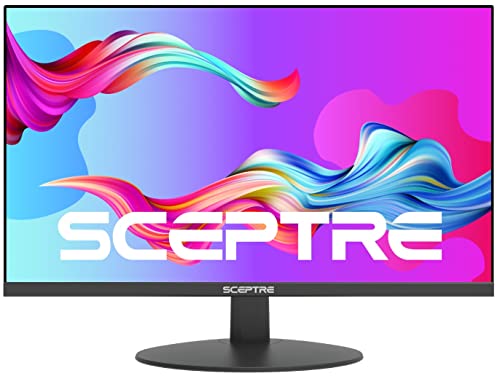
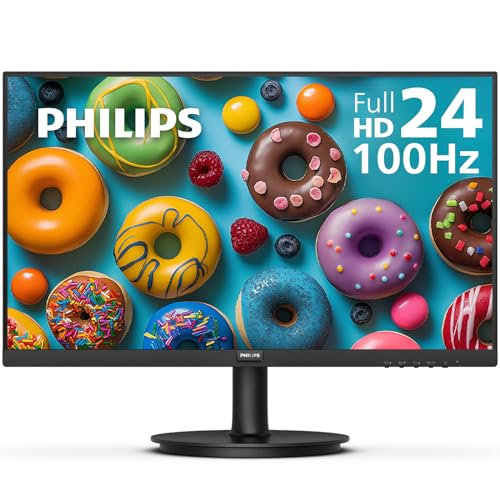



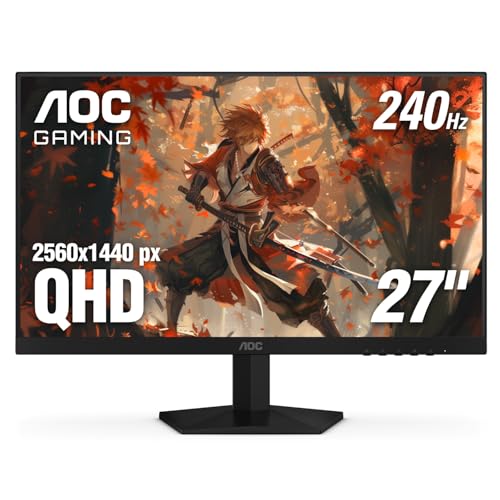
Who Should Buy Two 24 Inch Monitors?
A dual setup suits people who keep several windows open all day and lose time switching between them.
Home office workers juggling documents, calls and chat
Keep a document or spreadsheet on one screen and email, chat and video calls on the other, so nothing hides behind anything else. Look for an IPS panel, height adjustment and a matte finish that cuts reflections. Clear text and even brightness matter more for long workdays than built in speakers.
Students and new desk builders watching total cost
Two 24 inch displays often cost less than one very large display. Keep notes or a lecture on the second screen while you write on the main one. Choose 1080p to keep the price down, and budget for two cables.
Gamers and creators who use a companion screen
Your game or editing timeline can fill the main display while guides, chat and tool panels stay visible on the second one. You may want a faster main screen, but the pair should share a similar height and bezel style, so your eyes do not readjust each time you glance across.
Best 24 Inch Monitors for Dual Setup: Basics for First Time Buyers
A 24 inch monitor is measured diagonally, and most models in this class are about 21 inches wide. Two span roughly 42 to 44 inches, which fits many home desks. When you shop for the best 24 inch monitors for dual setup use, think of the pair as one wide workspace split down the middle, with a small gap where the bezels meet.
That split is the main advantage. Snap one app to each screen and keep a reference open while you work. Your computer can extend your desktop across both displays or mirror the same image, and extended mode is what most buyers want.
Key Features to Compare
Compare the pair as a set, not as two separate bargains. Small differences in color or brightness become obvious once the screens sit inches apart.
Matched Pair Features That Matter for a Dual Setup
Buy two of the same model whenever you can, because matching panels are far more likely to share the same color tone, brightness range and control layout. Thin bezels reduce the dark band in the middle of your workspace, which helps when a wide spreadsheet crosses both screens. Look for brightness of about 250 to 300 nits for indoor use.
Panel Technology: IPS, VA and OLED in Plain English
IPS panels give wide viewing angles and steady color, which suits two screens angled toward you and is a safe first choice for work. VA panels offer deeper contrast for movies, though color can shift from the side. OLED panels deliver the strongest contrast, but they cost far more for a pair and carry a risk of burn in from static images. Most first time buyers get the best balance from IPS.
Resolution and Screen Size for Two 24 Inch Displays
Resolution is the number of pixels, and 1080p is the common choice at this size, giving crisp text at a desk distance of about 24 to 30 inches. A 1440p pair shows more detail and fits more content, but it needs a stronger graphics output and costs more. A 4K pair is very sharp up close, yet the extra detail is hard to notice at this size. Match resolution on both screens so windows stay the same size as you drag them across.
Speed Needs When Only the Main Screen Games
Refresh rate, measured in Hz, is how often the picture updates each second, and 60 to 75 Hz is enough for office work, study and video. Gamers often prefer 144 Hz or higher on the main screen for smoother motion. Response time describes how quickly pixels change, and lower numbers reduce blur. Adaptive sync matches the display to your graphics card to reduce tearing, so pick the version, FreeSync or G Sync, that matches your graphics hardware.
Stand, Mounting and Ergonomics for Two Screens
Each monitor needs height and tilt adjustment so the top of both screens sits near eye level and the pair lines up evenly. A VESA mount pattern, often 100 by 100 mm at this size, lets you attach both displays to a dual arm and free up desk space. Before buying an arm, confirm it is rated for the weight of both monitors combined. If neck or eye discomfort persists, adjust your chair and viewing distance, and talk with a clinician about personal needs.
Connectivity and Ports for a Clean Dual Setup
Your computer needs two working video outputs, so count its HDMI and DisplayPort sockets before you order. DisplayPort often supports higher refresh rates, while HDMI is the most common socket on laptops and consoles. USB C with video support can carry picture and data on one cable from many laptops. If your laptop has only one output, you may need a dock with two display outputs. Our guide to the best setup for dual monitors covers those choices in more detail.
Getting Started: Setup and First Use for Two Monitors
Clear the desk and measure it, then fit the stands on a soft surface. Place the screens side by side, angled slightly toward you, connect power and one video cable per screen, and start the computer. In display settings, select extended mode, arrange the screen icons to match your desk, and set both to native resolution.
Next, open the menu on each monitor and choose a standard or sRGB picture mode rather than a vivid mode, which pushes color too far. Set both screens to the same brightness, then fine tune with the same white document open on each. For more layout options, see our guide to the best monitors for dual screen setup.
Common Mistakes to Avoid
- Buying two different models to save money, because mismatched color and brightness will distract you every day.
- Ordering before measuring your desk, because two stands can crowd out your keyboard and papers.
- Forgetting to count video outputs, because a second monitor with no free port cannot be used.
- Choosing 4K on both screens without checking your graphics output, because weak hardware may limit refresh rate.
- Leaving both monitors in vivid mode, because oversaturated color makes the pair look mismatched.
- Mounting both screens without checking the arm weight rating, because an overloaded arm can sag or tip.
Care and Maintenance for 24 Inch Monitors
Switch both monitors off before cleaning, and wipe the screens gently with a dry microfiber cloth, using a cloth barely dampened with water only if marks remain. Never spray liquid directly onto a screen, because moisture can seep behind the edges. Dust the vents so heat can escape, and keep cables loose. Once a month, check that brightness still matches. Our guide to the best 24 inch pc monitors has more general care points.
24 Inch Monitors: Your Questions Answered
What features matter most when buying two 24 inch monitors at the same time?
Matching panels, thin bezels and height adjustable stands matter most, because the pair must look and sit like one workspace. One point buyers often miss is timing: order both units together rather than months apart, since later batches of the same model can differ slightly in color tone. Buying together also keeps the return window the same for both screens.
Does refresh rate matter for 24 inch monitors used mainly for office work?
Only a little, because 60 to 75 Hz already handles documents, browsing and video calls well. A higher rate does make scrolling text and moving the pointer feel smoother, which some people notice during long reading sessions. If your budget is tight, spend on better stands instead of speed you will rarely use.
Should a first time buyer choose IPS or OLED for a dual monitor setup?
Choose IPS for most dual setups, because it costs far less for two screens and handles static windows without worry. OLED looks superb for video, but a pair doubles the price, and elements that rarely move, such as taskbars and tool palettes, stay lit in one place for hours. That pattern raises burn in concerns over time.
Is 4K resolution worth it on a 24 inch monitor in a dual setup?
Rarely, because at 24 inches the jump from 1440p to 4K is subtle at a normal sitting distance. A point the main sections did not cover is scaling: your system will likely enlarge text and icons on a 4K screen so they stay readable, which cancels much of the extra space you hoped to gain.
How long do 24 inch monitors in a dual setup usually last?
Most quality monitors last about five to eight years of daily use before backlight wear becomes noticeable. In a pair, the screen used for brighter content may age a touch faster, so rotating which side shows video can even things out. Keep brightness below the maximum, since full brightness all day shortens backlight life.
What desk size do 24 inch monitors need for a comfortable dual setup?
A desk about 48 to 55 inches wide and 24 to 30 inches deep gives two screens, a keyboard and papers room without crowding. Measure the corners too if your desk sits against a wall, because stands extend backward more than screen width suggests. Leave spare inches behind the desk for cables.
Our Verdict
For a first dual purchase, keep it simple: two matching IPS monitors at 1080p or 1440p, with height adjustable stands, thin bezels and the ports your computer offers. That covers office work, study and casual gaming without overspending, and our guide to the best computer monitors for dual setup explores alternatives. Compare the best 24 inch monitors for dual setup in the product table above and order the pair that fits your desk.