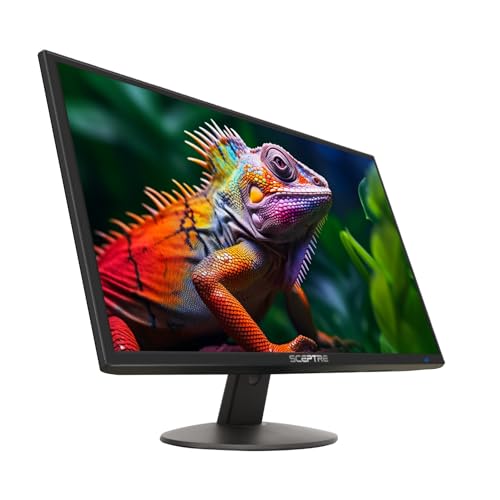
Best 4K Gaming Monitors Under 300 Made Simple: A Clear Buying Guide for 2026
Disclosure: We may earn a commission when you buy through links on this page, at no extra cost to you. As an Amazon Associate I earn from qualifying purchases. Learn more

Shopping for the best 4k gaming monitors under 300 for the first time? Learn the terms, compare options, and avoid rookie mistakes with this easy guide.
Buying your first 4K display can feel confusing, because spec sheets mix helpful numbers with marketing. The best 4k gaming monitors under 300 are not the fastest or brightest monitors you can buy, but the right one can still look sharp and play smoothly. This guide starts with the basics, then walks through each choice.
Your budget sets the rules here. Under $300, you trade some speed and brightness for that detailed 4K picture, so spend on the parts you will notice every day. Use the product table below to match each model against the points that follow.


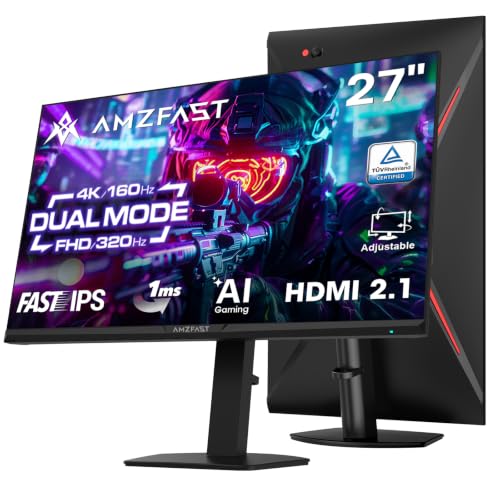
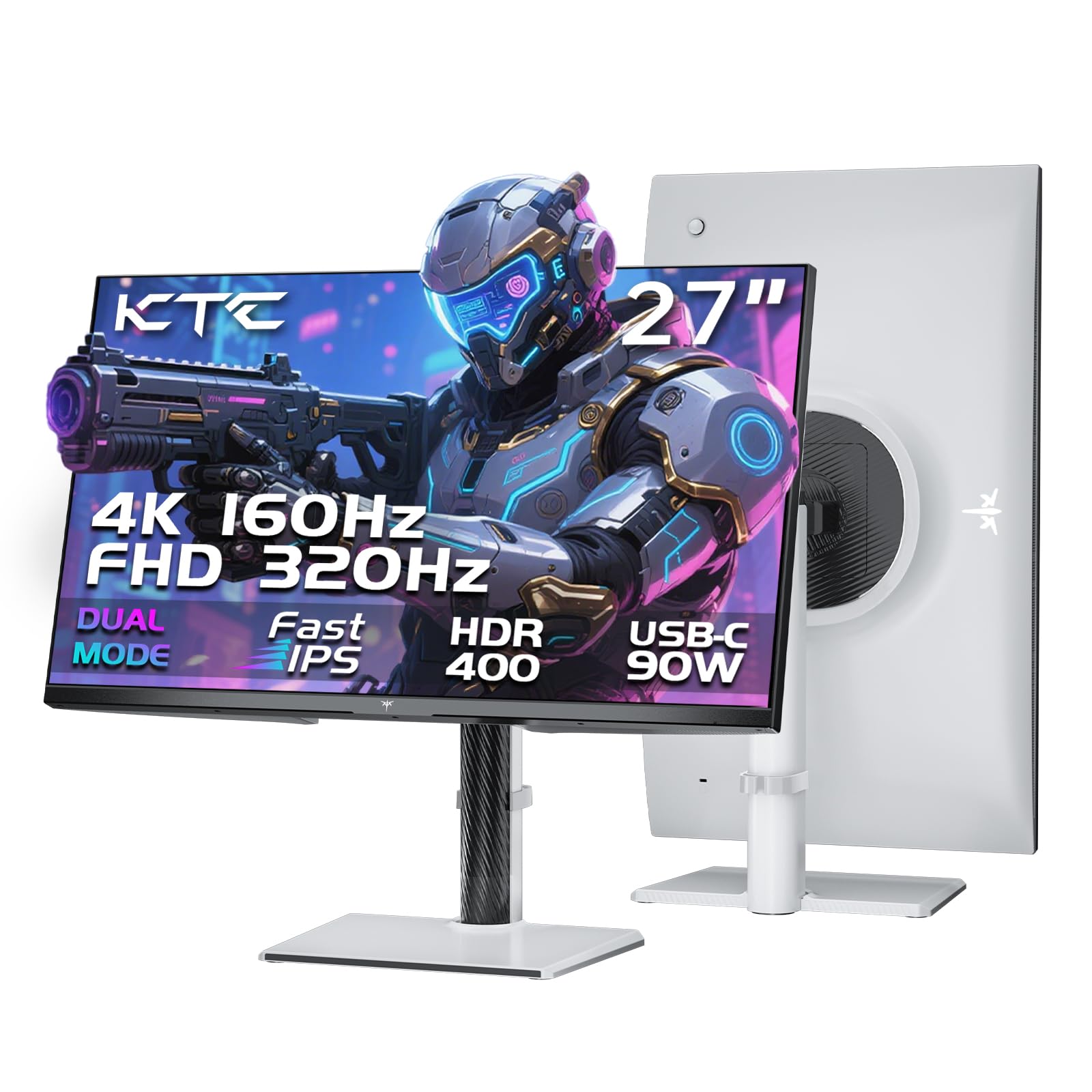
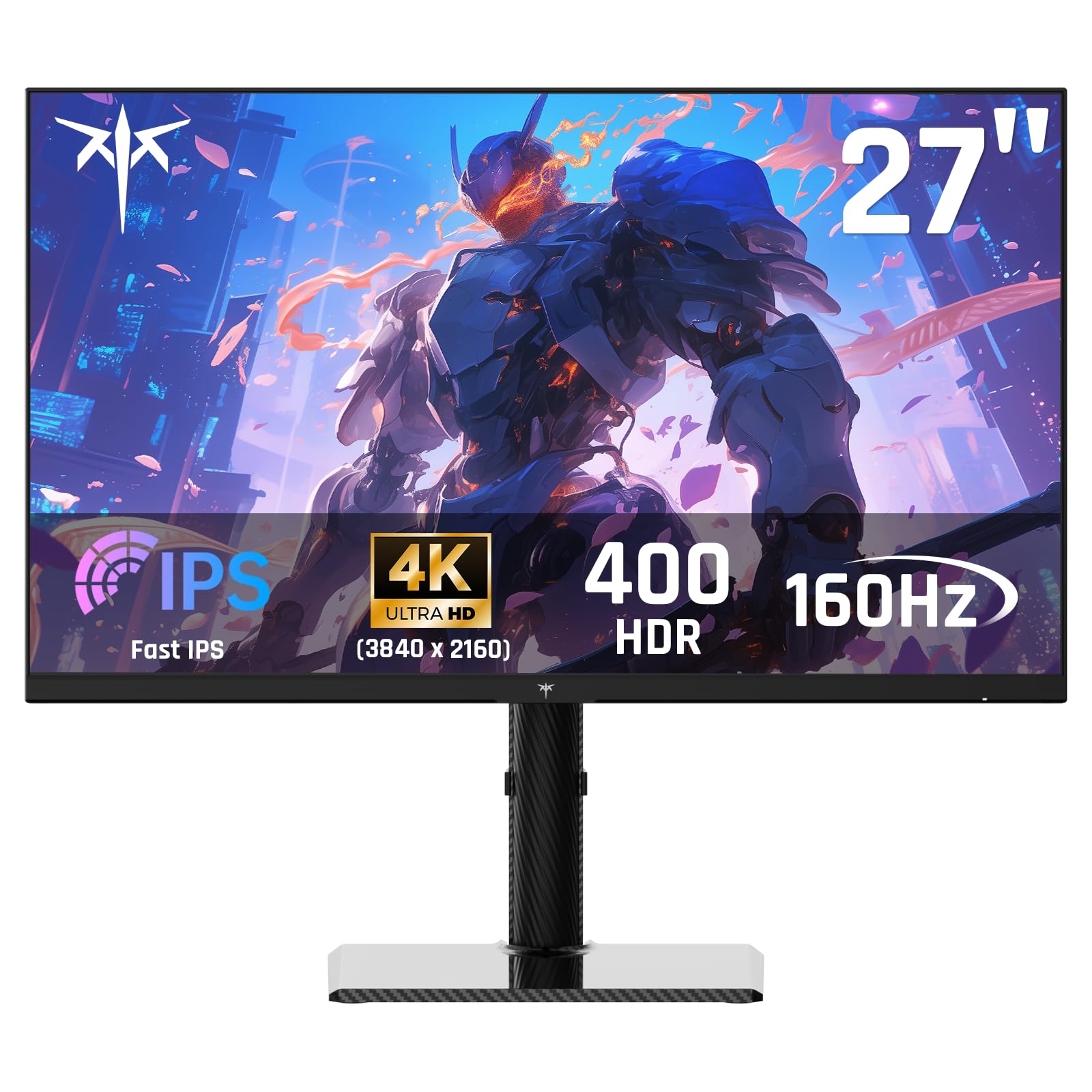
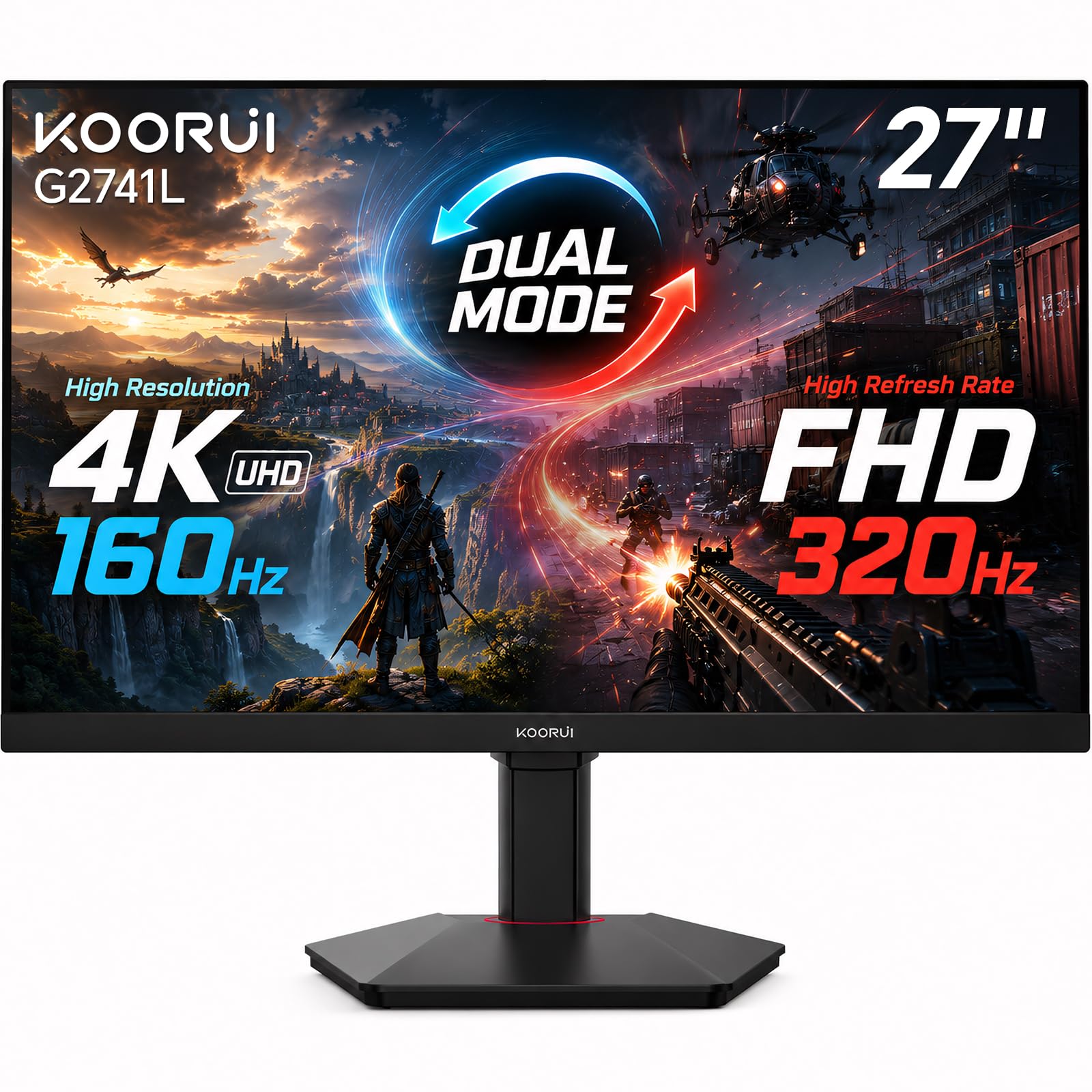
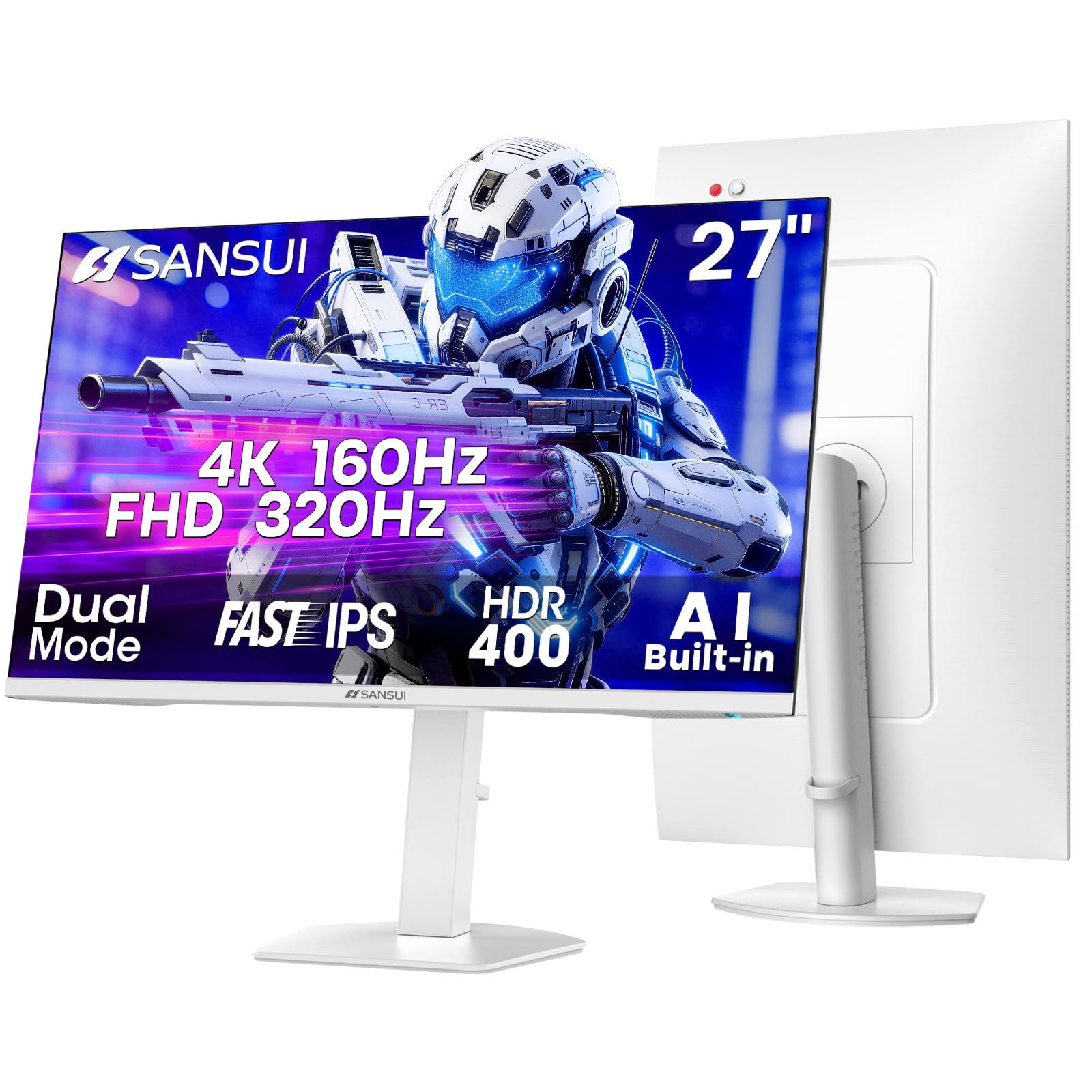

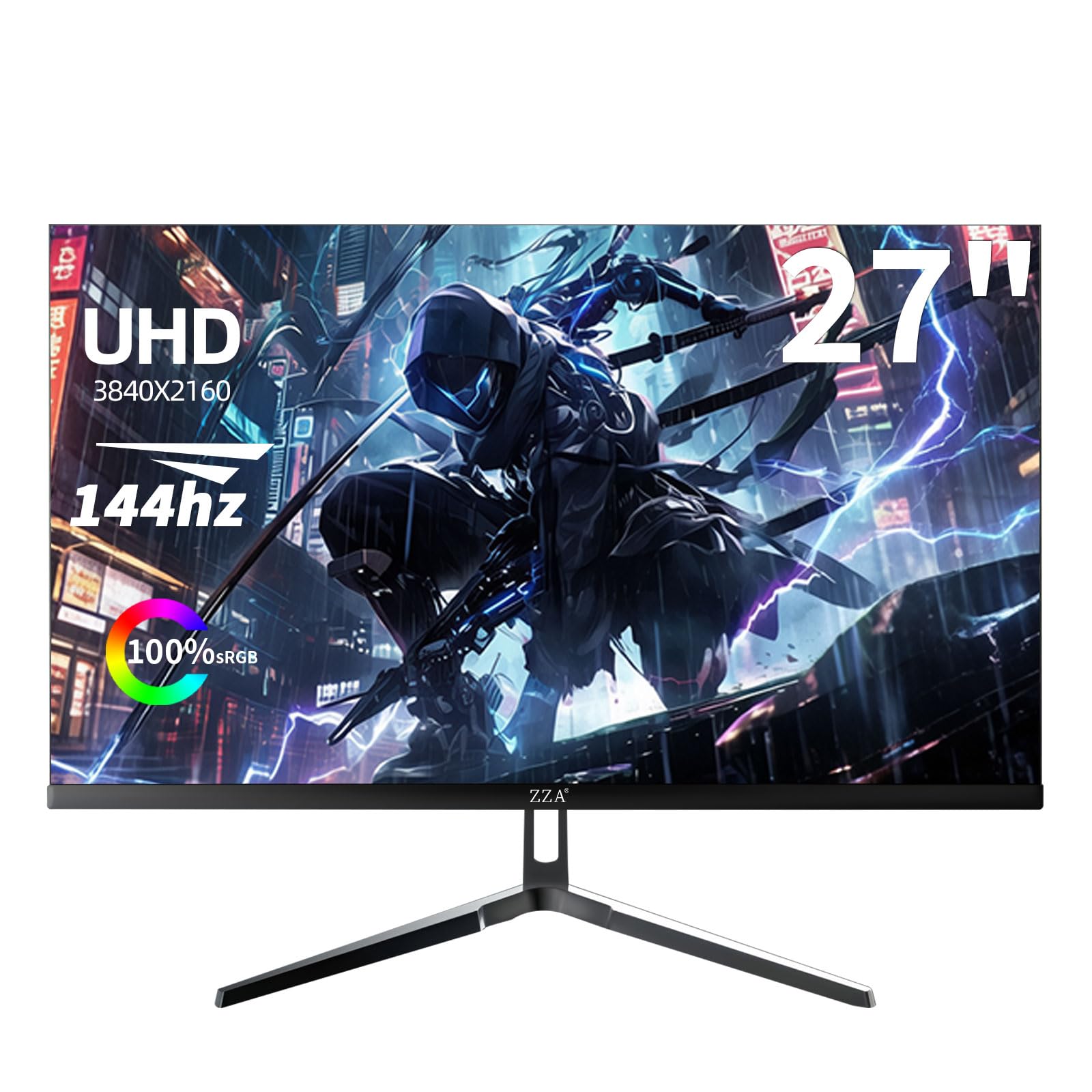
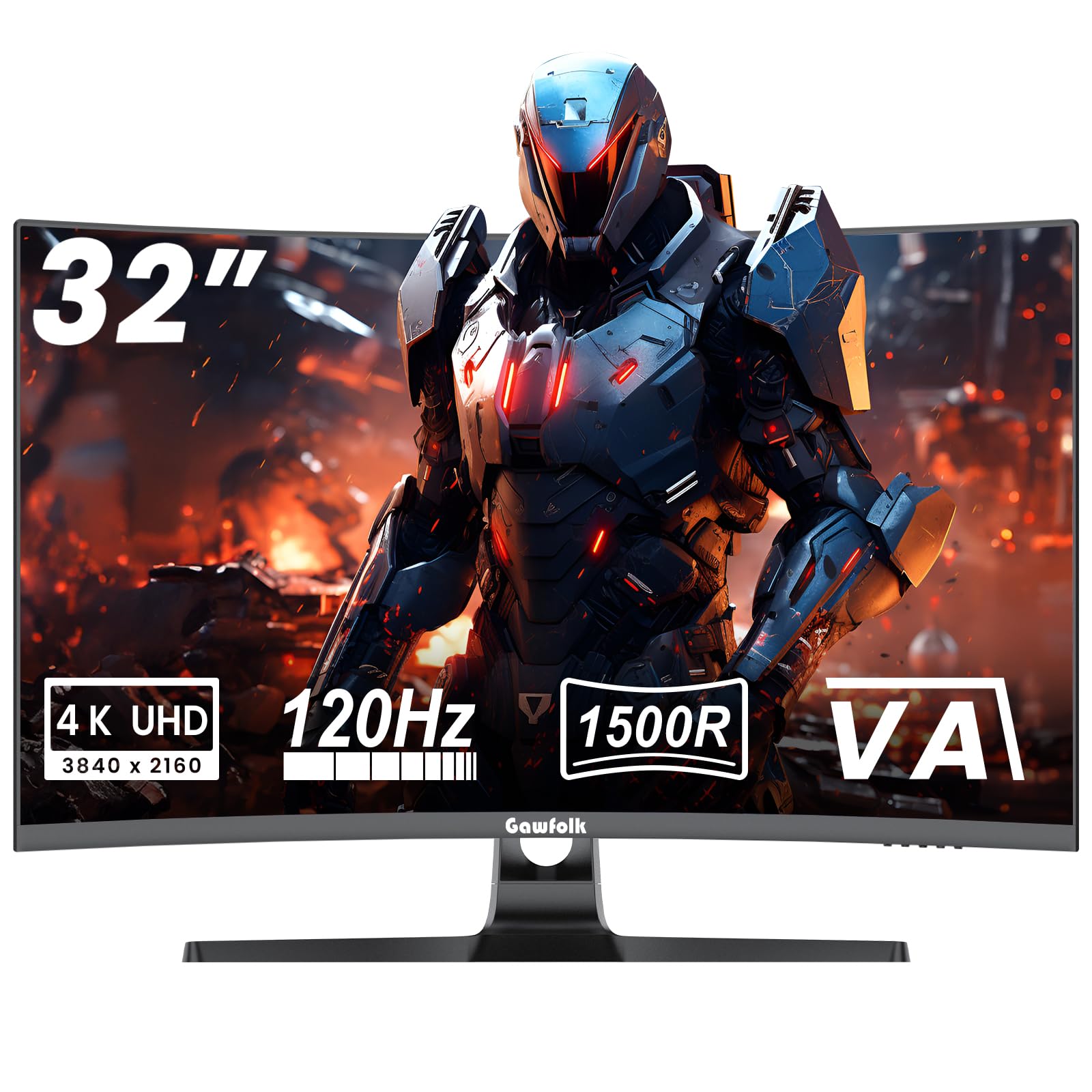
4K Gaming Monitor Basics for a First Purchase
A 4K monitor shows 3840 by 2160 pixels, which is four times the pixel count of a 1080p screen. More pixels make game worlds, text and photos look finer and cleaner, especially when you sit at a normal desk distance. The tradeoff is workload, because your console or graphics card must draw far more pixels in every frame than it does at lower resolutions.
A gaming monitor adds features a basic office screen may skip, such as adaptive sync and a game mode that cuts input delay. What matters is the balance, since a sharp panel with choppy motion feels worse in play than a slightly softer picture that stays smooth.
Who Should Buy a 4K Gaming Monitor under $300?
Start with the games you play most and the machine you own, because this price class suits some players better than others.
Console Players Who Favor Story and Sports Games
You value a crisp picture over the highest frame rates. Story games, racing games and sports titles look great at 4K and 60 frames per second, which is what most models in this class deliver. Choose a screen with at least two HDMI inputs if you also connect a second console.
PC Players With a Modest Graphics Card
You can enjoy 4K if you play slower paced games, older titles or settings that use image upscaling to lighten the load on your card. Fast shooters are harder, because frame rates fall quickly at 4K. If speed matters more than sharpness, see our guide to the best gaming monitors under 300, where lower resolutions leave more budget for higher refresh rates.
First Time Buyers Who Split Time Between Games and Desk Work
You want one screen for evening play and daytime documents or study. The extra pixels make text look clean and give you room for two windows side by side. If gaming features matter less than that workspace, see our guide to the best 4k monitors under 300 for screens built mainly around everyday computing.
Key Features to Compare
The best 4k gaming monitors under 300 tend to share a pattern, and spotting it helps you judge any listing quickly. Work through the five factors below in order, and check our guide to the best gaming monitors if you plan to raise your budget later.
What You Can Realistically Get for under $300
At around $200 to $300, expect a 27 or 28 inch screen, a 60 Hz refresh rate, basic HDR support and a stand with tilt only. That mix is honest value for console play and casual PC gaming. Do not cut corners on the panel itself to save a small amount. Do expect to give up high brightness and the fast motion clarity of pricier screens.
Panel Technology: IPS and VA at This Price
IPS panels give accurate color and clear views from side angles, which suits shared screens and desk work. VA panels give deeper blacks and stronger contrast, so dark game scenes look richer, but motion can smear more and viewing angles are narrower. Many VA models curve the screen to help with those angles, and our guide to the best curved gaming monitors under 300 covers that shape in depth. OLED panels sit far above this budget, so treat any claim of one under $300 with care.
Screen Size Picks for Budget 4K Desks
Most buyers should choose 27 or 28 inches, where 4K detail stays visible at a typical desk distance of about two to three feet. A 32 inch screen feels more immersive, but it needs a deeper desk. Going smaller than 27 inches wastes some of the benefit, because the pixels become so dense that interface text shrinks and you gain little over a good 1440p screen.
Speed at This Price: 60 Hz Panels and Pixel Response
Refresh rate, measured in Hz, is how often the picture updates each second, and 60 Hz is the norm in this class. A few models offer 75 Hz, which feels slightly smoother, but true 120 Hz or 144 Hz at 4K costs more. Response time describes how fast pixels change color, and low numbers reduce blur behind moving objects. Turn on the game mode as well, because it lowers input delay between your controller and the screen.
Ports, Adaptive Sync and HDR Brightness
Look for DisplayPort for a PC and at least one HDMI 2.0 port for a console, since that pairing runs 4K at 60 Hz. HDMI 2.1, which consoles need for 4K at 120 Hz, is rare at this price. Adaptive sync, often listed as FreeSync, matches the screen to the frame rate and reduces tearing. HDR labels are common here, but most panels reach only about 300 to 400 nits, so HDR will look mild rather than dramatic.
Getting Started: Setup and First Picture Settings
Attach the stand on a soft surface, tighten any VESA mount screws evenly, and connect a PC by DisplayPort or a console by HDMI. Set the output resolution to 3840 by 2160 in your system settings, then confirm the refresh rate shows 60 Hz. Enable adaptive sync in both the monitor menu and your device settings, because it only works when both ends are on.
Next, leave the vivid picture mode, since it pushes color and brightness past what games were made to show. Choose the standard or game preset, set brightness so white areas do not glare in your room lighting, and lower sharpness if edges look harsh.
Common Mistakes to Avoid
First time buyers tend to repeat the same errors, and each one is easy to dodge once you know it.
- Buying a 4K screen before checking your graphics card or console output leaves you with low frame rates you cannot fix in settings.
- Chasing a high Hz claim without checking the port version means the monitor may never receive the speed the box promised.
- Ignoring stand height and VESA support leaves you stuck with a screen that sits too low for comfortable play.
- Trusting an HDR logo without checking brightness leads to washed out highlights in dark games.
- Choosing a 32 inch screen for a shallow desk puts the picture so close that you must turn your head to see the corners.
Care and Maintenance for a 4K Gaming Monitor
Clean the screen only when it is off and cool, using a dry microfiber cloth and light pressure. For stubborn marks, dampen the cloth slightly with water and wipe gently, because pressing hard or spraying liquid onto the panel can damage the coating. Keep drinks away from the lower bezel, where spills can run inside.
Dust the rear vents with a soft brush so heat can escape, and keep the cables loose rather than bent sharply behind the desk. If the picture flickers, reseat both cable ends and try a second cable before you assume the panel has failed, because cable faults are a common cause.
4K Gaming Monitors: Your Questions Answered
Can you get a good 4K gaming monitor for under $300?
Yes, you can get a good 4K gaming monitor for under $300 if your idea of good centers on sharpness and 60 Hz play. Before you order, read the return terms for dead or stuck pixels, because a single bright dot near the center bothers many owners more than a small spec gap. A seasonal sale can also move a better panel into this budget.
Is IPS or OLED better for a 4K gaming monitor under $300?
IPS is the realistic choice for a 4K gaming monitor under $300, because OLED models cost far more than this budget. One point buyers miss is lighting. A glossy screen in a bright room can mirror windows and lamps, while most IPS screens here use a matte finish that stays readable in daylight. If your desk faces a window, that finish matters as much as contrast.
How long does a 4K gaming monitor under $300 usually last?
A 4K gaming monitor under $300 usually lasts about five to seven years of regular home use. Check the warranty length before you buy, because coverage in this class is often shorter than on pricier screens, and the backlight slowly dims with age. A basic surge protector is a cheap safeguard for the power supply.
What size 4K gaming monitor should you choose for a small desk?
Choose a 27 inch 4K gaming monitor for a small desk, because it keeps the full picture in easy view at a short distance. Measure desk depth, not just width, and leave room for the stand feet, which can reach farther forward than the screen itself. If space stays tight, a VESA desk mount frees the area under the screen.
Does refresh rate matter for a 4K gaming monitor used for work and video?
Refresh rate matters less for a 4K gaming monitor used for work and video than it does for fast games. Most films and shows run at 24, 30 or 60 frames per second, so a 60 Hz panel already shows them as intended. Higher rates do make scrolling smoother, but for documents and streaming that comfort is a bonus, not a reason to break the budget.
Our Verdict
Buy for the picture and the basics first: a sound IPS or VA panel at 27 or 28 inches, honest 60 Hz performance, the ports your devices need and a return policy you trust. Skip paying extra for bold HDR claims or for speeds your console or card cannot deliver at 4K.
Compare the best 4k gaming monitors under 300 in the product table above against those points, and pick the screen that fits your games and your desk. A careful first purchase at this price can serve you well for years.