Best Computer Monitors for Macbook Pro Made Simple: A Clear 2026 Buying Guide
Disclosure: We may earn a commission when you buy through links on this page, at no extra cost to you. As an Amazon Associate I earn from qualifying purchases. Learn more
A simple first guide to the best computer monitors for MacBook Pro desks: one cable charging, sharp Mac text, honest color and the specs that actually matter.
A bigger screen is the easiest upgrade you can give a MacBook Pro, but monitor listings are written for Windows desks and leave Mac buyers guessing about cables, charging and oddly fuzzy text. This guide keeps the choice simple and starts from zero. It explains the handful of specs that decide whether the best computer monitors for macbook pro setups feel effortless or faintly annoying every single day, in plain words and in the order you should decide them.
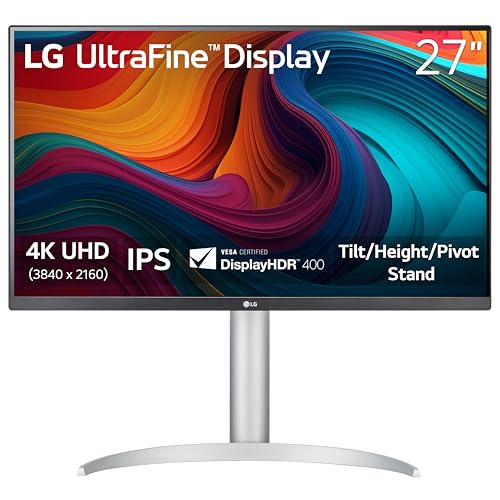
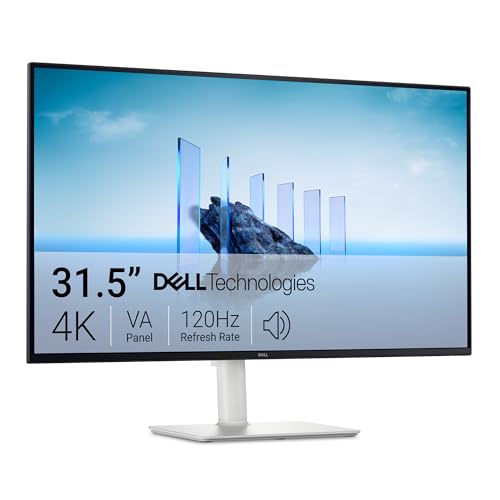
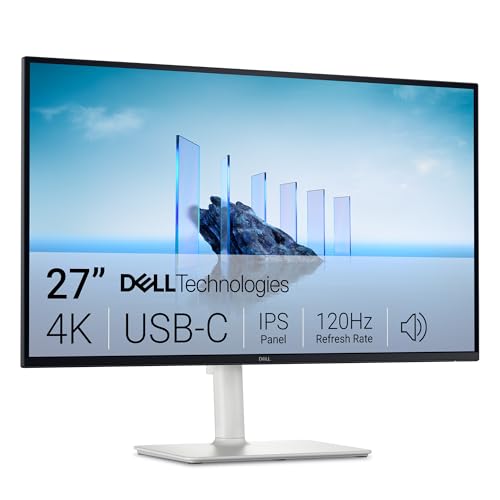
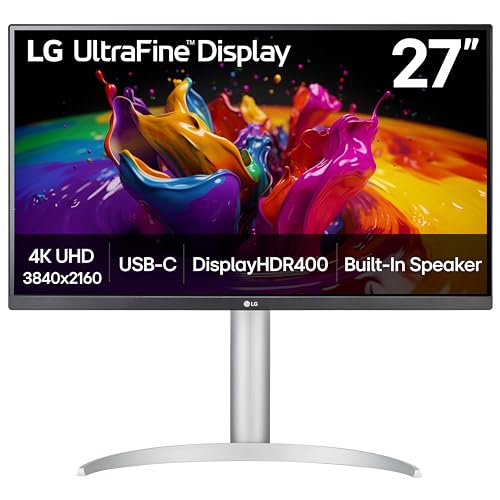
Start with the cable, then the size and sharpness, then color and comfort. The comparison table below gathers the monitors this guide is written around, so you can match each spec we explain against real listings as you read.


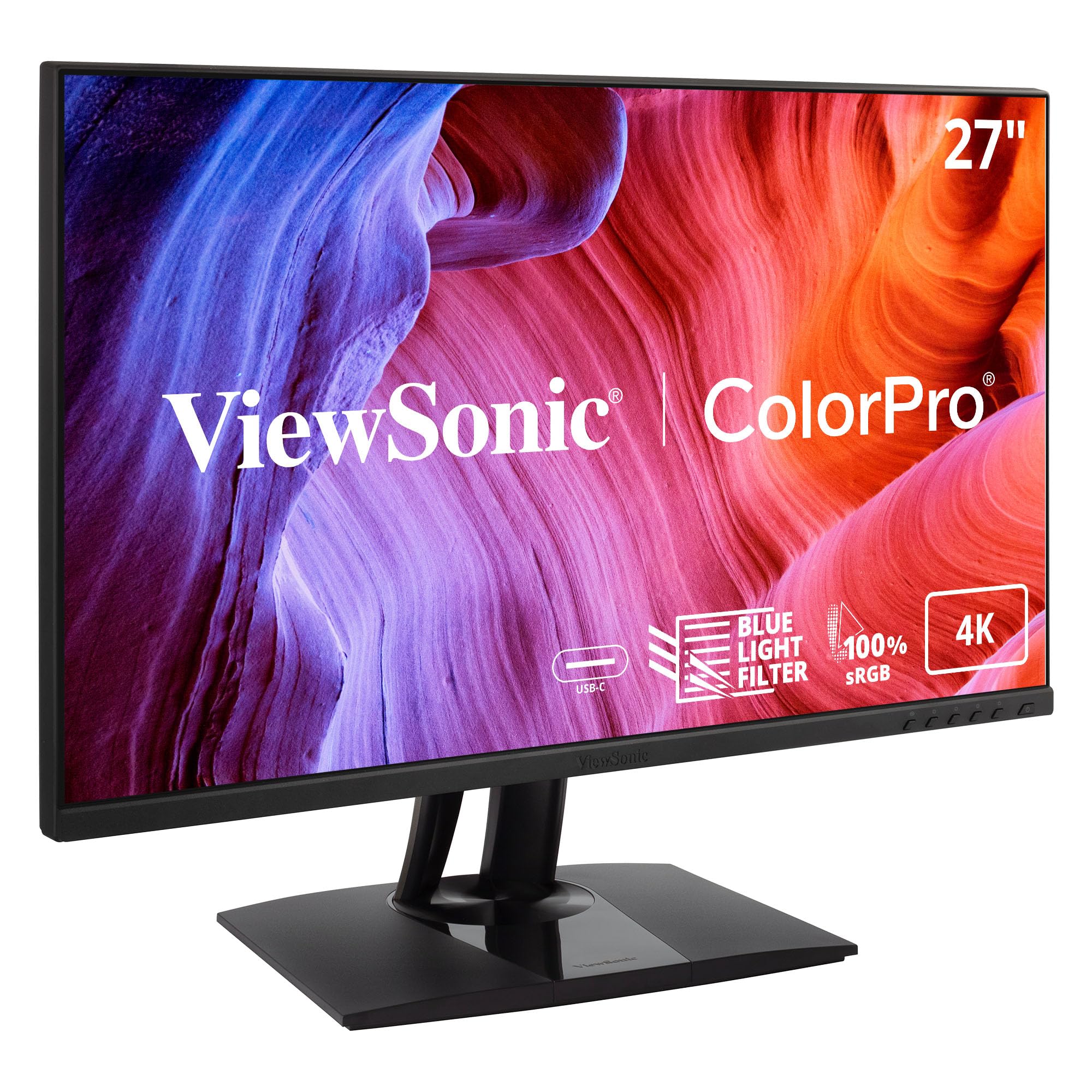
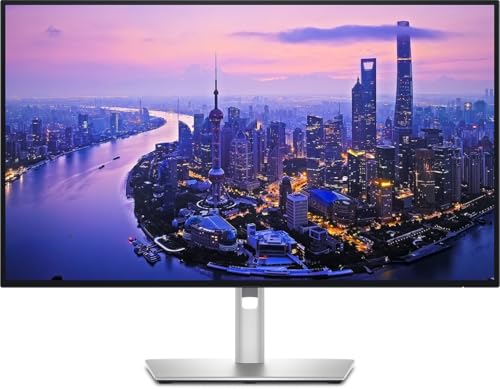


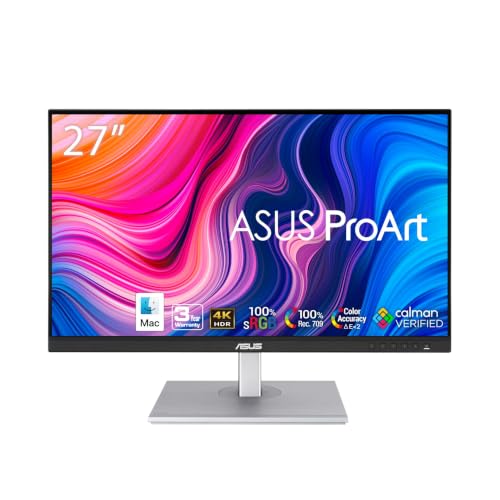

Monitor Basics for MacBook Pro Owners
A computer monitor is a screen with no computer inside it. Your MacBook Pro does all the thinking and sends the picture down one cable, and the monitor simply draws what it receives. Because the laptop already has a fine display of its own, an external monitor earns its place in only two ways: it gives you far more room to work, and it stays set up on your desk so you can sit down, plug in, and start.
Four terms cover most listing pages. Resolution is the pixel count, written like 3840 by 2160 for a 4K panel, and more pixels mean finer detail. Size is the diagonal in inches, and the same resolution looks sharper on a smaller screen because the pixels sit closer together.
Refresh rate is how many times per second the picture redraws, and 60 is plenty for documents, browsing and video calls. Panel type describes the screen technology, and the IPS class is the safe default for Mac desks because colors stay honest when you lean or shift in your chair.
One comfort point surprises new buyers: the laptop screen does not switch off. Most people keep it open beside the monitor as a second, smaller display for chat, email or reference notes, which means a modest external screen already feels like a large upgrade.
The Specs That Matter, in Plain English
Start With the One Cable Question
The first spec to check is the connection, because it decides your whole daily routine. Look for a USB C input that carries a DisplayPort signal, often worded as DisplayPort alternate mode in the specification sheet. That single port sends the picture from your MacBook Pro, carries data to any ports built into the monitor, and can charge the laptop at the same time.
Charging is where cheap monitors quietly cut corners. Power delivery is listed in watts, and a MacBook Pro working hard can sip more than a weak monitor supplies. Aim for about 65 watts or more so the battery holds or climbs during normal work. A monitor offering only 15 or 30 watts may still show a picture, but the laptop slowly drains on heavy days and you end up plugging in a second cable, which defeats the point.
The cable in the box matters too, because some bundled cables are short or carry data only. A certified USB C cable rated for video and charging, about three feet or longer, is the simple safe buy, and keeping the laptop charger in your bag as a backup costs nothing.
Size and Scaling: Why Mac Text Looks Different
macOS draws its interface at a comfortable logical size, then uses extra pixels to make edges and letters crisp. This is why two monitors with the same resolution can look very different on a Mac. At 27 inches, a 4K panel runs in a scaled mode that still looks sharp for nearly everyone, and it is the value sweet spot for most desks. Buyers comparing that class will find the options gathered under best 4k monitors for macbook pro a useful shortlist to study.
A 5K panel at 27 inches is the pixel perfect match, because macOS maps the interface at exactly half the panel resolution in each direction and text lands at its crispest. It costs clearly more and mainly rewards people who stare at small type all day. The trap sits at the other end: a 1440p panel at 27 inches looks soft to Mac eyes, because the pixel density is low and current macOS versions no longer smooth low density text the way older systems did. The same 1440p count at 24 inches is denser and perfectly acceptable on a budget.
What Your MacBook Pro Can Actually Drive
The laptop, not the monitor, sets the ceiling on how many external screens you can run. MacBook Pro models with the entry level chip class are limited to one external monitor in normal use with the lid open. Models with the Pro and Max chip classes drive two or more external monitors, plus the built in screen, which is why video editors and developers gravitate to them.
Exact limits vary by generation, resolution and refresh rate, so check the technical specifications page for your specific laptop before paying for a second or third screen. This one check takes two minutes and prevents the classic mistake of buying a beautiful dual monitor setup that one port on your machine simply cannot feed.
Color, Brightness and Gamut Without the Jargon
Color listings throw percentages around, and the only one most Mac buyers should care about is wide gamut coverage in the P3 class, the color space Apple screens are built around. A monitor covering most of P3 will sit comfortably next to your laptop screen without photos looking washed out on one and rich on the other. Standard gamut panels are fine for office work and cost less.
Brightness is measured in nits, and about 400 nits suits a bright room near windows, while 250 to 300 nits is fine in a dim home office. Treat every color claim with one caution: an uncalibrated panel is not color critical, whatever the listing says. If print matching or client video work pays your bills, budget for a calibration tool later and choose a panel with good uniformity reviews; everyone else can skip that cost entirely.
Ports, Stands and Sound
Extra USB ports on the monitor turn it into a small dock, so your keyboard receiver, backup drive and webcam stay plugged into the desk instead of the laptop. Check that at least one port faces somewhere reachable, because rear facing ports on a wall hugging desk are a daily annoyance. A stand that adjusts for height and tilt is worth real money, since your eyes should meet the top third of the screen; a fixed stand usually means buying a separate arm later. VESA mount holes, the standard square pattern on the back, keep that option open.
Sound is the weak point of nearly every monitor. Built in speakers are usually small, tinny and aimed at the desk, and many models skip them altogether. If you take calls at your desk or watch video without headphones, plan on separate audio such as the options under best computer speakers for macbook pro, and treat monitor speakers as a bonus rather than a buying reason.
Matching a Monitor to the Way You Work
With the basics settled, the right choice depends on what fills your screen all day. The groups below cover the common MacBook Pro routines.
Best Computer Monitors for Macbook Pro Bang for Buck
Value for a Mac buyer means spending on the two things you feel daily and skipping the rest. Put money first into the right size and resolution class for sharp text, and into full power delivery so one cable truly runs the desk. Save money by passing on high refresh rates, gaming extras and built in webcams, which add cost that office and study work never repays. A 27 inch 4K monitor with about 65 to 90 watts of charging, a height adjustable stand and a few USB ports is the classic bang for buck pattern, typically about $300 to $500, and it will outlast the laptop it serves.
For Documents, Spreadsheets and Everyday Desk Work
Office work rewards screen area and eye comfort over everything else. A 27 inch 4K panel lets two documents sit side by side at readable sizes, and a matte finish keeps window glare from washing out spreadsheets. If you are comparing the whole field rather than one spec, the wider overview at best monitors for macbook pro covers the same ground from the general angle. Keep brightness moderate and take the stand adjustment seriously, because eight hour comfort is this group's real spec.
For Photo and Video Work
Creative work moves color to the top of the list. Choose a wide gamut panel in the P3 class, prefer 27 inches or larger so timeline and canvas share the screen without crowding, and accept that a calibration tool is a sensible later purchase rather than an insult to the monitor. Uniformity across the panel matters more than headline brightness here, since a corner that drifts pink will quietly corrupt your editing decisions.
For Gaming After Hours
A MacBook Pro will never be a gaming first machine, but casual and cloud gaming still benefit from a faster panel. A refresh rate of 120 or above makes motion feel smoother where the games support it, and response times matter more than resolution once you play. The dedicated field is compared at best computer monitors for gaming, and the honest advice is to buy that speed only if play is a real weekly habit, not a someday plan.
For Wide Timelines and Wall to Wall Spreadsheets
One ultrawide screen can replace two smaller ones and removes the bezel gap in the middle of your work. Curved versions wrap the far edges slightly toward you, which helps at 34 inches and above where the corners of a flat panel sit noticeably farther from your eyes. The range is gathered under best curved monitors for macbook pro. Measure your desk depth before choosing, because these screens stand on deep feet and push the panel closer than you expect.
Rookie Mistakes to Avoid
- Buying a 27 inch 1440p monitor and blaming the laptop when text looks soft, when the low pixel density on a Mac is the real cause.
- Ignoring power delivery watts, then living with two cables because the monitor cannot keep the laptop charged under load.
- Assuming every USB C cable carries video, when many bundled and bargain cables are charge and data only.
- Paying for 144 hertz and gaming branding for a desk that only runs documents, email and calls.
- Forgetting stand height, then spending more on a monitor arm than the stand upgrade would have cost.
- Throwing the box away on day one, before you have checked the panel for dead pixels during the return window.
Setup and Your First Week
Unbox over a bed or sofa so a slip cannot crack the panel, and keep every bag and foam piece until the return window closes. Attach the stand before connecting anything, route the USB C cable so it reaches the left or right port of the laptop without strain, and place the screen about an arm's length away with the top edge near eye level.
On the Mac, open the display settings and set the scaling option that reads clearly at your sitting distance rather than chasing the most space. Arrange the laptop and monitor rectangles to match their physical positions so the pointer crosses screens naturally. Turn on the setting that dims the laptop slightly as a secondary display if glare bothers you, and match brightness between the two screens by eye in the evening light you actually work in.
During the first week, check the panel against plain white and plain black screens for stuck pixels or uneven glow. Some monitors offer firmware updates through a maker utility; installing them early can fix sleep and wake quirks with Macs. If the screen refuses to wake after the laptop sleeps, a different certified cable solves it surprisingly often, so try that before returning the monitor.
Computer Monitors: Your Questions Answered
Is 4K sharp enough for a MacBook Pro, or do I need 5K?
For most people 4K at 27 inches is sharp enough, and 5K is a luxury rather than a need. The 4K panel runs in a scaled mode that keeps text smooth at normal desk distances, and only readers who work at very small font sizes or sit unusually close tend to notice the difference. Viewing distance is the hidden variable: from a step back, the two classes look nearly identical, which is why 4K is the value pick in the product table above.
Can one cable really charge a MacBook Pro and run the monitor?
Yes, one USB C cable can carry the picture, data and charging together when the monitor supports video over USB C and strong power delivery. The wattage printed in the monitor spec sheet is the number to trust, and about 65 watts or more keeps a MacBook Pro charging through ordinary work. On the hardest rendering or compiling days a lower wattage monitor may let the battery dip slightly, which is harmless as long as it recovers overnight.
Why does my MacBook Pro run only one external monitor?
The limit lives in the laptop chip, not in the monitor or the cable. Entry level chip classes in the MacBook Pro line are built to drive one external display alongside the built in screen, while the Pro and Max chip classes drive two or more. Software based docks that use display compression exist as a workaround, but they add cost, a little lag and occasional quirks, so most buyers are better served by one larger, sharper screen.
Do MacBook Pro users need a monitor with built in speakers?
No, and many are better off without them. Monitor speakers are usually weaker than the ones built into the MacBook Pro itself, which are unusually good for a laptop, so routing calls through the monitor can be a downgrade. A small quirk worth knowing: video call apps may switch to monitor audio automatically when you plug in, so check the sound output setting once after setup and set it back to the laptop if voices sound thin.
How long should a monitor for a MacBook Pro last?
A decent monitor usually serves about five to eight years, outliving the laptop it was bought for. The panel itself rarely fails first; what ages is the backlight, which slowly dims, and the connection standards around it. Buying USB C with strong power delivery today keeps the screen useful for your next laptop as well. Keep the panel out of harsh direct sun and wipe it with a dry microfiber cloth only, since household sprays can damage the coating.
Final Thoughts
Reduce the whole decision to three checks. The cable must charge your laptop properly over one USB C connection, the size and resolution must give macOS the pixel density it needs for crisp text, and the stand must put the screen at a comfortable height. Color range, extra ports and faster refresh rates are pleasant steps up, but they rank behind those three for everyday happiness. Compare your shortlist against the product table above, and the best computer monitors for macbook pro choice for your desk will usually pick itself.