Best Computer Cameras for PC: A Clear Checklist for 2026
Disclosure: We may earn a commission when you buy through links on this page, at no extra cost to you. As an Amazon Associate I earn from qualifying purchases. Learn more
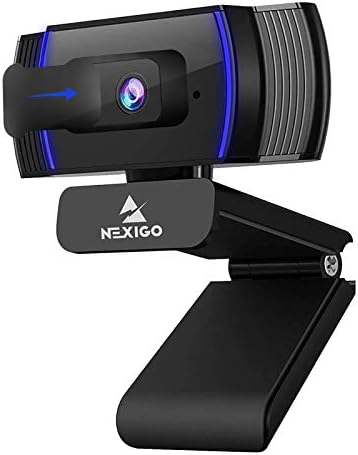
Clear guidance on the best computer cameras for pc: resolution, autofocus, low light, microphones, mounts and setup tips.
A separate camera can make your calls look sharper, sound clearer, and feel far more natural than a dim laptop lens. The best computer cameras for pc setups share a few strengths, including honest resolution, reliable focus, and a mount that suits your monitor. This guide turns those strengths into a simple checklist you can use before you spend anything.
You do not need studio gear for work meetings, classes, or family calls. You need a camera that handles your room light, fits your desk, and works with the apps you already use. Start with the product table, then use the sections that follow to check each claim a listing makes.



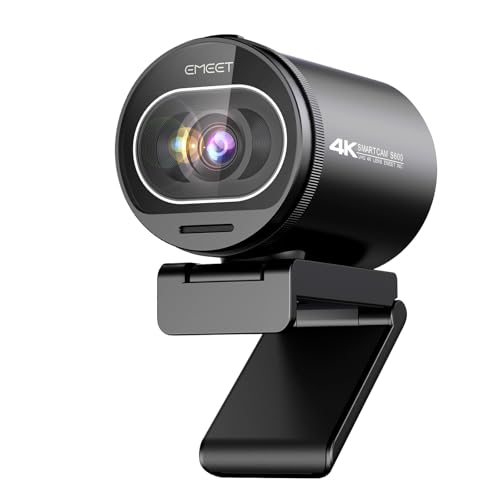


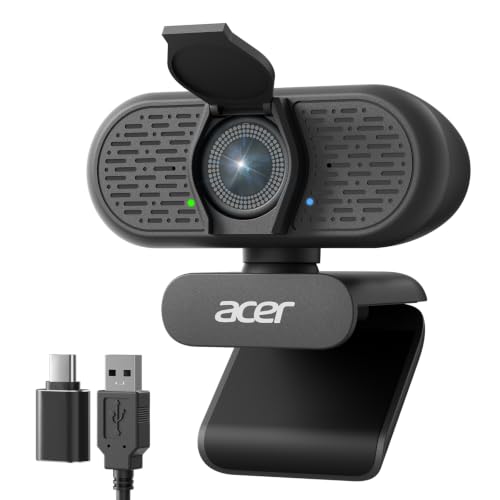


How to Evaluate a Computer Camera for Your PC
Listings love big numbers, but a camera earns its place on your desk through everyday results. Judge each model by how it handles your light, your voice, and your meeting apps, not by a single headline spec. The factors below explain what each number means in practice and where paying more actually helps you.
Resolution and Frame Rate for Clear Calls
Resolution describes how many pixels the camera records. A 1080p camera is enough for most meetings because call apps compress video anyway, and your face stays sharp at a normal desk distance. A camera with 4K video can help if you crop the image, present products up close, or record content for later editing. Frame rate matters just as much, and 30 frames per second looks smooth for talking, while 60 frames per second suits faster movement.
Sensor Size and Low Light Performance
Sensor size affects how much light the camera can gather, and a larger sensor usually gives cleaner images in a dim room. Megapixel counts alone tell you very little, because stuffing more pixels onto a small sensor can add noise in the evening. Look for plain talk about low light results and sensible exposure rather than bold night claims. A desk lamp aimed at a wall behind your monitor often improves the picture more than a pricier sensor does.
Autofocus and Field of View
Autofocus keeps your face clear when you lean in, shift in your chair, or hold an item up to the lens. Fixed focus cameras can still work if you sit at a steady distance, but they soften quickly when you move closer. Field of view describes how much of the room the lens shows, and a view around 70 to 90 degrees suits one person at a desk. Wider views suit two people or a whiteboard, but they also reveal more clutter behind you.
Microphones and Sound Pickup
Most computer cameras include one or two microphones, and a stereo pair usually sounds fuller than a single mic. The built in mic is fine for short calls in a quiet room, yet it will also pick up keyboard clicks and a fan across the room. If you record lessons or present often, plan on a separate USB microphone or a headset for important sessions. Test your voice at your normal sitting distance, because moving even a foot farther away changes clarity a lot.
Mounting, Privacy, and Everyday Ease of Use
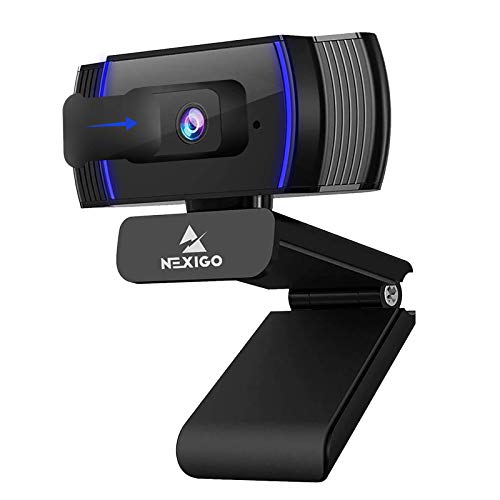
The mount decides where the camera sits and how steady it stays. A clip that folds around the top of a monitor suits most desks, and a tripod thread underneath adds options for a small stand. A privacy shutter or a simple lens cover matters because it gives you a physical way to block the lens between calls. An indicator light that shows when the camera is live is another small feature you will appreciate daily.
Connections and Software Compatibility
Most models connect through USB, and USB C plugs are now common on newer computers while many desktops still offer more USB A ports. Check which ports sit within cable reach, because a camera perched on a tall monitor can leave a short cable dangling. If your ports live on the back of the tower, see our guide to the best pc computer cases for layouts that keep front ports handy. Confirm support for Windows and for apps like Zoom, Teams, and Meet before you order.
Choosing the Right Fit for Your Desk and Your Calls
The product table above gives you a short list to compare, but the right choice depends on how you actually spend your day on camera. Shoppers comparing the best computer cameras for pc often start with price alone, yet daily comfort on calls matters more. Match the camera to your most common call, not to the rare call you might take once a year. The three groups below cover the needs that come up most often.
Guidance for Everyday Work and Family Calls
If you mostly join team meetings and family chats, a solid 1080p camera with dependable autofocus covers you well. Spend your budget on good light and a stable mount before you chase higher resolution. Many people in this group already own a laptop with a weak camera, and if you are weighing a full upgrade instead, see our guide to the best pc computers laptops for models with better built in cameras.
Guidance for Teaching, Presenting, and Streaming
Teachers and presenters move more, hold up objects, and sometimes share a board, so a wider field of view and fast autofocus matter most. Streamers may also want 60 frames per second and software controls for exposure and zoom. If your setup is built around play as well as work, see our guide to the best pc computers for gaming for machines that handle capture software without slowing down. Whatever you choose, rehearse once on camera to check framing before a live session.
Guidance for Small Desks and Shared Computers
On a small desk, a compact camera with a short, tidy cable keeps your workspace clear. A model that folds flat travels well if you move between home and an office. Shared family computers need simple controls, because nobody wants to adjust settings before a school call. If your household also takes calls away from the desk, see our guide to the best pc tablets for a portable second option. Keep one camera profile saved so the shared machine is ready for anyone.
Quick Buyer Checklist
Run through these questions before you buy. A yes on the first five and a clear answer on the rest usually means the camera will serve you well.
- Does the resolution match your main use, with 1080p for calls and 4K only if you crop or record?
- Does the camera hold focus when you lean in or hold an object near the lens?
- Will the field of view frame you well without showing the whole room?
- Does the mount fit your monitor, and is there a tripod thread if you want a stand?
- Is there a privacy shutter, a lens cover, or at least a clear live indicator light?
- Does the cable reach an open USB port without stretching across your desk?
- Does the maker confirm support for your version of Windows and your call apps?
- Is the return window long enough for you to test the camera in your own room light?
Red Flags to Watch For
Some listings hide weak hardware behind loud claims. Slow down when you spot any of these signs, and look for a model with plainer, checkable specs instead.
- The listing shouts about high megapixels but never states the true video resolution or frame rate.
- The seller claims digital zoom as if it were optical zoom, which only crops the image and softens detail.
- There is no mention of which apps or systems the camera supports, so compatibility is left to guesswork.
- The warranty is very short and the maker gives no clear support page or firmware updates.
- Reviews praise the picture but say nothing about focus, microphones, or the mount, which hints at vague or padded feedback.
One more caution applies to features borrowed from other kinds of cameras. A PC webcam lives indoors on a monitor, so weatherproof ratings, binocular style magnification numbers, and action camera mounts tell you nothing useful here. If a listing leans on those terms, it is probably copied from a different product, and you should move on.
Setup and Placement Tips That Improve Every Camera
Placement does more for your image than most upgrades. Set the lens at eye level or slightly above, about an arm length from your face, so you look natural and the framing includes your shoulders. Raise a low monitor with books or a stand rather than tilting the camera down at a steep angle.
Light should come from in front of you, not from a window behind you, because a bright background makes your face look dark. A small lamp with a shade, placed just behind the camera, gives even light without glare on glasses. Close the curtains on a sunny side window during calls if the light keeps changing.
Before an important meeting, open your call app and check the preview. Adjust the camera angle, move clutter out of frame, and confirm the microphone level with a short test recording.
How to Make Your Computer Camera Last Longer
Clean the lens with a soft microfiber cloth made for optics, never your shirt, because sleeve fabric can drag grit across the glass. Blow loose dust off first, then wipe in small circles with light pressure. Keep the privacy cover closed when the camera sits unused, since the cover doubles as a dust shield.
Protect the cable where it leaves the camera body, because repeated bending at that point causes most failures. Leave a gentle loop of slack instead of pulling the cable tight over the monitor edge. Store a spare camera in a padded bag in a dry drawer, away from direct sun and heat vents. Check the maker site a few times a year for firmware updates, and install them with the camera plugged directly into the computer.
Frequently Asked Questions
What features matter most in a computer camera for a PC?
Honest 1080p resolution, reliable autofocus, and a field of view that suits your desk matter most. Add a mount that sits steady on your monitor and a microphone that sounds clear at your normal distance. Good low light handling helps if you call in the evening. Fancy extras mean little if those basics are weak, so judge the product table above against these points first.
Is a smartphone enough instead of a computer camera for a PC?
A smartphone can stand in for occasional calls, and many phones have excellent cameras. The trade off is hassle, because you need a stand, a steady power source, and an app that links the phone to your computer. A dedicated webcam stays mounted and ready, which is why regular callers usually prefer one within a few weeks.
Which computer camera for a PC works better in low light?
A computer camera with a larger sensor and restrained pixel counts works better in low light. Such a camera gathers more light per pixel, so faces look cleaner with less grain after dark. Avoid judging by night vision claims borrowed from security cameras, since webcams rely on room light. Adding one soft lamp in front of you will improve results more than any spec on the box.
What specs should beginners check first on a computer camera for a PC?
Beginners should check video resolution, plug and play support for Windows, and the mount style first. Those three points decide whether the camera works the moment you plug it in. Next, confirm the cable length reaches your computer and that your main call app appears on the support list. Beginners can ignore digital zoom numbers and very high megapixel claims, because neither improves a normal meeting.
How much should you spend on a first computer camera for a PC?
Most first time buyers do well at around $40 to $100, which covers clear 1080p video and autofocus. Spending about $100 to $180 can add 4K recording, faster frame rates, or better microphones for people who present or stream. Paying more makes sense mainly for regular recording work. If your room is dark, save part of the budget for a lamp, because light improves any camera you choose.
Can a digital camera work as a computer camera for a PC?
Some digital cameras can work as a webcam through a USB connection or a capture device, and the image quality can be excellent. The setup takes longer, batteries may need mains power for long calls, and not every model supports clean video output. If you already own a suitable model, see our guide to the best digital cameras for traits that also help with video. For most people, a purpose built webcam is simpler.
Final Thoughts
Start with honest resolution, steady focus, and light you control, and most cameras will serve you well. Use the checklist to test claims, the red flags to skip weak listings, and the product table above to compare the models that pass. When you match those basics to your desk and your apps, the best computer cameras for pc choice becomes an easy one, and your calls will look and sound better from the first meeting.