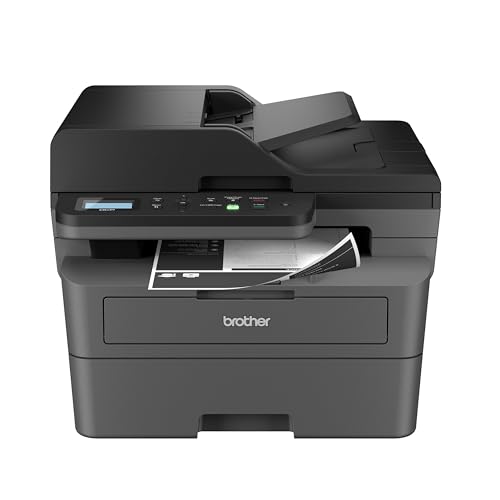
Best Cloud Ready Printers: A First Time Buyer's Guide for 2026
Disclosure: We may earn a commission when you buy through links on this page, at no extra cost to you. As an Amazon Associate I earn from qualifying purchases. Learn more

Shopping for the best cloud ready printers for the first time? Learn the terms, compare options, and avoid rookie mistakes with this easy guide.
Buying your first printer used to mean a cable, a driver disc, and a lot of patience. Cloud ready models changed that. They connect to your WiFi, register with a printing service or app, and let you print from a phone, tablet, or laptop from anywhere in the house or beyond it. This guide explains the best cloud ready printers in plain language, from basic terms to the specs on a listing, so you can choose calmly and use the comparison table below with confidence.
You do not need technical skills to get this right. You need to know what you print, which devices you print from, and what each page will cost you over time.


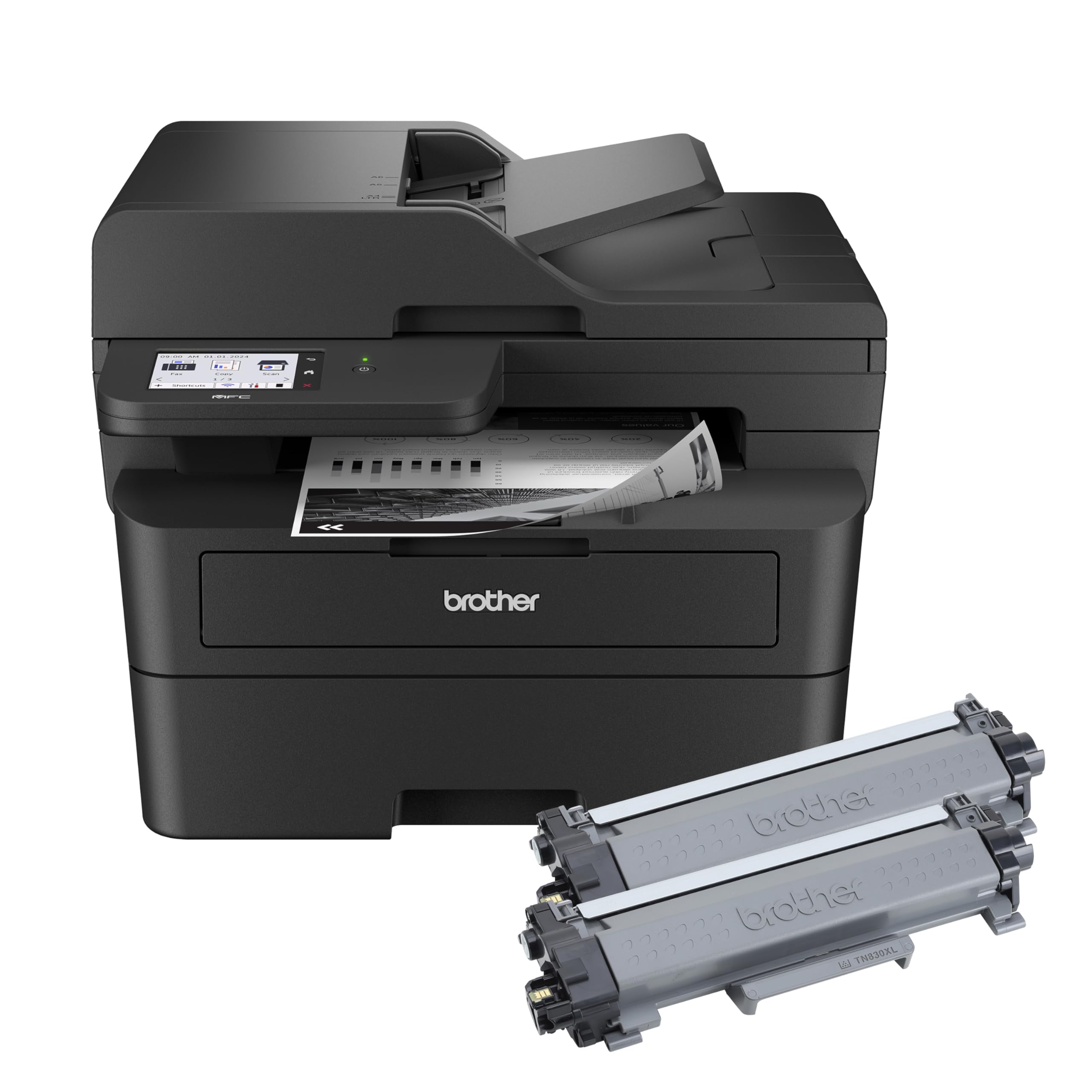

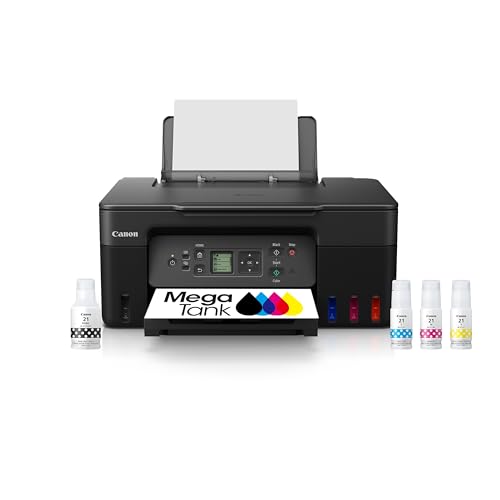
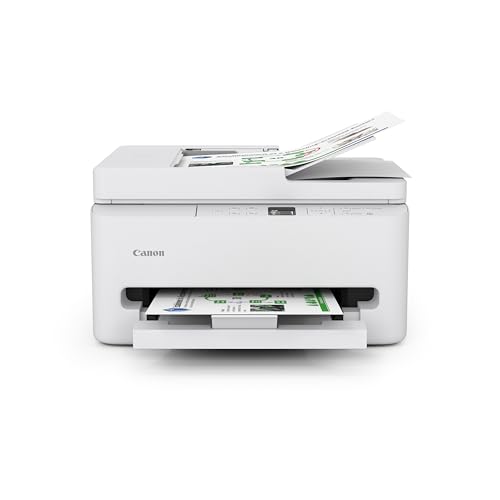
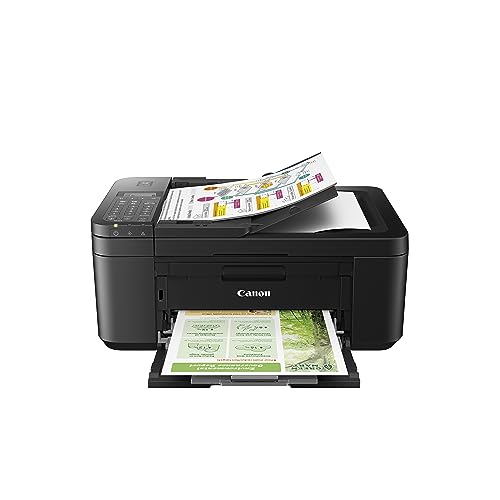
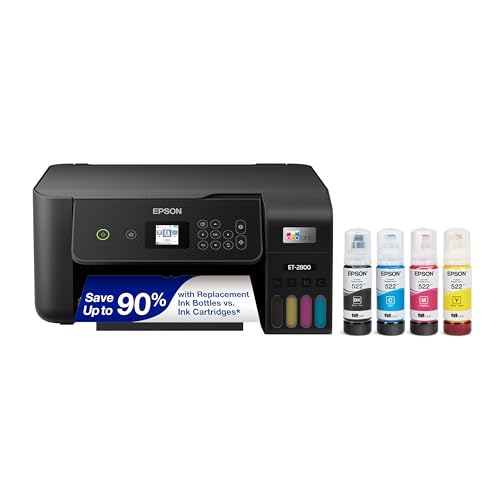
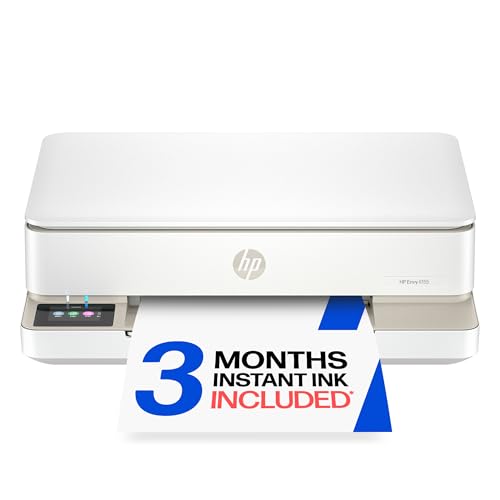
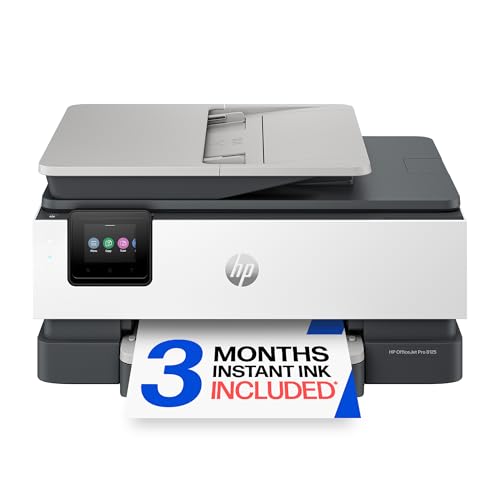
Cloud Ready Printers 101: The Basics
A cloud ready printer has WiFi and software that let it receive jobs through an online account or a vendor app, rather than only from a computer wired to it. You send a file from your phone or browser, the service passes it to the printer at home, and the page comes out even if your laptop is closed. Common paths include AirPrint for Apple devices, vendor apps for Android, and native support on Chromebooks. Cloud ready does not mean the printer stores your documents permanently. It means the printer can be reached and managed remotely, with status, ink levels, and settings visible in an app.
Three terms recur on listings. Duplex means automatic two sided printing. ADF means an automatic document feeder that scans or copies a stack of pages without you placing each one. Yield means the estimated pages a cartridge, tank refill, or toner unit can print. Keep those three in mind and most spec sheets become readable.
Key Specs Explained in Plain English
Printer Type (Inkjet, Laser, Tank)
Inkjet printers spray liquid ink and handle the widest mix of home jobs, including color graphics and photos. Laser printers use toner powder and produce fast, sharp text that suits documents and reports. Tank printers are inkjets with refillable reservoirs, so they cost more to buy and far less to refill. First time buyers should start here: mostly text points to laser, a mixed home workload points to inkjet, and weekly family printing points to tank. Type shapes every other cost and quality decision you will make.
Paper Handling and Duplex
Paper handling covers tray size, supported paper sizes, and whether two sided printing is automatic. A tray that holds about 100 to 250 sheets suits most homes without constant refills. Automatic duplex saves paper and time on reports, booklets, and school packets, and it is worth having even if you use it monthly. Check support for envelopes and card stock if you print invitations or labels. If you scan often, an ADF rated for your typical stack size saves real minutes each week and reduces missed pages.
Print Speed
Speed is measured in pages per minute, usually for simple black text in a fast mode. Treat the figure as a best case. Color pages, high quality settings, and the wake up time for the first page all slow real jobs down. For most homes, the difference between mid range speeds is barely noticeable. Speed deserves priority only if you print long documents often or share the printer with several people. A larger tray and automatic duplex often save a busy household more time than a few extra pages per minute.
Connectivity and Mobile Printing
List the devices you will print from before you shop: iPhone, Android phone, Windows laptop, Mac, or Chromebook. Then confirm each one has a supported path, such as AirPrint, a vendor app, or native ChromeOS support. Dual band WiFi is more reliable in busy homes. Ethernet is a steady option for a fixed desk. Guest printing and email based printing can help visiting family, but set them up deliberately and protect the printer with the app account password. Our guide to the best cloud printers compares connection styles in more depth.
Ease of Setup and Calibration
Good first time setup feels like a guided checklist: unpack, remove tape, install supplies, join WiFi, add the printer in the app, and print a test page. A small screen on the printer makes WiFi entry much easier than codes and blinking lights. Calibration for document printers means an alignment page and a nozzle check, both launched from the app in a minute or two. If reviews of a model mention painful setup apps, believe them. Setup quality predicts how painless reconnecting after a router change will be.
Print Quality and Resolution
Resolution is listed in dots per inch, and higher numbers can mean finer detail, especially for photos. In practice, ink, paper, and the original file matter just as much. For documents, any current laser or inkjet prints crisp text at standard settings. For photos, look for extra ink colors, borderless printing, and support for glossy and matte photo papers. Do not pay a premium for extreme resolution figures if you mostly print forms and homework. Spend that money on better supplies or a tank system instead.
Picking the Right Option for Different Uses
Google Centered Homes
In a home built around Google accounts and Android phones, the best google cloud ready printers are the ones whose apps sign in cleanly with your account and print smoothly from Drive, Gmail, and Chrome. Confirm the app is still actively updated, since older printing services have been retired before. Look for easy sharing, so family members can print without using your phone. A model that also supports standard WiFi printing protects you if app services change later.
Chromebook Households
For Chromebook users, the best cloud ready printers for chromebook are models with explicit ChromeOS support that appear in the print menu without extra software. That native path matters because Chromebooks cannot install traditional drivers. Scanning to cloud storage is a valuable bonus for students. Keep the printer on the same network name as the Chromebook and enable automatic updates, and daily printing becomes nearly invisible. See our dedicated guide to the best cloud printers for chromebook for pairing steps.
Google and Chromebook Combined
Households mixing Android phones with Chromebooks should shortlist the best google cloud ready printers for chromebook by checking both paths before buying. Demand native ChromeOS printing plus a strong Android app, not one or the other. This combination is common and well supported, so you do not need to compromise. Avoid older stock whose listings still promise retired services. Current models with clear, recent compatibility statements are the safe first purchase.
Rookie Mistakes to Avoid
- Buying on sticker price alone. Cheap cartridge printers often cost the most within a year of regular use.
- Ignoring your phone type. Confirm AirPrint or Android app support for the devices you actually own.
- Skipping the space check. Measure with trays open and the scanner lid raised, not just the closed box.
- Forgetting idle habits. Inkjet printers dislike long idle gaps, so light and irregular printers may do better with laser.
- Accepting a forced subscription blindly. Read ink plan terms, rollover rules, and what happens if you cancel.
Getting Started: Setup and First Use
On setup day, place the printer on a stable surface near a strong WiFi signal, then follow the app steps in order without skipping the test page. Connect every regular device that first week while the process is fresh, including phones and any Chromebook. Print one small color page each week on inkjet and tank models to keep nozzles clear. Use genuine supplies or reputable brands with clear yield ratings for your first refills, so early problems are easy to diagnose. Keep the manual, spare paper, and one spare supply set together, and note the WiFi name in the app for future router changes. Readers comparing account based options can also check our guide to the best google cloud printers.
FAQs
What does cost per page mean?
Cost per page is the supply cost of a single printed page. Divide the price of a cartridge, bottle, or toner by its rated page yield to estimate it. Black pages are cheapest, and full page color photos cost the most. First time buyers should compare this figure across models, because it predicts ownership cost far better than the purchase price and explains why tank and laser models often win over time.
Which printer type is easiest for beginners?
A mid range all in one inkjet or tank model is easiest for most beginners. The app guides setup, scanning, and maintenance in one place, and the same machine handles forms, homework, and photos. Choose a model with a small screen and plain language prompts. Laser is also beginner friendly for text only homes, with the added benefit of tolerating quiet weeks without clogged nozzles or wasted ink.
Are ink tank printers worth it?
Yes, for households that print weekly or share one printer among several people. Bottle refills bring color and black costs down sharply, so the higher price usually pays back within one to two years. For very light printing, the payback takes too long and a basic laser may be simpler. Tank models also ask for regular use, which suits busy families and home offices more than occasional printers.
Inkjet or laser: which is cheaper long term?
Laser usually wins for text heavy printing because toner yields are high and nothing dries out. Tank inkjet wins or ties for color heavy homes because bottle ink is so cheap per page. Cartridge inkjet is usually the most expensive route once monthly volume grows. Count your pages for a month, multiply by each type cost per page, and the cheaper long term answer for your home will be obvious.
Final Thoughts
Choose your type first, confirm printing support for every device in the house, and compare cost per page before price. Those three steps protect first time buyers from nearly every common regret in this category. Check the product table above with that shortlist in mind, keep setup simple, and the best cloud ready printers for your home will serve you quietly for years. For a sibling category, our guide to the best cloud print printers compares types from another angle.