
Best Cloud Printers for Chromebook in 2026: Which Type Is Right for You?
Disclosure: We may earn a commission when you buy through links on this page, at no extra cost to you. As an Amazon Associate I earn from qualifying purchases. Learn more
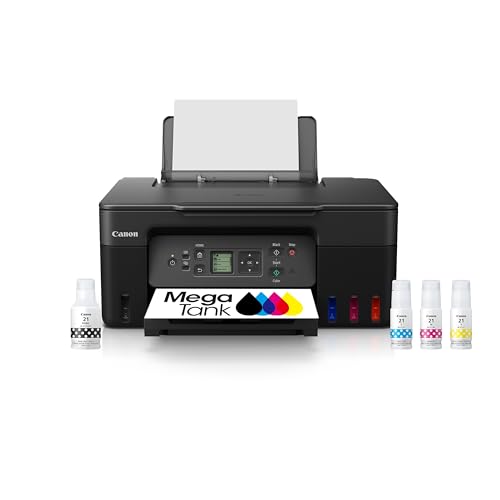
The best cloud printers for chromebook users connect through ChromeOS without drivers. Compare inkjet, tank, laser, and photo types by compatibility and cost.
Chromebooks print differently from Windows and Mac computers. There is no traditional driver to install, so your printer must work with the built in printing system in ChromeOS over WiFi. That single fact explains most buying mistakes in this category. This guide compares the best cloud printers for chromebook by type and compatibility, so you can pick a model that connects in minutes and stays connected, using the comparison table below as your shortlist.
Compatibility comes first, features second. A printer with superb specs that ChromeOS cannot discover is useless to you, while a modest model with native support will feel effortless every day.

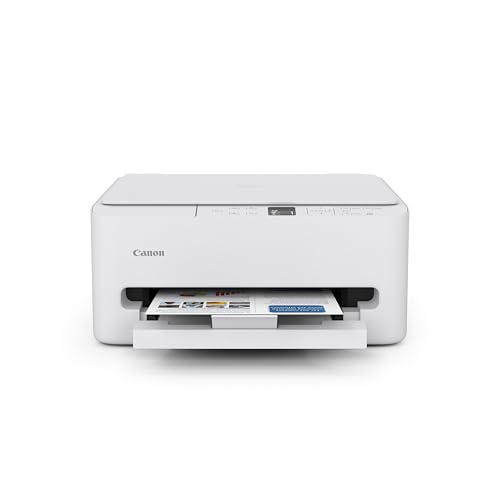
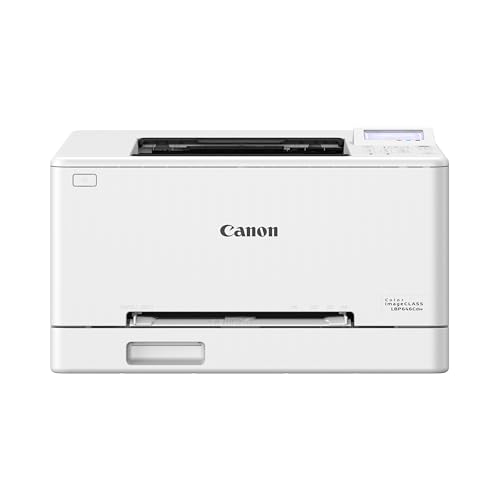
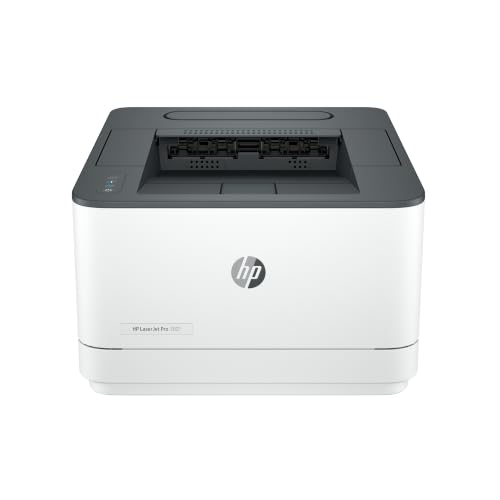
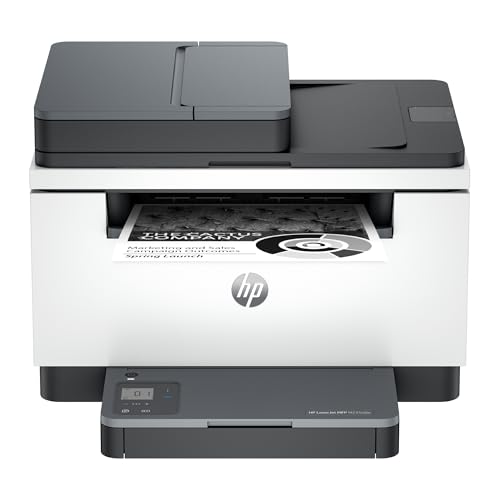

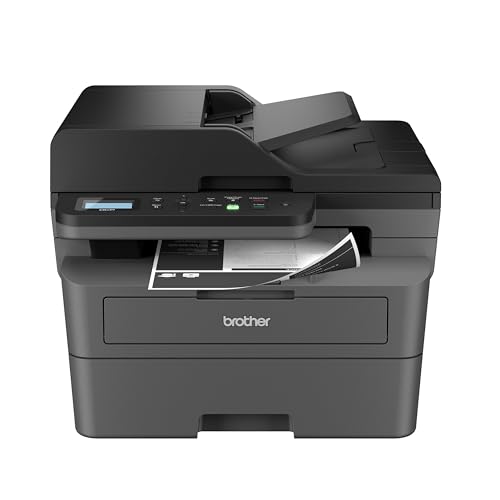

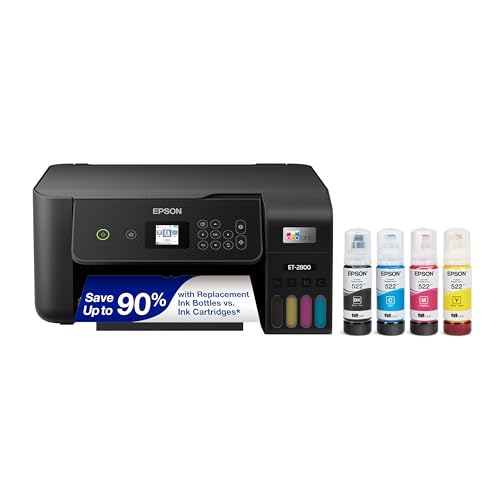
Types of Printers That Work With Chromebook
Three printer types cover nearly every Chromebook household and classroom. Prices overlap, so let your page mix and volume decide. Basic inkjet models often cost under $200, tank and laser models run about $200 to $450, and office grade models cost more.
Inkjet and Tank Printers for Everyday Chromebook Printing
Inkjet models handle the classic Chromebook workload: homework, forms, boarding passes, and color handouts. All in one versions add scanning, which pairs well with Chromebooks because scans can save straight to cloud storage. Tank versions cost more up front but refill cheaply, a strong fit for families printing schoolwork weekly. Check that the model lists ChromeOS support and appears in the Chromebook settings during setup. The weakness is clogged nozzles after long idle breaks, so a small weekly print keeps these machines ready for term time.
Laser Printers for Text Heavy Chromebook Printing
Laser models suit Chromebook users who print long documents: study packets, contracts, invoices, and reports. Toner delivers crisp text at speed and tolerates weeks of inactivity, which fits school holidays and seasonal work. Monochrome laser is the value sweet spot for text, while color laser adds business graphics at a higher supply cost. Confirm native ChromeOS support just as carefully as with inkjet, because older office models sometimes rely on driver software a Chromebook cannot run. For laser focused research, see our guide to the best cloud printers for type comparisons.
Photo Printers for Chromebook Creatives
Photo printers serve Chromebook users who print images from cloud albums and editing apps. They offer extra ink colors, borderless output, and support for glossy and matte specialty papers. Setup still runs through WiFi and ChromeOS discovery, and most printing happens from the browser or a vendor app. Expect slower document speeds and higher cost per page for text. Choose this type only if photo output is a regular hobby or school art need. Everyone else gets better value from a good general inkjet with a photo mode.
Who Should Choose a Cloud Printer for Chromebook?
Students are the clearest fit, since Chromebooks dominate many classrooms and printing needs are light, varied, and deadline driven. Home workers using a Chromebook as a second machine also benefit, especially for forms and signed documents. Families benefit when one printer serves several Chromebooks plus phones. Who should look elsewhere? Anyone printing mostly from a Windows desktop gains nothing extra from Chromebook optimization, though these printers still work fine. Anyone with heavy photo or high volume office needs should start from those type guides instead, then filter for ChromeOS support at the end.
How to Choose the Right Cloud Printer for Chromebook
Native ChromeOS Support and Discovery
This is the deciding spec. The printer should state ChromeOS or Chromebook compatibility clearly, and ideally appear automatically in the print menu when it shares your WiFi network. Vendor apps can add scanning and maintenance, but basic printing should not depend on workarounds or on another computer staying awake. Avoid models that only promise support through retired cloud services. If a listing is vague about Chromebook support, treat that as a no and move on, because returns after setup day are a common story in this category.
WiFi Reliability and Network Setup
Chromebook printing lives or dies on the network. Dual band WiFi helps the printer stay reachable in busy homes, and a model with a small setup screen makes joining the network far easier than button only methods. Place the printer within a strong signal area and keep the router firmware updated. If your home uses a mesh system, confirm the printer can join the main network name without special steps. Our guide to the best wireless printers for chromebook goes deeper on connection troubleshooting.
Print Duties: Documents, Photos, and Scanning
Match the machine to your real pages. Document heavy users should value text speed, tray size, and automatic two sided printing. Photo leaners should value ink colors and paper options. Scanning matters more than many buyers expect, because Chromebook workflows often involve digitizing paper forms and artwork. A flatbed scanner plus a document feeder is ideal for mixed homes, while a flatbed alone suits light use. Be honest about copying too, since a copier function saves trips to a print shop for household paperwork.
Running Cost and Supply Life
Chromebook printers follow the same supply math as any printer. Cartridge inkjet is cheap to buy and costly to feed. Tank models reverse that balance. Toner sits in between with excellent value for text. Estimate your monthly pages, multiply by the cost per page for each type, and compare one year totals rather than sticker prices. Also check supply availability locally and online, because a printer you cannot feed before a deadline is a problem no discount fixes. Students with bursty printing should weight idle tolerance heavily in this math.
Size, Noise, and Placement for Study Spaces
Many Chromebook printers live in bedrooms, dorms, and shared family rooms, so footprint and noise count. Measure with the output tray extended, and leave room to open the scanner lid. Quiet modes help in shared spaces at a small speed cost. Weight matters for dorm moves and classroom storage over breaks. A compact all in one usually fits student life best, while a laser needs a sturdier, more permanent spot. For brand specific pairing notes, see our guide to the best printers for acer chromebook.
Options for Specific Needs
Laser Models for Chromebook
For buyers set on laser, the best laser cloud printers for chromebook choices combine native ChromeOS discovery with fast first page times. Prioritize monochrome unless you truly print color documents weekly. Look for a decent tray capacity so study packets do not need constant refills, and confirm two sided printing is automatic rather than manual. This profile suits students in text heavy courses and home offices built around a Chromebook.
Shared Printing for Workgroups and Classrooms
Shared spaces need the best cloud printers for chromebook for workgroups features: stronger trays, faster engines, and admin controls that limit color use or set quotas. A document feeder speeds up shared scanning, and Ethernet offers a stable connection when WiFi is crowded. Check how many users can save the printer to their profiles and whether the vendor app supports simple user management. Durability ratings and monthly duty cycle matter here more than in any home setup.
Care and Maintenance Tips
Keep ChromeOS and printer firmware updated, since connection fixes often arrive quietly in updates. Print a small page weekly on inkjet models during long breaks to keep nozzles clear. Store paper dry and flat, and keep a spare supply set on hand before exam or tax seasons. If the printer vanishes from the print menu, restart the printer first, then the Chromebook, and confirm both share the same network name. Most discovery problems end with that simple order of steps.
FAQs
What features matter most in a cloud printer for a Chromebook?
Native ChromeOS support matters most, followed by reliable WiFi and a supply cost that fits your volume. Scanning is the next priority for most students and families. Speed and photo quality rank lower unless your work demands them. If a model nails compatibility and running cost, it will feel like the right printer every day, even without premium extras.
Can any WiFi printer work with a Chromebook?
No, not every WiFi printer works well with a Chromebook. Models that depend on installed drivers or on discontinued cloud services can fail to appear or lose features. Look for explicit ChromeOS compatibility and recent firmware support. Checking the maker support page for your shortlist takes five minutes and prevents the most common return reason in this category.
How do I add a printer to a Chromebook?
Connect the printer to the same WiFi network as the Chromebook, then open Settings, find the printing section, and save the discovered printer. Print a test page from the browser to confirm. If the printer does not appear, check the network name on both devices and restart the printer. Vendor apps can then add scanning and supply alerts.
How long should a Chromebook compatible printer last?
Most home models last about four to six years with light care. Laser models often last longer under document workloads because toner systems tolerate idle time well. Inkjet life depends on regular use and clean printheads. Support matters as much as hardware, so favor brands that still update firmware and apps for models several years old. Our guide to the best printers for a chromebook offers more pairing advice.
How much should I spend on a printer for a Chromebook?
Most students and families do well in the about $150 to $350 range. The lower end covers basic inkjet needs, while the middle buys tank savings or laser speed. Spending more makes sense for shared homes, heavy scanning, or classroom duty. Spending less often shifts cost into cartridges. Match the spend to your monthly pages rather than to feature lists.
Our Verdict
Put native ChromeOS support first, WiFi reliability second, and running cost third. That order fits how Chromebook printing actually succeeds or fails in daily life. Compare your filtered shortlist in the product table above, and you will choose the best cloud printers for chromebook for study, family, or work with far less setup stress.

