
Best Cameras for Zoom Conferencing: A First Time Buyer's Guide for 2026
Disclosure: We may earn a commission when you buy through links on this page, at no extra cost to you. As an Amazon Associate I earn from qualifying purchases. Learn more
Shopping for the best cameras for zoom conferencing for the first time? Learn the terms, compare options, and avoid rookie mistakes with this easy guide.
Buying your first dedicated camera for video calls can feel confusing, because box specs rarely explain how you will look and sound on a call. The best cameras for zoom conferencing fix the weak points of a laptop camera, mainly soft detail, dull color in ordinary room light, and a view that crops you badly. This guide explains each term in plain English and shows you what to prioritize for your room.
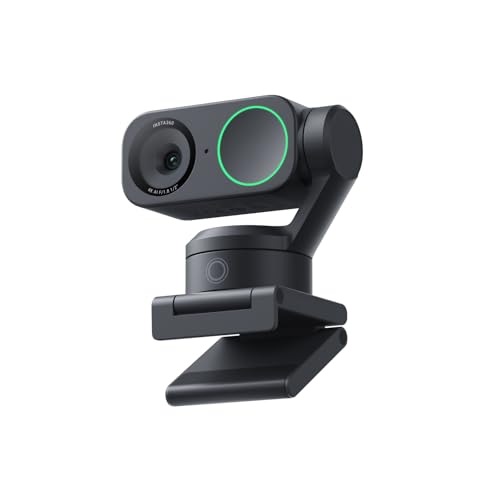
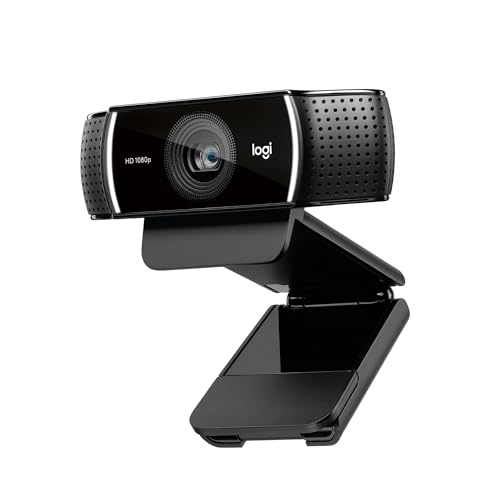
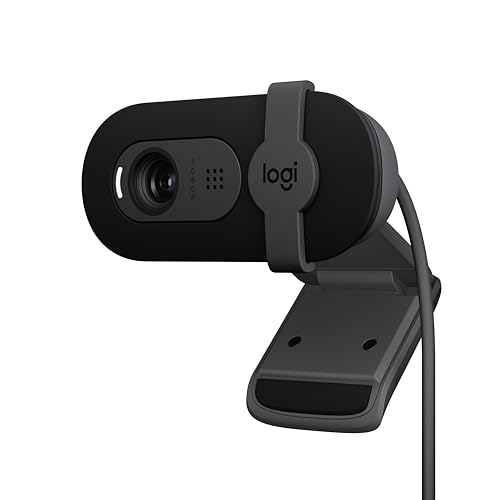
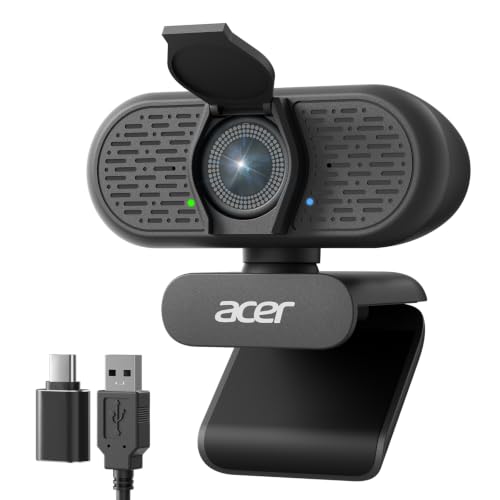
Think first about your distance from the screen, the light in your room, and how often you move while talking. Use the comparison table below to match camera types to your setup, then read on before you spend anything.






Who Should Buy a Dedicated Camera for Zoom Conferencing?
A separate camera helps most when your laptop camera makes you look dim, grainy, or oddly framed, and when calls are a regular part of your work.
Remote Workers Who Join Zoom Calls All Day
If you spend several hours a day in meetings, a dedicated camera gives you consistent framing and clearer detail without adjustments between calls. Look for reliable autofocus, steady auto exposure, and a mount that holds the camera at eye level all week. Dependable plug and play behavior matters more than the highest resolution number.
Teachers and Presenters Who Move While Talking on Zoom
If you stand, gesture, write on a board, or demonstrate objects, you need a wider view and framing that follows you. Auto framing can keep you centered when you step sideways, and a tripod thread lets you place the camera farther back than a monitor allows. Presenters who often zoom in on a board should also read about best cameras with zoom lenses, because lens reach changes how large distant details appear.
Job Seekers and Client Facing Professionals on Zoom
For interviews, sales calls, and first meetings, a clean and natural image builds trust before you say a word. Prioritize accurate skin tones, even exposure, and a field of view that shows your head and shoulders without revealing the whole room. A privacy shutter also matters, because calls often happen in shared homes.
Cameras 101: The Basics for a Zoom Call
Most cameras sold for conferencing are webcams. A webcam connects by USB, sends video to your computer as a standard signal, and works in Zoom as soon as you select it in the video settings. You usually install nothing beyond choosing the device.
A second route is using a standalone digital camera as your call camera, through a USB webcam mode or a capture device on an HDMI output. This route can give you a larger sensor and a real lens, but it adds cost and cables. If that path interests you, see our guide to the best digital cameras and check that any model offers clean output and long run time. For calls only, a dedicated webcam is usually the simplest choice.
Key Features to Compare
When you compare the best cameras for zoom conferencing side by side, judge them in order below. Framing and light handling shape your picture every minute, while resolution helps only when other pieces are right.
Resolution and Frame Rate for Zoom Calls
Resolution describes how many pixels form the picture, and 1080p is the practical target for most buyers. Zoom sends video at limited quality based on your plan and connection, so a 4K sensor helps mainly by giving the camera room to crop without going soft. Frame rate describes motion smoothness, and 30 frames per second looks natural for seated talking. Choose 60 frames per second only if you move quickly or present objects in motion.
Field of View and Auto Framing
Field of view, measured in degrees, decides how much of the room the camera shows. A view of about 65 to 78 degrees suits one person at a desk and keeps the background modest. A view of about 90 degrees or wider suits two people or a presenter who moves, but it can make your face look small. Auto framing uses digital zoom to follow you, which helps in shared spaces.
Autofocus and Low Light Correction for Zoom Conferencing
Autofocus keeps your face sharp when you lean in, hold up a document, or shift in your chair. Fixed focus cameras cost less and can look fine at one steady distance, but they soften when you move closer. Low light correction brightens your face and balances color when your room light is weak or mixed. A larger sensor and a brighter lens handle dim rooms more cleanly, with less grain.
Microphone and Audio Options for Zoom Calls
Most conferencing cameras include one or two built in microphones that pick up your voice from about three to six feet away. Dual microphones and noise reduction can cut keyboard clicks and fan hum. Check whether the camera lets you keep using a separate headset or desk microphone in Zoom. If you present from across a room, plan on a separate microphone near you, because no camera microphone at that distance will sound close and clear.
Optical Zoom, Mounting, and Privacy on a Conferencing Camera
Optical zoom changes the lens itself, so detail stays sharp when you tighten the view on a board or a second speaker. Digital zoom only crops the picture, so it softens as you push it further. If reach matters, compare options in our guide to the best optical zoom cameras alongside conferencing models. Also check the mount. A monitor clip suits most desks, a tripod thread adds placement choices, and a physical privacy shutter protects you between calls.
Mounting, Lighting and Your First Zoom Preview
Place the camera at eye level, about an arm length to about four feet from you, with the lens pointed straight at your face. Put your main light in front of you, and close curtains behind you if bright daylight sits at your back.
- Mount the camera securely, then connect the USB cable without sharp bends.
- Open Zoom settings, choose the new camera, and preview yourself at your normal distance.
- Adjust the field of view until your head and shoulders fill the frame with a little space above your head.
- Make a short test recording, check focus and color, and listen for echo or hum.
- Recheck the setup once in evening light, because a room bright at noon can look dim at dusk.
Rookie Mistakes to Avoid
- Buying the highest resolution first means you may still look dim and badly framed, because Zoom limits the video it sends.
- Mounting the camera below your chin means callers see up your nose and see more ceiling than face.
- Sitting with a bright window behind you means the camera darkens your face to protect the background.
- Choosing the widest field of view for a solo desk means you look small and coworkers see clutter you meant to hide.
- Trusting a camera microphone from across a large room means your voice arrives thin and echoing.
Care and Maintenance for a Conferencing Camera
Clean the lens with a dry microfiber cloth made for optics, using light circular strokes, and never use your shirt, because grit in fabric can leave fine scratches. Keep the privacy shutter closed when the camera sits unused, which keeps dust off the lens.
Check for firmware updates a few times a year, since makers use them to improve focus and Zoom compatibility. Give the USB cable some slack so the connector is not pulled sideways all day. If the picture looks hazy, clean the lens before you change settings, because skin oil on the glass is the most common cause.
Cameras for Zoom Conferencing: Your Questions Answered
Is a smartphone enough instead of a dedicated camera for Zoom conferencing?
A smartphone is enough for occasional calls if you can mount it at eye level and keep it charged. Its camera and processing are strong, and many laptops can use a phone as a video source. For daily work, a dedicated camera wins on convenience, because it stays mounted and leaves your phone free for notes during the call.
What resolution does a camera for Zoom conferencing actually need?
A camera for Zoom conferencing needs 1080p for a clear head and shoulders picture in most meetings. That level holds detail when Zoom crops your video into a small tile. A 720p camera can still work for casual calls, but it softens sooner when you sit farther back or a host pins your video larger.
How much should a first time buyer spend on a camera for Zoom conferencing?
A first time buyer should expect to spend about $60 to $150 for a solid camera for Zoom conferencing. Models under $60 often cut corners on low light handling and microphones, while spending above that range usually buys auto framing or 4K cropping room. Spend toward the top only if you present often or your room light is poor.
Does a wider field of view help a camera for Zoom conferencing in a small room?
A wider field of view helps only if you need to show a board, a product, or a second person. In a small solo office it usually hurts, because it shrinks your face and shows walls at a steep angle. A useful middle path is a camera with switchable fields of view, so you can start narrow and widen only for a group session.
Can a camera for Zoom conferencing improve how you sound, or only how you look?
A camera for Zoom conferencing can improve how you sound, but only within the limits of microphone distance. Built in microphones near your desk can sound clearer than a laptop microphone buried beside a fan, and noise reduction can tame steady room sounds. It cannot fix echo off bare walls, so soft furnishings or a closer microphone will do more for difficult rooms than any camera setting.
The Bottom Line
For a first purchase, put framing, light handling, and simple USB setup ahead of headline resolution. Pick a field of view that fits your room, insist on autofocus if you move or show objects, and place the camera at eye level with light on your face. Chosen that way, the best cameras for zoom conferencing will make you look clear and natural on every call. Compare your short list in the product table above, then run one test call in your real room light.