
Best Cameras for Zoom Meetings Made Simple: A Clear Buying Guide 2026
Disclosure: We may earn a commission when you buy through links on this page, at no extra cost to you. As an Amazon Associate I earn from qualifying purchases. Learn more
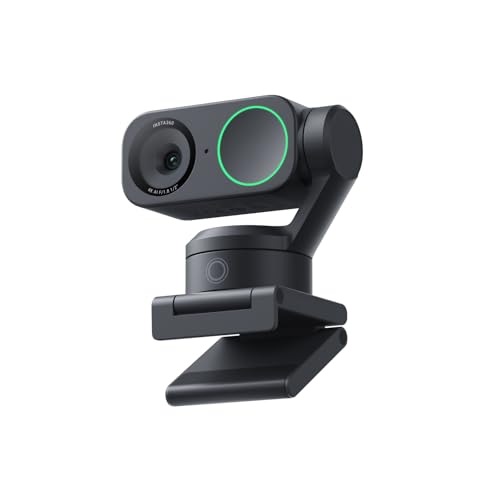
Shopping for cameras for zoom meetings? Learn the basics, compare resolution, framing, light, and audio, and avoid common first time buyer mistakes.
If you are shopping for best cameras for zoom meetings for the first time, the jargon can feel heavier than the decision deserves. This guide starts with the basics, explains each specification in plain English, and helps you compare options without drowning in numbers. Take a look at the comparison table below, then work through the sections to find the setup that fits your room, your light, and your budget.
A good meeting camera does a few simple jobs well: it shows your face clearly, frames you naturally, and keeps your image steady while you talk. You do not need studio gear for a clear, professional look. You need the right resolution for your screen, a lens that fits your space, decent light, and a microphone plan that others can hear. The sections below explain each choice step by step.
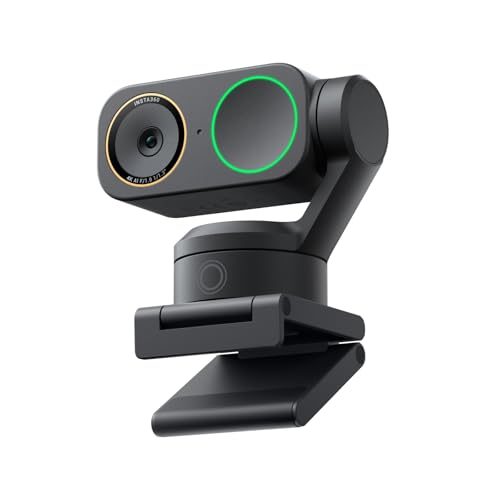

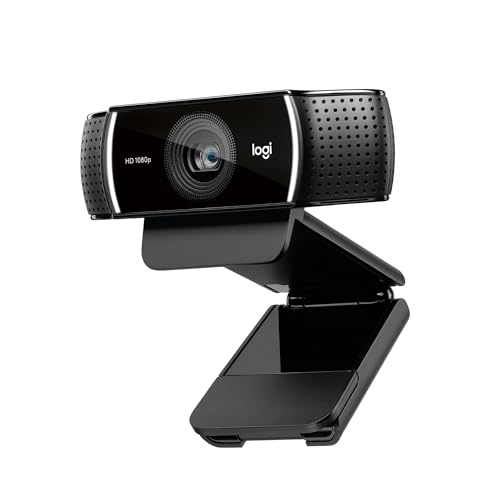

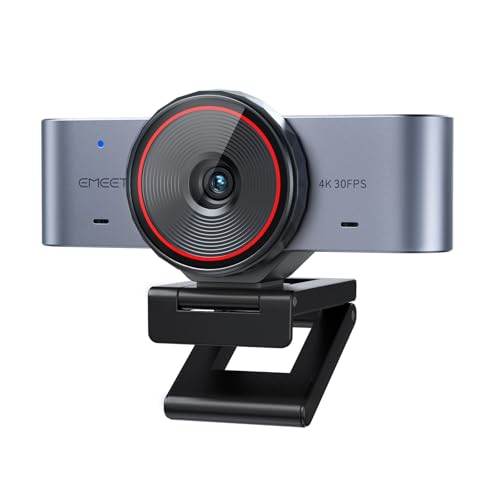


Cameras 101: The Basics
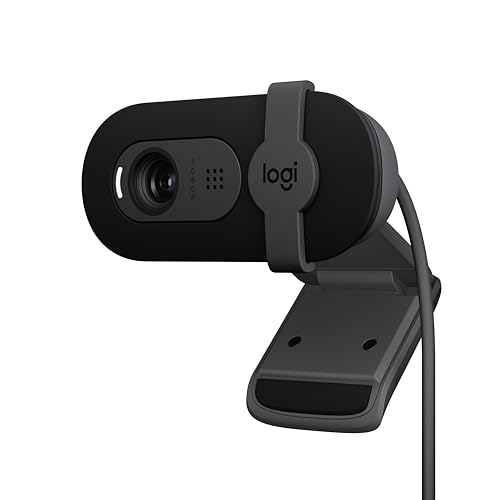
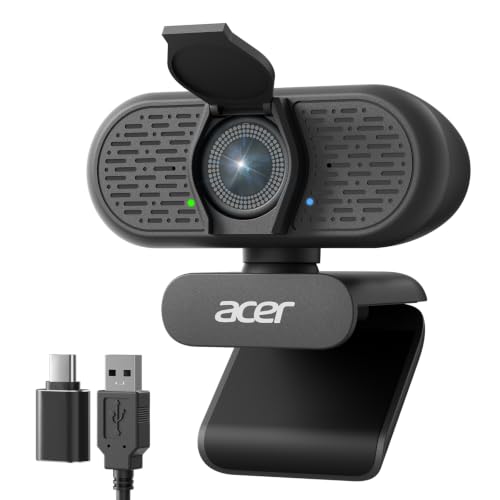
A meeting camera captures video of you and sends it to your computer, which passes it to the meeting app. Most options fall into three groups: a camera built into your laptop, a separate webcam that clips to your monitor, and a dedicated camera that connects by USB. Built in cameras cost nothing extra but often sit low, shoot in dim rooms, and frame you from below. Separate webcams usually offer better resolution, wider framing choices, and a privacy shutter.
Dedicated cameras add larger sensors and better low light handling but cost more and need desk space. For a grounding in everyday camera types, see our guide to the best digital cameras before you compare meeting options. Your room and your habits decide which group fits, not the price tag alone.
| Type | Best For | Watch For | Typical Price |
|---|---|---|---|
| Laptop built in camera | Occasional calls with no extra gear | Low angle and weak low light image | About $0 extra |
| Clip on webcam | Daily meetings at a desk | Narrow framing in small rooms | About $30 to $120 |
| Dedicated USB camera | Frequent presenters and larger rooms | Desk space and setup time | About $100 to $300 |
| Phone as a camera | Travel and temporary setups | Battery drain and mounting fuss | About $0 to $30 for a mount |
Key Specs Explained in Plain English
Specifications matter, but only when you know what each one changes on screen. The factors below cover what to compare and what level to aim for in a normal home office.
Features That Matter for Zoom Meetings
Meeting cameras need a clear image at arm's length, natural framing, and steady focus on your face. Look for autofocus that locks on you rather than hunting to the wall behind you, and a field of view that fits your space: narrower for a solo desk, wider if two people share the frame. A privacy shutter or clear on and off indicator matters when the camera sits in a bedroom or shared room. If you often present to a group, see our guide to the best video cameras for zoom meetings for larger room options.
For solo calls, a simple webcam with face tracking and a shutter covers most needs.
Sensor Size and Image Quality
Sensor size affects how clean your image looks in dim rooms. A larger sensor gathers more light and produces less grain, while a smaller sensor keeps the camera cheap and compact. Resolution also matters: high definition at 1080 lines suits most meetings, since meeting apps compress video anyway, while 4K helps only if you crop the frame or present to a large screen. Megapixels matter far less than light handling, so judge cameras by sample video in room light, not by a megapixel count.
A clean 1080 image beats a noisy 4K image every time.
Ease of Use for Your Skill Level
A first time buyer should favor plug and play setup: connect by USB, let the computer recognize the camera, and join a call. Look for a clear mount that fits your monitor, a cable long enough to reach your computer without strain, and software that does not demand an account or a subscription for basic use. More advanced users may want manual exposure, custom framing, and scene presets, but those controls only help if you enjoy adjusting them. If you share a computer with family, check that the camera works for every user account without a fresh setup each time.
Simple setup wins for daily meetings.
Video Capabilities
Video quality depends on resolution, frame rate, and how the camera handles motion and light. A rate of 30 frames per second looks smooth for talking heads, while higher rates help only for fast movement. Check whether the camera keeps your face bright when a window sits behind you, since backlight trips up many cheap cameras. A wide dynamic range setting or backlight compensation helps here.
For a camera built for computer calls, see our guide to the best computer cameras for zoom meetings alongside this guide. If you record meetings, confirm the app, not just the camera, supports the resolution you want.
Power, Connection, and Placement
Most meeting cameras draw power through USB, so battery life rarely matters, but cable length and placement do. Place the camera at eye level, about an arm's length away, so others see you straight on rather than from below. A monitor mount works for most desks, while a small tripod suits a laptop on a stand or a larger room. Check the USB version your computer supports, since an older port can limit resolution, and keep the cable route clear of chair wheels and feet.
Good placement improves your image more than a pricier sensor, so sort out height and distance before you upgrade.
Rookie Mistakes to Avoid
- Buying the highest resolution and ignoring light, which leaves a grainy image in a dim room.
- Mounting the camera below eye level, which gives every caller an unflattering upward view.
- Sitting with a bright window behind you, which turns your face into a silhouette.
- Assuming the built in microphone will sound clear from across a large room.
- Choosing a wide lens for a solo desk, which shrinks your face and shows an empty room.
- Skipping a privacy shutter, then covering the lens with tape that leaves residue.
Getting Started: Setup and First Use
Start by mounting the camera at eye level and connecting it before you open the meeting app, so the app detects it on launch. Open the camera settings in the app, check framing, and adjust height until your head and shoulders fill the frame with a little space above. Test in your normal light, then add a lamp in front of you if your face looks dark. Speak a few sentences and listen back through headphones to judge the microphone, and move closer or add a separate microphone if your voice sounds distant.
Tell participants when you record a meeting, and follow your workplace and local rules on recording and consent. Finish with a short test call to a friend, and save any framing or exposure preset the camera software offers.
Cameras: Your Questions Answered
What features matter most in cameras for zoom meetings?
Face autofocus, natural framing, and clean low light performance matter most, followed by a privacy shutter and a stable mount. Resolution comes after those basics, since meeting apps compress video and a sharp sensor cannot rescue a dark or poorly framed shot. A microphone that picks up your voice clearly at desk distance matters too, though a separate microphone often beats any built in option. Judge a camera by how you look and sound in your own room, not by a specification sheet.
Test in your real light before you decide.
What specs matter most for beginners buying a meeting camera?
Beginners should focus on 1080 resolution, 30 frames per second, autofocus, and a field of view suited to their room. Those four specs cover nearly every solo meeting, and they keep setup simple. Ignore advanced specs such as log video, interchangeable lenses, or manual color profiles until you have a clear reason to use them. Check USB compatibility and cable length, since those practical details cause more failed calls than any sensor spec.
Start simple, learn what frustrates you, and upgrade only to fix a real problem.
What field of view works best for a home office?
A field of view around 70 to 80 degrees suits most solo desks, framing head and shoulders without showing too much empty room. Narrower views suit small rooms or a tidy background, since they crop out clutter at the edges. Wider views suit two people sharing a desk or a presenter who moves, but they shrink a solo speaker in the frame. If you share your desk, a wider lens or a camera with digital framing helps both people stay visible.
Measure your desk distance first, then match the lens to that space rather than guessing.
Is a smartphone enough instead of a dedicated meeting camera?
A modern phone can deliver a sharp meeting image, and it suits travel or a temporary setup well. Phones also bring hassles: battery drain during long calls, calls and notifications interrupting video, and a mount that rarely sits at eye level. A dedicated webcam stays put, starts faster, and leaves your phone free, which matters for daily meetings. If you meet a few times a month from different places, a phone works fine.
If you meet daily from one desk, a dedicated camera is worth the modest cost.
Which setup works better for low light rooms?
A larger sensor and a lamp in front of you beat any software fix for low light rooms. Place a soft lamp behind the camera, facing you, and avoid overhead light alone, which casts shadows under your eyes. A camera with good low light handling keeps your face bright without turning the image grainy, and a neutral background helps the exposure settle. If your room has only one small window, add a desk lamp before buying a pricier camera.
Light placement matters more than sensor size once you pass a basic quality level.
The Bottom Line
Start with your room: measure your desk distance, check your light, and decide whether you meet solo or with others. Then choose the simplest camera that frames you at eye level, focuses on your face, and looks clean in your normal light. For a wider comparison, see our guide to the best cameras for zoom and the product table above before you order. Keep a privacy shutter habit, tell participants when recording, and test with a short call first.
With those basics in place, best cameras for zoom meetings becomes a short, confident choice rather than a research project.