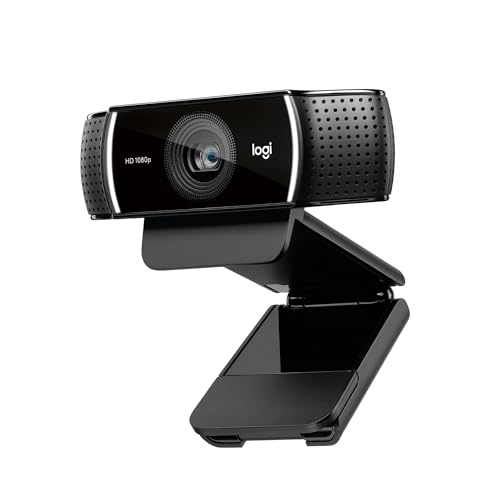
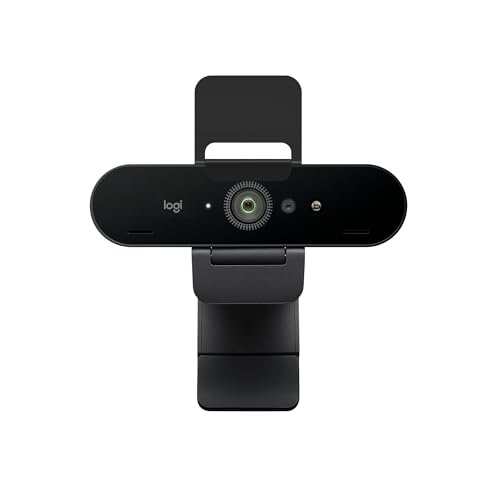
Best Cameras for Video Calls 2026: What Actually Matters Before You Buy
Disclosure: We may earn a commission when you buy through links on this page, at no extra cost to you. As an Amazon Associate I earn from qualifying purchases. Learn more

Use this buyer checklist for the best cameras for video calls: field of view, privacy controls, room light, honest resolution, and sensible price bands.
Most call cameras are bought on one number, resolution, and then disappoint for reasons that have nothing to do with that number. This checklist approach flips the order: when you compare the best cameras for video calls, the field of view, the privacy controls, and your room light decide how you look long before pixel counts enter the picture. Work through the criteria below in order and you will know exactly which class of camera your desk needs.
The checklist also keeps spending honest. Many buyers only need one or two criteria fixed, and the comparison table below groups cameras by what they actually change on a call, so you can match a fix to your real problem instead of buying the flagship by default.

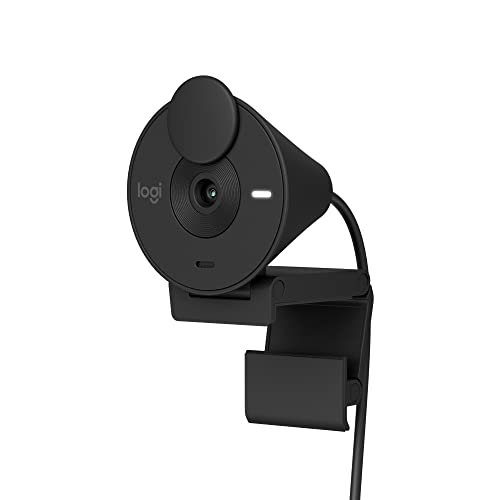
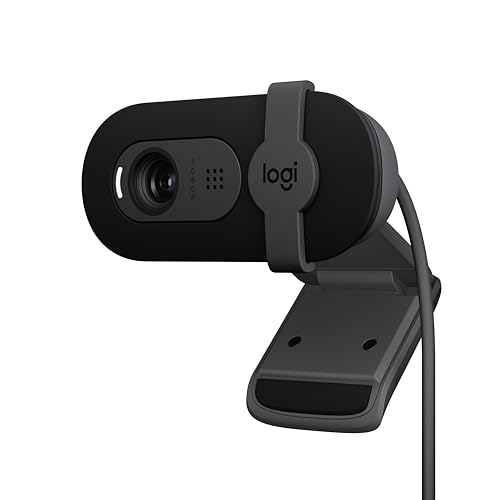

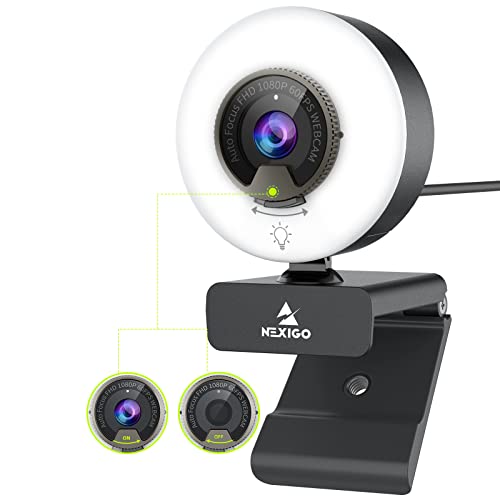


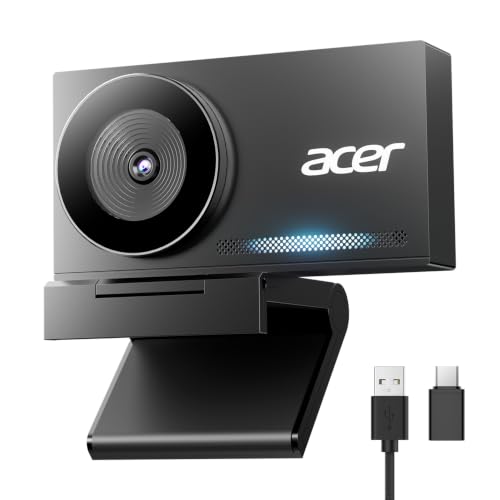


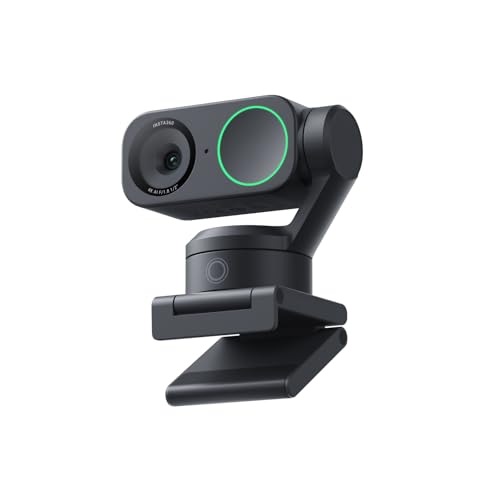
The Checklist That Matters for Video Calls
Field of View Comes First
A field of view of about 65 to 78 degrees suits one caller, while about 90 degrees suits two people sharing a screen. A narrow view crops tightly on your face and hides the room, which suits a small desk and a busy background. A wide view fits a partner, a whiteboard, or a meeting room table, but it also shrinks your face and shows more clutter. For scale, the best action video cameras often reach 120 degrees or more, which is why they make callers look small and distant.
Privacy Controls Before Resolution
Privacy comes second on purpose: a shutter and an indicator light matter more than resolution on any camera that points at your home. A physical shutter or a lens cap you can close with one motion beats any software switch, because you can see the blocked lens from across the room. An indicator light that turns on whenever the camera is live gives the same certainty while you work. Software mute buttons fail quietly; a closed shutter never does.
Room Light Shapes the Picture
Room light is the factor most buyers skip, and it shapes the call picture more than the sensor does. Face a window or place a soft lamp behind your monitor and slightly above eye level, and even a modest camera looks clean. Sit with a bright window behind you and the camera darkens your face to protect the background, so even a costly model looks poor. Fix the light first, then judge cameras under the light you actually have.
Resolution and Frame Rate in Real Calls
Meeting platforms compress your video, and most calls travel at 720p or 1080p no matter what the camera can capture. A 1080p camera at 30 frames per second covers nearly every work call, and higher frame rates help only when you move around a lot on screen. A 4K sensor still has one honest use: it gives the software room to crop and zoom without turning soft. Our guide to the best digital cameras explains which stills bodies can double as call cameras over USB.
Autofocus, Framing, and Microphones
Autofocus that locks onto a face saves you from drifting soft when you lean toward the screen, and auto framing helps if you stand, present, or move between a desk and a board. Fixed focus cameras are fine when your chair never moves. For sound, a built in microphone array works in a quiet room, while a headset wins in a shared space. Readers who also record lessons or demos can see our guide to the best cameras for video for the recording side of the same desk.
Mounting, Power, and Placement
Placement decides whether any of the above works. Set the lens at eye level, on a monitor clip or a small tripod, so callers are not looking up your nose or down at your forehead. Nearly all call cameras run on USB power, so there is no battery to manage, but cable length limits where the camera can sit. Check that the clip fits your screen depth before you buy, because a wobbling mount ruins a steady picture.
What Each Price Band Buys
Entry Band: Under About $60
Entry cameras cover the basics: 1080p or 720p video, a fixed focus lens, and a simple clip. They suit occasional calls and a second computer, and they look fine in good light. Privacy shutters are rare here and microphones are basic, so pair one with a headset if your room is noisy. Our guide to the best inexpensive video cameras shows how far a small budget stretches when light is already good.
Middle Band: About $60 to $130
The middle band is where most home workers should land. Autofocus arrives, microphones improve, fields of view widen a little, and physical shutters start to appear. Picture quality in average room light improves more here than at any other step, because the sensors and lenses both get better at once. If you take calls every day, this band buys the comfort you will actually notice.
Upper Band: About $130 to $250
Upper band cameras add larger sensors, 4K capture for clean cropping, auto framing that follows you, and better low light behavior. They make sense for client facing roles, frequent presenters, and anyone whose office light cannot change. If you also publish recorded videos, our guide to the best cameras for video blogging covers the flip screens and microphone inputs that dual use demands.
Quick Buyer Checklist
- Does the field of view fit one person, or do two people need to share your screen?
- Can you block the lens with a physical shutter or cap in one motion?
- Is there an indicator light that shows whenever the camera is live?
- Does light fall on your face, rather than shining from a window behind you?
- Will the clip or mount hold the camera steady at eye level on your screen?
- Is 1080p enough for your meeting platform, or do you need crop room from 4K?
- Does your room need a headset, or will a built in microphone array do?
Red Flags to Watch For
- Resolution claims with no sensor information, which often means an upscaled picture sold as 4K.
- No physical shutter on a camera meant for a bedroom or a shared family office.
- Basic settings locked behind required account sign ups or paid software.
- A flood of glowing short reviews with no verified detail behind them.
- A very short warranty on a camera you plan to use every working day.
Care and Maintenance Tips
Clean the lens with a lens cloth rather than your shirt, and close the shutter or fit the cap whenever the camera sits idle, which keeps dust off the glass and doubles as your privacy habit. Check for firmware updates a few times a year, since makers do improve autofocus and exposure through software. Store a spare cable with the camera if you move between desks.
Frequently Asked Questions
What features matter most in a camera for video calls?
Field of view, a physical privacy shutter, and light friendly exposure matter most, in that order. One setting buyers overlook lives in the meeting app itself: many platforms cap incoming and outgoing quality or apply aggressive smoothing by default. Open your app video settings, turn off any beauty filter, and confirm the send resolution matches what your camera can deliver before you blame the hardware.
Is 4K worth it for video calls?
For most callers, no, because meeting platforms compress the stream well below 4K before it reaches anyone. The honest exception is distance: if you sit back from the camera or share the frame with another person, a 4K sensor lets the software crop in while staying sharp. Buy 4K for that cropping room or for recording work, not because the number sounds better on a box.
Which camera type handles a dim room best on calls?
A larger sensor webcam class handles a dim room best, because it gathers more light and holds detail without heavy grain. Before paying for one, try the cheaper test most people skip: put a lamp behind your monitor aimed at your face and take the same call. If the picture clears up, light was the problem all along, and a middle band camera will serve you well.
How much should I spend on my first video call camera?
About $60 to $130 buys the right first camera for most home workers, with autofocus, a decent microphone, and often a shutter. Spend any leftover budget on a small lamp and a simple headset before you climb a price band, because those two items improve how you look and sound more than the jump to an upper band camera does. Upgrade later only if client facing work demands it.
Is a laptop camera or smartphone enough for video calls?
Often yes: a smartphone on a stand at eye level frequently beats a cheap webcam, and a recent laptop camera handles casual calls fine. The limits are practical rather than visual. A phone ties up your handset and drains its battery through the day, and a laptop camera sits too low unless the machine is raised. Start with what you own, fix the height and light, and buy a dedicated camera when the routine outgrows it.
Wrapping Up
Run the checklist in order: field of view for your seating, a shutter you can close, light on your face, and only then resolution. Most buyers land in the middle band and stop there happily. Compare your short list against the product table above, and the best cameras for video calls for your desk will be the ones that fix your real problem rather than the ones with the longest spec sheet. Prices and availability can change, so check the product page before ordering.