Best Cameras for Online Meetings: A First Time Buyer's Guide for 2026
Disclosure: We may earn a commission when you buy through links on this page, at no extra cost to you. As an Amazon Associate I earn from qualifying purchases. Learn more

Shopping for the best cameras for online meetings for the first time? Learn the terms, compare options, and avoid rookie mistakes with this easy guide.
If your laptop camera makes you look dim and soft, you are not alone. The best cameras for online meetings fix what a built in camera cannot, mainly weak low light quality, fixed framing, and slow focus. This guide starts with plain language basics, then covers the specs that actually change how you look on a call.
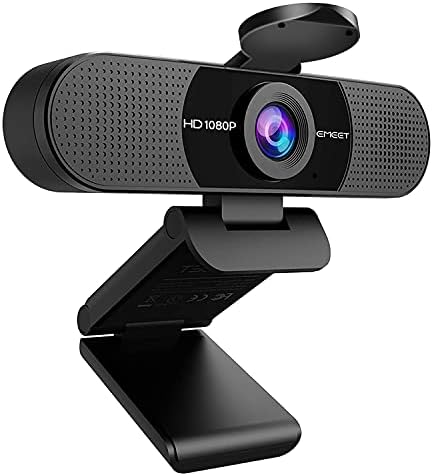
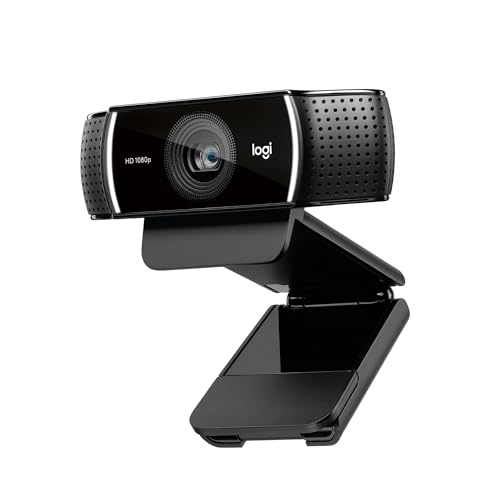
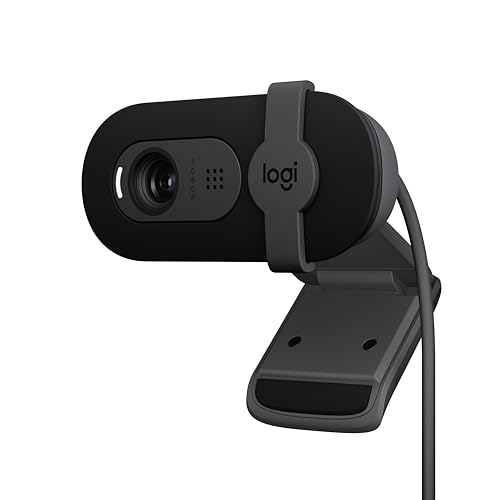
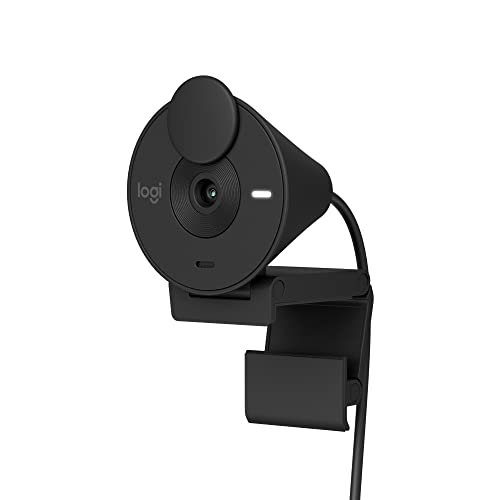
You do not need to become a photographer to choose well. Match a camera type to your room and lighting, and use the comparison table below to compare the main options before the setup steps that follow.


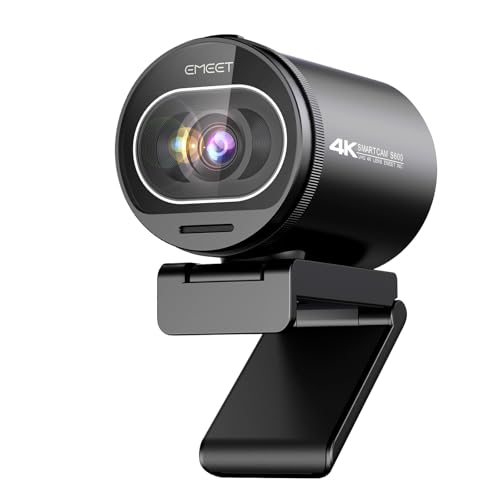


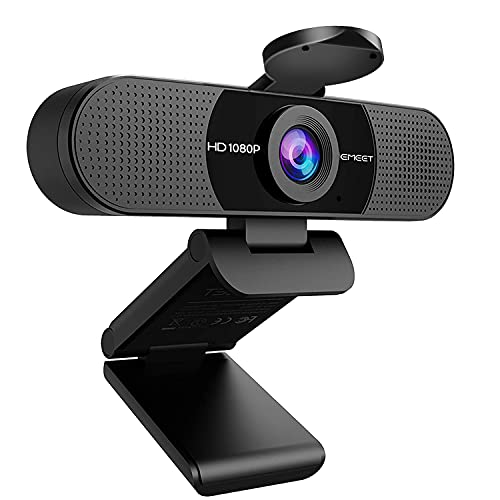
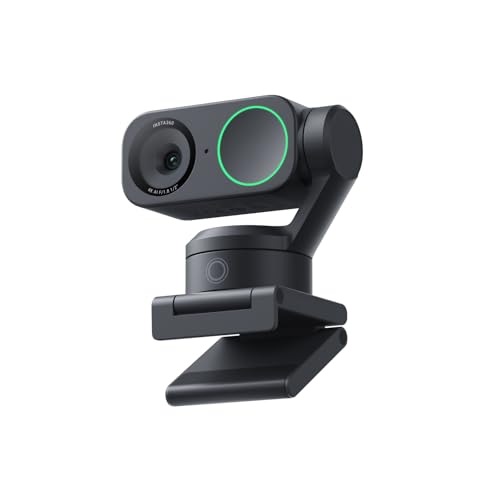
Cameras 101: The Basics for Meeting Use
A meeting camera turns light into a moving image for your call app. A lens gathers light, a sensor records it, and the camera sends the result to your computer. A dedicated webcam does this over a USB cable. A mirrorless or compact camera usually needs a USB webcam mode, or an HDMI connection with a capture device.
Three types cover most buyers. Dedicated webcams are simplest and sit on your monitor. Compact cameras offer a larger sensor in a small body. Mirrorless cameras give the most control over focus and framing, but add cost and setup.
Who Should Buy Which Kind of Camera for Online Meetings?
Your meeting pattern is a better guide than any spec sheet. Find the group that sounds like your week, then check its needs against the features below.
Remote Workers With Daily Team Calls
You spend hours in routine calls and want to look clear without thinking about gear. A dedicated webcam with 1080p video, reliable autofocus, and head and shoulders framing suits you best. Simple mounting and a plug and play connection matter more than advanced color controls, and lighting deserves budget before a large sensor.
Teachers, Coaches, and Presenters Who Move
You stand, gesture, or demonstrate objects while you talk. You need autofocus that follows your face and a wider framing option, so strong face tracking and either optical zoom or a suitable lens matter most. A tripod mount also helps, because you may place the camera farther back than a monitor allows. Test your full movement range before a live session.
Client Facing Professionals Who Need a Polished Image
You meet clients or record webinars where a sharp, calm image supports your credibility. A compact or mirrorless camera with a larger sensor gives cleaner low light video and softer background separation. You accept extra setup in exchange. If you also compare broader photo gear, see our guide to the best digital cameras for context.
Key Features to Compare
Six factors decide most of what coworkers see when you shop for the best cameras for online meetings as a first purchase. Each one below explains what it means and who should choose which option.
Resolution and Frame Rate for Meeting Platforms
Resolution is how many pixels form each frame, and 1080p is the practical standard because most platforms send your video at or below that size. A 4K video camera can still help, since the extra detail allows a tighter crop and cleaner downscaled 1080p. For frame rate, 30 frames per second suits seated calls, while 60 suits presenters who move. Buy 4K for cropping flexibility, not because your app will stream it.
Sensor Size and Looking Clear on Video Calls
The sensor is the chip that captures light, and a larger sensor generally gathers more light per pixel, which gives cleaner video with less grain. Tiny webcam sensors struggle in dim rooms, while 1 inch, APS C, and full frame sensors handle shade and evening light far better. Megapixel counts matter little here, because a 1080p frame needs only about two megapixels. A larger sensor is the safer choice in mixed light.
Autofocus That Holds Faces and Eyes
Autofocus decides what stays sharp, and for meetings you want continuous focus that locks onto a face and follows your eyes as you shift in your chair. Eye detection is worth having if you lean in, stand, or move side to side while presenting. Fixed focus webcams work at one steady distance, but soften when you move closer. Choose eye tracking if you present often.
Low Light Performance and Lens Aperture
Low light performance comes mainly from sensor size and lens aperture, the opening that lets light reach the sensor. A lower f number, such as f/2.0 rather than f/4, means a wider opening, a brighter image, and less noise. High ISO settings raise brightness but add grain, so treat them as a backup. In a dim room, spend first on a bright lens, then add a desk light.
Field of View, Framing, and Zoom
Field of view is how much of the room the camera shows. A view around 70 to 90 degrees frames one person at a desk without showing too much wall, while wider views suit two people or a teaching space. Optical zoom changes framing through the lens at full quality, while digital zoom crops and loses detail. Automatic reframing helps presenters, but check that you can turn it off for quiet calls.
Connections, Power, and Audio Input
Check how the camera reaches your computer before you buy. Webcams use a direct USB connection, while many larger cameras need clean HDMI output with a capture device, or a maker supplied webcam mode that may limit resolution. Long calls need steady power from USB or a mains adapter, because a standard battery may not last a workday. A microphone input helps with better sound, and for voice focused upgrades, see our guide to the best headsets for online meetings.
Positioning and Lighting Your Camera for Calls
Place the camera at eye level, close to the screen you look at, so your gaze lands near the lens. A monitor mount suits most desks, and a tripod helps when you present. Sit facing your main light rather than a bright window behind you, because backlight turns your face into a shadow.
Before a real call, select the new camera in your app settings and run a test recording. Check framing, focus, and exposure at your usual call time, and set a spare battery or mains power option if your camera uses one. A short test prevents rushed cable swapping in a live meeting.
Rookie Mistakes to Avoid
Most first time regrets come from a short list of avoidable errors.
- Buying 4K for a platform that streams in 1080p means paying for detail coworkers never see.
- Ignoring connection needs means a mirrorless body may sit unused until a capture device arrives.
- Sitting with a bright window behind you leaves your face dark while the window looks fine.
- Mounting the camera below eye level gives callers an unflattering upward view.
- Forgetting continuous power means a battery can die during a long workshop.
- Chasing background blur with a very wide aperture can leave your eyes soft when you lean forward.
Care and Maintenance for Meeting Cameras
Clean the front lens element with a soft lens cloth, not your shirt, because shirt fabric can hold grit that scratches the coating. Use a blower first, and keep caps on lenses and bodies in storage. A fingerprint on a webcam lens shows up as a soft haze, so check a test image after cleaning.
Store the camera away from steam and direct heat, coil cables loosely, and install maker software updates that fix focus or connection faults. Readers comparing simpler desk options can also see our guide to the best online cameras.
Frequently Asked Questions
What features matter most in cameras for online meetings?
Reliable autofocus, clean 1080p video, and good low light handling matter most, because they decide whether coworkers see a sharp, steady face in a normal room. One point buyers often miss is exposure lock, which stops brightness from pulsing when a cloud passes behind you. Prioritize those basics over resolution numbers.
How much should first time buyers spend on a camera for online meetings?
Plan on about $60 to $150 for a solid dedicated webcam, or about $400 to $900 for a compact or mirrorless setup once a lens, mount, and capture gear are included. Start with the smaller amount if your room has decent light. A low cost desk light often improves your picture more than moving up one camera tier, so light your face before upgrading the body.
Is a smartphone enough for online meetings instead of a dedicated camera?
A smartphone is enough for occasional meetings, and its camera often beats an old laptop camera. For daily use the catch is real, because calls drain the battery, heat the phone, and leave you without it for notes. A dedicated camera earns its place when meetings fill your calendar every week.
Do online meetings need 4K video from a camera?
No, online meetings do not need 4K video, because platforms compress and downscale your feed before anyone sees it. A 4K camera can still make sense for recording webinars or lessons that viewers watch later at full size. For ordinary calls, spend the difference on lighting and sound.
Which camera setup works best for low light online meetings?
A larger sensor camera with a bright lens works best, paired with one soft light placed in front of you, slightly above eye level and off to one side. Avoid a bare bulb aimed at your face, which flattens features and tires your eyes. For platform specific advice, see our guide to the best cameras for zoom meetings.
Can a mirrorless camera work as a webcam for online meetings?
Yes, a mirrorless camera can work as a webcam, using a maker supplied USB mode or an HDMI capture device. Check that the output is clean, with no focus boxes or battery icons on screen, and that the body can run for hours without overheating. Image stabilization matters little at a desk, so turn it off if the maker advises that for static tripod use.
Final Thoughts
Keep your priorities in this order: a camera type you can set up without fuss, autofocus that holds your face, and image quality that survives your room light. Extra resolution and background blur are bonuses, not foundations. When you compare the best cameras for online meetings for your own desk, use the product table above to test each option against those three priorities, and let your meeting pattern make the final call.