Best Cameras for Obs Studio for 2026: What Actually Matters Before You Buy
Disclosure: We may earn a commission when you buy through links on this page, at no extra cost to you. As an Amazon Associate I earn from qualifying purchases. Learn more

Choose cameras for OBS Studio with clean output, steady power and sharp focus, using a type comparison and buyer checklist for live streaming.
OBS Studio treats your camera as one video source among many, so a camera that shoots lovely clips can still fail live if its output shows menu icons, sleeps after thirty minutes, or loses focus when you lean in. The best cameras for obs studio send a clean, steady feed for hours, and the comparison table below is easiest to use once you know your streaming needs.
This guide weighs the connection to OBS, sensor performance in room light, focus that follows your face, and lasting power. It also covers camera types, a checklist, and the errors behind dark or frozen pictures.




Who Should Buy a Camera for OBS Studio?
Start with the scene you run most often, because a seated presenter, a gamer, and a class demand different things from one camera.
Solo Creators Who Talk to Camera for Lessons and Podcasts
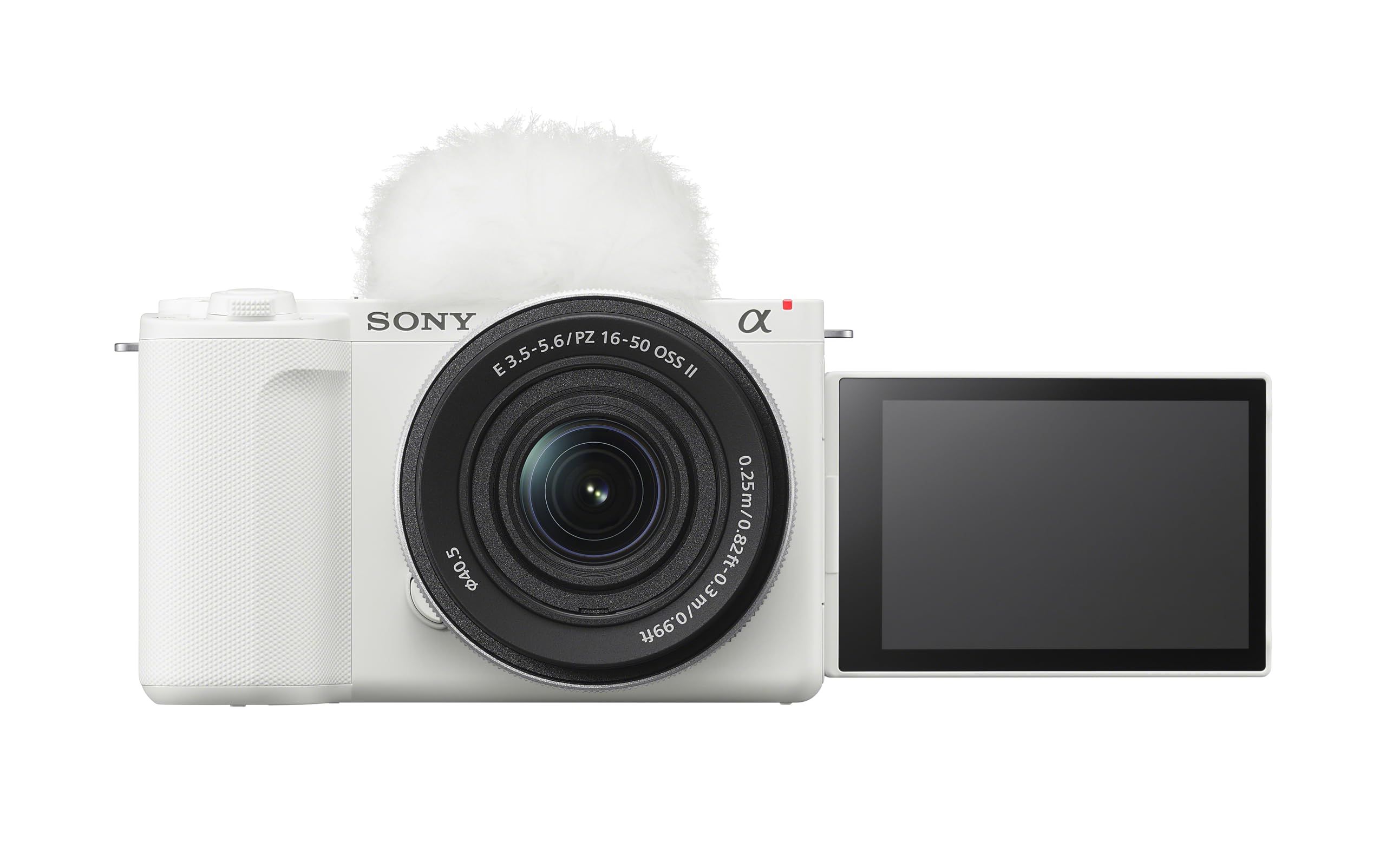
You sit in one place and speak for an hour or more. Prioritize a larger sensor for clean results in room light, face tracking autofocus, and a microphone input so voice and picture stay in sync. A flip screen helps you frame yourself at eye level.
Gamers and Live Streamers Who Appear in a Small Overlay
Your face fills only a corner of the screen, so consistency matters more than fine detail.
A good webcam or compact camera at 1080p is usually enough, and your money often works harder on lighting. Choose calm autofocus and a field of view that frames your shoulders, not the whole room.Teachers, Houses of Worship, and Teams With Several Scenes
You switch between a speaker, slides, and a wide room view, sometimes with a second camera.
Favor clean HDMI output, because a capture device per camera keeps each feed separate in OBS. Remote control from an app helps when the camera sits across the room. Readers planning a fixed room can also see our guide to the best studio cameras.Key Features to Compare
Compare these six factors in order. The first two decide if the camera can work in OBS at all.
Clean Output and How the Camera Connects to OBS Studio
OBS can only show what the camera sends, so the feed must carry no menus, focus boxes, or battery icons. A USB connection with UVC support appears as a webcam source with no extra hardware, while clean HDMI output needs a capture card or stick. Confirm in the manual that icons can be switched off on the output you will use, because some cameras clean the HDMI feed but not the USB feed.
Sensor Size for a Clean Picture in Room Light
Sensor size shapes how clean your picture looks in room light.
A 1 inch sensor gathers more light than the small sensors in most webcams, an APS C sensor gathers more again, and a full frame sensor gives the cleanest shadows and softest background blur. Megapixels matter less, because a stream sends far fewer pixels than the sensor holds. In a dim room, step up in sensor size before resolution, since grain shows more than missing detail.Resolution and Frame Rate for Your Stream
Most platforms display streams at 1080p, so a sharp 1080p feed at 30 or 60 frames per second covers most channels. Choose 60 frames per second if you move quickly or show fast motion beside you, and 30 for seated talk, which eases the load on your computer. A camera with 4K video still helps. You can crop its image inside OBS for a closer shot, and record a 4K copy for edited videos while streaming at 1080p.
Autofocus That Holds Your Face While You Move
During a stream you cannot check focus after every sentence, so the camera must hold your eyes sharp as you lean, turn, or hold a product toward the lens. Face detection and eye autofocus do this best, locking onto you rather than a bookshelf behind you. Test the camera at your real desk distance, because some systems hunt in low light. If you present standing, continuous tracking matters more than fast still photo focus.
Continuous Power, Recording Limits, and Heat Control
A camera battery made for a photo walk may fade in under an hour of video, and many cameras sleep or stop early. For streaming, look for power from a wall adapter or a DC coupler, often called a dummy battery, or steady USB power. Check the maker notes for time limits and heat warnings, because a shutdown at forty minutes ruins a class or service. Run a full practice session before the camera carries a real audience.
Lens Choice, Field of View, and Mounting Position
The lens decides how much of you and your room the audience sees. A fixed lens webcam shows a wide view that suits a desk two to three feet away, while interchangeable lenses let you pick a focal length that flatters your face and softens the background. Around 16 to 24 mm on an APS C body gives natural seated framing in a small room. Image stabilization matters little on a tripod.
Camera Types for OBS Studio Compared
Four types of camera feed OBS well, each for a different budget and room. If one body must cover stills first and streaming second, see our guide to the best digital cameras.
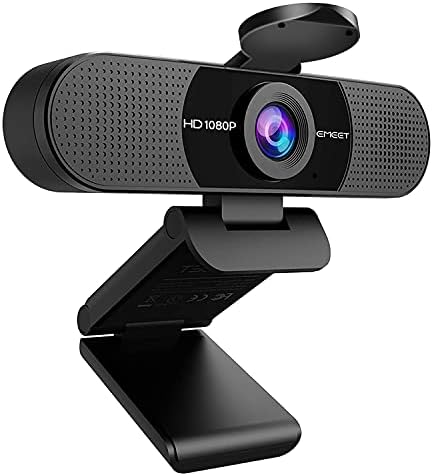
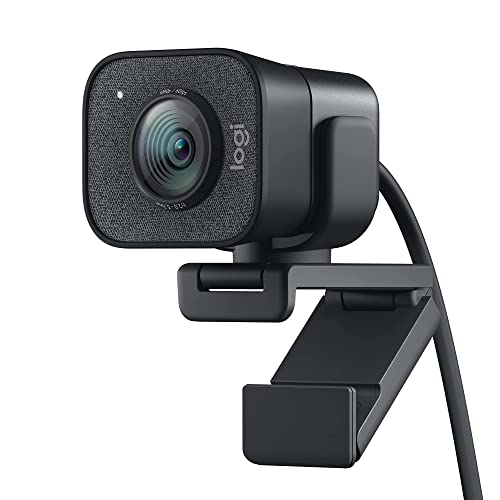
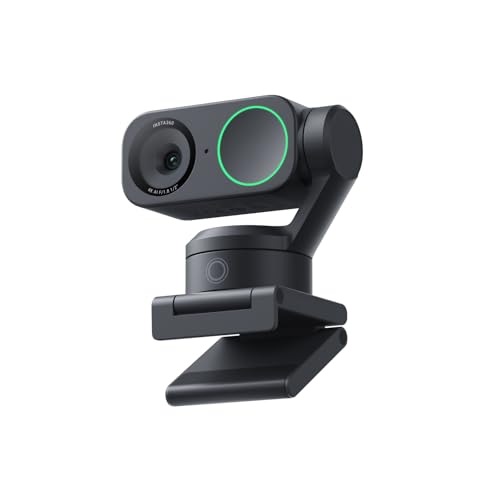
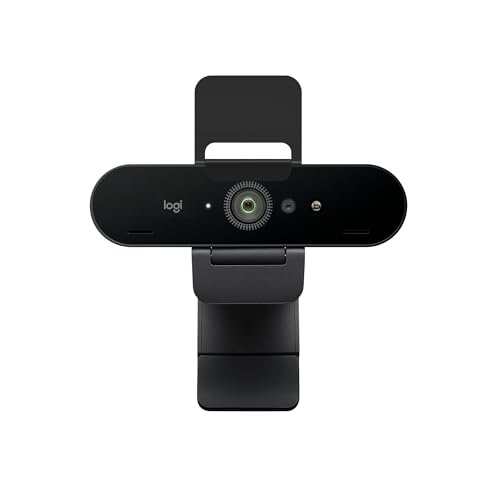
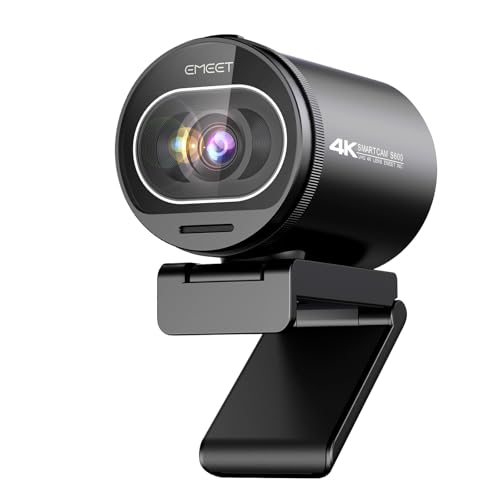
Webcams are the simplest route. They connect by USB, appear in OBS at once, and need no capture card. Their small sensors struggle in dim rooms and offer little lens control, but for an overlay or a bright desk they remove nearly all setup friction.
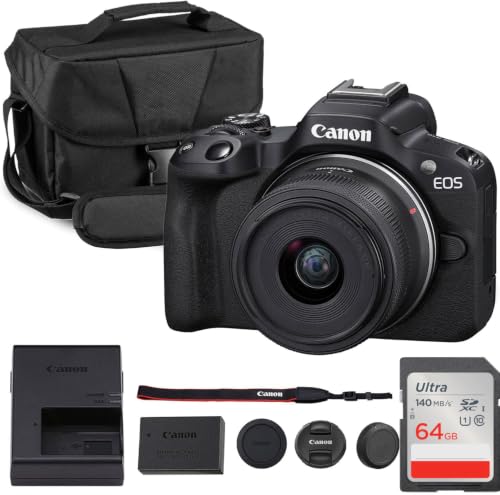
Mirrorless and advanced compact cameras give the best picture, with larger sensors, real lenses, clean HDMI output, and microphone inputs, at the cost of a capture device. Camcorders suit long runs and need decent light for their smaller sensors. Action cameras and phones work best as a second angle. For a wider view of source choices, see our guide to the best cameras for obs next.
Quick Buyer Checklist for OBS Studio
Answer each question before you order. When you shortlist the best cameras for obs studio, a single no on the first three items means the camera will not suit live use, no matter how good its photos look.
- Can the camera send a clean feed, with no icons or focus boxes, on its output?
- Can the camera run on wall or USB power for longer than your longest stream?
- Is the video time limit absent, or well beyond your session length?
- Does autofocus track a face at your normal desk distance?
- Does the field of view frame your head and shoulders at your desk?
- Is there a microphone input, or a plan to record audio as its own OBS source?
Common Mistakes to Avoid
- Buying a camera with HDMI output but no clean feed leaves menu icons visible to your audience.
- Streaming on a photo battery ends the picture partway through a long session.
- Skipping a full length practice run hides heat shutdowns and sleep timers until you are live.
- Placing the camera far away and cropping in OBS makes the image soft and noisy.
- Feeding camera audio and a separate microphone into OBS at once creates a doubled voice echo for viewers.
Care and Maintenance of Your Streaming Camera
Clean the front lens element with a blower first, then a microfiber cloth. Skin oil and dust scatter light and lower contrast on camera. Keep the cloth in a sealed bag so it stays free of grit.
Between sessions, leave vents uncovered and let a warm camera cool before storage. Check cables for kinks near the plugs and give each connector some slack, because a strained port can loosen and drop the feed mid stream. Update firmware only between projects, and test in OBS right after.
FAQ
What features matter most in a camera used only for OBS Studio streaming?
Clean output, limit free power, and face tracking autofocus matter most. One point buyers often miss is the OBS source setting itself. Add the camera in OBS at the exact resolution and frame rate the camera sends, because a mismatch adds stutter. A test recording inside OBS shows the result first.
Can a smartphone work as the main camera for OBS Studio?
Yes, a smartphone can work as the main camera, and it handles bright rooms well. Use a wired link, keep it plugged into power, and turn on do not disturb mode so a call never covers your face on air. Lock the exposure, because phone auto modes shift brightness when you move.
How much should you spend on a first camera for OBS Studio?
Most first time streamers do well at about $150 to $400 for a strong webcam or a used compact camera with clean output. Spend on light first, because a simple panel light often improves a modest camera more than a costly body improves a dim room. Keep budget aside for a capture card, power adapter, and mount.
Do you need 4K video in a camera for OBS Studio if your stream is 1080p?
No, you do not need 4K video when your stream goes out at 1080p. A clean, well lit 1080p feed looks sharper to viewers than a noisy 4K feed scaled down. Choose 4K only if you record edited videos or want to crop a closer shot. Some cameras send 4K over USB at a lower frame rate, so check the manual.
Why does a camera for OBS Studio freeze or go dark during a stream?
A freeze or dark screen usually comes from power saving, heat, or a loose cable.
One cause new owners miss is the computer power plan, which can suspend USB ports during long sessions. Turn off USB power saving, disable the camera sleep timer, and watch the temperature warning during a practice run.Our Verdict
Choose by feed first, picture second, and extras last. A camera that sends a clean signal, runs on wall power without a time limit, and holds focus on your face will serve every scene you build. Match sensor and lens to your light, then test the full setup at home.
When the best cameras for obs studio are judged by those live tests instead of photo specs, the right choice becomes clear. Set your shortlist against the product table above and stream with confidence.