
Best Cameras for 3D Printing Made Simple: A Clear Buying Guide for 2026
Disclosure: We may earn a commission when you buy through links on this page, at no extra cost to you. As an Amazon Associate I earn from qualifying purchases. Learn more

Shopping for the best cameras for 3d printing for the first time? Learn the terms, compare options, and avoid rookie mistakes with this easy guide.
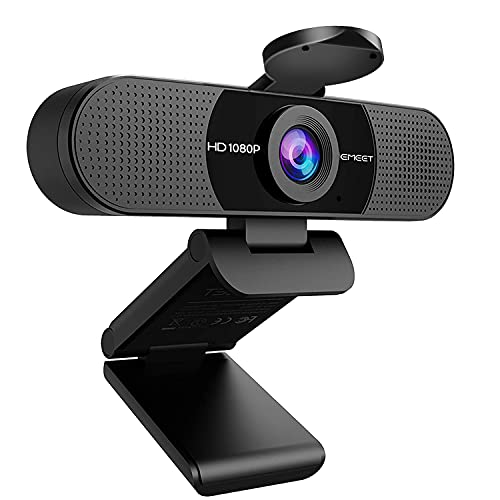
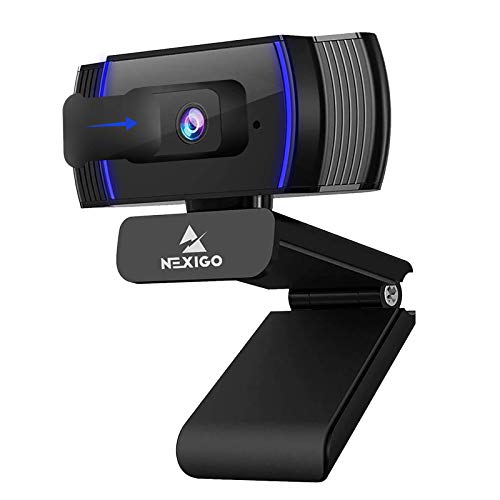
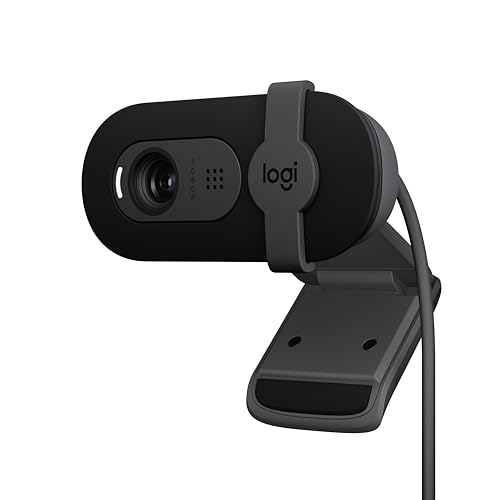
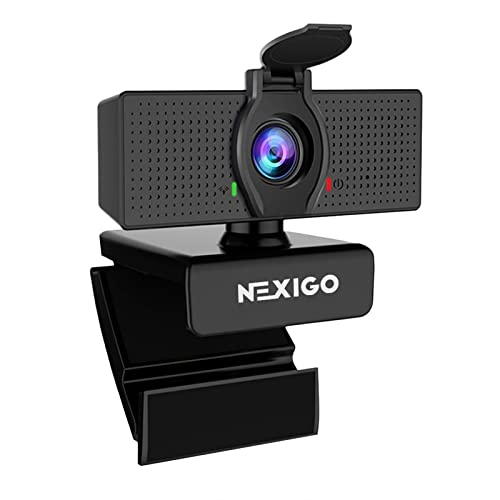
A camera for your printer does one simple job. It lets you watch a print while you are in another room or away from home, so a failed job wastes hours less filament and time. Choosing the best cameras for 3d printing is mostly about clear detail at short range, a steady live view, and a mount that fits your machine. The comparison table below sums up the main types.
This guide is written for first time buyers. It covers the key terms in plain language, plus setup, care, and the mistakes that make a camera nearly useless.



Who Should Buy a Camera for 3D Printing?
Not every owner needs a camera, but three groups get clear value from one almost right away.
Owners Who Run Long Prints Away From the Machine
If your prints run for many hours while you work, study, or sleep, a camera turns guesswork into a quick glance at your phone. You can confirm that the first layers stuck, that filament is still feeding, and that no loose part is dragging across the bed.
New Owners Who Want to Catch Failed Prints Early
Most early failures follow a pattern. A corner lifts, strands of filament pile up, or the part comes loose and moves with the nozzle. A camera lets you spot those signs in the first minutes and pause the job from the app instead of finding a tangled mess later. A basic model with a clear picture serves this group well.
Makers Who Record Timelapse Videos of Finished Builds
Timelapse turns hours of printing into a short clip where the part seems to grow layer by layer. If sharing your builds matters to you, look for a camera and software pairing that saves a frame at each layer change. You will also want steady lighting, because flicker that your eyes ignore shows up clearly on video.
Key Features to Compare
When you compare the best cameras for 3d printing, judge each model by how well it shows the print bed up close, not by the longest list of general photography features.
Resolution and Detail for Spotting Print Failures
Resolution decides how much fine detail you can see when you zoom into the live view. A 1080p picture is enough for most owners, because lifted corners, gaps between lines, and loose strands are easy to spot at that level. A 4K video feed helps if your bed is large or you often crop the view to watch the nozzle area alone.
Field of View and Close Focus Distance
Your camera will sit close to the printer, so it must cover the whole bed from a short distance. A wide angle lens, around 90 to 120 degrees, usually frames the full build area without moving the camera far back. Check the closest focus distance too, because a lens that only sharpens beyond arm length will leave a nearby print soft. Fixed focus set for short range suits most setups, while autofocus can hunt as the print head moves.
Frame Rate, Live View Delay, and Low Light Performance
A feed at about 15 to 30 frames per second looks smooth enough to follow the print head and judge motion problems. A short delay matters too, so you can pause a failing print in time. Prints also run in dim rooms and inside dark enclosures, so look for a sensor that stays clear in low light and pair it with a small enclosure light for the cleanest picture.
Mounting Options and Enclosure Fit
The best picture comes from a camera that stays aimed at the bed, so mounting deserves real attention. Common choices include a tripod thread, a clamp, a magnetic base, and brackets that bolt to the printer frame. Place the camera about 8 to 16 inches from the bed, angled slightly down. If it will live inside an enclosure, confirm its temperature rating first, because chamber air during long prints can grow warmer than many small cameras tolerate.
Connectivity, Printer Software, and Remote Viewing
A USB camera plugs into a single board computer or a laptop running printer control software, while a WiFi camera streams through its own app. Software support decides what you can do with the picture, from remote pausing to alerts when the software spots a failure pattern. Many owners control the whole setup from a computer, so see our guide to the best laptops for 3d printing if your machine also needs an upgrade.
Timelapse Tools, Storage, and Power
For timelapse, the camera or its software must save frames at set intervals or at each layer change, then join them into a video. Check where clips are stored, on a memory card, in the app, or on your computer. Power is simple but easy to overlook. A camera fed by USB stays on with the printer setup, while a battery model can die in the middle of an overnight job.
Camera Types for 3D Printing Compared
USB webcams are the low cost starting point and pair well with printer control software, though they need a computer or controller nearby to run. Standalone WiFi cameras work on their own and suit owners who only want phone viewing. Cameras built into a printer add no setup and share the machine controls, but you cannot move them to another printer later. A spare digital camera gives the best timelapse quality, and our guide to the best digital cameras covers that route. Capturing depth scenes is a different job entirely, as our guide to the best 3d cameras explains.
Mounting and Checking Your Printer Camera
Mount the camera before your next print and open the live view while the printer homes, so you can adjust the angle with the bed lit and in frame. Run a short test print and watch the first layers on your phone from another room. Wipe the lens with a clean lens cloth rather than your shirt, and keep a spare cable within reach so a loose connection never blinds you mid print.
Common Mistakes to Avoid
- Mounting the camera too far from the bed, so early lifting and stringing stay too small to see.
- Buying on megapixels alone and ending up with a lens that cannot focus at short printer distances.
- Placing the camera where the moving gantry or a swinging cable blocks the view partway through prints.
- Skipping a test print, so the first real check happens during an overnight job that fails unseen.
- Relying on battery power for long prints, so the feed stops hours before the job ends.
- Judging a camera in a bright room only, so its dim enclosure picture comes as a surprise later.
Care and Maintenance for a 3D Printing Camera
Dust and fine filament strands settle on the lens over time, so wipe it gently with a dry lens cloth about once a month, or sooner if the picture looks hazy. Keep cables clear of belts, fans, and the heated bed, and check the mount after you move the printer, because a small knock can shift the view off the bed. Update the camera app or firmware when the maker releases fixes.
Frequently Asked Questions
What features matter most in a camera for 3D printing?
Clear detail at short range matters most in a camera for 3D printing. Look for a lens that covers the full bed from a close mount, sharp focus at that distance, and a live view with little delay. A camera that shows a lifted corner within the first layers saves more filament than one with fancy photo modes you will never open.
How much should I spend on my first camera for 3D printing?
Most first time buyers should plan on about $30 to $80 for a camera for 3D printing. That range covers solid USB and WiFi models with a clear 1080p picture and a usable mount. Spend more only if you want sharper 4K detail, a camera built for enclosure heat, or polished timelapse tools that join clips for you.
Which camera type is better for low light inside a 3D printer enclosure?
A camera with a larger sensor handles low light inside a 3D printer enclosure better than a tiny webcam sensor. Even so, adding a small steady light inside the enclosure improves the picture more than any sensor upgrade, because the camera then needs less digital gain. Avoid lights that flicker, since flicker turns into rolling bands on video.
Can printer software stop a print when a camera for 3D printing spots a failure?
Some printer software can pause a job when a camera for 3D printing shows a failure pattern. These tools compare the live view with the expected shape of the part and flag piles of loose filament or a part that has come free. Treat the alerts as a helpful second set of eyes, and still check the first layers yourself on any print that matters.
Is a smartphone enough instead of a dedicated camera for 3D printing?
A spare smartphone can work instead of a dedicated camera for 3D printing for occasional checks. Its picture is usually sharp and its app support is good. The catch is commitment, because the phone must stay aimed at the printer for the whole job, charging the entire time. A low cost dedicated camera frees your phone and survives enclosure heat better.
Do I need image stabilization in a camera for 3D printing?
No, image stabilization adds little in a camera for 3D printing because the camera stays fixed on its mount. Vibration from the printer frame can blur the view on a light or loose mount, so a firm bracket solves the real problem. Put the money toward a better lens or lighting instead, and tighten the mount whenever you adjust the angle.
Wrapping Up
Start with the basics that decide what you can see. A close focusing wide angle lens, a clear 1080p or sharper picture, a firm mount, and software that lets you pause a failing job cover nearly every need a first time buyer has. Match the type to your habits, phone viewing for convenience, USB for software control, or a spare camera body for polished timelapse clips. When you are ready to choose the best cameras for 3d printing for your own setup, compare your shortlist against the product table above.


