
Best At Home Printers for Graphic Designers: A First Time Buyer's Guide for 2026
Disclosure: We may earn a commission when you buy through links on this page, at no extra cost to you. As an Amazon Associate I earn from qualifying purchases. Learn more

A first time buyer guide to the best at home printers for graphic designers, covering color accuracy, paper handling, ink costs, and key specs in plain terms.
Buying your first home printer for design work feels confusing because office printers and art printers look similar but behave very differently. A machine that prints crisp text can still produce dull posters, banded gradients, and colors that shift from what you saw on screen. This guide starts with the basics and builds up step by step, so no prior printer knowledge is assumed. If you are choosing the best at home printers for graphic designers for the first time, you will learn the terms, the specs that matter, and the mistakes to avoid.
The comparison table below gives you a quick overview of current options. Read the guide first if the spec names are new to you, then return to the table with a clear sense of which column actually matters for posters, proofs, and client mockups.
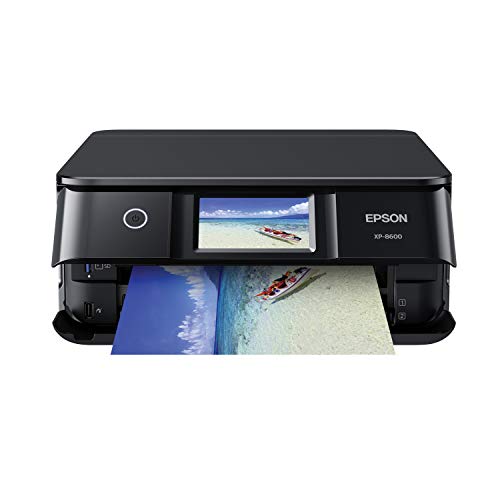

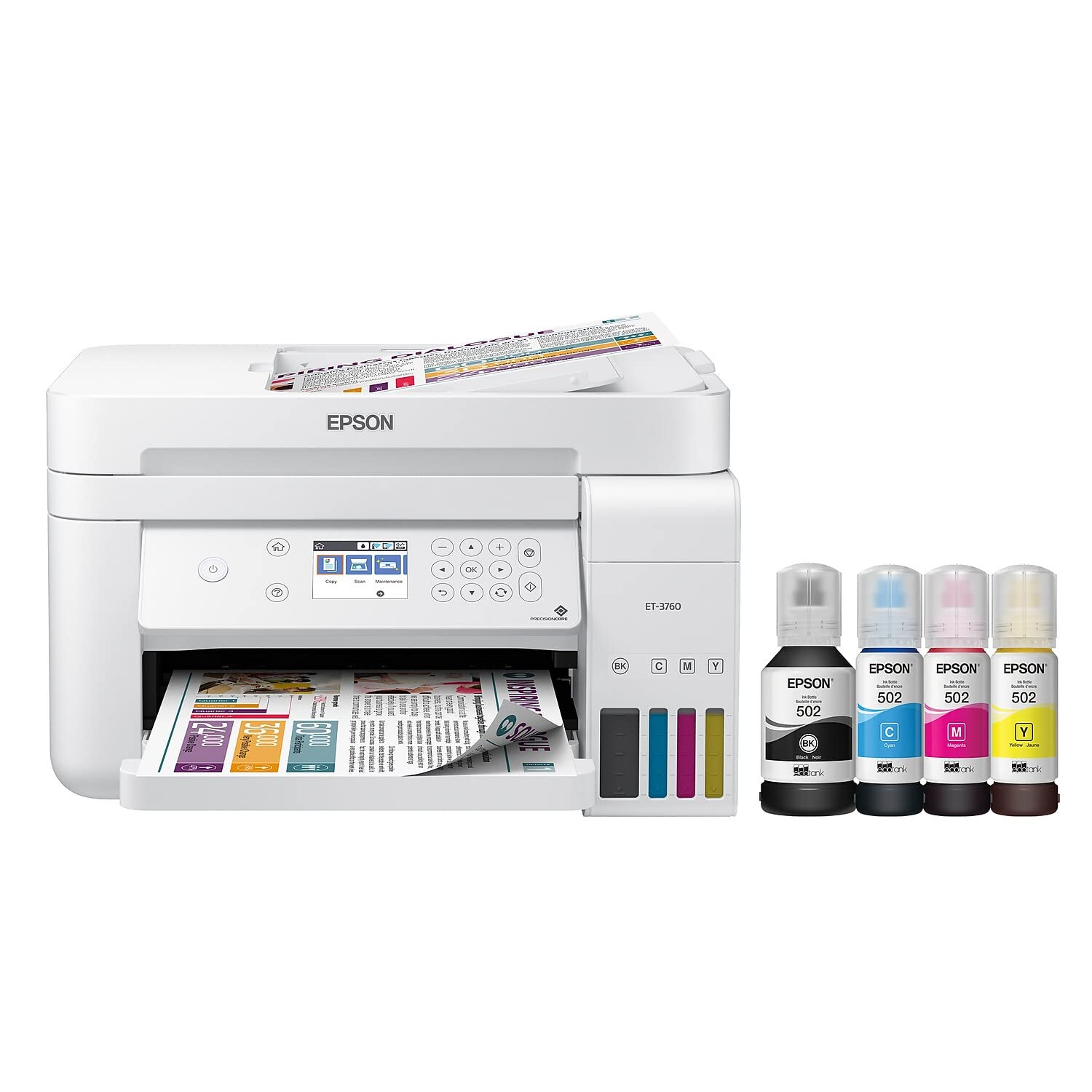

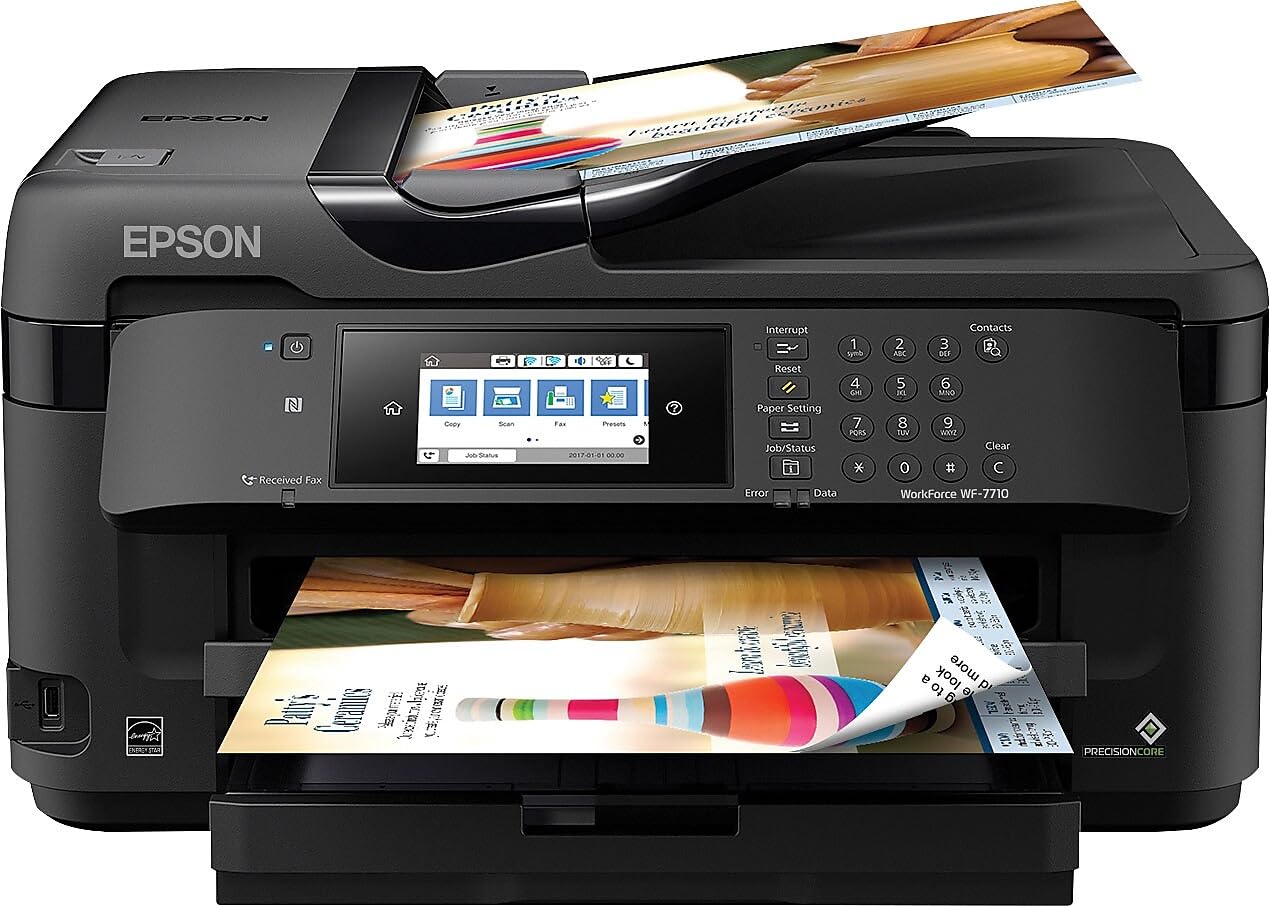
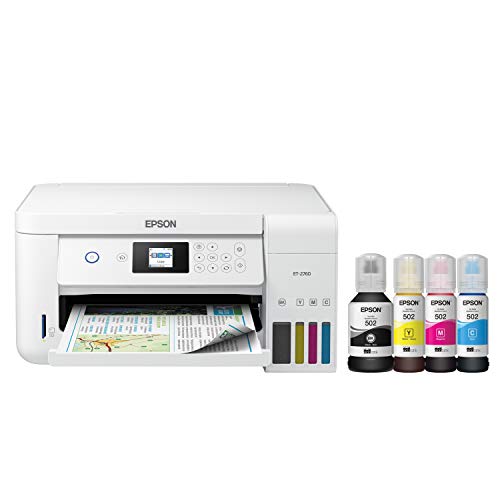

At Home Printers 101: The Basics
A home printer turns a digital file into a physical page by placing tiny dots of ink or toner on paper. Inkjet printers spray liquid ink and excel at smooth color blends and photos. Laser printers fuse dry toner with heat and excel at sharp text and fast document runs. Tank printers are inkjets with refillable reservoirs instead of small cartridges, which changes running costs more than print quality.
Three basic terms unlock most listings. DPI means dots per inch and describes how fine the dot pattern can be. PPM means pages per minute and describes speed under test conditions. Duty cycle describes how many pages the machine is built to handle each month. For design work at home, color behavior and paper handling usually matter more than raw speed, because a proof that shows the wrong color wastes more time than a slow print. Keep those basics in mind as the next section explains each spec in plain English.
Key Specs Explained in Plain English
Features That Matter for Graphic Designers
Graphic designers need accurate color, smooth gradients, and flexible paper handling more than most home users. Look for a printer with at least six ink colors or a quality four color system with strong driver controls, support for thick and matte art papers, and borderless printing at your main sizes. A wide color gamut helps reds and deep blues stay rich instead of muddy. Check that the driver lets you control color management, because letting both your design app and the printer manage color at once is a common cause of dull or shifted prints. Paper size support up to at least A3 or tabloid is a plus for posters and spreads.
Printer Type (Inkjet, Laser, Tank)
Inkjet is the main choice for design work because it handles color blends, photos, and varied papers best. Laser suits text heavy documents and fast office output, but most home laser models struggle with smooth gradients and glossy photo paper. Tank models are inkjets with large refillable ink supplies, ideal if you print often and want low running costs.
Print Speed
Print speed is listed in pages per minute, but the rating usually reflects draft text pages, not full color art. A large color poster can take several minutes on any home machine because the head makes many careful passes. For designers, first page behavior and photo print time matter more than the headline PPM number. If you print mostly single proofs and short runs, a slower high quality inkjet will serve you better than a fast office model. If you also print long documents for clients or school, balance quality with a fair PPM rating around the middle of the range.
Cost per Page and Ink Costs
Cost per page means the ink or toner cost to print one page, separate from paper cost. Cartridge inkjets can cost a lot per color page because small cartridges run dry quickly, while tank models spread a bottle of ink across thousands of pages. A practical know how point is to price a full set of replacement ink before you buy the printer, because a cheap machine with costly cartridges can cost more within a year. Ink subscriptions can smooth costs for steady users but punish light users who pay during quiet months.
Print Quality and Resolution
Resolution in DPI tells only part of the quality story. Droplet size, ink count, and paper quality shape the final result as much as the DPI figure. A printer that places very small droplets can render smooth skin tones and gradients at a moderate DPI, while a high DPI rating on poor paper still looks grainy. Match the paper to the job, using matte coated paper for proofs and glossy or luster paper for photos. For design proofs, judge quality by gradient smoothness and color match, not by the box rating alone.
Rookie Mistakes to Avoid
- Buying for text speed alone. A fast office printer can still fail at gradients and art paper, which are the core of design work.
- Ignoring paper support. If the printer cannot feed thick matte stock or print without borders at your size, your best work may not print at all.
- Double color management. Let either your design app or the printer driver control color, never both, or colors will shift in ways that are hard to predict.
- Skipping ink costs. Cheap hardware with expensive cartridges is the classic budget trap for people who print color often.
- Printing only on plain paper. Plain office paper soaks up ink and dulls color, so your printer will look worse than it really is.
For a narrower look at design focused home models, see our guide to the best home printers for graphic designers after you finish the basics here.
Getting Started: Setup and First Use
Setup starts with placement. Put the printer on a stable surface near your computer, leave room behind it for rear paper feeds, and connect it to your network during the guided install. Install the full driver from the maker rather than a basic system driver, because the full driver unlocks paper type and color controls you will need. Print a nozzle check and a small test image on the paper you plan to use most, then adjust color settings in one place only.
Two habits protect your results from day one. Print a page weekly to prevent clogs in an inkjet, because dried ink in the nozzles causes banding and missing colors. Use genuine or reputable ink, since poor third party ink can shift color and clog heads. A second practical point is to store art paper flat and away from humidity, because curled or damp sheets feed poorly and smudge more easily. If scanning sketches or signed forms is part of your workflow, see our guide to the best at home printers and scanners for models that combine both jobs. For general home printing background, see our guide to the best printers for at home and our guide to the best computer printers for home for wider context.
FAQs
What features matter most in at home printers for graphic designers?
Color accuracy, paper flexibility, and driver level color control matter most. A printer that handles thick matte paper, prints without borders, and offers six or more inks or a strong four ink system will cover most design needs. Add tank ink if you print weekly, because running costs shape your real budget. One point many beginners miss is screen calibration. Even a simple calibration routine for your monitor improves print matching more than a small upgrade in printer hardware.
Which paper should I use for design proofs?
Use a matte coated or presentation paper for proofs, because it holds fine detail and shows color without glare, and keep glossy or luster photo paper for final prints and portfolio pieces. Match the paper type in the driver to the paper you load, since a wrong setting is a common cause of dull or oversaturated prints.
What does cost per page mean?
Cost per page is the ink or toner expense for one printed page, not counting the paper itself. You estimate it by dividing the price of a cartridge or bottle by how many pages it yields. Color pages cost more than text pages because they use several inks at higher coverage. A full bleed poster can use many times the ink of a text page, so design work raises your true average. Tracking your first set of ink from full to empty gives you a personal figure that no chart can match.
Are ink tank printers worth it?
Ink tank printers are worth it if you print color work on a regular schedule. The upfront price is higher, but bottles of ink cost far less per page than small cartridges, and you can top up one color at a time. They also reduce waste and the panic of a cartridge dying mid proof. They are less compelling if you print only a few pages a month, because ink can sit for long periods and any printer needs regular use to stay healthy. For steady design output, the math usually favors the tank within the first year.
Inkjet or laser: which is cheaper long term?
For design work, a tank inkjet is usually cheaper long term because color laser toner sets are costly and photo quality is weaker. A standard cartridge inkjet can be the most expensive path of all if you print often. Laser wins on cost for high volume black text, where toner yields are huge and speed is high. The right answer depends on your page mix. If most of your pages carry color art, choose the tank inkjet. If most carry contracts and letters, a laser may cost less over its life.
As you narrow your shortlist of the best at home printers for graphic designers, keep your top two priorities in front of you and drop any option that misses them.
The Bottom Line
Put color accuracy and paper handling first, running costs second, and speed third. A tank inkjet with strong driver controls covers most first time design needs without locking you into costly cartridges. Remember to print weekly, manage color in one place, and judge prints on the paper you actually plan to use. When you are ready to compare models, revisit the best at home printers for graphic designers options in the product table above and match them against the specs you now understand.


