Best Affordable Mouse for Gaming in 2026: What Each Price Tier Buys You
Disclosure: We may earn a commission when you buy through links on this page, at no extra cost to you. As an Amazon Associate I earn from qualifying purchases. Learn more

The best affordable mouse for gaming depends on which upgrade you will feel: switches, sensor, memory or wireless. Here is what each price shelf buys.
Gaming mice on the US market run from under about $15 to well past $150, and the gaps between those prices are not random. Each step up buys specific parts: better switches, a steadier sensor, smarter software, and eventually a cable free desk. Knowing which of those upgrades you will actually feel is the whole skill behind choosing the best affordable mouse for gaming, because the cheapest shelf already plays games well, and the top affordable shelf only earns its price for certain players.
This guide walks the three budget shelves in order and prices each one honestly. The product table gathers picks side by side so you can see where your money would land before reading on. After the shelves, we break down where the step up money physically goes, what ownership costs hide behind the sticker, and how to check a mouse against your hand before any of the numbers matter.


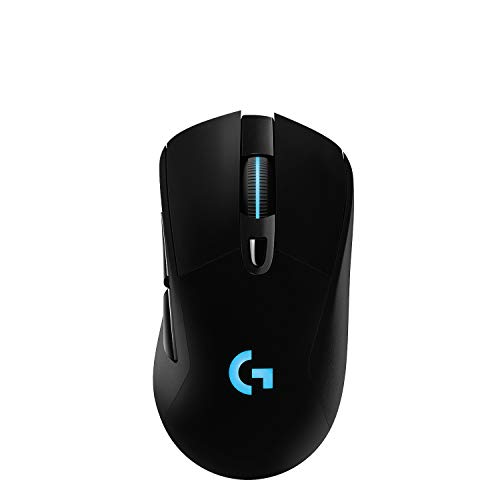
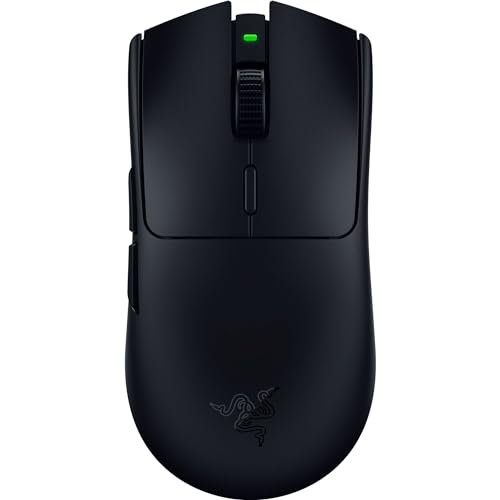

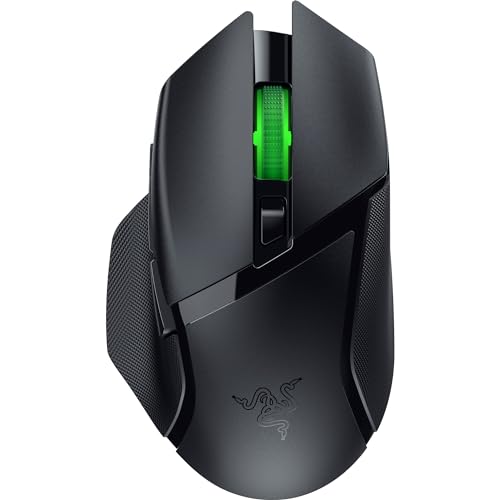

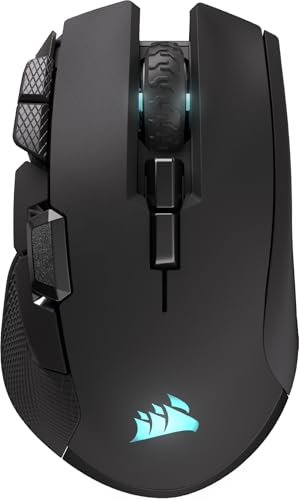

The Best Affordable Mouse for Gaming on Each Budget Shelf
Prices here follow typical US storefront ranges for full size gaming mice, and they drift with sales, so treat the boundaries as neighborhoods rather than walls. For the wider market beyond this budget, our guide to the best mouse for gaming covers premium gear as well; everything below stays at about $85 or under.
The Starter Shelf: Under About $25
At this level you get a wired mouse with a basic optical sensor, standard mechanical switches, and a plain rubber cable. Shape choices are limited to a few safe, medium shells, software is often a bare download or nothing at all, and lighting stands in for features the maker could not afford to build. None of that stops it from playing games: tracking is accurate enough for casual and mid ranked play, and clicks feel fine for the first year or two.
Know what got cut to reach this price. Onboard memory is usually absent, so settings live in software on one computer. Glide feet are thin, cables are stiff, and scroll wheels develop play sooner than on pricier models. This shelf suits younger players, spare setups, and anyone checking whether PC gaming sticks before spending more. It is a starting point, not a destination, and buying it with open eyes is perfectly fine.
The Middle Shelf: About $25 to $50
This is where the hardware stops feeling like a compromise. The sensor steps up to a proven class that tracks fast flicks without spinning out, switches carry higher click ratings, and shells get lighter and better balanced. Onboard memory appears, so your DPI steps and bindings live on the mouse itself, and glide feet turn into proper low friction material that slides evenly on cloth pads.
Most players should stop here, and the reason is diminishing returns rather than thrift. The jump from the starter shelf changes how the mouse feels every minute you use it, while the next jump mostly changes how it feels in specific moments. If you play several evenings a week and your current mouse is a pack in office model, this shelf delivers the upgrade you have been imagining, at roughly the cost of one new game.
The Upper Shelf: About $50 to $85
The top of the affordable range buys freedom from the cable and refinement everywhere else. Wireless links in this bracket use fast 2.4 GHz connections that hold up in competitive play, optical switches replace mechanical ones on many models, and weights drop toward about 60 grams without hollow, creaky shells. Charging moves to USB C, and battery life stretches into weeks at standard polling rates.
Pay for this shelf when a specific gain names itself: you compete in fast shooters and want the lightest shell, your desk setup makes cable drag a daily annoyance, or you want one mouse that travels between a gaming PC and a work laptop. If none of those sentences describes you, the middle shelf plus a good pad is the smarter spend, and the difference can fund your next game instead.
Where the Step Up Money Actually Goes
Switches and Cables Take the First Dollars
The earliest upgrade money lands under your fingers. Starter switches feel inconsistent from click to click and carry modest endurance ratings, while middle shelf switches click with a cleaner break and survive far more presses before the dreaded double click appears. Cables improve in parallel: stiff rubber gives way to soft braided cords that barely tug during wide mouse movements.
Neither upgrade photographs well, which is why listings underplay them. Judge them by the written details instead, looking for a named switch class and a cable described as flexible or paracord style. A mouse that names its switches and its cable is telling you where its budget went, and that honesty is a good sign at any price.
Sensor Class Buys Consistency, Not Bigger Numbers
Every shelf advertises enormous DPI ceilings, and every shelf is hoping you will compare them. Resist, because the ceiling is the least useful number on the box: nearly all players use sensitivity settings far below even a starter sensor's maximum. What the middle shelf actually buys is headroom in the other direction, tracking that stays accurate during the fastest movement your arm can make.
Cheap sensors can spin out or skip when flicked hard, sending your view into the floor or the sky mid fight. Proven sensor classes simply do not do this at human speeds, and they track more evenly across different pad surfaces too. That reliability, not the printed maximum, is what separates a $40 mouse from a $15 one when the game gets fast.
Software and Onboard Memory
Software decides how much of the mouse you can actually reach. At the starter level you may get fixed DPI steps and no remapping at all, while the middle shelf unlocks per button bindings, macros, and lighting control through a real companion app. The quality gap between apps is wide, so look for one that saves settings without an account and stays out of your way afterward.
Onboard memory is the prize inside this category. A mouse that stores profiles internally carries your setup to any computer, including consoles and work machines where you cannot install anything. For players who split time between desks, this single feature can justify the middle shelf on its own, because a mouse that forgets your settings every time it changes machines is only half yours.
Wireless Is the Last Upgrade, Not the First
Wireless done cheaply is worse than a cable, because the radio and battery squeeze the sensor and switch budget until something gives. That is why credible gaming wireless only shows up on the upper shelf, where the price can fund all of it at once. Once your budget reaches that shelf, the best affordable wireless gaming mouse options stop cutting corners that matter, and the choice becomes about convenience rather than compromise.
Battery claims deserve the same skepticism as DPI claims. Maker figures usually assume low polling rates and lights off, so a mouse rated for a huge number of hours may deliver half that at gaming settings with lighting on. It is still plenty, charging roughly once a week or two is painless, but plan your expectations around the smaller number and you will never be surprised before a match.
Fit Still Comes Before Price
Shell Size and Grip Style
No tier upgrade rescues a mouse that fights your hand. Measure your palm from wrist crease to middle fingertip and match it to shell length: small hands do best with compact shells, large hands need length so the fingers are not curled tight all evening. Palm grip wants a full, taller shell; claw grip wants a shorter one with the hump under your knuckles; fingertip grip wants small and light above all.
Shapes also lean left, right, or neutral. Symmetrical shells suit claw and fingertip players and anyone who switches hands, while sculpted right handed shells support a relaxed palm. Starter shelves stock mostly safe symmetrical shapes, and shaped shells with more variety appear as you climb, which is one quiet reason some players pay for the upper shelf even when they do not need wireless.
Weight, Balance, and Skates
Weight falls as price rises, but lighter is a tool, not a trophy. Players who aim with the whole arm on low sensitivity feel every gram during stops, while players who steer from the wrist often aim steadier with a little mass in the shell. Some middle and upper shelf models include tuning weights, letting one mouse serve both habits while you learn which one is yours.
Underneath, skates decide how the mouse moves on the pad. Cheap feet are whatever plastic the shell came with, while better shelves use PTFE feet that glide evenly and resist the scratchy feeling that develops as pads age. Center of balance matters too, and a mouse that tips forward or drags its tail will feel wrong no matter what its spec sheet promises, so weigh the return policy as part of the purchase.
A Straight Word on Ergonomic Claims
Every shelf prints the word ergonomic somewhere, and at these prices it means the shell is shaped, not that it protects you. A gaming mouse is not a medical device, and no tier of mouse treats or prevents wrist pain, tendon trouble, or repetitive strain. Comfort labels are marketing until a clinician says otherwise, so buy for fit and feel rather than for promised health benefits.
The things that genuinely protect your hands cost little: a chair and desk height that keep your forearm level, a pad big enough for your sensitivity, and breaks during long sessions. If pain, numbness, or tingling in the hand or wrist does not fade with rest, see a clinician instead of climbing another price shelf. Spending more on a mouse is a fine idea for many reasons, but fixing an injury is not one of them.
Long Term Costs to Factor In
The sticker is not the whole bill. Glide feet wear down and cost a few dollars to replace every year or two, pads themselves go slick and need swapping, and wireless models eventually hold less charge than they did when new. None of these costs is large, but together they explain why a middle shelf mouse with replaceable feet and a detachable cable often costs less across three years than a sealed starter mouse replaced twice.
Plan the surrounding gear in the same breath. A controlled cloth surface is what lets any sensor do its job, so readers comparing the best gaming mouse and pad combinations alongside the mouse itself are budgeting correctly. If a keyboard is also due, a best affordable gaming keyboard and mouse bundle can undercut two separate purchases, provided the included mouse is a shape you would have chosen anyway. Warranty length also stretches with price, from a basic year at the bottom toward two or more at the top, and that coverage is part of what the step up buys.
A Short Checklist Before You Pay
- Measure your hand and write down your grip style before opening a single listing.
- Pick the shelf by the upgrade you can name, not by the biggest number on the box.
- Check for onboard memory if the mouse will move between computers.
- Budget a decent pad into the total, because the sensor needs a surface worth tracking.
- Confirm the return window covers a week of evenings, since fit only shows itself in use.
Frequently Asked Questions
How much should a first gaming mouse cost?
For most new players, about $25 to $50 is the honest answer, because that shelf buys a proven sensor, decent switches, and onboard memory in one step. Going cheaper works for dipping a toe in, and going higher mostly buys wireless and lighter shells. One planning tip the tiers do not show: reserve a slice of the total for a proper pad, since a mid priced mouse on bare desk glass performs worse than a starter mouse on good cloth.
Is a wireless mouse under about $50 ready for competitive play?
Mostly not, because at that price the radio and battery usually force a weaker sensor or heavier shell than wired rivals at the same cost. The exceptions exist, but they are hard to spot from listings alone. If you do buy one, place the wireless dongle on an extension cable near the pad rather than in a rear port, since a clear short path to the receiver removes most of the dropouts players blame on wireless itself.
What polling rate do I need from a gaming mouse?
A 1000 Hz polling rate is the standard to look for, and every shelf in this guide can offer it on wired models. Higher rates exist on upper shelf gear, but they need a fast monitor and game support to show any difference, and they drain wireless batteries faster. Treat anything above 1000 Hz as a bonus for specialists, and never let a polling number talk you out of a mouse that fits your hand better.
Do gaming mice wear out faster than office mice?
The click switches often outlast office gear on paper, but gaming adds harder use: rapid clicks, fast swipes, and long nightly sessions. In practice, scroll wheel encoders and glide feet age first on both kinds of mouse. A model with replaceable feet and a detachable cable ages gracefully, while a sealed mouse with a fraying fixed cord is finished the day the cord gives up, whatever its click rating says.
Can one mouse cover both work and gaming?
Yes, and the middle shelf is built for exactly that double life. Profile memory lets you keep quiet, low sensitivity settings for work and faster ones for play, switching with a button under the shell. For office hours, the Bluetooth mode on dual connection models stretches battery life for weeks, then the fast wireless link takes over at night. One well chosen mouse on the desk beats a drawer holding two mediocre ones.
Final Thoughts
Read the shelves as a parts list, not a ranking. The starter shelf gives you a working mouse, the middle shelf gives you one that feels right every day, and the upper shelf removes the cable and the last rough edges. Compare your shortlist in the product table above against the upgrade you can actually name, and the right choice usually names itself. Choose the best affordable mouse for gaming at the lowest shelf that buys that upgrade, keep the receipt through the return window, and spend the savings on the games the mouse was bought for.