Best Affordable Wireless Gaming Mouse: A Buying Guide for 2026
Disclosure: We may earn a commission when you buy through links on this page, at no extra cost to you. As an Amazon Associate I earn from qualifying purchases. Learn more

Match grip, weight, battery and wireless link to find the best affordable wireless gaming mouse, with clear price bands and trade offs at each level.
Cutting the cord used to mean accepting lag, and budget wireless mice earned a bad name with players for exactly that reason. Modern receiver based models have closed most of the gap, so the question is no longer whether wireless can keep up. The best affordable wireless gaming mouse for your desk is the one whose shape fits your grip, whose weight suits your games, and whose link stays stable, and none of those checks needs a flagship price.
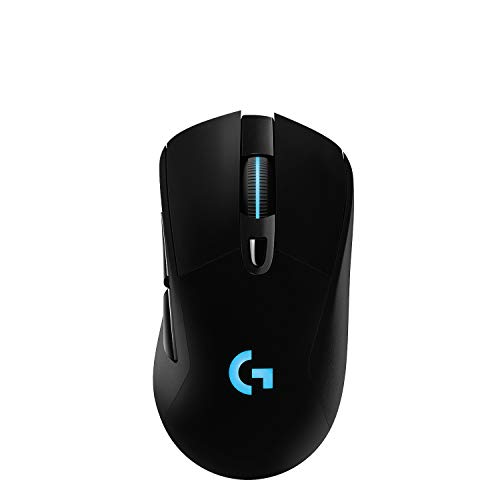
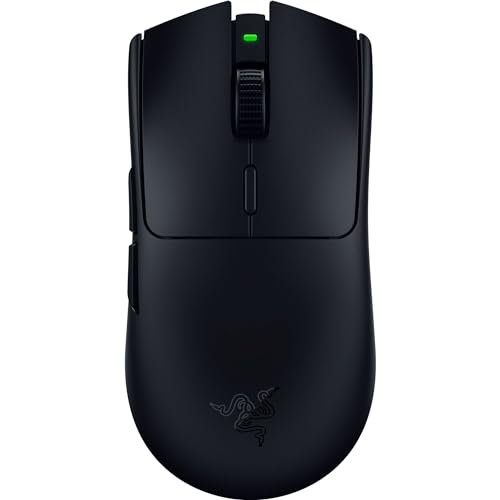
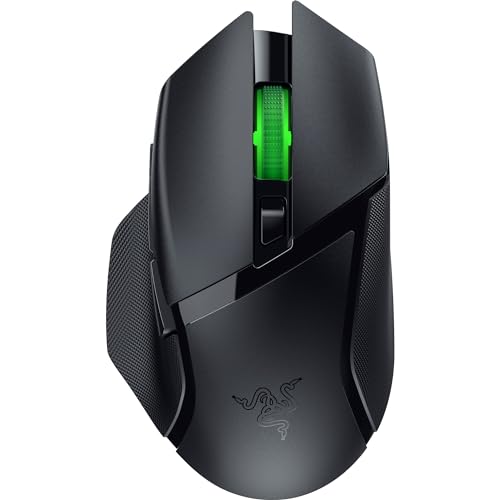
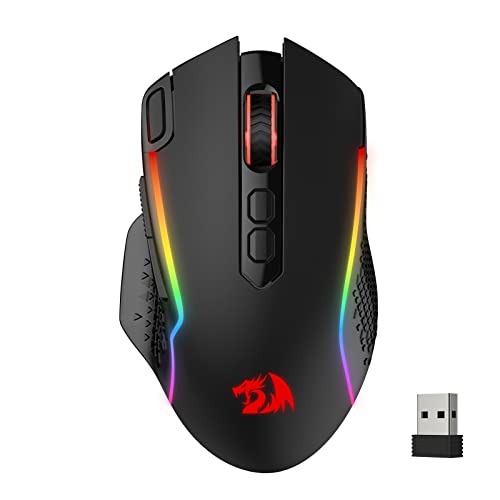
This guide works through the decisions in the order they matter. It starts with what each price band really buys, then puts grip and weight ahead of sensor numbers, and finishes with battery, comfort, and care. The product table collects models in this class, and the sections under it explain how to read the specs on the box so you can match a model to your hand and your games instead of to a headline.



What Each Price Band Really Buys
Prices in this class fall into three rough bands, and the bands describe feature classes rather than named models. Retail listings use several labels for the same shelf, including the wording in our companion guide to the best affordable mouse for gaming, but the trade offs stay the same under any label. Use the bands to set expectations first, then use the buying guide below to spend inside the band you pick.
Under $40: The Starter Band
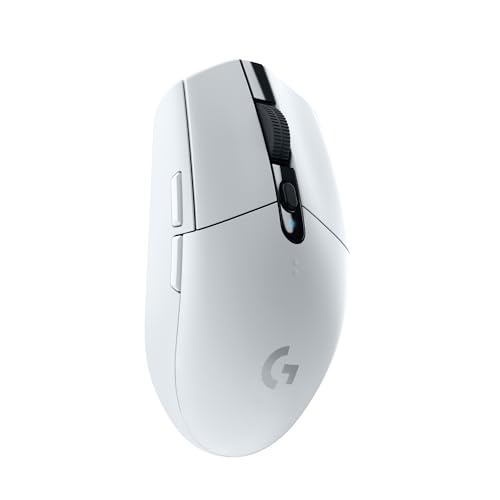
Starter band models pair a safe optical sensor with a basic shell and a single receiver. Expect a 1000 Hz polling rate, a fixed set of DPI steps, and simple software or none at all. Battery life is often the quiet strength here, because plain shells draw less power.
What you give up is refinement: feet glide less smoothly, side buttons feel soft, and the scroll wheel rarely has the crisp steps of pricier models. For casual play and a first wireless mouse, that trade is honest value.
About $40 to $70: The Value Band
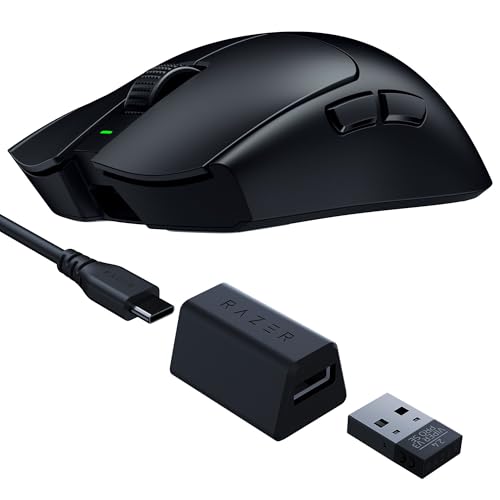
This is where most players should shop. Models in this band add lighter shells, better feet, onboard memory, and switches rated well into the tens of millions of clicks. Charging moves to USB C on many models, and some include Bluetooth as a second link for a laptop.
The sensor is rarely the limit at this price; shape and weight decide how the mouse feels after an hour. If your budget lands here, spend your attention on fit rather than on spec sheets.
About $70 to $100: The Step Up Band
The step up band buys polish rather than a different sport. Shells get lighter still, feet are thicker and smoother, and some models raise the wireless polling rate above 1000 Hz with a bundled high rate receiver. Wireless charging docks and softer charging cables appear here as well.
Nothing in this band makes an unpracticed player accurate, and the gains show most in long sessions. Buy into it for comfort and finish, not for a promised jump in rank.
How to Choose the Best Affordable Wireless Gaming Mouse for Your Games
Choosing the best affordable wireless gaming mouse comes down to four checks in order: fit, link, sensor, and battery. Our broader guide to the best mouse for gaming covers wired and premium models too, but the checks below stay with the affordable wireless corner of the field, where most of the money is saved or wasted.
Grip and Weight Come First
Start with your hand, not the spec sheet. Palm grip players rest the whole hand on the shell and suit taller, fuller shapes, while claw and fingertip players drive the mouse with their fingers and suit shorter, lighter shells. Measure your hand from wrist to middle fingertip: hands under about 17 cm usually fit small shells, and hands over about 19 cm usually need medium or large ones.
Weight is a fit fact, not a contest. Shells under about 60 g feel quick in fast shooters, 60 to 80 g suits most players, and heavier shells can feel steadier for slow, deliberate aim. A shape your hand relaxes on beats any number on the box.
What You Can Realistically Get on a Budget
A budget price buys a capable mouse, and it is worth knowing where the savings hide. Makers cut cost in the feet, the cable, the software polish, and the shell finish long before they cut the sensor. Do not save on the sensor, the main switches, or shell stiffness, because those three decide tracking, click feel, and whether the sides flex under your grip. Accept simpler lighting, a plain box, and fewer bundled extras instead, since none of those change a match.
The Wireless Link Decides the Lag
Latency honesty starts with the link class. A gaming class wireless mouse is built to close the wired gap, and the receiver class decides how close it gets: the 2.4 GHz USB receiver in the box is the gaming link, with response close to a cable for almost every player. Bluetooth is the travel link; it pairs with almost anything and sips power, but its slower update rate can feel soft in fast games.
Guides filed under the reversed label best mouse gaming wireless describe this same receiver based class. Keep the receiver on your desk, close to the pad, and treat Bluetooth as the backup for work and travel.
Compatibility Across PC, Mac, and Console
A receiver mouse works on any computer with a suitable USB port, and an adapter solves most port problems on thin laptops. The limits sit in the software: button remapping apps are often Windows only, so a Mac user may set the mouse up on a PC and rely on onboard memory afterwards. Console support varies by system and by game, and many console titles accept no mouse at all. Check the game, not just the console, before you count on playing that way.
Sensor and Switch Performance
Sensor headlines need translating. DPI figures in the tens of thousands are class figures, not targets: nearly every player competes somewhere between 400 and 3200 DPI, and the sensor performs the same across that working range. Polling rate matters more, and 1000 Hz is the settled standard in this class.
What decides the real feel is your surface and your settings, so pair the mouse with a consistent cloth pad. For switches, optical and mechanical classes both serve well; a click rating in the tens of millions and a light, even click matter more than the type name.
Battery Life and Charging
Battery classes split by cell type. Rechargeable models in this class run about 40 to 90 hours of play at 1000 Hz between charges, and lighting can cut that figure sharply. Models on a replaceable AA cell often run far longer, but the cell adds weight at the back of the shell.
USB C charging is now common, and most rechargeable models keep working as a wired mouse while they charge. A hardware power switch matters if the mouse travels in a bag, because it stops clicks and drain in transit.
Comfort for Long Sessions
Treat the mouse as a comfort accessory, because your hand lives on it for hours. A shell that forces your fingers to spread, or a hump that presses your palm, will announce itself long before the sensor does. Rest your hand on the mouse the way you play and check that your thumb reaches both side buttons without shifting your grip. If wrist or hand pain persists away from the desk, or numbness keeps returning, that is a question for your doctor, not a shopping problem a new shell can promise to fix.
Extra Buttons, Software, and Memory
Two side buttons cover most games, while extra buttons help in strategy and MMO titles where commands stack up. Software lets you remap buttons, set DPI steps, and save profiles, and onboard memory decides whether those settings travel to another computer without the app. A DPI switch you can reach mid game is worth more than a row of lighting zones. Lighting is decoration that costs battery, so count it as a luxury, never as a reason to pick one model over another.
Durability and Warranty
Click ratings give a rough life estimate, and feet wear gives a real one: PTFE feet thin out with use, and worn feet drag long before the sensor tires. Some models include spare feet in the box, and a few let you swap the main switches without soldering, which extends the mouse well past its first set of clicks. Warranty length in this class runs about one to two years. Keep the receipt, and register the mouse if the maker asks.
Wireless Gaming Mice vs Other Options
Two neighbouring purchases follow the same budget logic and are easy to confuse with this one. Audio is a separate accessory class: our guide to the best affordable wireless gaming headsets treats headsets as their own purchase, with fit and microphone questions a mouse budget cannot answer. And if the whole desk setup is new, the bundles in our guide to the best affordable gaming keyboard and mouse pair a keyboard with a simpler mouse, which suits a first setup better than a player upgrading the mouse alone.
Compact and Travel Models
Travel mice shrink the shell and flatten the hump so they slide into a laptop sleeve. They pair over Bluetooth, sip power, and work well for documents and hotel desks. The same flat shape cramps a gaming grip, and the small switches and feet are built for light duty. Choose one as a second mouse for the road, not as your only mouse for fast games.
Wired Models
A wired mouse never needs charging and never meets interference, and at the same price it often carries a slightly better sensor or shell. The cable is the whole argument against it: drag on the desk edge changes aim unless you add a bungee. If your desk is fixed and you never travel with the mouse, wired remains the honest value pick in this class.
Ergonomic Models
Ergonomic gaming mice tilt the hand into a more vertical, handshake like posture and move the strain away from a flat wrist. They suit players whose hands ache on flat shells, though the grip takes a week or two to learn and fast flicks feel different. If comfort is your first problem, this class answers it better than any lightweight shell can.
Tips to Get the Most From Your Mouse
Small habits keep a budget mouse feeling accurate for years:
- Clean the sensor lens and the feet with a dry cloth every few weeks, since dust and worn edges add drag you can feel.
- Update the firmware through the maker app once at setup, then check again when a game starts to feel inconsistent.
- Play on a full size cloth pad, because hard and glass surfaces make budget sensors work harder and wear feet faster.
- Turn lighting down or off during long weeks of play, since lighting is the fastest drain on a small battery.
- Check the feet every few months and fit the spare set when the edges start to catch on the pad.
Frequently Asked Questions
Is a wireless gaming mouse fast enough for competitive play?
Yes, a receiver based model is fast enough for competitive play at almost every level. The useful check is placement: keep the receiver on an extension cable or dock near the pad, away from crowded USB hubs and metal enclosures that weaken the signal. Distance and interference cause more stutter than the wireless design itself, and a receiver sitting behind a tower is the most common cause of a mouse that feels slow.
What DPI setting do most players actually use?
Most players settle between 800 and 1600 DPI for shooters and a little higher for desktop work. What your hand feels is DPI multiplied by the sensitivity setting inside the game, so 800 DPI at double sensitivity tracks like 1600 at standard sensitivity. Change one setting at a time, play a few matches, and keep the combination that lets you turn fully with one comfortable sweep.
Does an affordable wireless gaming mouse work with a Mac or a console?
It works with a Mac through the receiver or Bluetooth in most cases, and the mouse itself needs no driver to track and click. The catch is setup: remapping apps are often Windows only, so save your buttons and DPI steps into onboard memory on a Windows machine first, and the Mac will simply read them. Console play depends on the game allowing mouse input at all, which many do not.
How long does the battery last, and how should the mouse be stored?
Expect about 40 to 90 hours of play from a rechargeable model at standard settings, and far longer from an AA model. For storage, use the power switch, and avoid leaving a rechargeable mouse fully drained for months, because a cell stored empty ages faster. If an AA model will sit unused for a season, take the cell out so a tired battery cannot leak inside the shell.
Can I keep playing while the mouse charges?
Yes, most rechargeable models in this class work as a wired mouse while they charge over USB C. The bundled cable is often stiff, which changes the feel until you unplug, so many players charge overnight instead. A softer braided cable from the spares drawer solves it if you prefer to play plugged in, and charging this way does not harm the battery.
Final Thoughts
The checks that matter are simple: a shape your grip relaxes on, a weight that suits your games, the receiver link for play and Bluetooth for travel, and a battery routine you can live with. Sensor headlines and lighting should never outrank those four. The best affordable wireless gaming mouse for you is the one that passes the fit checks inside your band, so use the product table to compare the models that match your hand and your budget, and let the spec sheet argue afterwards.