
Best Affordable Monitors for Working from Home 2026: What Actually Matters Before You Buy
Disclosure: We may earn a commission when you buy through links on this page, at no extra cost to you. As an Amazon Associate I earn from qualifying purchases. Learn more
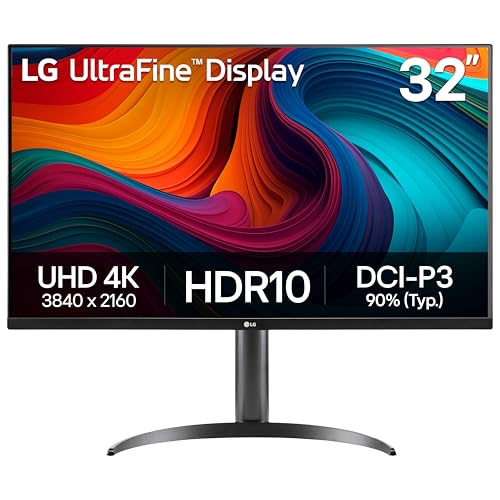
Find affordable monitors for working from home with clear guidance on size, panel type, ports and eye comfort, plus a simple checklist before you buy.
A laptop screen forces you to hunch, squint at small text, and keep switching windows all day. A separate monitor fixes those problems without costing much, if you spend on the right things. This guide uses a plain checklist to judge the best affordable monitors for working from home by panel quality, size, ports, and comfort for long days.
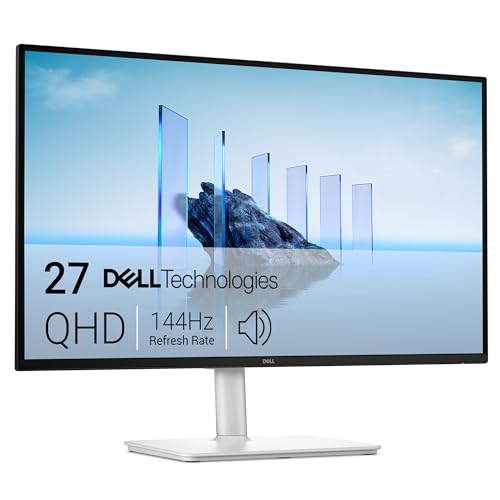
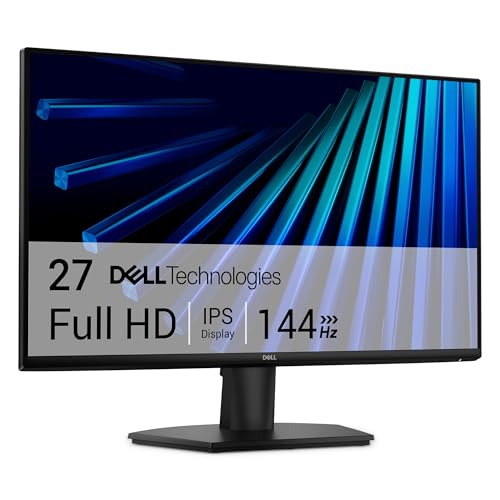
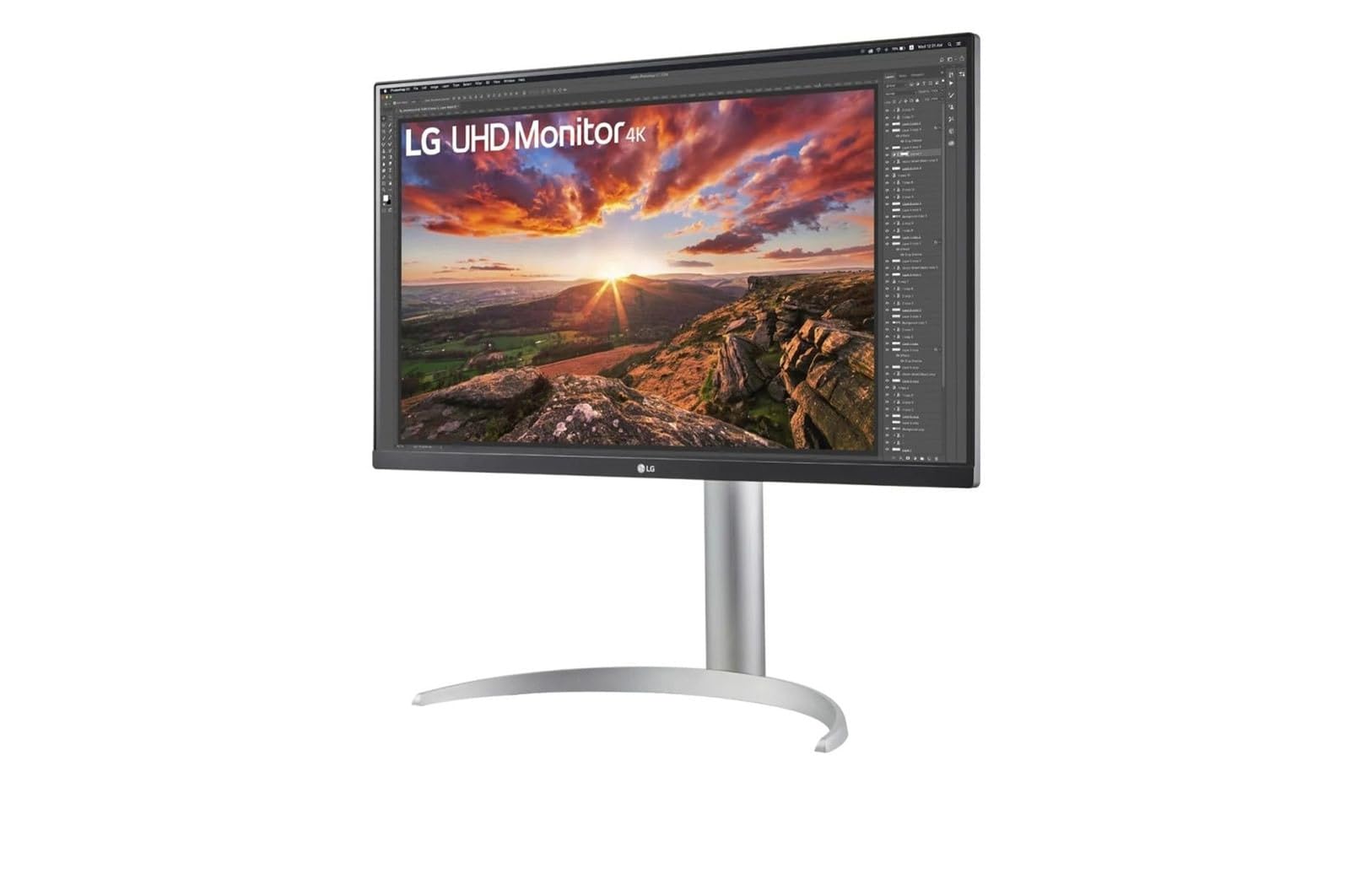
Start by measuring your desk and checking the ports on your computer, since those two facts rule out many models before price enters the picture. Then compare the surviving options in the comparison table below.

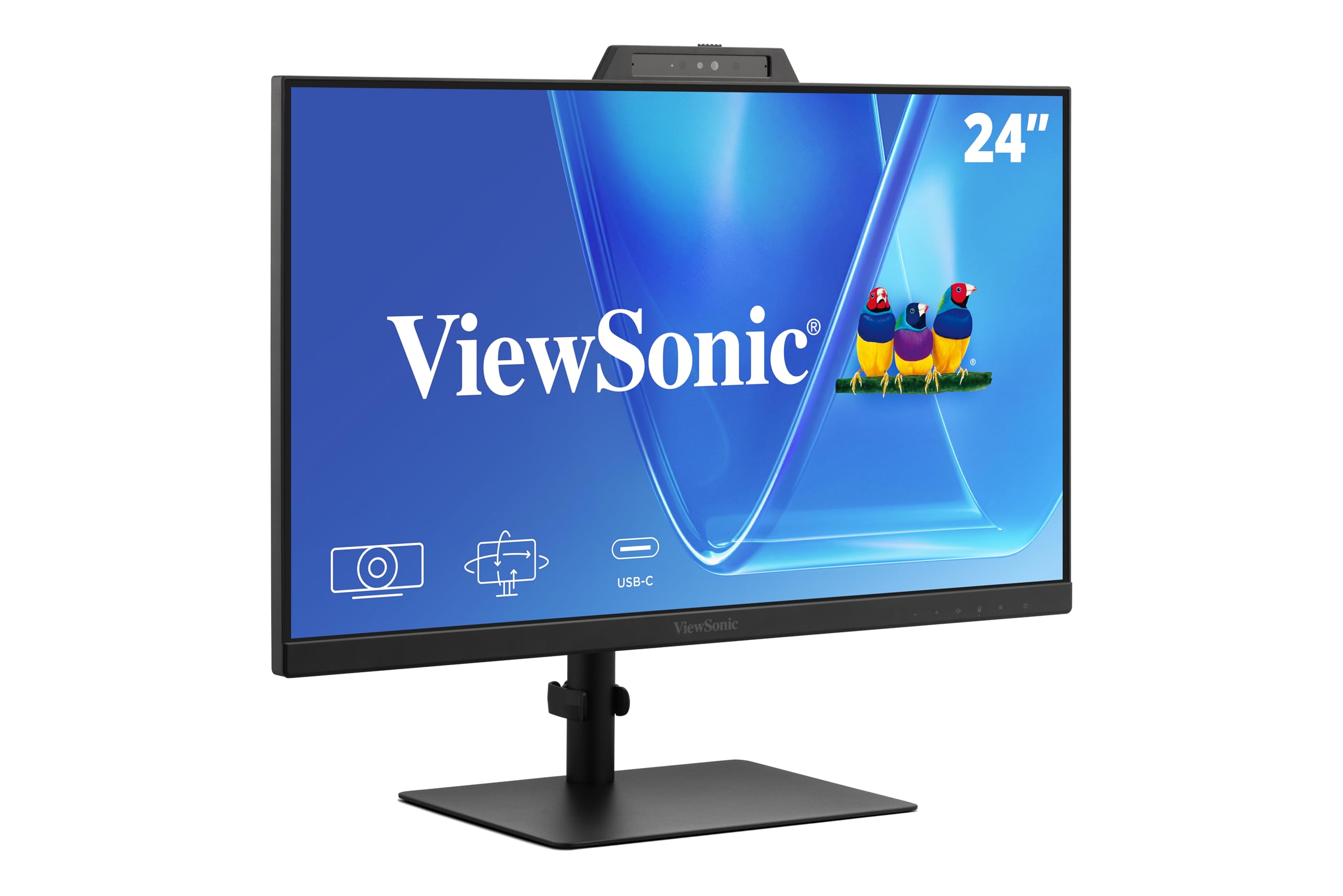
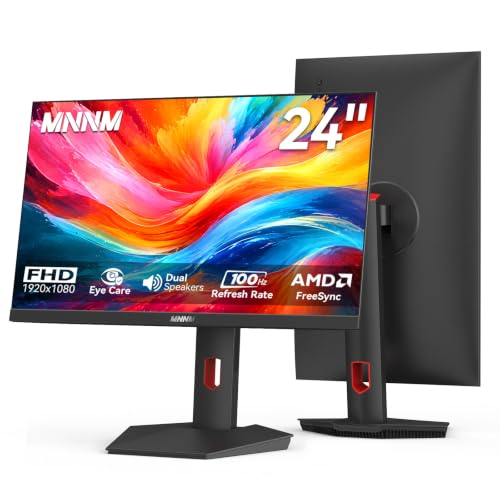
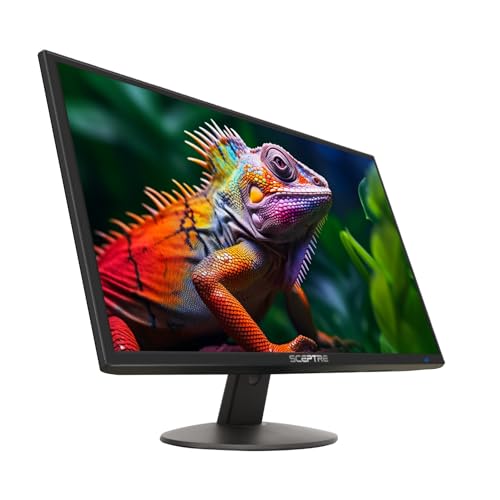

Who Should Buy an Affordable Monitor for Home Office Work
The right size and features depend on your desk, your computer, and the work you do most days.
Laptop Users Working at a Small Desk or Kitchen Table
You need a screen that lifts your documents to eye level and connects with one cable if possible. A 24 inch monitor suits a shallow desk because it leaves room for your laptop, keyboard, and notebook. Look for USB C input if your laptop supports it, since one cable can carry the picture and charge the laptop. For the computer itself, see our guide to the best affordable laptops for working from home for pairing ideas.
Desktop Users Replacing an Old Small Screen
Your gain comes from more space and sharper text. Moving from an old 19 inch or 22 inch screen to a 27 inch screen lets you place a document and a spreadsheet side by side without shrinking either one. Check that your desktop has an HDMI or DisplayPort output that matches the monitor, and keep your old cable, since many boxes include only one cable.
Workers Who Read and Write Documents All Day
Your priority is clear text and comfort over eight hours, not speed or dramatic color. Choose a matte screen that cuts glare from windows and a stand that raises the top of the screen near eye level. Writers, analysts, and teachers usually do best with a 27 inch screen at 1440p, because text stays sharp while windows remain large enough to read without leaning forward.
Key Features to Compare Before You Buy
Use these six checks in order, since a cheap price cannot fix a weak panel or a poor stand.
What Remote Workers Get From Screens at This Price
At about $100 to $250 you can expect a solid 24 inch or 27 inch screen, an IPS or VA panel, and the ports most home workers need. What you give up is usually 4K sharpness, wide professional color, and strong HDR. Do not save money by accepting a dim screen, a stand that only tilts, or a short warranty. Fast response time and adaptive sync matter little for documents and calls, so never pay extra for them here.
Panel Technology: IPS and VA for Office Work
IPS panels keep colors steady when you lean back or shift in your chair, and text looks even across the whole screen, which suits shared viewing and light photo work. VA panels give deeper blacks, so dark mode screens look rich, but colors can shift a little at wide angles. For most home workers IPS is the safer default, while VA suits one user who sits squarely in front of the screen.
Resolution and Screen Size for Your Desk
Match the two numbers together. A 24 inch screen at 1080p looks fine at a normal desk distance of about 24 to 30 inches, while a 27 inch screen needs 1440p to keep text crisp, because the same pixels spread over a larger area look soft. A 32 inch screen or an ultrawide model helps if you keep three windows open, but only if your desk is deep enough to place it farther back.
Brightness and Eye Comfort for Long Workdays
Look for about 250 to 300 nits of brightness, enough for a room with curtains or blinds, plus a matte finish to spread window reflections. A flicker free backlight and a low blue light setting can make long reading sessions easier in the evening. If you get frequent headaches or eye pain that does not ease after you fix screen height, distance, and brightness, talk with an eye clinician about your personal needs.
Ports and USB C Connections for Laptops and Desktops
Count the ports on your computer before you order. Most workers need at least one HDMI input, and DisplayPort is common on desktops, while USB C with power delivery is the most useful extra for laptop users because it replaces a separate charger cable on the desk. Desktop shoppers can compare connection needs in our guide to the best pc monitors for working from home before choosing.
Stand Adjustment and VESA Mounting
A good stand lifts the screen so the top edge sits at or just below eye level, tilts to cut reflections, and stays steady when you bump the desk. Height adjustment is worth real money in this budget, because a stack of books is a poor long term fix. If the stand only tilts, check for a VESA mount pattern, usually 100 by 100 mm, so you can add a desk arm later.
One Screen or Two: Choosing Your Home Office Layout
A second screen helps when your work pairs two sources, such as a call beside your notes. When you compare the best affordable monitors for working from home for a two screen layout, matching size and resolution matters more than the largest panel, because mismatched screens make windows jump in size as you drag them across. Readers planning a pair can see our guide to the best dual monitors for working from home and our guide to the best dual screen monitors for working from home for layout ideas.
Before you order, run through this quick buyer checklist for your own desk and computer:
- Does the screen size fit your desk depth with room for your keyboard?
- Does the resolution match the size, such as 1440p on a 27 inch screen?
- Does the panel type suit how you sit and whether others view the screen?
- Do the ports match your computer without an adapter you do not own?
- Can the stand raise the screen to eye level, or does a VESA mount allow an arm?
- Is the finish matte enough for the light in your room?
- Does the warranty cover at least one year, with a clear dead pixel policy?
- Does the total cost leave room for a cable or arm if you need one?
Common Mistakes to Avoid
- Buying a 27 inch screen at 1080p for text work, because the low pixel density makes letters look soft all day.
- Choosing by price alone and accepting a stand that only tilts, because poor screen height leads to neck and shoulder strain.
- Ignoring the ports on your computer, because the monitor may arrive with no cable or input that matches your laptop.
- Paying extra for gaming speed and HDR labels, because those features add cost without improving documents, mail, or video calls.
- Skipping the warranty and pixel policy on a listing with vague specs, because a cheap screen with no support is hard to return.
- Crowding a deep ultrawide screen onto a shallow desk, because sitting too close forces constant head turning.
Care and Maintenance for a Home Office Monitor
Clean the screen with a dry soft microfiber cloth, and dampen the cloth lightly with water only if marks remain. Never spray liquid on the screen or press hard, since pressure can damage the panel. Dust the vents and the back each month so heat can escape. Turn the screen off overnight and check once a season that stand screws and arm bolts still feel firm.
Frequently Asked Questions
What features matter most in an affordable monitor for working from home?
Panel quality, matched size and resolution, and stand height matter most, followed by the ports your computer needs. One point buyers often miss is the return window: buy from a listing with a clear return policy, because dead pixels are easiest to judge on your own desk during the first week.
What monitor size fits a small home office desk?
A 24 inch monitor fits most small desks well. Sit in your normal chair and hold your arm straight ahead; if your fingertips roughly reach where the screen will stand, that distance suits a 24 inch or 27 inch model. On a desk under 20 inches deep, a desk arm can give back the space a stand would take.
Is 4K worth it on an affordable monitor for working from home?
4K is worth it only if you choose a 32 inch screen or work with detailed design or photo tasks. On a 27 inch screen your computer will scale text up anyway, which cancels much of the sharpness gain for documents. Older laptops may also drive a 4K screen only at a low refresh rate, which makes scrolling feel rough.
Does refresh rate matter for office work on a home monitor?
Refresh rate matters very little for office work. A standard 60 Hz screen handles documents, mail, browsing, and video calls smoothly, and 75 Hz feels only slightly smoother when you scroll, so spend the difference on a better stand or sharper resolution instead. The one exception is a worker who also plays fast games on the same screen after hours.
How long does an affordable home office monitor usually last?
An affordable home office monitor usually lasts about five to seven years of daily use. The backlight slowly dims over time, so a screen that once matched your room light may later feel too dim even at full brightness. Running it below maximum brightness slows that fade, and the desk arm you bought for it often fits the next monitor too.
Our Verdict
Start with the basics: a clear IPS or VA panel, a size and resolution that match, and a stand that puts the screen at eye level. Let ports and price settle the final choice between two similar models. Chosen that way, the best affordable monitors for working from home will make long days easier on your eyes, neck, and desk. Check the product table above to compare your shortlist, and see our guide to the best monitors for working from home if a wider view would help.

