Best 4K Monitors for Mac Mini M1 for 2026: What Each Price Tier Buys
Disclosure: We may earn a commission when you buy through links on this page, at no extra cost to you. As an Amazon Associate I earn from qualifying purchases. Learn more

Compare 4K monitors for a Mac Mini M1 by price tier, panel, scaling and ports, and learn which paid extras this small Mac cannot use well at your desk.
Prices for 4K monitors run from about $250 to well over $1,000, and the gap is hard to read from a spec sheet. The best 4k monitors for mac mini m1 for your desk depends on where extra money shows up, in sharper text, better color or tidier cables. This guide sorts those gains by price tier so you can judge the product table below with a clear budget in mind.
Your M1 mini also sets limits a general guide will not tell you about. Its ports, its 60 Hz comfort zone at 4K and the way macOS scales text shape which screen serves you well, and the sections below show which paid extras you can skip.

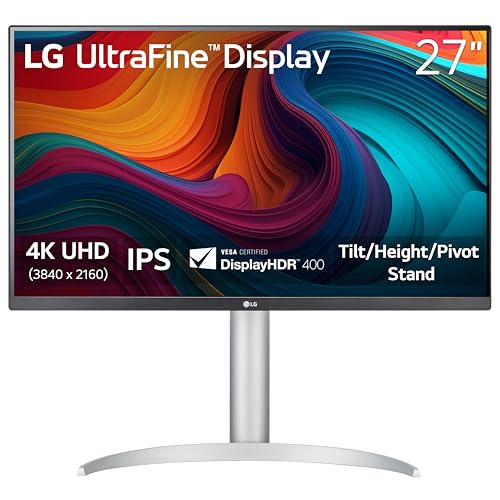


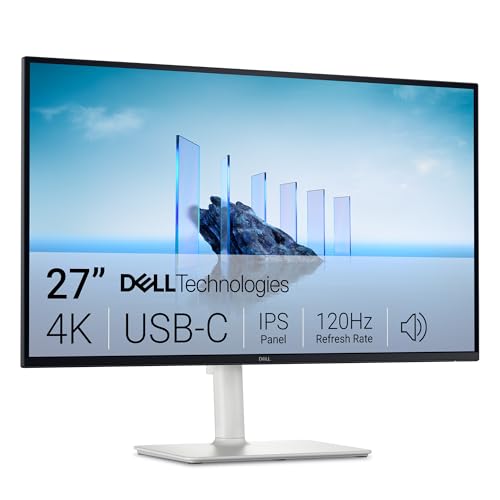
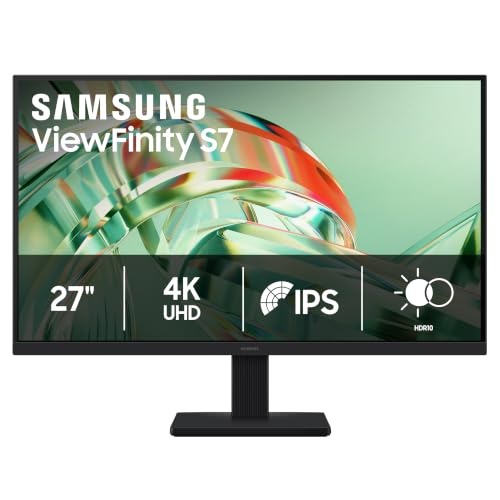
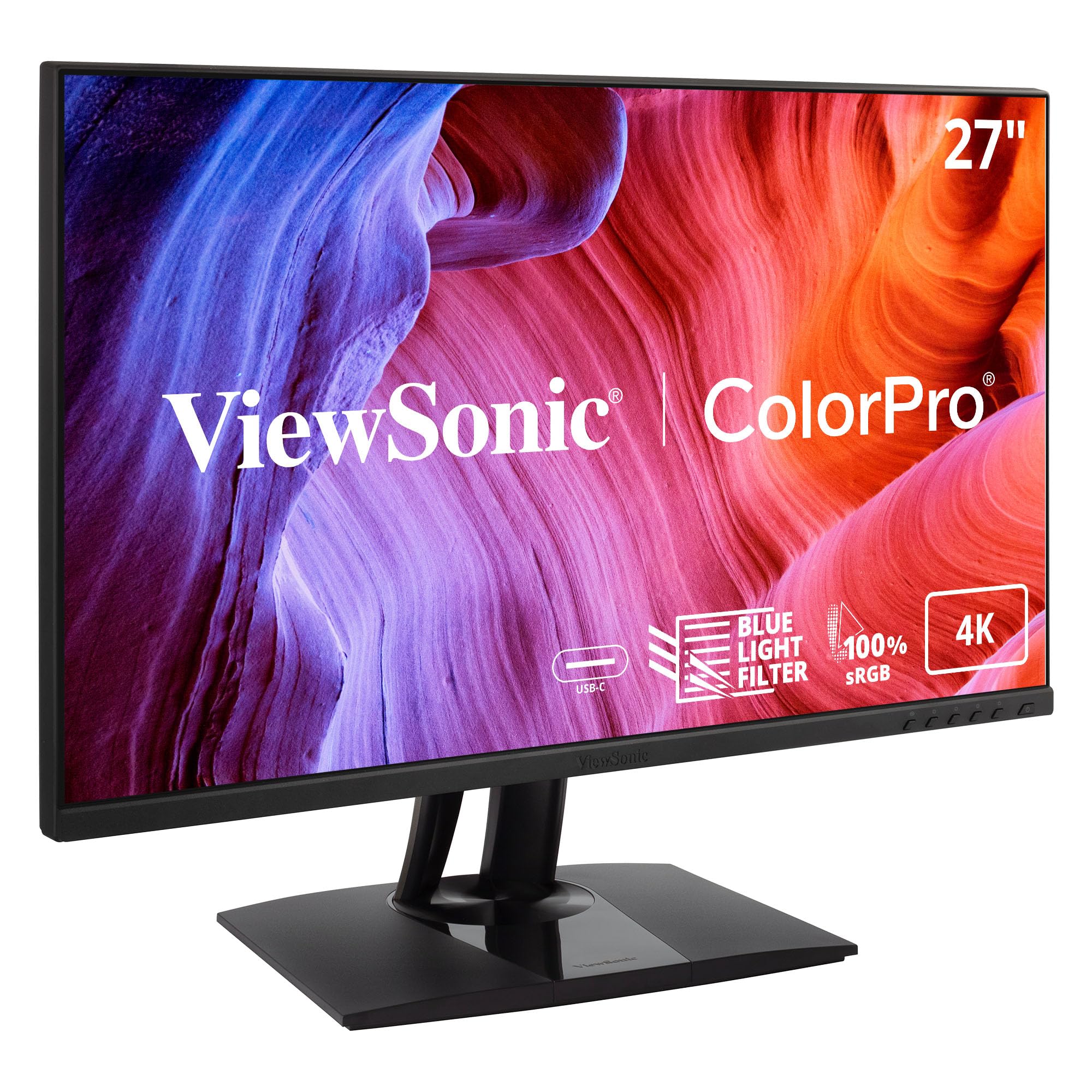
Who Should Buy a 4K Monitor for a Mac Mini M1?
Start from the work you repeat every day, because the same screen can feel generous for documents and cramped for timelines.
Office and Study Users at a Desk All Day
You read text for hours, so rendering quality matters more than dramatic contrast. A 27 inch IPS panel at 4K gives crisp letters in documents and spreadsheets, and macOS scaling keeps menus comfortable. Spend on a stand that lifts the screen to eye level and a matte surface that calms reflections. This group can shop the lower tiers with confidence.
Photo and Video Creators Who Need Wide Color
You judge skin tones and gradients, so gamut and uniformity decide whether edits travel well to phones and client screens. Look for coverage close to the full DCI P3 space, a factory calibration report and brightness that stays even across corners. A 27 inch screen suits photo work, while timeline editors may prefer 32 inches for more track room. This group gains most from stepping up a tier.
Home Users Replacing an Old 1080p Screen
You want one screen for bills, family photos, streaming and school work without fuss. Almost any decent 4K IPS panel will feel like a leap from 1080p. Built in speakers save desk space for casual video. If your shortlist also covers other Macs in the house, see our guide to the best 4k monitors for mac for the broader picture.
Mac Mini M1 Monitor Tiers: Ports, Stands and Panel Quality
Think of the tiers as bundles of panel quality, ports and stand hardware rather than jumps in resolution, since every tier here is already 4K.
Budget Tier: Clean 4K Text for About $250 to $350
At this level you get a 27 inch IPS panel with sharp text, basic sRGB color and brightness around 300 to 350 nits, plenty for a shaded room. Trade offs show in the stand, which often tilts but does not lift, and in ports, which may mean HDMI and DisplayPort with no USB C video. Color is honest for office work and casual photos, so this tier delivers the core 4K promise well.
Step Up Tier: USB C Hubs and Richer Color for About $400 to $600
This band adds features M1 owners feel daily. A USB C input carries the picture and connects the monitor hub, so a keyboard or drive plugs into the screen rather than the mini itself. Panels usually widen to strong DCI P3 coverage, brightness rises toward 400 nits, and stands gain height adjustment. If you do not need M1 specific advice, see our guide to the best 4k monitors for mac mini.
Premium Tier: Bright HDR and Deep Contrast Above $700
Above about $700 the gains turn visual rather than practical. Mini LED backlights and OLED panels produce far deeper blacks, HDR highlights gain real punch, and color uniformity improves for careful editing. The M1 mini sends the same signal here as to a cheaper screen, so buy this tier for the picture itself, not for any speed advantage.
Key Features to Compare for a Mac Mini M1
When you compare the best 4k monitors for mac mini m1 candidates side by side, work through the five factors below in order, from daily comfort to value.
Scaling and Pixel Density at 27 and 32 Inches
macOS rarely runs a 4K panel at its native setting, because menus would shrink to pin size. On a 27 inch screen it usually renders a looks like 2560 by 1440 workspace, drawing text with extra pixels so letters stay smooth. A 32 inch panel at the same setting gives larger text and more physical space. Sit close and 27 inches looks sharper, since its pixels pack tighter.
USB C Connection and the Built In Hub
One USB C cable can carry the picture from the mini and link the monitor hub, which keeps the small computer easy to lift out for cleaning. Unlike a laptop, the mini never charges from the screen, since it has its own power supply, so a high watt delivery rating adds cost you cannot use. Count hub ports instead. Readers comparing port layouts across generations can see our guide to the best computer monitors for mac mini.
Panel Type, Color Gamut and Brightness
IPS panels hold color steady when you lean or share the screen, which suits most Mac desks. VA panels give stronger native contrast for films but can shift color at an angle, and OLED delivers perfect blacks at a price, with some risk of burn in from static menu bars. Brightness of about 350 to 450 nits is comfortable in everyday rooms, and DCI P3 coverage matters more than a headline HDR badge.
Refresh Rate Limits and Adaptive Sync on the M1
The M1 mini was built around 60 Hz output at 4K, and its HDMI port tops out at 4K and 60 Hz, so a 144 Hz gaming panel will spend its macOS life running well below its ceiling. Adaptive sync can smooth small stutters in scrolling, but it is a minor gain here, and console features such as ALLM do nothing for this computer. Put the money toward panel quality and ports instead.
Stand Adjustment, VESA Mounts and Desk Fit
Measure your desk depth before you order, because a 27 inch panel is about 24 inches wide and a deep stand foot can push your keyboard toward the edge. Height adjustment matters most, since the top of the screen should sit near eye level to keep your neck neutral. Most models accept a VESA arm on the common 100 by 100 mm pattern, which frees the footprint and lets two screens share one clamp.
Common Mistakes to Avoid
- Trusting an HDR label on a dim panel, because weak HDR washes out scenes that standard mode shows well.
- Paying for a 144 Hz panel for an M1 desk, because that money could have bought better color instead.
- Choosing a 32 inch screen for a shallow desk, because you end up turning your head all day.
- Assuming every USB C cable carries video, because a charge only cable leaves a black screen.
- Ignoring stand height to save money, because a low screen slowly strains your neck and shoulders.
- Skipping wide color coverage as a photo editor, because edits shift on client devices with wider screens.
Care and Maintenance of a 4K Monitor
Budget for ownership too, since a video rated cable or a VESA arm can add about $50 to $150 in the first year. Clean the screen only when it is off and cool, using a dry microfiber cloth and light pressure, and never spray liquid straight onto the panel. Keep vents along the top and back clear of paper and dust so the electronics shed heat. Every few months, check both ends of the video cable for a firm seat, since a loose plug is the usual cause of flicker or slow waking.
FAQ
What size 4K monitor suits a Mac Mini M1 desk best?
For most desks, 27 inches suits a Mac Mini M1 best. It fits two windows side by side at the usual scaled setting and suits desks about 24 inches deep. If your chair sits more than about 30 inches away, step up to 32 inches.
Does a Mac Mini M1 need a monitor with HDMI 2.1?
No, a Mac Mini M1 does not need HDMI 2.1 on its monitor. The HDMI port on the mini follows the older 2.0 standard, so a newer port on the screen cannot add bandwidth for this computer. HDMI 2.1 only earns its place if a games console or newer computer will share the screen later.
Can a Mac Mini M1 run two 4K monitors at once?
Yes, a Mac Mini M1 can run two 4K monitors at once, and two is its ceiling. One screen connects over Thunderbolt and the other over HDMI, and macOS treats them as one wide workspace. Place the screen you read most in front of you and angle the second inward. Readers planning that layout can see our guide to the best monitors for mac mini m1.
Is HDR worth turning on for a Mac Mini M1 monitor?
HDR is worth turning on selectively on a Mac Mini M1 monitor. Films mastered for HDR gain brighter highlights on a panel that can reach about 600 nits or more, while everyday apps are built for standard range and can look washed out with HDR left on. Enable HDR for movie nights and switch it off for document and photo work. Screenshots capture the standard version, so shared images differ.
How long does a 4K monitor for a Mac Mini M1 usually last?
A 4K monitor for a Mac Mini M1 usually lasts about five to eight years of daily use. The backlight slowly dims, so an aging screen needs higher brightness settings to match its younger self. During the return window, check plain white and black images for dead pixels or uneven patches, since those early checks are free. Lines or lasting flicker point to panel failure, not settings.
Our Verdict
For most M1 owners, the step up tier is the sensible home, since it pairs a good IPS panel with the USB C hub and stand this computer benefits from daily. Whichever tier you choose, the best 4k monitors for mac mini m1 is the one matched to your ports, desk depth and eyes, so compare your shortlist against the product table above before you order.