Best 4K Monitors for Graphic Design in 2026: Types Compared and How to Choose
Disclosure: We may earn a commission when you buy through links on this page, at no extra cost to you. As an Amazon Associate I earn from qualifying purchases. Learn more

Compare 4k monitor types for graphic design by panel, color accuracy, size and price, with a clear checklist for choosing the right screen for your desk.
Panel names, screen sizes and price gaps make this category confusing at first glance. Finding the best 4k monitors for graphic design starts with color, not with screen size or gaming speed. This guide compares each display type in plain terms, so you can match a screen to your work.
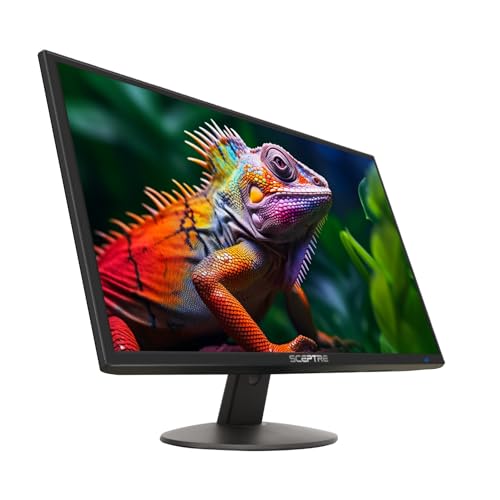
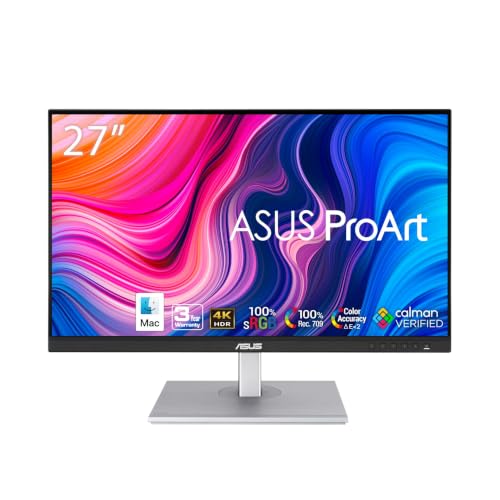
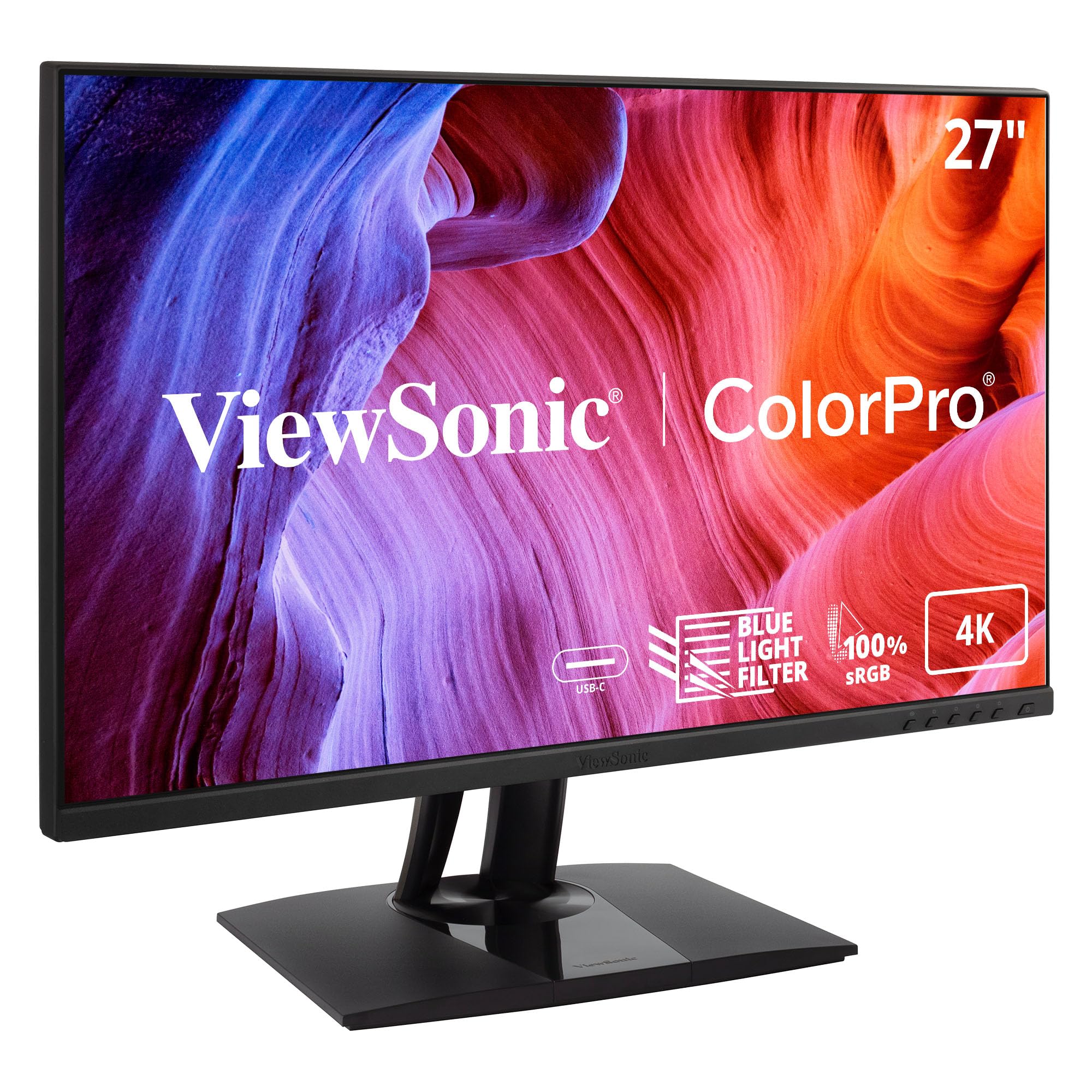
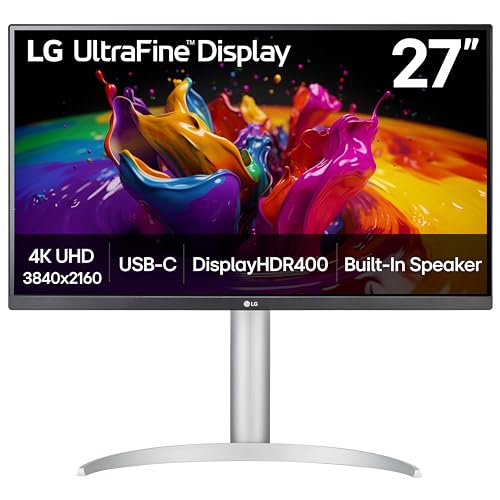
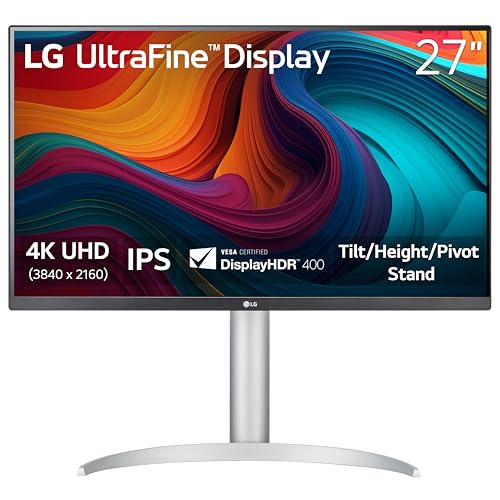
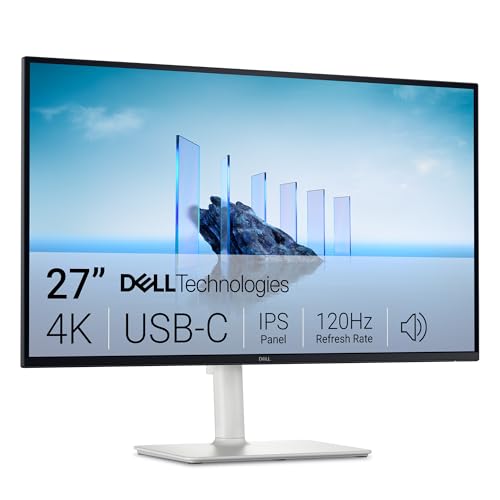
Think about your main output before you shop. Print work, brand files, web graphics and photo editing each place different weight on gamut, brightness and desk space. Use the product table below as your shortlist, then check panel type, calibration and ports in the order that follows.





Who Should Buy Which 4K Monitor for Graphic Design?
Your specialty decides which strengths matter most. A screen that suits a photo editor can waste money for a web designer.
Print and Brand Designers
You work with logos, packaging and files that leave the screen as ink on paper. Put gamut coverage and factory calibration first, and favor an IPS or Mini LED panel with strong Adobe RGB coverage.
Digital Illustrators and Web Designers
You draw, build pages and check interfaces at screen size all day. Full sRGB accuracy matters more than extra Adobe RGB range, and a matte surface helps under room light. A 27 inch model with comfortable text scaling is the usual sweet spot.
Designers Who Also Edit Photos and Video
You move between layout files, raw photos and timelines in the same week. Look for wide DCI P3 coverage, steady brightness and a stand that lets you shift position between tasks. OLED contrast can flatter video work, but long hours with fixed toolbars make panel choice a trade.
Types of 4K Monitors Compared
Three broad types cover most desks, and each trades color, size and cost differently. If your needs reach beyond design alone, see our guide to the best monitors for graphic design for the wider category view.
OLED Panels for Contrast Driven Design Work
Each pixel on an OLED panel makes its own light, so blacks stay truly black and contrast beats every other panel type. Colors look rich and DCI P3 coverage is often very wide, which suits photo and video leaning designers. The limits are price, lower full screen brightness and burn in risk from static toolbars. Choose OLED if contrast drives your work.
Large Screen Options
Screens of 32 inches and above spread a 4K layout across a wide canvas, so palettes, pages and reference files can stay open side by side. Pixel density drops as size grows, so text looks less crisp at 32 inches than at 27 inches, and a 42 inch screen needs a deep desk. Prices rise quickly here, often to about $800 to $1,500.
Budget Displays
Budget 4K models, often about $250 to $450, usually pair an IPS panel with good sRGB coverage and basic stands. You give up wide Adobe RGB range, hardware calibration support and the brightest HDR modes, but everyday web and social design still looks accurate after software calibration. If budget is the hard limit, see our guide to the best affordable monitors for graphic design.
OLED Displays vs Large Screen Options: Which Should You Choose?
Compare these two on four points. For contrast and black depth, OLED wins clearly. For open window workspace, the large screen wins, since extra inches hold more of your project at once. For long static work, a large IPS or Mini LED screen is safer, because fixed interface elements raise burn in risk on OLED.
Choose OLED for photography, illustration with deep shadow detail or video grading. Choose the large screen when you lay out books, decks or dashboards all day. Designers who do both often pick a 32 inch IPS screen as the middle path.
How to Choose the Right 4K Monitor for Graphic Design
Work through these checks in order, because panel and color choices are hard to fix after purchase, while stands can be swapped. This is where the search for the best 4k monitors for graphic design becomes a personal checklist instead of a spec sheet contest.
Panel Types Judged by Color Work
IPS panels hold color steady when you shift in your chair, which is why most design screens use them, and our guide to the best ips monitors for graphic design explains that route in depth. VA panels offer deeper contrast but color shifts more at an angle, so they suit video better than layout work. Mini LED pairs an LCD panel with many small backlight zones, at a price between IPS and OLED.
Color Gamut, Accuracy and Calibration
Gamut tells you which colors a screen can show at all. Aim for full sRGB coverage for web work, about 95 percent DCI P3 or higher for photo and video, and strong Adobe RGB coverage for print. Accuracy is separate: a factory report with an average Delta E under 2 means colors land close to their targets. With a calibration sensor, choose hardware calibration, so corrections stay stable across computers.
Screen Size, Pixel Density and Text Scaling
At 4K, a 27 inch screen packs about 163 pixels per inch, so type and line work look sharp at a normal viewing distance. A 32 inch screen drops to about 140 pixels per inch, still sharp, with more room before you need to zoom. Most designers run scaling at 150 percent on 27 inch models to keep menus readable, which reduces visible workspace.
Brightness, Uniformity and Surface Finish
Look for about 350 to 400 nits of brightness for a normally lit room, and treat HDR labels as a bonus rather than a design requirement. Uniformity matters more: the corners should match the center in brightness and color, or flat backgrounds will look uneven. A matte finish cuts reflections, while a glossy finish makes colors look deeper in a dark room.
Ports, USB C Power and Stand Adjustment
A useful design monitor offers HDMI and DisplayPort inputs, plus USB C with about 65 to 90 watts of power delivery if you work from a laptop, so one cable carries picture, data and charging. Built in USB ports keep a sensor and tablet within reach, and our guide to the best computer monitors for graphic design covers full desk setups. Require height, tilt and swivel adjustment, plus a 100 by 100 mm VESA pattern for a monitor arm.
Common Mistakes to Avoid
- Choosing by resolution alone and ignoring gamut leaves brand colors shifting when files move to print or to another screen.
- Buying a glossy screen for a bright room forces you to fight reflections through every long editing session.
- Picking a 42 inch screen for a shallow desk puts the edges outside your easy field of view and strains your neck.
- Leaving the picture mode on vivid makes colors look richer on screen than they will ever look in the delivered file.
- Skipping calibration after setup means small color errors stay in your work until a client or printer exposes them.
Setup and Care Tips for 4K Design Monitors
Set the picture mode to sRGB, Adobe RGB or a custom calibrated mode rather than vivid, and warm the screen up for about 30 minutes before you calibrate. Position the screen center slightly below eye level and about an arm length away, then set brightness so a white page feels like paper under your room light.
Clean the panel with a dry microfiber cloth only, using light pressure and no sprays applied directly to the glass. On OLED models, let the built in pixel refresh run when prompted, and avoid leaving one static image up for a full day. Recheck calibration every few months, since backlights drift as they age.
FAQ
What features matter most in a 4K monitor for graphic design?
Color uniformity across the whole screen matters most after basic gamut coverage. Check whether the model includes a uniformity setting or a factory report for the full panel, not only the center. Even color keeps backgrounds, skin tones and brand fields honest.
What size 4K monitor should a graphic designer choose for a desk?
Most graphic designers should choose 27 inches for a standard desk and 32 inches for a deep one. Measure the distance from your eyes to the screen position before ordering. If that distance is under about 24 inches, a smaller screen or a dual screen layout often feels calmer than one very wide panel.
Is IPS or OLED better for graphic design work?
IPS is better for most graphic design work, and OLED is better for contrast led projects. Your schedule decides the tie: if the same layout app stays open ten hours a day, IPS removes burn in worry. If your week mixes photo, video and presentation work with varied content, OLED stays a sound choice.
How long does a 4K monitor for graphic design usually last?
A 4K design monitor usually lasts about five to eight years of daily work. The panel rarely fails outright; instead the backlight dims and color drifts, so older screens need calibration more often. Budget for a calibration sensor across that life, since it can move with you to the next monitor.
Is a 4K monitor worth it for graphic design?
Yes, a 4K monitor is worth it for graphic design when your source files and apps support it. Vector edges, fine type and detailed retouching all gain from the extra pixels. The gain shrinks if your main app scales poorly or your computer struggles to drive the resolution, so confirm both first.
Does refresh rate matter for graphic designers who do not play games?
Refresh rate matters only lightly for graphic designers who do not play games. A standard 60 Hz screen updates fast enough for layout, drawing and photo work. Higher rates make scrolling and timeline scrubbing feel smoother, but that comfort adds nothing to color accuracy or print results.
Final Thoughts
Start with panel type and gamut, confirm size against your desk, then check ports and stand. OLED rewards contrast led work, large screens reward busy layouts, and a well calibrated IPS model remains the safe center here. Use the product table above to compare types that fit your specialty and budget.
When you judge the best 4k monitors for graphic design by those points, the right type usually stands out quickly. Pick the screen whose color you can trust daily, and spend the money you save on a calibration sensor.